Adding products manually is a crucial part of managing any ecommerce store. Whether you’re launching something new, setting up preorders, or testing a market-specific variant, Spree makes it easy to create fully-detailed products through a clean and structured editor. This guide walks you through each section of the product editor, explaining what each field does and why it matters.
Don’t forget to click Create at the bottom of the page before navigating away — changes aren’t saved automatically.

Create a New Product

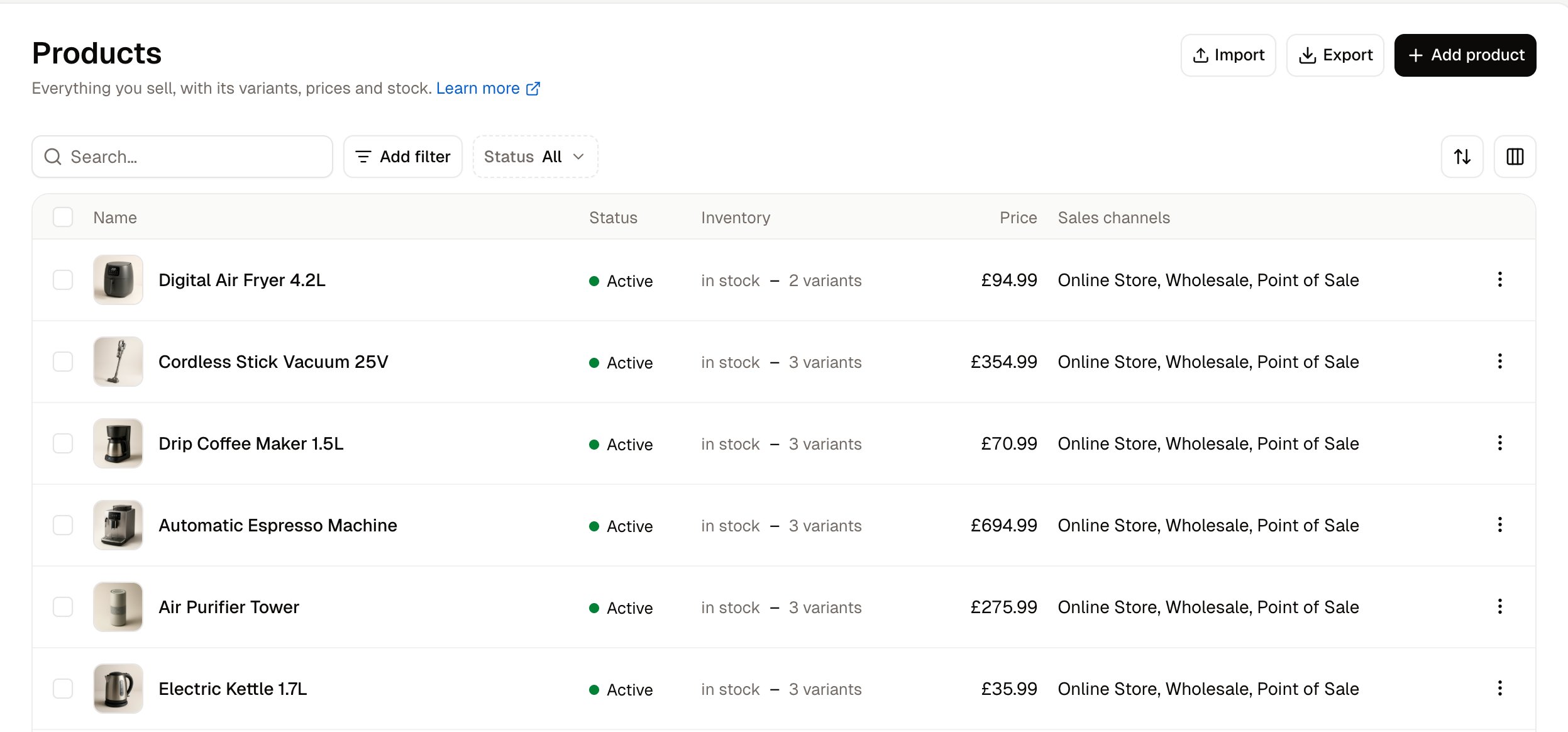
To get started, navigate to the Products tab of the admin dashboard. Click New Product in the top right corner to open the product creation form.

Name & Description

  The first fields at the top of the product form let you enter:
  • Name: Shown on product listing pages, the PDP, checkout.
  • Description: Displayed on the product detail page. Supports rich formatting like bold text, headings, links, and images.
A good name and description helps customers understand what they’re buying - they’re also used for SEO if no dedicated meta fields are set.

Media

This is where you can add visual media to your product. Click Upload New Asset to open the file importer. Once your chosen files have been uploaded, you can rearrange the images by dragging and dropping - the left most image is the main image used on product listings. To edit an image’s alt text, replace it, or delete it entirely, click on the image to open the edit form.
You can also use the checkboxes to delete multiple images at once.

Availability & Status

This section controls when and how your product appears on the storefront:
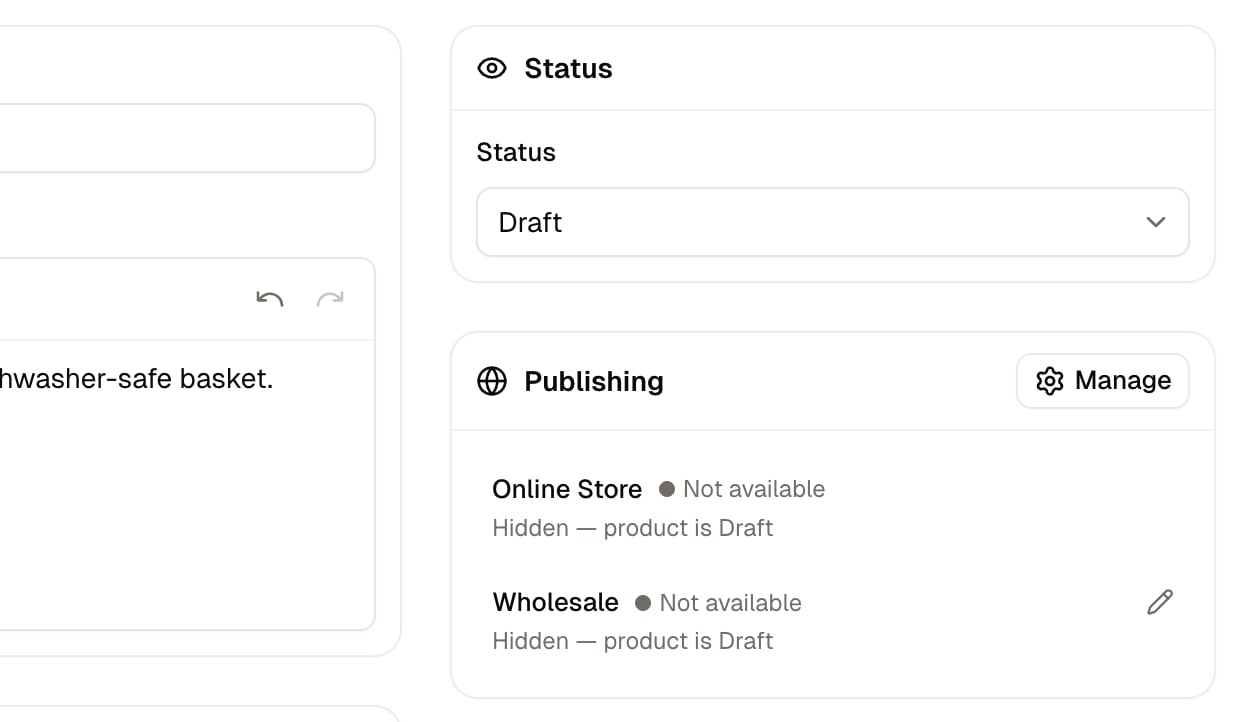
  • Status:
    • Active: visible and purchasable
    • Draft: hidden from customers
    • Archived: stored in the admin, no longer available
  • Make Active At: Schedule a future go-live date
  • Available On: Set a public release date (commonly used for preorders)
  • Discontinue On: Choose a date to automatically unpublish the product
These tools let you prepare seasonal drops, preorders, or time-limited products in advance.

Categorization

Organizing products properly helps with navigation and merchandising. Here you can add:
  • Taxonomies: Assign categories, collections, or brands (e.g., Fashion → Women → Tops). Products will appear anywhere the taxon is used on the site.
  • Tags: Use custom tags like Vegan, Eco-Friendly, or Summer Collection for filtering, related products, or smart merchandising logic.
There’s no limit to the number of taxons or tags you can apply.
Taxonomies must be created in Products → Taxonomies before they can be assigned to products. Tags, on the other hand, can be created directly in the product editor.

Pricing

This section controls how much your product sells for:
  • Amount: The selling price shown on the storefront
  • Compare At Amount: Optional field for showing a discounted or original price.
Setting a Compare At amount will add a crossed-out price and a Sale badge to the product wherever it appears on the storefront. If your store supports multiple currencies, you’ll see additional rows here to define localized pricing.
Add or manage supported currencies in Settings → Store Settings.

Inventory

This section lets you manage stock levels and tracking:
  • Track Quantity: Enable this if you want to keep count of stock and prevent overselling.
  • Quantity: Set available inventory for each stock location.
  • Continue Selling When Out of Stock: Optional override that allows customers to purchase even if stock is zero.
  • SKU: Internal identifier for managing stock. Not required, but helpful — must be unique per variant.
  • Barcode: Used for scanning in warehouses, syncing with logistics providers, or POS systems. Supports ISBN, UPC, GTIN, etc.
If quantity tracking is enabled, stock is automatically reduced when orders are placed.

Variants

If your product has multiple sizes, colors, or formats, use the Variants section. To add variants, first click Add options like size or color to open the variant form. Then, simply follow these steps to add variants:
  1. Choose an Option Name (e.g., Size, Color)
  2. Add Option Values (e.g., S, M, L)
  3. Click Done
  4. Add more option types if needed
You can add or manage Options under Products → Options.
Once added, you’ll see per-variant Price and Inventory fields so you can manage each combination independently.
Keep naming consistent across products (e.g., use S, M, L everywhere - not Small, Medium, Large on some items and initials on others).

Shipping

If your shipping methods rely on product size or weight, this section is critical.
  • Dimensions & Weight: Enter the product’s width, height, depth, and weight.
    • These values can be used to calculate shipping costs automatically
  • Shipping Category: Choose the category that determines shipping behavior.
    • E.g., assign Digital for downloadable products, or Heavy for oversized items.
You can change the default unit system (metric vs imperial) in Settings → Store Details → Standards & Formats.

Properties

Use properties to highlight key details about the product. These appear on the PDP and are often used to help shoppers compare items. Common property examples:
  • Material: 100% Organic Cotton
  • Fit: Regular
  • Care: Machine wash cold
  • Allergens: Contains nuts
These are optional, but recommended for apparel, food, and beauty products especially.
You can add or manage properties under Products → Properties.

Tax

Assign a tax category to the product, which determines how taxes are applied based on customer region and store settings. For example:
  • Default Tax
  • Tax Exempt
  • Downloadable Goods

Search Engine Listing

This section allows you to control how the product appears in search engine results and on social media. Click Edit to modify:
  • Meta Title: The page title shown in search results
  • Meta Description: Short summary shown beneath the title
  • Slug: Controls the product’s URL. If not set, the product name is used (e.g., /black-hoodie)

Digital Products

If you’re selling a downloadable file (PDF, ZIP, audio, video, software, license key, etc.), configure the product as digital so the storefront can deliver the file after purchase and skip the shipping step at checkout. To create a digital product:
  1. Create the product as described above and fill in the Name, Description, Media, and Pricing sections.
  2. In the Shipping section, set Shipping Category to a digital category (for example, Digital or Digital Delivery). When a cart contains only items in a digital shipping category, checkout skips the shipping step.
  3. In the Tax section, assign a tax category appropriate for digital goods (for example, Downloadable Goods).
  4. Save the product, then open its variant (or the master variant if the product has no options) and upload the file(s) to attach to that variant. Each digital file is associated with a specific variant.
Shipping and tax categories are managed in Settings → Shipping and Settings → Tax. If a “Digital” or “Downloadable Goods” category isn’t listed yet, create it there first.

Download access and limits

Spree generates a unique digital link with a token for each purchased line item. You can restrict how customers use that link from your store’s digital product settings:
  • Maximum downloads - cap how many times the file can be downloaded per order (for example, 5).
  • Link expiry - set how long the link remains valid after purchase (for example, 3 days).
When a customer exceeds either limit, the storefront returns an error and the file is no longer accessible from that link. Admins can resend the download email or regenerate the link from the order if needed.

How customers receive the file

After an order is placed, customers can access their files in three ways:
  • Order confirmation page - download links appear on the success page immediately after checkout.
  • Order confirmation email - links are included in the email sent after purchase.
  • My Account dashboard - logged-in customers can return to their account to re-download (subject to the limits above).
Internally, each download is served via GET /api/v3/store/digitals/{token}. The token alone authorizes the download — no API key or login is required — which is why download limits and expiry exist. For more on the digital product model, see the Digital Products overview.

Save Changes

Once you’ve filled out all the required and optional fields, scroll to the bottom and click Create to publish the product (or save it as a draft). You can always return to this page to update or archive the product later.

3rd Party Products (Enterprise only)

If you’re running a multi-vendor marketplace with Spree Enterprise Edition, vendors will create or upload their own products during onboarding. You can still review and edit vendor-created products as needed.