

This approach also enables a combined B2C and B2B setup on a single storefront: retail customers see base prices by default, while logged-in wholesale customers automatically see their contracted pricing. No separate store or login portal required.
Prerequisites
Before you start, you should have your products set up with base prices. Wholesale pricing overrides those base prices for customers in the relevant group — all other customers continue to see the standard price. Familiarity with how Price Lists work is helpful. See Price Lists for a full reference.1. Create a Customer Group
First, you’ll need a Customer Group to represent your wholesale buyers. If you already have a suitable group set up, you can skip to Step 2. Navigate to Customers → Customer Groups in the admin dashboard and click New Customer Group.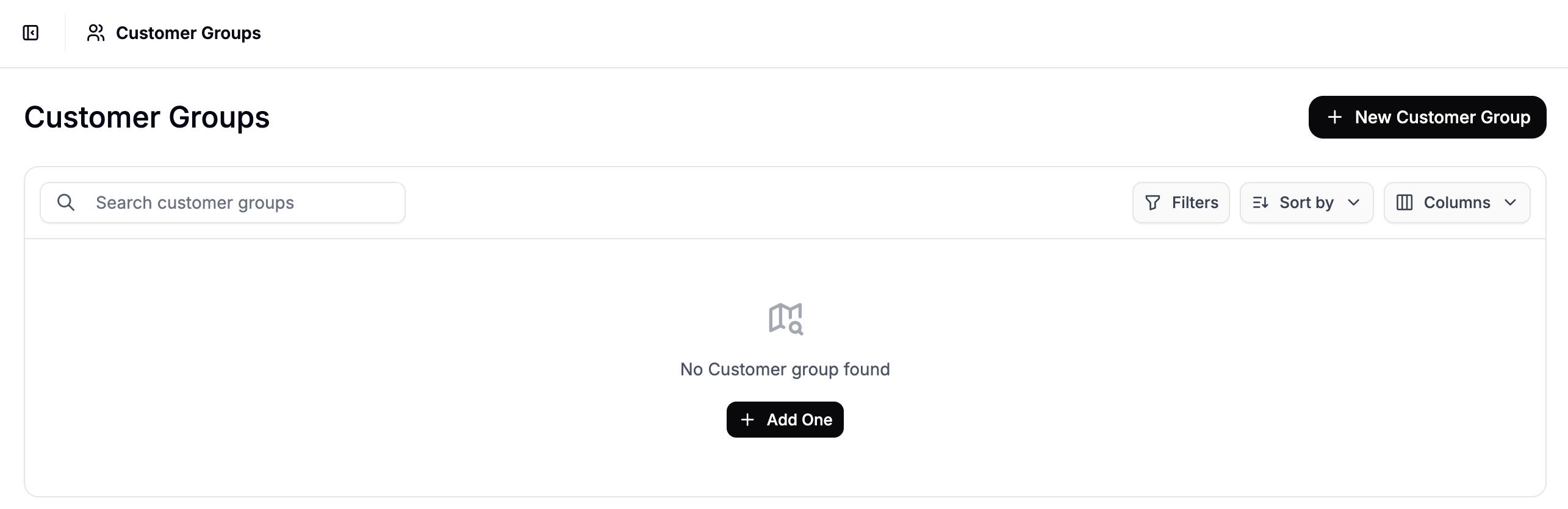
- Name — e.g.,
Wholesale Buyersor a specific account name if this group is for a single wholesaler - Description — optional, but useful for other admins (e.g.,
Registered trade accounts with negotiated wholesale pricing)
2. Add Customers to the Group
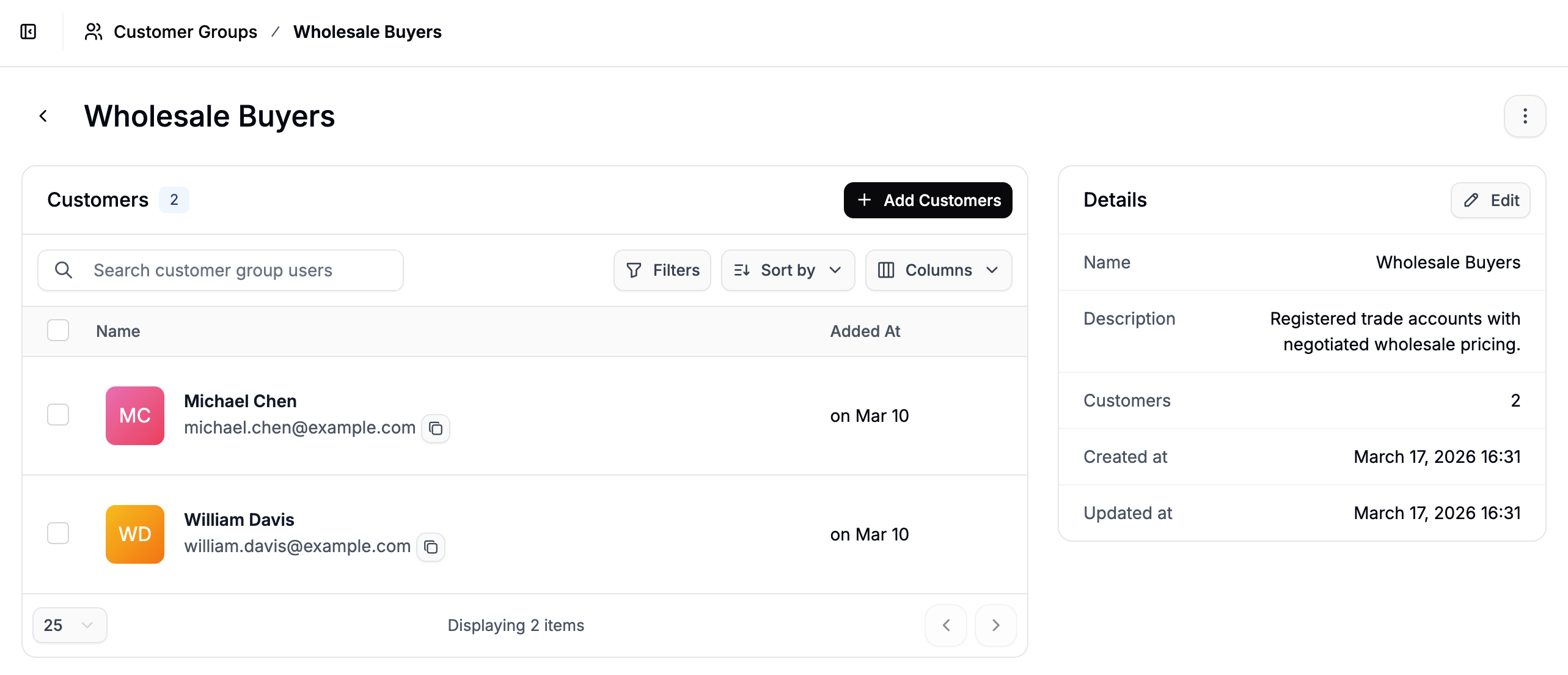
Once the group is created, you’ll be taken to its detail view. Click Add Customers to open the customer selector panel.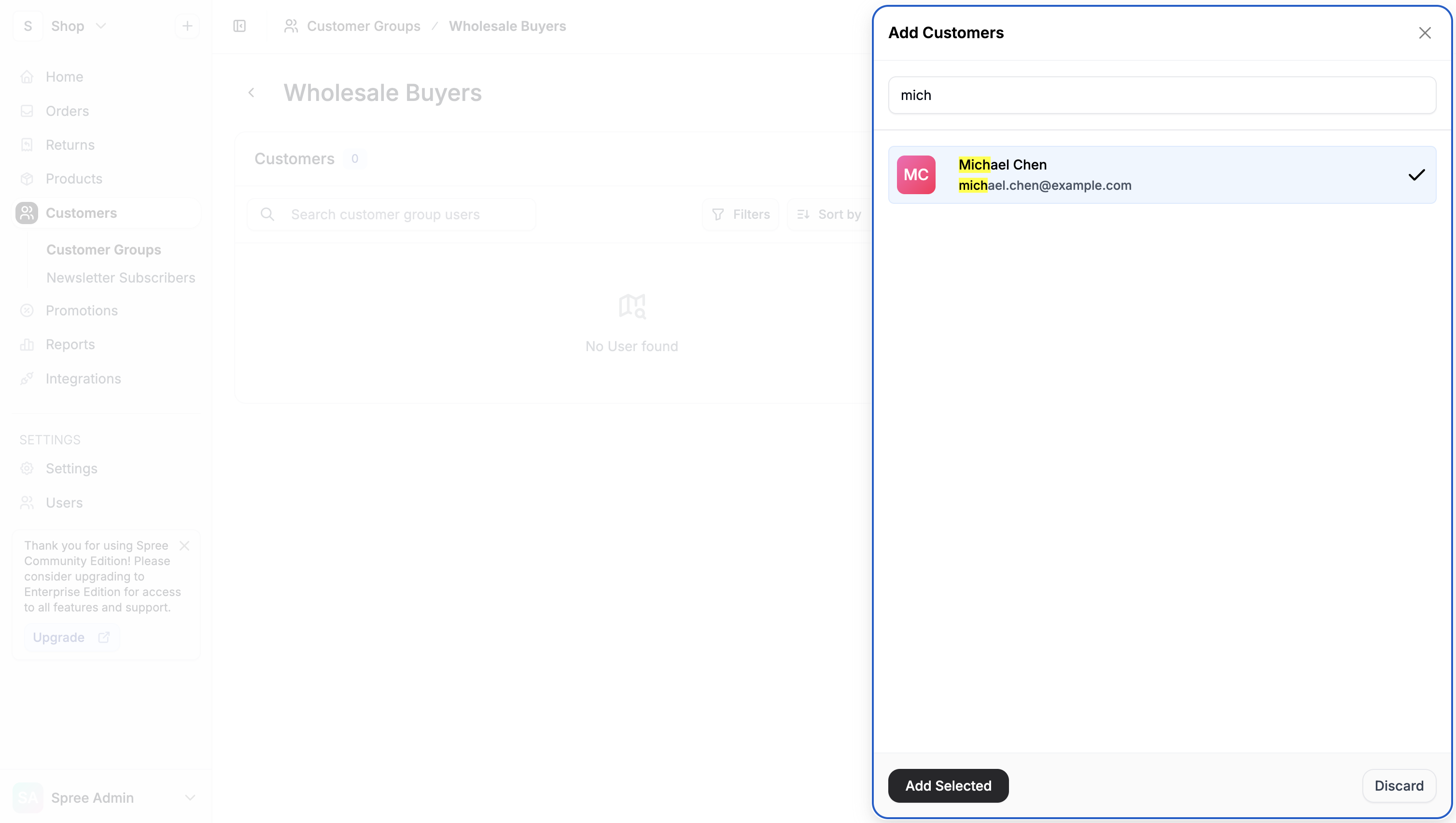
3. Create a Wholesale Price List
With your customer group in place, navigate to Products → Price Lists and click New Price List.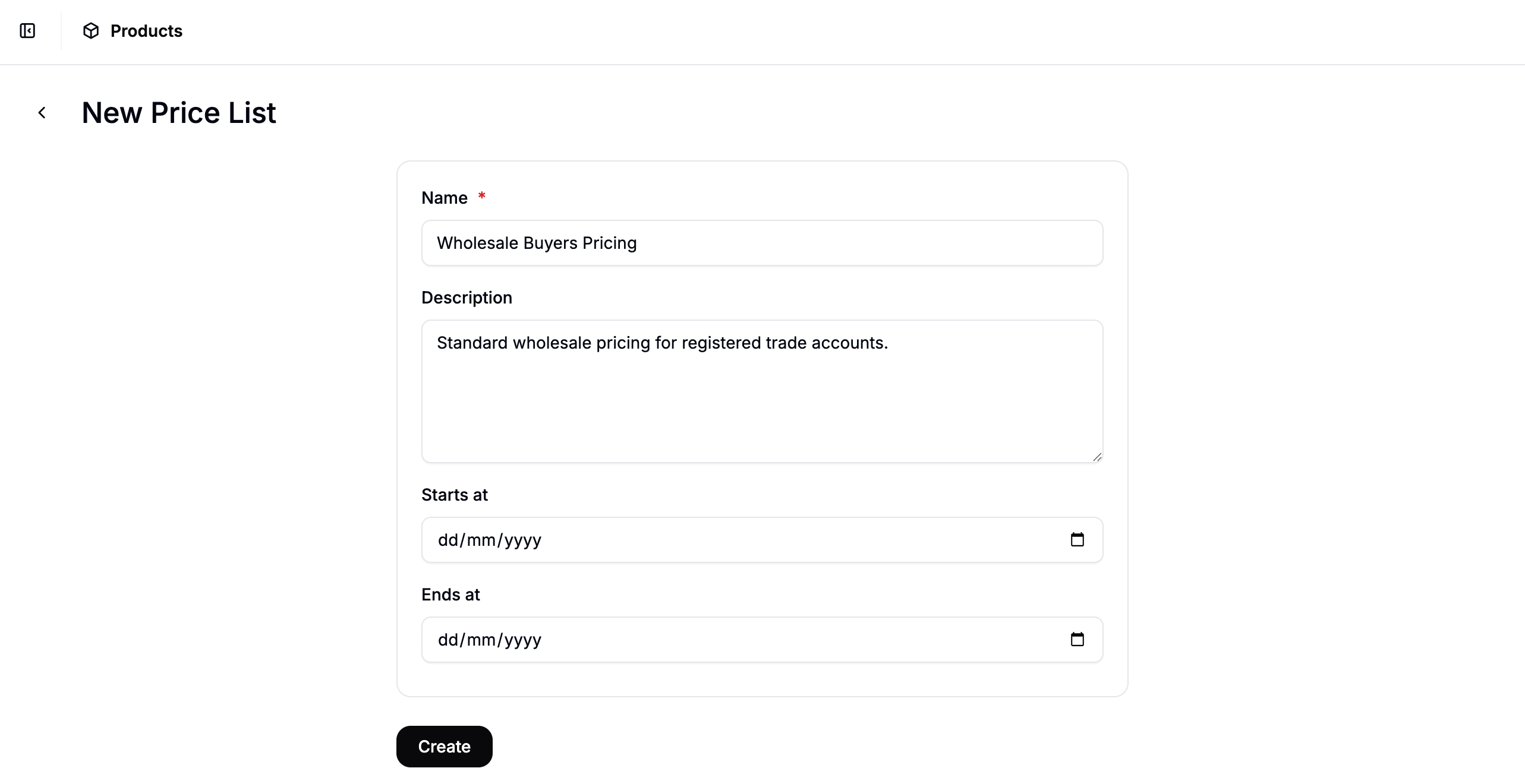
- Name — e.g.,
Wholesale Buyers Pricing - Description — optional (e.g.,
Standard wholesale pricing for registered trade accounts) - Start Date / End Date — leave blank if this pricing should apply indefinitely
Add a Customer Group Rule
In the price list editor, click Add Rule and select Customer Group from the rule type dropdown. Select Wholesale Buyers from the options.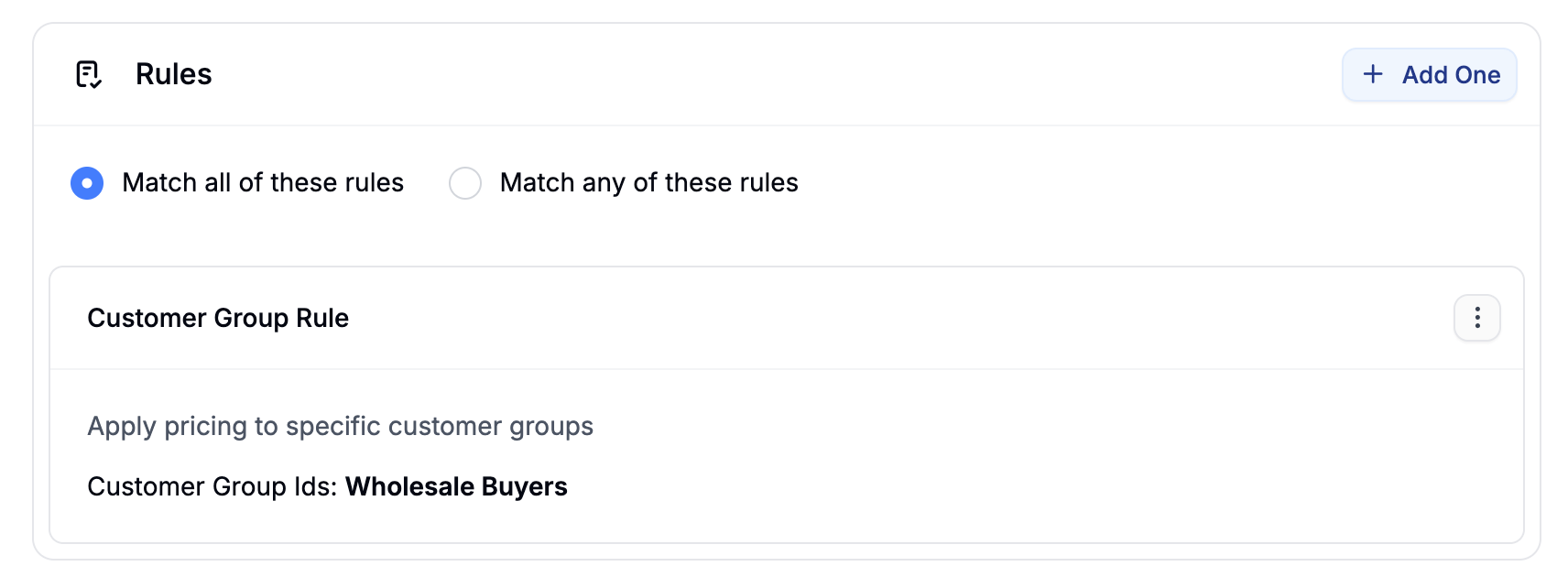
Add Products and Set Prices
Click Add Products to open the product selector. Search for and select the products you want to include in this price list, then click Add Selected. Once the products appear in the list, click Edit Prices to open the price editor. Enter the wholesale price for each product in the Price column.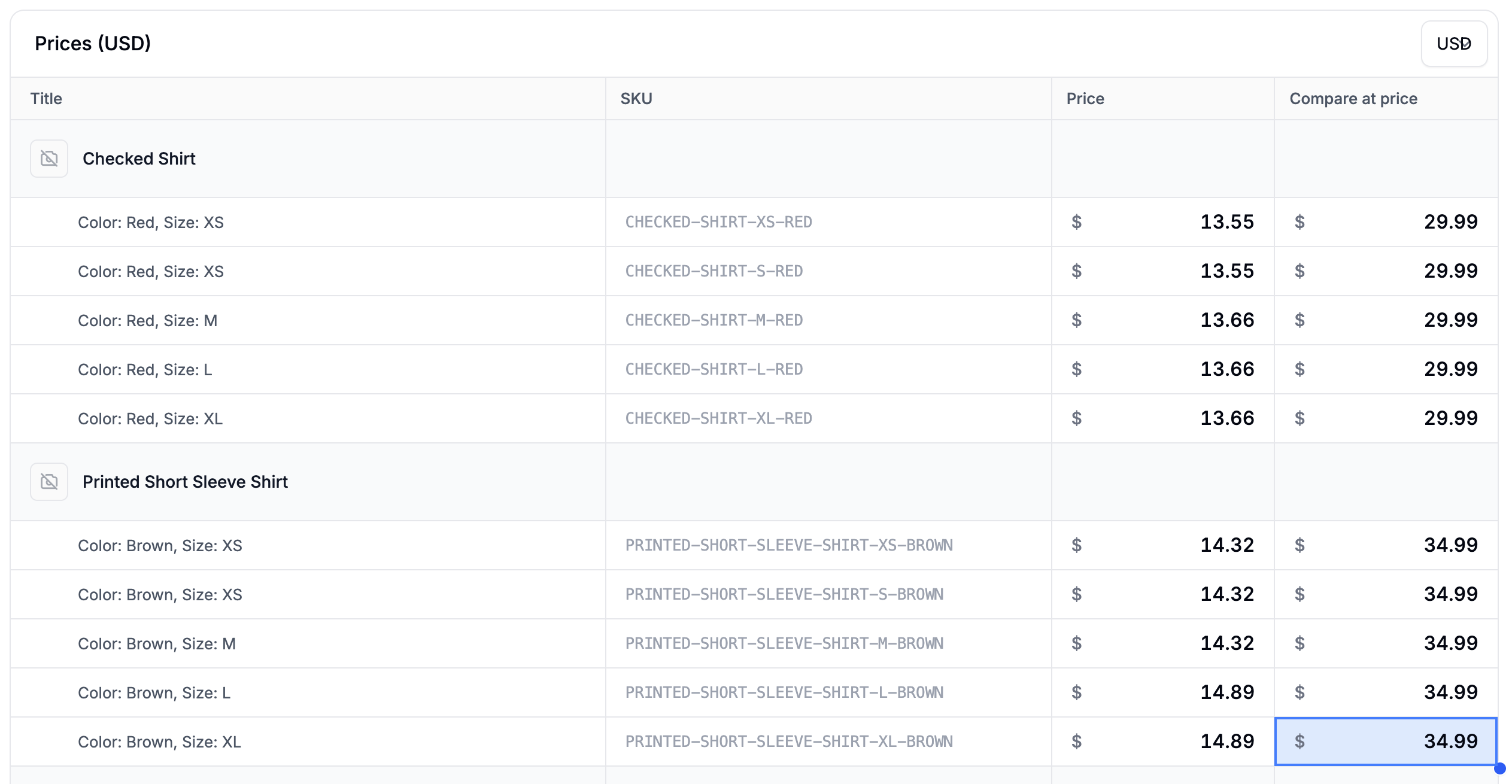
If you work with multiple wholesalers on different negotiated terms, create a separate Customer Group and Price List for each. For example, a
Distributor A group and Distributor A Pricing list, and a Distributor B group with its own list. Each wholesaler’s customers will only ever see their own contracted prices.4. Verify Pricing
To confirm the setup is working correctly, log in to your storefront using a customer account that belongs to the Wholesale Buyers group and browse to a product you included in the price list. The wholesale price should be displayed instead of the standard retail price. If the expected price is not showing, check that:- The customer’s account has been added to the correct Customer Group
- The product has been added to the price list
- The price list is set to Active
- The Customer Group rule is correctly configured
Next Steps
- Customer Groups — full reference for creating and managing customer groups
- Price Lists — full reference for rules, product selection, and price editing
- Set Up Volume Pricing — add quantity-based tiers on top of your wholesale pricing
- Set Up Multi-Region Pricing — apply regional price variations within a customer group