

This guide assumes your DE and FR markets are already configured and your products have EUR base prices set. If not, follow Set Up Multi-Currency Pricing first. For volume pricing without a regional split, see Set Up Volume Pricing. For regional wholesale pricing using Customer Group rules, see Set Up Regional Wholesale Pricing.
Prerequisites
Before you start, you should have:- Markets configured for US, Germany, and France, with EUR base prices set on all products you want to include. See Set Up Multi-Currency Pricing for the full walkthrough.
- A clear set of volume thresholds and discounted prices for each market and tier.
Overview
You’ll be creating six price lists in total — two tiers for each of the three markets:1. Create Volume Price Lists for the US Market
Navigate to Products → Price Lists and click New Price List.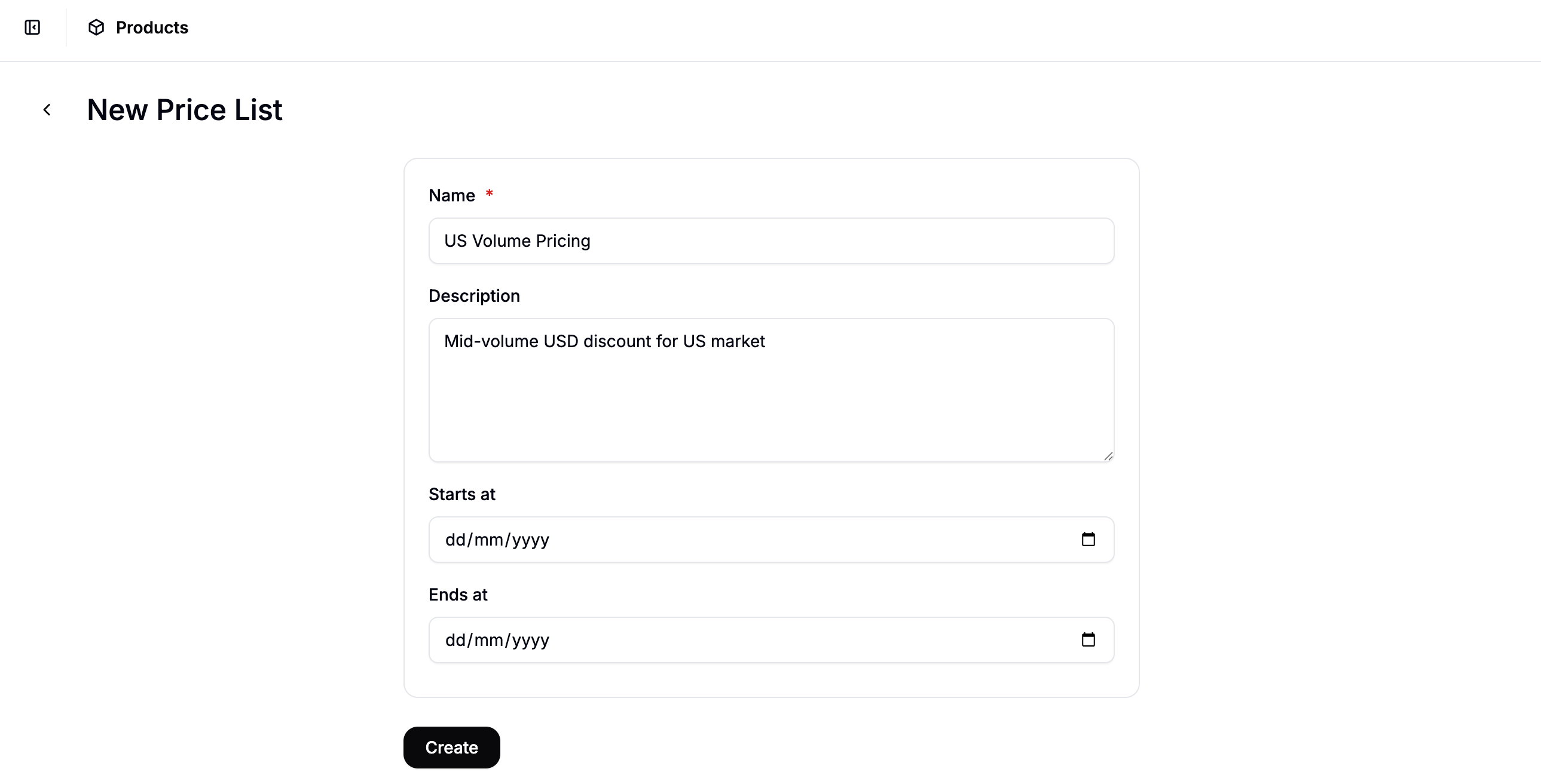
- Name — e.g.,
US Volume Pricing (21–50 Units) - Description — optional (e.g.,
Mid-volume USD discount for US market) - Start Date / End Date — leave blank to apply indefinitely
- Click Add Rule, select Market, and choose United States
- Click Add Rule again, select Volume, and set Min Quantity to
21and Max Quantity to50
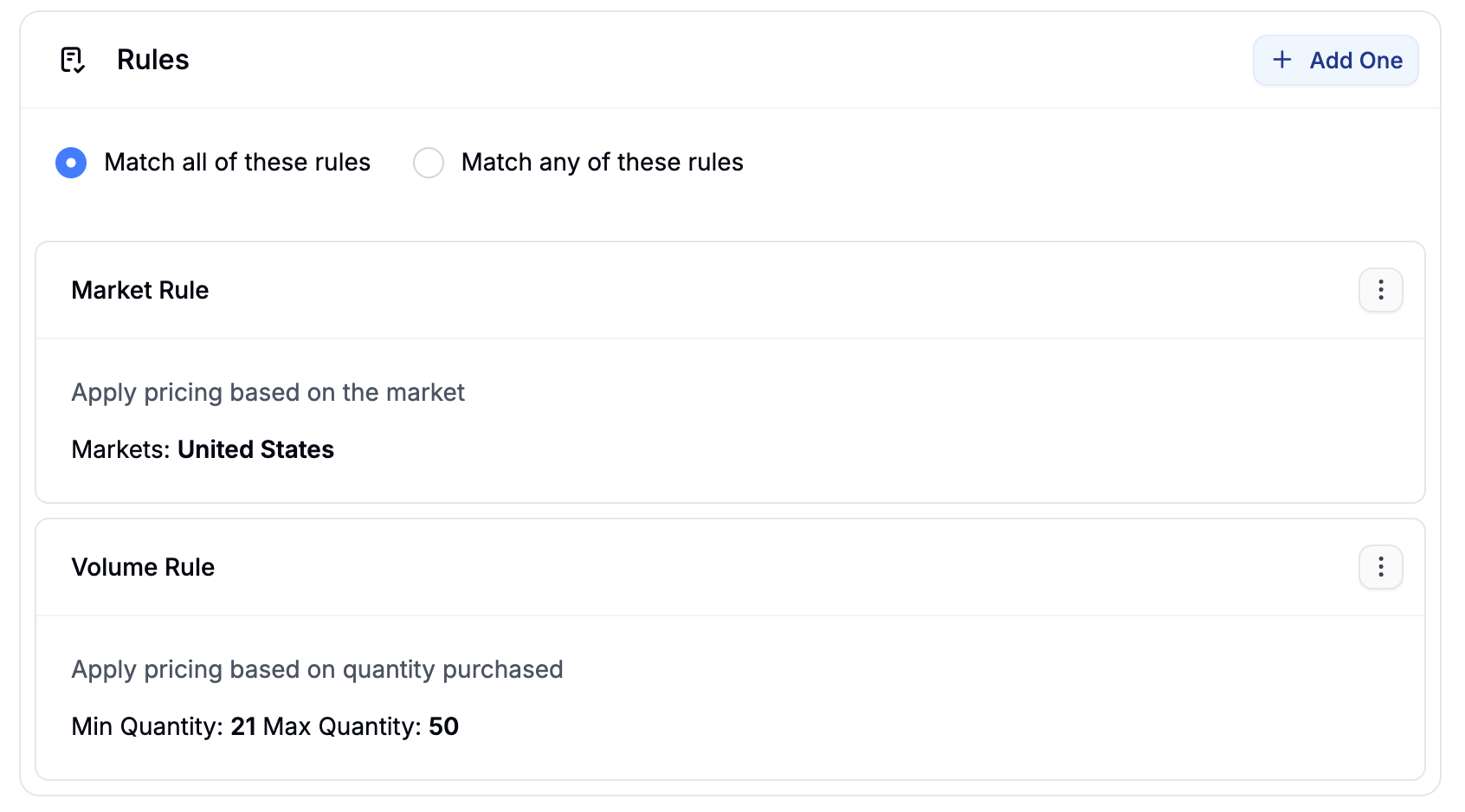
 Click Save, then Activate (or Schedule if it has a future start date) to make this tier live.
Now repeat to create the second US tier —
Click Save, then Activate (or Schedule if it has a future start date) to make this tier live.
Now repeat to create the second US tier — US Volume Pricing (51–100 Units) — with the same Market rule (United States) and a Volume rule set to Min: 51, Max: 100. Enter the deeper discounted USD prices and activate.
2. Create Volume Price Lists for Germany and France
With the US tiers in place, repeat the same process for Germany and France. For each market you’ll create two price lists — one per volume tier. For each price list:- Name it clearly, e.g.,
Germany Volume Pricing (21–50 Units)andGermany Volume Pricing (51–100 Units) - Set Match All with a Market rule targeting the correct market and a Volume rule with the appropriate min/max quantities
- When editing prices, make sure EUR is selected in the currency switcher and enter the regional EUR discounts for each tier
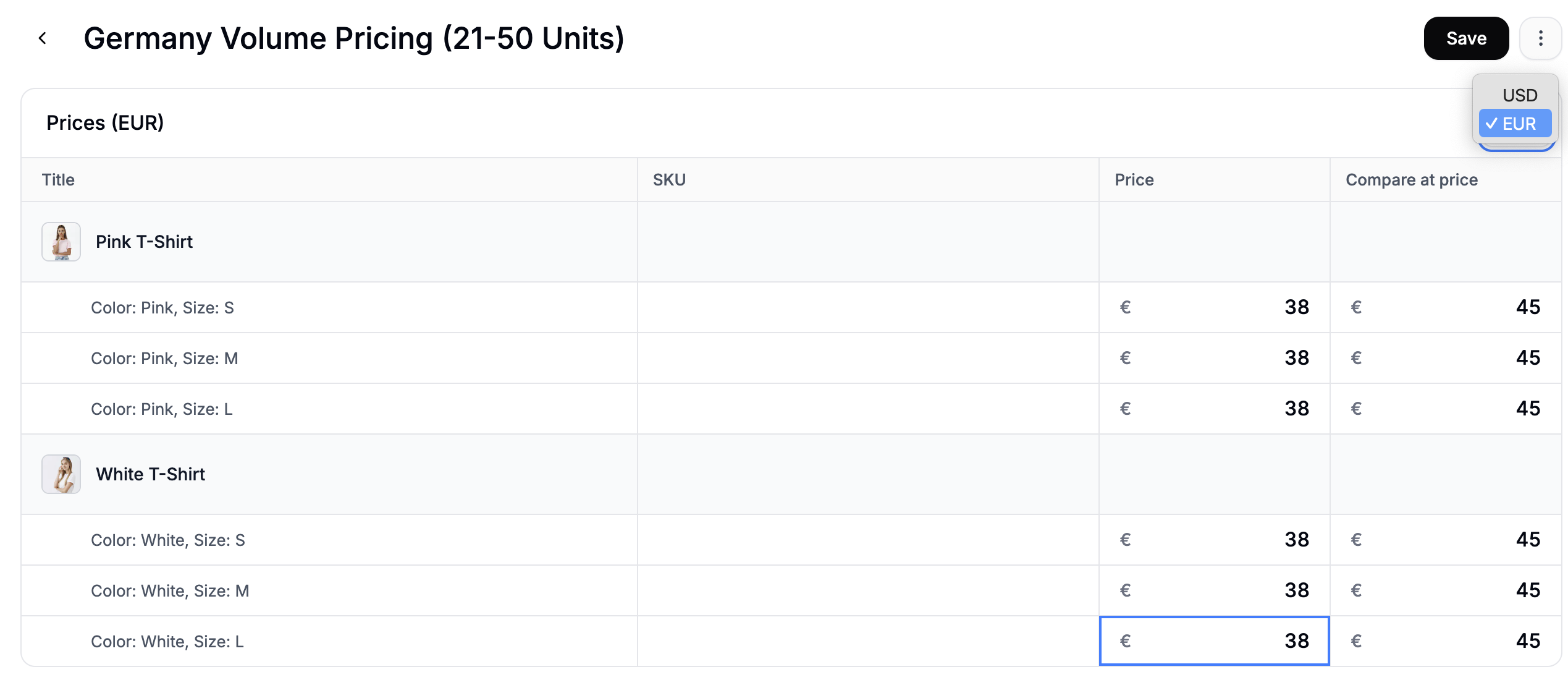
Volume thresholds and discount rates don’t need to match across markets. You can set different min/max quantities or different discount levels for each region to reflect local pricing strategies or distribution agreements.
3. Verify on the Storefront
To confirm the tiers are working correctly, test from the storefront across each market.- Visit your storefront and switch to the United States market.
- Add a product to the cart, set the quantity to
25, and confirm the mid-volume USD discount is applied at checkout. - Update the quantity to
60and confirm the deeper USD discount applies. - Switch to the Germany market, repeat the quantity tests, and confirm the correct EUR discounts appear.
- Repeat for the France market.
- The price list is set to Active
- Both rules (Market and Volume) are present and set to Match All
- The quantity in the cart falls within the min–max range of the relevant tier
- The correct currency is set on the prices in the price list editor
Next Steps
- Set Up Volume Pricing — volume discounts without a regional split
- Set Up Regional Wholesale Pricing — combine market and customer group rules for regional wholesale pricing
- Price Lists — full reference for rules, match logic, and price editing
- Markets — full reference for configuring Markets