

How to Take a Payment
Whether an order needs anything from you here depends on how your store charges customers. That is set by When to charge customers, which is a store-wide default setting that any payment method can override. See Payment Methods.
So an order can arrive already paid, be paid by the act of fulfilling it, or sit waiting for someone to take the money. The order’s Payment badge tells you which: Paid needs nothing from you, while Authorized means the money is reserved but not yet taken.
A method such as Check, where the customer promises to pay another way, behaves like Manually: the payment is recorded against the order at checkout and waits for you to capture it once the money arrives.
Capturing an Authorized Payment
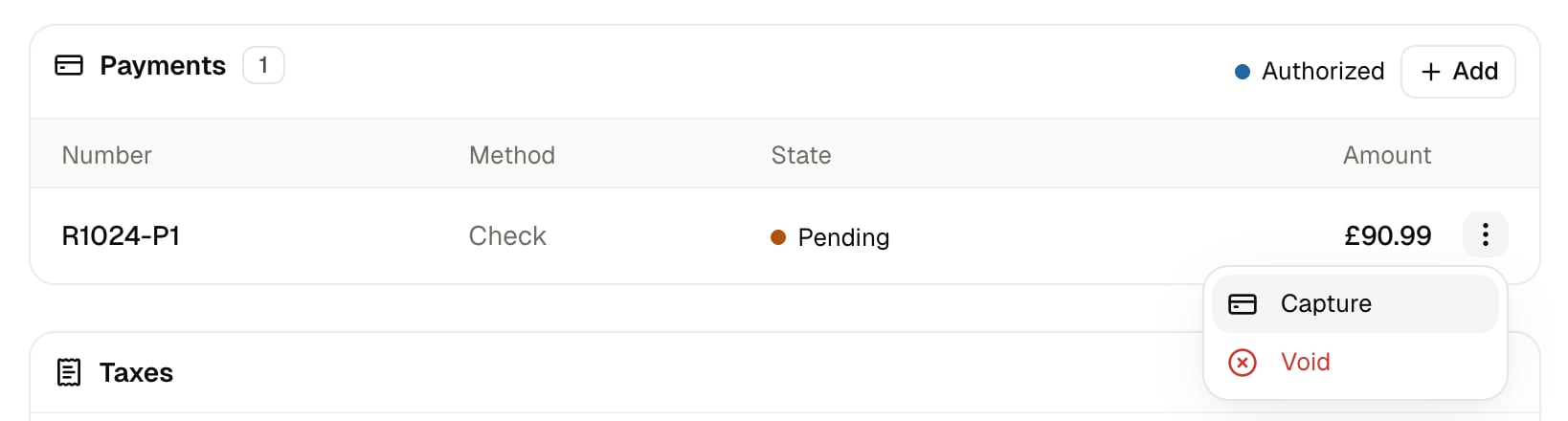
- Open the payment’s Actions menu on the Payments card.
- Choose Capture and confirm.
Capturing more than the order was authorized for is possible with some payment providers, which matters in B2B where a total can rise after the order is placed. Whether it works, and by how much, is your provider’s decision rather than Spree’s, so check with yours before relying on it. An order whose captured payments come to more than its total carries the Overcharged status.
Voiding a Payment
Void on a payment’s Actions menu cancels a payment at the gateway. On an authorized payment, which is the usual case, that releases the hold on the customer’s card before any money moves. Void a payment when the order is not going ahead, when the authorization was taken for the wrong amount and a fresh one is needed, or when the customer wants to pay by another method instead. Leaving a dead authorization in place keeps the customer’s funds tied up until their bank releases it on its own, which can take days.Void is offered on a captured payment as well as an authorized one, but what happens then is your payment provider’s decision rather than Spree’s. Some accept it as a same-day cancellation that never reaches the customer’s statement, and others refuse it and expect a refund instead. For money that has genuinely moved, the dependable route back is a return or canceling the order with Refund the customer switched on.
Adding a Payment to an Order
- The payment it was placed with failed, was declined or was voided afterwards.
- An edit raised the order’s total, and the difference has to be collected separately.
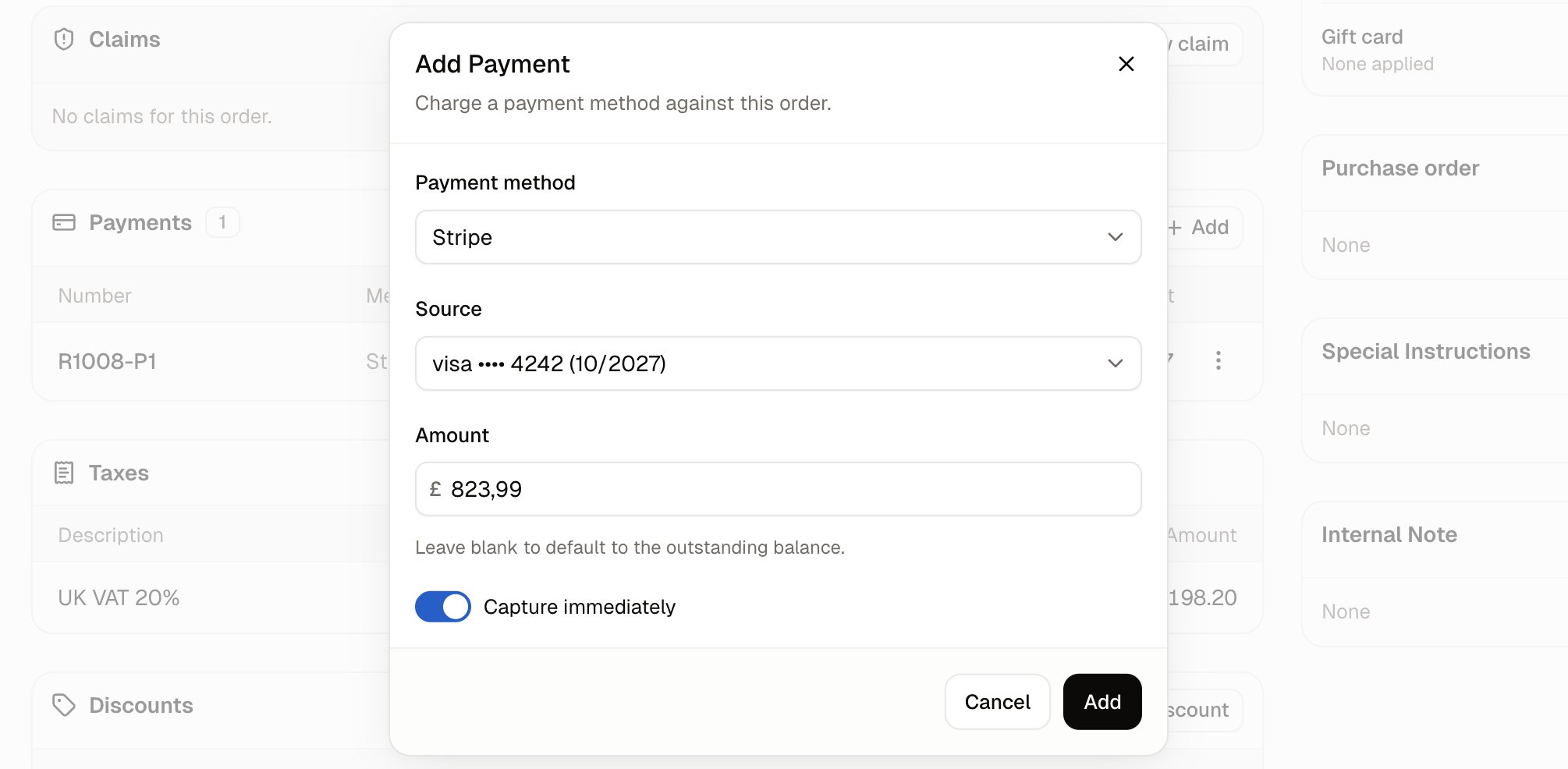
- On the Payments card, click Add.
- Choose the Payment method.
- Check the Amount, which is filled in with what the order still owes. Change it to record part of it.
- Switch on Capture immediately if the money is already in your hands. Leave it off to record the payment now and capture it when the money arrives.
- Click Add.
The amount offered counts only money already captured, so on an order whose original payment is still authorized it offers the whole total. Check the figure before you click Add.
Building an order for a customer is a different job, and adding its payment is part of that flow. See Draft Orders.
How to Fulfill an Order
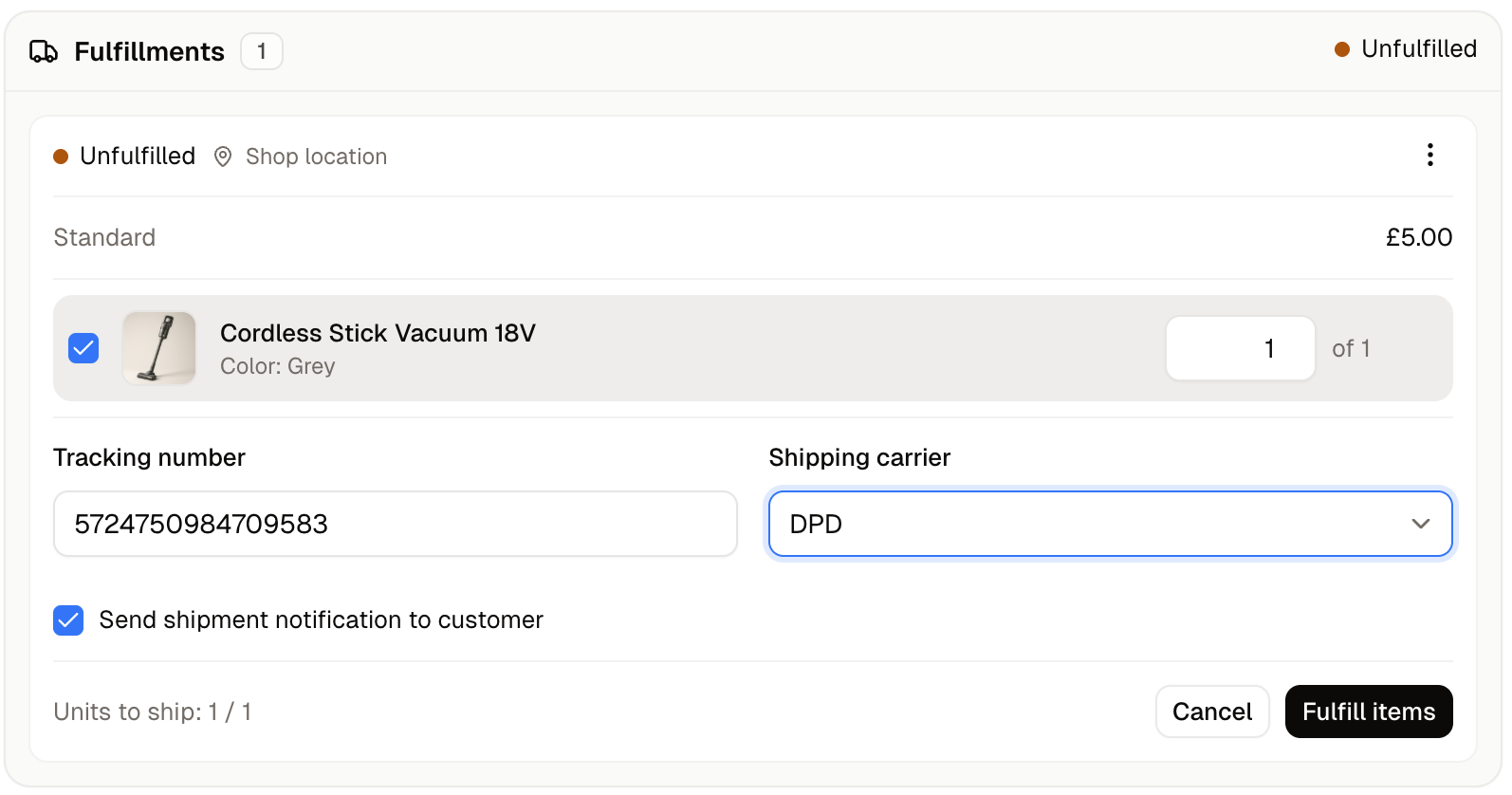
- On the Fulfillments card, click Mark as fulfilled. The parcel’s box turns into a form with every item ticked and a running count of units to ship.
- Check the items and quantities.
- Enter the Tracking number, if you have not added one already.
- Choose the Shipping carrier, or leave it on Detect automatically.
- Leave the notification box ticked to email the customer, or untick it to fulfill quietly.
- Click Fulfill items.
Printing a Packing Slip
Open the parcel’s Actions menu on the Fulfillments card and choose Print packing slip. It opens in a new tab, carrying the order and fulfillment numbers, the ship-to address, the stock location it ships from, and the products, quantities and prices.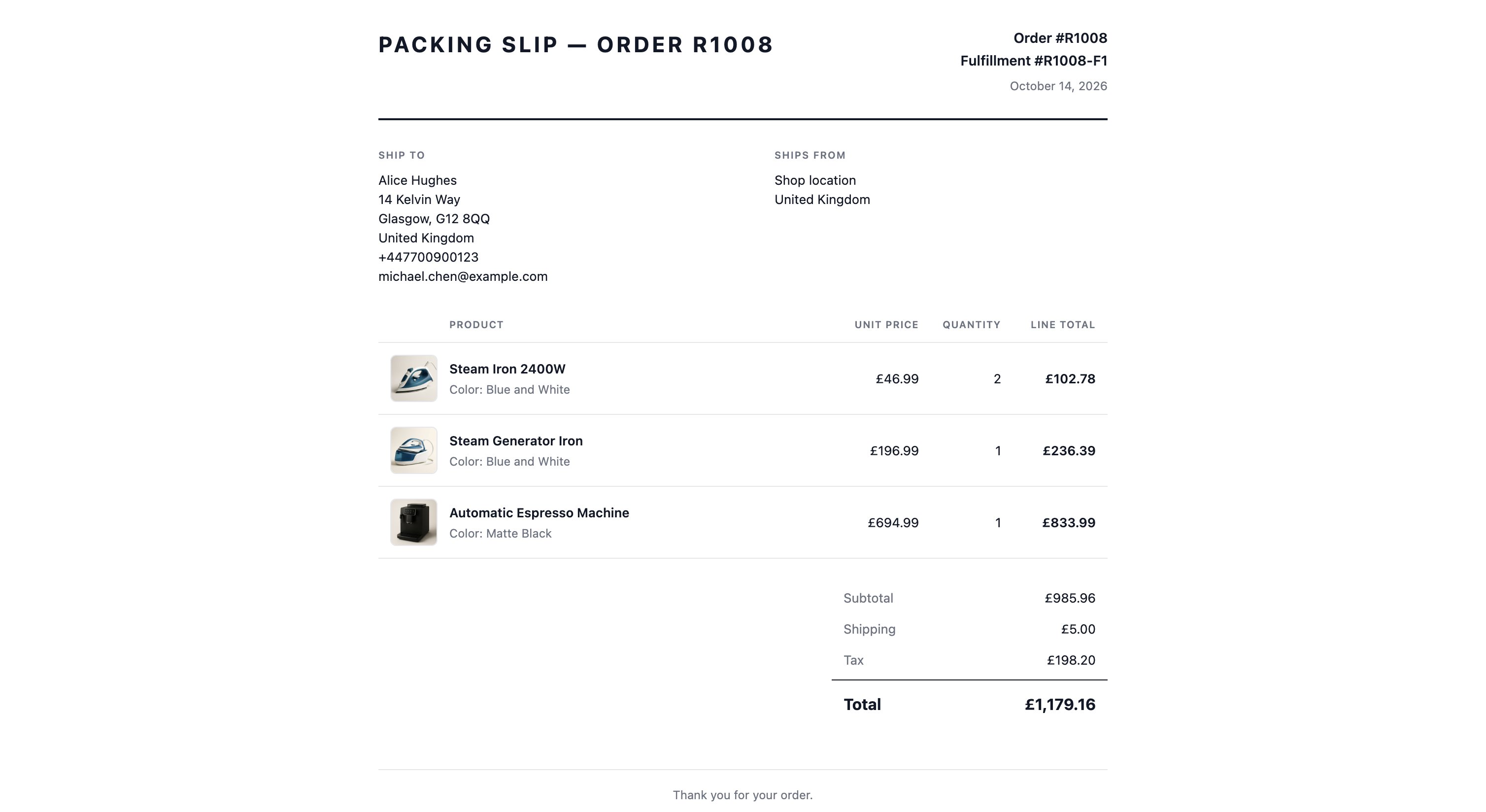
Adding a Tracking Number
Open the parcel’s Actions menu, choose Add tracking, enter the number, choose the carrier or leave it on Detect automatically, and click Save. Tracking can be added before or after you fulfill, but adding it first is worth the habit. The shipment email carries the tracking link, so a number added beforehand reaches the customer with the email that tells them their parcel is on its way. Added afterwards, the email has already gone without it. A tracking link is the cheapest thing you can give a customer after they have paid. It answers “where is my order” without anyone writing to you, and it turns the wait between payment and delivery into something they can watch rather than wonder about.How to Edit an Order
Taking the payment and sending the goods covers most orders, but processing is also where an order gets corrected. A customer calls to add an item, a line was entered at the wrong price, something is out of stock and has to be swapped, or a goodwill discount is agreed after the sale. Each of those is changed in a different place on the order. The rest of the page is a record that keeps itself: the Summary, the Taxes card, Special instructions and Metadata are all read-only, and the Orders page explains what each card holds.How to Add or Remove Line Items
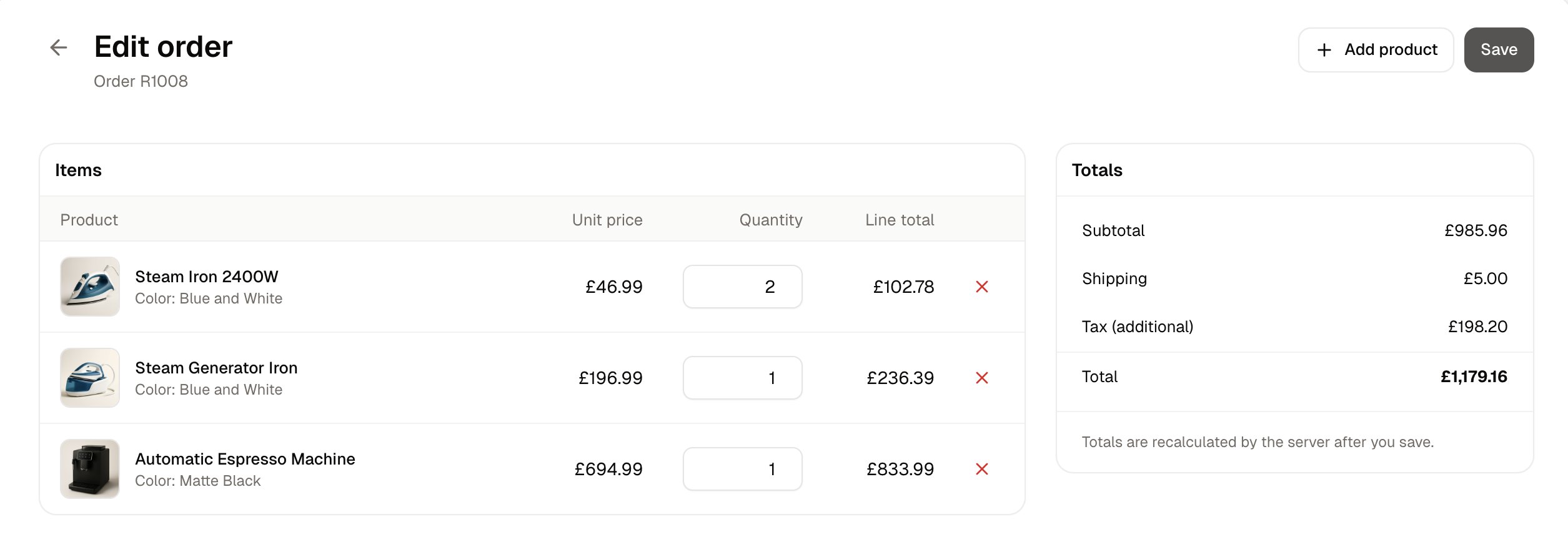
- Add product puts another item on the order.
- Remove takes a line off.
- Change a line’s Quantity to match what the customer now wants.
Unit prices cannot be changed on a placed order. Setting a price per line is part of building a draft order, where a price can be agreed with a business buyer before the order is placed. To take money off an order that is already placed, add a discount instead.
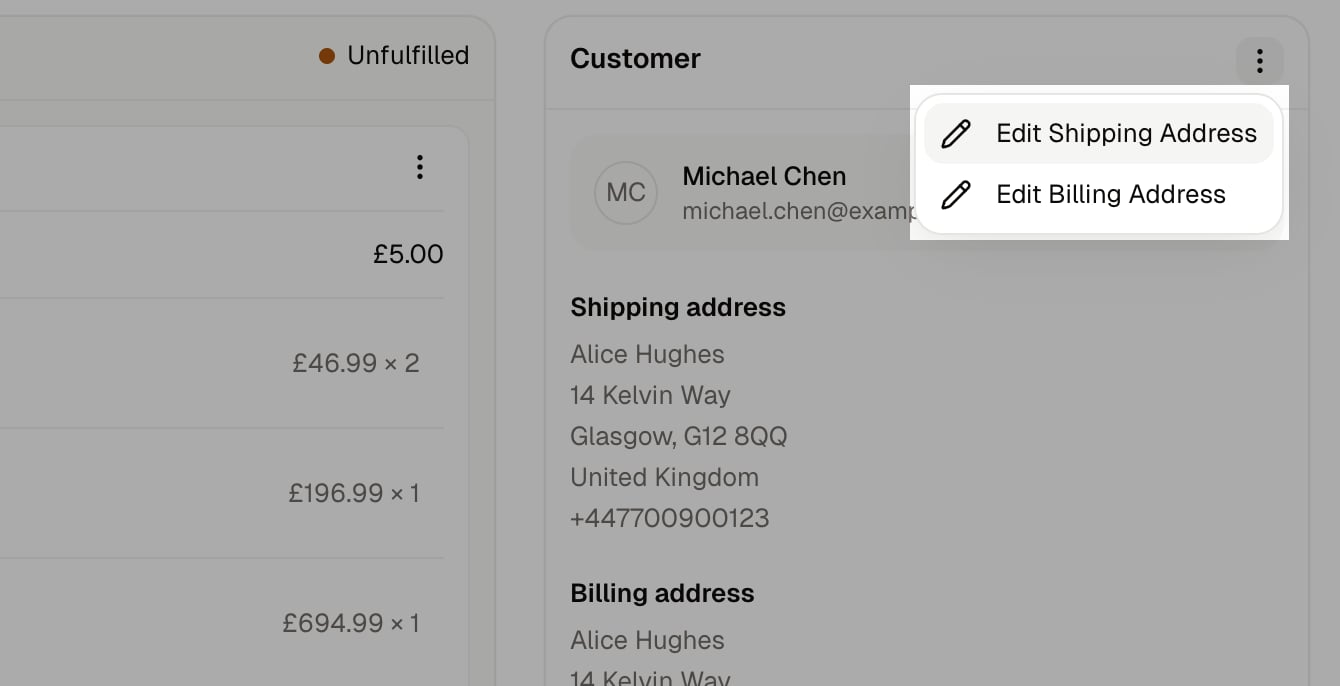
How to Update an Address
How to Edit or Split a Fulfillment
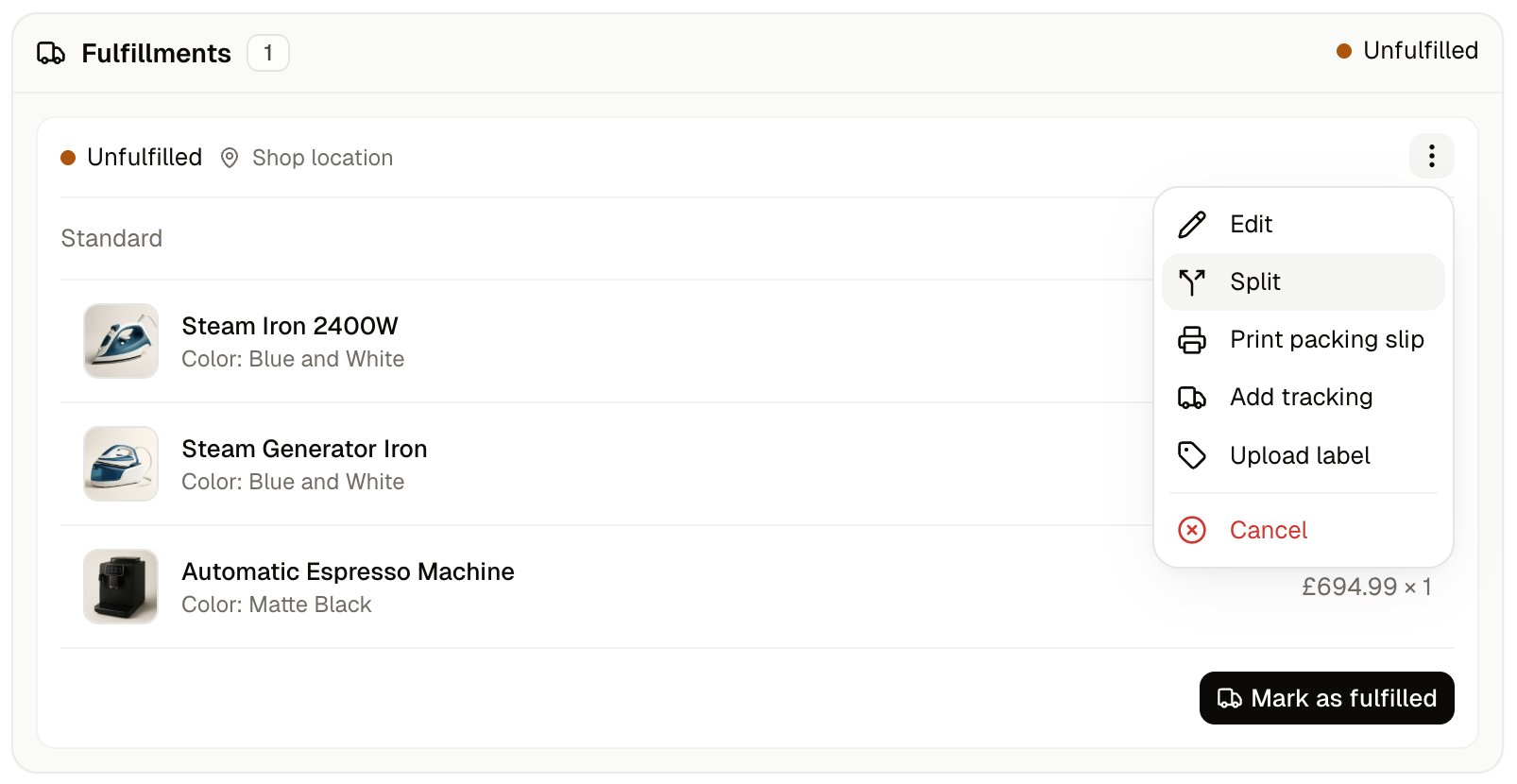
On the Fulfillments card, open a parcel’s Actions menu.- Edit changes where the parcel ships from and which delivery method carries it. Ships from lists your stock locations, marking any that cannot cover the order as out of stock, and Delivery method lists the methods that reach the address, with their prices.
- Split divides a parcel in two, so part of an order can go now and the rest follow. Each half then has its own tracking, carrier and status.
- Cancel cancels that parcel.
Where products routinely ship differently, delivery profiles can separate them at checkout, so the order arrives already split rather than needing splitting by hand.
How to Process Returns, Exchanges and Claims
Anything that comes back, or goes wrong, after the sale starts from its own card on the order. Each has a process of its own:- Returns - Goods the customer sends back for a refund.
- Exchanges - Goods swapped for something else.
- Claims - Goods that arrived damaged or never arrived at all.
How to Add a Discount
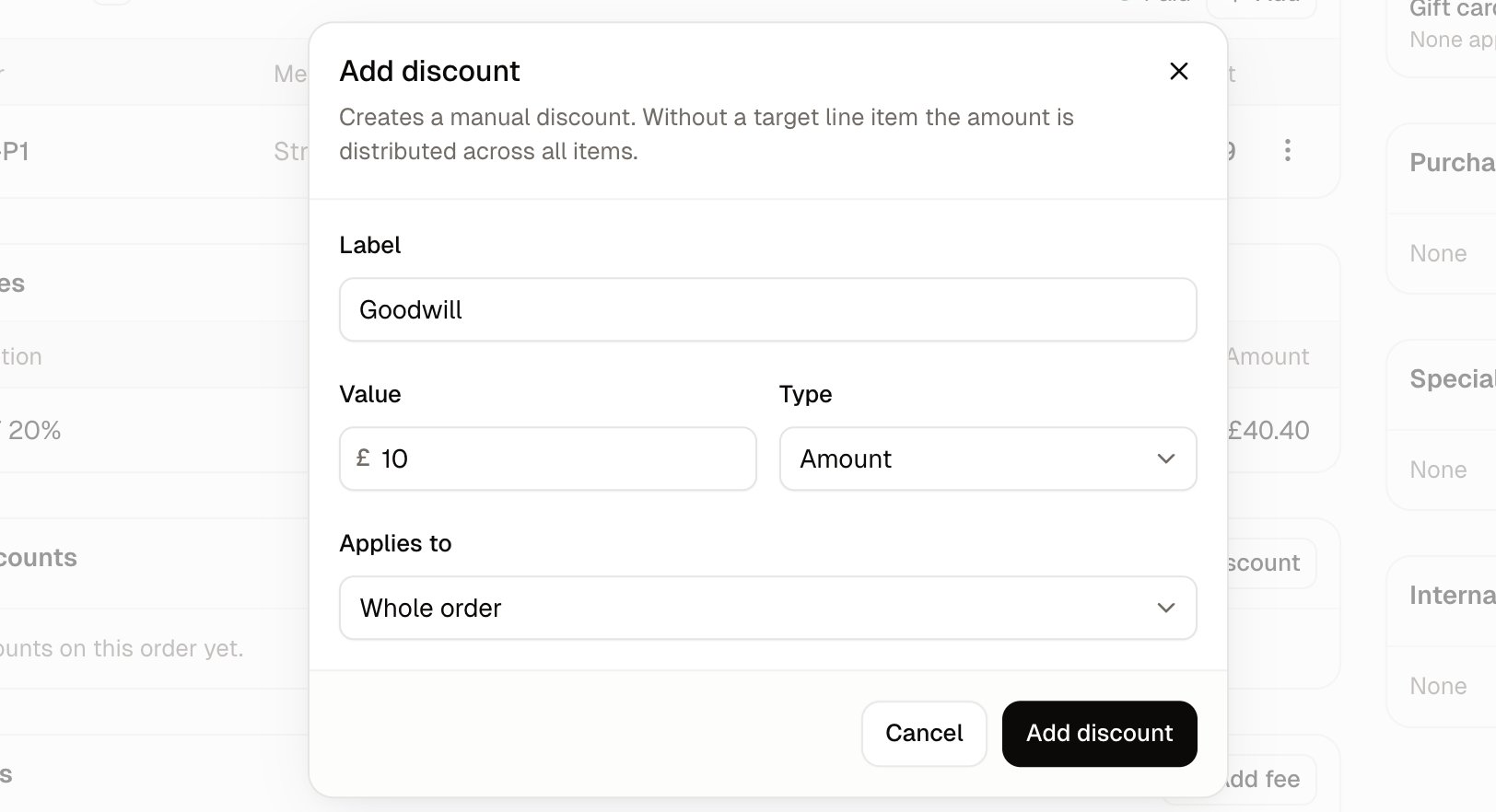
A discount applied to the whole order is spread across its items rather than sitting on one of them.
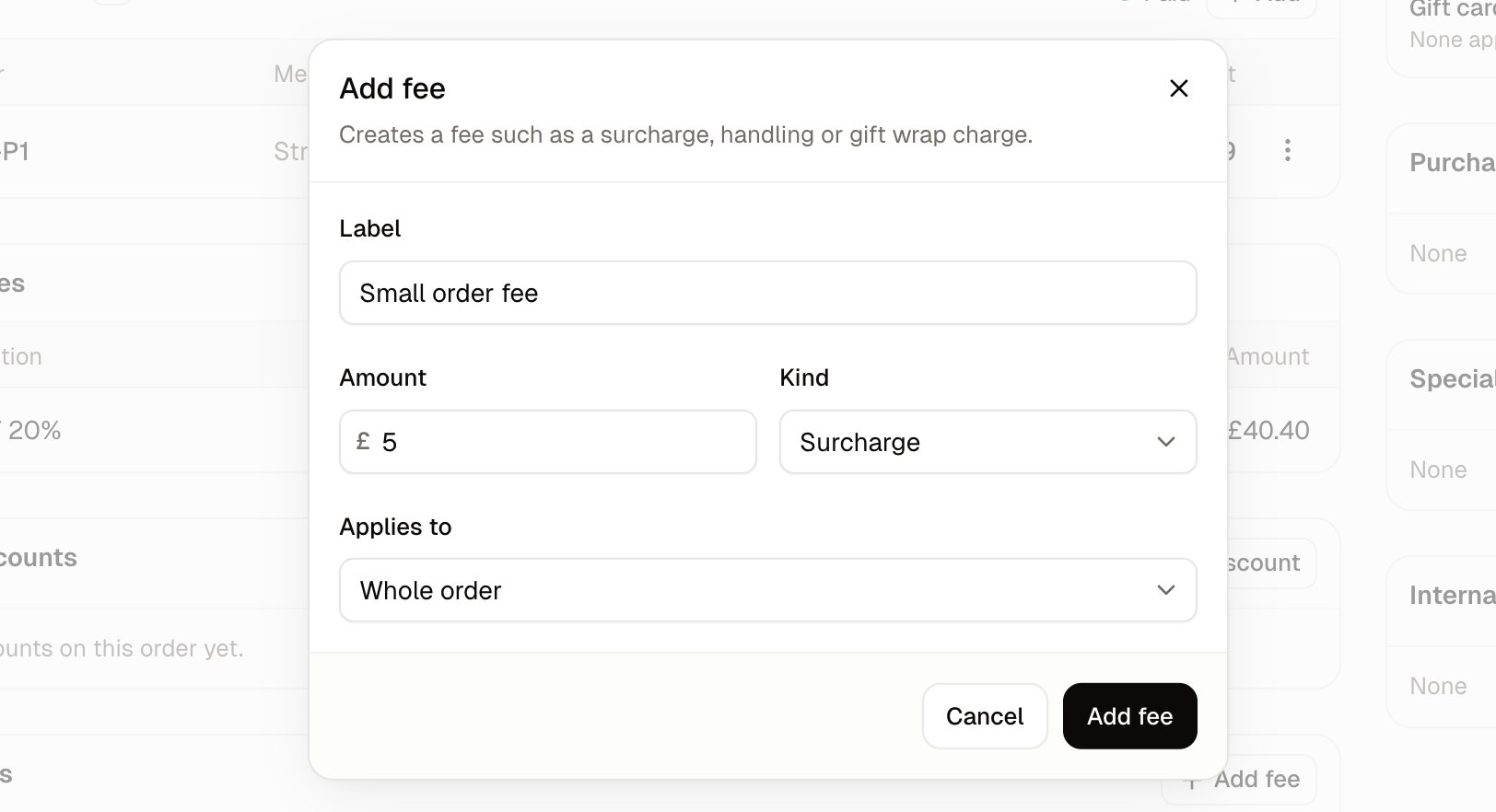
How to Add a Fee
How to Apply a Gift Card
On the Discounts & Credit card, click Apply beside Gift card and enter the card’s code. The card pays what it can of the order, and the Outstanding balance drops by that amount. See Gift Cards. The Discount code on the same card is a record of the code the customer used at checkout, and cannot be changed afterwards. To take money off an order that is already placed, add a discount by hand as described above.How to Add Notes and Tags
Both sit on the right of the order, each with a pencil for editing.- Internal note is what your team should know about this order, such as a phone call with the customer. It takes formatted text, and only staff see it.
- Tags are short labels such as
VIPorgift-wrap. They are the quickest way to find a group of orders again, using the Tags filter on the orders list.
- Special instructions is what the customer asked for at checkout, such as where to leave a parcel. It normally comes from them, but it can be corrected afterwards, for example when a customer phones in a change of instructions.
- Purchase order is the buyer’s own reference, which you can also search and filter the orders list by.
How to Add Custom Field Values

How to Cancel an Order
Only an order that has not been sent can be canceled. Once any of its goods have gone, the sale has happened, and the way back is a return rather than a cancellation. So cancel an order while it is still unfulfilled: the customer changed their mind, the order is a duplicate, the goods turned out to be out of stock, or the payment was declined. Open More actions at the top of the order and choose Cancel order.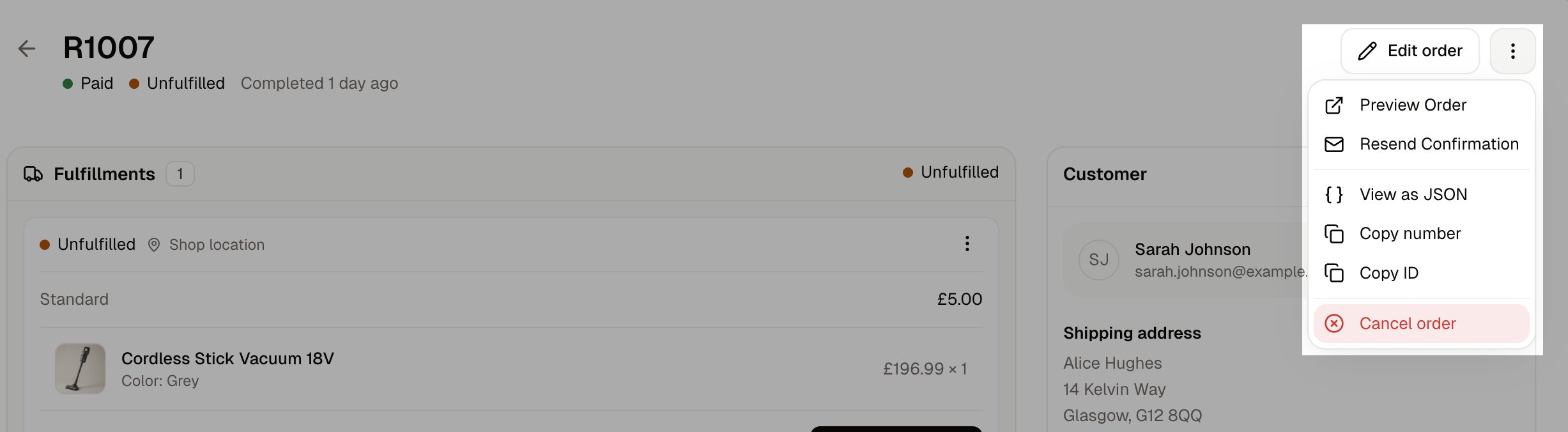
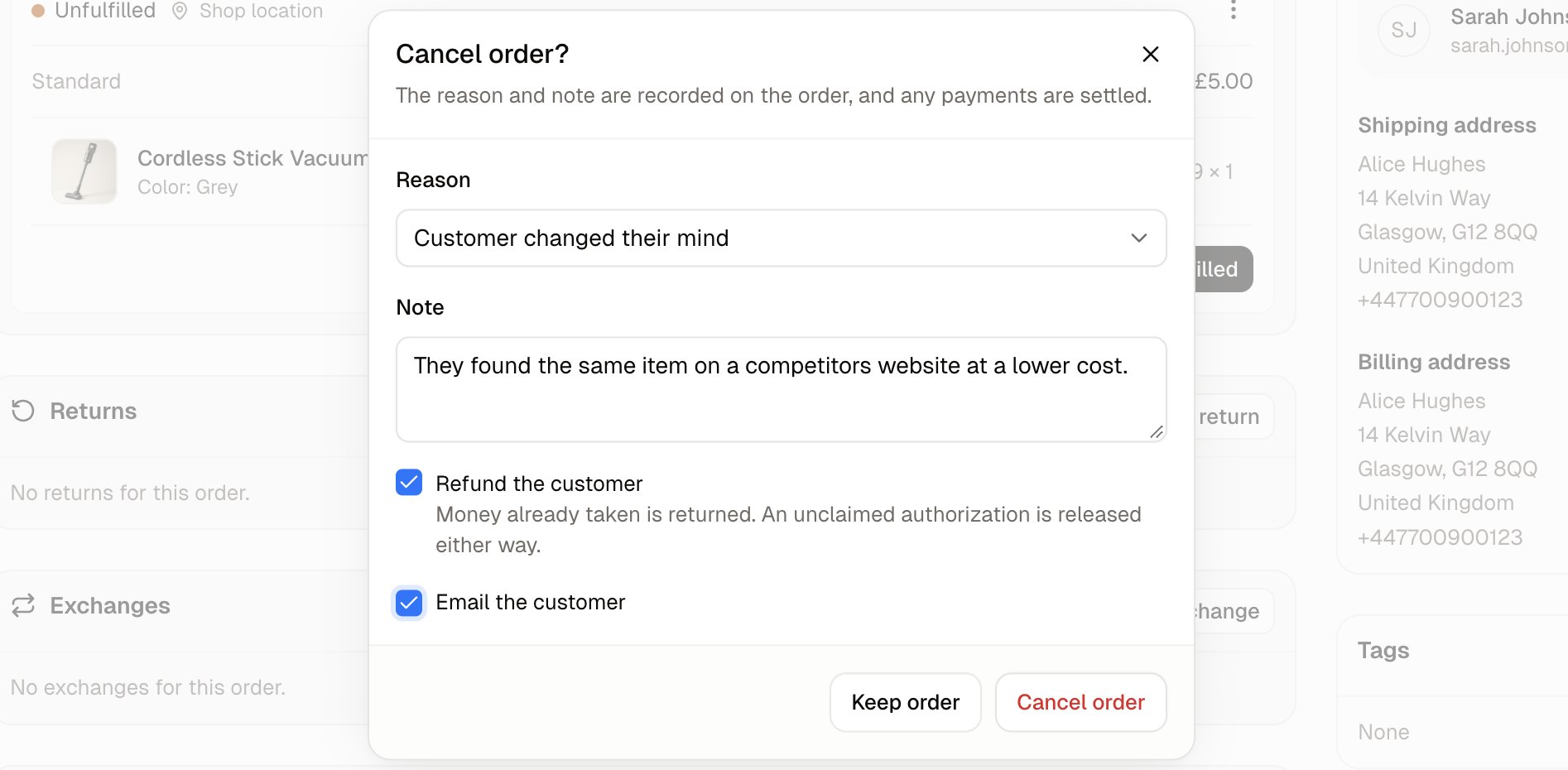
Click Cancel order to confirm, or Keep order to back out. The order’s badge changes to Canceled, its fulfillment is canceled, and the stock held for it is free to sell again. The Summary records when it was canceled, by whom, and the reason and note.
How to Resend the Order Confirmation
If a customer says the confirmation never arrived, open More actions and choose Resend Confirmation. The customer receives the confirmation again, marked as a resend in the subject line, carrying the full order summary.Further Reading
- Orders - The orders list, its filters and the status badges
- Returns - Goods a customer sends back
- Exchanges - Swapping one item for another
- Claims - Goods that arrived damaged or never arrived
- Draft Orders - Building an order for a customer before it is placed