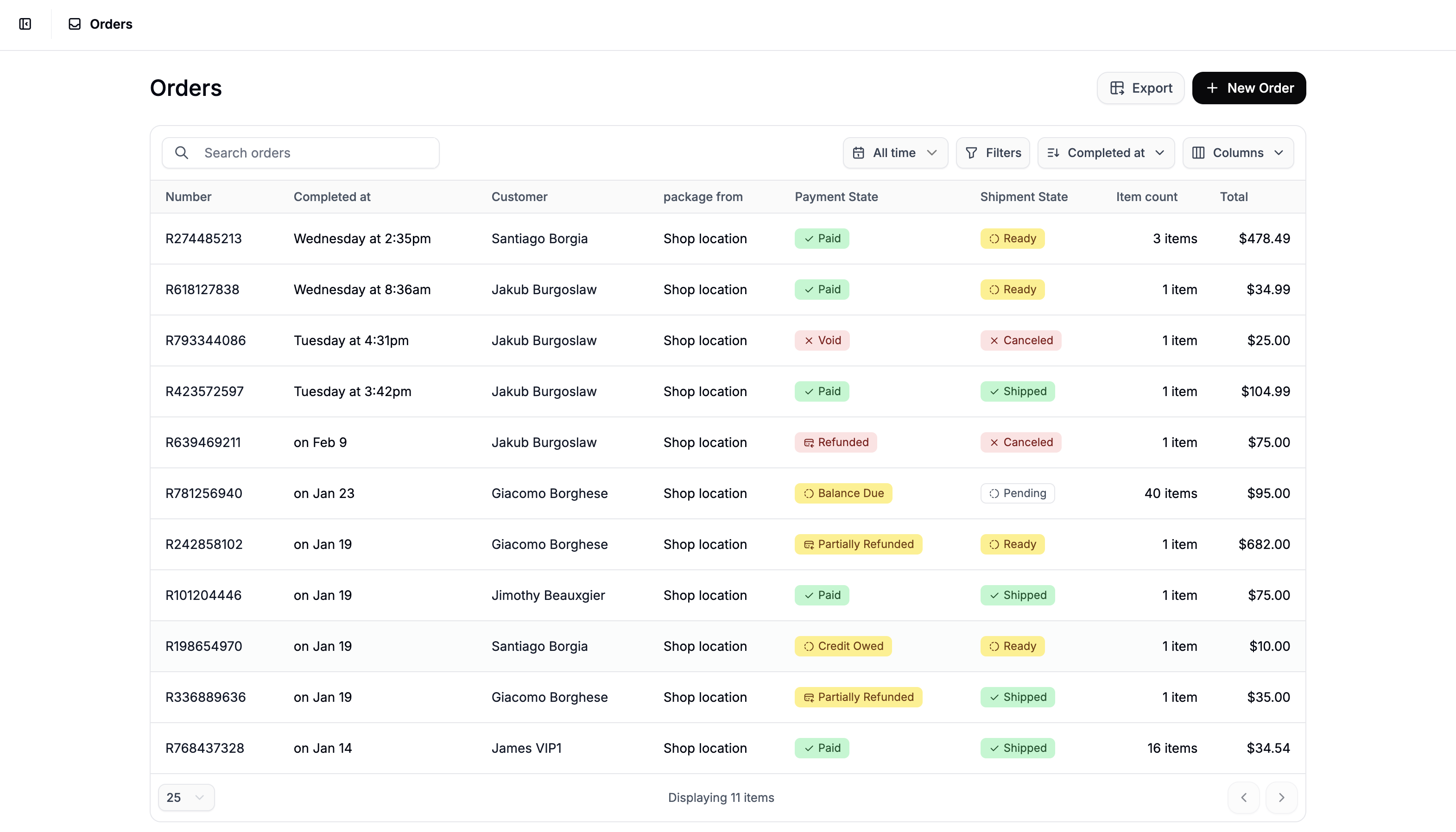
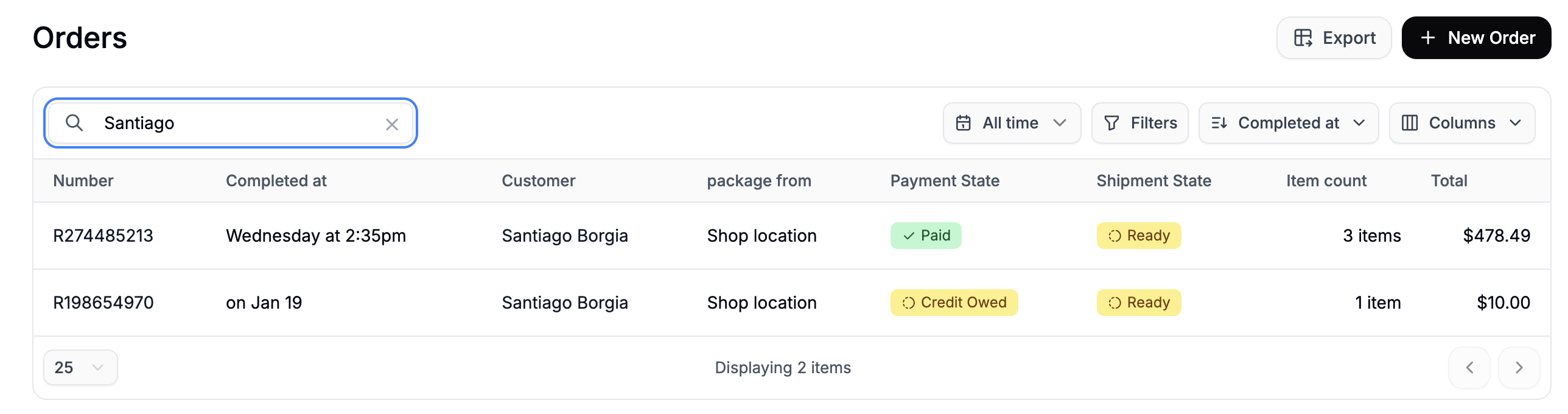
As your store grows, quickly locating specific orders becomes essential for customer support, reporting, and daily operations. Spree’s updated table view makes it easy to search, sort, filter, and customize how orders are displayed. To search for orders, navigate to the Orders tab in the admin dashboard. How to search orders in Spree Commerce From here, there are a number of ways in which you can find the orders you are looking for. The order search bar in the Spree Commerce dashboard At the top of the page, you’ll find the search bar. You can search using keywords such as:
  • Order number
  • Customer email
  • Customer name
  • SKU
Simply enter your query and press Enter to return matching results. You can also combine search with filters (described below) to further narrow down results.

Date Filter

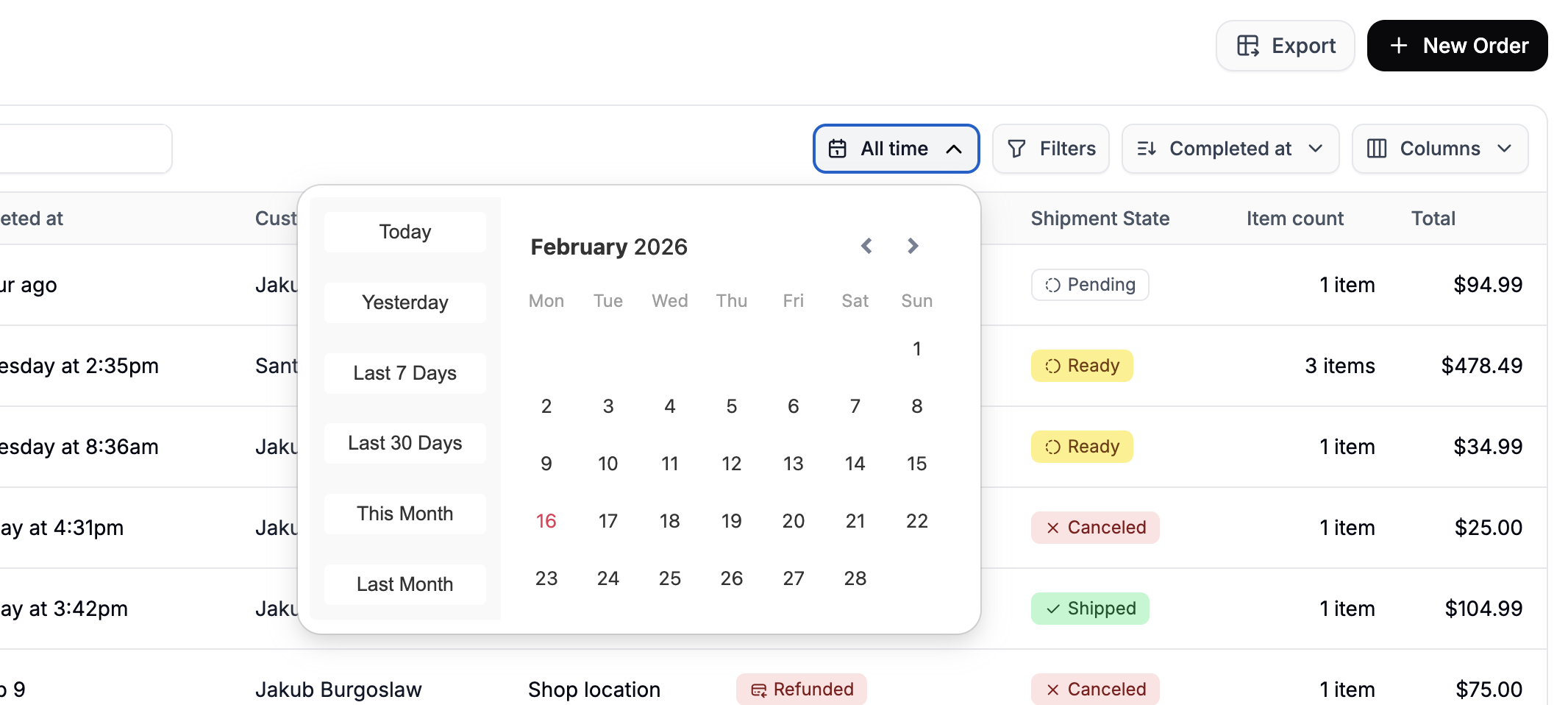
Filtering orders by date in Spree Commerce You can filter orders by date to focus on a specific time period. Click the date selector and choose a predefined range (e.g., Today, Last 7 Days) or set a custom date range to display only orders created within that timeframe.

Sorting & Columns

Spree’s new table system allows you to customize and sort your order view.

Sorting

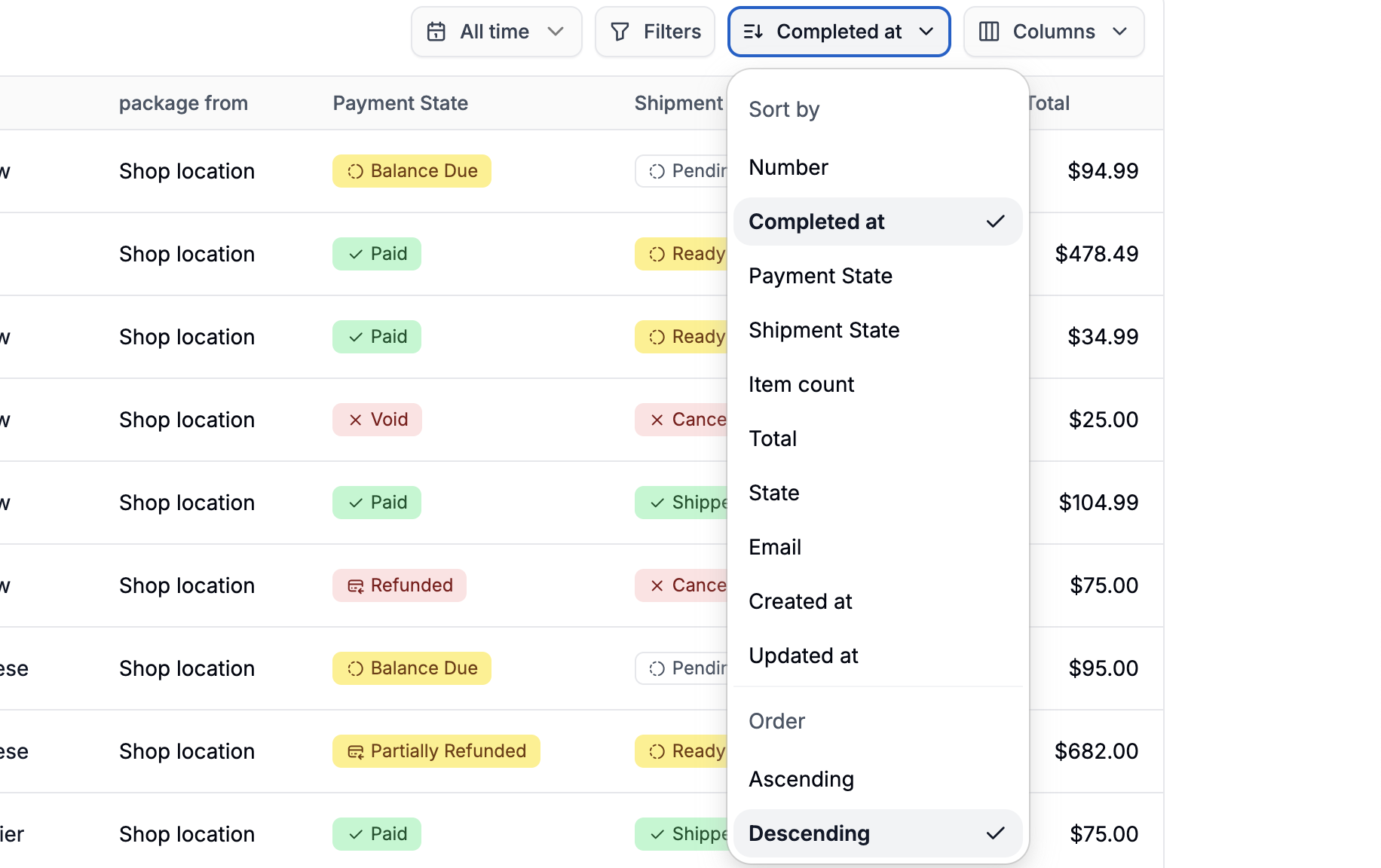
Apply sorting to orders in the Spree Commerce dashboard You can sort orders by clicking on the Sort dropdown above the table, and selecting the column you’d like to sort by (such as Order Number, Total, Payment State, etc.). At the bottom of the dropdown, select whether you prefer Ascending or Descending order. This is useful for:
  • Viewing highest or lowest order totals
  • Seeing newest or oldest orders first
  • Grouping orders by payment or shipment status

Column Customization
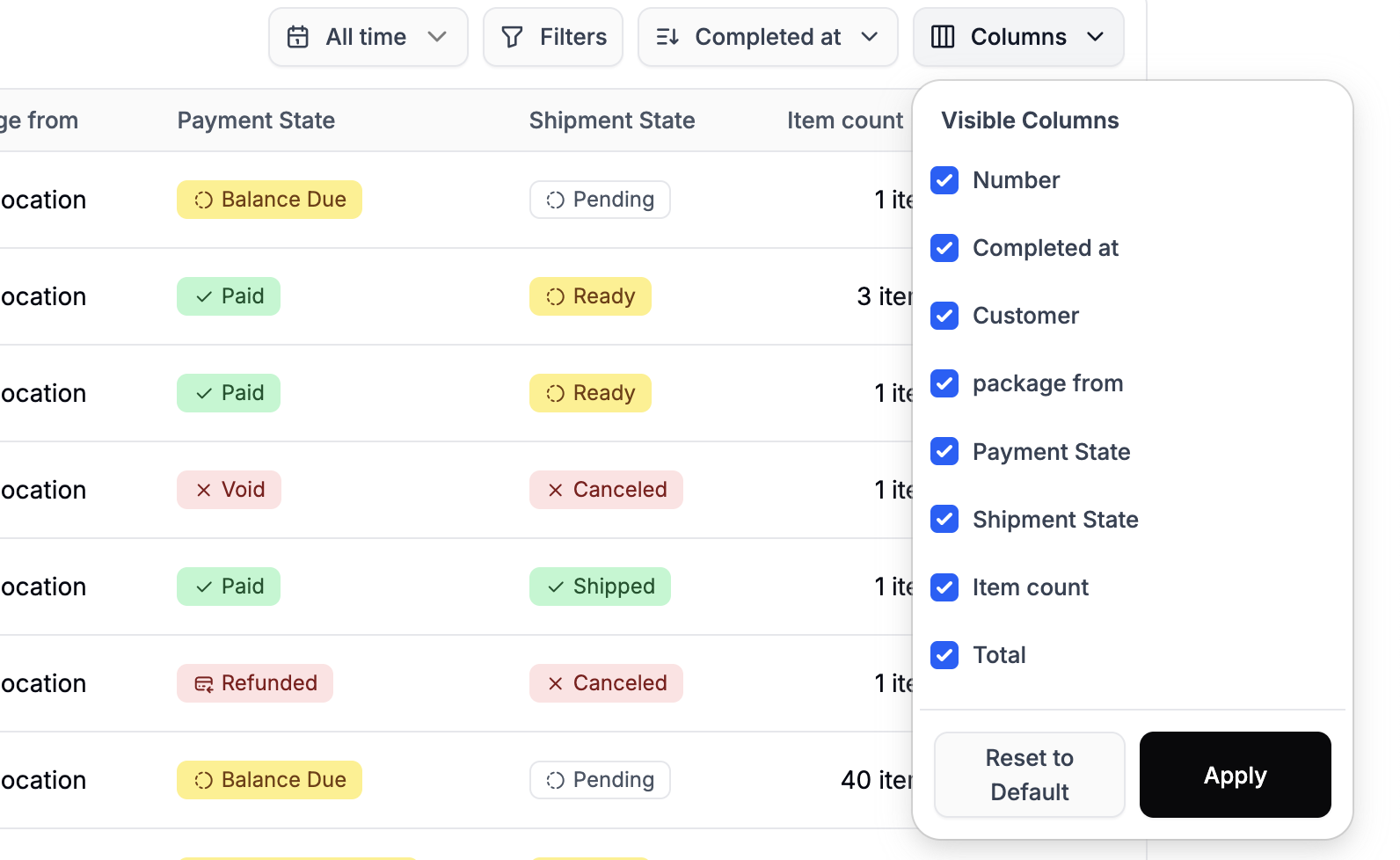
Configuring the order table view in Spree Comemrce You can also choose which columns are visible in your table view without the helpo of developers. Open the column settings menu and select or deselect the columns you’d like to display. This allows you to tailor the view based on your workflow - for example, focusing on financial data, fulfillment status, or customer details.

Advanced Filters

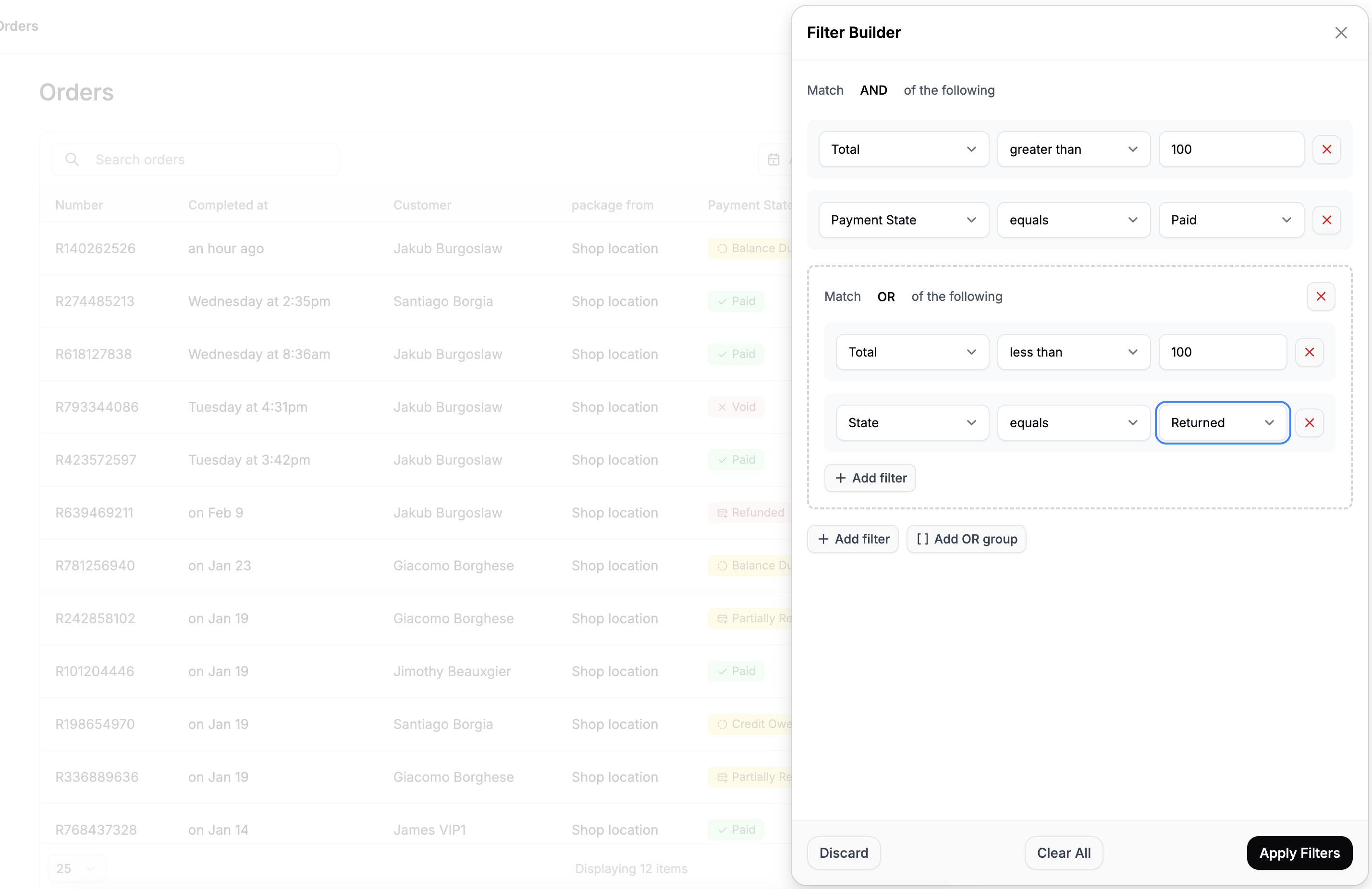
Applying advanced filters to the order table in Spree Commerce Filters have been significantly improved and now support operators and AND / OR grouping, giving you much more control over how you refine results. You can create filter groups using the following fields:
  • Order Number
  • Payment State
  • Shipment State
  • Total
  • State
  • Email
  • First Name
  • Last Name
  • SKU
  • Promotion

Operators

Each filter condition also includes an operator, allowing you to define exactly how the value should be evaluated. Available operators include:
  • equals
  • does not equal
  • greater than
  • greater than or equal
  • less than
  • less than or equal
  • is any of
  • is none of
  • is empty
  • is not empty
For example:
  • Total greater than 500
  • Payment State is any of Paid, Refunded
  • Promotion is not empty
  • Shipment State does not equal Fulfilled

Using AND / OR Groups

  • AND conditions require all criteria to be met.
  • OR conditions return results that match any of the selected criteria.
For example:
  • Orders where Payment State = Balance Due AND Shipment State = Ready
  • Orders where Promotion = SUMMER2025 OR Promotion = VIPDISCOUNT
This flexibility makes it much easier to identify specific subsets of orders for follow-up, reporting, or operational tasks. By combining search, date filters, sorting, column customization, and advanced filter groups, you can quickly locate exactly the orders you need - no matter how large your order history becomes.