- Online store + POS - keep retail and in-person orders separate for reporting and fulfilment
- B2C + B2B wholesale portal - show different catalogues and pricing to different audiences from one backend
- Marketplace or affiliate channel - attribute orders to the source channel for commission tracking
- Mobile app - route mobile orders separately and track conversion independently
- Seasonal microsite - run a limited-time catalogue without affecting your main storefront
Developers connect a storefront or integration to a specific channel by passing the
X-Spree-Channel header with the channel’s code in API requests. See the Spree API docs for details.Sales Channels Overview
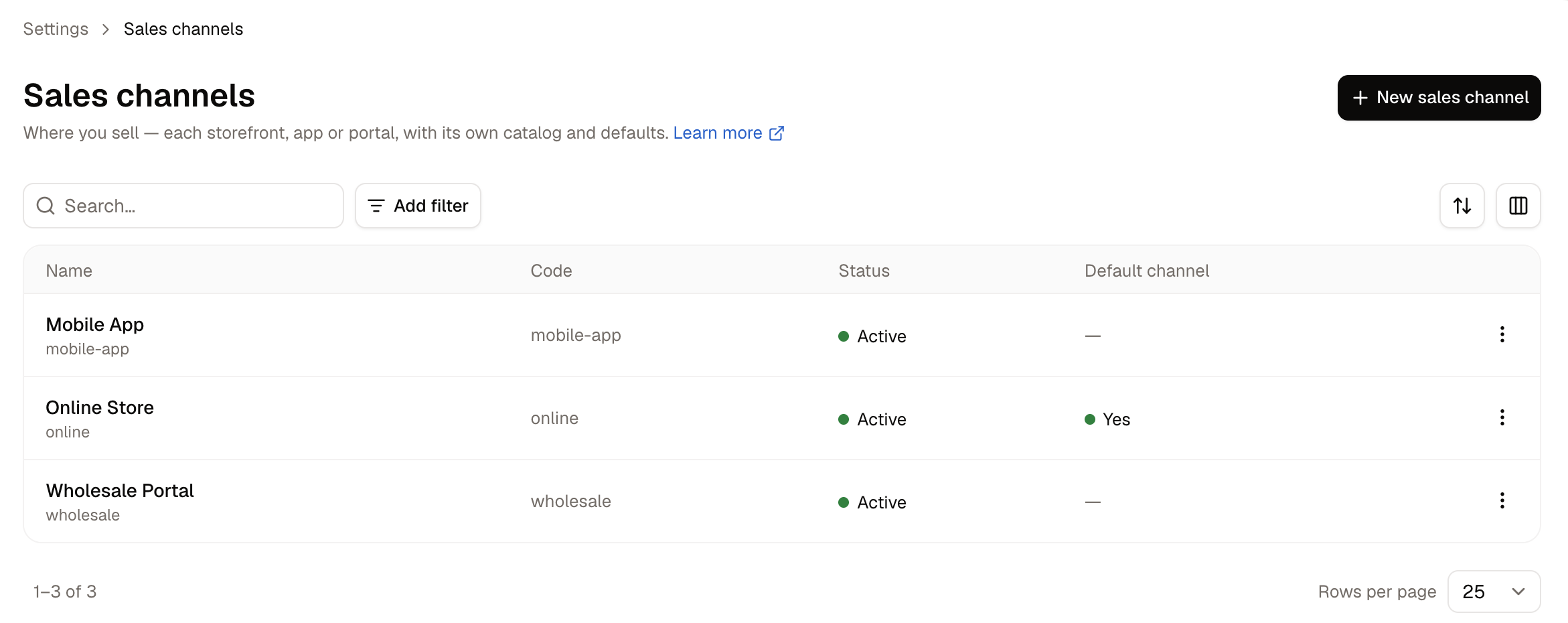
- Name - the internal label for the channel (e.g., “Online Store”, “Wholesale Portal”)
- Code - the unique identifier used in API requests to attribute orders to this channel
- Default - indicates which channel is used when no channel is specified in a request
- Active - whether the channel is currently enabled
Create a Sales Channel
To create a new channel, click New sales channel in the top-right corner. A panel slides in from the right.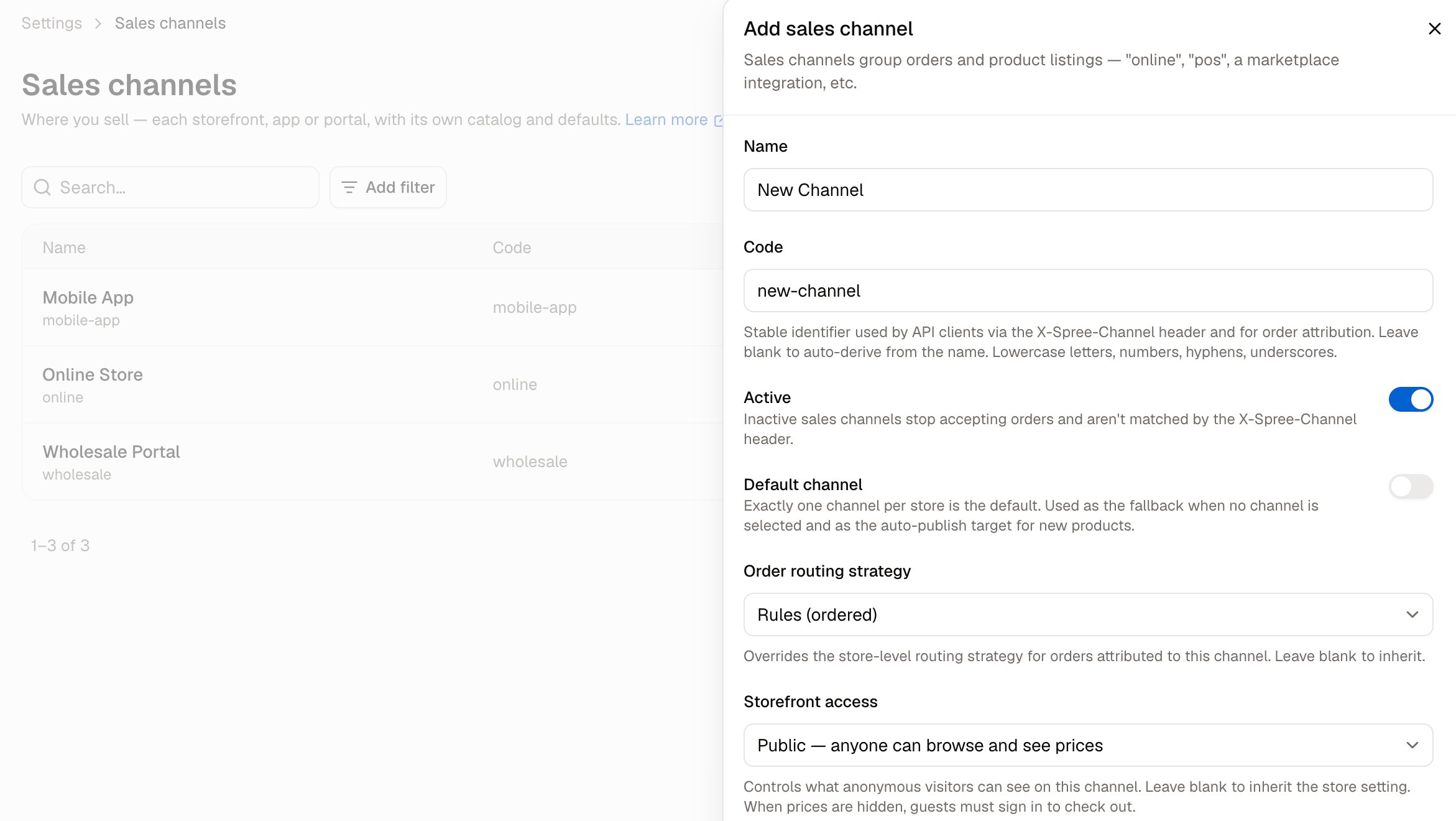
- Name - an internal label to identify this channel (e.g., “iOS App”, “EU Wholesale”)
- Code - the stable identifier API clients pass in the
X-Spree-Channelheader, and what orders are attributed to. Leave it blank to derive one from the name. Lowercase letters, numbers, hyphens and underscores only. - Active - turn off to stop this channel accepting orders without deleting it. An inactive channel is also no longer matched by the
X-Spree-Channelheader. - Default channel - exactly one channel per store is the default. It is the fallback when no channel is selected, and the channel new products are automatically published to.
- Order routing strategy - how orders on this channel are allocated to stock locations. See below.
- Storefront access - what anonymous visitors can see on this channel:
- Inherit from store - follows the store-wide setting. Leave it here unless this channel differs.
- Public - anyone can browse and see prices.
- Prices hidden - visitors must sign in to see prices, and guests must sign in to check out.
- Login required - visitors must sign in to browse at all.
- Guest checkout - whether shoppers can check out without an account here. Inherit from store, Allowed, or Not allowed.
- Default catalog - what shoppers outside any company or customer group catalog see on this channel. Leave it blank to show every product published to the channel, or pick a catalog to restrict the range.
- Locations - which warehouses and pickup counters fulfil orders placed on this channel. Choose All locations, or select specific ones.
Storefront access and Guest checkout both default to inheriting the store setting, so a channel only needs them set when it should behave differently from the rest of the store. See Store Details for the store-wide values they inherit.
Order Routing Strategy
Order routing determines which stock location fulfils an order when you have multiple warehouses or fulfilment points. When an order is placed, Spree evaluates the assigned strategy for that channel to decide where to source each shipment from. Channels that serve different regions or customer types often benefit from dedicated routing rules. You might route wholesale orders to a separate warehouse, or have one fulfilment centre handle every order from a particular storefront. Three strategies are available:- Inherit from store - uses the store-level routing strategy. This is the default and suits most channels.
- Rules (ordered) - evaluates a list of rules you arrange yourself, covered below.
- Legacy - uses the original Spree fulfilment flow.
Order Routing Rules
The rules themselves appear once the channel exists, so create the channel first and then reopen it to arrange them.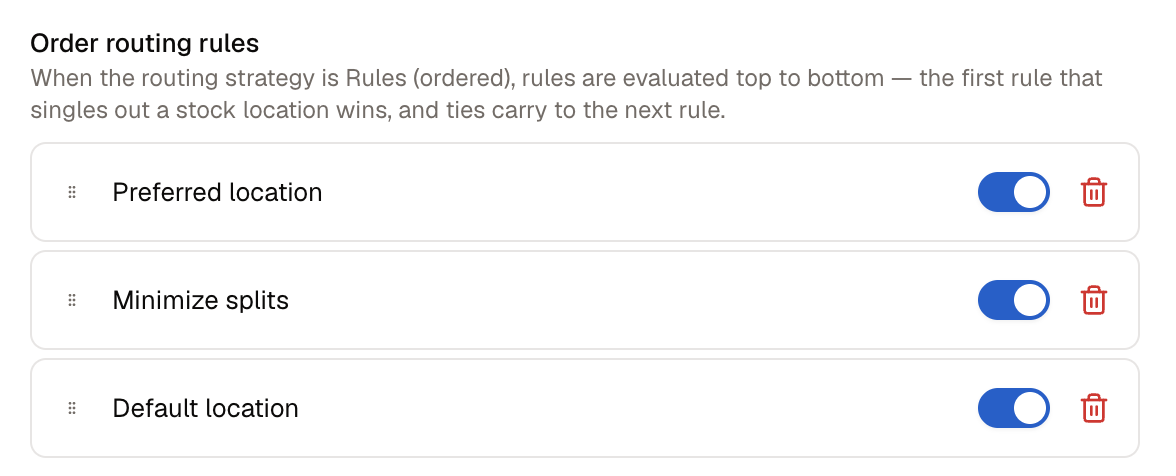
- Preferred location - always attempts to fulfil from a specific, designated stock location first, regardless of stock levels at other locations
- Minimize stock locations - tries to fulfil the entire order from as few stock locations as possible, reducing split shipments and simplifying fulfilment
- Default location - falls back to a designated stock location when no other rule has been satisfied
The rules only take effect when the channel’s Order routing strategy is set to Rules (ordered). On any other strategy the list is ignored.
Products and Sales Channels
When a product is created, it is automatically assigned to the default channel only. Any additional channels must be assigned manually. This means products are not visible on non-default channels until explicitly added. To manage which channels a product is available on, open the product in the editor and locate the Publishing card.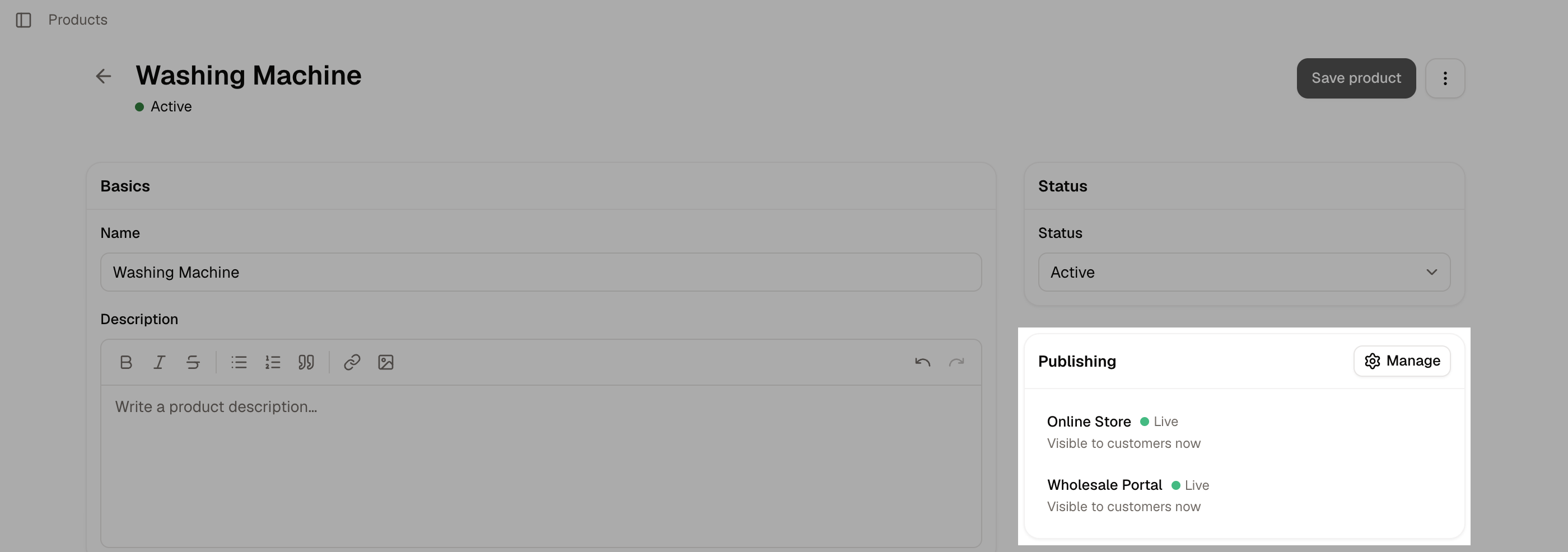
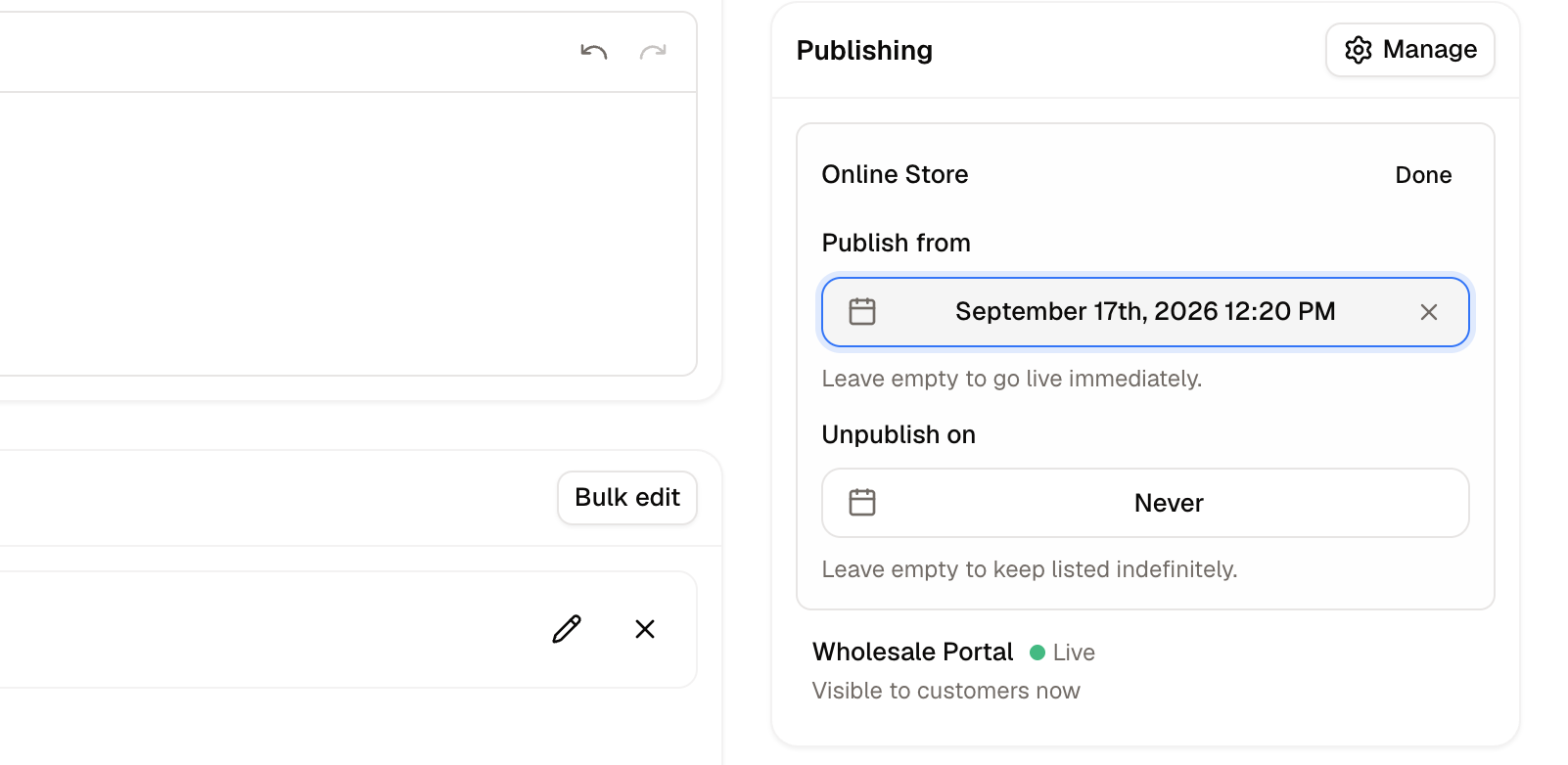
- Live - visible and purchasable on that channel
- Scheduled - will become active automatically at the configured start date
- Not available - assigned to the channel but hidden from customers
If creating products via the Admin API, the product will have no channels assigned unless a channel is explicitly set in the request.
Assigning channels in bulk
Doing this product by product is fine for a handful, but to assign a whole range of products at once, use the bulk action on the products list instead. Go to Products, tick the products you want, and the bulk action bar will be revealed at the top of the table. Use Add to sales channels to list them on a channel, or Remove from sales channels, under More actions, to unlist them.Selection is per page, so a range spread over several pages requires repeating the bulk action on each page in turn.
Orders and Sales Channels
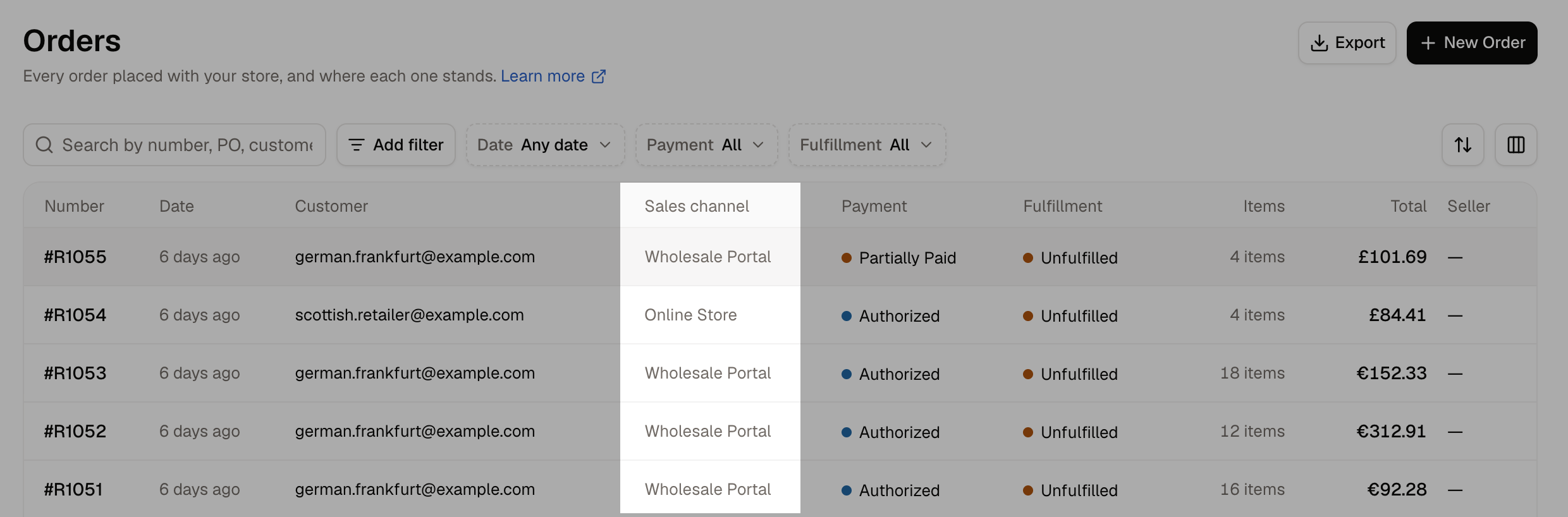
Every order placed through a channel is automatically attributed to it, making it easy to track volume and manage fulfilment per channel without any manual tagging. In the Orders list, a Channel column shows which channel each order came from at a glance. You can also use the Channel filter to narrow the list to a specific channel.