

Reviewing Orders
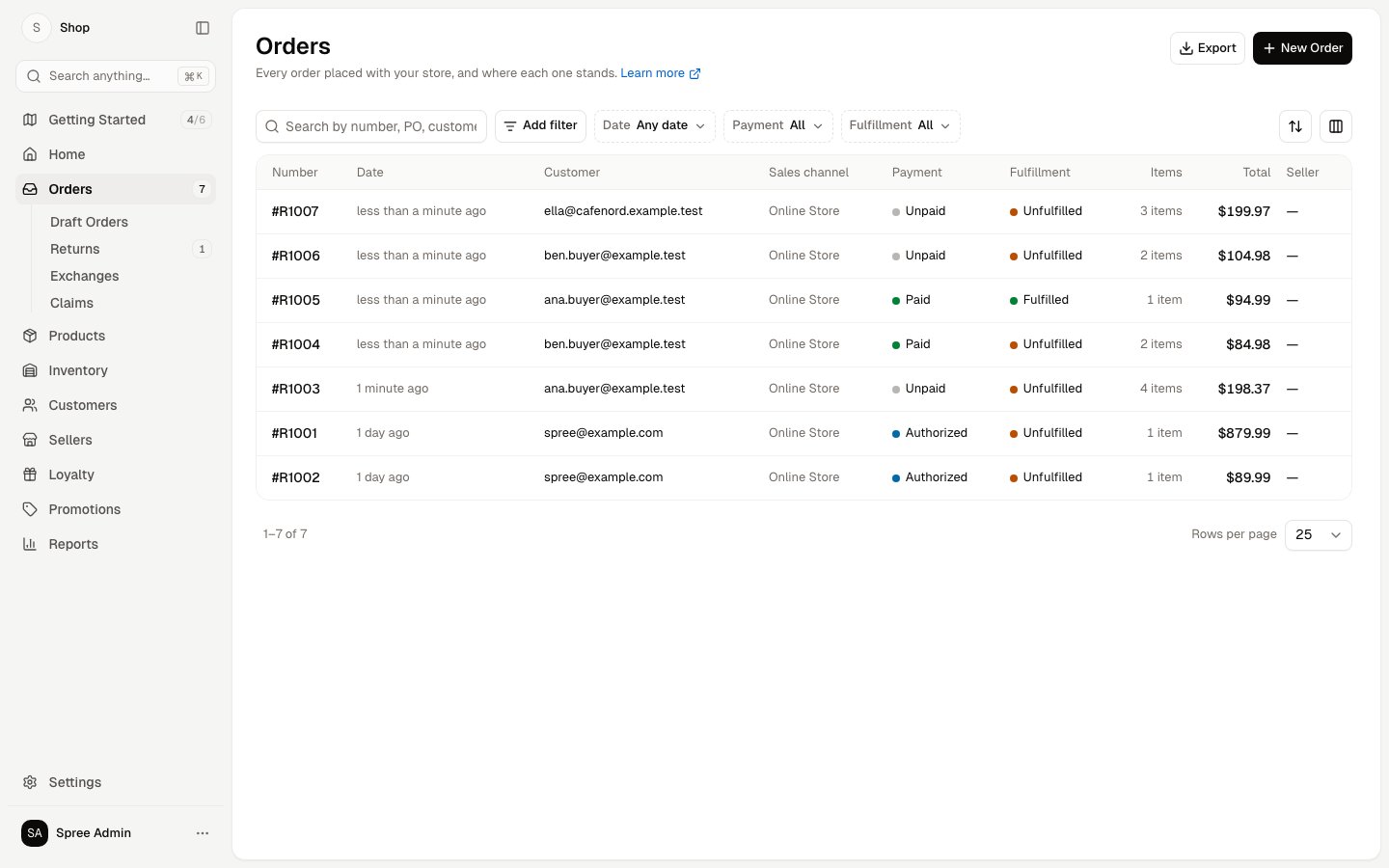
Columns adds further columns, among them PO number for the buyer’s own reference, Currency, Tags, and when the order was created or last updated. Sort orders the list by any of those columns.
Finding an Order
The search box matches an order’s number, the buyer’s purchase order number, the customer’s email address, and the first or last name on the order. Search does not look at what was bought, so to find every order holding a particular product, use the SKU filter under Add filter instead. Three filters sit beside the search box:
Add filter offers more: the customer, sales channel, total, PO number, currency, seller, tags, a name on the order, a SKU, and the created or updated date.
Every filter you add is kept in the page address, so a filtered list, such as everything that’s unfulfilled, can be bookmarked and returned to.
Payment and Fulfillment Statuses
Both statuses are worked out from the order itself, rather than set by hand. An order’s Payment status reflects what has been captured against its total:
An order’s Fulfillment status reflects its parcels:
How to Export Orders
An export gives you your orders as a CSV file, for your accountant, a report or another system.- Narrow the list first if you only want a partial export.
- Click Export.
- Choose Current filter to export what the list is showing, or All records to ignore the filter.
- Click Export. The file downloads, and you receive an email as well.
The file holds one row per product on an order, so an order with two different products takes two rows, and the order’s totals are repeated on each.
Order Pages
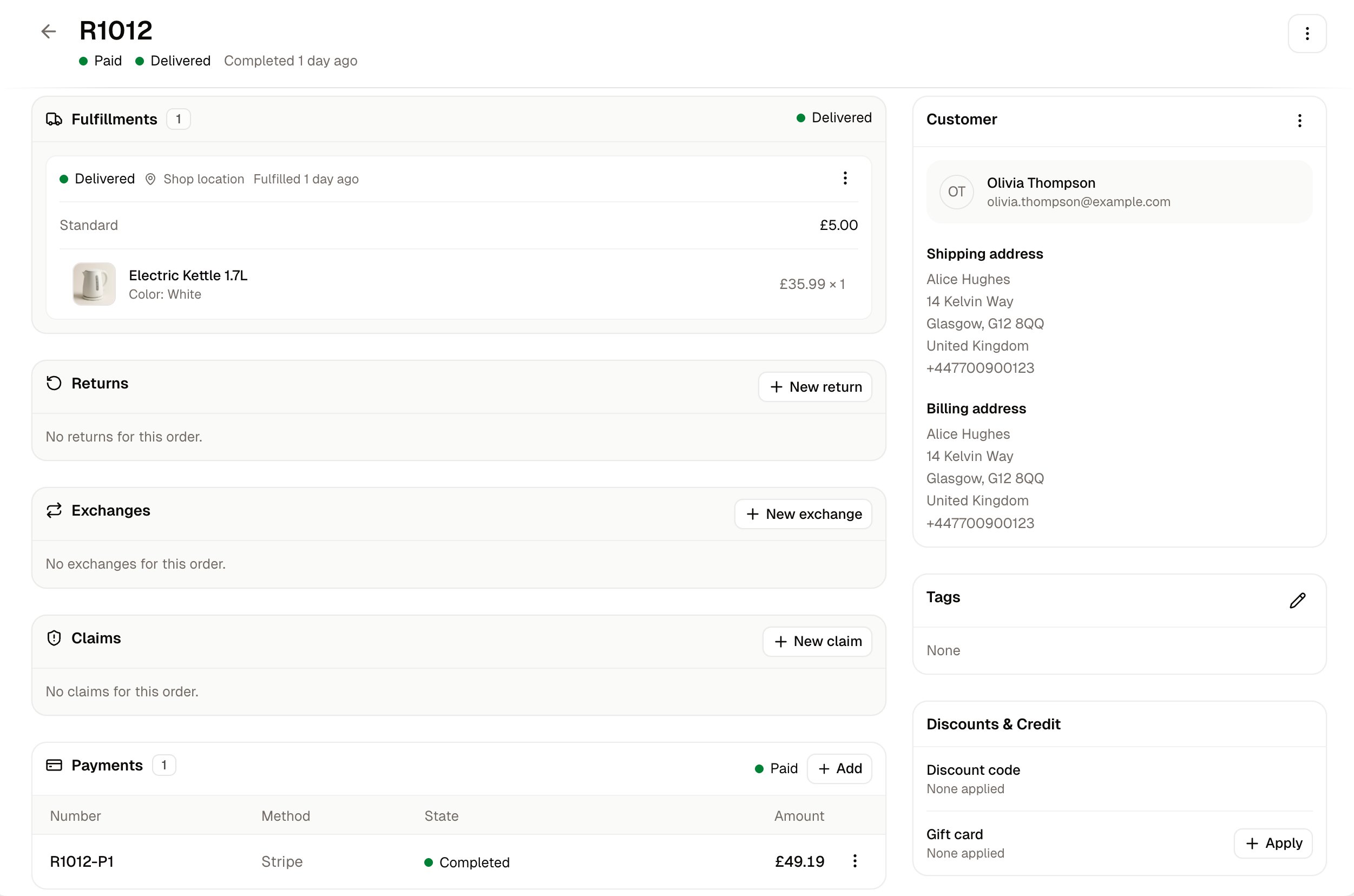
A marketplace order carries two more, Commission and Seller transfers, both records of what each seller is owed.
The Order Summary
The Summary card is where an order’s money is added up, alongside the record of where the order came from. Nothing in it is edited directly: every figure follows from the order itself.
Rows appear only when they apply, so an order with free delivery, no promotion and no tax shows a shorter Summary than one with all three.
Adjustments is a running total of the same money the rows above it break down, so on an order with tax and no discount or fee it shows the same figure as Tax (additional). Nothing is charged twice, and the Total is right.
Payment total and Outstanding balance count only money that has been captured, so a card that is authorized but not yet captured still reads as owed. See Processing Orders.
Further Reading
- Processing Orders - Everything you do on an order’s own page
- Draft Orders - Orders your team builds for a customer
- Returns - Goods a customer sends back
- Exchanges - Swapping one item for another
- Claims - Goods that arrived damaged or never arrived