

Create a New Promotion
To create a promotion, navigate to the Promotions tab in the admin dashboard.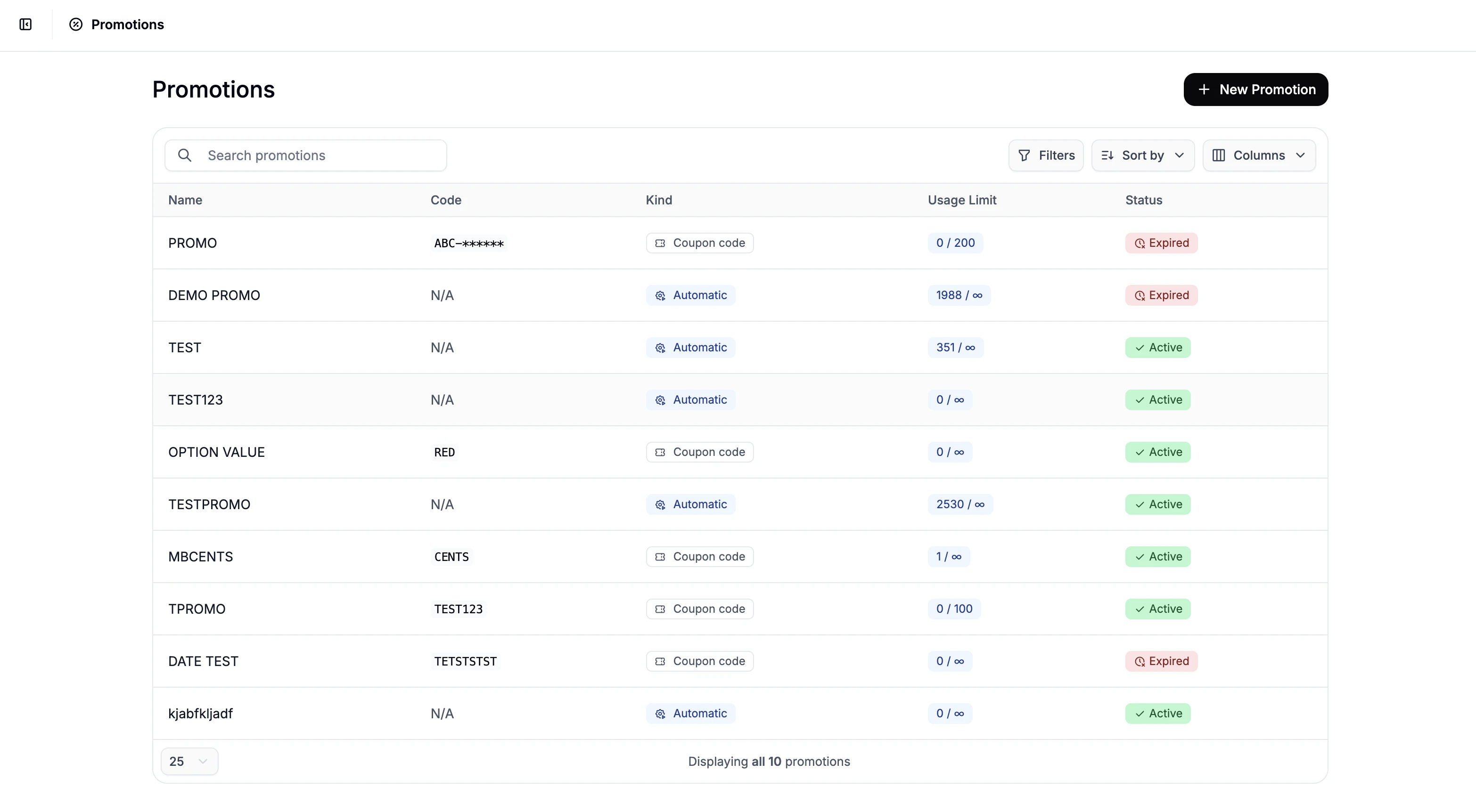
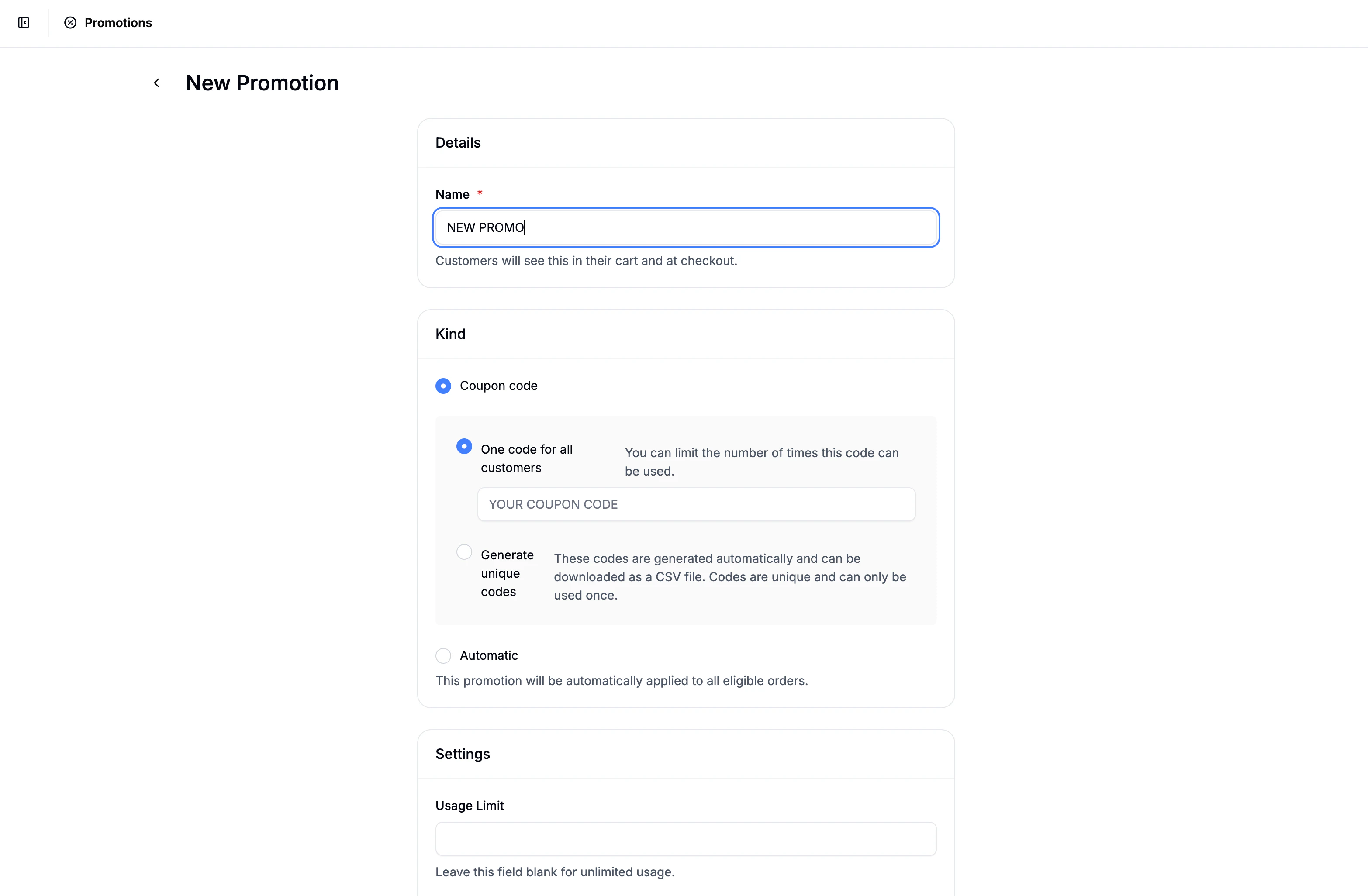
Choose a Promotion Type
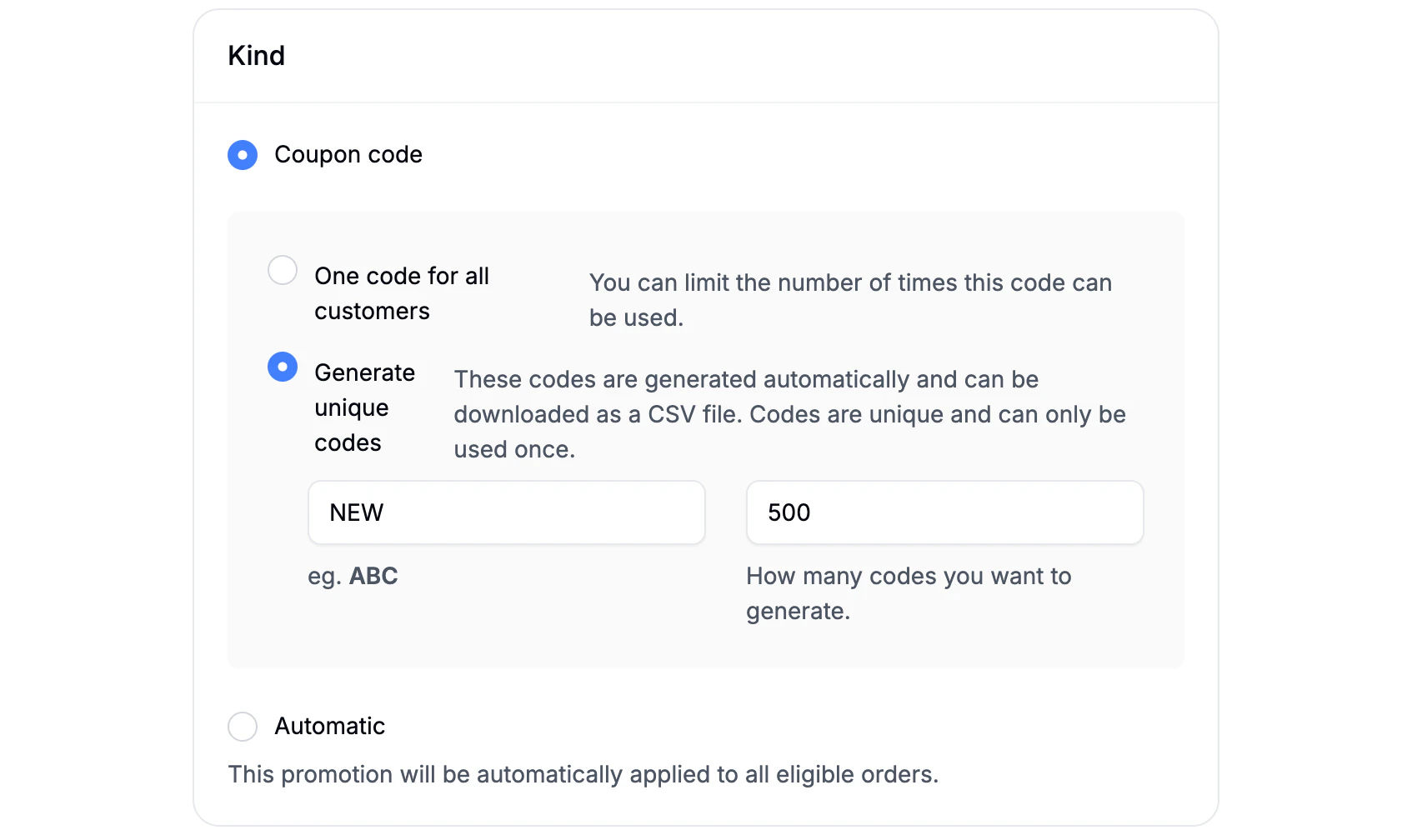
- Coupon Code - The promotion is applied only when a valid code is entered at checkout. You can choose between:
- Single Code - one shared code (e.g. SUMMER10)
- Generated Codes - automatically generate unique codes
- Optional prefix (e.g. VIP-)
- Set how many codes should be generated
- Unique codes can be downloaded for easier distribution
- Automatic - The promotion is applied automatically at checkout once its conditions are met. No coupon code required.
- This is ideal for sitewide sales, free shipping offers, or first-time customer discounts.
Configure Promotion Settings
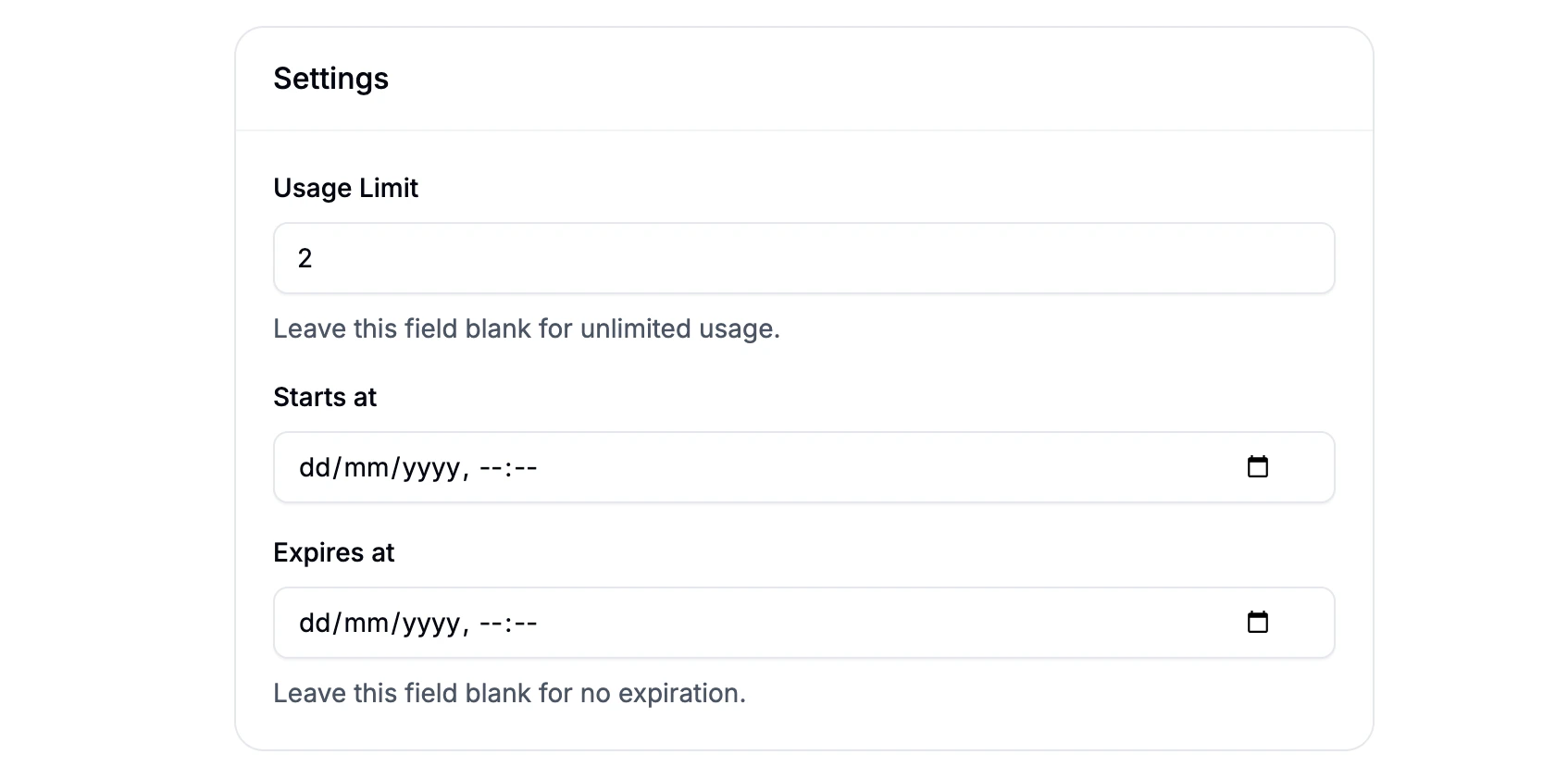
- Usage Limit - Maximum number of times the promotion can be used (optional).
- Starts At - Date and time when the promotion becomes active.
- Expires At - Date and time when the promotion is no longer valid.
Configure Rules & Actions
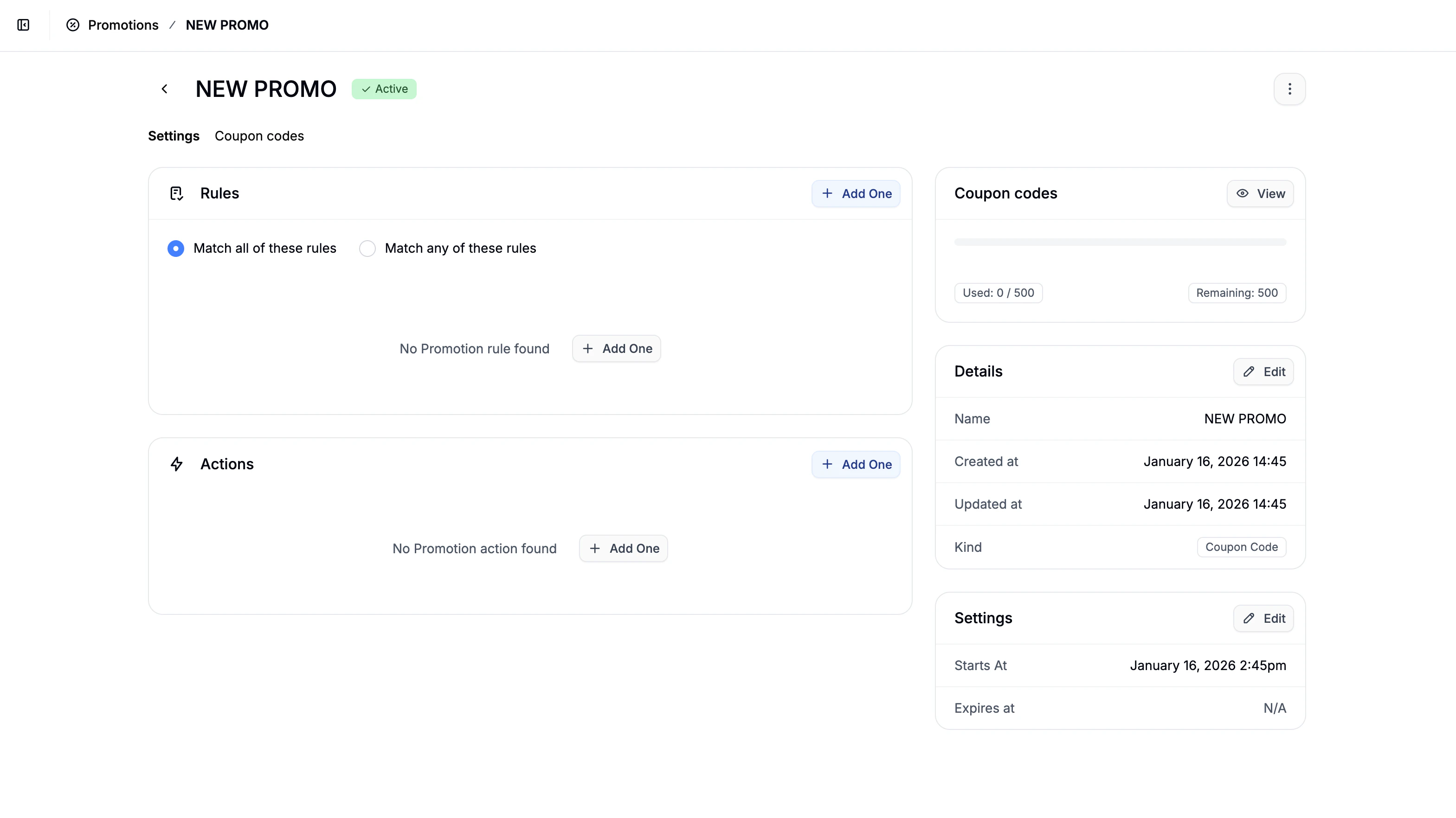
- Rules - determine when the promotion applies
- Actions - determine what happens when it applies
- Promotion details (name, code)
- Promotion settings (usage limits, start/end dates)
Promotion Rules (Conditions)
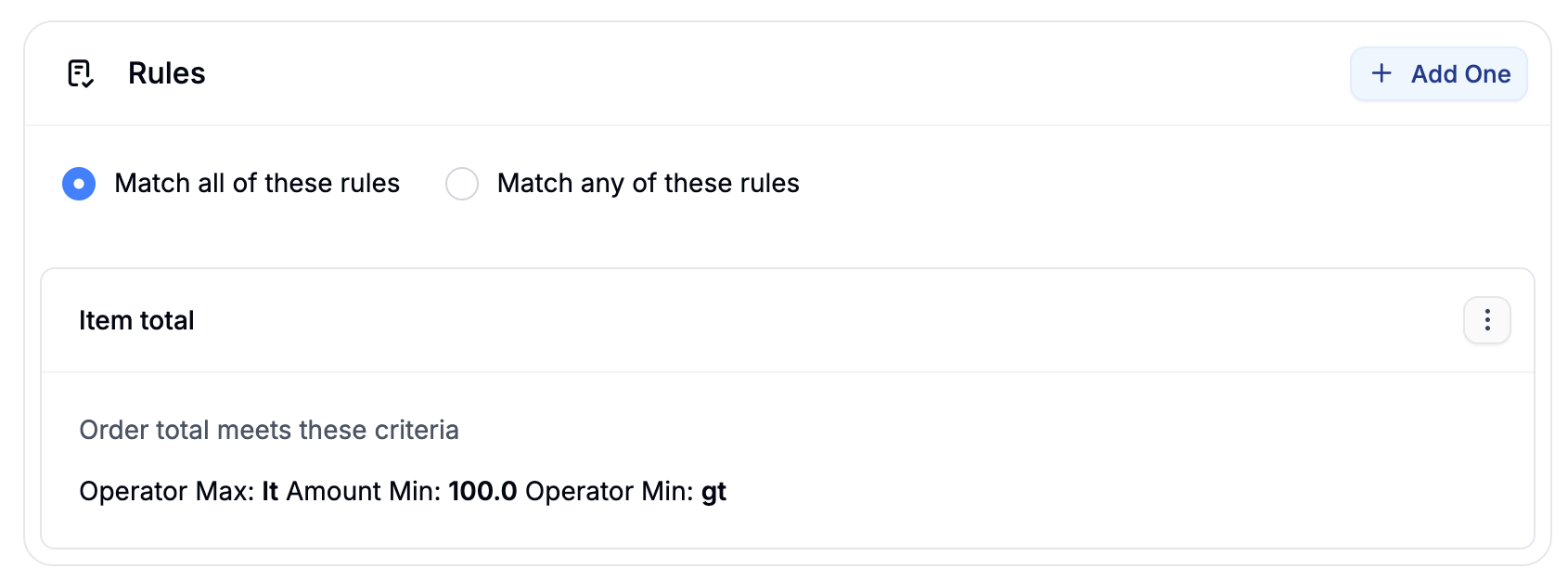
- Match any - at least one rule must be satisfied
- Match all - all rules must be satisfied
- Currency - Order must be in a specific currency
- Country - Shipping address must be in a specific country
- Item Total - Order total meets defined thresholds
- Product(s) - Order contains specific products
- User - Available only to specific customers
- First Order - Customer’s first purchase only
- User Logged In - Requires the customer to be logged in
- One Use Per User - Limits redemption to once per customer
- Taxon(s) - Order contains products from selected taxons
- Option Value(s) - Order contains products with specific option values
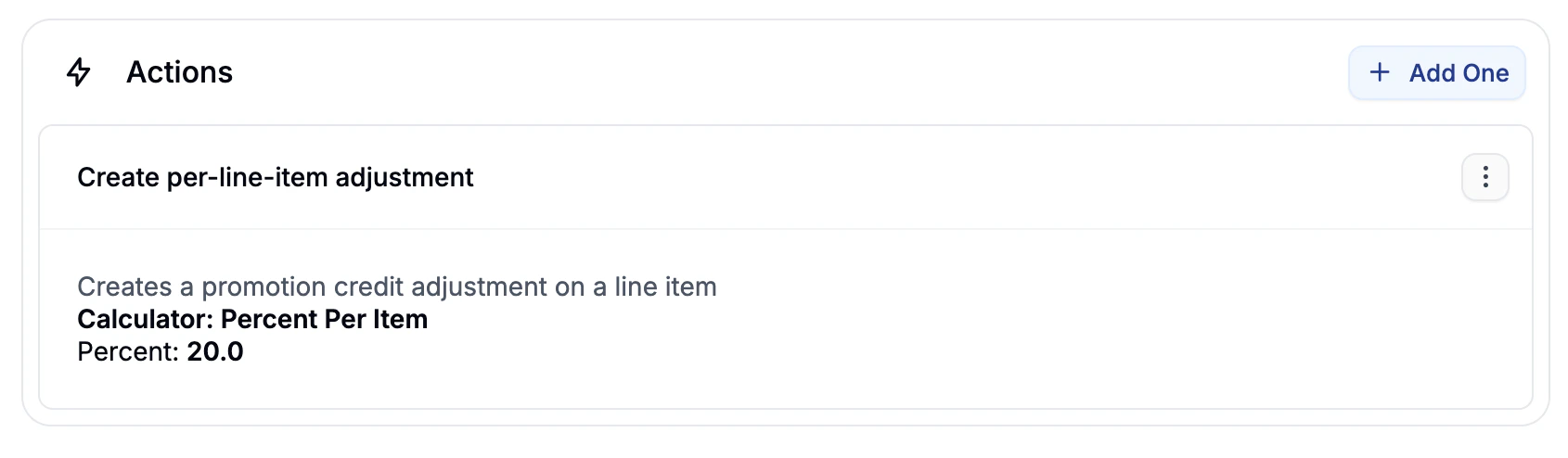
Promotion Actions (Effects)
- Create whole-order adjustment - Applies a discount to the entire order.
- Create per-line-item adjustment - Applies discounts to individual line items.
- Create line items - Automatically adds products (e.g. gifts) to the cart, free of charge.
- Free shipping - Makes all shipments for the order free.
Promotion Ready to Use
Once you’ve added the promotion’s rules and actions, it’s ready to be used by customers.- Automatic promotions will apply at checkout as soon as the conditions are met.
- Coupon code promotions can be redeemed when customers enter the code during checkout.
Common Promotion Examples
10% Off with a Coupon Code- Type: Coupon Code (single code)
- Rule: None (or minimum order total)
- Action: Whole-order adjustment → 10% discount
- Type: Automatic
- Rule: Item total ≥ $50
- Action: Free shipping
- Type: Automatic
- Rules: First order, User logged in
- Action: Whole-order adjustment → flat or percentage discount
- Type: Automatic
- Rule: Taxon(s)
- Action: Per-line-item adjustment
- Type: Coupon Code (generated unique codes with prefix)
- Rules: User, One use per user, Currency
- Action: Whole-order adjustment with tiered percentage calculator