

A single price list can also carry per-variant quantity breaks: a lower unit price from a given quantity up, set in the price edit form or imported from a CSV. Use separate price lists, as below, when whole assortments or rules differ between tiers; use quantity breaks when the same list should simply charge less per unit at volume. See Price Lists.
This guide focuses on volume-based pricing. If you need to combine volume pricing with customer group or regional rules — for example, offering wholesale volume discounts only to registered trade customers — see Set Up Wholesale Pricing by Customer Group instead.
Prerequisites
Before you start, you should have your products uploaded and set up with base prices. Volume pricing overrides those base prices when the quantity conditions are met — products without a base price will not be affected. Familiarity with how Price Lists work is helpful. See Price Lists for a full reference.1. Create the First Volume Price List (21–50 Units)
To create price list, navigate to Products → Price Lists in the admin dashboard and click New Price List.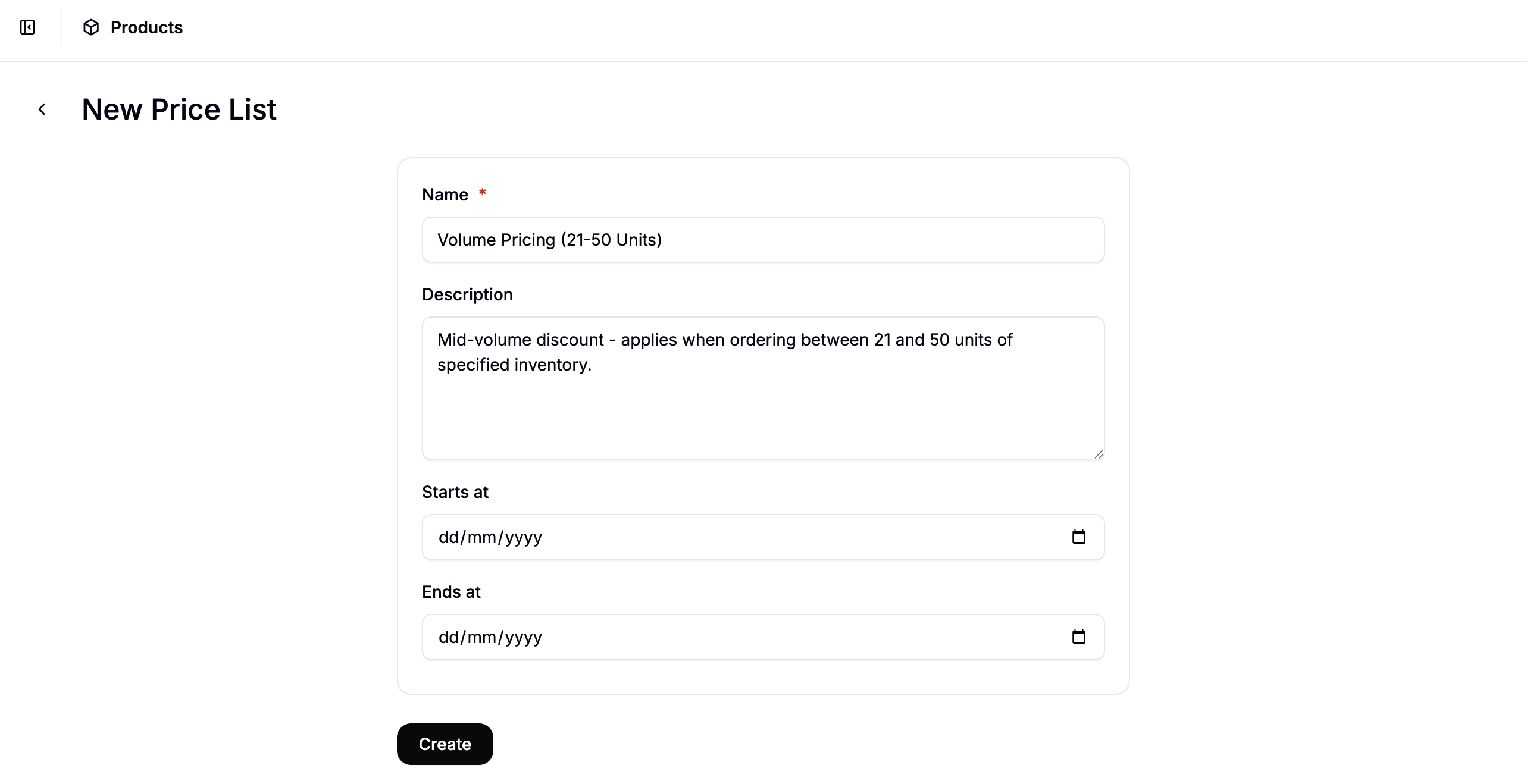
- Name — e.g.,
Volume Pricing (21–50 Units) - Description — optional (e.g.,
Mid-volume discount — applies when ordering between 21 and 50 units) - Start Date / End Date — leave blank if this pricing should apply indefinitely
Add a Volume Rule
In the price list editor, click Add Rule and select Volume from the rule type dropdown.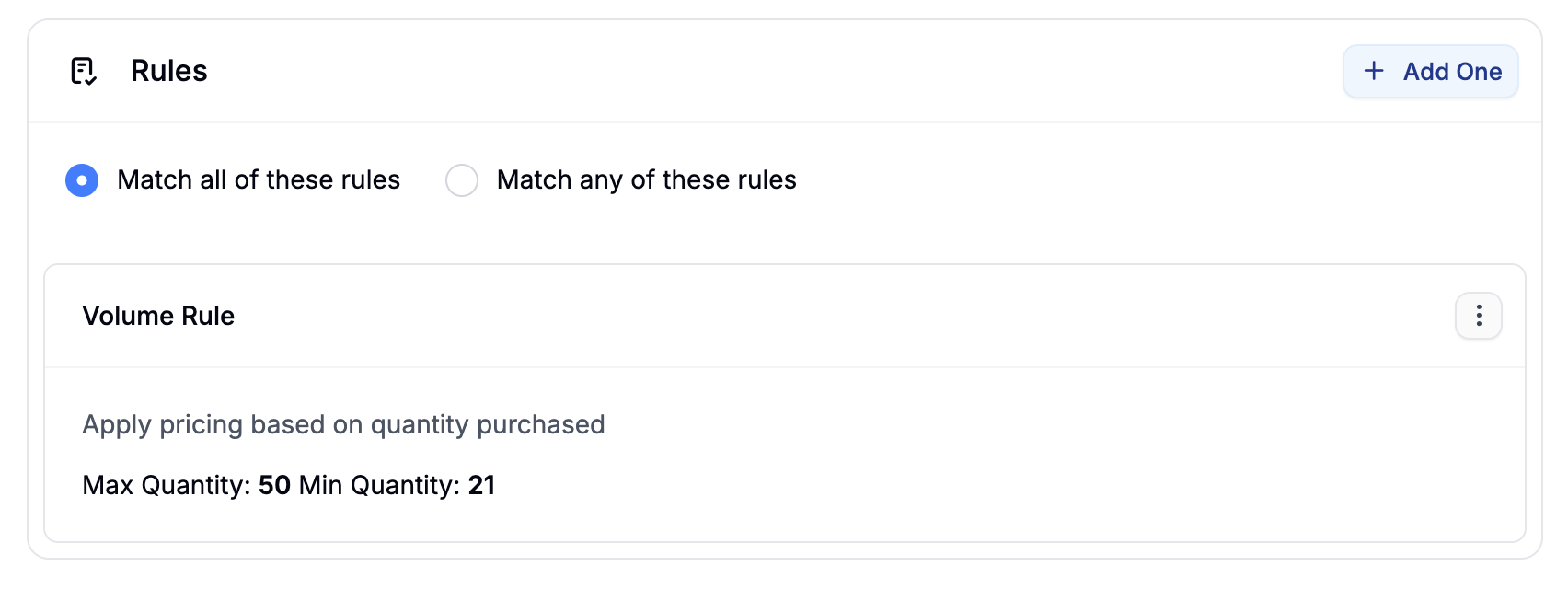
- Min Quantity —
21 - Max Quantity —
50
Add Products and Set Prices
Click Add Products to open the product selector. Search for and select the products you want to include in this tier, then click Add Selected. Once the products appear in the list, click Edit Prices to open the price editor. Enter the discounted price for each product in the Price column.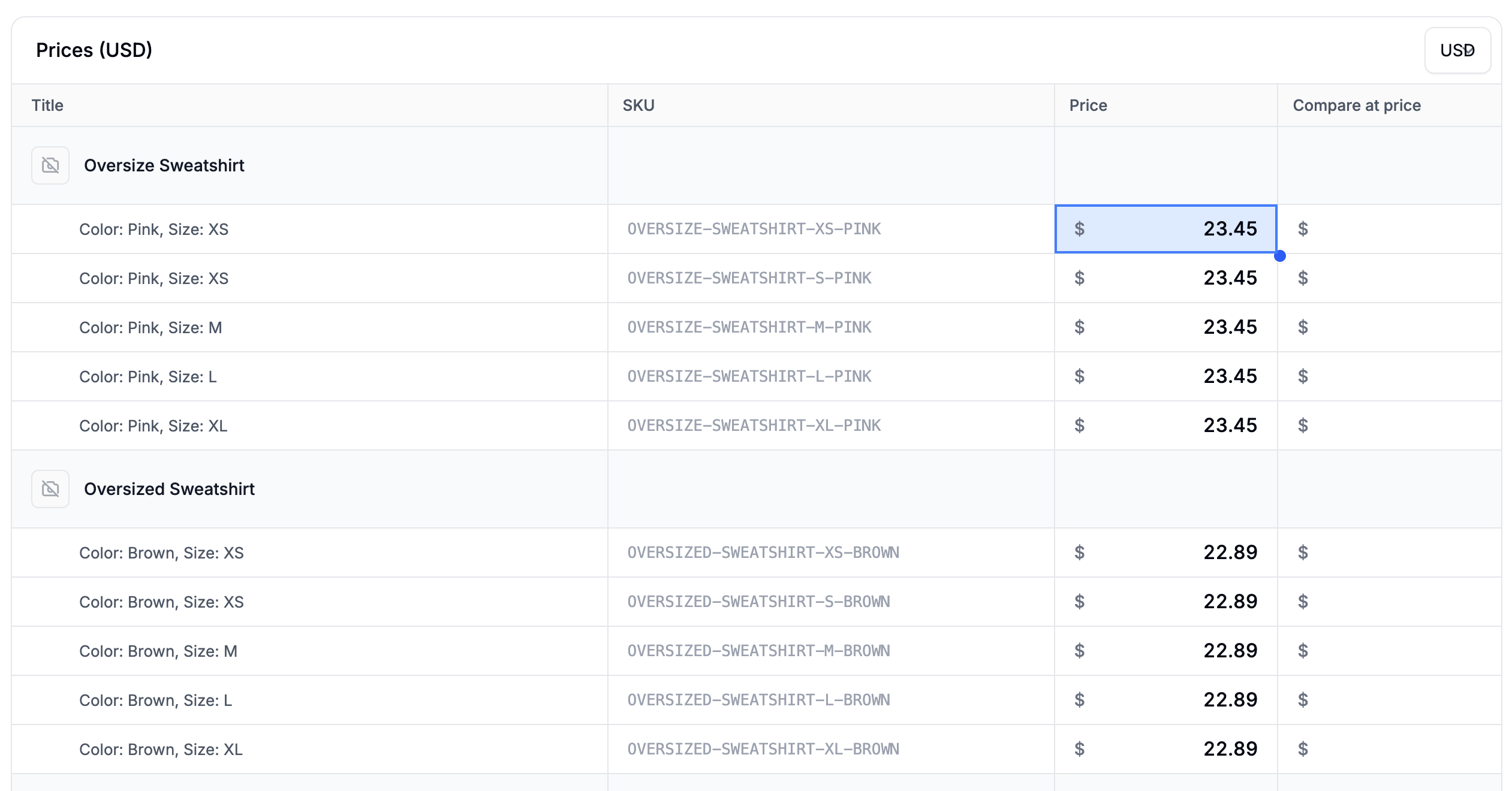
2. Create the Second Volume Price List (51–100 Units)
Repeat the same process for the higher-volume tier. Click New Price List and fill in the details:- Name — e.g.,
Volume Pricing (51–100 Units) - Description — optional (e.g.,
High-volume discount — applies when ordering between 51 and 100 units)
- Min Quantity —
51 - Max Quantity —
100
If you want pricing to apply for orders above 100 units with no upper limit, leave the Max Quantity field blank on that price list.
3. Verify on the Storefront
To confirm your volume tiers are working correctly, test by adding products to the cart in quantities that fall within each tier.- Visit your storefront and add a product to the cart.
- Set the quantity to a value within the first tier (e.g.,
25) and confirm the mid-volume price is applied at checkout. - Update the quantity to a value within the second tier (e.g.,
60) and confirm the deeper discount is applied. - Set the quantity below the first tier threshold (e.g.,
5) and confirm the standard base price is shown.
- The product has been added to the correct price list
- The price list is set to Active
- The Volume rule min and max quantities are correctly set and do not overlap between tiers
Next Steps
- Price Lists — full reference for rules, product selection, and price editing
- Set Up Wholesale Pricing by Customer Group — offer tiered pricing to specific customer segments
- Set Up Multi-Region Pricing — combine regional and volume rules for market-specific discounts