

Prerequisites
Before you start, you should have your products set up with base USD prices. If you’re new to multi-currency or wholesale pricing in Spree, it’s worth reading these first:- Set Up Multi-Currency Pricing — how to create markets and set base prices per currency
- Set Up Wholesale Pricing by Customer Group — how to create customer groups and price lists with a Customer Group rule
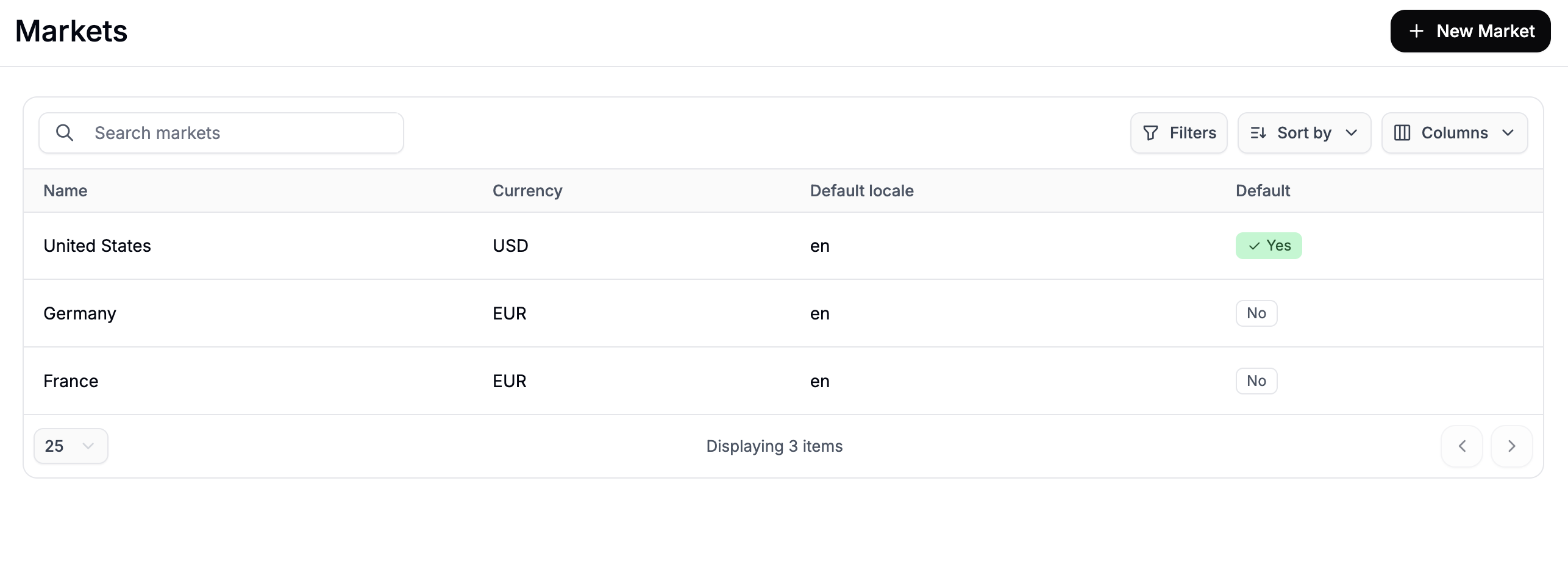
1. Create Markets for Germany and France
Each region needs its own Market before you can target it with a regional price list. If your DE and FR markets are already set up, skip to Step 2. Navigate to Settings → Markets and click New Market. Create the Germany market first:- Name —
Germany - Default Country —
Germany - Currency —
EUR - Default Locale —
DEorEN - Tax Inclusive — check this for standard EU VAT-inclusive pricing
- Default — leave unchecked
France and Default Locale to FR or EN.
2. Assign EUR Base Prices to Your Products
With EUR markets in place, you’ll need to set a base EUR price on every product you want to sell in Germany and France. These base prices are what standard retail customers in those markets will see — your wholesale price lists will override them for wholesale buyers. Navigate to Products, open each product, and use the currency switcher in the Pricing or Variants section to enter the EUR base price. See Set Up Multi-Currency Pricing for the full walkthrough.3. Create a Wholesale Customer Group
You’ll need a single Customer Group to represent all your wholesale buyers across all regions. A single group works here because the regional split is handled by the Market rule on each price list — not by separate groups. Navigate to Customers → Customer Groups and click New Customer Group.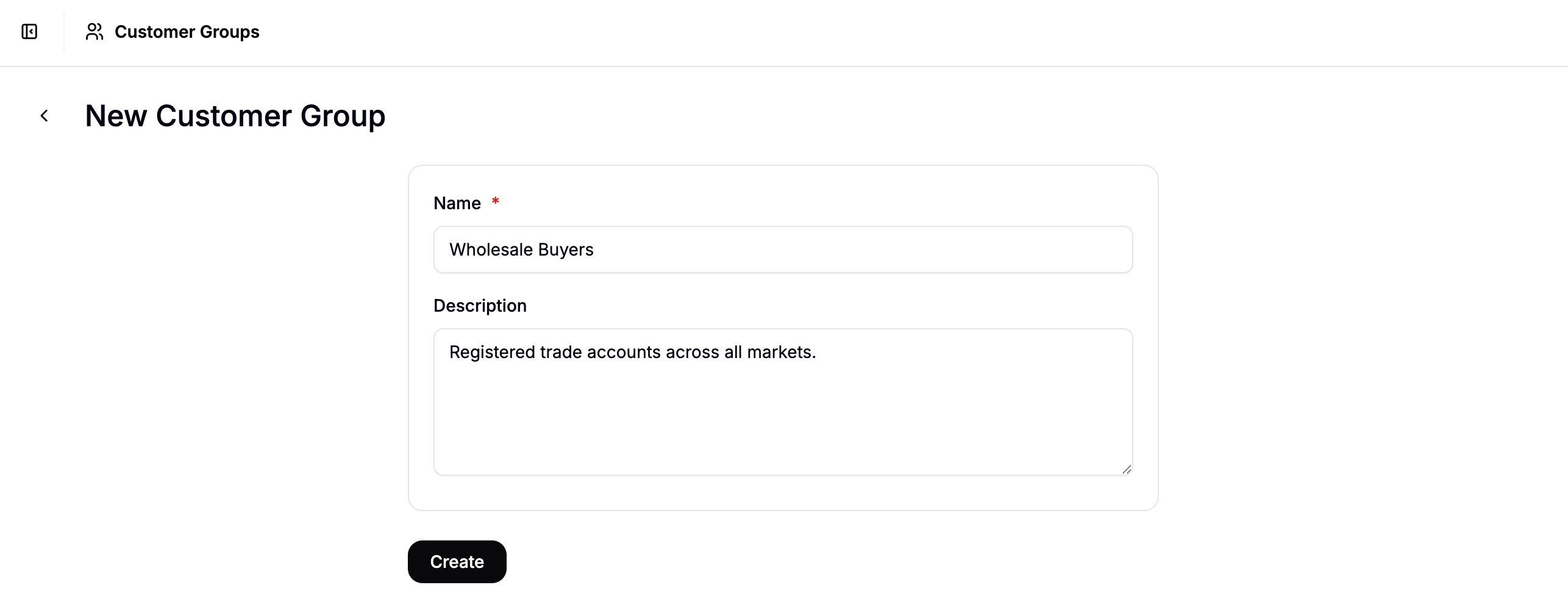
- Name — e.g.,
Wholesale Buyers - Description — optional (e.g.,
Registered trade accounts across all markets)
Alternatively, you could set up different Customer Groups for each market.
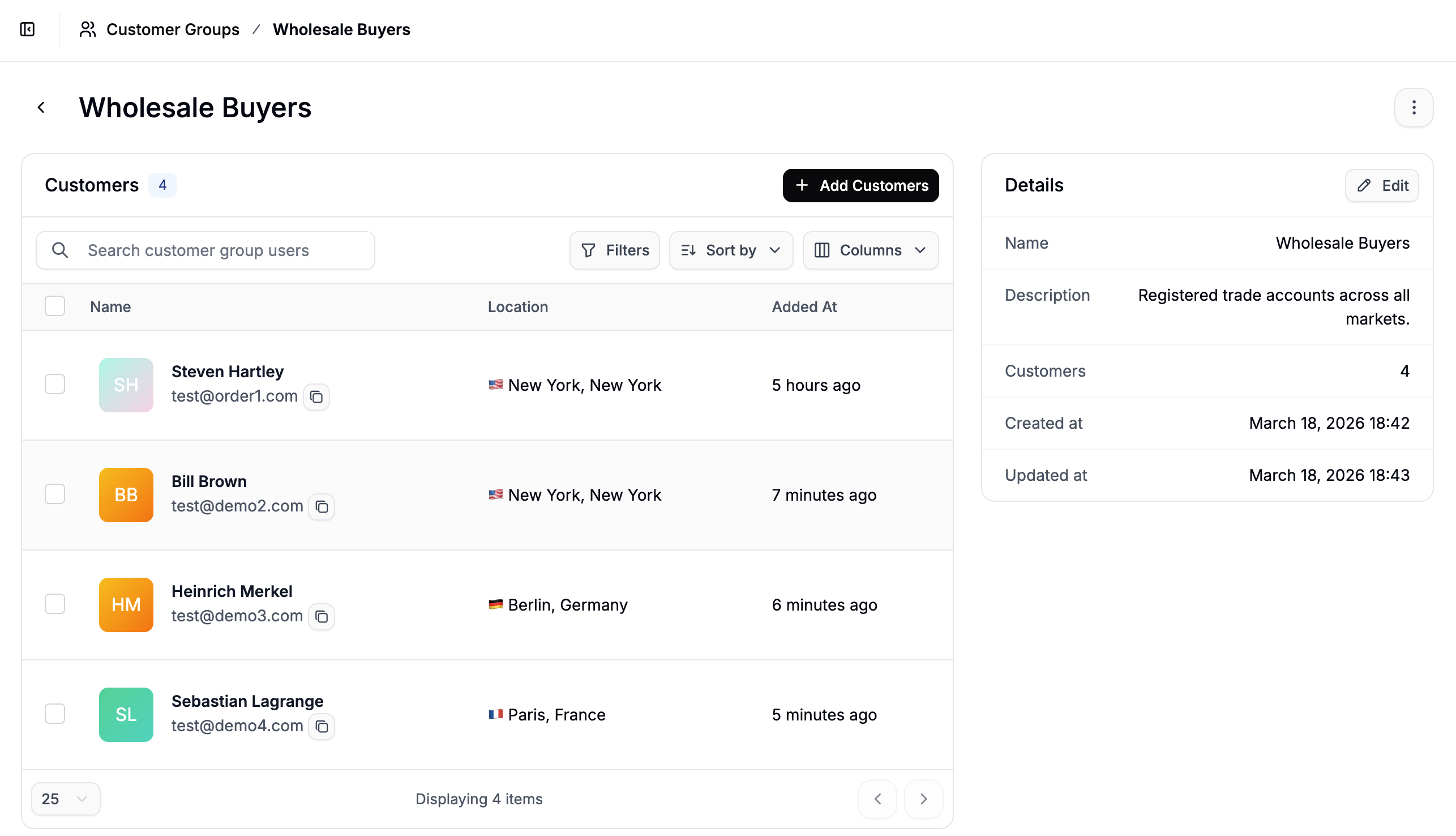
4. Create a Wholesale Price List for Each Market
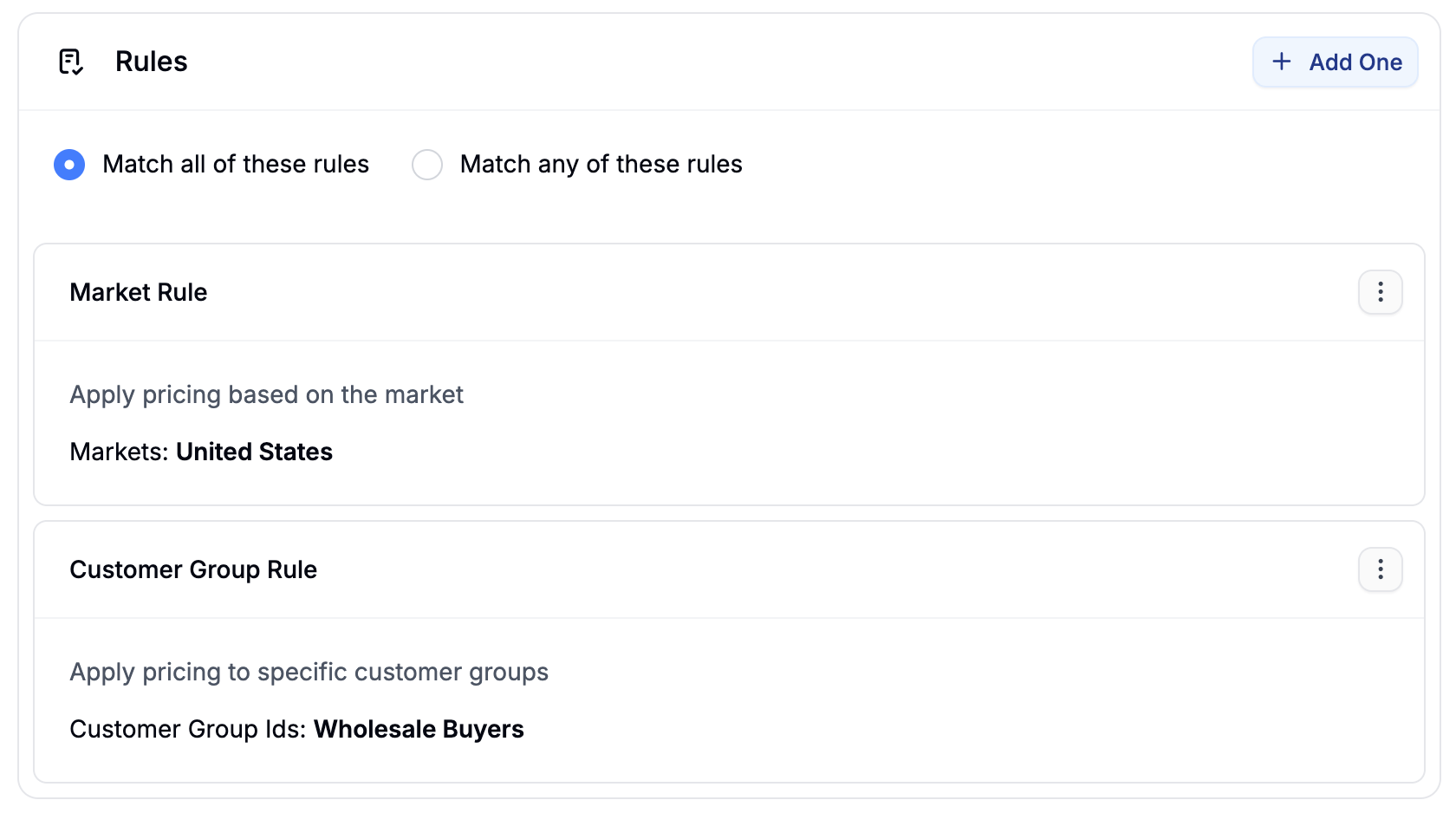
You’ll now create three price lists — one per market. Each will use Match All logic with two rules: a Customer Group rule targeting Wholesale Buyers, and a Market rule targeting the relevant market. This combination ensures the price list only activates for wholesale customers in that specific region.US Wholesale Price List
Navigate to Products → Price Lists and click New Price List.- Name — e.g.,
US Wholesale Pricing - Description — optional (e.g.,
USD wholesale prices for US trade accounts) - Start Date / End Date — leave blank to apply indefinitely
- Click Add Rule, select Customer Group, and choose Wholesale Buyers
- Click Add Rule again, select Market, and choose United States
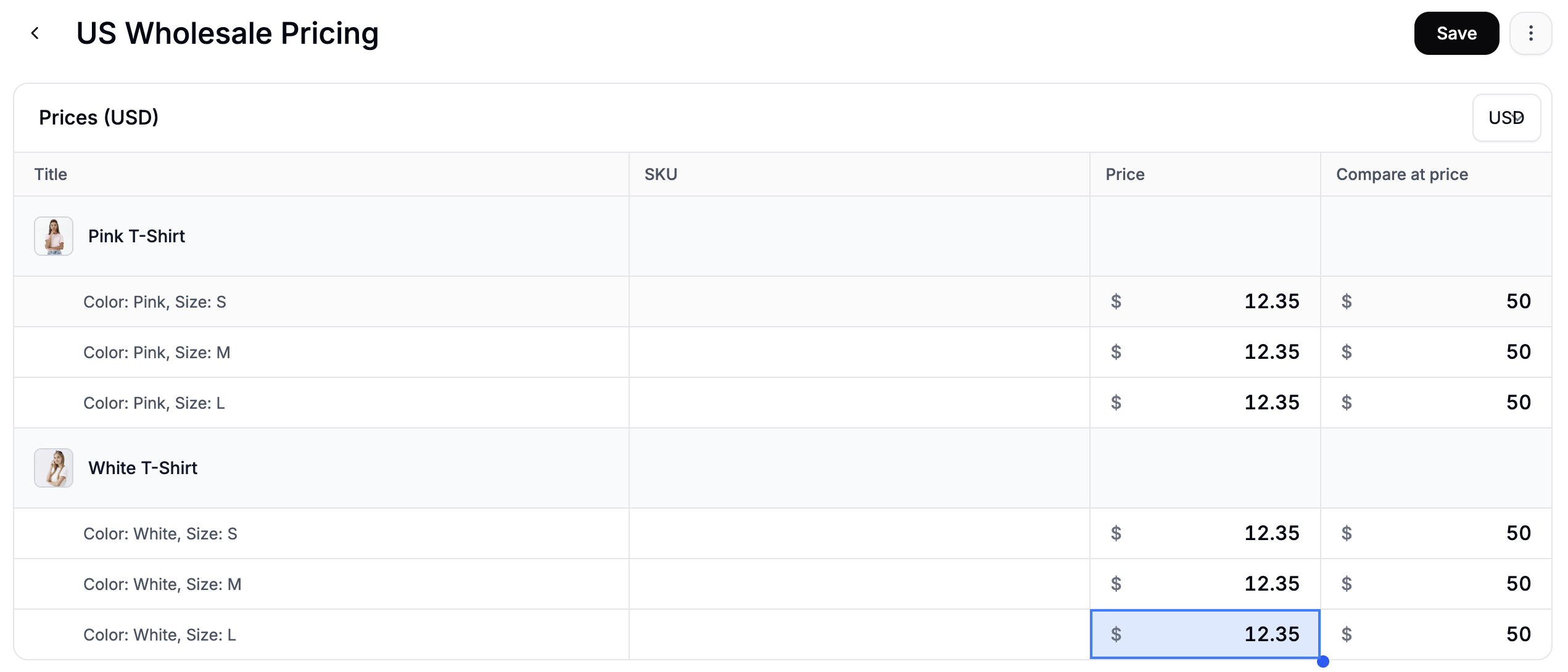
Germany and France Wholesale Price Lists
Repeat the same process for Germany and France. For each:- Name them clearly — e.g.,
Germany Wholesale PricingandFrance Wholesale Pricing - Set Match All with a Customer Group rule (Wholesale Buyers) and a Market rule targeting the correct market
- When editing prices, make sure EUR is selected in the currency switcher and enter the regional EUR wholesale prices
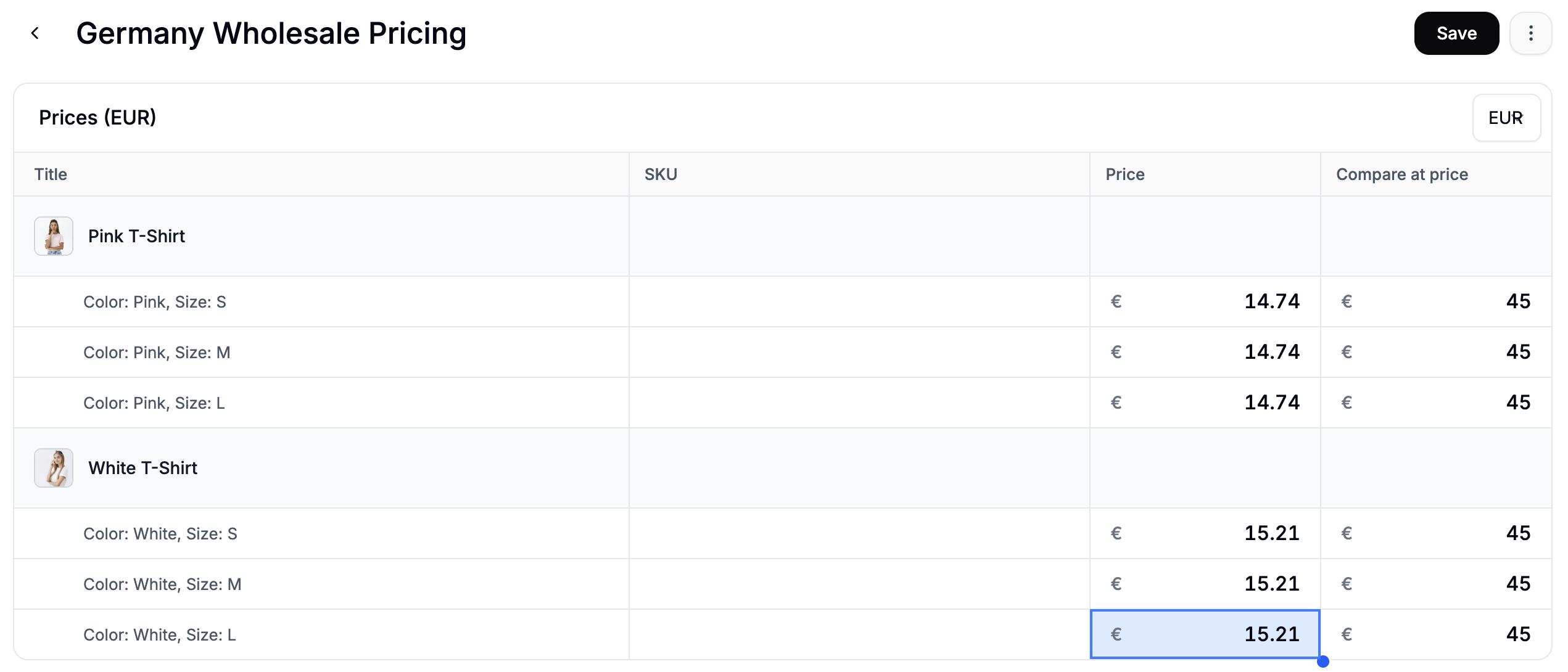
Wholesale prices don’t need to be the same across markets. You can set independent EUR prices for Germany and France — for example, to account for local market conditions or distributor agreements.
5. Verify Pricing
To confirm the setup is working correctly, log in to your storefront using a customer account that belongs to the Wholesale Buyers group.- Switch to the United States market and confirm wholesale USD prices are displayed on your products.
- Switch to the Germany market and confirm wholesale EUR prices are shown.
- Switch to the France market and confirm the France-specific EUR wholesale prices are shown.
- Log out and repeat the market checks as a guest — you should see standard retail prices across all three markets.
- The customer account is added to the Wholesale Buyers group
- The price list is set to Active
- Both rules (Customer Group and Market) are present and set to Match All
- The correct currency is set on the prices in the price list editor
Next Steps
- Set Up Wholesale Pricing by Customer Group — wholesale pricing without regional splits
- Set Up Multi-Region Pricing — regional pricing without a wholesale overlay
- Price Lists — full reference for rules, match logic, and price editing
- Markets — full reference for configuring Markets