

1. Set Up Markets with Additional Locales
Languages in Spree are configured through Markets. Each market has a Default Locale — the language customers see when they browse that market. Before any translation work can begin, you need at least one market set up with a non-default locale. Navigate to Settings → Markets and click New Market for each region you want to add.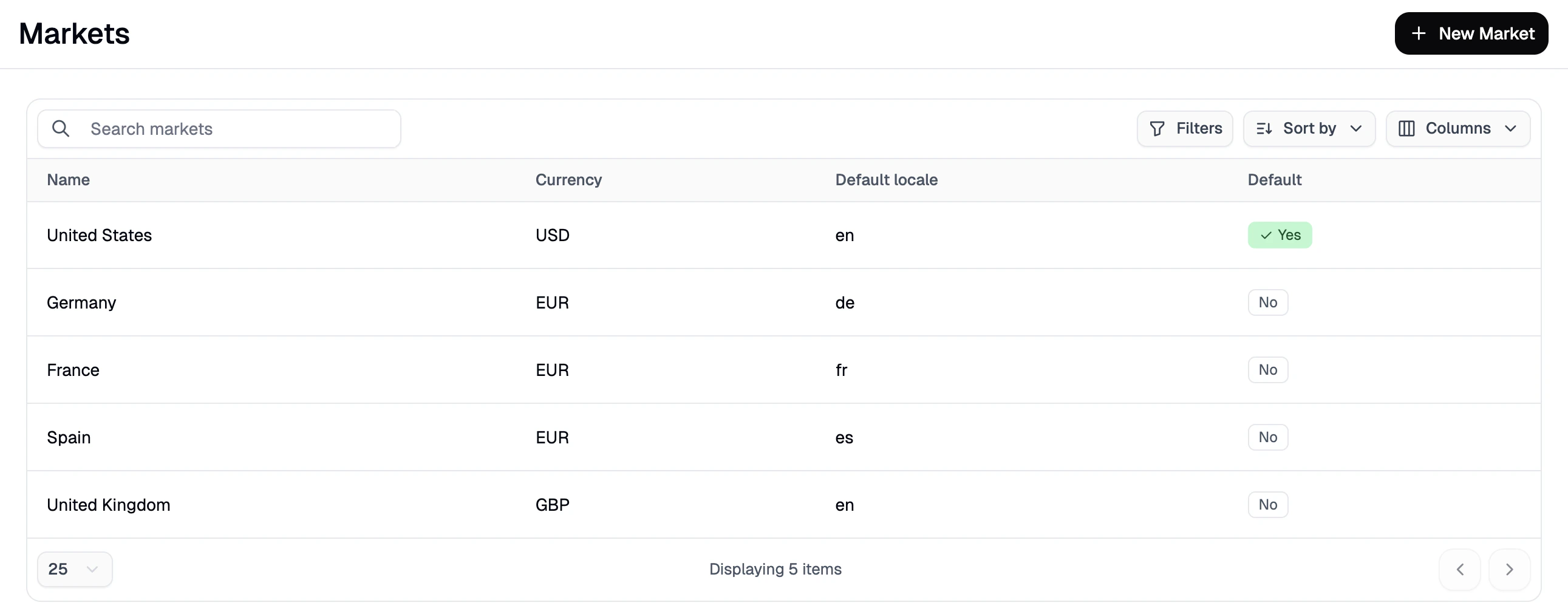
- Default Locale — the primary language for this market (e.g.,
FRfor French,DEfor German) - Supported Locales — any additional languages customers can switch to within that market
2. Translate Products in Bulk Using the Translations Importer
The fastest way to translate a large product catalog is to export your existing content, fill in the translations, and import it back. Navigate to Products → Translations.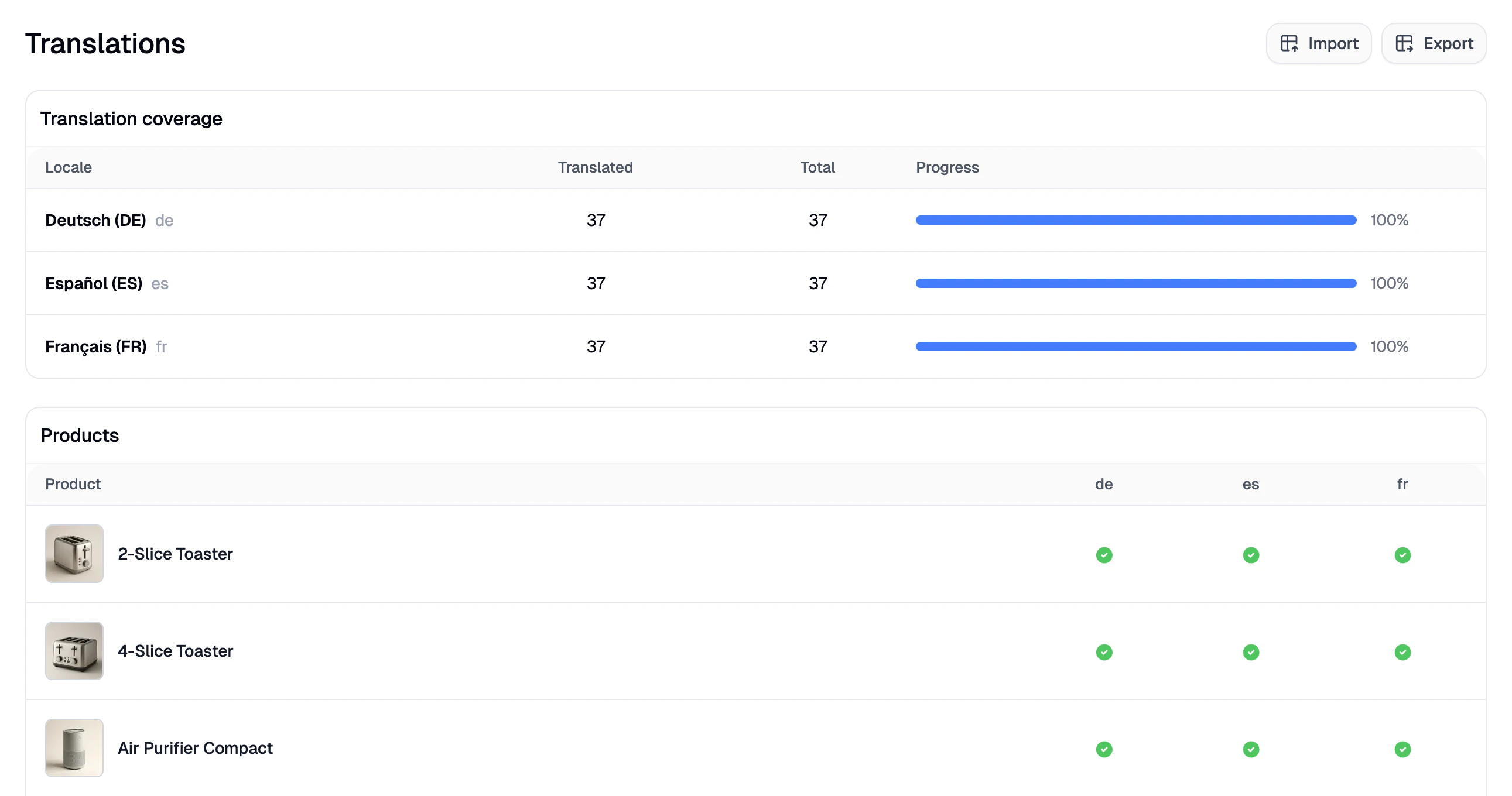
Export your catalog for translation
Click Export in the top-right corner, then confirm by clicking Export in the modal. A download link will be sent to your admin email address. The exported file contains your product content in your default language, with empty columns for each additional locale — ready to be filled in.Fill in the translations
Open the exported CSV file and fill in the translated content for each locale column. This includes product names, descriptions, and any other translatable fields. Save the file when done.Import the translated file
Click Import in the top-right corner to open the import side panel.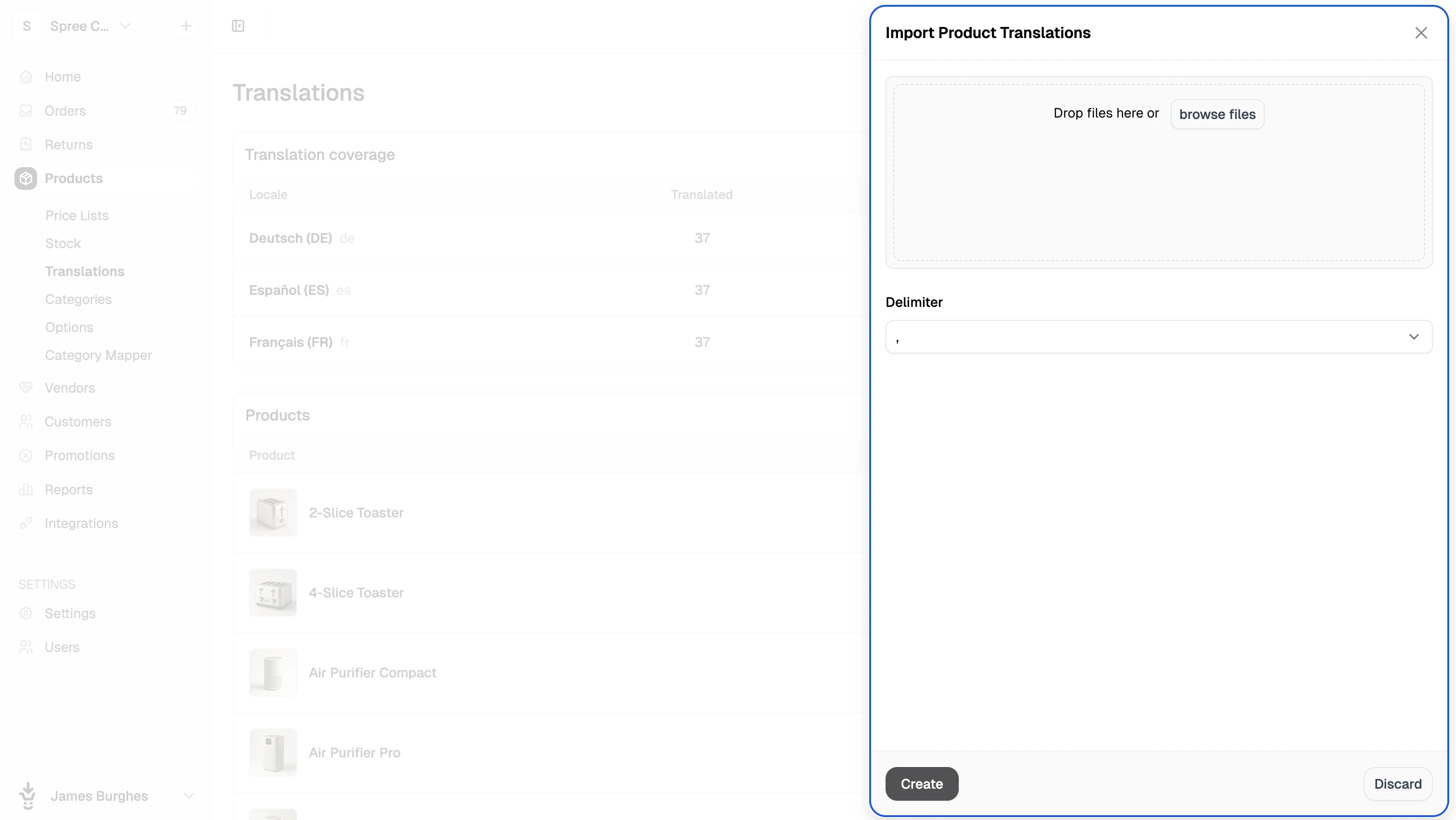
- Drag and drop your translated CSV file into the upload area, or click browse files to select it.
- Select the delimiter used in your file (comma, pipe, semicolon, or tab).
- Click Create to proceed to the field mapping step.
- Review the field mapping and adjust any columns that weren’t automatically matched, then click Continue to submit.
3. Manually Translate Individual Products
For one-off adjustments, the quickest way is to update translations directly from Products → Translations. Find the product in the list and click its name to open the translation drawer.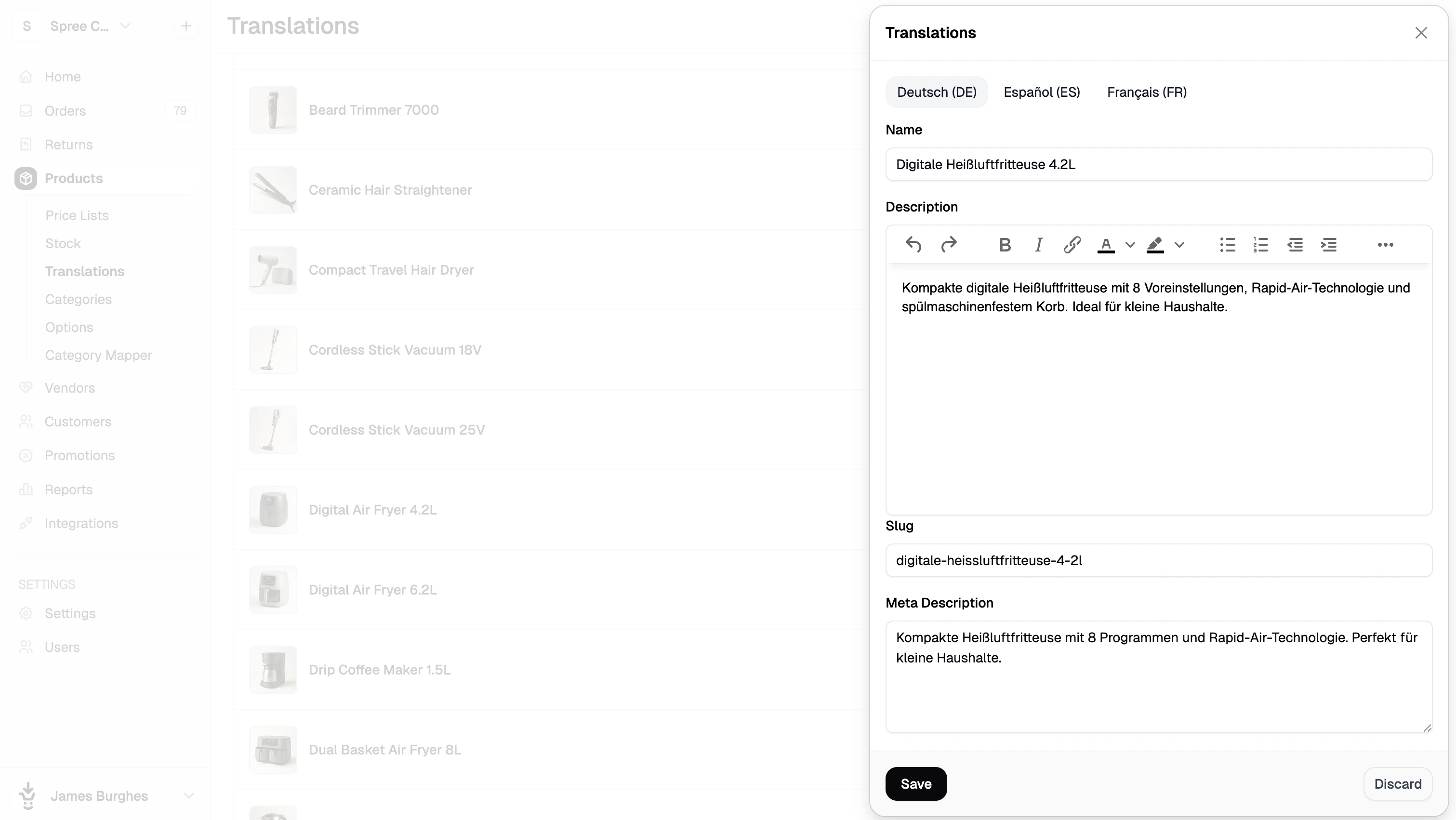
Translations can also be edited from within the product editor itself. Open the product, select the Translations from the three-dot menu in the top right corner, and update the fields there. Both methods produce the same result.
4. Translate Categories
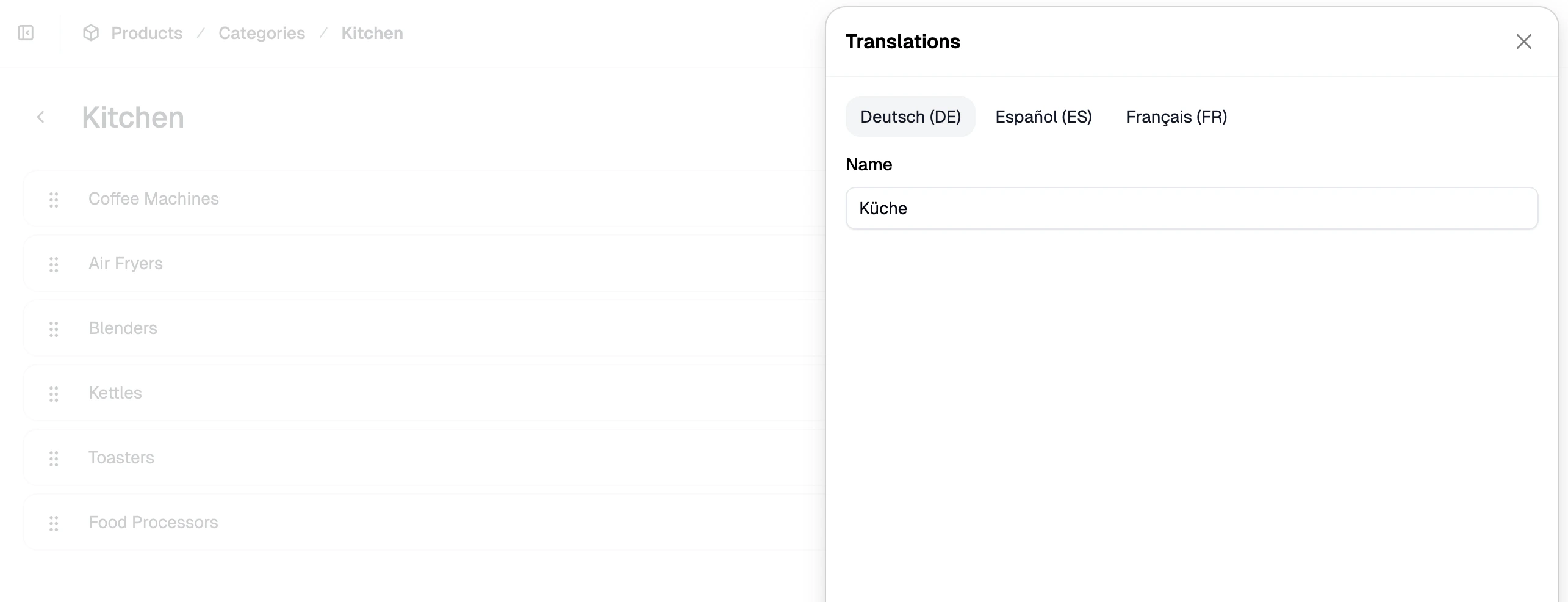
Navigate to Products → Categories and click on the category you want to translate to open the category configurator.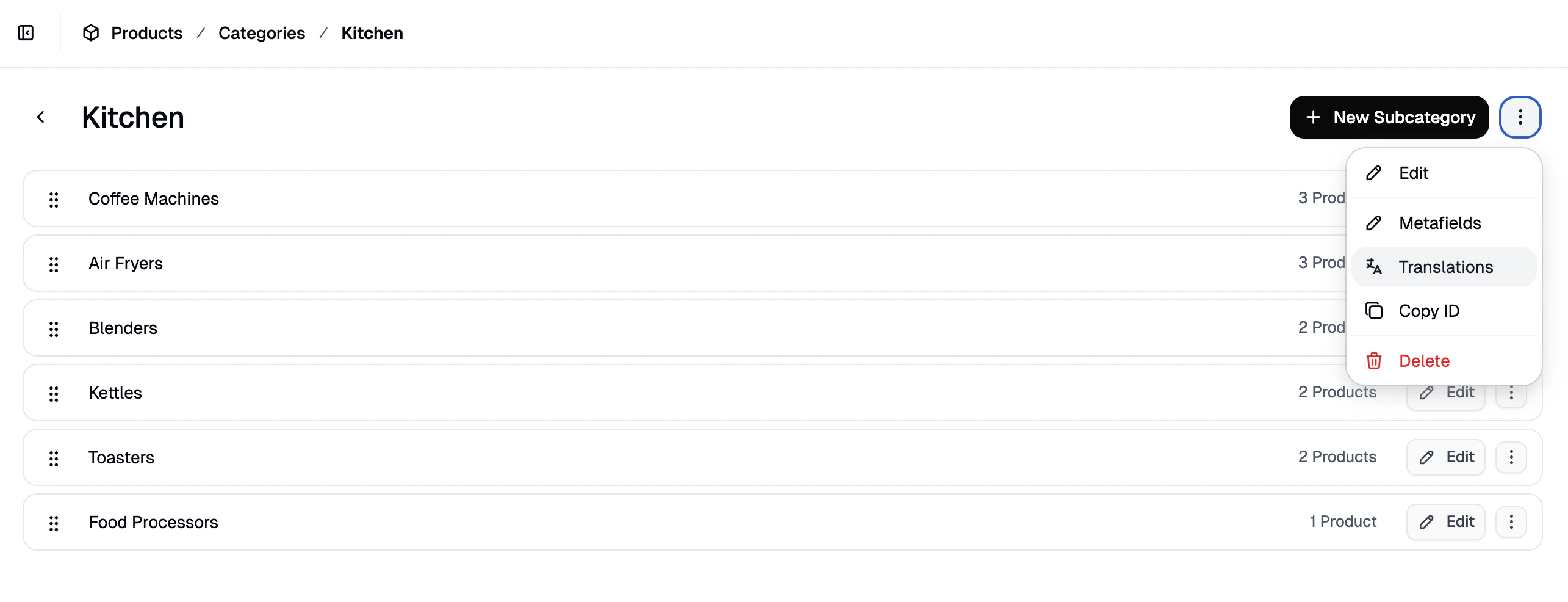
5. Translate Store Policies
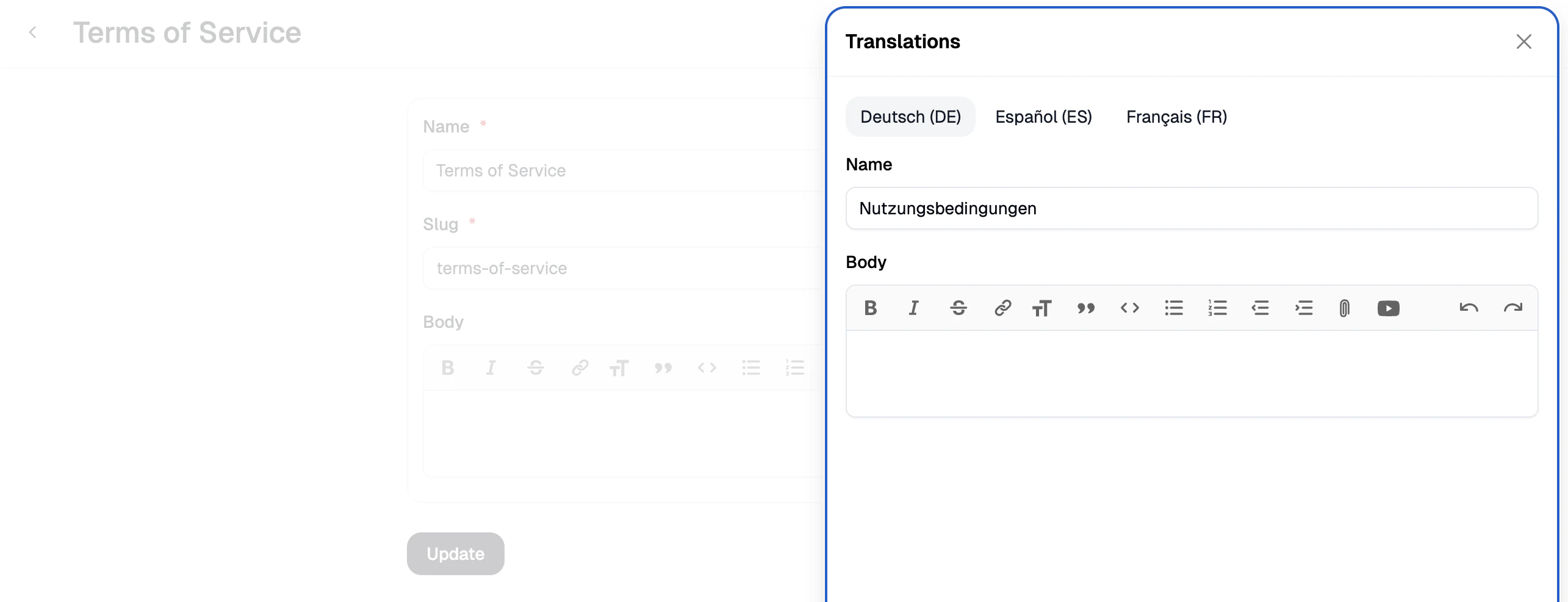
Navigate to Settings → Policies and click on the policy you want to translate to open the editor.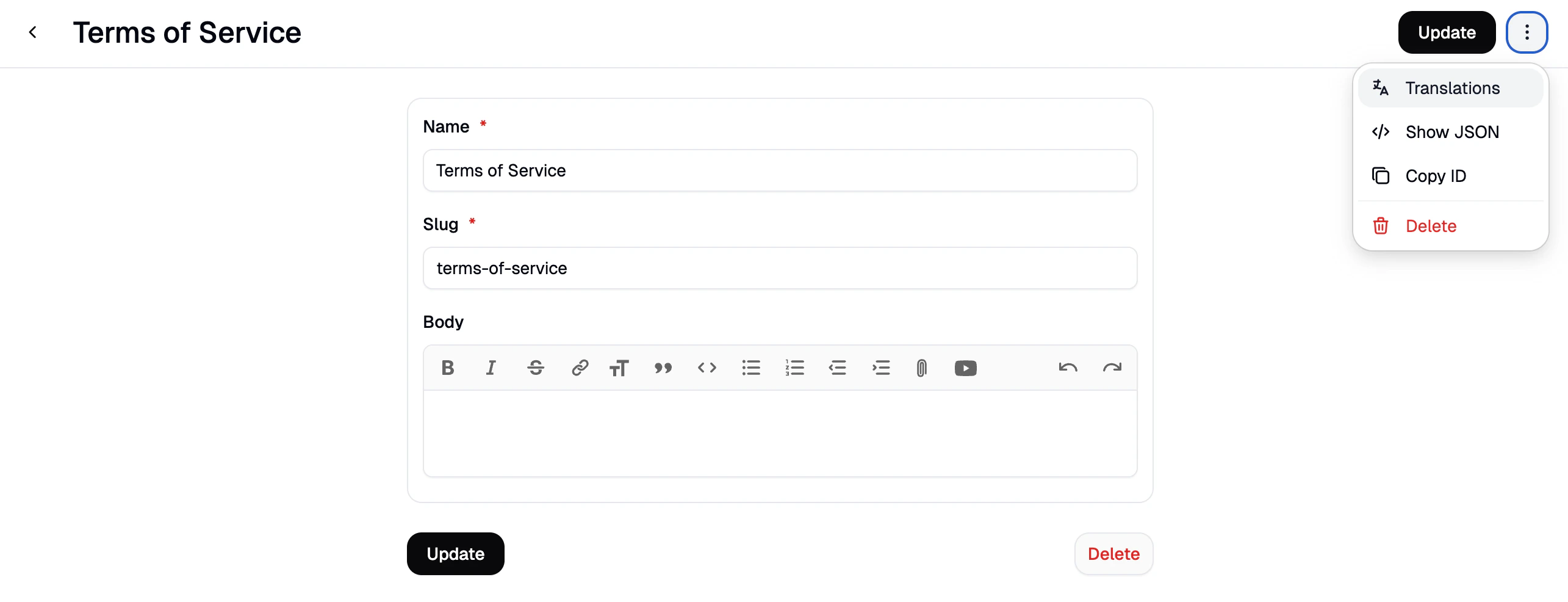
Next Steps
- Settings → Markets — full reference for configuring markets and locales
- Products → Translations — full reference for the translations overview and bulk importer
- Set Up Multi-Region Pricing — configure market-specific pricing alongside your language setup