

A well-designed Product Details Page (PDP) plays an essential role in helping customers understand your products and complete their purchase with confidence. Spree gives you full visual control over how product information is presented by adding a flexible drag-and-drop layout editor, enhanced metafield management, and complete control over the visibility and order of core product elements - all without writing a single line of code. This guide shows you how to customize the PDP using the Spree theme editor.Documentation Index
Fetch the complete documentation index at: https://spreecommerce.org/docs/llms.txt
Use this file to discover all available pages before exploring further.
Access the PDP Editor
To begin customizing the Product Details Page, first navigate to Storefront → Themes.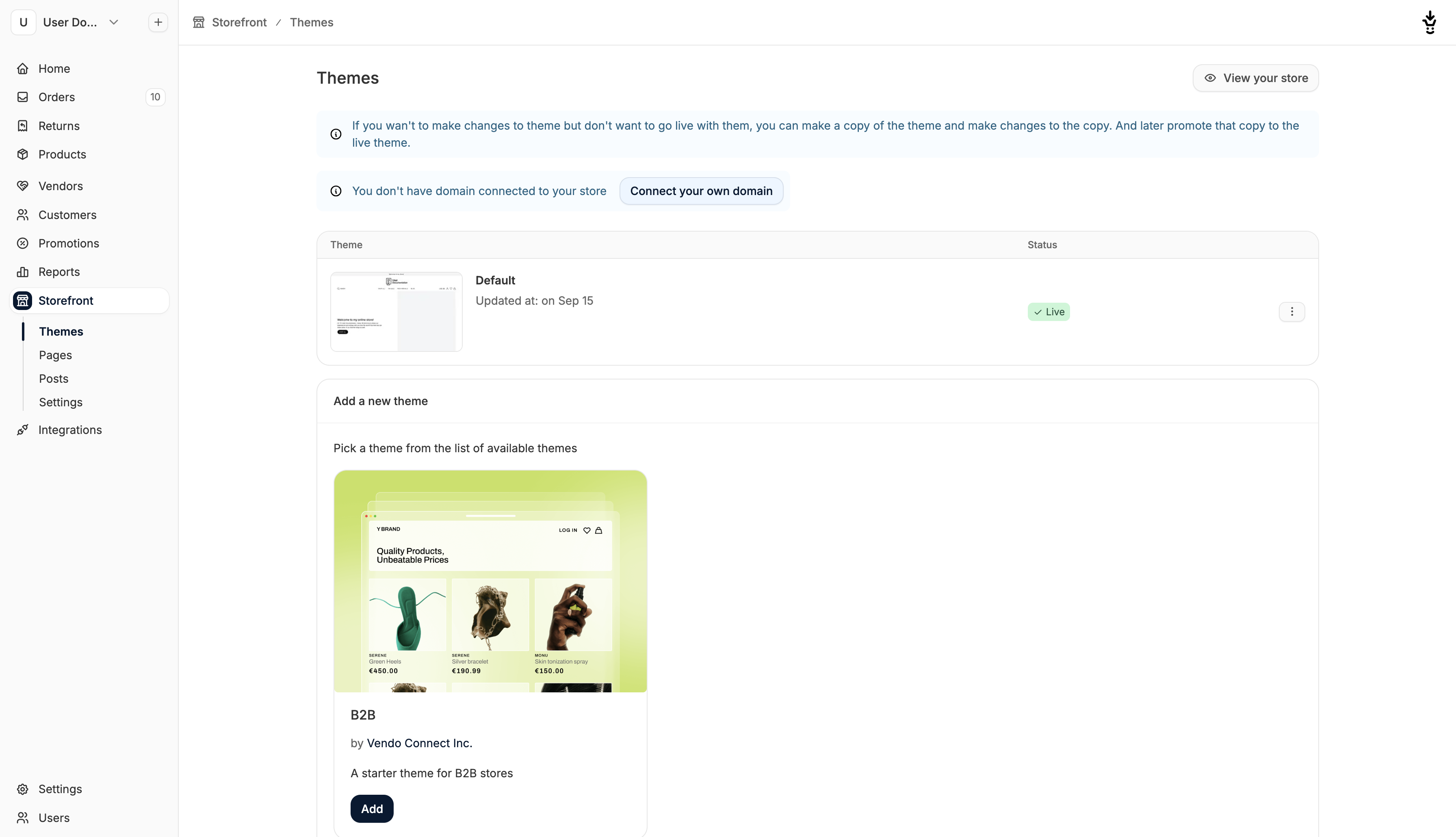
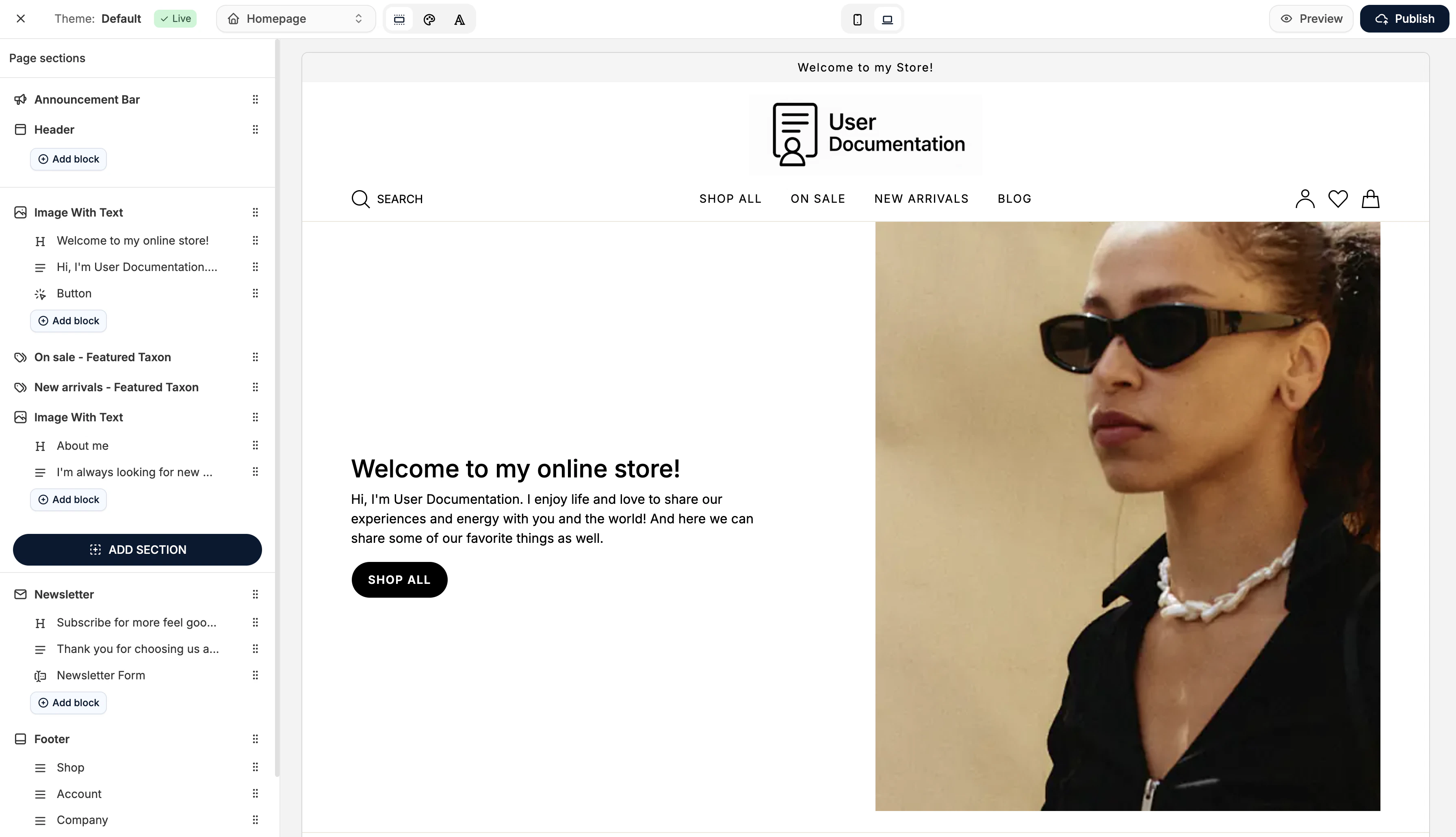
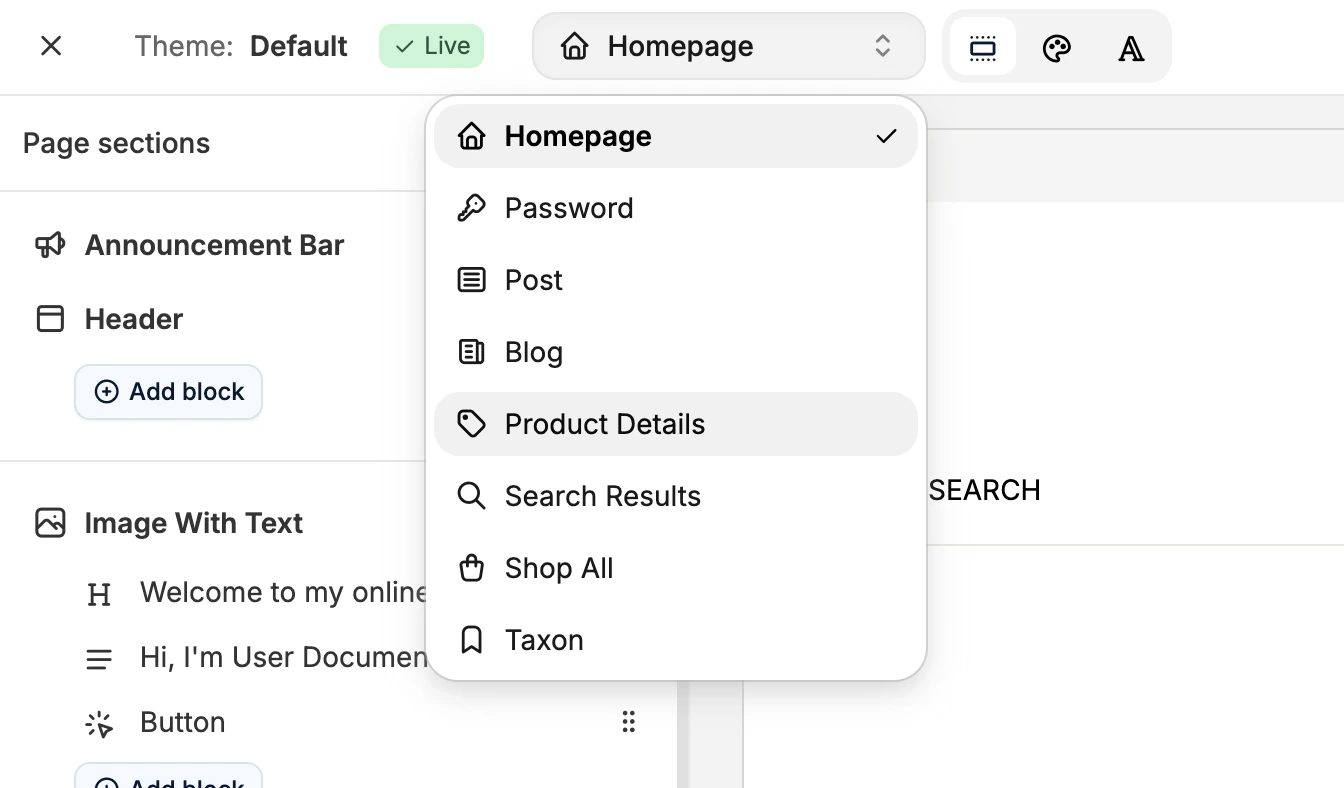
Edit the PDP Layout
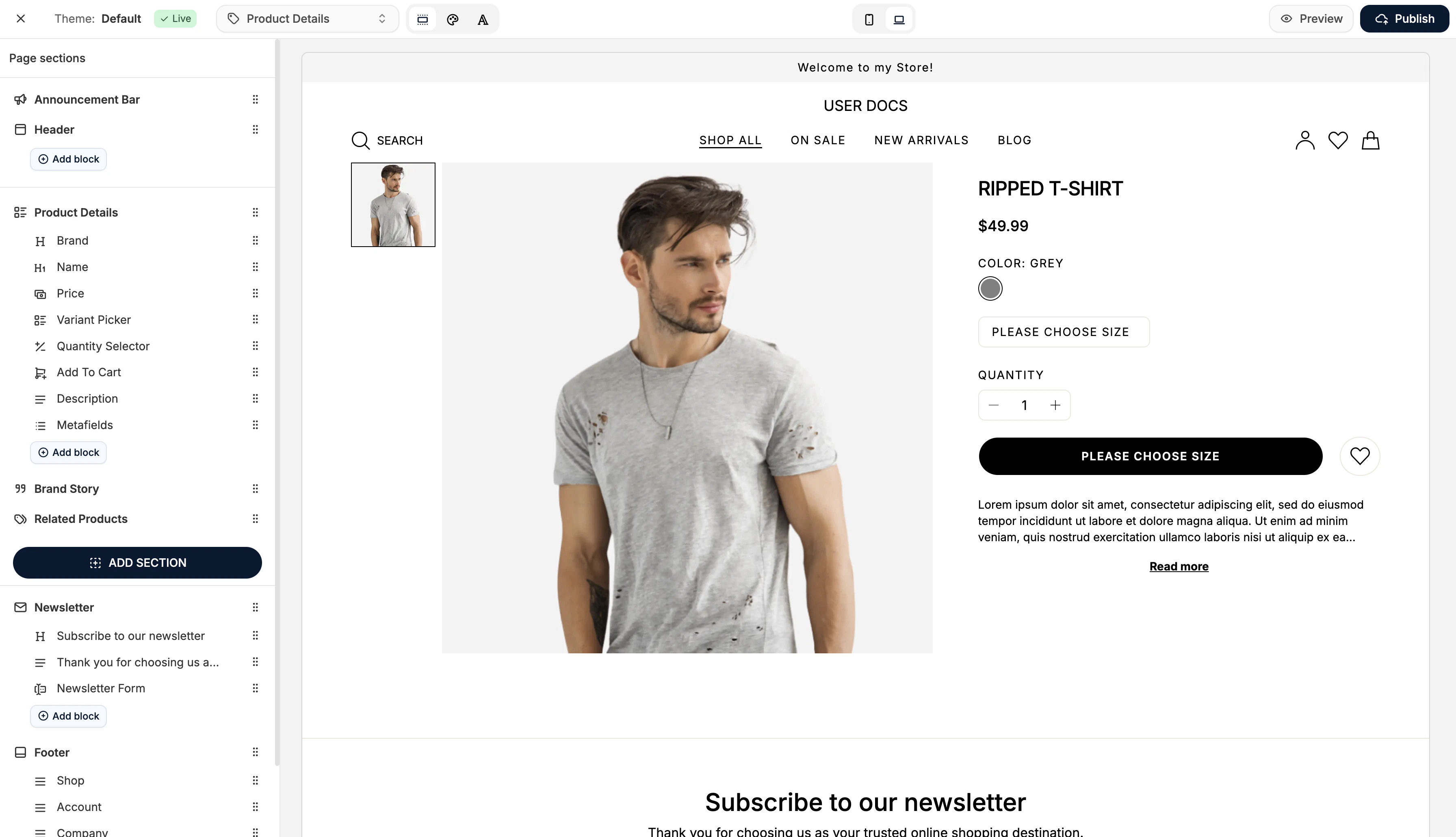
The PDP layout can be controlled entirely through the sidebar, where each element is displayed as its own draggable block.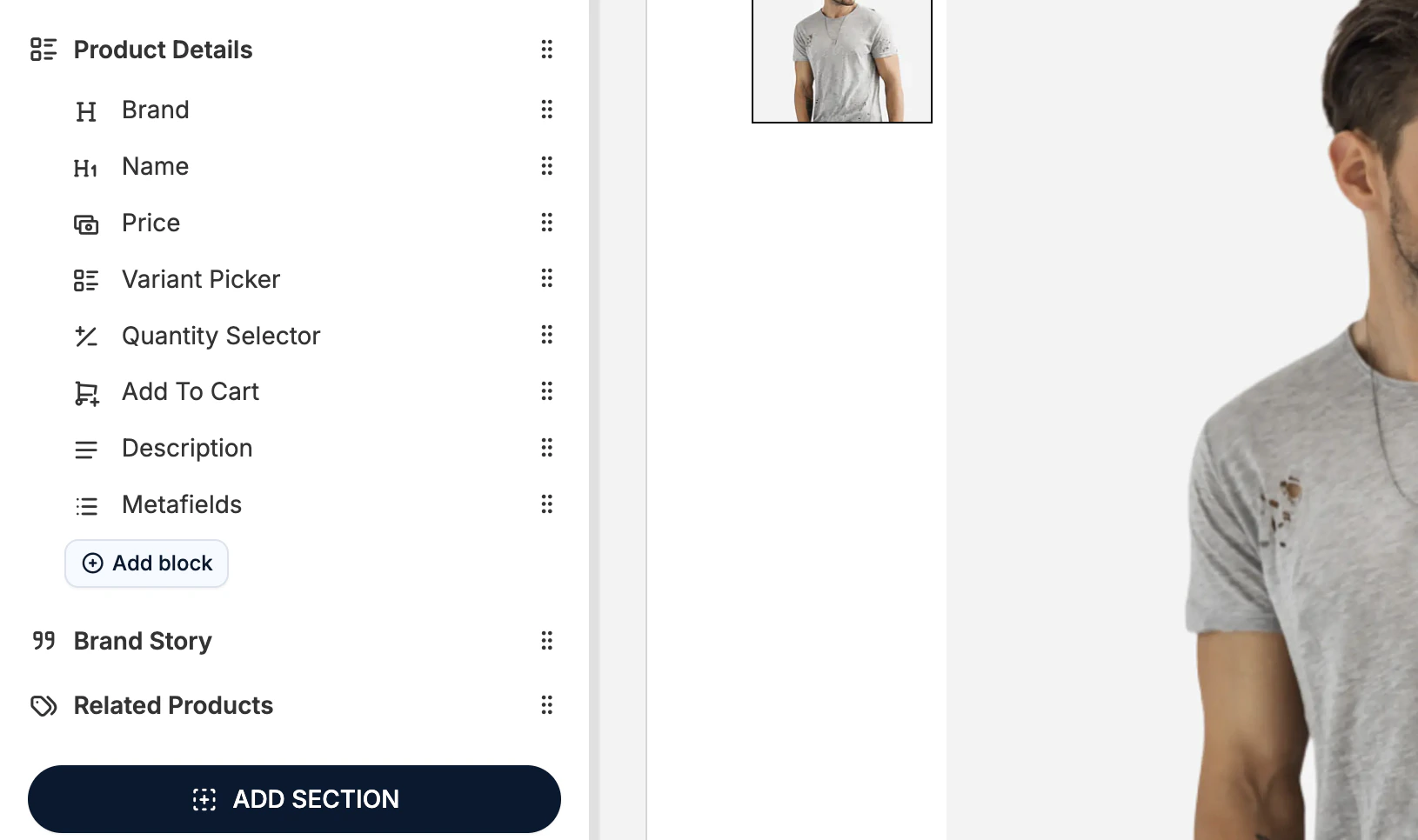
Reorder Elements
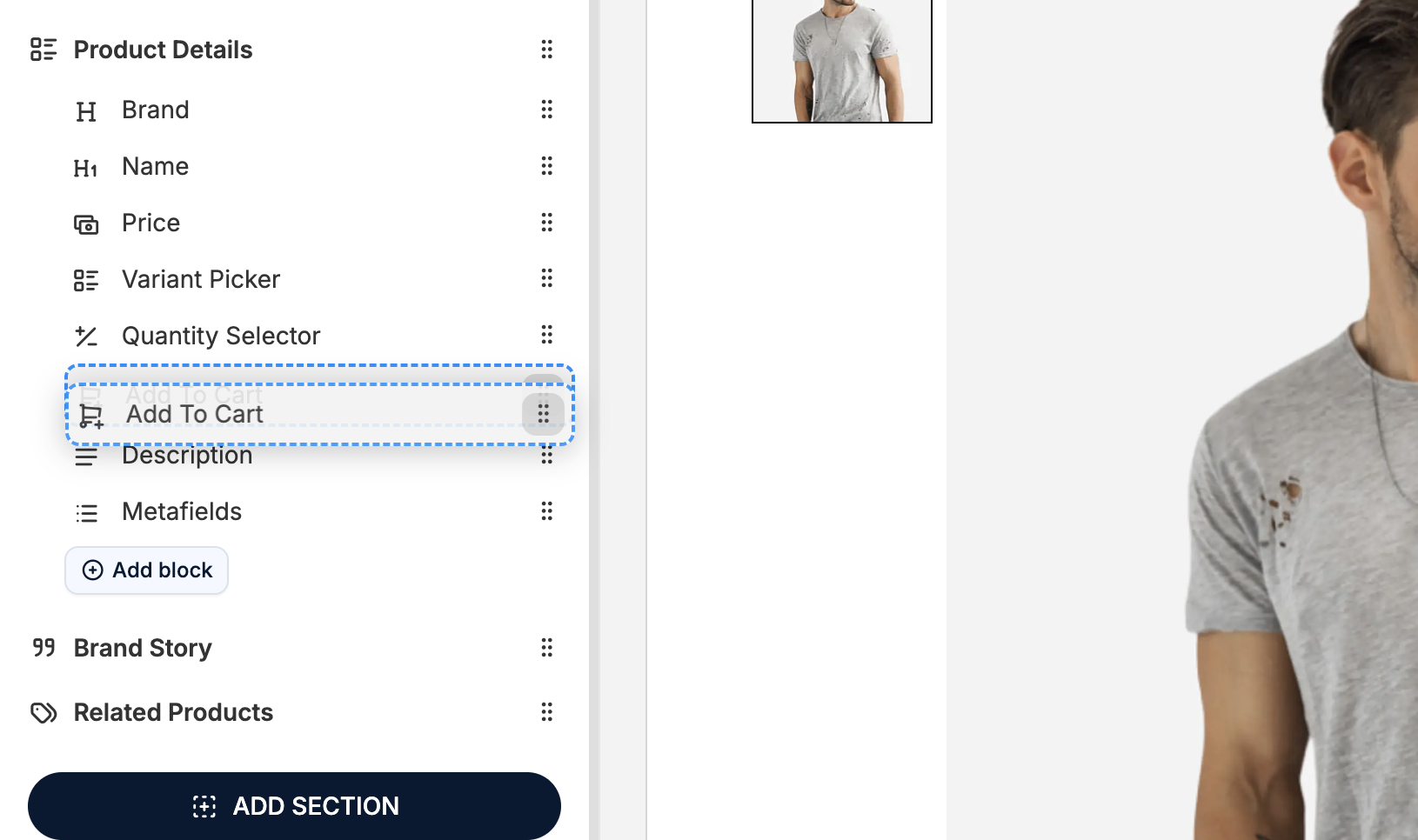
- Locate the PDP element list in the sidebar
- Click and hold the handle icon next to an element
- Drag it to its new position
- Release to drop it in place
- Price at the top for conversion-focused layouts
- Brand name above product title
- Description above the variant selector
- Metafields grouped under Add to Cart
Some merchants prefer a shorter “buy box” on mobile. Use the mobile preview toggle to optimize the PDP for smaller screens.
Modify Design Settings
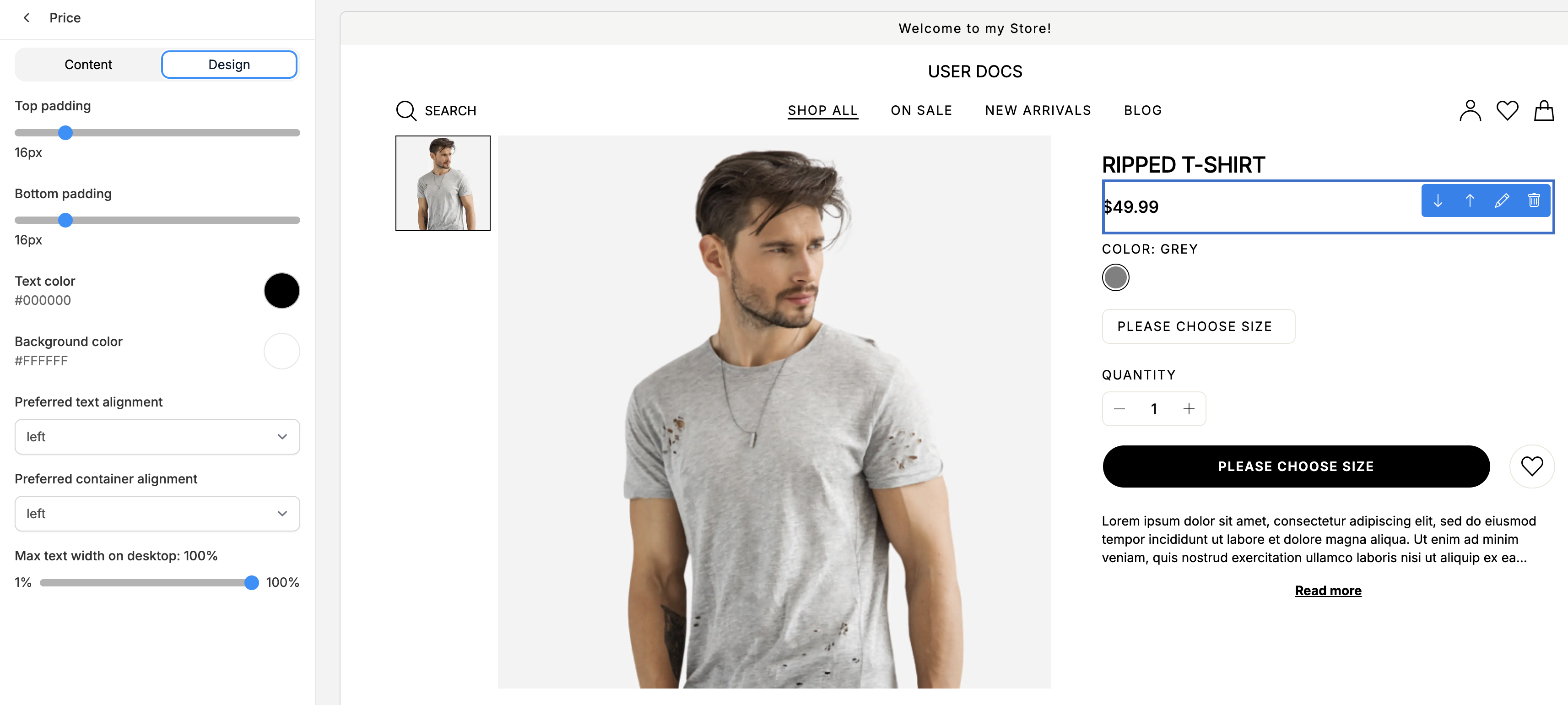
- Padding
- Alignment
- Borders
- Color adjustments (if not overridden by global settings)
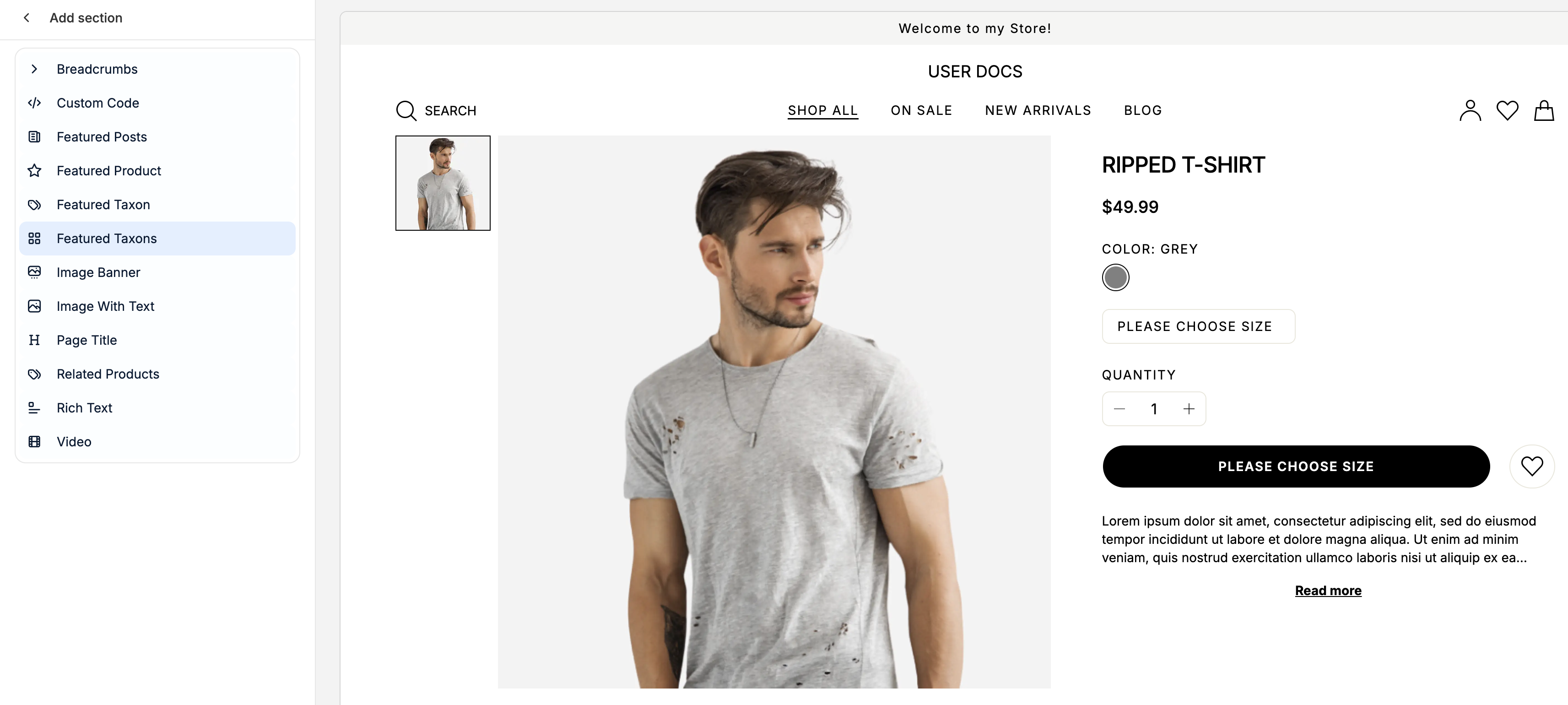
Add/Remove Page Sections
Manage Product Metafields
The Metafields block is fully configurable and can display any additional product data you’ve added - such as ingredients, materials, certifications, allergens, origin, care instructions, and more.Show or Hide Metafields
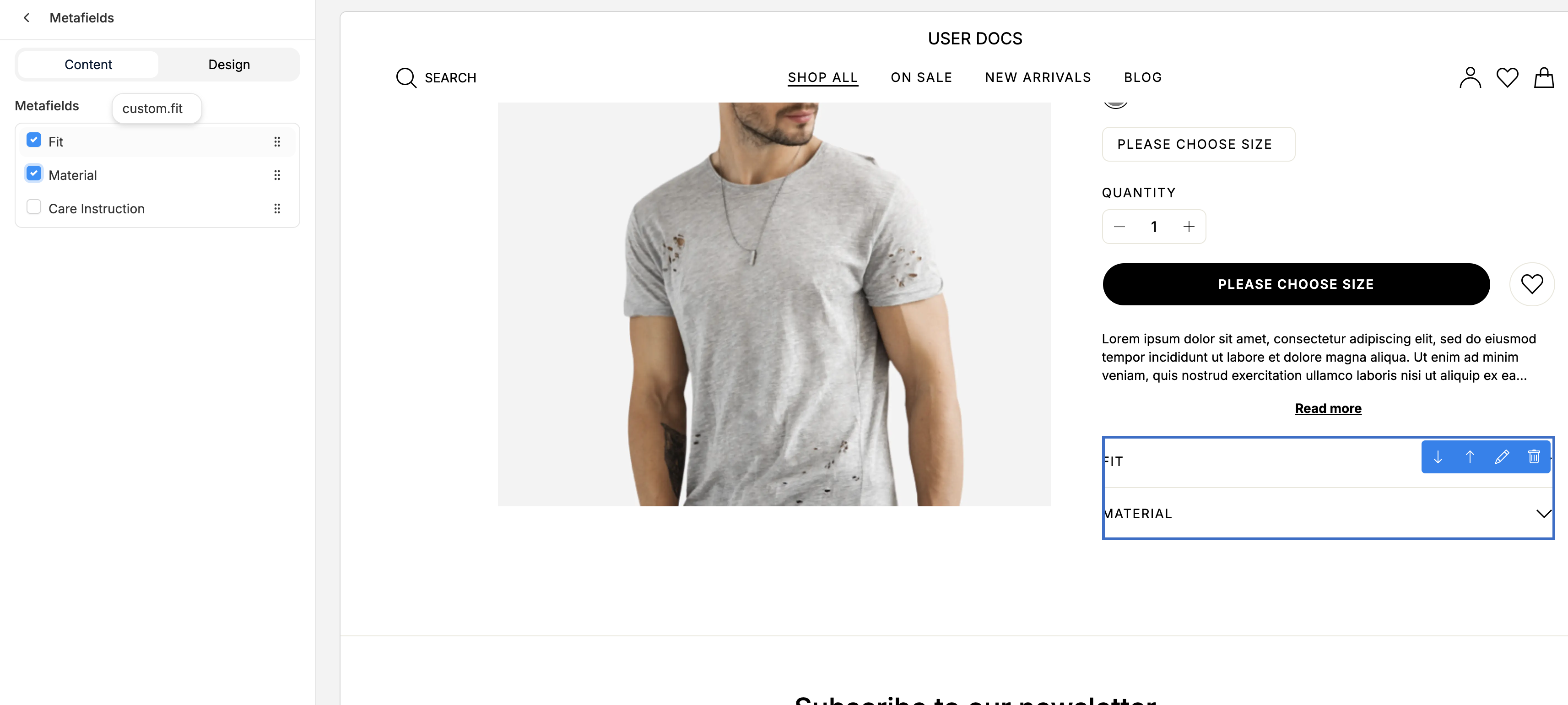
- Checked - metafield is visible on the PDP
- Unchecked - metafield is hidden from the PDP
Reorder Metafields
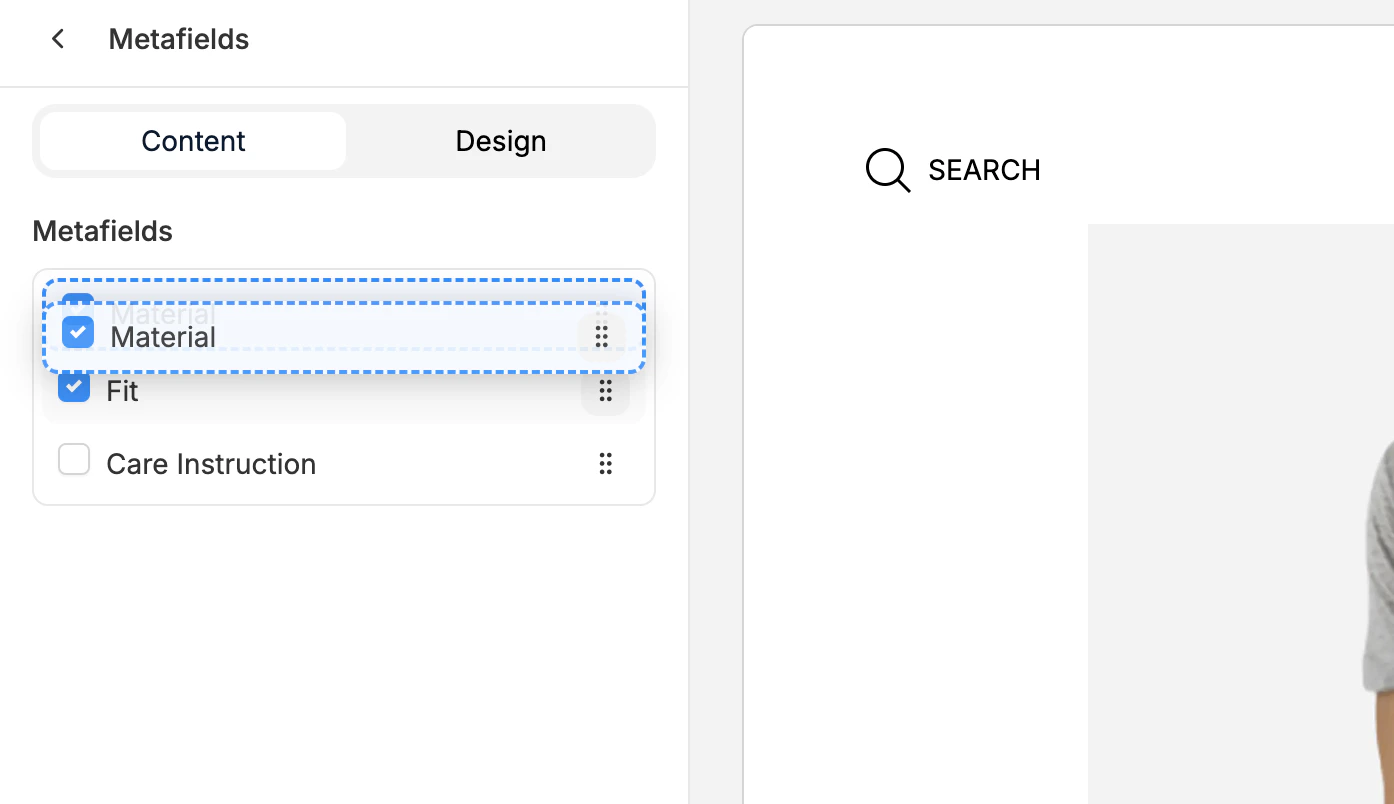
- Go to the Metafields block inside the PDP editor
- Use the handle icon next to a metafield to drag it up or down
- Drop it into your preferred order
If you have not created any product metafields, then this section will appear blank. Please refer to our Metafields support article to learn more.
Preview Your Changes
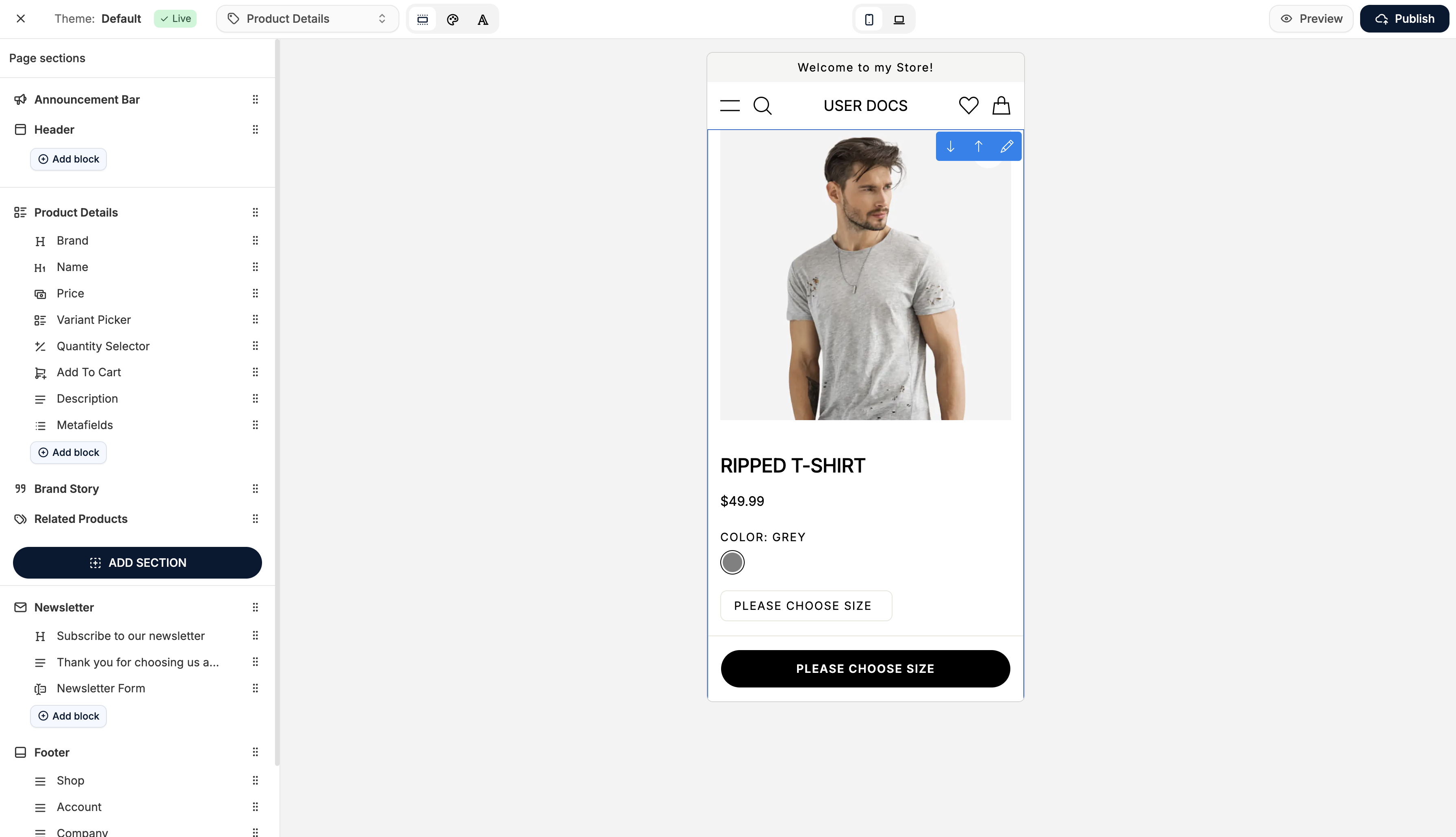
- Mobile View - preview the mobile layout
- Desktop View - preview the full PDP as shown on desktop
- Preview Mode - open a live preview outside of the editor
Publish Your Changes
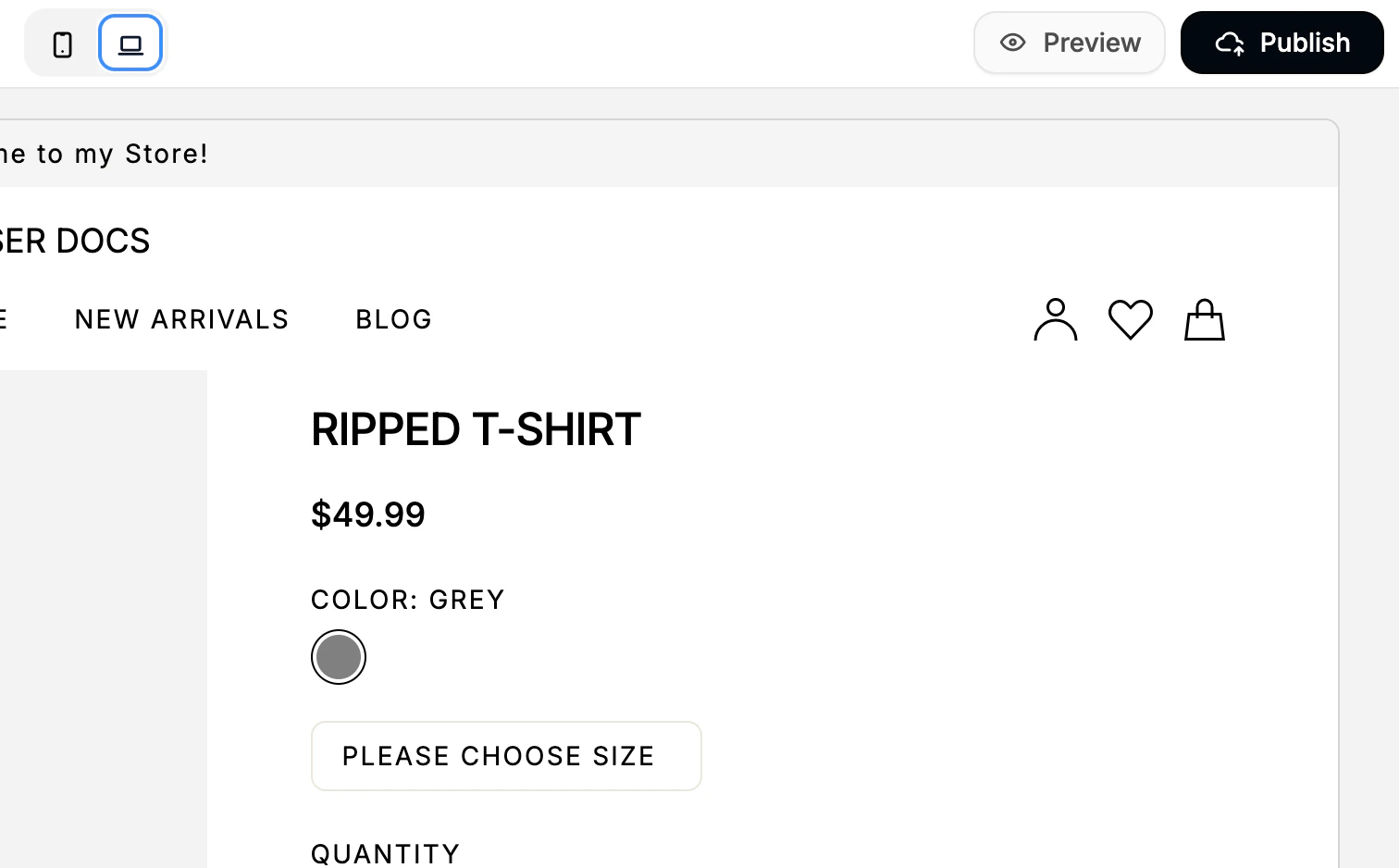
- Click Publish in the top right corner
- Your changes go live immediately
- Revisit the editor at any time to adjust the layout or metafields
If you feel like you’ve made a complete mess of the layout, and would like to revert it back to its original configuration, simply exit the theme editor without clicking Publish and your changes will be discarded.