

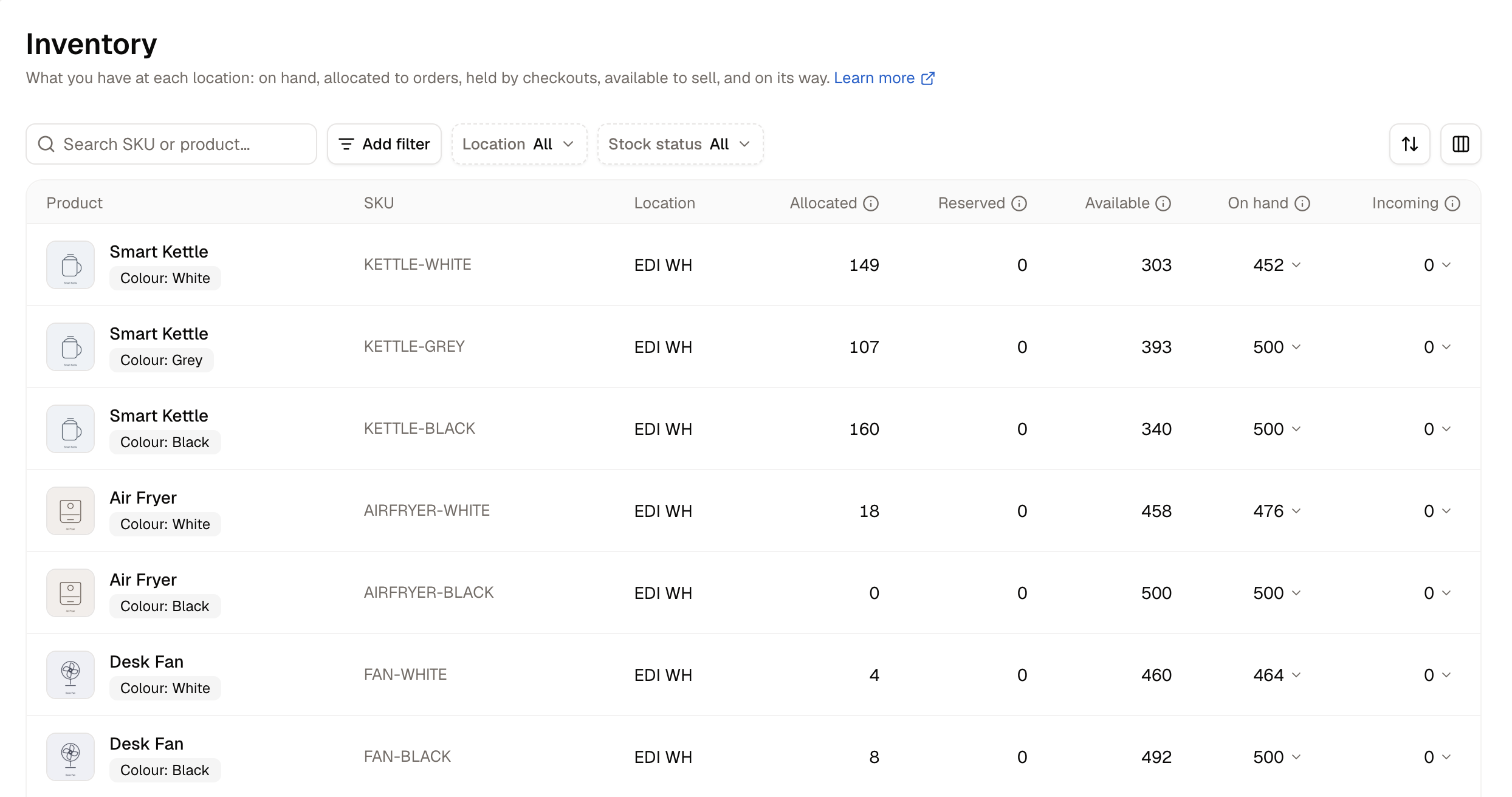
Placing an order does not reduce On hand. The units stay on the shelf and move into Allocated until the parcel actually ships, so a warehouse worker counting boxes should always find the number Spree shows.
How to Find a Product
The list opens on every location at once. To narrow it down:- Use the Location filter to show a single warehouse.
- Use the search box to find a product by name or SKU.
- Use the Stock status filter for In stock, Low stock, Out of stock, Reserved or Incoming.
How to Correct a Count
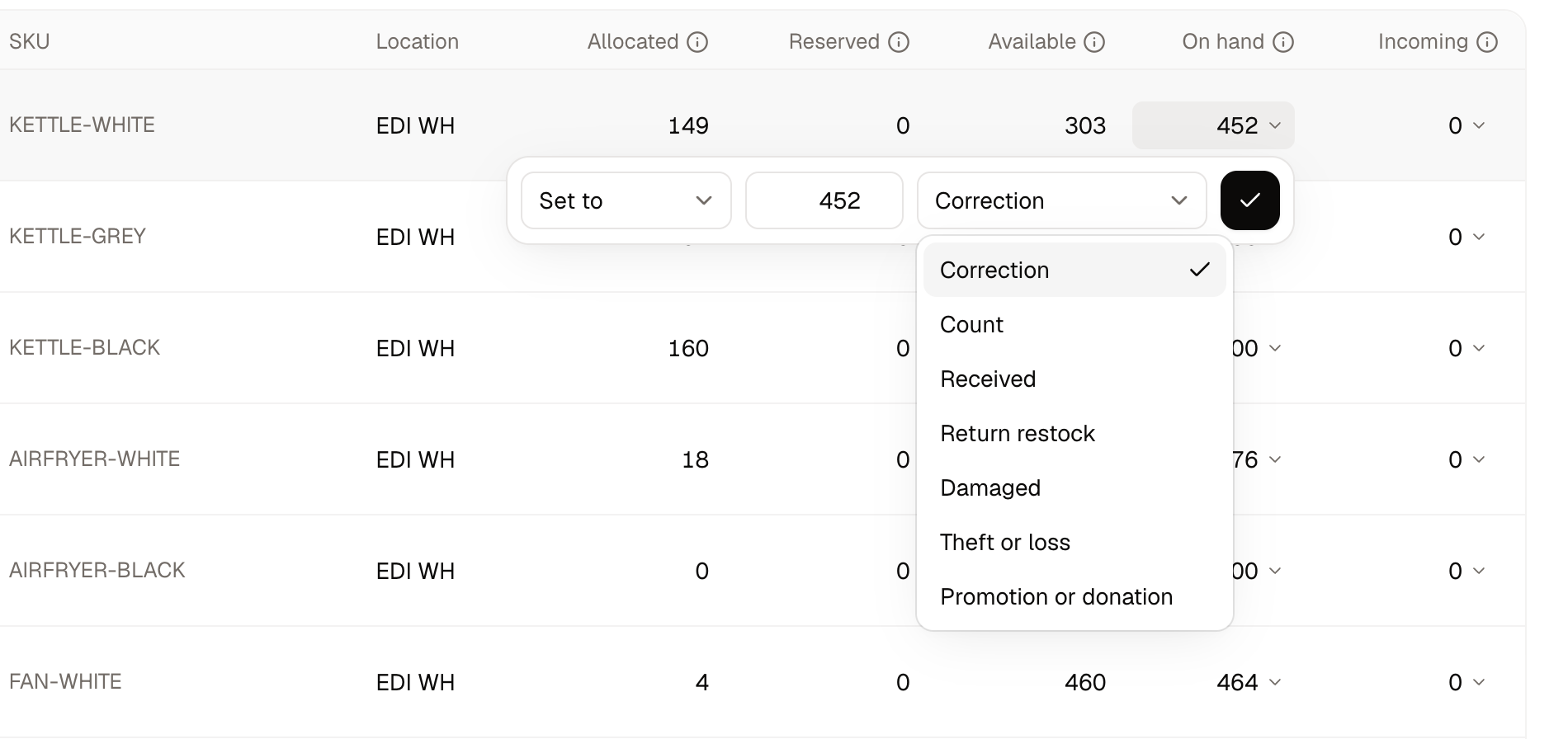
After a stocktake, you can correct a figure in place rather than opening the product.- Click the On hand figure.
- Choose how to change it:
- Set to - enter the number you counted
- Adjust by - add or subtract units
- Enter the amount.
- Pick a Reason:
- Correction
- Count
- Damaged
- Promotion or donation
- Received
- Return restock
- Theft or loss
- Click Apply.
How to Bring Stock In
Click the Incoming figure on any row for a shortcut to either route:- Create transfer - The stock is coming from another of your own warehouses.
- Create purchase order - You are buying the stock from a supplier.
Only On hand and Incoming can be clicked. The other three figures are calculated for you and cannot be edited directly.
Removing Stock Rows
Stock rows cannot be deleted. A row exists because a variant is stocked at a location, so the way to remove one is to stop stocking that variant there. The row and its history are kept either way, because the movements behind the figures are part of your inventory record.Further Reading
- Stock Transfers - Moving stock between your own warehouses
- Purchase Orders - Ordering stock from a supplier
- Stock Locations - The warehouses and pickup points that hold stock