

- Customers get one listing instead of three. Three near-identical products compete with each other in your categories and in search results, and a shopper has to open each one to find out they are the same toaster.
- The product is written once. The description, images, categories and SEO entry belong to the product, so fixing a typo or adding a category is one edit rather than three.
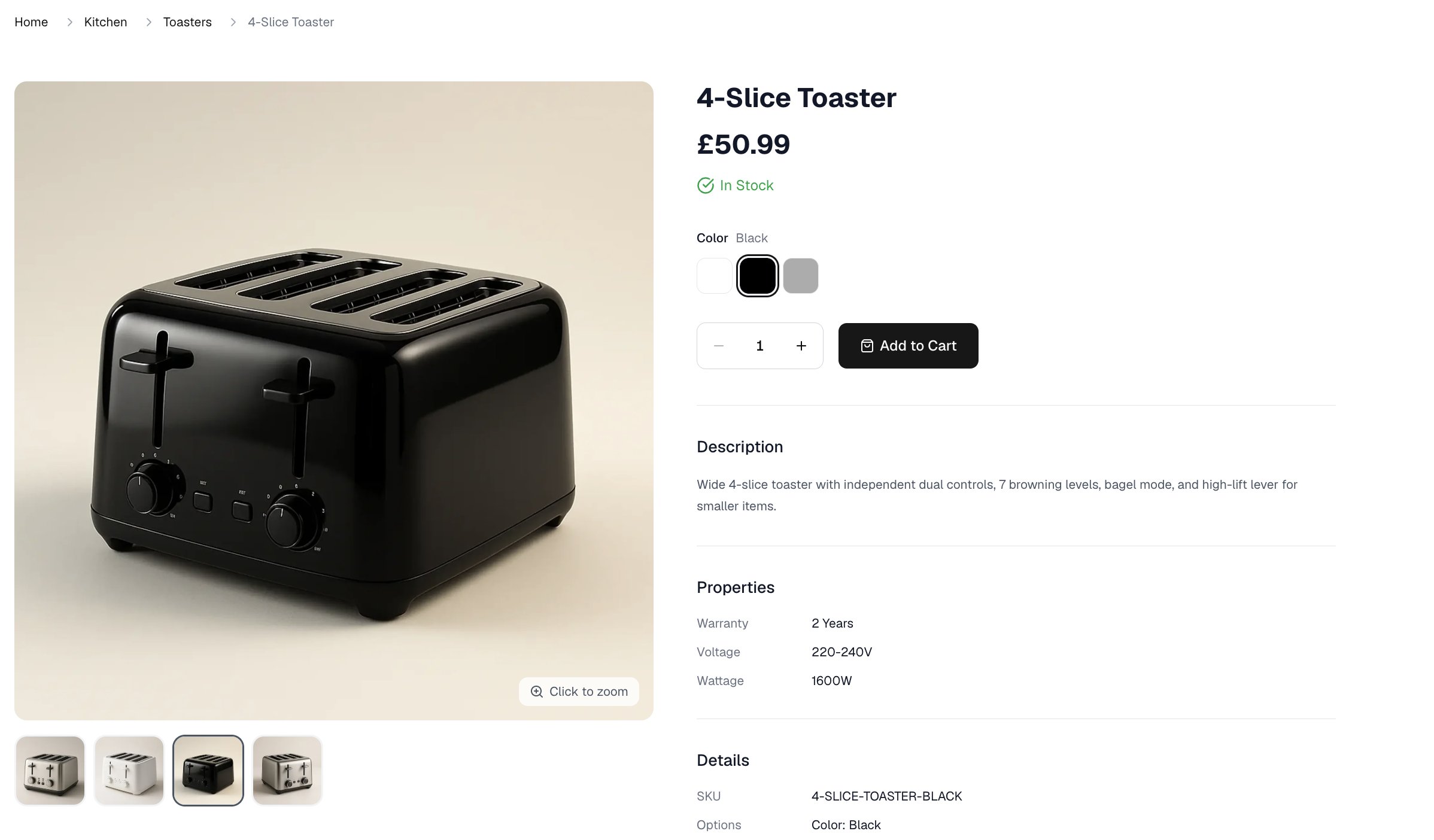
- A sold-out color does not take the product down. It shows as unavailable while the other colors stay on sale.
- You give up nothing. Each variant still keeps its own price, stock count and product code, which is everything separate products would have given you.
How to Add Variants to a Product
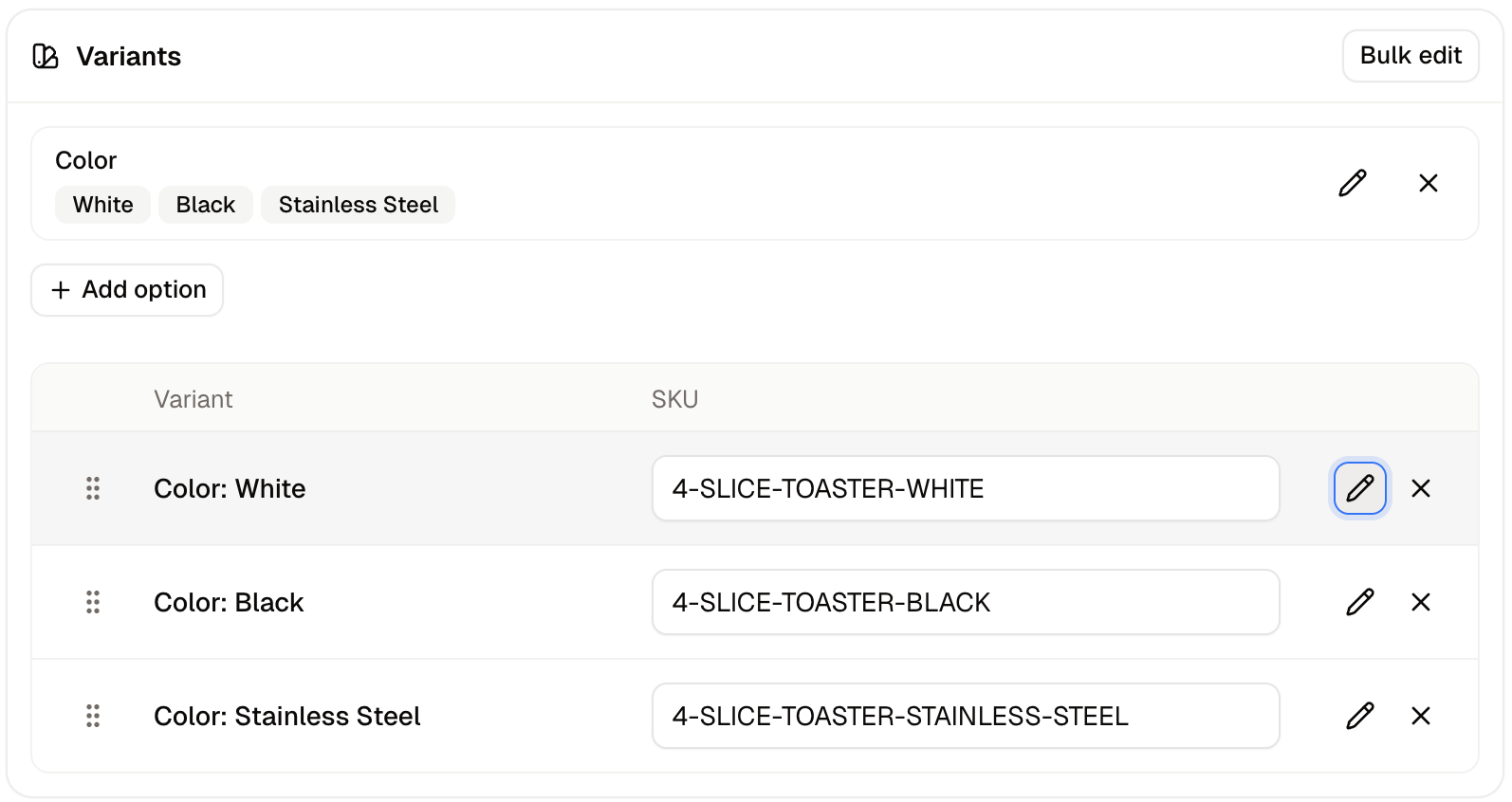
- In the Variants card, click Add option.
- Choose an option from Pick an option type. Its values appear as buttons. If the option you need does not exist yet, Create new option type makes one without leaving the product form.
- Click each value this product comes in, then click Done.
How to Set a Variant’s Price, Code and Stock
These three live outside the Variants card, because each has a card of its own.
To type in a price or stock cell, double-click it, then press Tab to move to the next. A single click selects a cell without opening it, so anything typed before the cell is open is not entered.
How to Edit One Variant
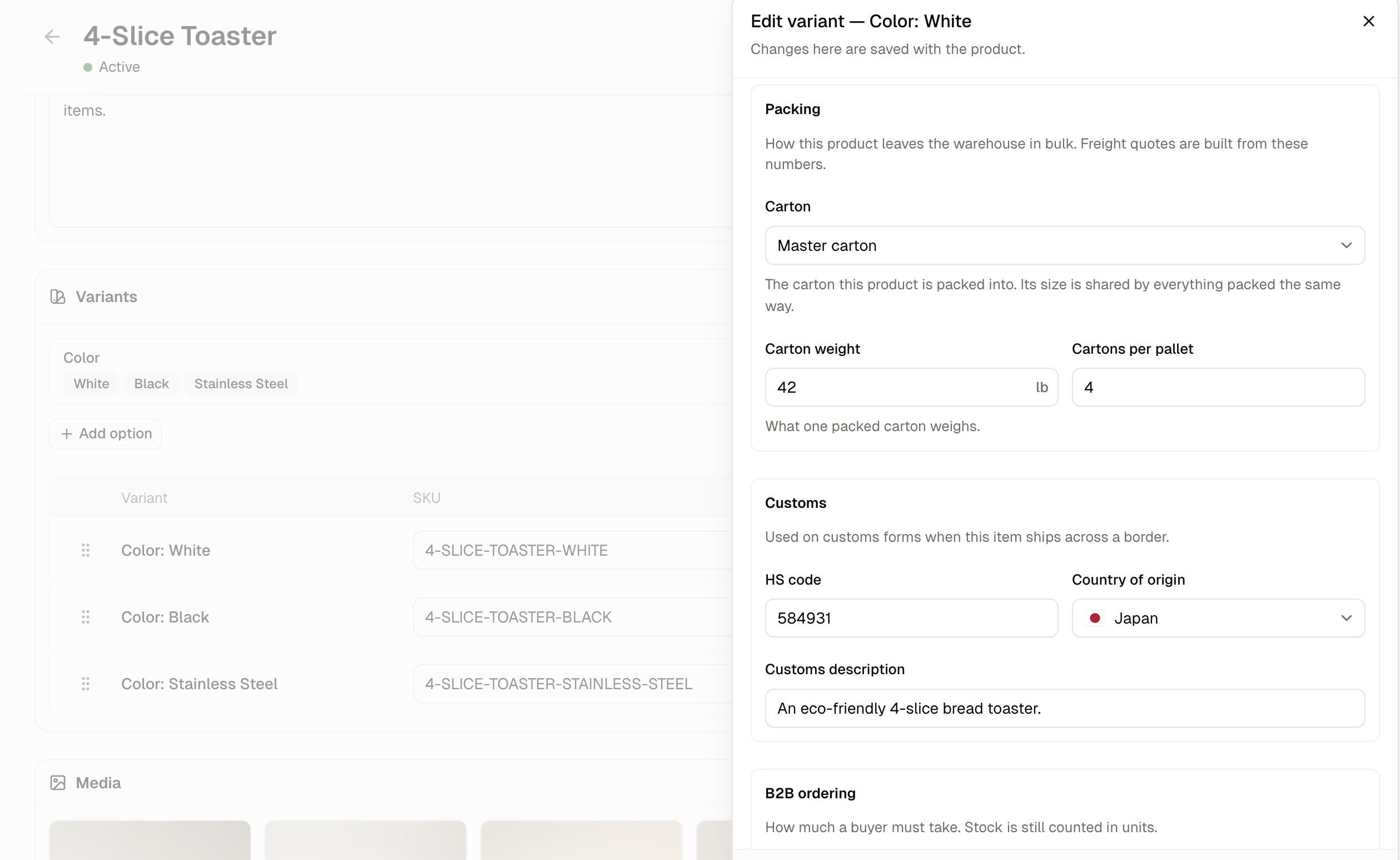
Identity
SKU is the variant’s own product code, the one your warehouse staff and your reports use to tell one version from another. Barcode holds the code that gets scanned, such as an EAN or UPC.Shipping
Weight and size belong to the variant rather than the product, because a 1.7L kettle weighs more than a 1L one.- Weight, in g, kg, lb or oz.
- Height, Width and Depth, in mm, cm or in.
Packing
Packing describes how the variant leaves the warehouse in bulk, rather than how a single customer order is packed.- Carton - The package type this variant is packed into. A carton’s measurements are shared by everything packed the same way, so it is defined once and reused. See Package Types.
- Carton weight - What one packed carton weighs, goods included.
- Cartons per pallet - How many of those cartons fit on a pallet.
Customs
Customs holds what a border asks for when the variant ships to another country.- HS code - The Harmonized System code that classifies the goods, such as 640411.
- Country of origin - Where the goods were made, which is not always where they ship from.
- Customs description - A plain description of the goods, written for a customs officer rather than a shopper.
B2B Ordering
B2B ordering sets how much a business buyer has to take at a time. Stock is still counted in single units whatever you set here.- Minimum order quantity - The fewest units a buyer can order. Leave it empty for no minimum.
- Order multiple - The step the quantity has to move in. A multiple of 6 allows 6, 12 or 18, but not 7.
- Purchase unit - What the buyer is buying, which is units unless you change it.
- Units per carton - How many units one carton holds, which is what a buyer ordering by the carton is actually getting.
Availability
Availability decides whether the variant can still be sold once you have none on the shelf.- Available for pre-order - Lets customers buy the variant before it is in stock.
- Backorder limit - The most units that can be sold beyond what is on hand, counting backorders and pre-orders together. Leave it empty for no cap.
Tax
Tax category sets which rate applies to this variant. It inherits from the product until you change it, so a variant needs its own only when it is taxed differently from the rest of the product variants. See Tax Categories.How to Edit Every Variant at Once
Bulk edit in the Variants card opens all of a product’s variants as one spreadsheet, with a column for each field in the variant panel: SKU, barcode, weight and its unit, height, width, depth and their unit, pre-order and backorder limit, tax category, the three customs fields, and the packing fields.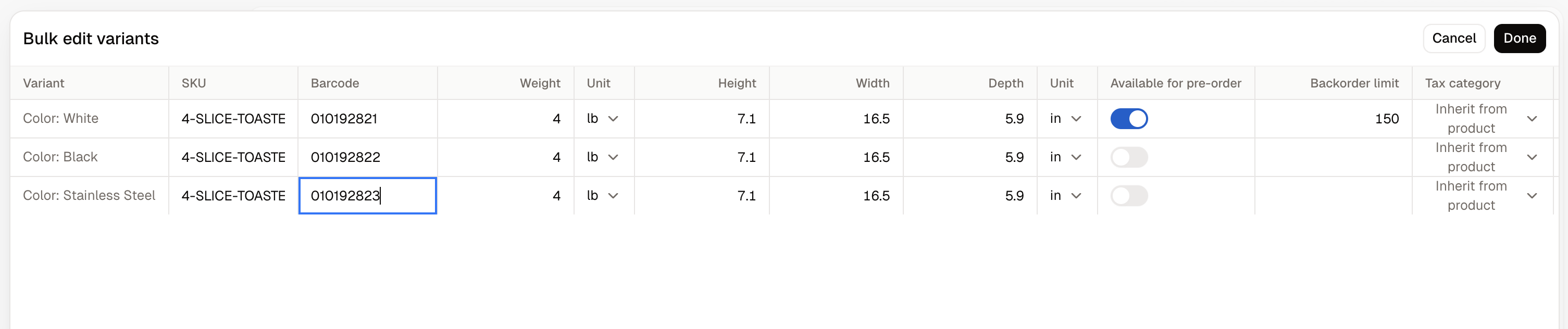
How to Show the Right Image for a Variant
Images belong to the product as a whole, and each one can name the variants it shows.- Click an image in the Media card.
- Under Assigned variants, pick the variants that image represents.
- Click Done, then Save product.
What Customers See
Further Reading
- Options - Setting up the options and values variants are built from
- Adding Products - The rest of the product form around the Variants card
- Media - Every image and video in your store
- Package Types - The cartons the Packing section refers to
- Inventory - Following stock for each variant across your locations