

Earlier versions of Spree called these metafields. The dashboard now says Custom fields throughout.
Why Use Custom Product Fields?
Custom product fields are ideal when you need to:- Add technical specifications (e.g., voltage, dimensions, fabric composition)
- Display care instructions
- Highlight sustainability certifications
- Store supplier or internal notes
- Add regulatory information
- Include SEO enhancements
- Attach structured product data
- Power custom storefront sections
- Support third-party integrations
How to Create a Custom Product Field
To create a new custom product field, navigate to Settings → Custom fields, under the Store group.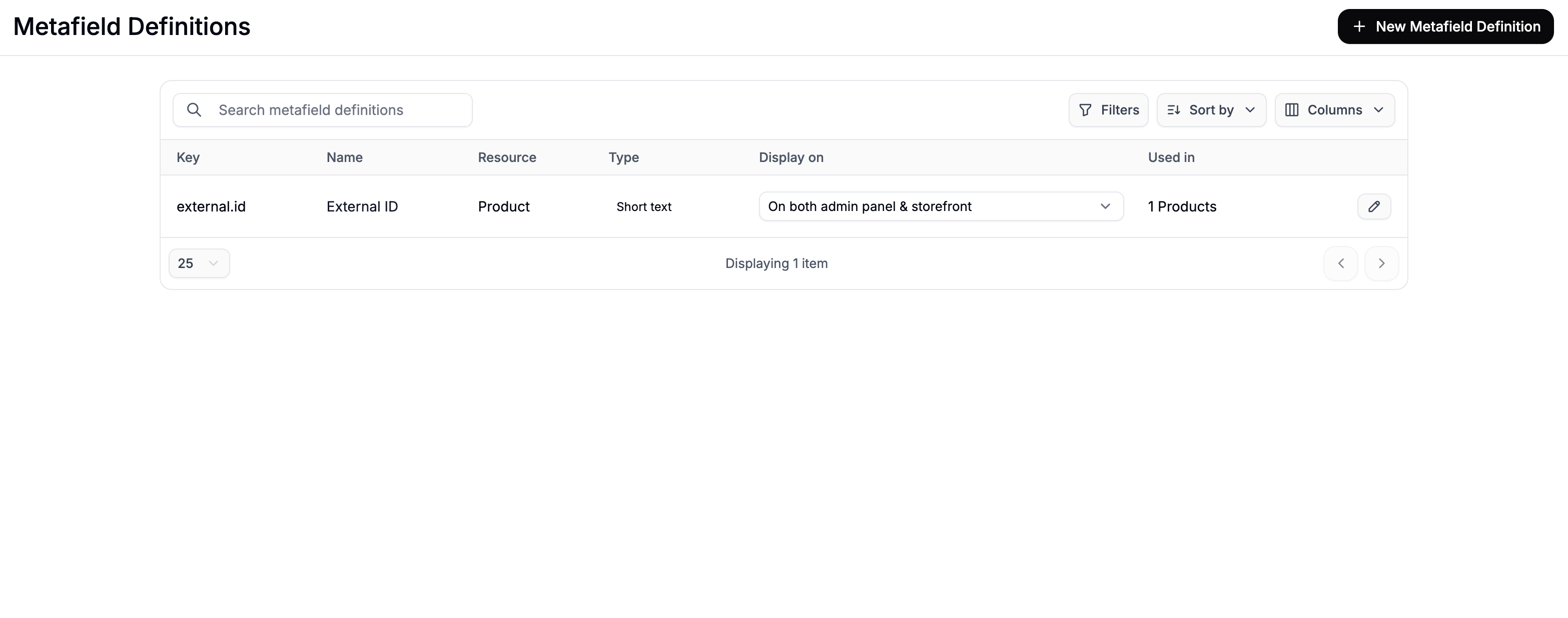
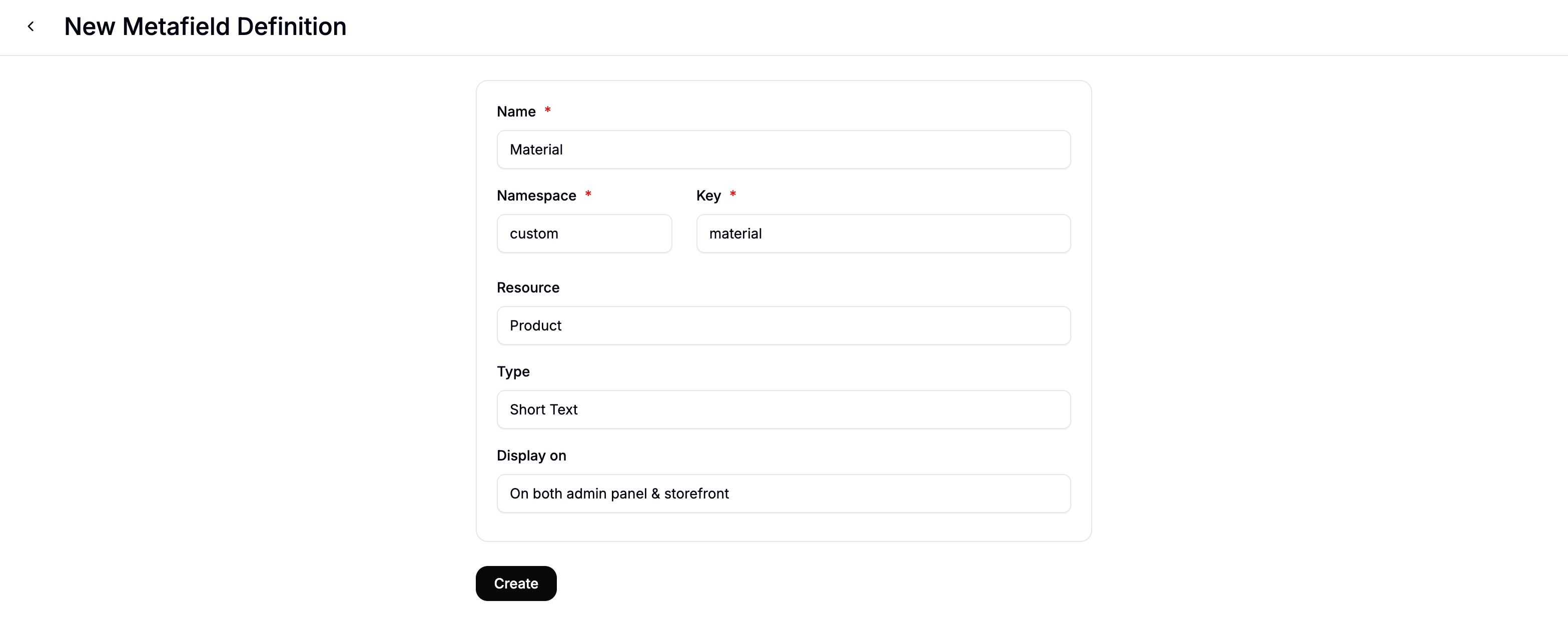
Custom Field Definition Fields
Label
The display name shown in the admin panel and (optionally) on the storefront.Example:
- Material
- Care Instructions
- Sustainability Rating
Namespace
Used to group custom fields and avoid naming conflicts. Pre-filled with custom.- Leave it on custom for merchant-defined product fields unless you have a reason to group fields separately.
- Avoid using reserved model names like product, variant, or order.
Key
The unique identifier for the custom field (combined with the namespace). Example:- custom.material
- custom.care_instructions
- custom.sustainability_score
Applies to
For custom product fields, select Products. To learn more about creating custom fields for other records, see Custom Fields.Choosing the Right Data Type
Each custom field must have a type. Selecting the appropriate type ensures your data is structured correctly.Short Text
Single-line text values. Examples:- “Denim”
- “Made in Italy”
- “BPA Free”
Long Text
Multi-line text without formatting. Examples:- Care instructions
- Ingredient lists
- Warranty information
Rich Text
Formatted content with styling options. Examples:- Marketing descriptions
- Detailed sustainability breakdowns
- Compliance disclaimers
Number
Numeric values. Examples:- 4.8 (average rating)
- 32 (waist size)
- 750 (capacity in ml)
Boolean
True/false values. Examples:- Is this product eco-friendly?
- Is this item fragile?
- Limited edition?
JSON
Structured data or multiple related values. Examples:- Technical specifications object
- Nutritional breakdown
- Multi-attribute certification data
Display Settings
Three switches at the foot of the panel decide where the field appears and what the storefront can do with it:- Visible on storefront - off by default. Leave it off for internal use (e.g., supplier notes, internal margin classification); switch it on for values customers should see on product pages.
- Searchable - “Include values in storefront product text search (short text, long text, and number only).”
- Sortable - “Allow storefront product listings to sort by this field (short text and number only).”
Adding Custom Product Field Values
Once the definition is created, you can assign values to individual products.Adding Values Individually
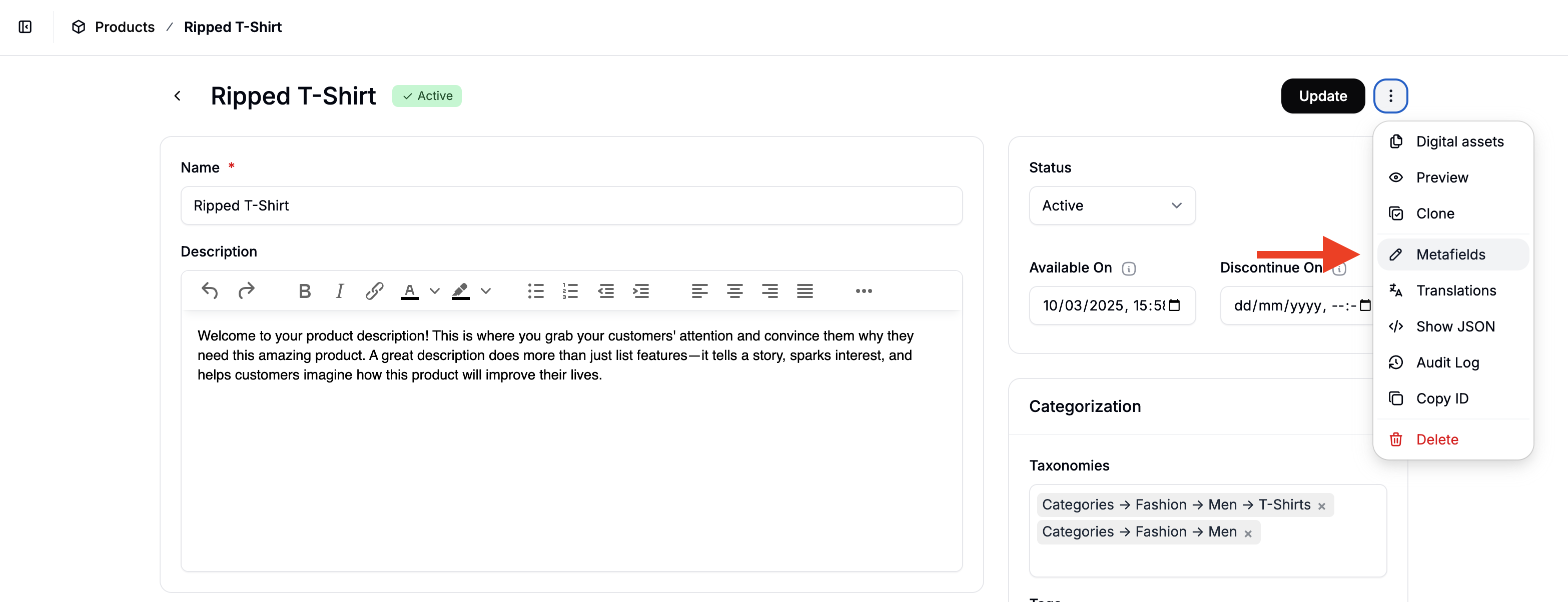
- Navigate to Products
- Open the product you want to update
- Find the Custom fields card on the product page
- Enter the desired values
- Click Save product
To make a field appear on a product form automatically, add it to a product type.
Updating Custom Product Fields in Bulk
You can also import custom field values via CSV.Step 1: Add a Column to the product CSV file
Use this format: custom_field.namespace.key Example:- custom_field.custom.material
- custom_field.custom.care_instructions
- custom_field.custom.sustainability_score
Step 2: Add Values Per Product Row
Fill in the values for each product.Step 3: Import the File
- Upload during a new product import or
- Export your existing catalog, update it, and reimport with the newly added columns to apply changes
The import template you download is generated for your store, and already ends with one column per custom field you have defined for products — so you may not need to add the columns by hand.
Real-World Custom Product Field Examples
Here are some practical examples of how merchants use custom product fields:Apparel
- Material: “100% Organic Cotton”
- Care Instructions: “Machine wash cold, tumble dry low”
- Fit Type: “Slim Fit”
- Fabric Weight (gsm): 180
Electronics
- Battery Life: 12 (hours)
- Warranty Period: 24 (months)
- Waterproof: true
- Voltage: 110–240V
Food & Supplements
- Allergens: “Contains nuts”
- Ingredients: Long text field
- Nutritional Info: JSON structure
- Expiration Period: 18 (months)
Furniture
- Assembly Required: true
- Weight Capacity: 250 (lbs)
- Material Finish: “Matte Walnut”
- Care Instructions: Rich text
B2B Use Cases
- Internal Margin Tier (admin only)
- Supplier SKU
- Minimum Order Quantity
- Packaging Type
- Compliance Classification