

Create a Price List
To get started, navigate to Products → Price Lists in the admin dashboard.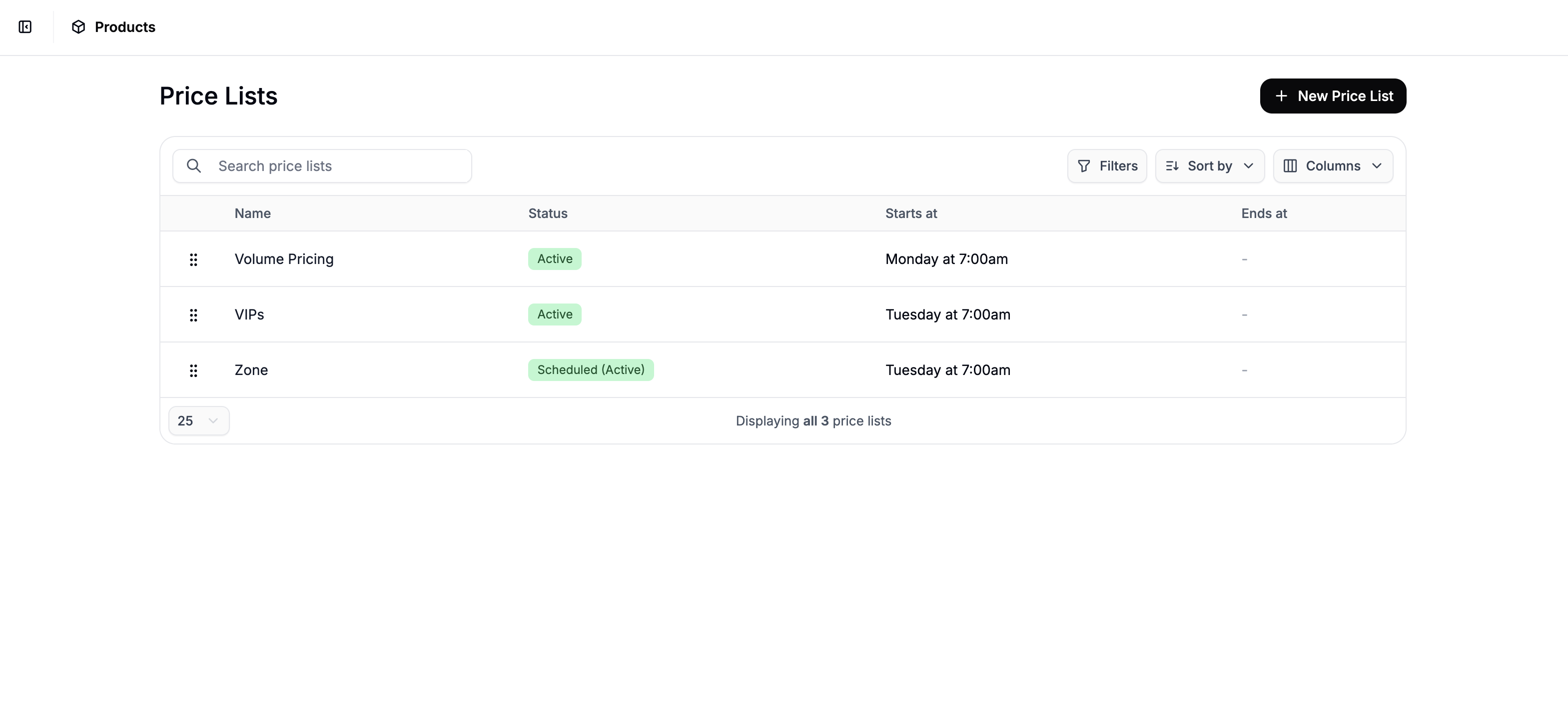
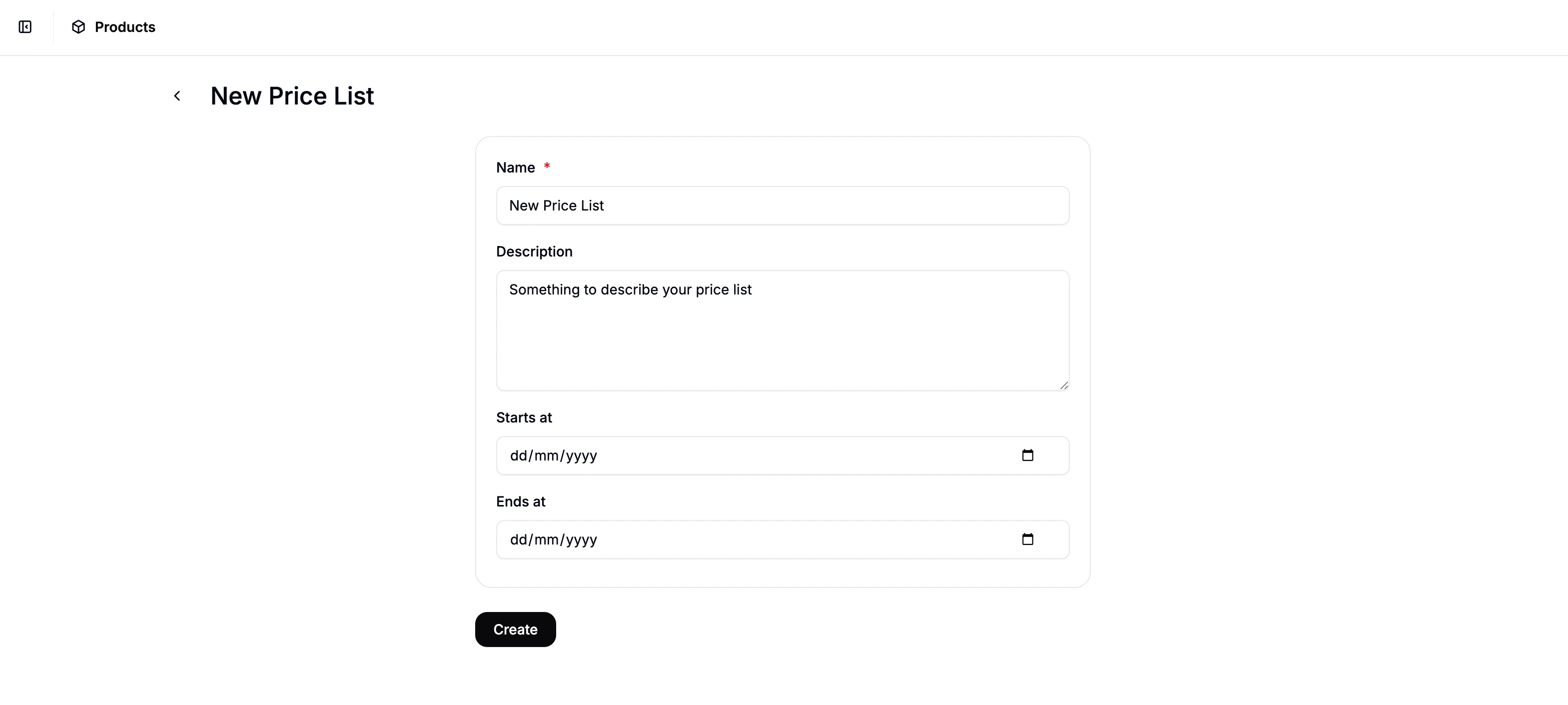
- Name - Internal name for the price list (displayed in the admin).
- Description (optional) - Notes or context for other admins.
- Start Date and End Date - Defines when the price list should be active.
- If not set, the price list will take effect immediately and it will never expire
Configure a Price List
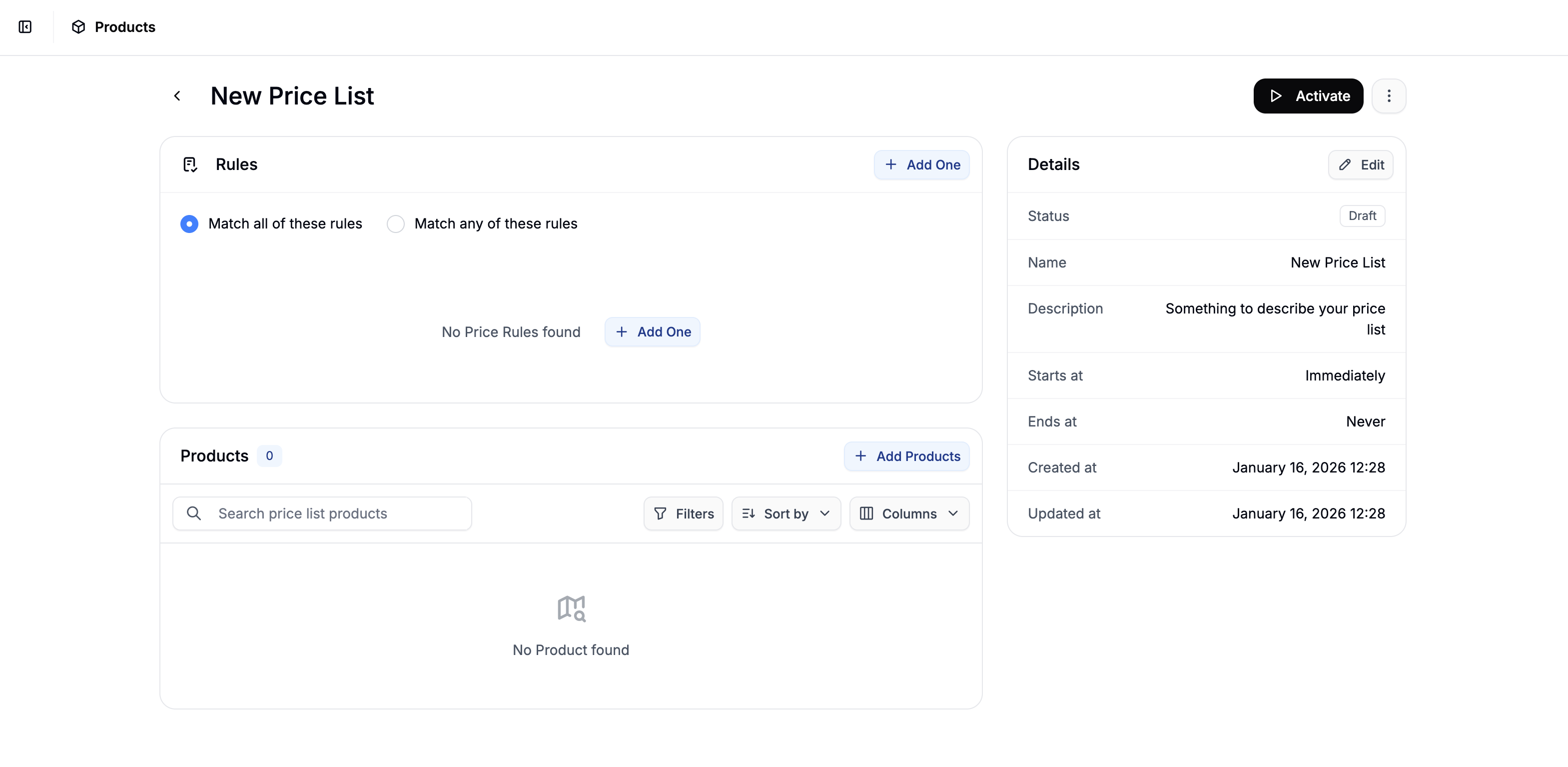
Add Rules
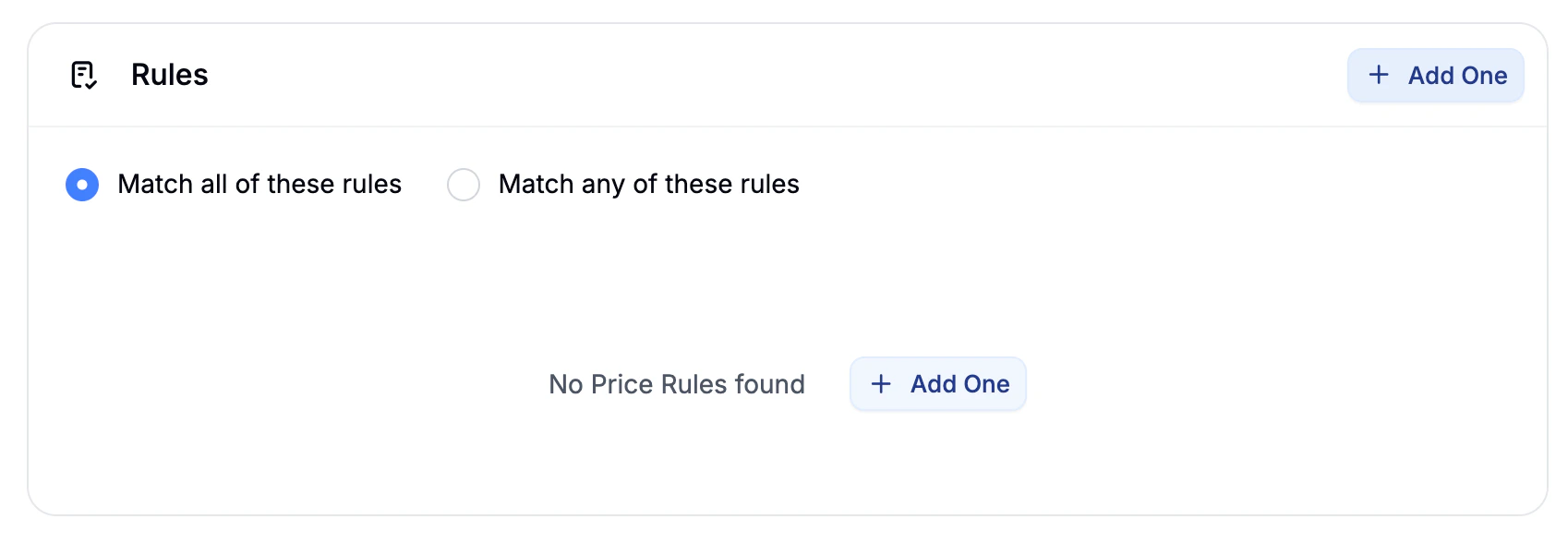
- User - Apply pricing only for specific users.
- Customer Group - Apply pricing to a specific customer group.
- Market - Apply pricing to customers shopping in a specific market.
- Volume - Apply pricing when order quantity falls within a min–max range.
- Zone - Apply pricing to customers in a specific tax/shipping zone.
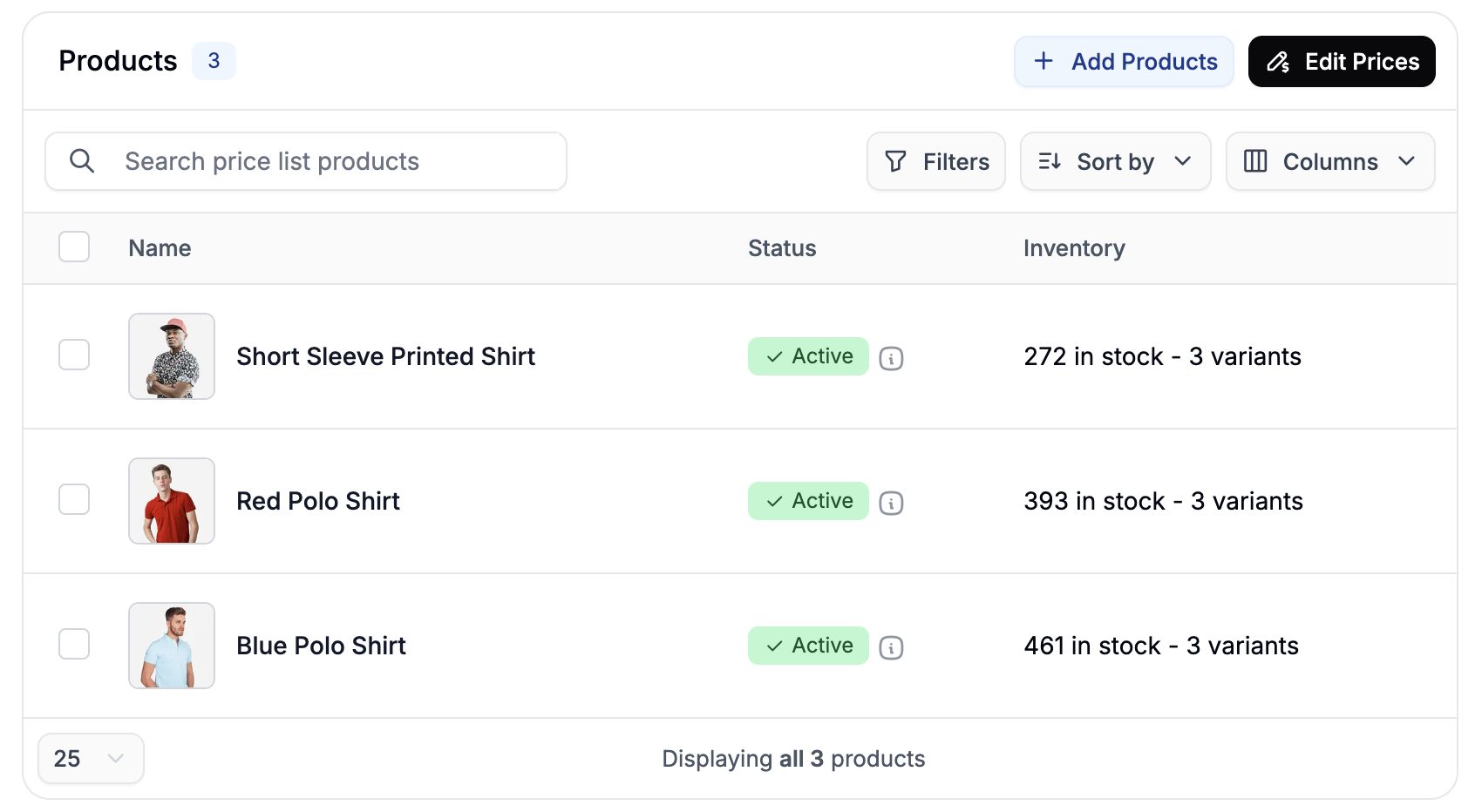
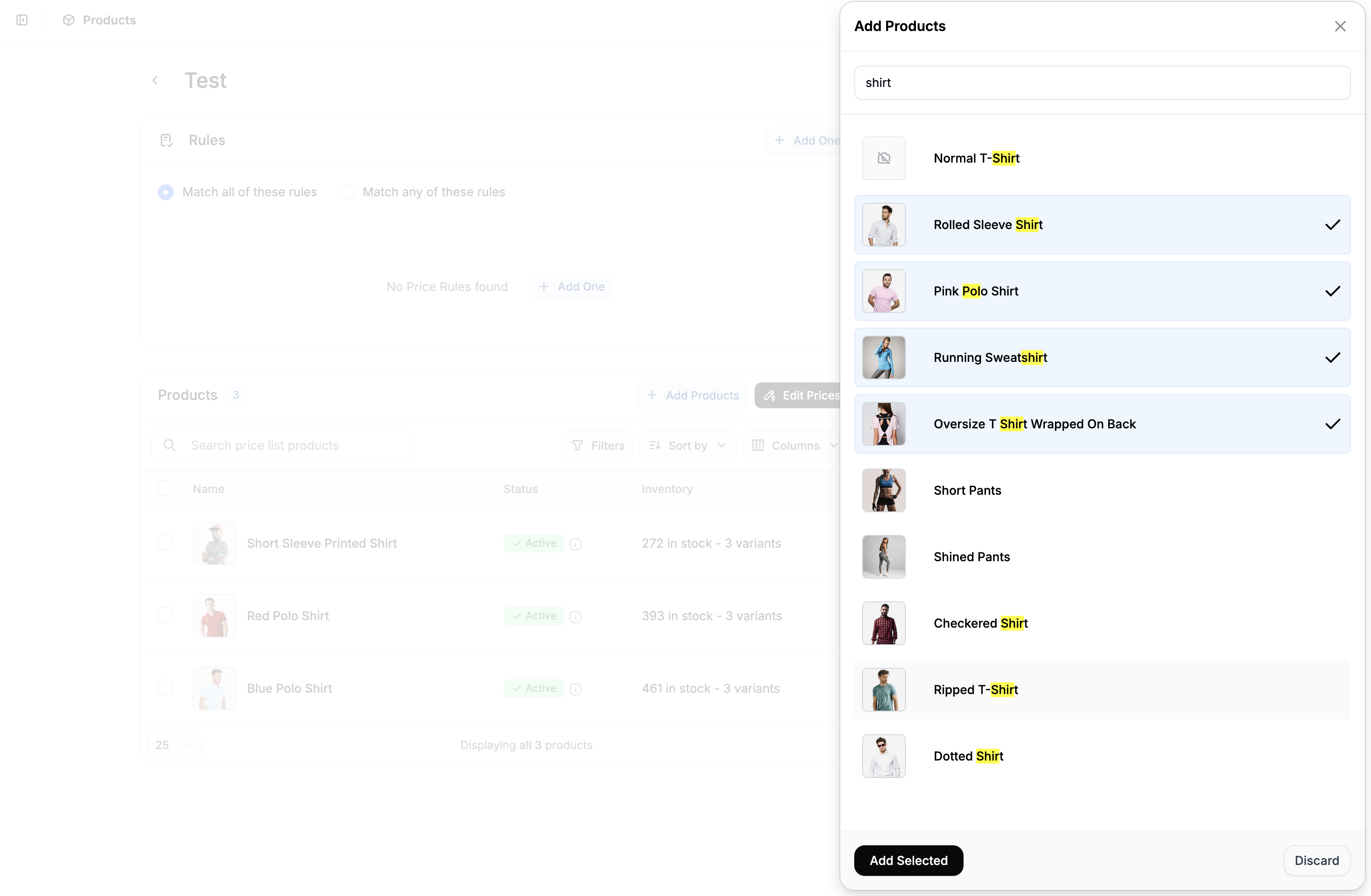
Add Products
Setting Prices
To define custom prices for the list, click Edit Prices in the top right of the product list to open the price edit form.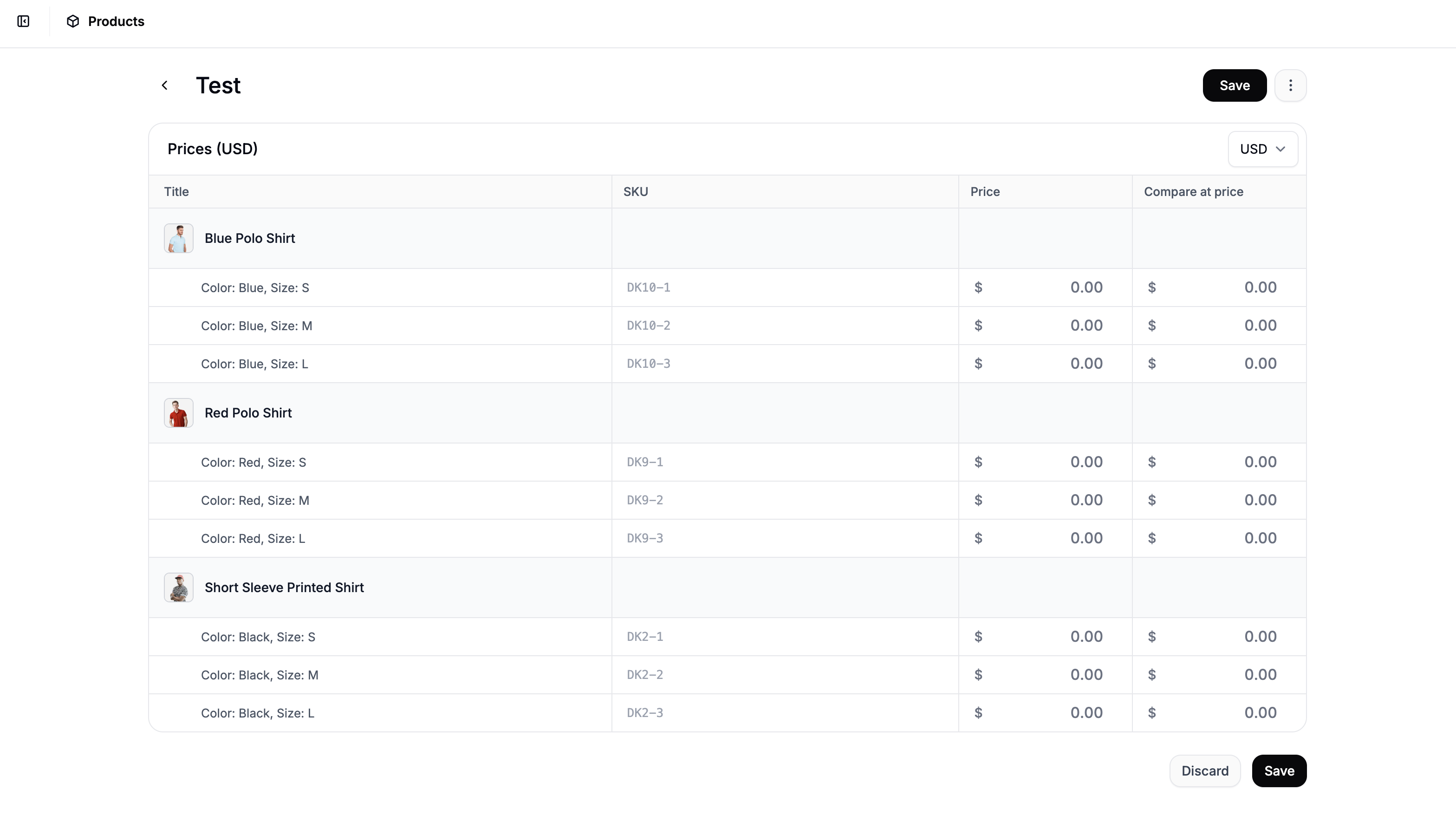
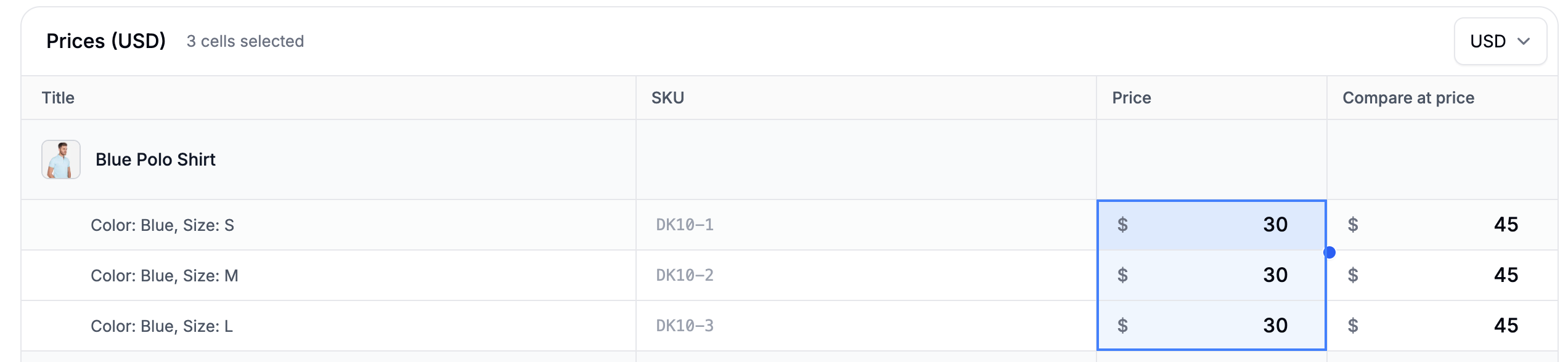
You can highlight multiple fields and copy + paste like you would in a spreadsheet.
Activating the Price List
Once everything is configured, go back to the price list editor, and click Activate in the top right corner.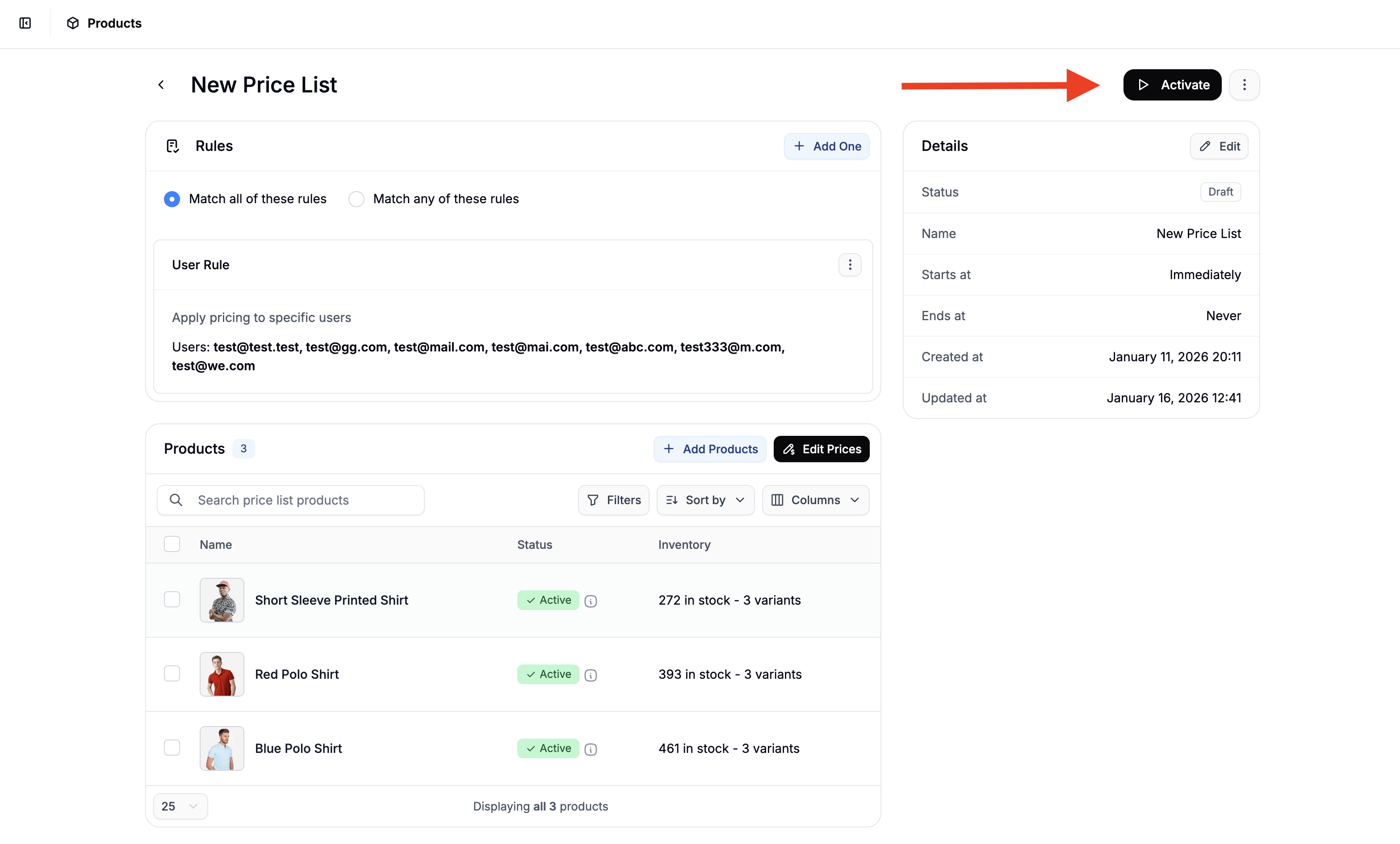
If you set a start date for the price list, the Activate/Deactivate button will instead say Schedule/Unschedule.