

1. Start a New Order
Navigate to the Orders tab in the admin dashboard and click New Order in the top-right corner.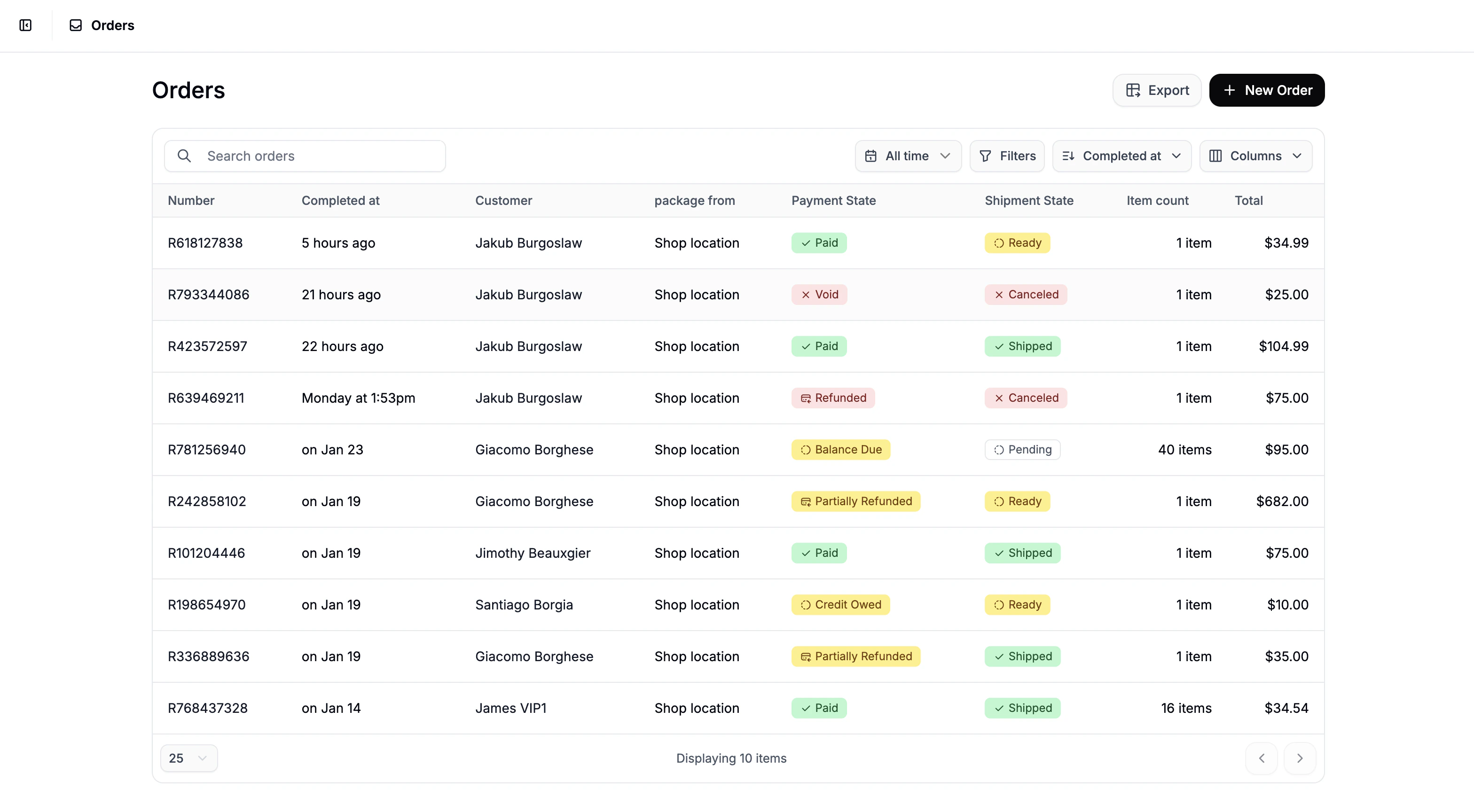
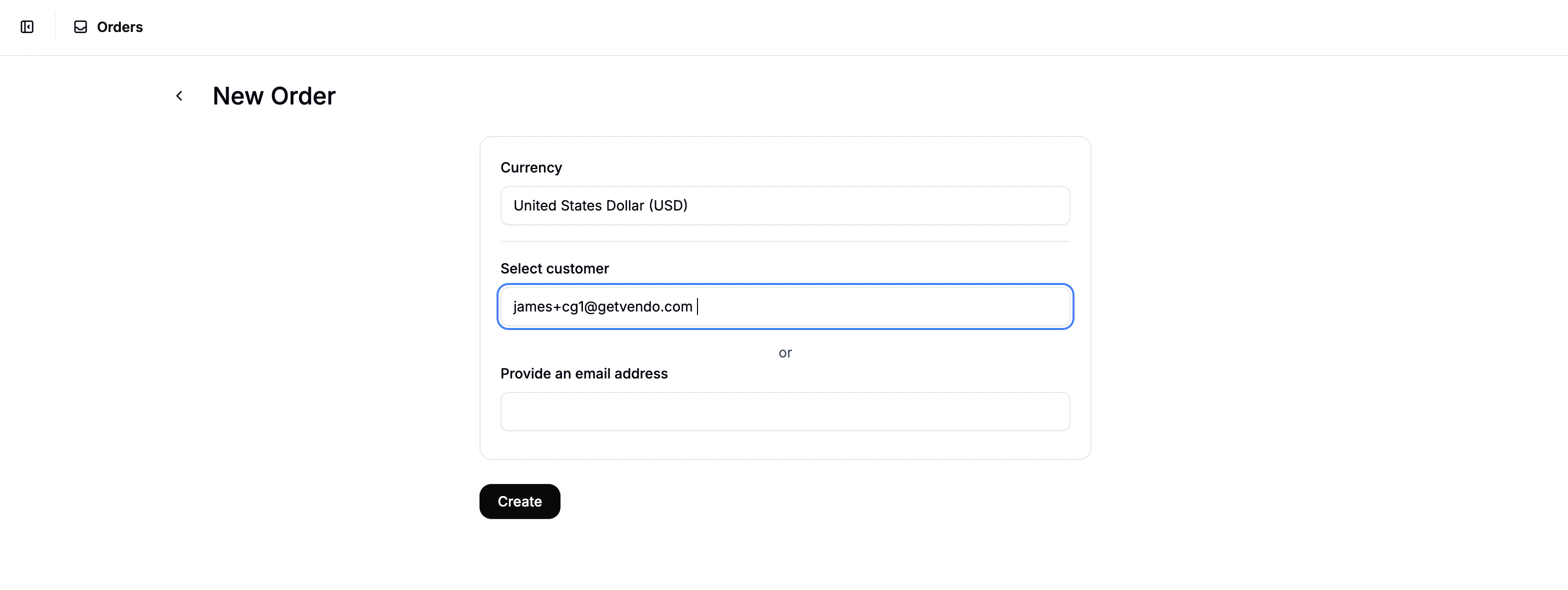
- Select Currency - choose the appropriate currency for the order
- Choose a Customer
- Select an existing customer
- OR enter a new customer’s email to create a customer record on the fly
2. Add Line Items
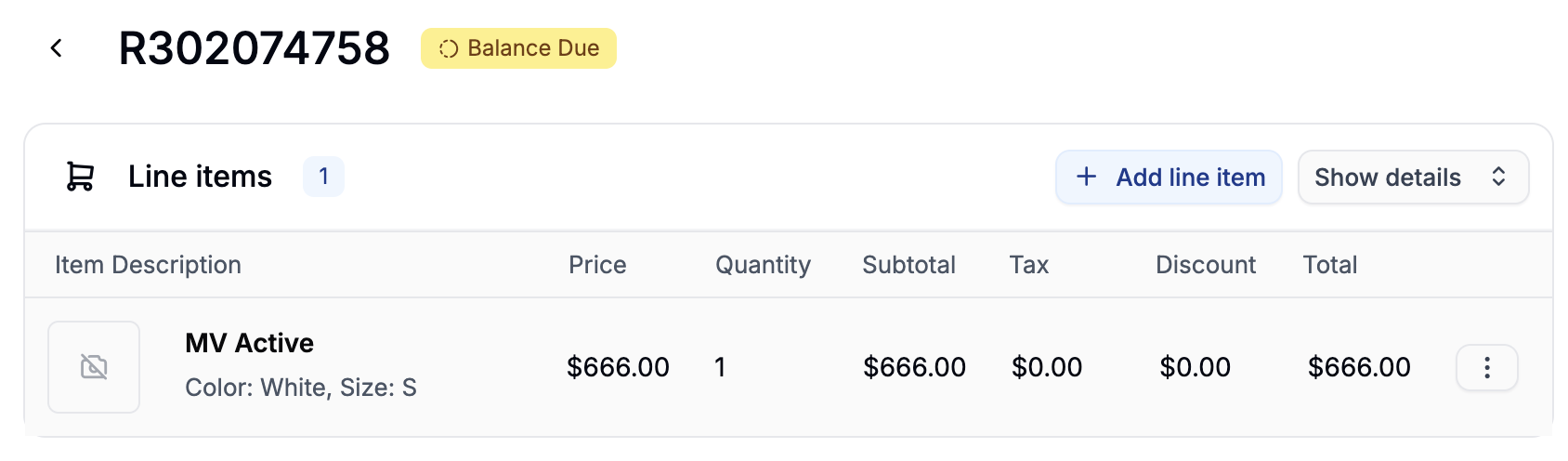
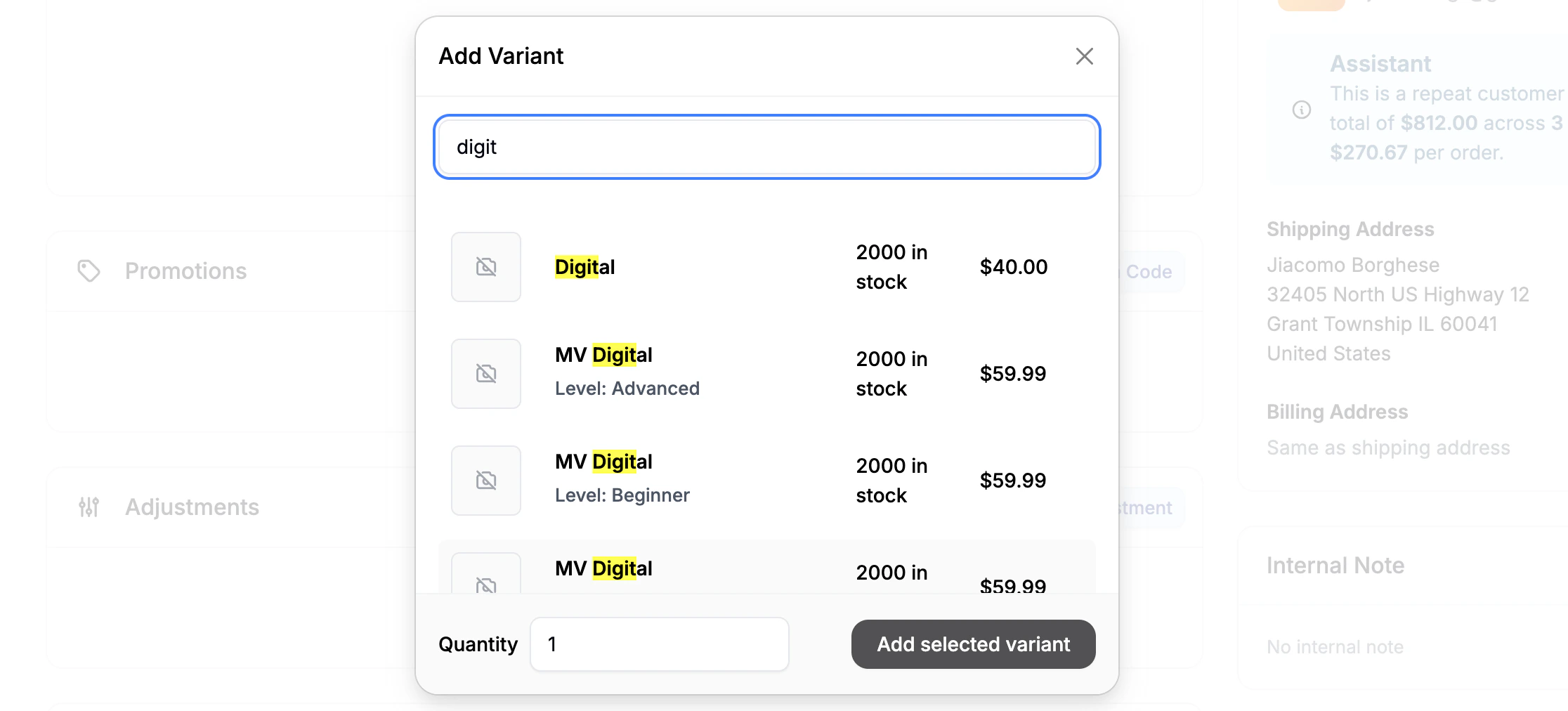
You can only add one product variant at a time. Repeat the step for multiple items.
3. Shipping & Billing Address Logic
After you add the first line item, Spree handles customer addresses based on whether it’s a new or existing customer:Existing Customer
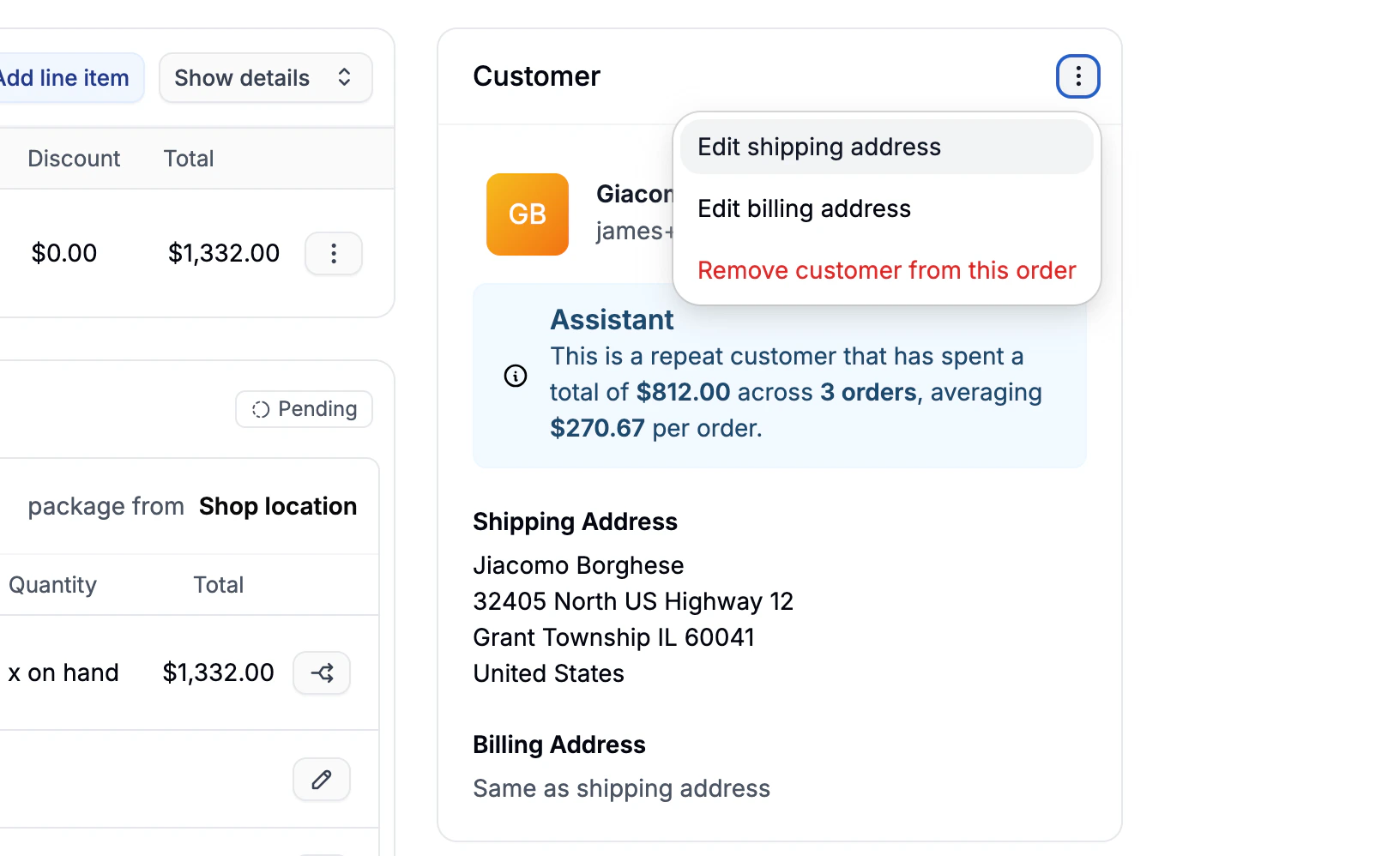
New Customer
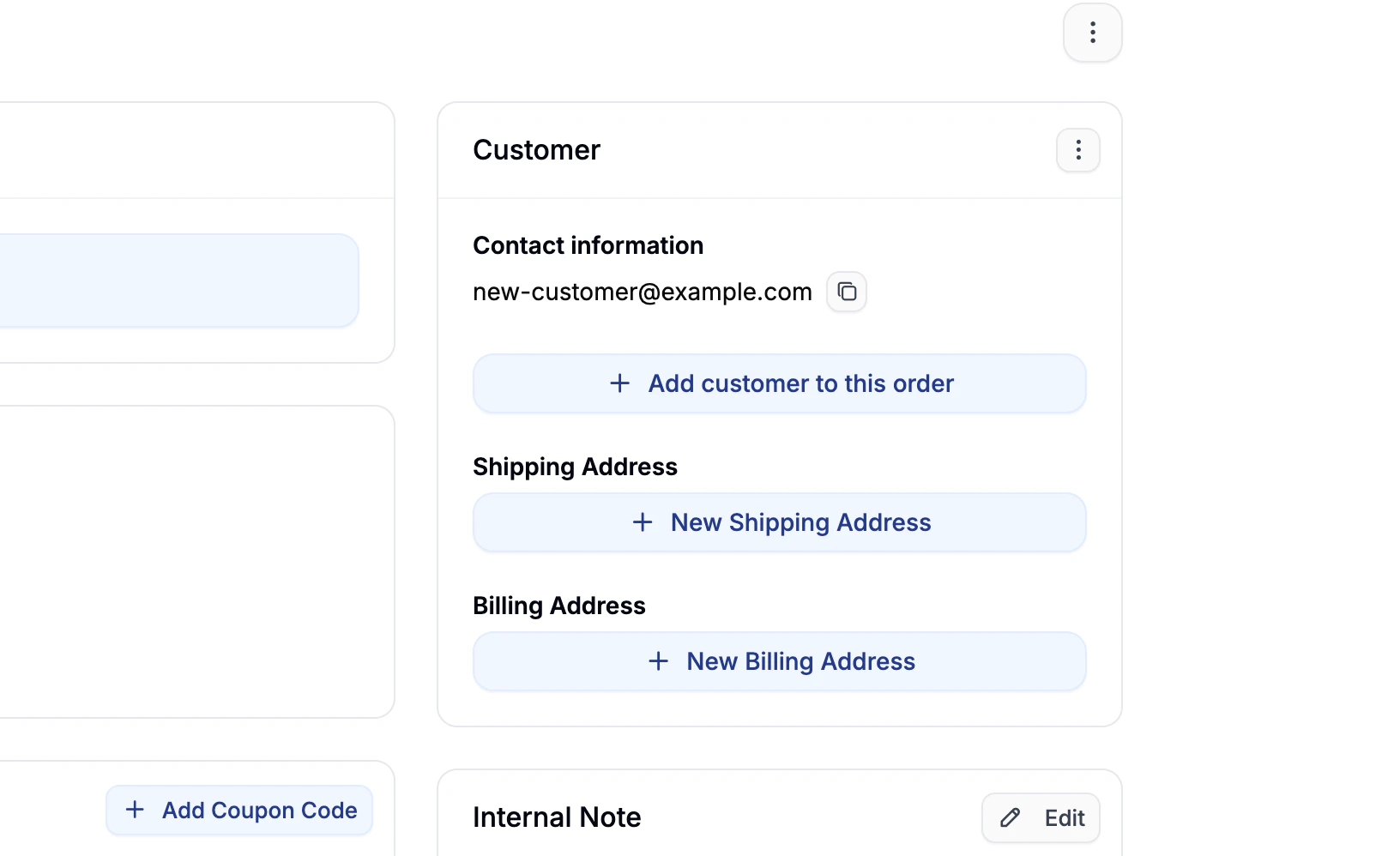
- Locate the Customer section
- Click + New Shipping Address and fill in the form
- Click + New Billing Address (or select “Same as Shipping”)
4. Add a Shipping Method
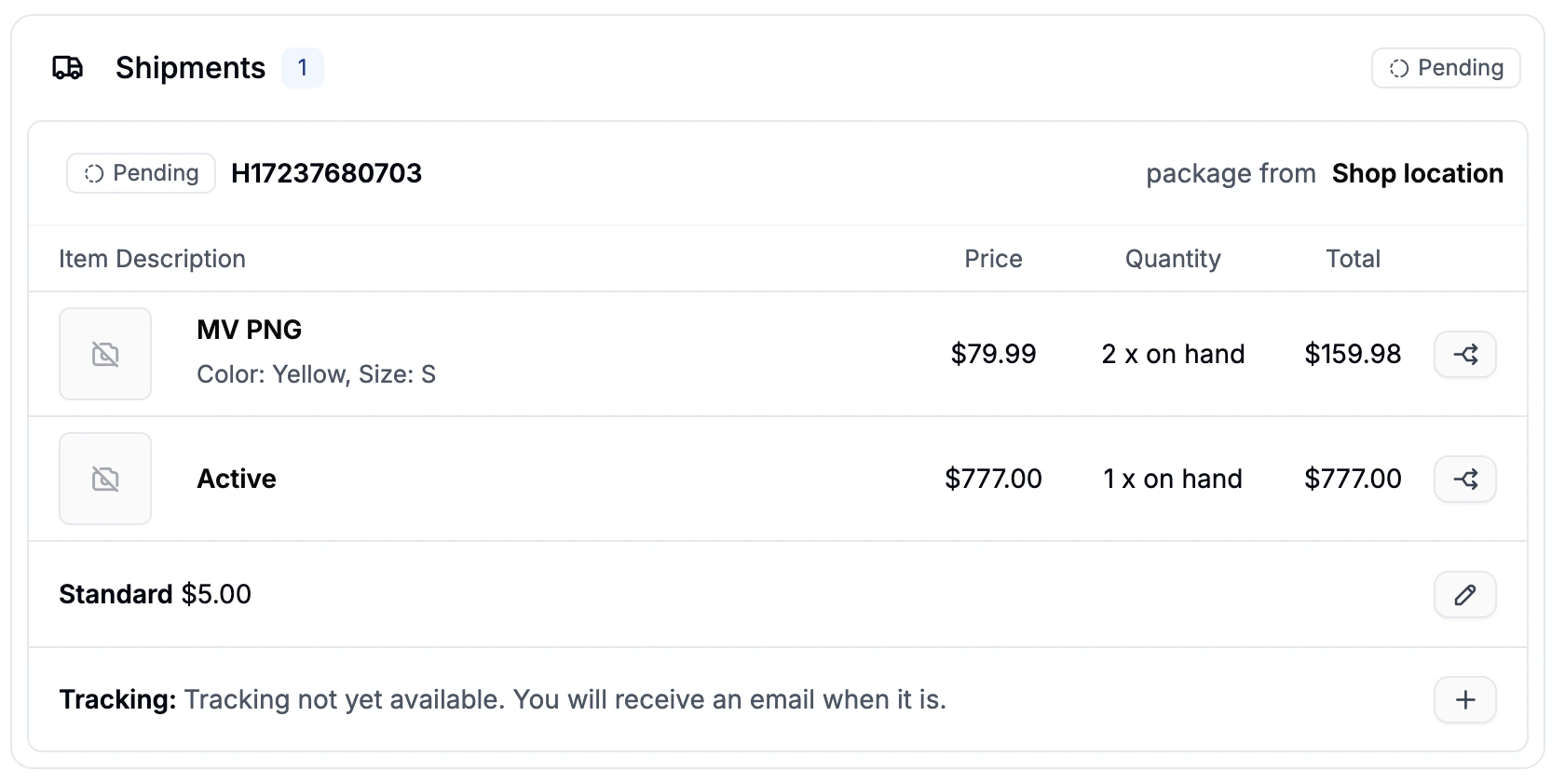
- Click the pencil (edit) icon next to the shipping method
- Select the desired method from the dropdown
- Click Save
5. Apply Promotions
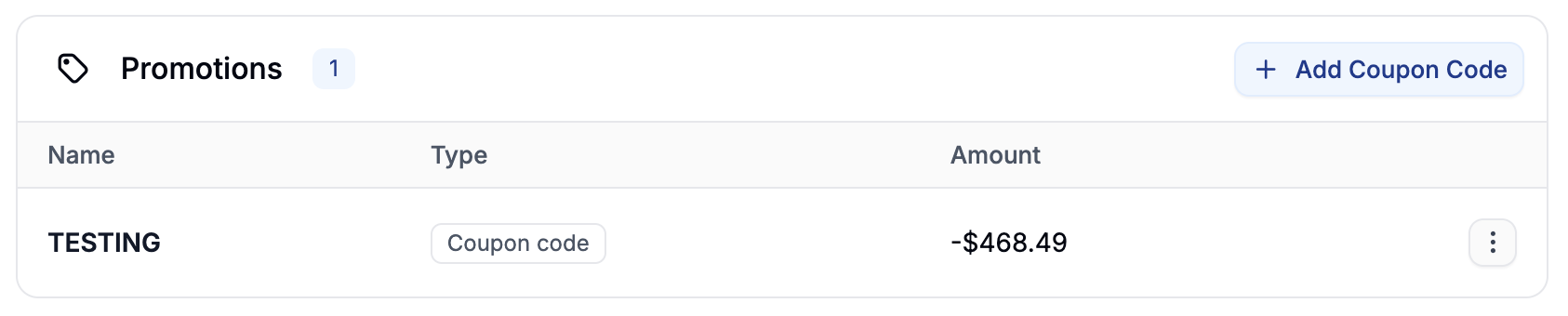
- Scroll to the Promotions section
- Click + Add Promotion Code
- Enter the coupon code and apply it
6. Add Order Adjustments
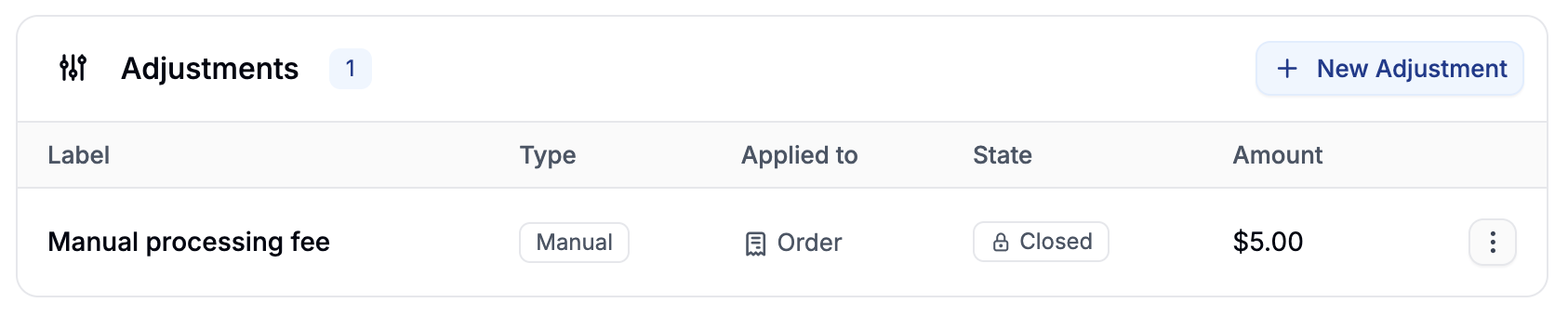
- Scroll to the Adjustments section
- Click + New Adjustment
- Enter a Label and set an Amount:
- Positive amount = charge
- Negative amount = credit
- Click Create
7. Add a Payment

Create a Manual Payment
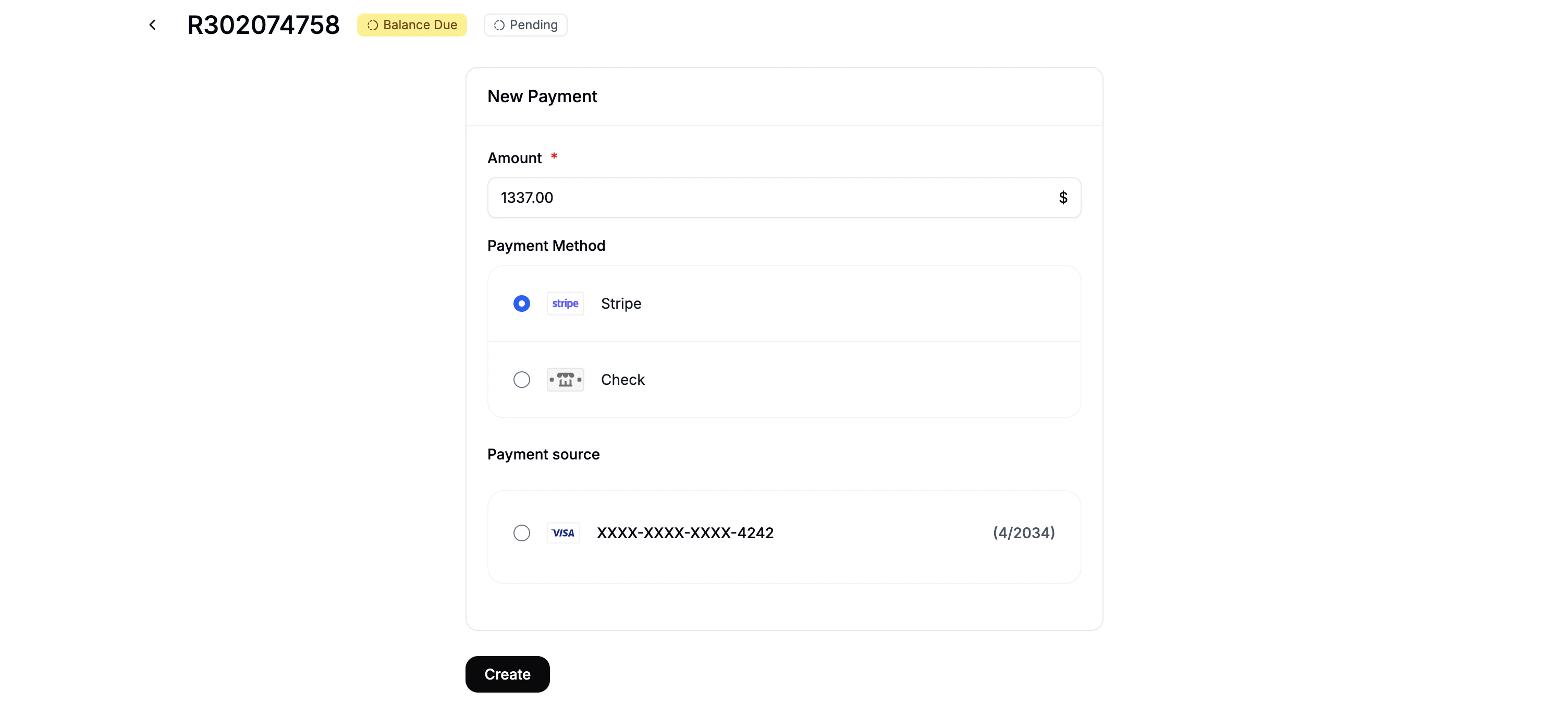
- Amount - defaults to order total
- Payment Method - e.g., Stripe, bank transfer, etc.
- Payment Source - saved card (if available)
If the customer has no saved card, you won’t be able to use some methods.