

Reviewing Draft Orders
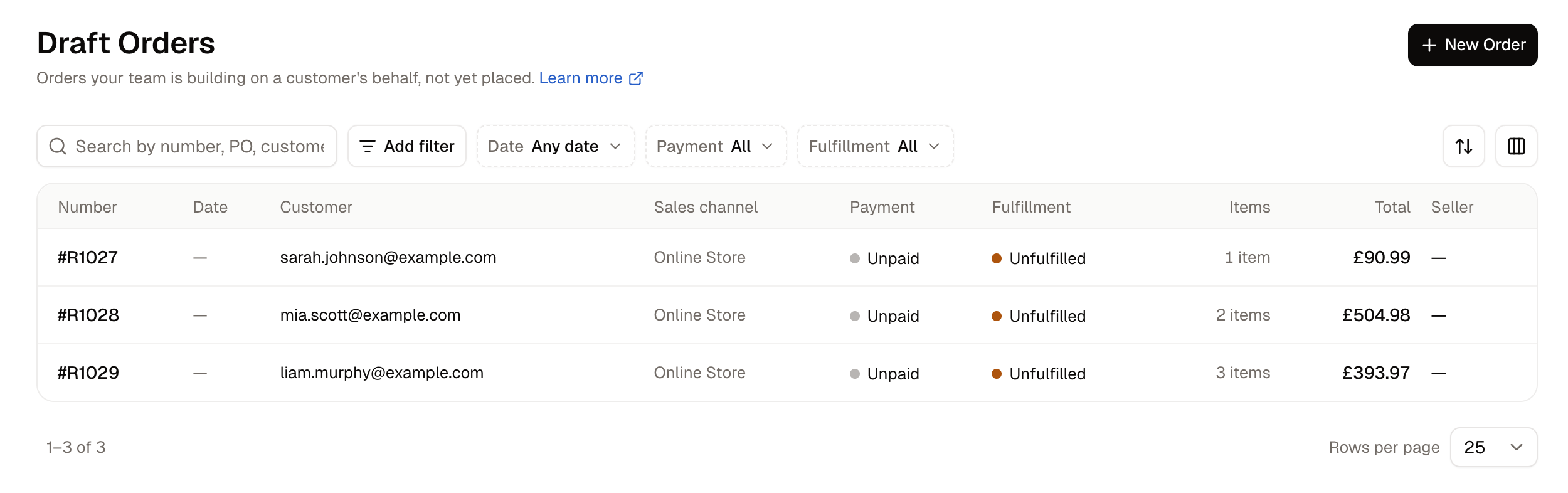
How to Create a Draft Order
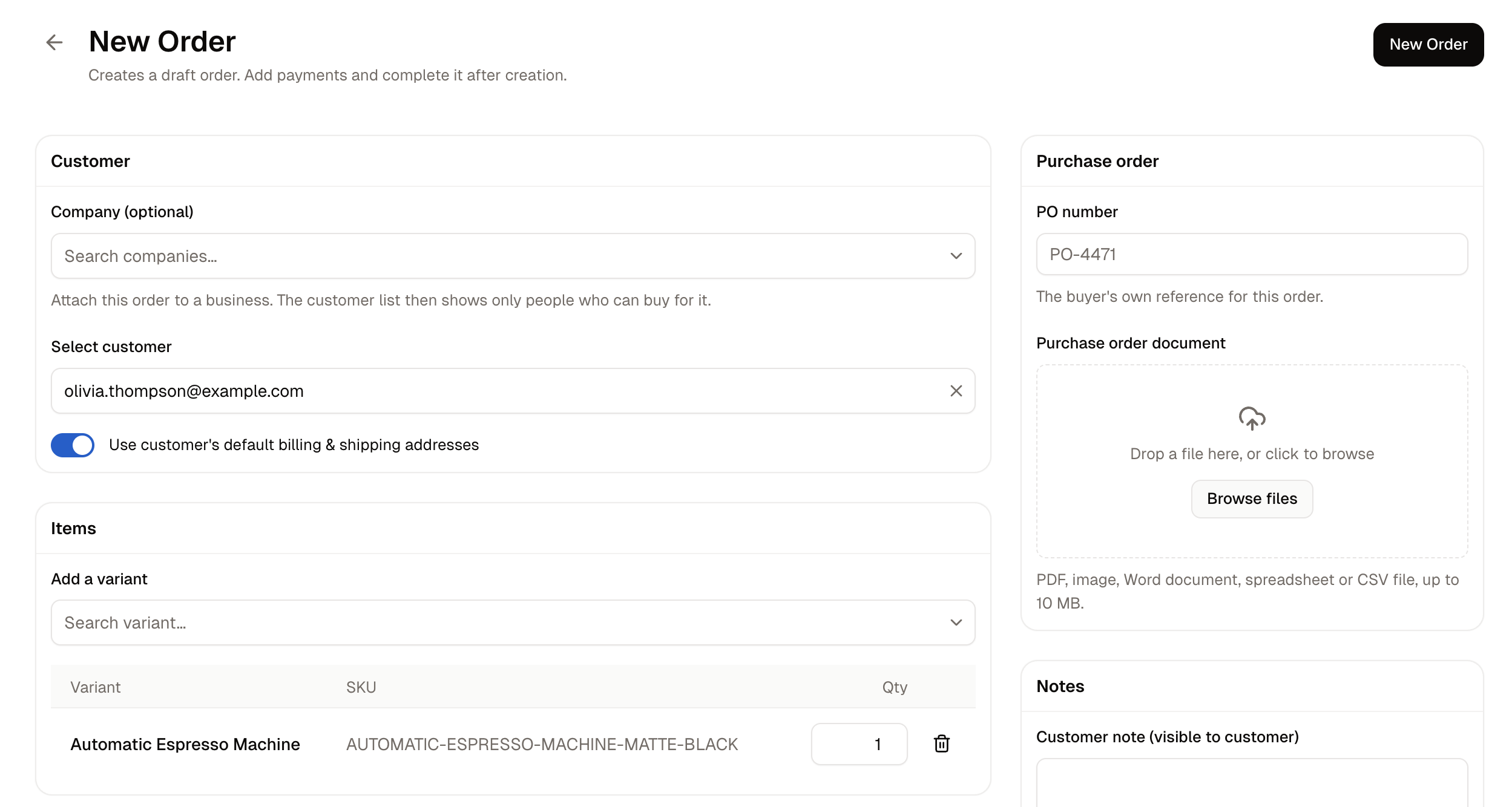
- Click New Order.
- Pick the customer, or enter a guest email.
- Under Add a variant, find each product and set its quantity.
- Fill in whatever else applies.
- Click New Order.
Prices, addresses and delivery are not on this form. They are set on the draft itself, once it exists.
How to Prepare a Draft for Completion
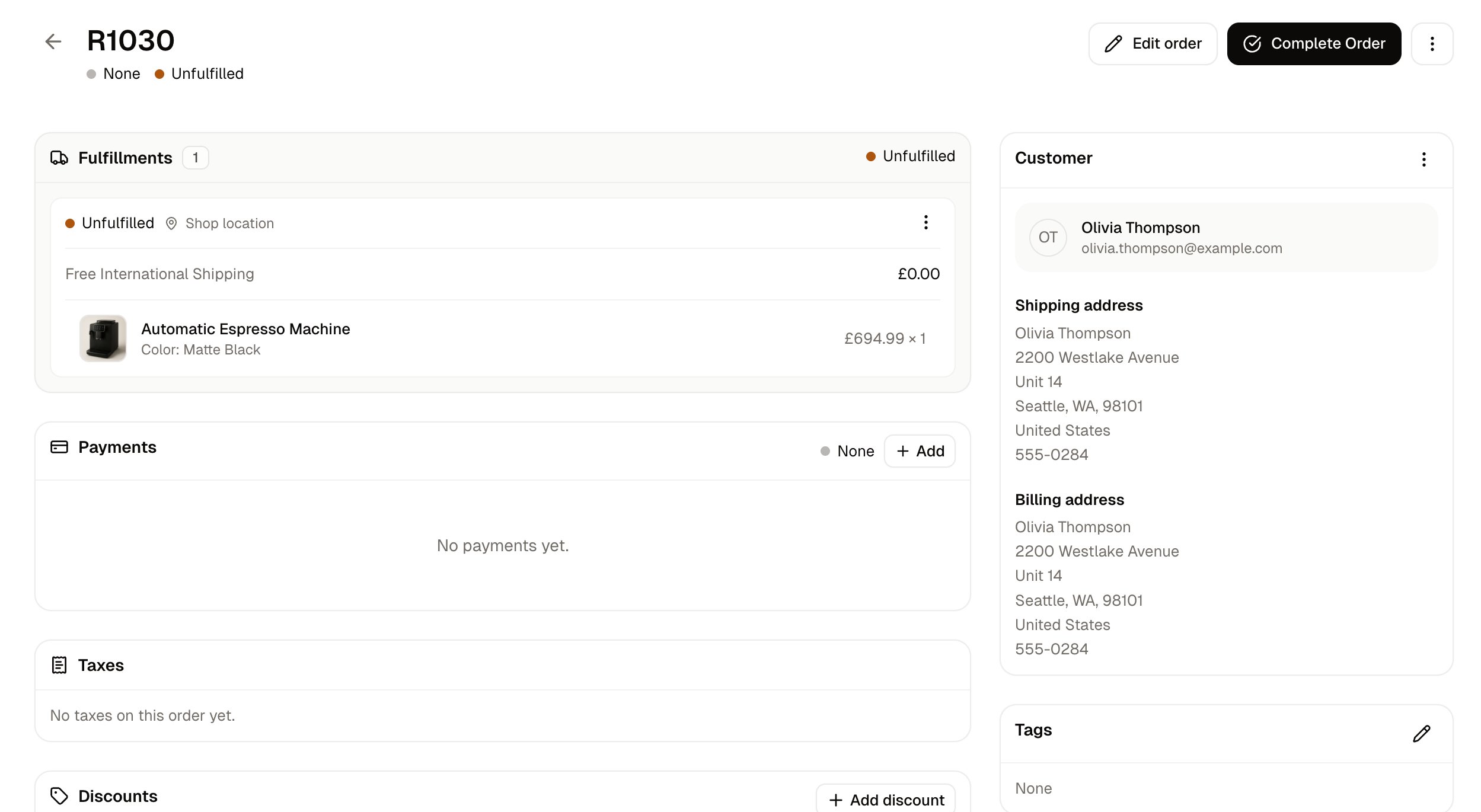
Setting the Addresses
A draft created for a customer with no saved address shows Not provided for both addresses, and no fulfillment at all until a shipping address exists. Open the menu on the Customer card and choose Edit Shipping Address or Edit Billing Address, fill in the fields, and save.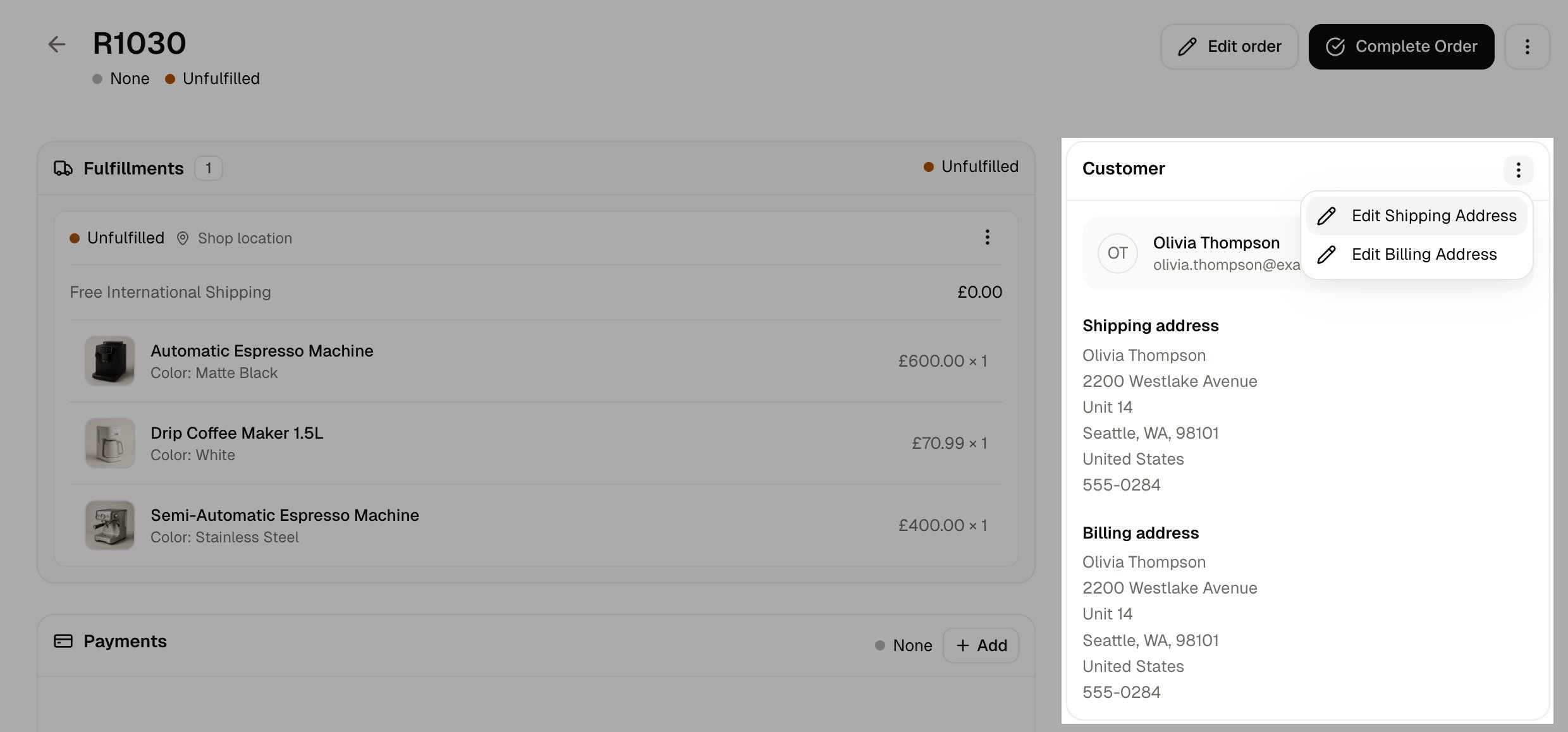
Choosing Where It Ships From and How
Once there is a shipping address, a fulfillment appears on the Fulfillments card, carrying a stock location and a delivery method. To change either, open the fulfillment’s Actions menu and choose Edit. Ships from lists your stock locations, marking any that cannot cover the order as out of stock, and Delivery method lists the methods that reach the address, with their prices.Adding and Removing Products
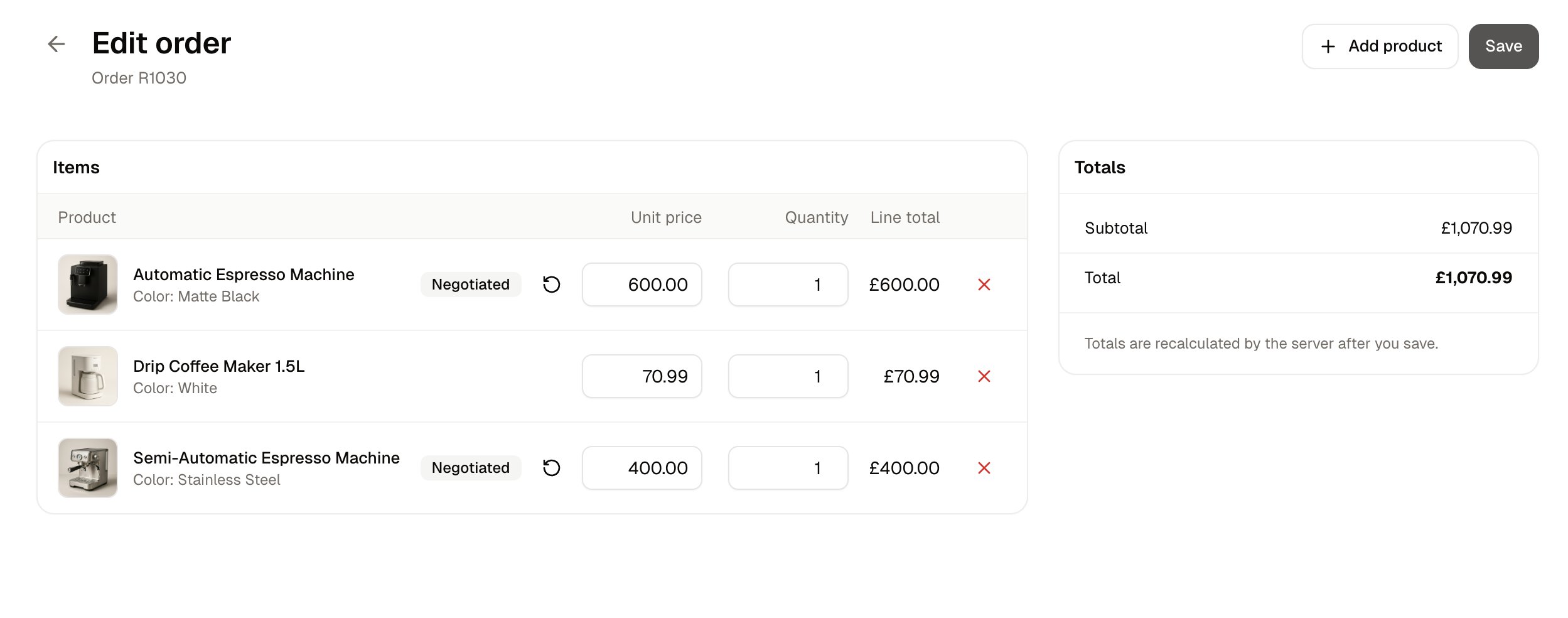
- Add product puts another item on the order.
- Remove takes a line off.
- Quantity changes how many of a line the buyer is taking.
Setting Unit Prices
A draft is the only place a line’s price can be changed. On a placed order the prices are fixed, so this is where a figure agreed with a business buyer goes onto the order.- Type the agreed figure into the line’s Unit price. The original price stays on the line, crossed out, so you can see what you have changed before committing to it.
- Click Save.
Changing a line’s quantity does not clear a price you have set. The refresh icon is the only thing that puts a line back to the catalog price.
The Negotiated label and the refresh icon exist only inside the editor. Once you leave it, nothing on the order marks a price as agreed rather than published, so record the reason in the internal note if a colleague will need to know.
Adding a Payment
On the Payments card, click Add. The form asks how the customer is paying and how much.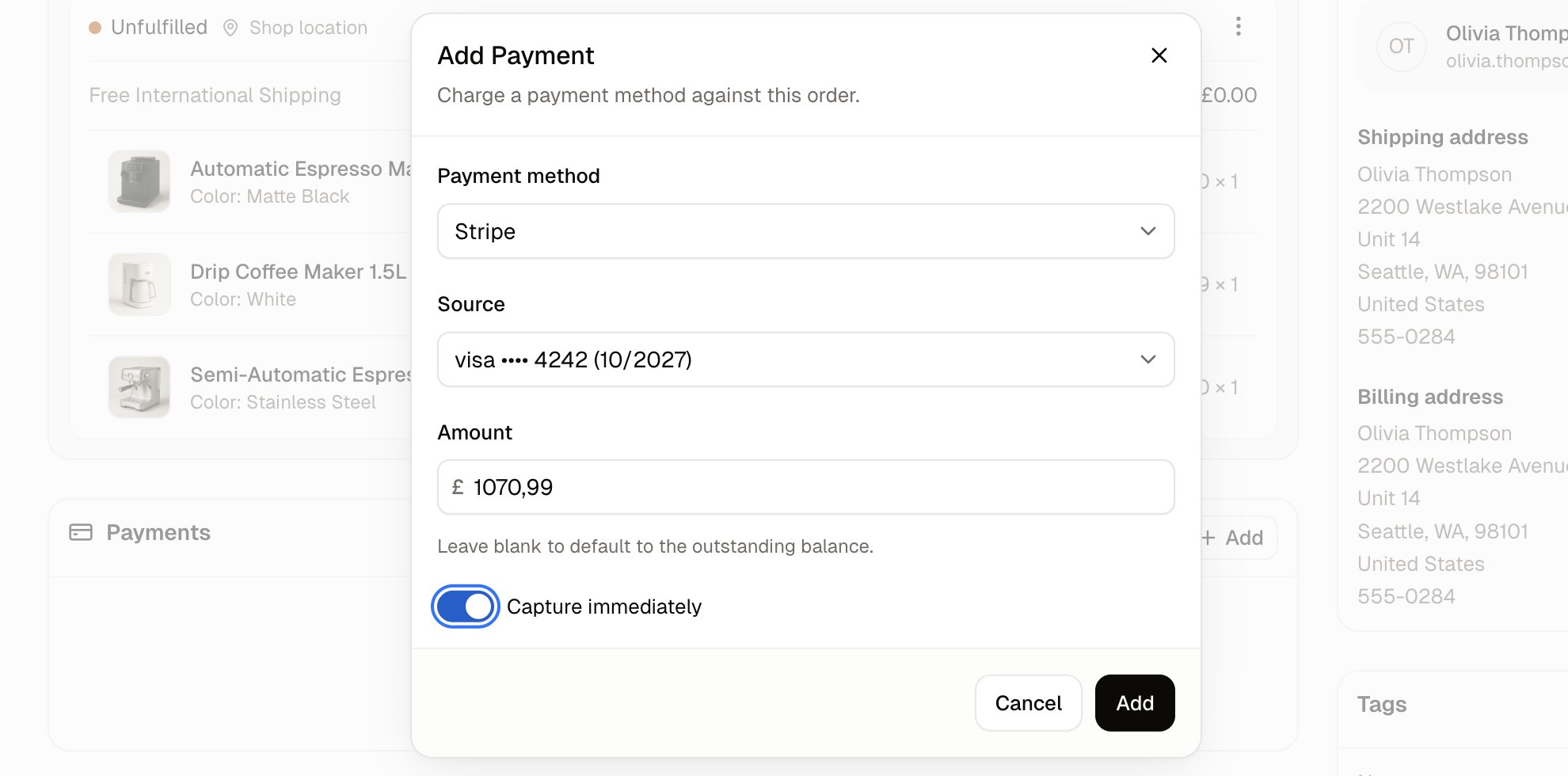
Fill in the form and click Add.
Adding a payment is not the same as taking the money. Whether it is captured depends on Capture immediately here, and on the payment method’s own capture setting. See Processing Orders.
Adding a Discount or a Fee
Add discount on the Discounts card creates a manual discount, as an amount or a percentage, applied to the whole order or to one line. Add fee on the Fees card adds a surcharge, handling, gift wrap, duty or similar charge the same way. A gift card can be applied from the Discounts & Credit card on the right. See Gift Cards.How to Complete a Draft Order
Click Complete Order at the top of the draft and confirm. This is the step that turns a draft into a real order. Stock is allocated against it, the customer receives their order confirmation, and the Returns, Exchanges and Claims cards appear. From then on it behaves like any other order, and is fulfilled, paid, edited and canceled from its own page. See Processing Orders.How to Delete a Draft Order
Open More actions at the top of the draft and choose Delete. Deleting is only available while the order is a draft. Once it is completed, the way to stop it is to cancel it, which is covered in Processing Orders.Further Reading
- Orders - The list of placed orders and their statuses
- Processing Orders - Fulfilling, paying and editing an order once it is placed
- Companies - The businesses an order can be attached to
- Gift Cards - The cards a customer can pay an order with