

Reviewing Gift Cards
The list shows one row for every gift card you have issued, newest first.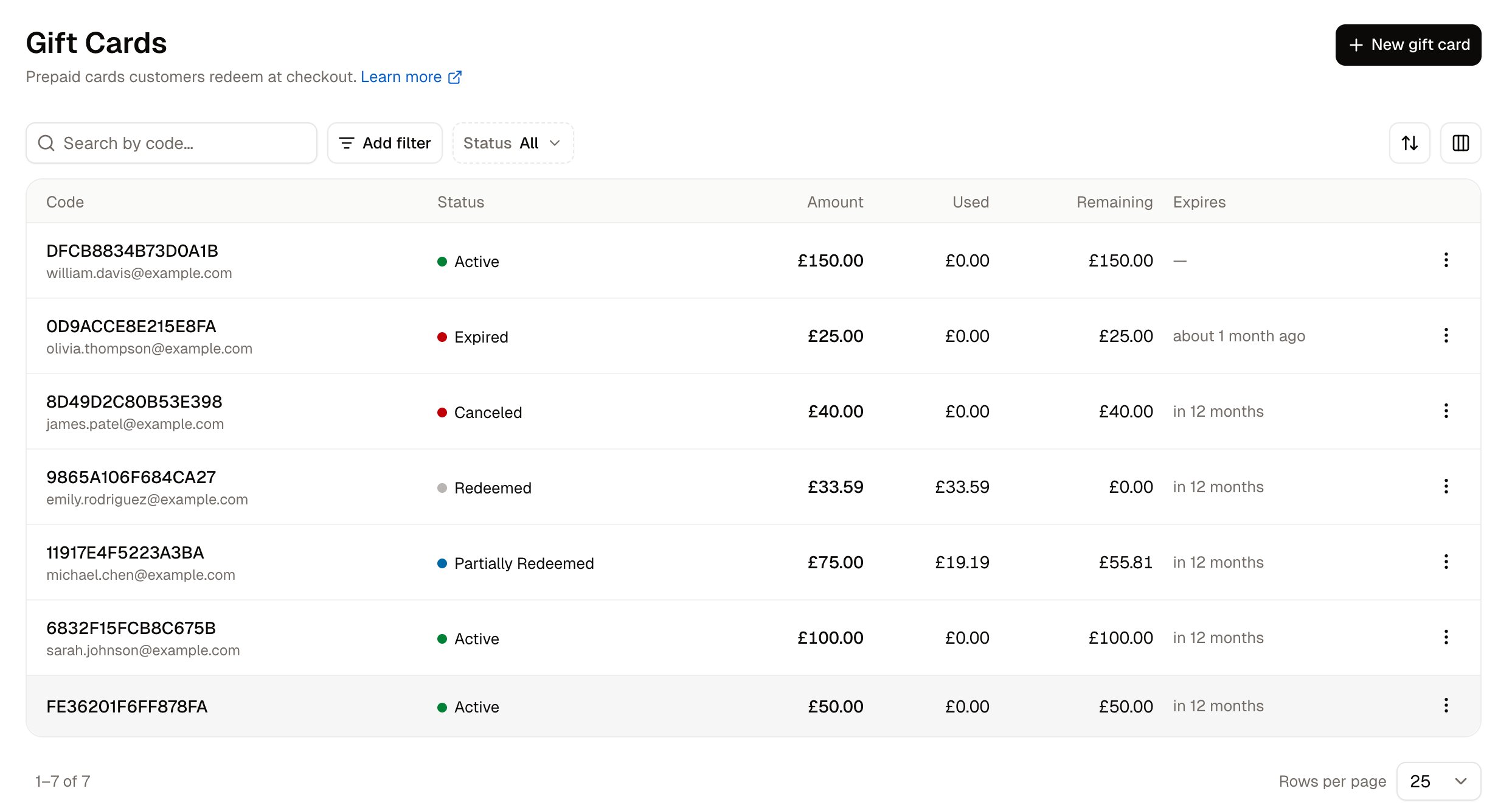
Type a code into the search box to find one specific gift card. The Status filter narrows the list to cards of one status, so it finds the cards that still have money on them and equally the ones that have been fully spent. Add filter narrows the list by currency, batch, customer, who issued the card, expiry date, or when the card was created or last changed.
A gift card moves through these statuses as it is spent:
How to Issue a Gift Card
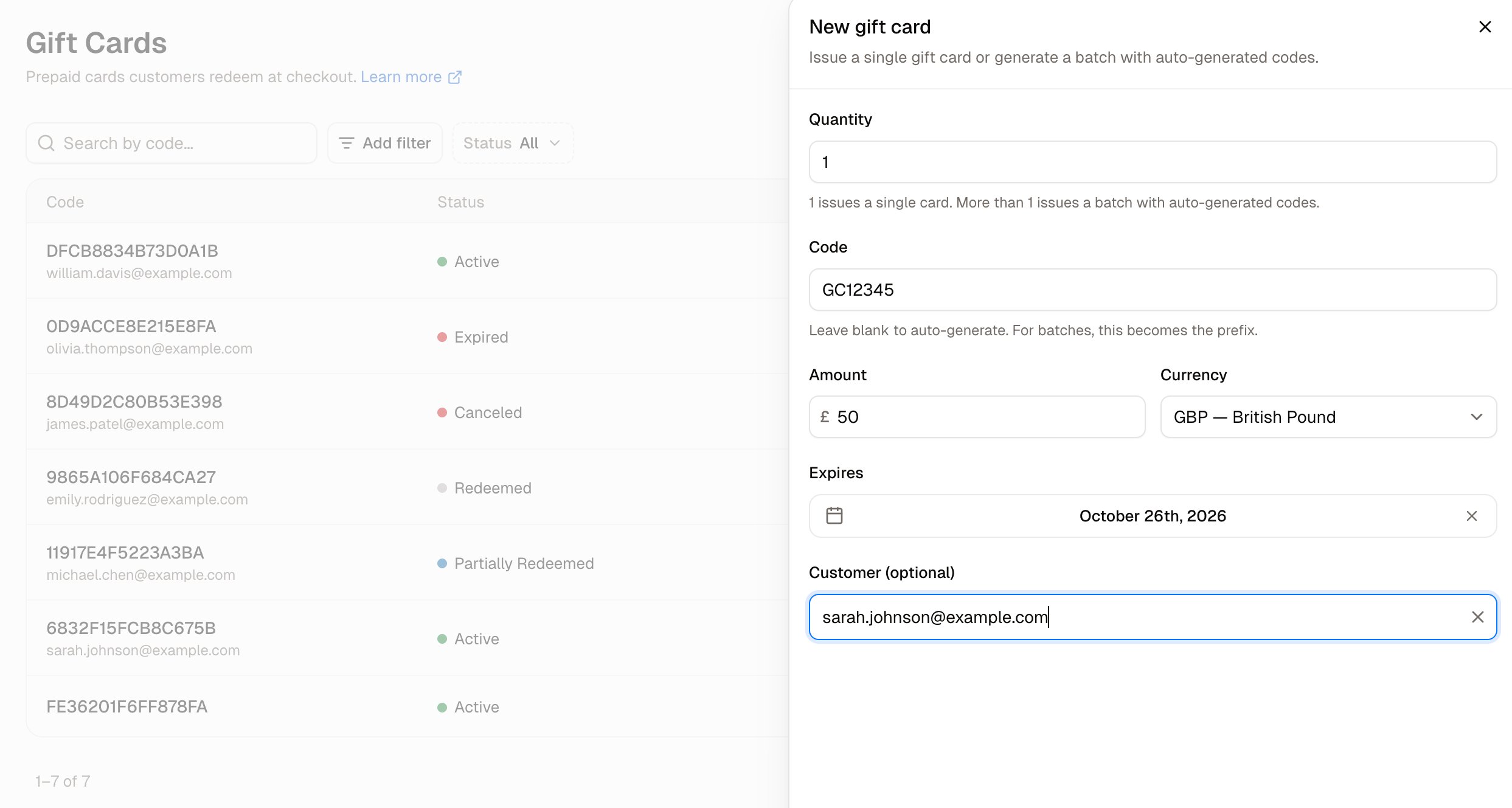
Click New gift card in the top-right corner. A panel opens over the list with these fields:- Quantity - How many gift cards to issue. Leave Quantity at 1 to issue a single card.
- Code - The code the customer types at checkout. Leave Code blank and a 16-character code is generated automatically. Enter your own code when you want something memorable for a campaign.
- Amount - What the gift card is worth. Amount must be above zero, and the panel stays open with a message under the field until it is.
- Currency - The currency the gift card’s balance is held in. The currency cannot be changed after the card is created.
- Expires - The last date the gift card can be used. Leave Expires on No expiry if your gift card terms do not limit how long a card is valid.
- Customer (optional) - The customer the gift card belongs to. Start typing their email address and select them from the list.
How to Create a Batch of Cards
Enter a number above 1 in Quantity and the panel changes to suit a batch of cards. Code becomes Prefix, which is the text every code in the batch starts with. The Customer (optional) field is removed, because a batch cannot be attached to one customer. The button names the number of cards it will create, for example Create 3 gift cards. Use a batch for a campaign, for a set of cards sold over the counter, or for any cards that are not going to one named person.How to Check a Card’s Balance
Click a gift card’s code in the list, or open the row menu and choose Edit. A panel opens with the card’s code as its title. The Usage section of that panel shows what the card was worth, how much has been spent, how much remains, and which staff member issued it.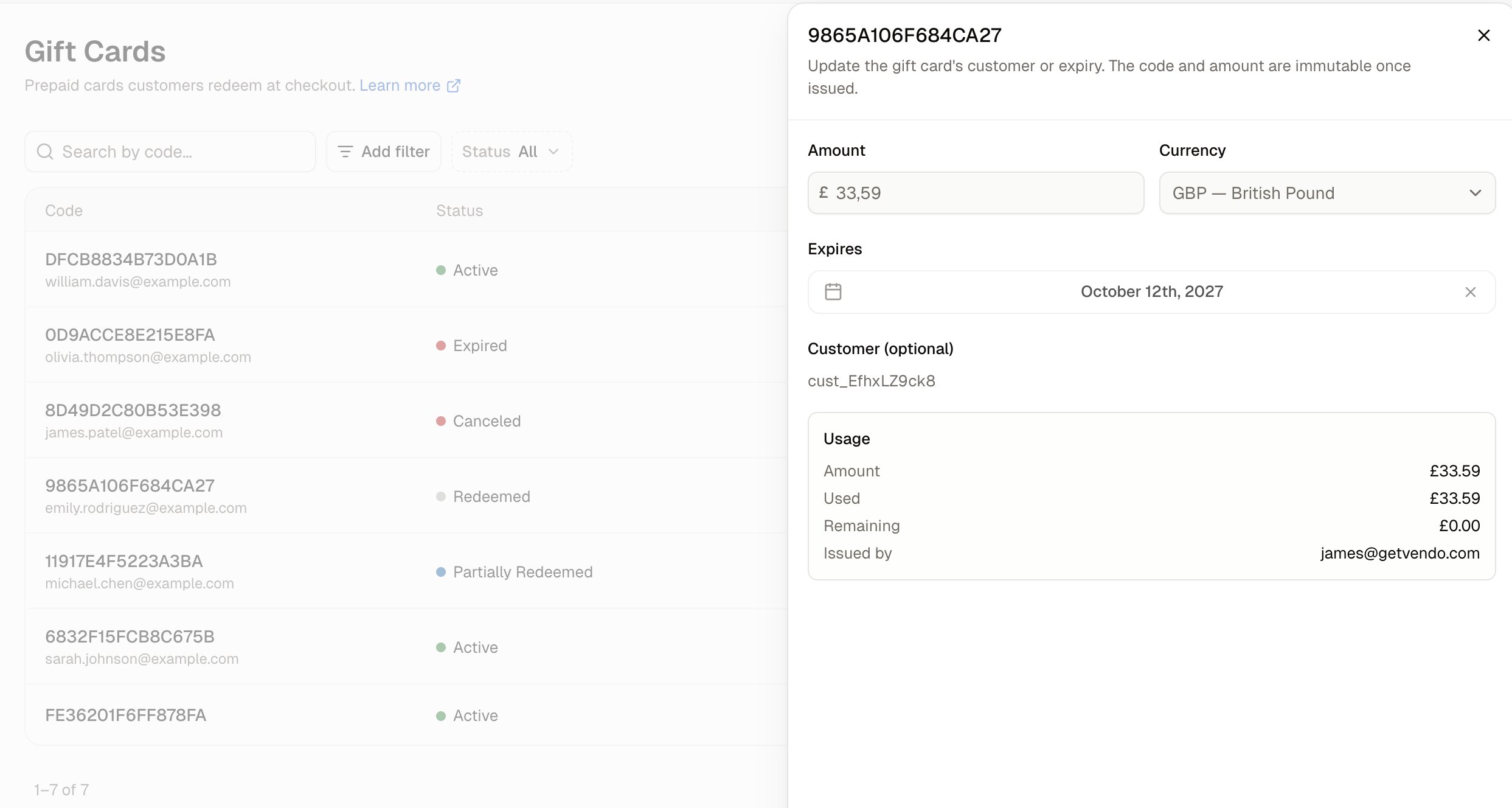
How Customers Redeem a Card at Checkout
The customer types the code into the Gift card or discount code box in the checkout order summary and clicks Apply. The order summary then shows a gift card line taking the card’s balance off the order, with the amount still to pay underneath. If the gift card covers the full order total, the payment section reads No payment required and the customer clicks Place Order. If the gift card covers only part of the order total, the customer selects a payment method for the remainder and places the order. The order then lists two payments, one for the gift card’s share and one for the remainder.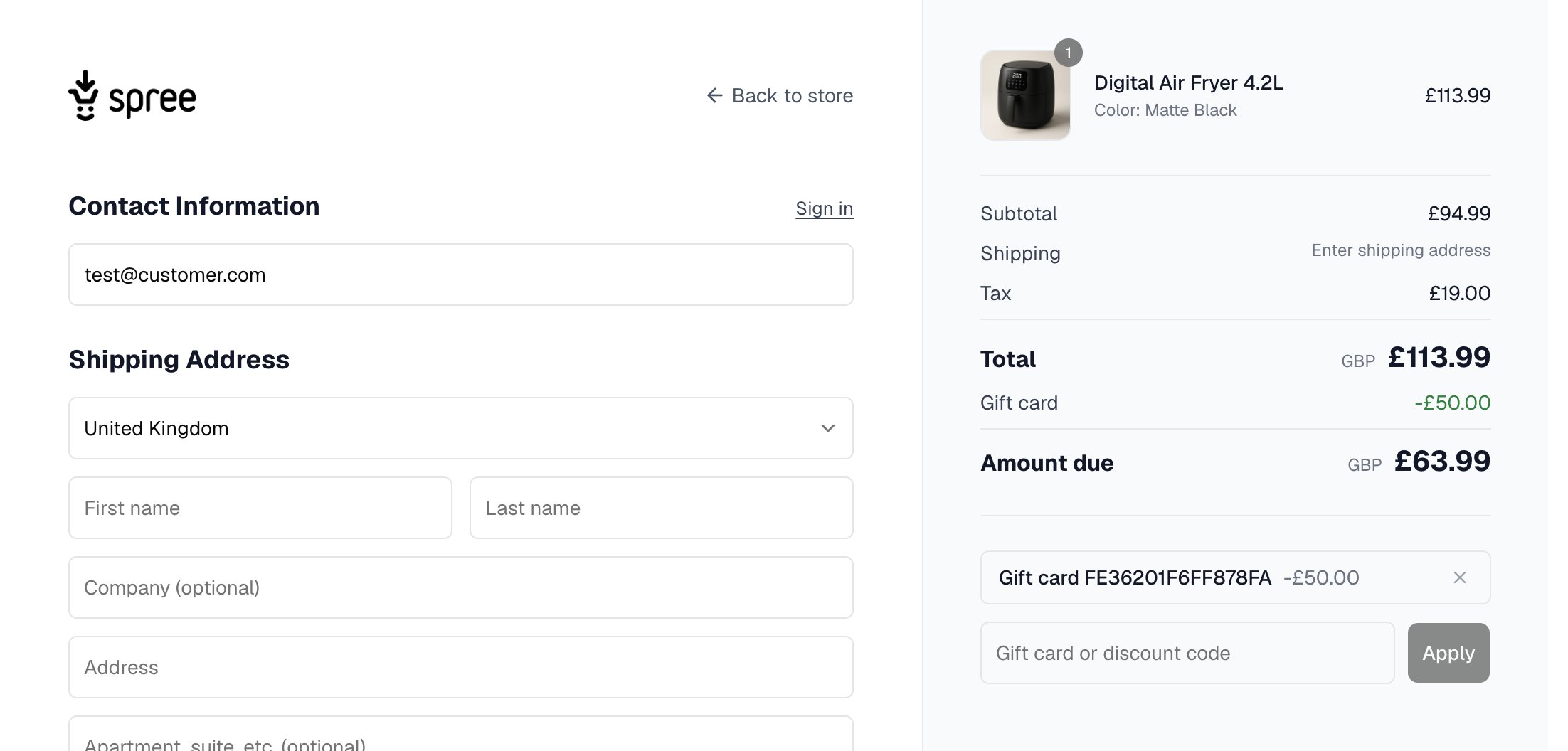
How to Apply a Gift Card to a Draft Order
When your team builds an order on a customer’s behalf, a gift card can pay for part or all of that order.- Open the draft order. In the Discounts & Credit card, click Apply next to Gift card.
- Enter the gift card’s code and click Add.
- The card’s code and the amount it covers appear in the Gift card row, and the order’s Outstanding balance drops by that amount.
How to Delete a Gift Card
Open the row menu on the gift card and choose Delete, then confirm with Delete. The gift card is removed from the list.Further Reading
- Store Credits - Balances your store owes individual customers
- Draft Orders - Building an order for a customer, with a gift card as payment
- Orders - Where a redeemed gift card shows on an order
- Payments - The payment methods customers use for anything a gift card does not cover