

Reviewing Store Credits
Loyalty → Store Credits lists every store credit in your store, with the total your store owes shown above the list.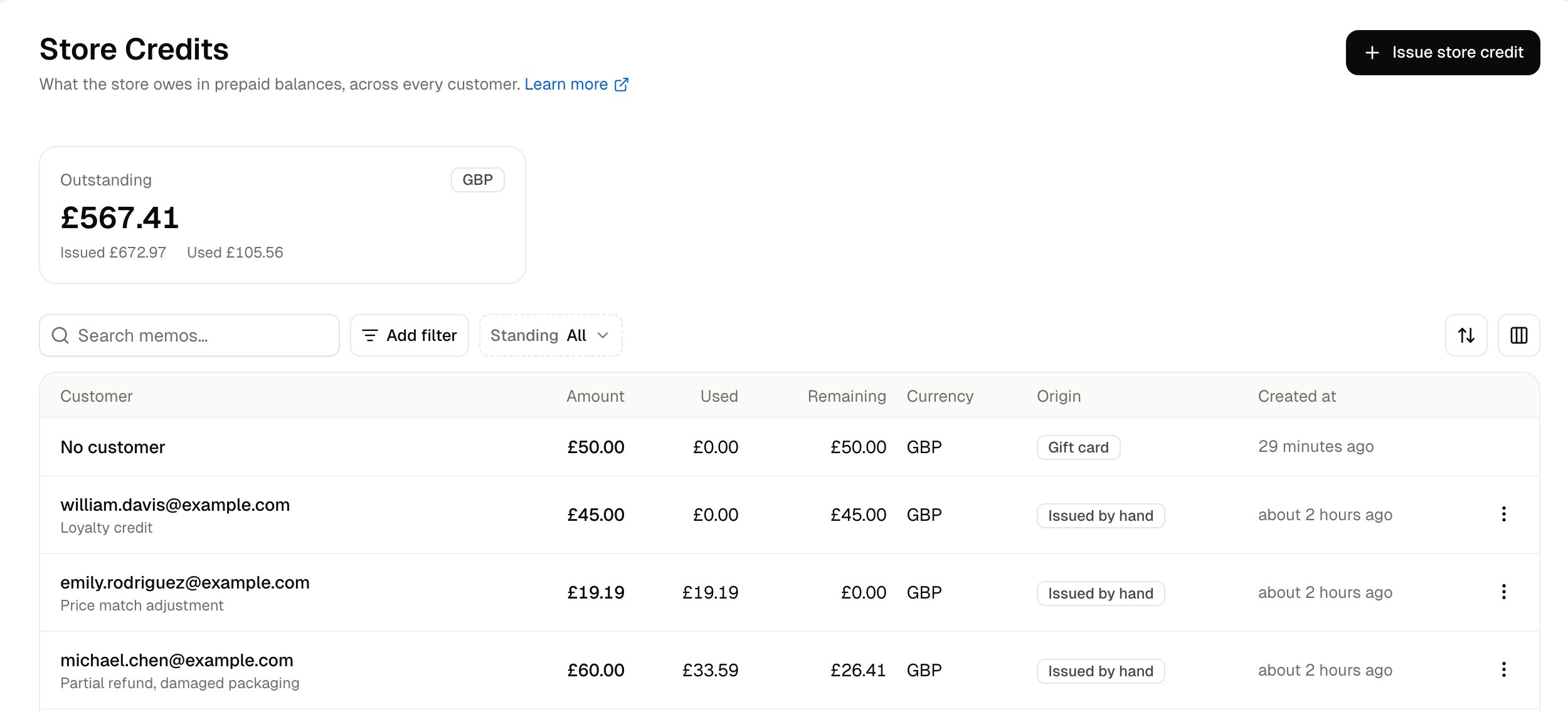
Reading the Outstanding Balance
Above the table sits one card per currency you have issued credit in. Each card shows three figures:
These three figures reflect whatever filter is active on the table below. With no filter applied, the cards show what your store owes across every customer. Filter the table by one customer, and the same cards show what that customer holds.
A gift card a customer redeems becomes a store credit, so the Issued figure counts gift card money alongside the credit you issued by hand.
Filtering and Searching
The list can be narrowed by:
The search box matches the memo, which is the free-text reason written when a credit is issued, or written by the process that created it.
Where a Credit Came From
The Origin column names what created the store credit:- Gift card - A customer redeemed a gift card, and the balance moved onto their account.
- Return, Exchange, Claim - A post-sale process refunded to store credit rather than to the original payment method.
- Issued by hand - A staff member created the credit directly, usually as compensation or a goodwill gesture. The memo records why.
Opening a Credit
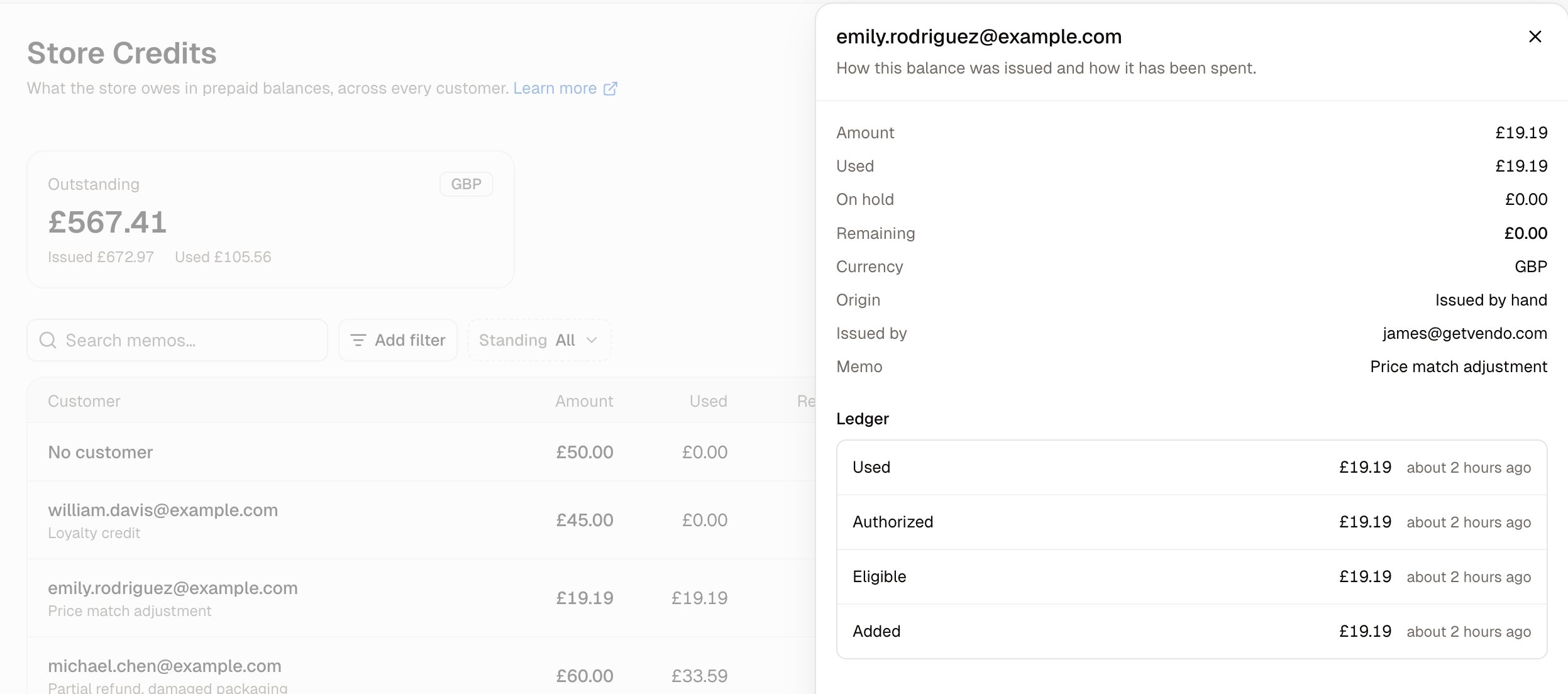
Click a row to open that store credit’s details in a side panel. The panel is for reading: it shows what the credit is and what has happened to it, and changing the credit is a separate form covered in How to Edit Store Credit below. The top of the panel holds the credit’s details:
Below the details sits the ledger, which lists every movement of that credit’s balance since it was created, newest first. A credit is allocated when it is created, authorized when a customer starts a checkout with it, and captured when that order is paid. If the order is canceled, the credit is voided or credited back.
Reviewing One Customer’s Credit
Every customer profile page has a Store credit card, and the summary across the top of that page carries a Store credit figure beside Total spent and Orders. If a customer has never been given store credit, the card reads “No store credits issued”. Once the customer has credit, the card lists one line per credit:
Each line has its own menu at the end of the row, holding the same Edit and Delete actions as the Store Credits list.
How to Issue Store Credit
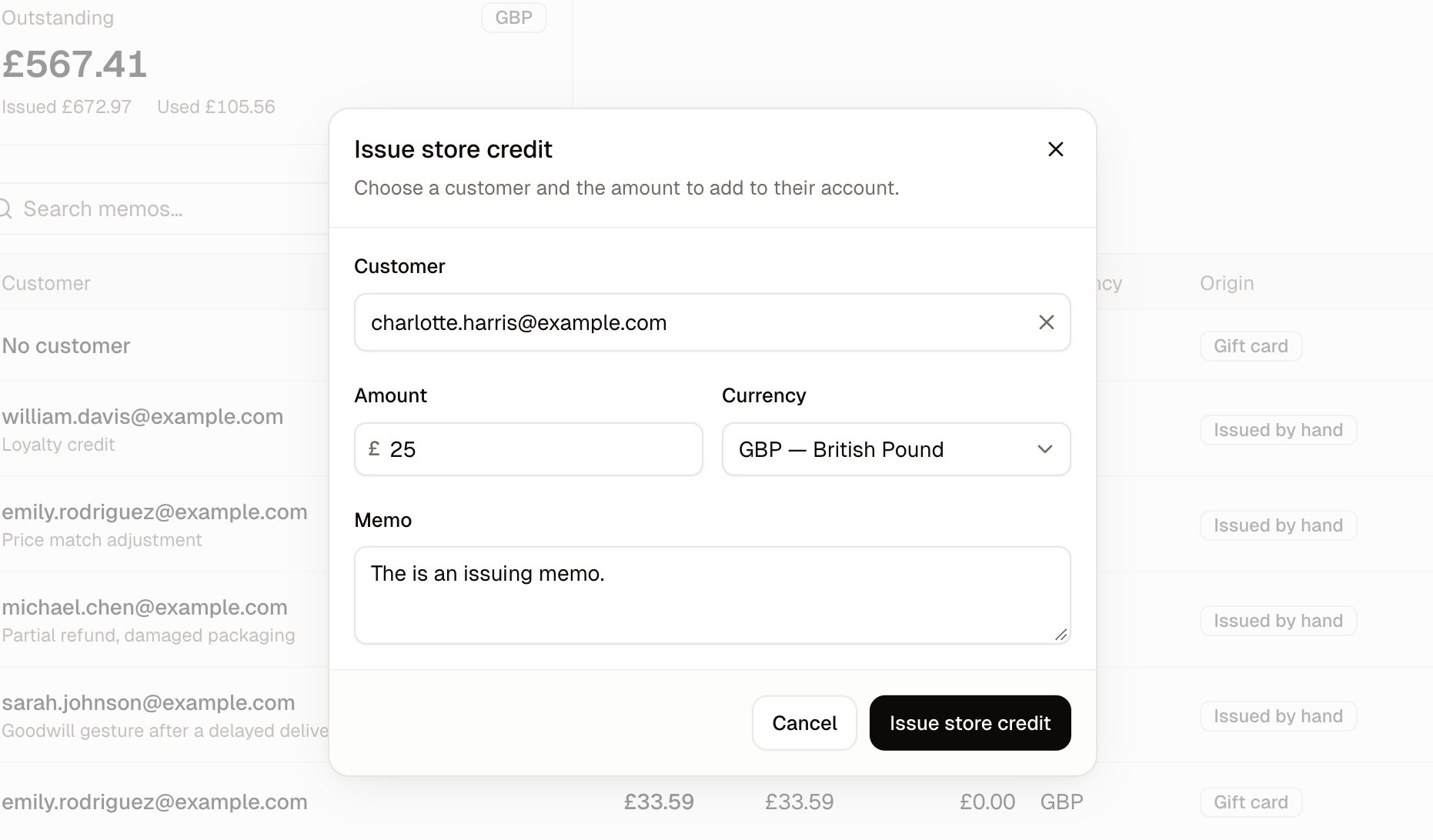
Store credit can be issued from either screen. The form is the same on both, except for one field. From the Store Credits list, click Issue store credit in the top-right corner. The form opens with a Customer field at the top. Start typing an email address and select the customer from the list. From a customer’s page, click Issue store credit on their Store credit card. The customer is already known, so the form has no Customer field. The rest of the form is the same on both screens:- Amount - How much credit to give. The form cannot be submitted while Amount is blank.
- Currency - The currency the credit is held in. Currency appears only when your store sells in more than one currency.
- Memo - Why you are giving the credit, such as “Goodwill for a late delivery”, or the complaint the credit settles.
How to Refund a Return as Store Credit
When you refund a return, you choose whether the money goes back to the original payment method or onto the customer’s account as store credit.- Open the order. Once the returned items have been received, open the return’s menu and choose Refund.
- Check the Amount, which starts at the return’s refund total.
- Set Refund to to Store credit, then click Refund.
- The return is marked Refunded, and a new line appears on the customer’s Store credit card with a memo naming the return. That credit’s origin in the Store Credits list reads Return.
How to Edit Store Credit
The Edit form is where a credit is changed, and it is not the same as the read-only detail panel. Open it from the menu at the end of the credit’s row, either on the Store Credits list or on the customer’s page, or with Edit at the bottom of the credit’s detail panel.- The amount and the memo can both be changed while none of the credit has been spent.
- The currency can never be changed, on a new store credit or an old one.
- Once any of the credit has been spent, only the memo can be changed, because the money has already gone against an order.
How to Delete Store Credit
If a store credit was given by mistake, for the wrong amount or to the wrong customer, delete it and issue a fresh one.- Open the menu at the end of the credit’s row and choose Delete.
- A box asks you to confirm. Click Delete.
- The credit is removed, and the Store credit figure on the customer’s page drops by that amount. If it was the customer’s only store credit, the card goes back to “No store credits issued”.
Further Reading
- Gift Cards - Prepaid codes typed in at checkout, rather than credit held on one account
- Customer Profiles - The rest of the customer page the Store credit card sits on
- Returns - Creating, approving and receiving a return before you refund it
- Refunding Orders - Refunding to the original payment method instead