

Multi-currency import/export relies on your Markets configuration. Each currency in the export corresponds to a market you’ve set up in your store. See Settings → Markets for more details.
How It Works
When you export your product catalog, Spree generates one row per product variant for your default currency — exactly as it always has. For each additional currency your store supports, Spree adds an extra row for each variant containing only the pricing information for that currency. These additional rows are called price-only rows. They contain a smaller set of columns:- SKU - Identifies which variant the price belongs to
- Slug - Identifies which product the variant belongs to
- Price - The price in the specified currency
- Compare At Price - The original/crossed-out price, if applicable
- Currency - The currency code for this row (e.g.,
EUR,GBP)
Exporting Multi-Currency Prices
The export process is the same as a standard product export. Navigate to the Products tab and click Export in the top-right corner.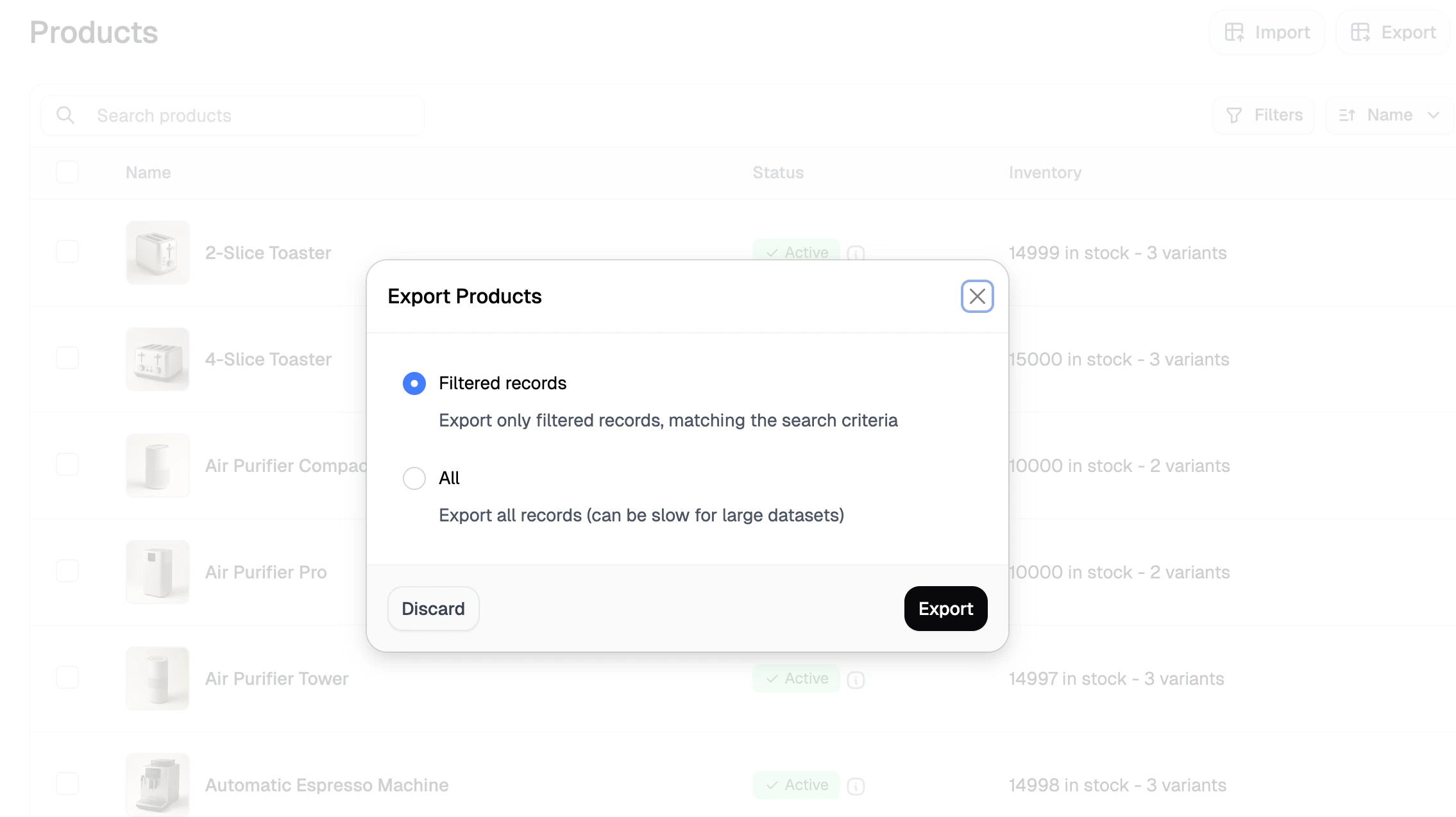
The blank fields in the EUR rows are expected — only the pricing columns matter for those rows.
Importing Multi-Currency Prices
You can update prices across currencies by editing the exported file and re-importing it through the standard product importer. To import your updated file, navigate to the Products tab and click Import in the top-right corner. This opens the import side panel.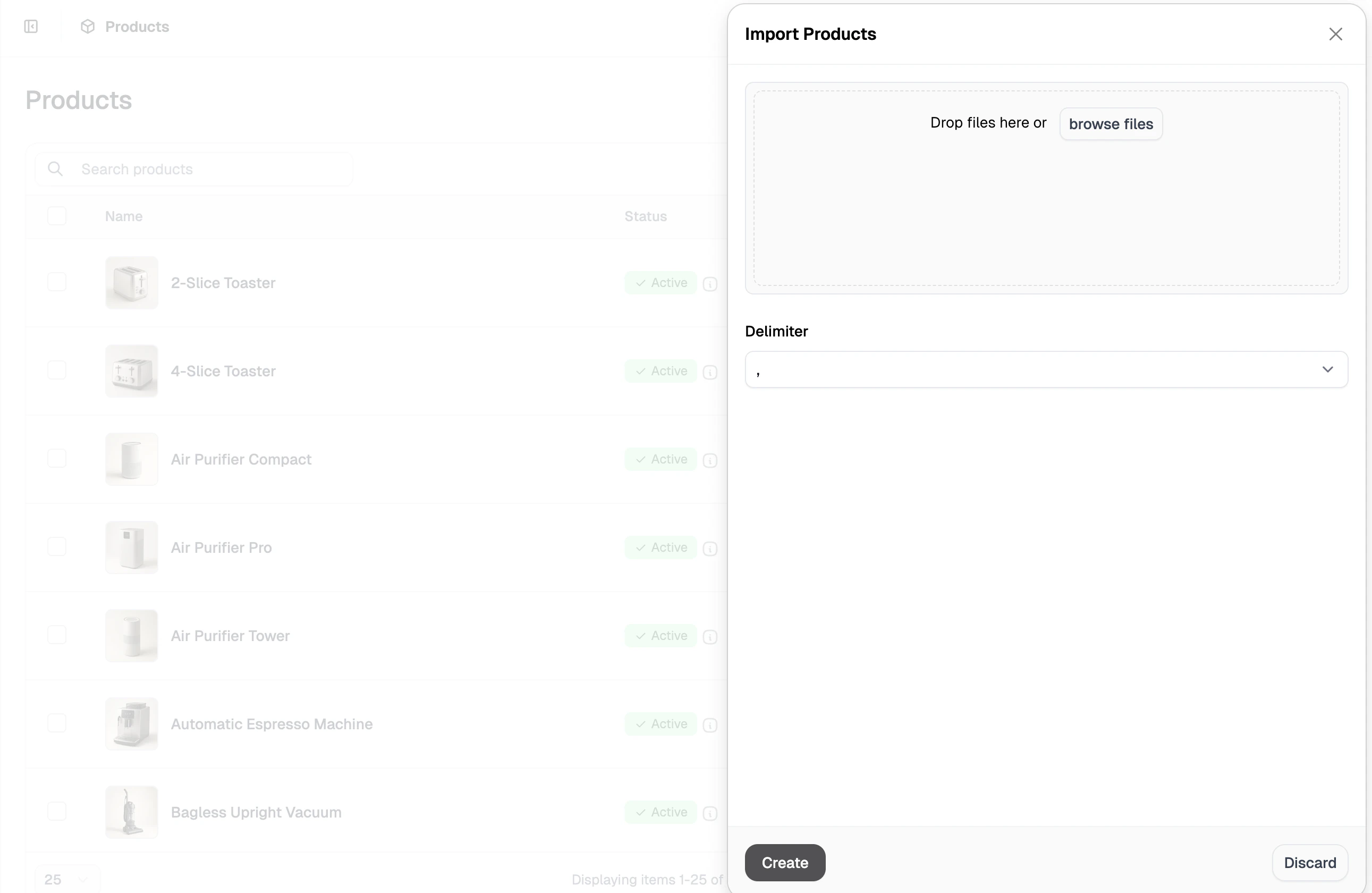
- Drag and drop your CSV file into the upload area, or click browse files to select it from your computer.
- Select the correct delimiter used in your file (comma, pipe, semicolon, or tab).
- Click Create to proceed to the field mapping step.
- Review the field mapping and adjust any columns that weren’t matched automatically, then click Continue to submit.
You can import pricing updates for a single currency without including rows for other currencies. Just remove any rows you don’t want to update before importing.
Next Steps
- Import Products — Full guide to importing product data
- Export Products — Full guide to exporting your product catalog
- Settings → Markets — Configure markets and currencies for your store
- Price Lists — Set customer- or volume-specific pricing on top of your base prices