

Reviewing Your Sellers
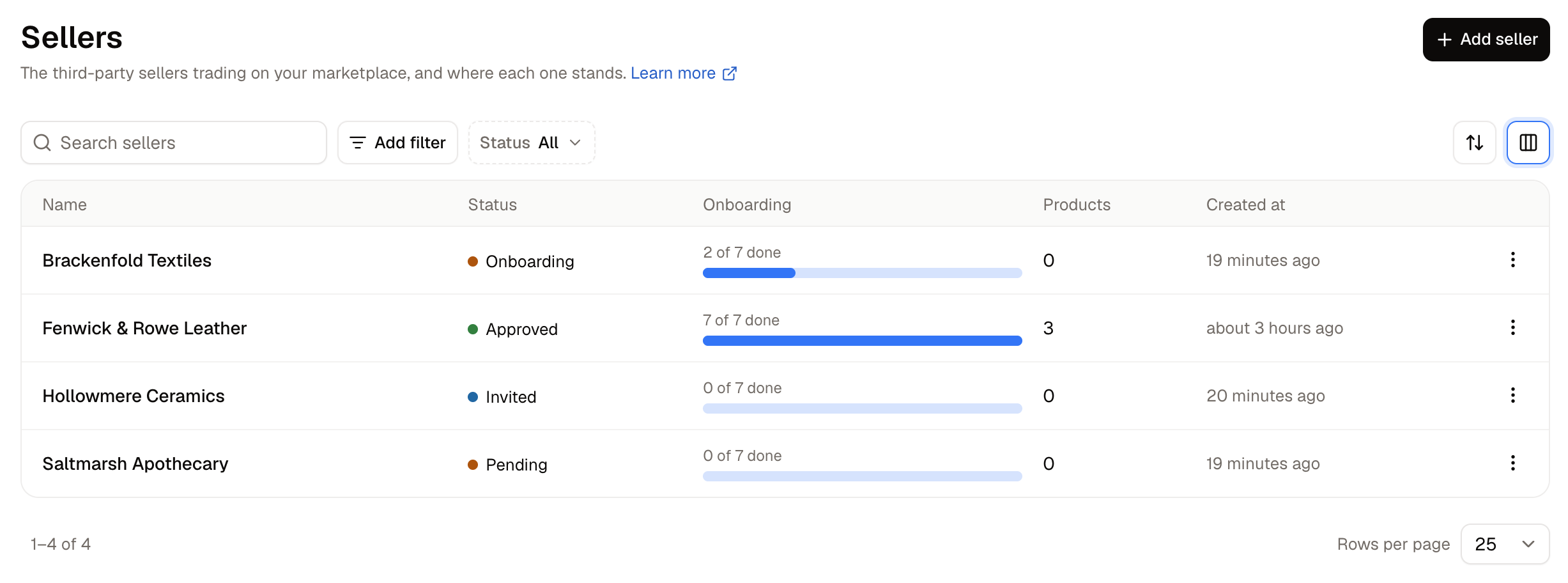
Which columns appear is yours to choose, so a marketplace that never looks at team size can hide that column and keep the list to what it reads every day. Filtering by Status is the quickest way to bring up everyone waiting on a decision from you.
Seller Statuses
A status indicates the point a seller has reached between being created and trading. The status is never typed in or updated manually. It changes in response to what you and the seller each do, and it governs what the seller can do next as well as which actions are offered to you on their page.How to Add a Seller
Adding a seller creates the record. Inviting the people who will run it, and approving them, both happen afterwards from the seller’s own page.- Click Add seller.
- Enter the business’s Name.
- Enter a Contact email, which is where marketplace notices are sent.
- Click Create seller.
The contact email is not an invitation. Nobody can sign in to the seller account until somebody has been invited and has accepted, which is covered in Onboarding.
Reading a Seller’s Page
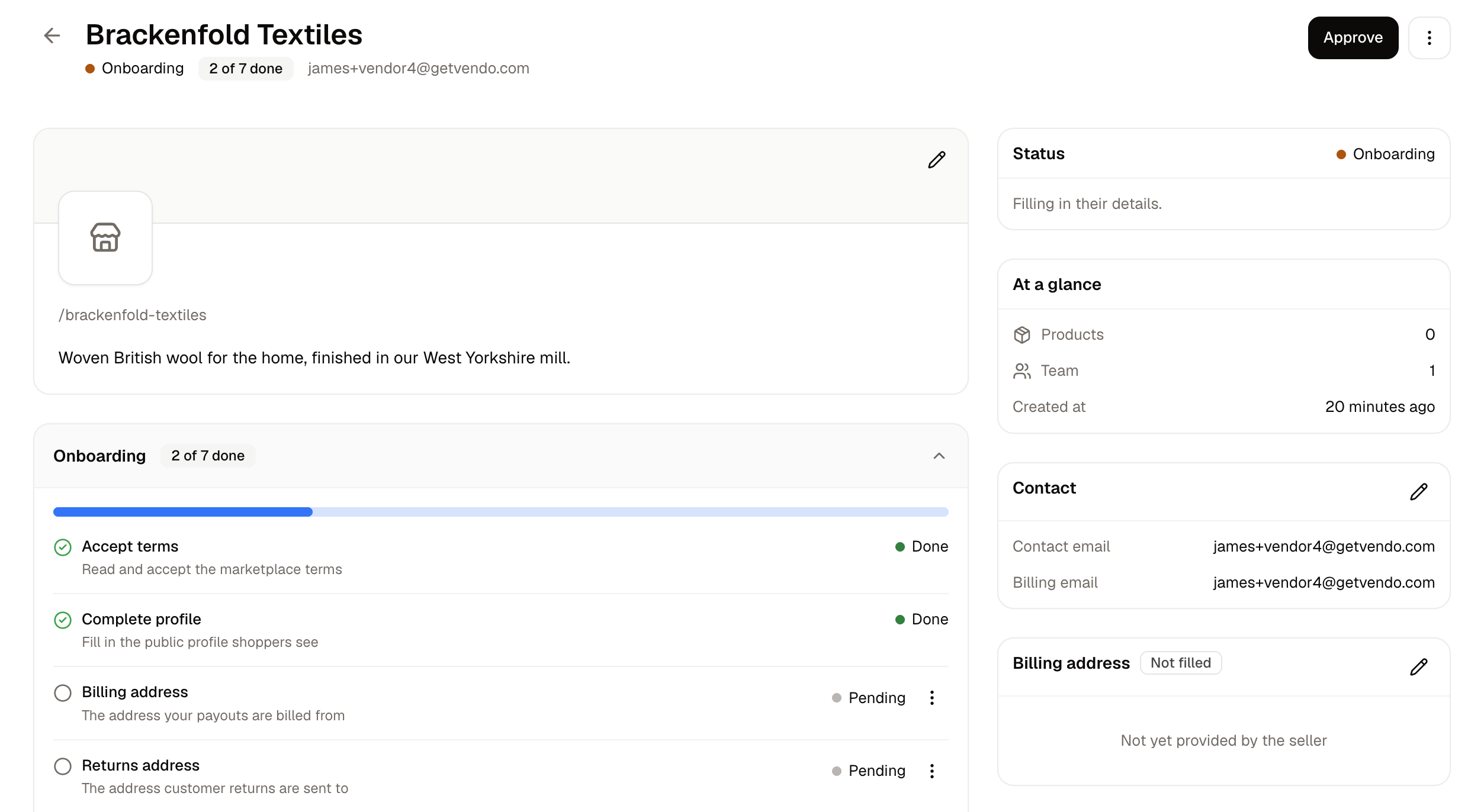
- Profile - The cover photo, logo, name, storefront address and public description, which together are what a shopper sees.
- Onboarding - Every requirement on your checklist with the state of each one, and a link to Manage requirements, which opens the checklist itself. See Seller Requirements.
- Team - The people who can sign in and run this seller, and any invitations still outstanding.
- Status - The current status with a sentence explaining it.
- At a glance - How many products and team members the seller has, and when the record was created.
- Balance - What the seller has earned, been paid and is owed. This card appears only once the seller has earned something. See Payouts.
- Contact - The contact email and the billing email.
- Billing address - Where the seller is invoiced for commission.
- Returns address - Where customer returns are sent.
- Payouts and tax - Who remits tax, and this seller’s own payout schedule and minimum payout where they differ from your marketplace defaults.
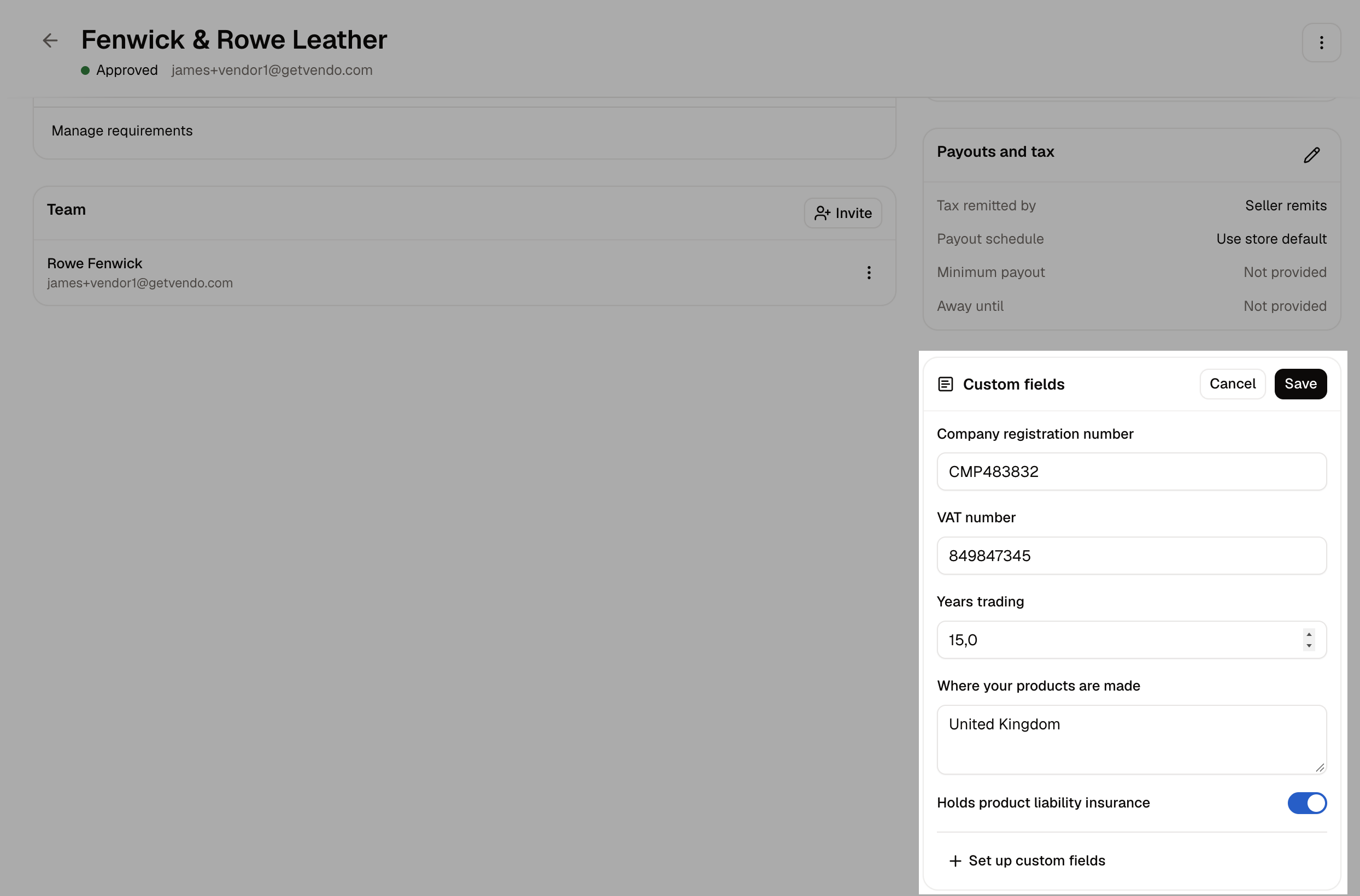
- Custom fields - Any extra fields your marketplace records against sellers. See Custom Fields.
Editing a Seller’s Details
Almost everything on a seller’s record belongs to the seller, who maintains it from their own panel. The same fields can be edited here on their behalf, which is what you need when a seller cannot correct something themselves, such as before anyone has accepted the invitation. Two things work differently. The payout and tax settings are yours alone, and the seller never sees them. The returns address is the seller’s alone, and can be read here but changed only by them.Seller Profile
The edit button on the profile card, and the one on the Contact card, both open the same panel:- Logo - Shown beside the seller wherever they appear. A square image works best.
- Square logo - Used where a tight square is needed, such as an avatar.
- Cover photo - The wide banner across the top of the seller’s profile.
- Name - What the business is called.
- Slug - The seller’s address on your storefront.
- Contact email - Where marketplace notices are sent, and the address an invitation is offered to by default.
- Billing email - Where commission invoices are sent, when that differs from the contact email.
- About - The public description shown on the seller’s profile.
Payouts and Tax
These are set from the Payouts and tax card and are not shown to the seller:- Tax remittance - Whether the seller or the marketplace remits consumer tax on that seller’s sales.
- Payout schedule - How often this seller is paid, or Use store default to follow your marketplace setting.
- Minimum payout - How much has to build up before this seller is paid.
- Holiday mode until - A date the seller is away until. Their products stay visible on your storefront but cannot be bought until that date passes, so the seller keeps their listings and their search ranking instead of taking everything down and putting it back.
Addresses
The Billing address is edited from its own card, and is the address a commission invoice is made out to. The Returns address is read-only on this screen. It comes from the seller’s default stock location, so it changes when the seller changes the address on that location in their own panel.Custom Fields
Team
The Team card lists everyone who can sign in and run this seller, together with invitations that have been sent and not yet accepted. Four things can be done from it:- Invite adds somebody to the seller’s team. They join when they accept.
- Resend sends an outstanding invitation again.
- Revoke stops an outstanding invitation working.
- Remove takes a team member’s access to the seller away.
What Cannot Be Edited Directly
A seller’s status is never typed in or picked from a list. It moves only through the actions below, each of which sends the right notification, provisions what the new status needs and records who decided it. Products cannot be created for a seller. A product belongs to whoever submitted it, and there is no way to add one on a seller’s behalf or to move one of your own products over to them. Reviewing, approving and listing what a seller submits is the extent of it. See Seller Products. A payout account cannot be swapped by you. Where your marketplace pays through Stripe Connect, the account a seller is paid into is the one that seller connected, and a seller who needs to be paid somewhere else has to connect the new account themselves. See Payouts. Delivery methods cannot be added for a seller. The methods a seller has set up can be read and edited under Delivery Profiles, but a new one cannot be created on their behalf. A seller needing another way to ship adds it from their own panel. The alternative is a delivery method of your own shared with sellers, which reaches every seller at once rather than one.How to Approve a Seller
Approving lets a seller trade. The Approve button appears in the header once somebody has accepted an invitation and the seller is working through the checklist.- Open the seller and read the Onboarding card.
- Settle anything waiting on you, such as a document to read or a manual check to mark done.
- Click Approve.
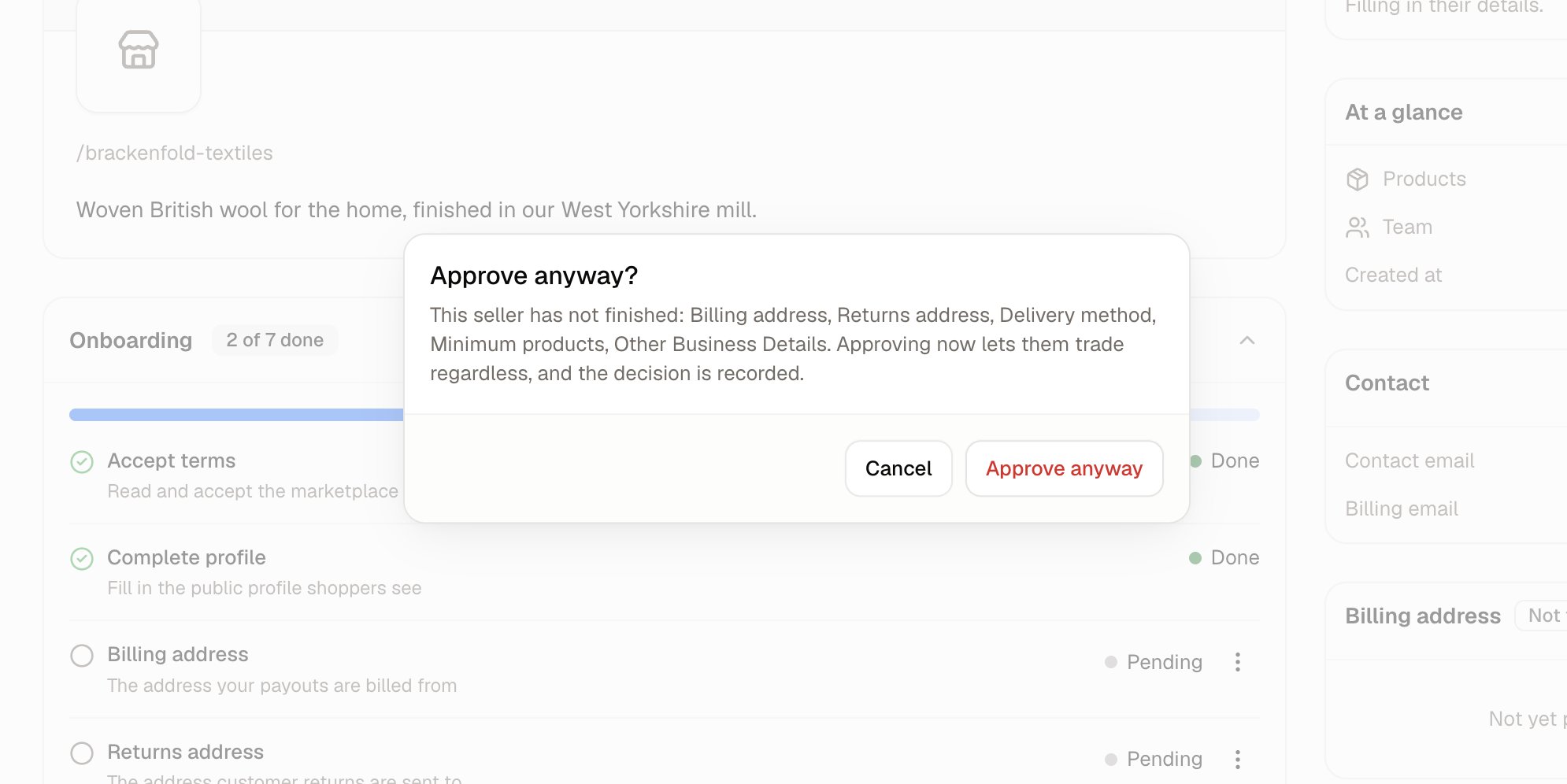
Where Approve sellers automatically is switched on under Marketplace Settings, a seller is approved as soon as they submit a finished checklist for review, and never waits on you.
How to Reject or Send Back a Seller
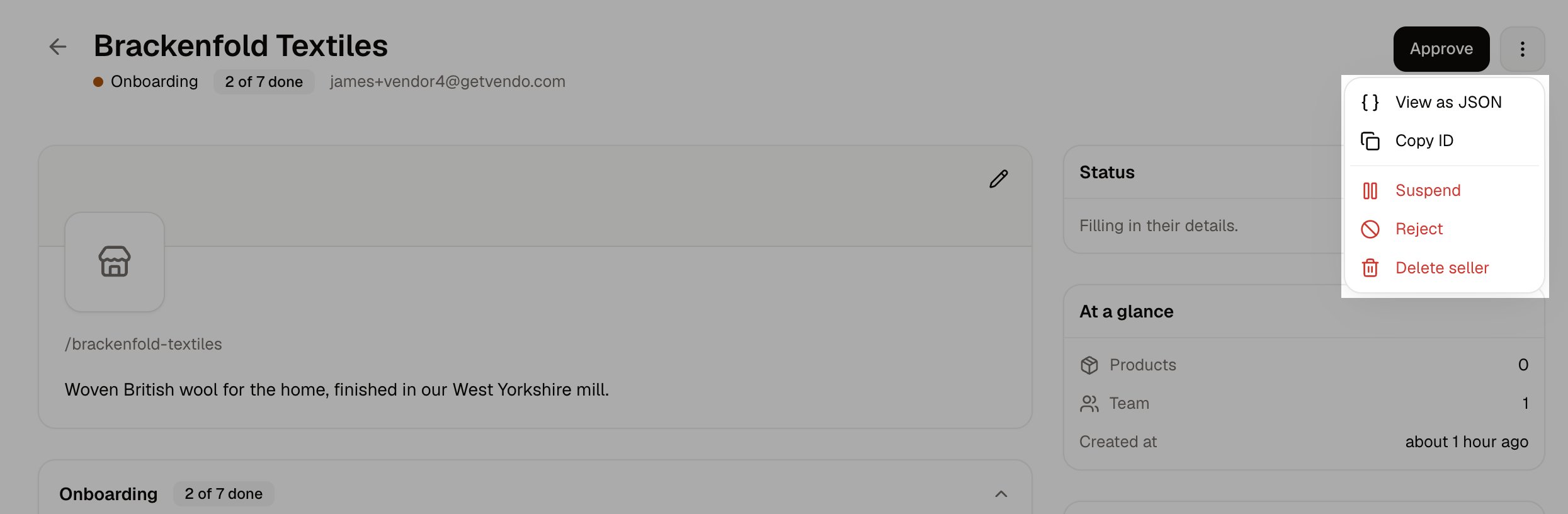
How to Suspend or Reinstate a Seller
Suspend is found under More actions on an approved seller. Suspending stops them selling immediately while keeping their catalog, their order history and everything they have earned, so money already owed can still be settled. A suspended seller is reinstated with the Reinstate button in the header, which returns them to approved and lets them trade again.How to Delete a Seller
Delete seller removes the record entirely and cannot be undone. Products the seller listed stay in your catalog without a seller attached.Further Reading
- Onboarding - Inviting a seller and getting them through the checklist
- Seller Requirements - The checklist itself
- The Seller Panel - What a seller sees and does on their side
- Marketplace Settings - Payouts, admission and commission tax
- Payouts - Settling what a seller is owed