

How a Checkout Is Split
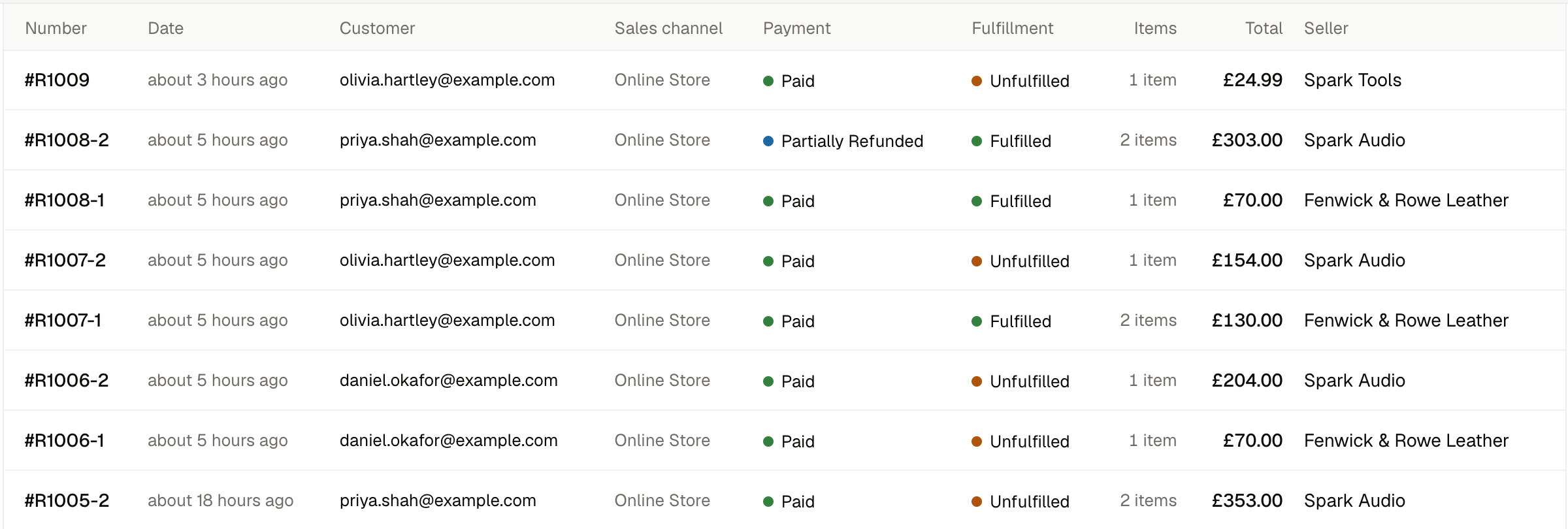
The purchase itself is not an order and does not appear as a row in your orders list. Searching for R1003 finds R1003-1 and R1003-2, which are the orders that exist.
Finding the Other Parts of a Purchase
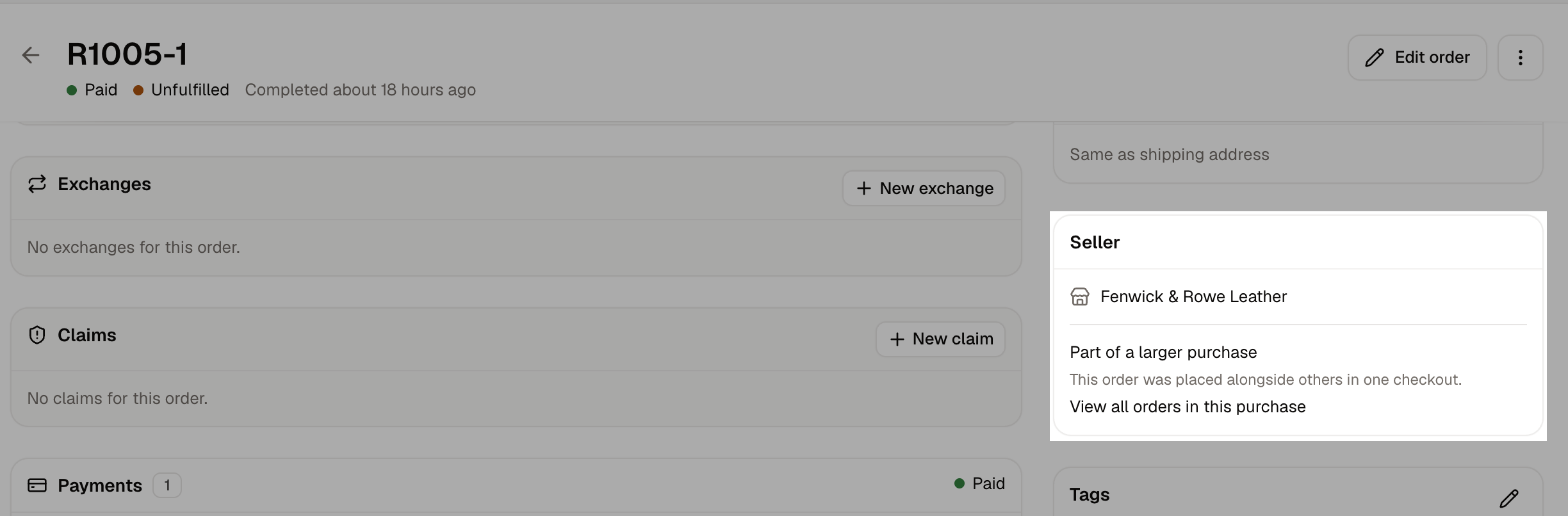
What Differs on a Seller’s Order Page
- Seller names the business that sold it, linked to their seller page. On an order of your own this card reads Sold by you. Where the order was part of a larger purchase, the card also says so and links to the rest.
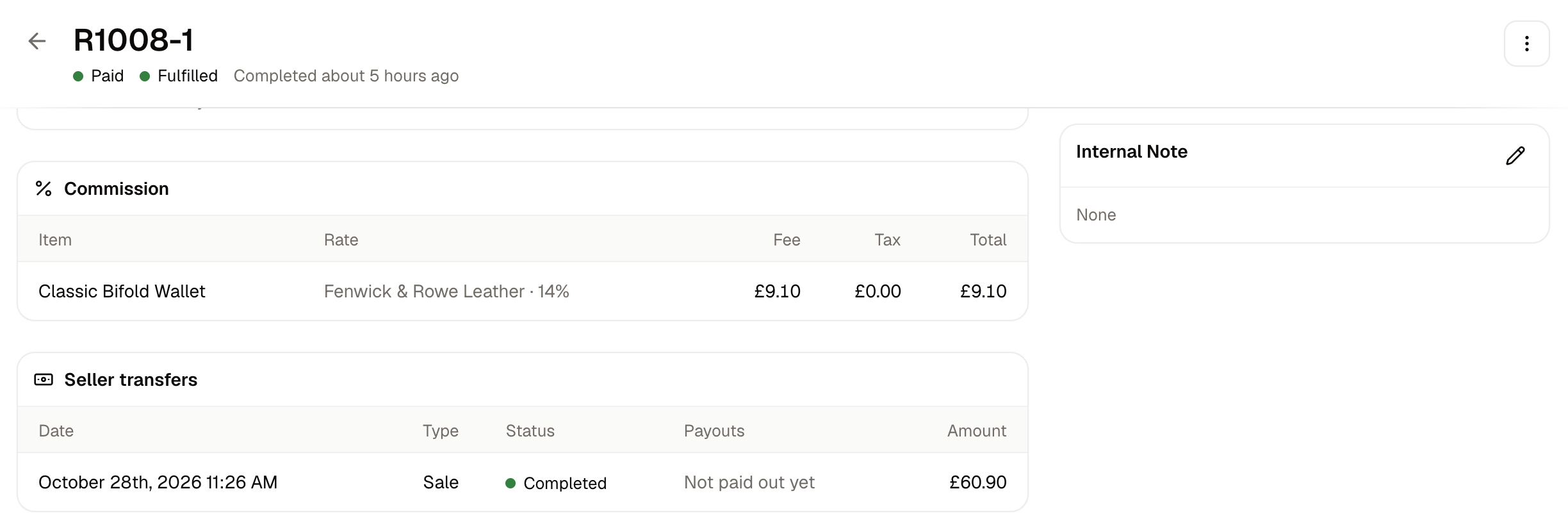
- Commission lists what your marketplace charged, one row per item, naming the rate that charged it, the fee and any tax on that fee. Delivery appears as its own row where the rate charges on it.
- Seller transfers shows what the sale earned the seller once the order is fulfilled, and whether it has been settled into a payout yet.
Commission is charged when the order is placed, and the seller’s earning is created when the order is fulfilled. An order that has not shipped therefore shows a commission with no transfer against it yet.
Who Fulfills a Seller Order
The seller does, from their own panel. The goods are theirs, held at their own stock location, and shipped using the delivery methods they set up. Your team can still act on a seller’s order from the admin dashboard in the same way as any other, which is what you need when a seller is unresponsive or a customer escalates to you. Some marketplaces are run the other way round. Where sellers hold their stock in a warehouse the marketplace owns, your own team picks and ships every order and fulfills each seller’s orders on their behalf from the admin dashboard. Nothing about the split changes: each seller still has their own order, earns on it and is paid for it. What changes is who packs the parcel. A marketplace working this way puts its stock locations and delivery methods in its own hands rather than asking each seller to set up their own, which is covered under Onboarding.How a Seller Fulfills an Order
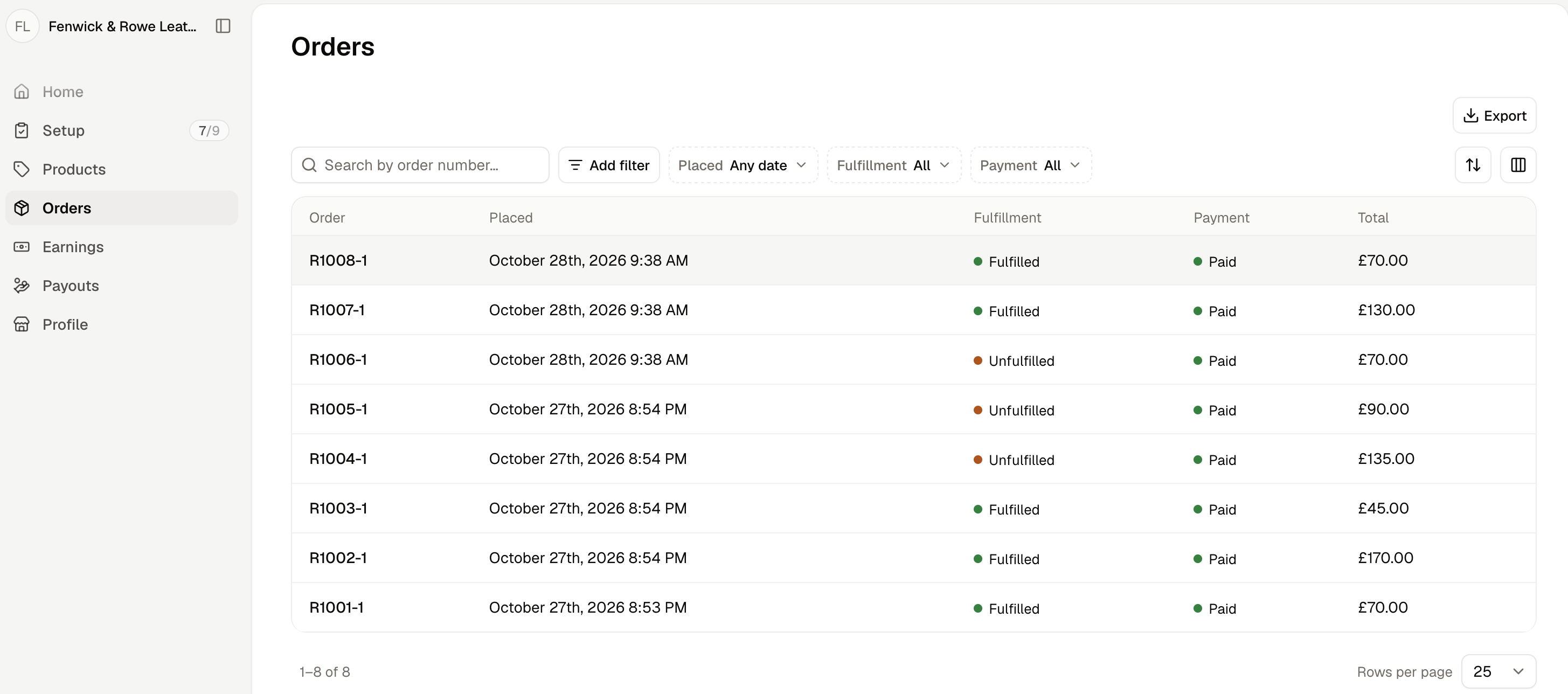
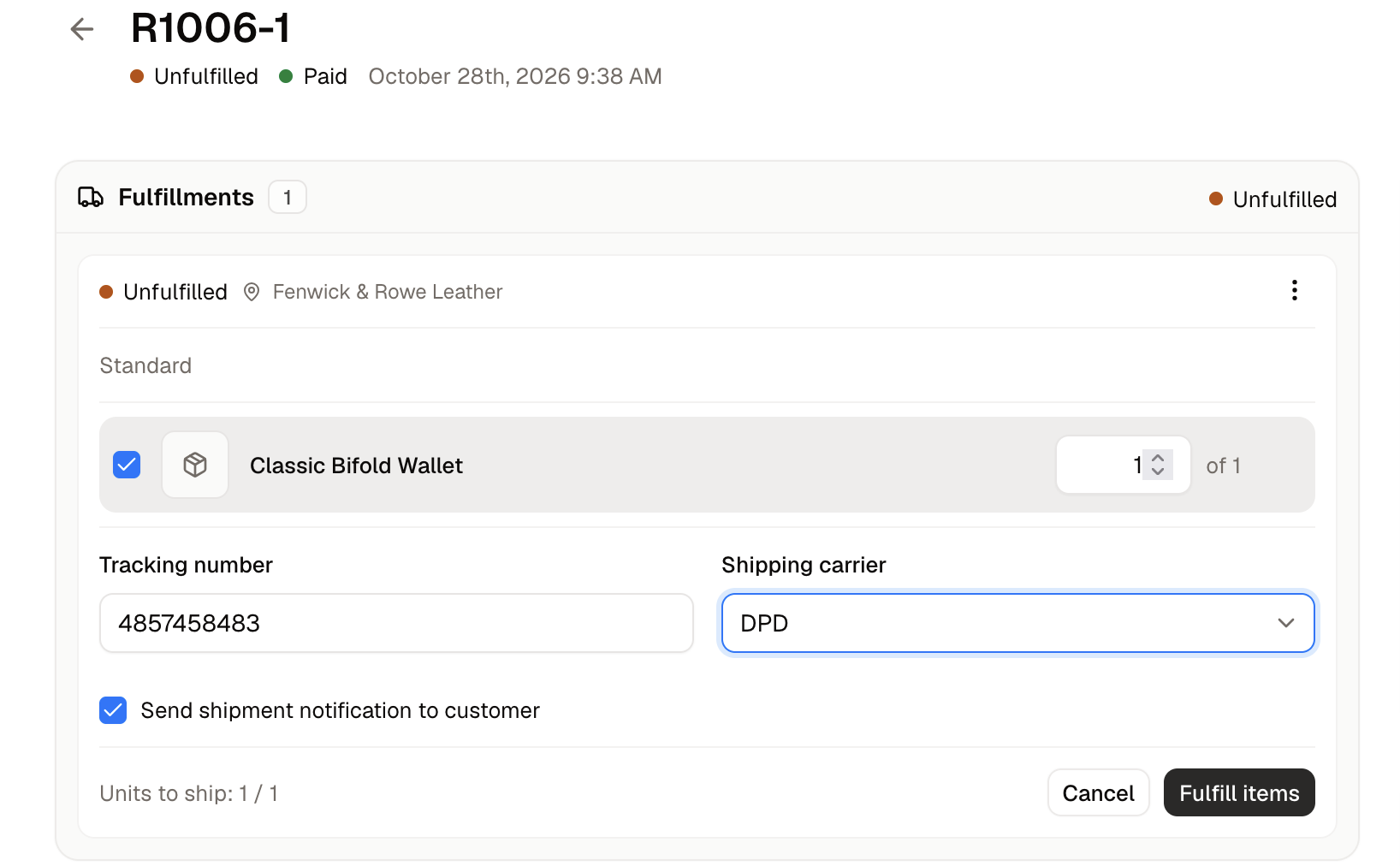
- Tick the items going in this parcel, and set the quantity where only some are being sent.
- Enter the Tracking number.
- Choose the Shipping carrier, or leave it to be detected from the tracking number.
- Leave Send shipment notification to customer ticked to email the shopper, or clear it to ship quietly.
- Click Fulfill items.
How the Money Divides
Take a shopper who buys one $36.00 mug from a seller and pays $6.00 to have it delivered, on a marketplace charging ten percent commission on the goods alone. That seller’s order comes to $42.00, and divides like this:
Whether delivery is included in the fee depends on the rate, which can be set to charge on it or not. See Commission Rates.
The seller’s earning appears as a transfer once the order is fulfilled, and earnings gather on their balance until they are settled into a payout. See Seller Transfers and Payouts.
Refunding a seller’s order writes a reversal that takes back the seller’s share of what was refunded rather than the whole amount, so a refund does not charge them commission on goods that came back. The commission on the order itself is not rewritten, because it is the record of what was charged at the time. See Seller Transfers.
Further Reading
- Processing Orders - Working an order through, which applies to seller orders too
- The Seller Panel - How a seller runs their own orders
- Commission Rates - What the marketplace charges on each sale
- Seller Transfers - The ledger of what each order earned its seller
- Payouts - Settling what sellers are owed