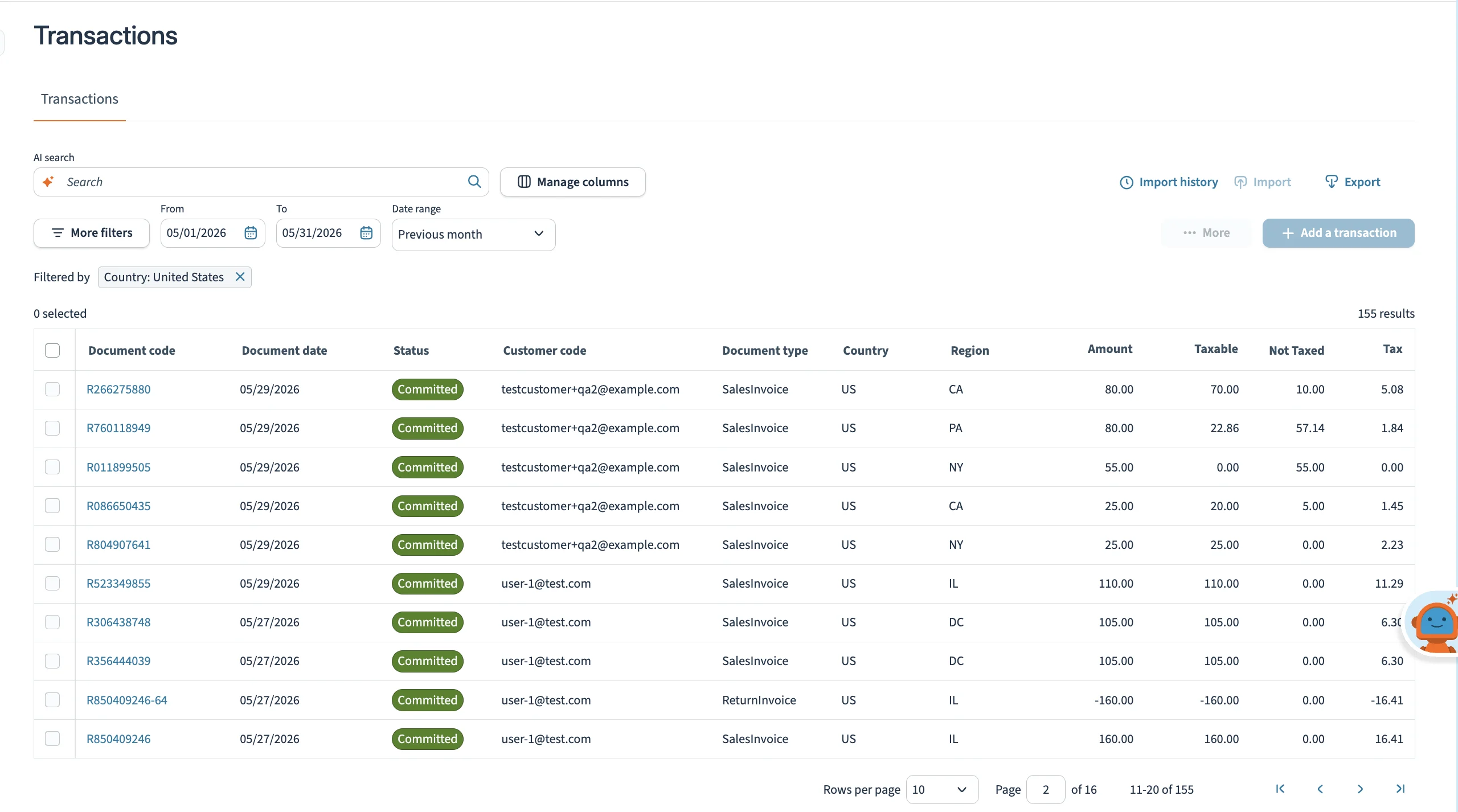
You must have an existing Avalara account to connect this integration. A sandbox account can be used for testing before going live.
Installation
Before you can enable Avalara AvaTax, it must be installed. To do so, run the following command:Connect Avalara
Sign in to your Spree admin dashboard and navigate to the Integrations tab.
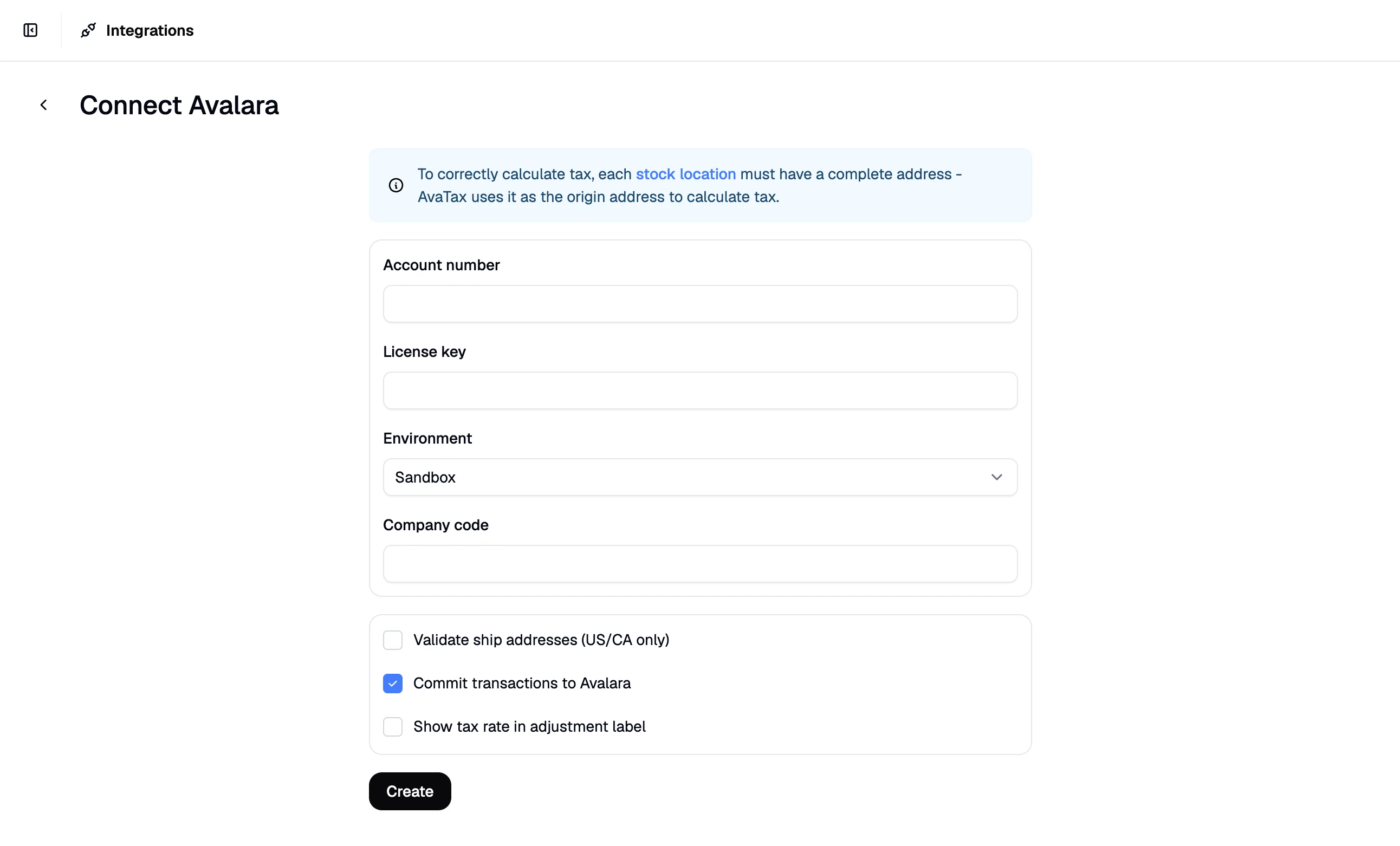
- Account Number — Your unique Avalara account identifier.
- License Key — The private key used to authenticate API requests.
- Company Code — The code identifying the specific company in your Avalara account that transactions will be committed under.
- Environment — Select Sandbox for testing or Production for your live store. Make sure this matches the account credentials you’re using.
Additional Settings
The following optional settings can be enabled on the Avalara integration page in the Integrations tab.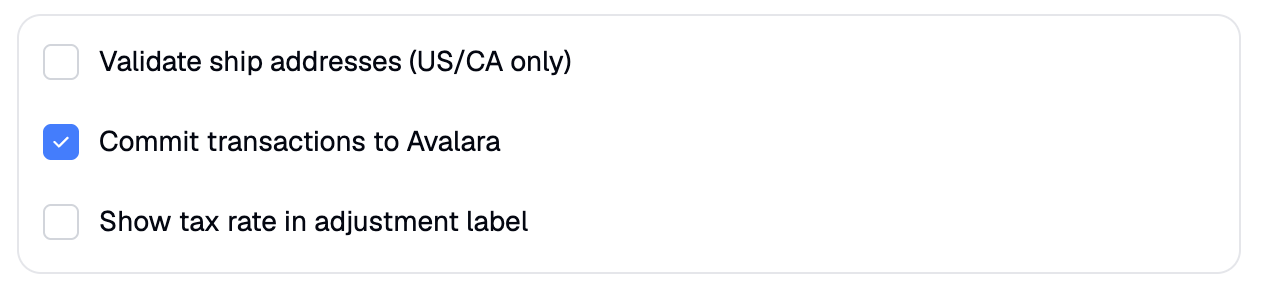
- Enable Address Validation — When enabled, US and Canadian addresses entered at checkout are verified against Avalara’s address database before an order is placed. This reduces failed deliveries and improves the accuracy of origin-based tax calculation.
- Show Rate in Adjustment Label — When enabled, the calculated tax rate is displayed in the tax adjustment label on the order, giving customers and admins visibility into the rate being applied.
- Commit Transactions to Avalara — Controls whether completed orders are committed as transactions in Avalara. This is enabled by default and should remain on in production so that transactions appear in your Avalara reports and are available for returns and voids.
How Tax Calculation Works
Once connected, AvaTax calculates tax on both line items and shipping charges for each order. For US transactions in particular, the tax rate depends on both the origin and destination of the shipment. The origin address for each shipment is automatically set to the address of the stock location it ships from. Orders that ship from multiple stock locations will generate multiple origin addresses — one per shipment — ensuring accurate origin-based tax calculation across your entire fulfillment network.Stock location addresses can be configured at Settings → Locations.
Tax Codes
To ensure products and shipping charges are taxed correctly, Spree sends an Avalara tax code with each line item. Tax codes tell Avalara what type of product or service is being sold, which affects the applicable rate. Tax codes can be assigned in the admin at Settings → Tax → Tax Categories. Set the appropriate Avalara tax code on each tax category for your products.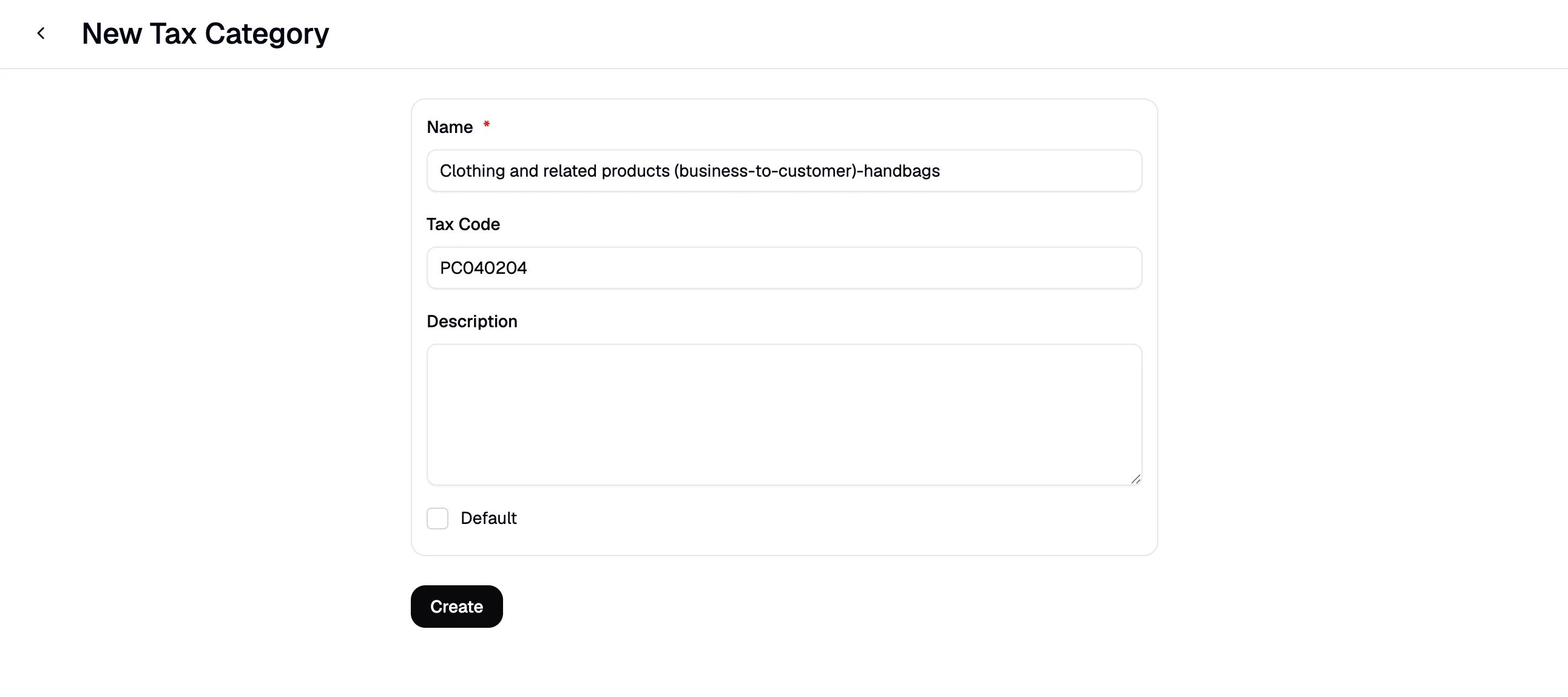
You can browse all available Avalara tax codes at taxcode.avatax.avalara.com.
Tax Exemptions
Spree’s Avalara integration supports several exemption methods for customers who qualify for full or partial tax exemption.Entity Use Codes
Entity use codes identify the reason a customer is exempt from tax — for example, a reseller, a government entity, or a non-profit organisation. Avalara uses these codes to apply the correct exemption treatment per jurisdiction automatically. To view the available codes, navigate to Settings → Avalara Entity Use Codes in the admin dashboard.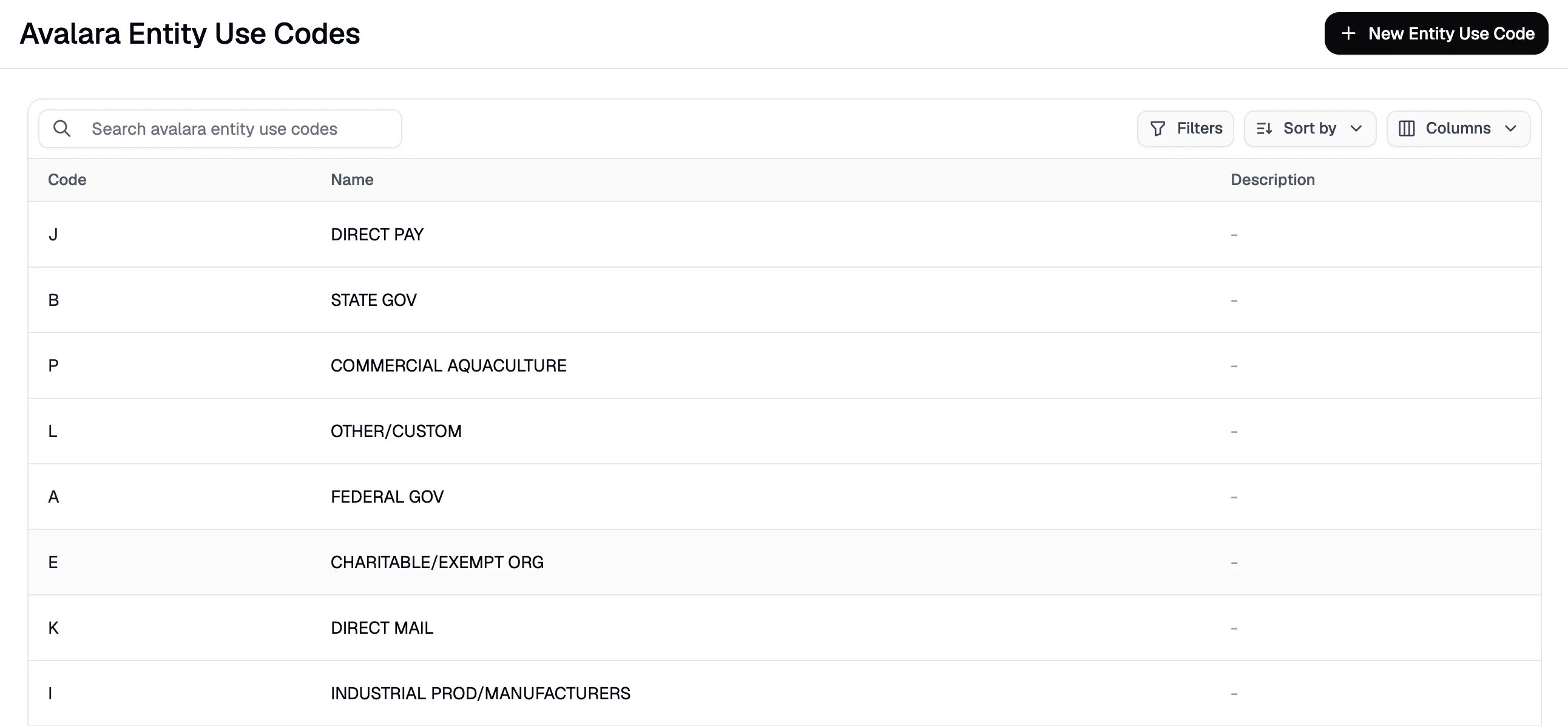
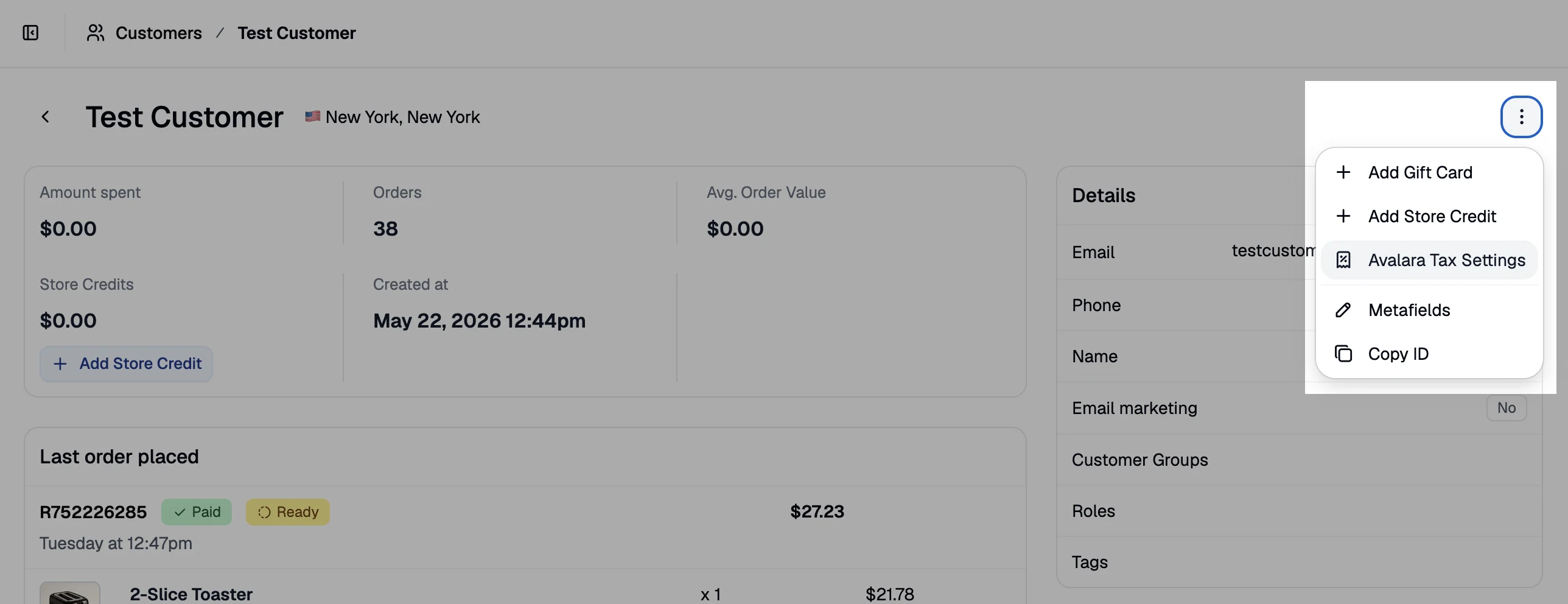
- Entity Use Code — Applies a standard Avalara exemption reason to all transactions for this customer.
- VAT (Business) Identification Number — Used for B2B transactions in VAT-registered regions. Supplying a valid VAT number allows Avalara to apply the correct zero-rated or reverse-charge treatment.
- Exemption Number — A customer-specific exemption certificate number for jurisdictions that require documented exemption credentials.
Learn more about each exemption method in the Avalara developer docs: Entity Use Codes · Exemption Numbers · VAT Business Identification
Transactions
After an order is placed, Spree commits a sales invoice transaction to Avalara. These transactions can be viewed in your Avalara account under Transactions and will appear in your Avalara reports.Transactions are only committed if Commit Transactions to Avalara is enabled on the integration settings page.
- Refund (full or partial) — commits a return invoice transaction to Avalara.
- Order cancellation — voids the original sales invoice transaction.