

Installation
Before you can enable Adyen, it must be installed. To do so, you need to run the following command:Connect Adyen
Sign in to your Spree admin dashboard and navigate to Settings → Payments.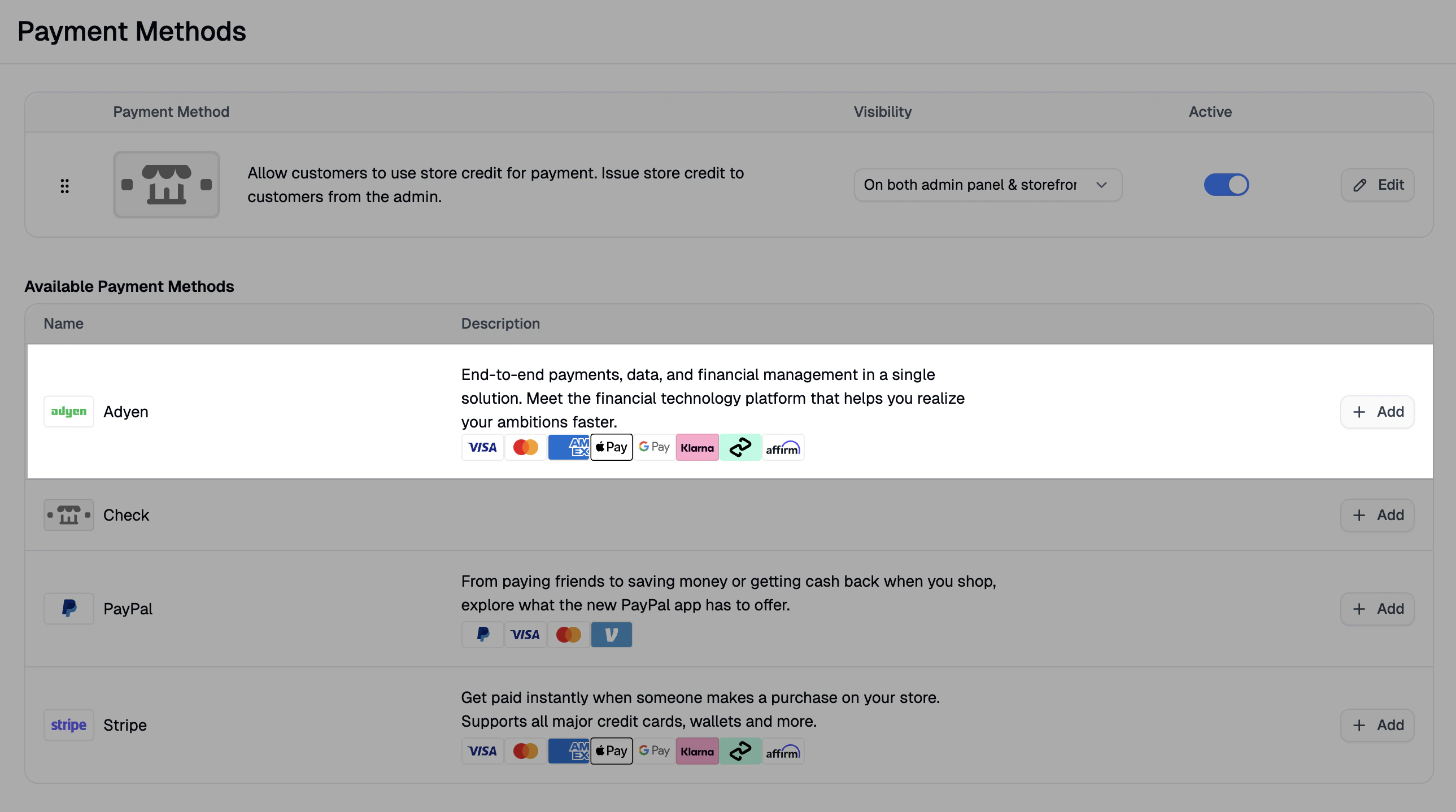
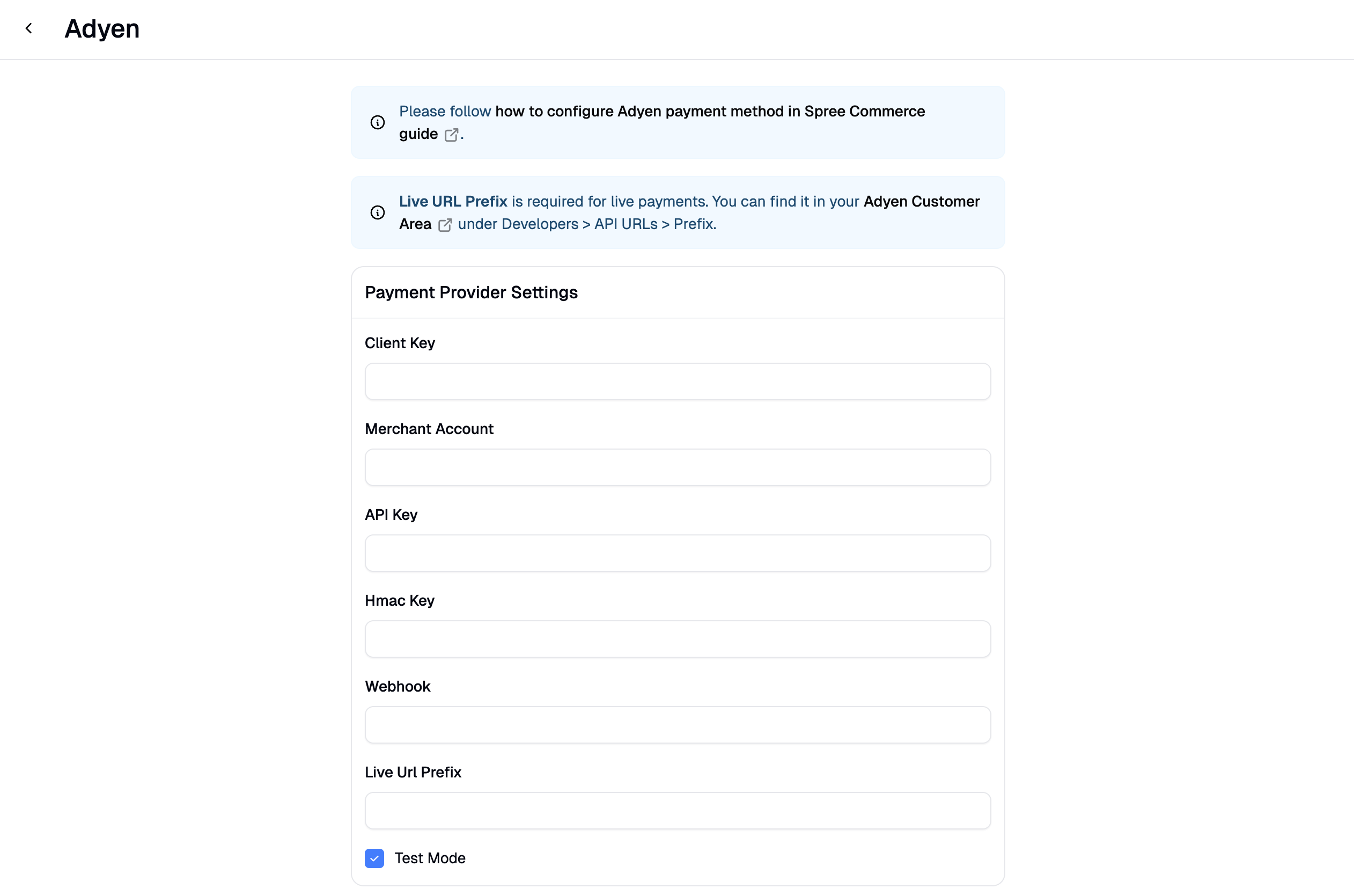
1. Select your Merchant Account
Log into the Adyen Customer Area and select the merchant account you’re configuring. A company account can contain multiple merchant accounts — if so, pick the one tied to the store you’re setting up. All subsequent steps (generating API credentials, retrieving the Live URL Prefix) happen inside this merchant account.2. Generate API credentials
Inside the merchant account you selected, Adyen groups your Client Key and API Key under a single “API credential” record.- Navigate to Developers → API credentials.
- Click Create new credential and select Web service user.
- On the next page, go to Server Settings and click Generate API key.
- Scroll down to Client Settings and click Generate client key.
- Still in Client Settings, add your Spree storefront URL under Allowed origins (e.g.,
https://your-store.com). Without this, the Drop-in checkout component won’t load on your storefront. - Click Save changes.
3. Get your Live URL Prefix (live only)
If you’re configuring Adyen for live (non-test) payments, you’ll need your unique API URL prefix. In the Adyen Customer Area, navigate to Developers → API URLs and copy the value under Prefix. This field is not needed for test mode.4. Paste credentials into Spree and create the payment method
Back in the Spree admin form, paste each value into its matching field:- API Key — from step 2 (Server Settings)
- Client Key — from step 2 (Client Settings)
- Live URL Prefix — from step 3 (required for live sites only)
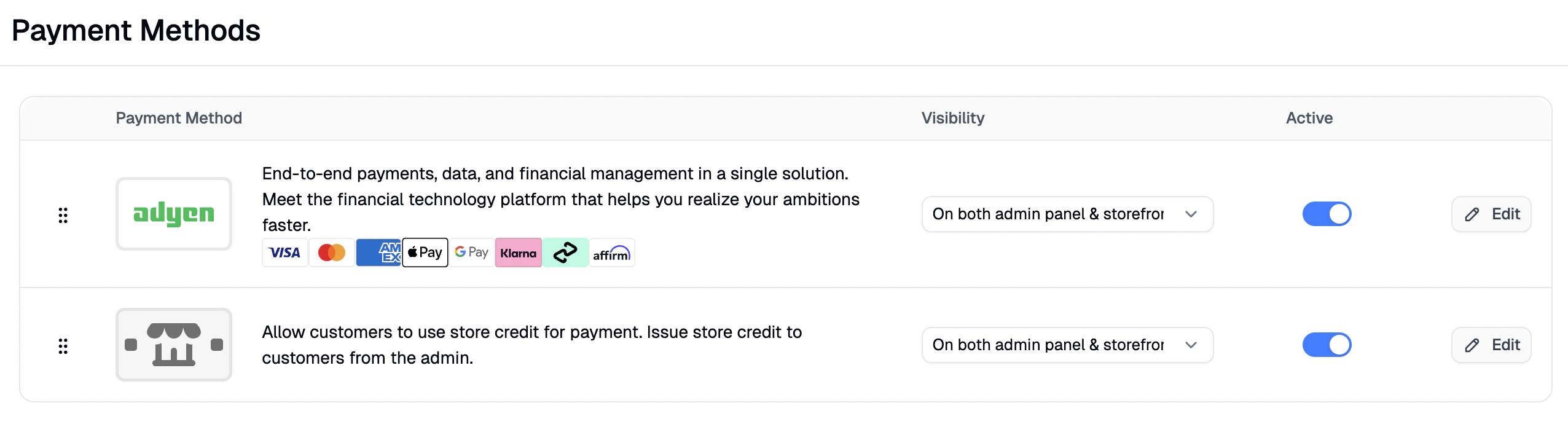
Storefront Configuration
For the Adyen Drop-in SDK to initialize on the Next.js storefront, set the following environment variables in your storefront’s hosting platform or.env file:
NEXT_PUBLIC_ADYEN_CLIENT_KEY— Your Adyen Client Key (test or live, matching the environment you’re running). This is the same value you pasted into the Spree admin.NEXT_PUBLIC_ADYEN_ENVIRONMENT— Eithertestorlive. Determines which Adyen environment the Drop-in SDK connects to. Defaults totestif unset.
NEXT_PUBLIC_ prefix makes the variables available to client-side code so the Adyen JS SDK can initialize in the browser. The Client Key is safe to expose publicly.
If
NEXT_PUBLIC_ADYEN_CLIENT_KEY isn’t set, the Adyen payment option won’t render on the storefront even if Adyen is configured in the Spree admin.Additional Settings
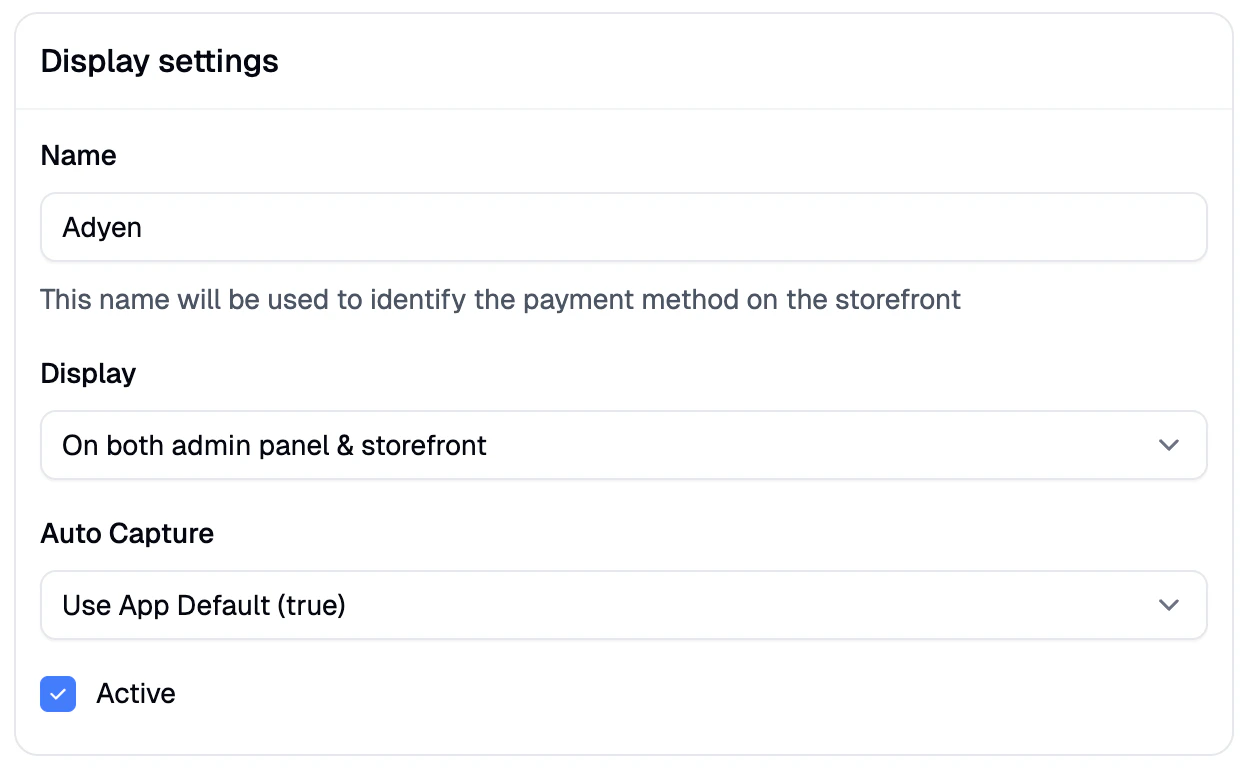
- Name: Customize the display name shown for this payment method on the storefront.
- Display: Choose where Adyen should be available:
- Storefront only
- Admin panel only
- Both (recommended)
- Auto Capture: Decide whether payments should be automatically captured at the time of authorization (recommended), or manually captured later.
- Active Status: Enable or disable the payment method. Inactive methods are hidden from checkout but not removed.
Test Mode
If you’d like to test your checkout flow without processing real payments, Adyen’s test environment is a safe and effective way to simulate transactions. To enable it:- Tick the Test Mode checkbox in the Adyen payment method settings in Spree.
- Switch your Adyen Customer Area to Test mode using the environment switcher in the top-right.
- Generate separate test credentials (API Key, Client Key) from your test environment following the same steps above.
- Paste the test credentials into Spree. The Live URL Prefix field is not used in test mode.
Testing Adyen payments
Once Test Mode is set up, you can simulate real payments using Adyen’s published test card numbers.1. Use Adyen’s test cards
At checkout on your Spree store, Adyen’s Drop-in component will present payment options. Use one of Adyen’s official test card numbers to simulate:- Successful payments — e.g. Visa
4111 1111 1111 1111 - 3D Secure authentication flows
- Declined payments — specific test cards trigger different decline reasons
- Refunds and chargebacks
737 CVC, a future expiry date).
2. View test transactions in Adyen
To see transactions from Adyen’s side, log in to the Adyen Customer Area with Test selected in the environment switcher. Navigate to Transactions → All transactions to view captures, authorizations, refunds, and webhook delivery attempts.Common Issues
- Drop-in not loading on the storefront: make sure your storefront URL is in the Allowed origins list on the Adyen API credential (Client Settings).
- Auto-populated fields not filling in: if the Merchant Account, Hmac Key, or Webhook fields stay empty after creating the payment method, check that you didn’t enter values into them manually before saving — any pre-filled input can block the auto-population process. Delete the payment method and re-create it with only the API Key, Client Key, and (if live) Live URL Prefix filled in.
- Wrong environment: credentials are environment-specific. Test-mode credentials won’t work against the Live URL Prefix, and vice versa.
Features
Spree’s native Adyen integration supports a comprehensive range of features and payment methods to help you offer a fast, secure, and flexible checkout experience:- Support for 3D Secure and other security standards
- Support for off-session payments
- Support for Storefront API integration (see the API docs here)
- Accept payments in over 150 currencies
- Accept Credit Cards, Debit Cards, and Digital Wallets
- Accept Buy Now, Pay Later (BNPL) payments
- Accept Bank transfers and Direct Debit
- Accept Local payment methods (iDEAL, SOFORT, Bancontact, etc.)
- Accept Mobile payments (Apple Pay, Google Pay, Samsung Pay)
- Accept Cryptocurrency payments
- Advanced fraud protection and risk management
- Real-time payment status updates
- Comprehensive reporting and analytics
Storefront Display
Spree’s Adyen integration enhances the customer experience with dynamic, context-aware payment options across the storefront:- Dynamic payment method selection based on customer location
- Real-time payment method availability
- Seamless checkout experience with Adyen’s Drop-in component
- Support for one-click payments and saved payment methods
- Mobile-optimized payment flows