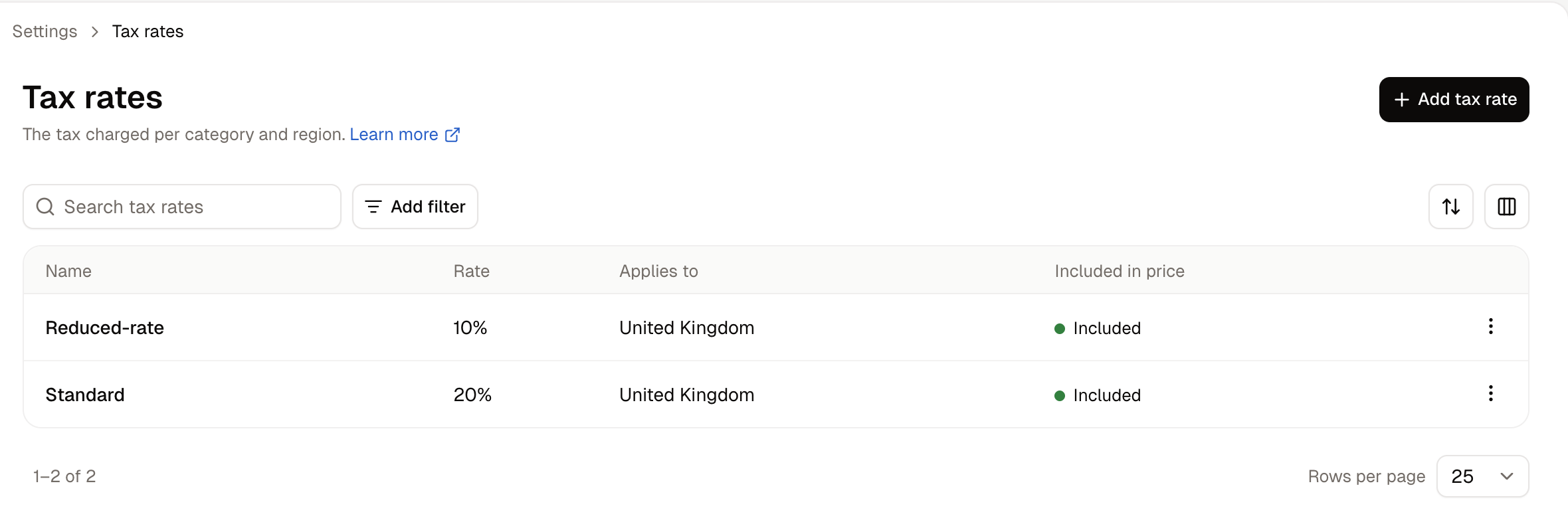
Tax management is critical in eCommerce to ensure legal compliance, avoid costly penalties, and provide accurate pricing for customers across different regions. A tax rate is the percentage Spree charges, and the rules that decide when it applies. Each rate ties a tax category to a region, so a product carrying that category is taxed at that rate when it ships there. To manage tax rates, navigate to Settings → Tax rates, under the Selling group. The Tax Rates overview page listing all configured tax rates The Tax Rates overview displays all existing tax rates with key information such as:
  • Name: A label for storefront and internal display
  • Tax Category: Which group of products this rate applies to
  • Zone: Where the tax applies
  • Amount: The tax percentage (e.g., 20%)
  • Included in Price: Whether this tax is part of the listed price
  • Show Rate in Label: Whether this tax rate appears as part of the price label on the storefront
From here, you can add new tax rates or edit existing ones.

Add a New Tax Rate

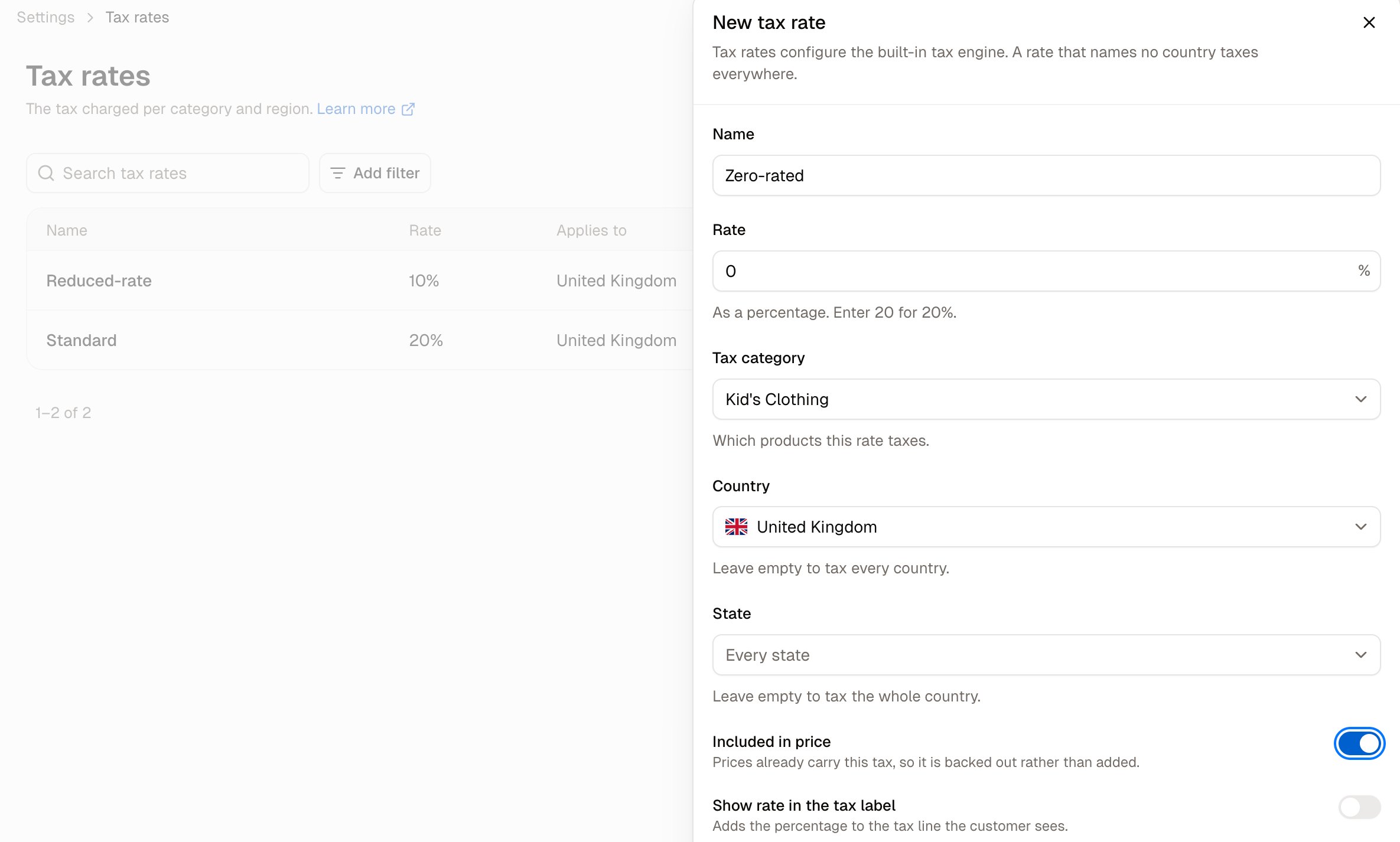
To add a new tax rate, click New Tax Rate in the top-right corner. You’ll be taken to the tax rate creation form. The New Tax Rate creation form Fill in the form with the relevant information:
  • Name — A label for this tax rate, shown internally and, if enabled, on the storefront.
  • Zone — The geographic region this rate applies to.
  • Tax Category — The group of products this rate applies to, selected from your existing tax categories.
  • Calculator — Determines how tax is calculated for this rate — see Calculators below.
  • Amount — The tax rate as a decimal (e.g., enter 0.05 for 5%).
  • Included in Price — Whether this tax is already built into the listed price (Yes) or added at checkout (No).
  • Show Rate in Label — Whether this rate’s percentage appears alongside the price on the storefront.
Once the data has been entered, click Create to save the new tax rate. This tax rate can now be applied to products with the matching category and shipping to the selected region.

Calculators

Spree offers three calculators for determining how tax is calculated on a tax rate:
  • Default Tax Calculator — A simple calculator that applies the tax rate’s Amount directly to any product assigned to the associated tax category.
  • Stripe Tax Calculator — Automatically calculates tax at checkout based on the customer’s shipping address. Only works if you’re using Stripe as your payment gateway, and requires tax nexus to be set up in your Stripe dashboard. See the Stripe integration guide for setup details.
  • AvaTax Transaction Calculator — Automatically calculates tax at checkout based on the customer’s shipping address. Requires an Avalara account, with the AvaTax integration installed and configured in Spree. See the Avalara AvaTax integration guide for setup details.
If you’re using the AvaTax Transaction Calculator, you don’t need to manually create tax rates here — it’s enough to set up your tax categories and assign them to products. Spree creates the matching tax rates automatically as orders are placed.

Edit a Tax Rate

To edit a tax rate, click its row in the Tax Rates overview. The Edit Tax Rate form, pre-filled with an existing rate's data The edit form looks the same as the New Tax Rate form, but pre-filled with the existing data, and with an Update button instead of Create. Update the fields as needed, then click Update to save your changes.
Changing a tax rate will affect all future orders using that rate, but not past orders.

Delete a Tax Rate

To delete a tax rate, open its edit form and click Delete in the lower-right corner.

Other Tax Integrations

In addition to the Stripe Tax and AvaTax calculators covered above, Spree’s tax system is extensible — developers can build custom calculators to connect with other tax services (such as TaxJar) or implement custom tax logic specific to your business. Get in touch with us if you’d like help implementing a custom tax integration.