

Step 1: Register ChatGPT in Your Store
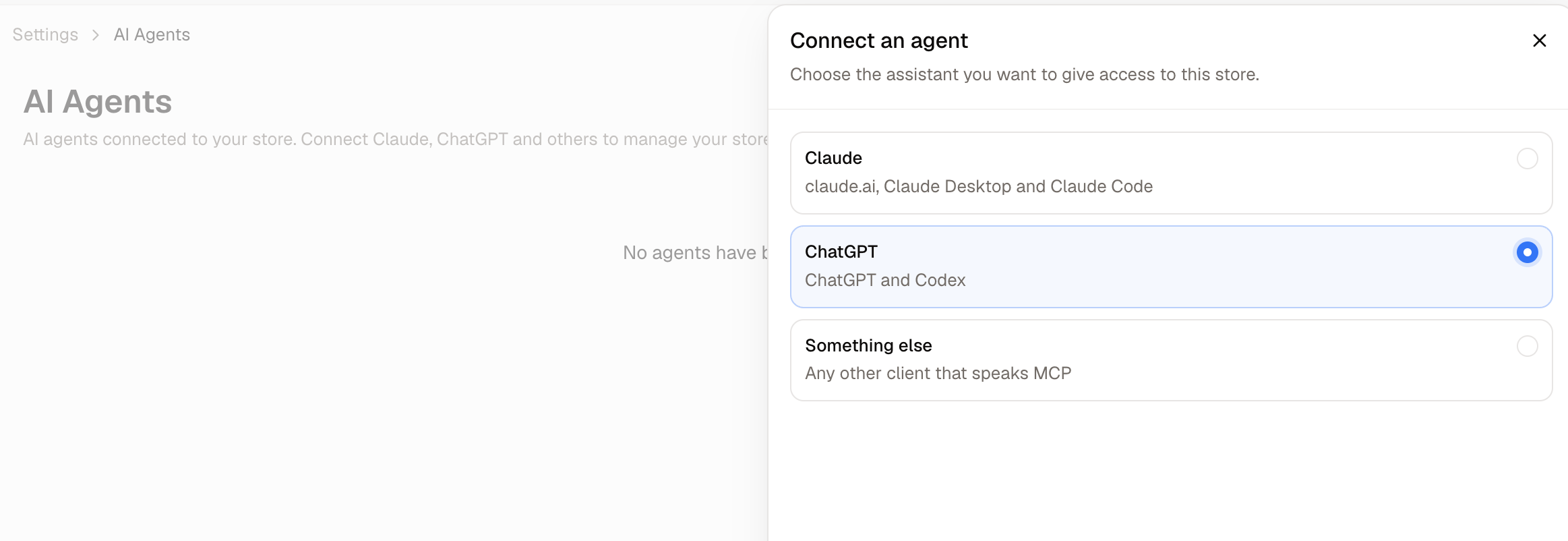
- Navigate to Settings → AI Agents and click Connect an agent.
- Choose ChatGPT and click Continue.
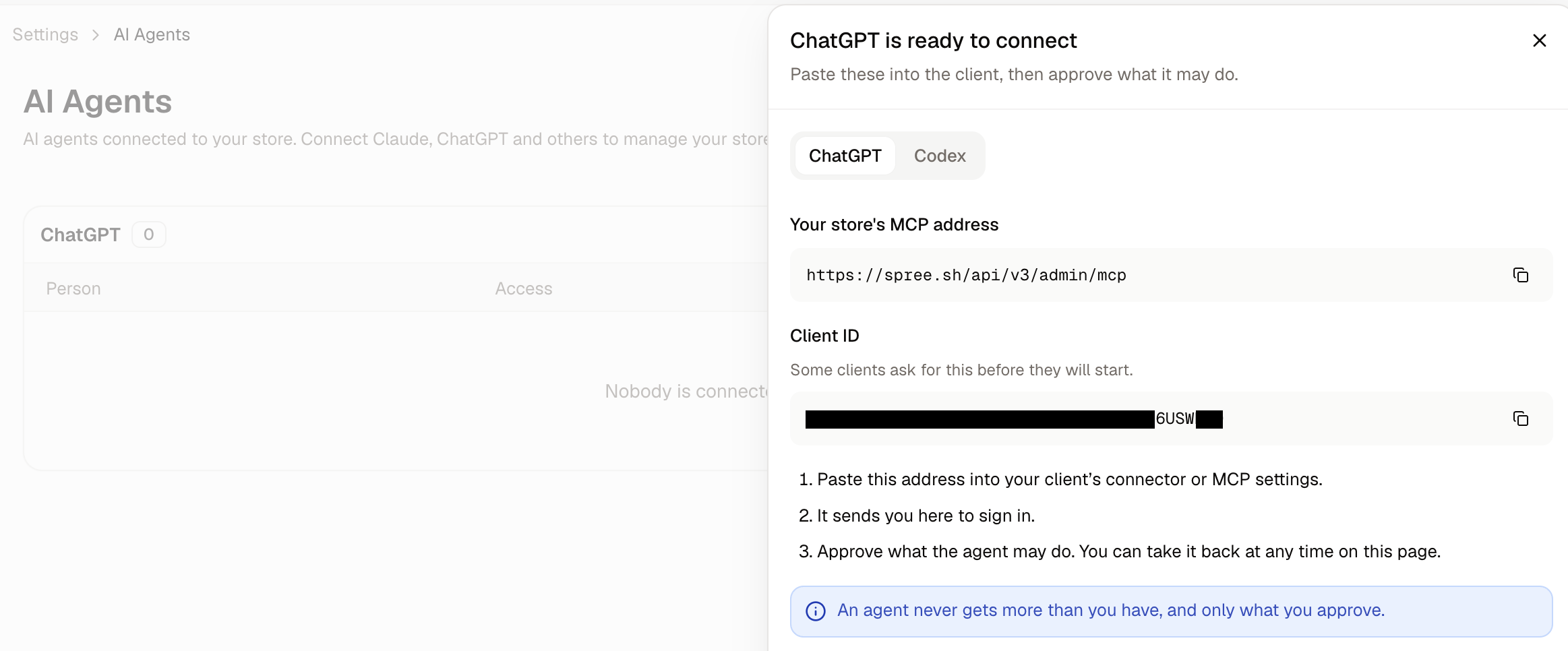
- Keep the panel open. It shows Your store’s MCP address and a Client ID, each with a button that copies it.
Step 2: Set ChatGPT Up
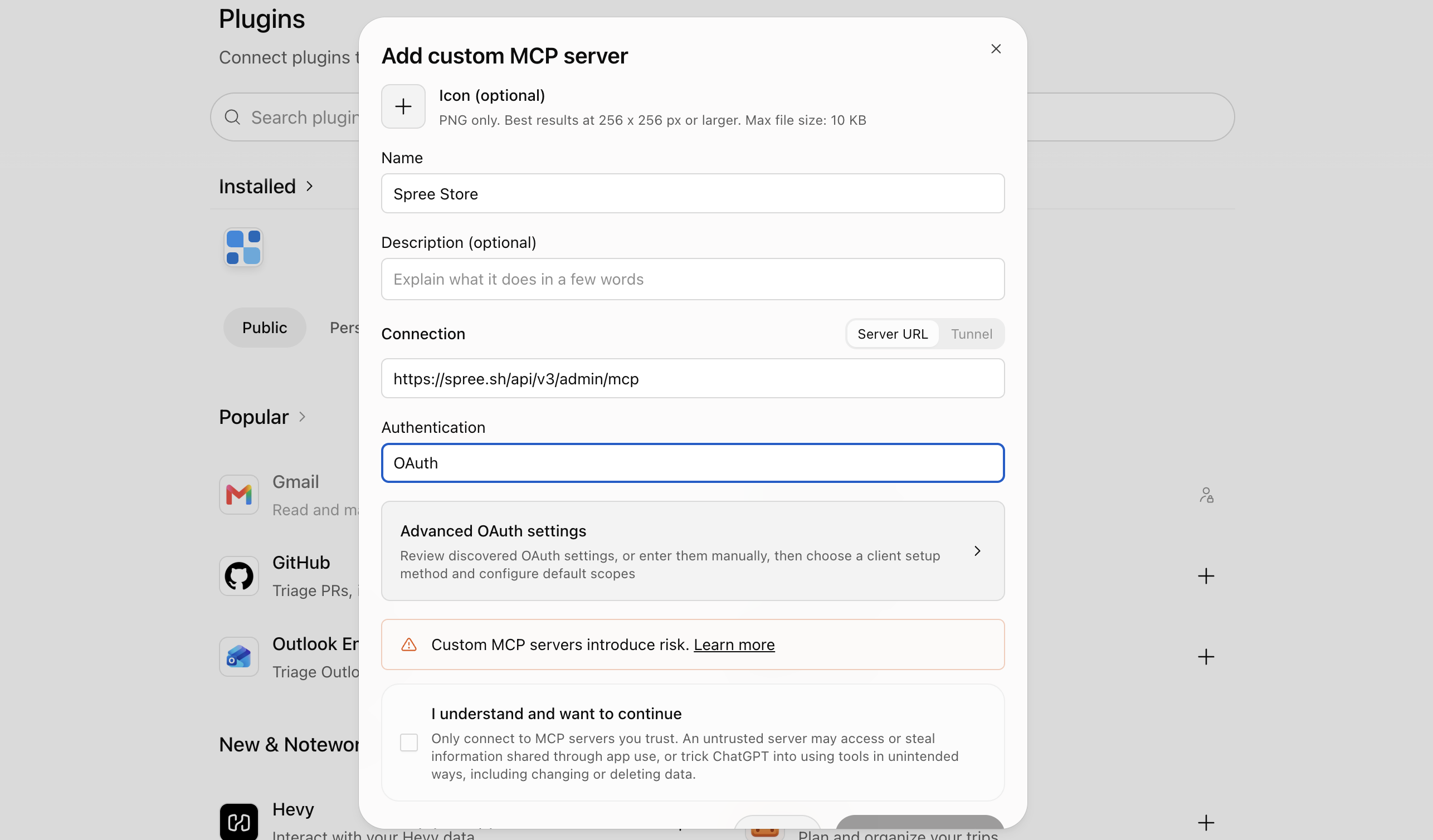
- In ChatGPT, open Plugins → Add → Add custom MCP server.
- Give it a name and a description your team will recognize, such as your store’s name.
- Paste Your store’s MCP address as the MCP URL.
- Set Authentication to OAuth.
- Open the advanced OAuth settings and paste the Client ID.
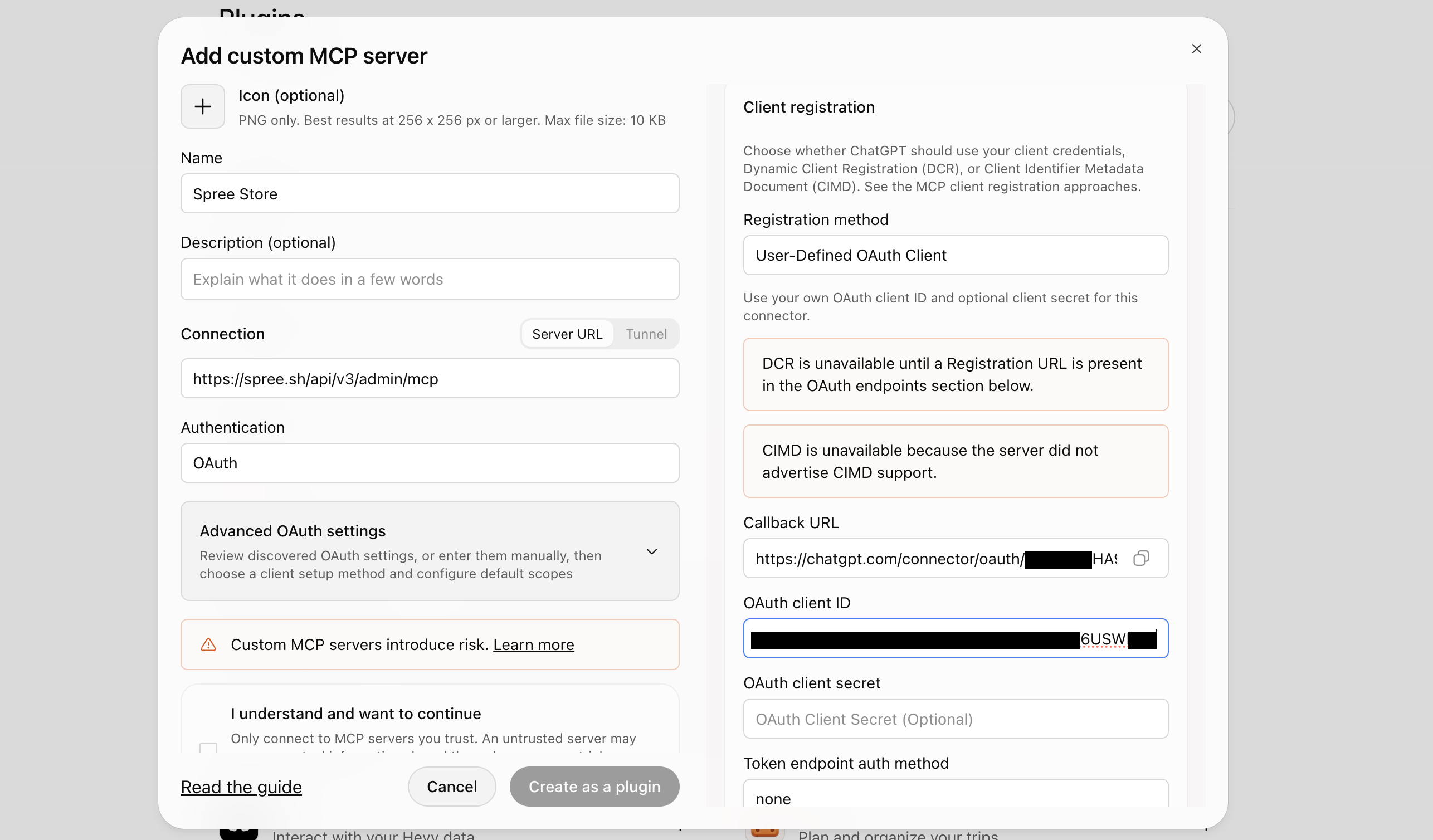
Leave the registration URL empty. It is for assistants that register themselves automatically, which Spree does not offer, and pasting the Client ID is what takes its place.
Step 3: Register the Callback URL in Your Store
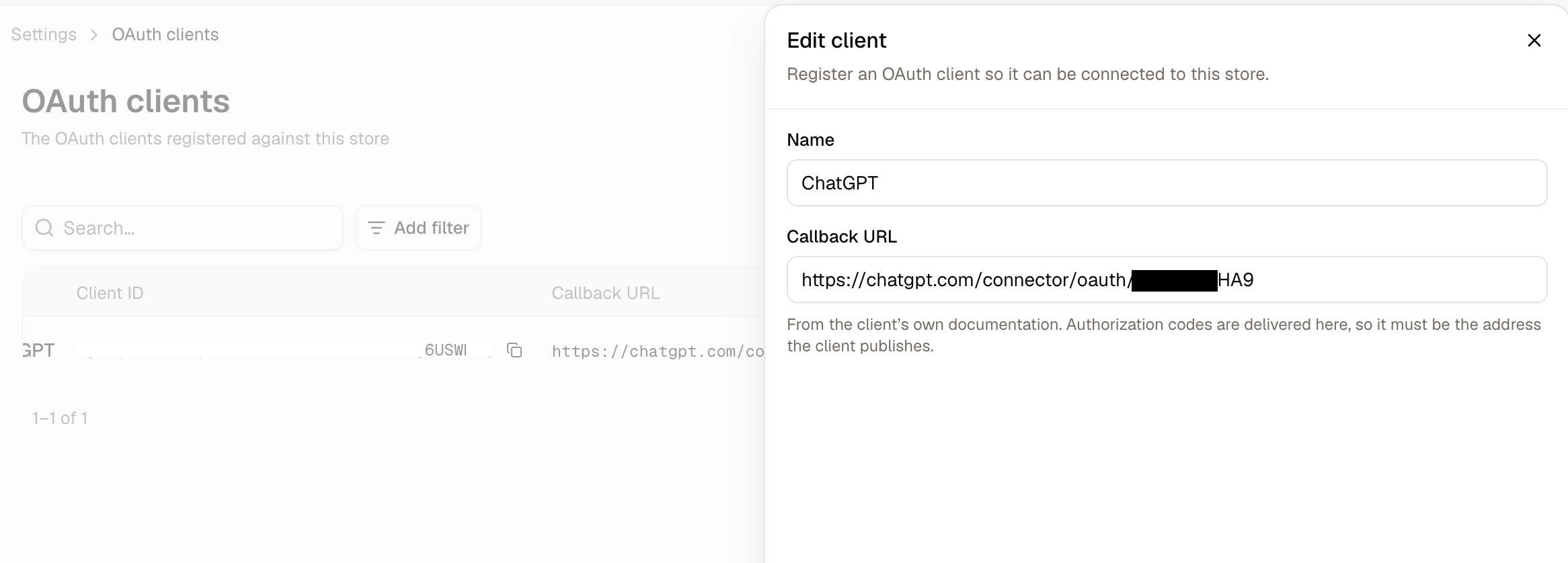
- In the Spree dashboard, navigate to Settings → OAuth clients.
- Find the ChatGPT client, open its actions and choose Edit.
- Enter every address the client may be sent back to, separated by spaces: the ones already registered, followed by the one you copied from ChatGPT. Save.
Read the addresses already registered from the Callback URL column on the OAuth clients list, where each is shown in full, and type the complete list into the field.
Step 4: Connect and Approve
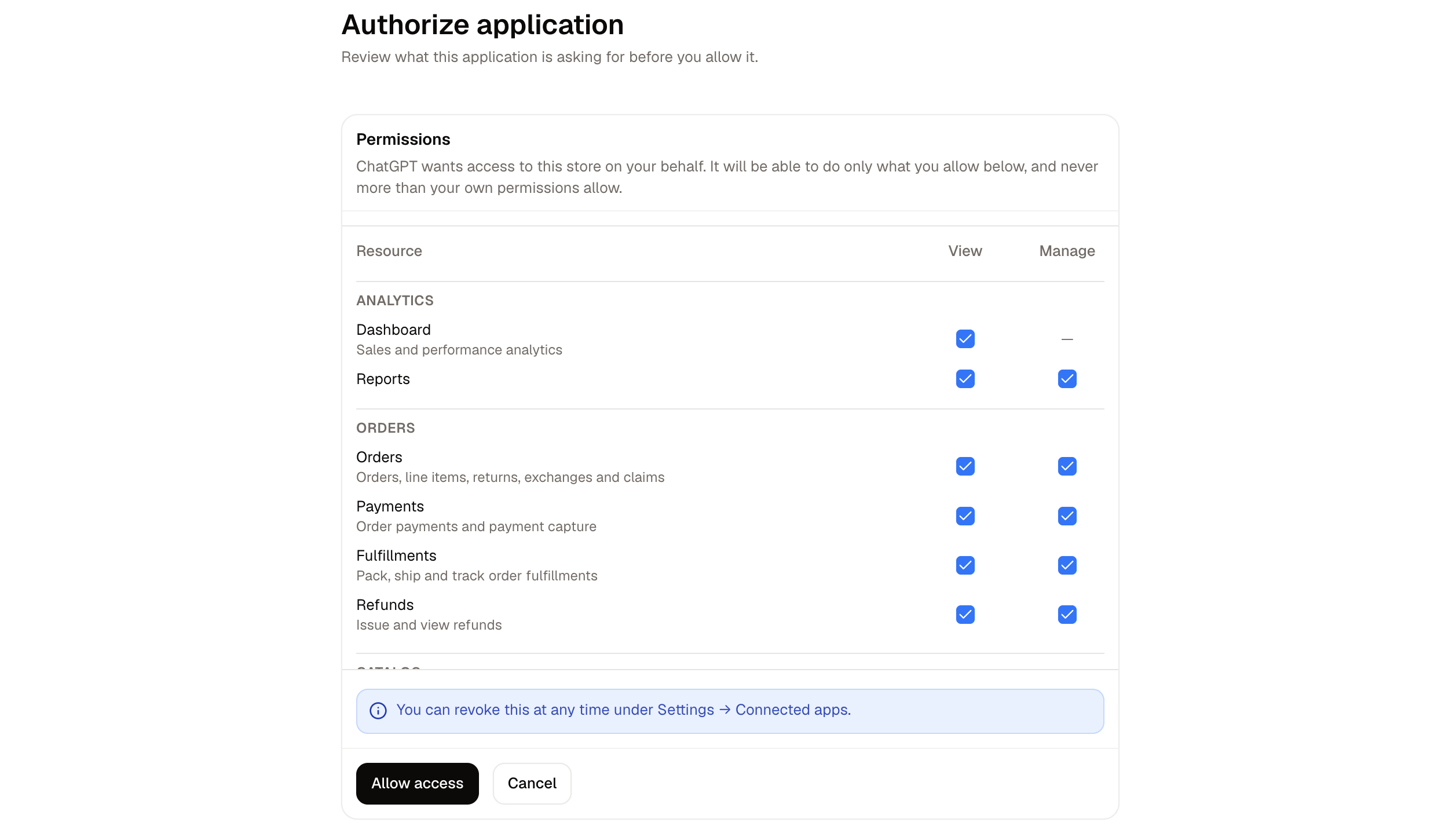
How to Use It
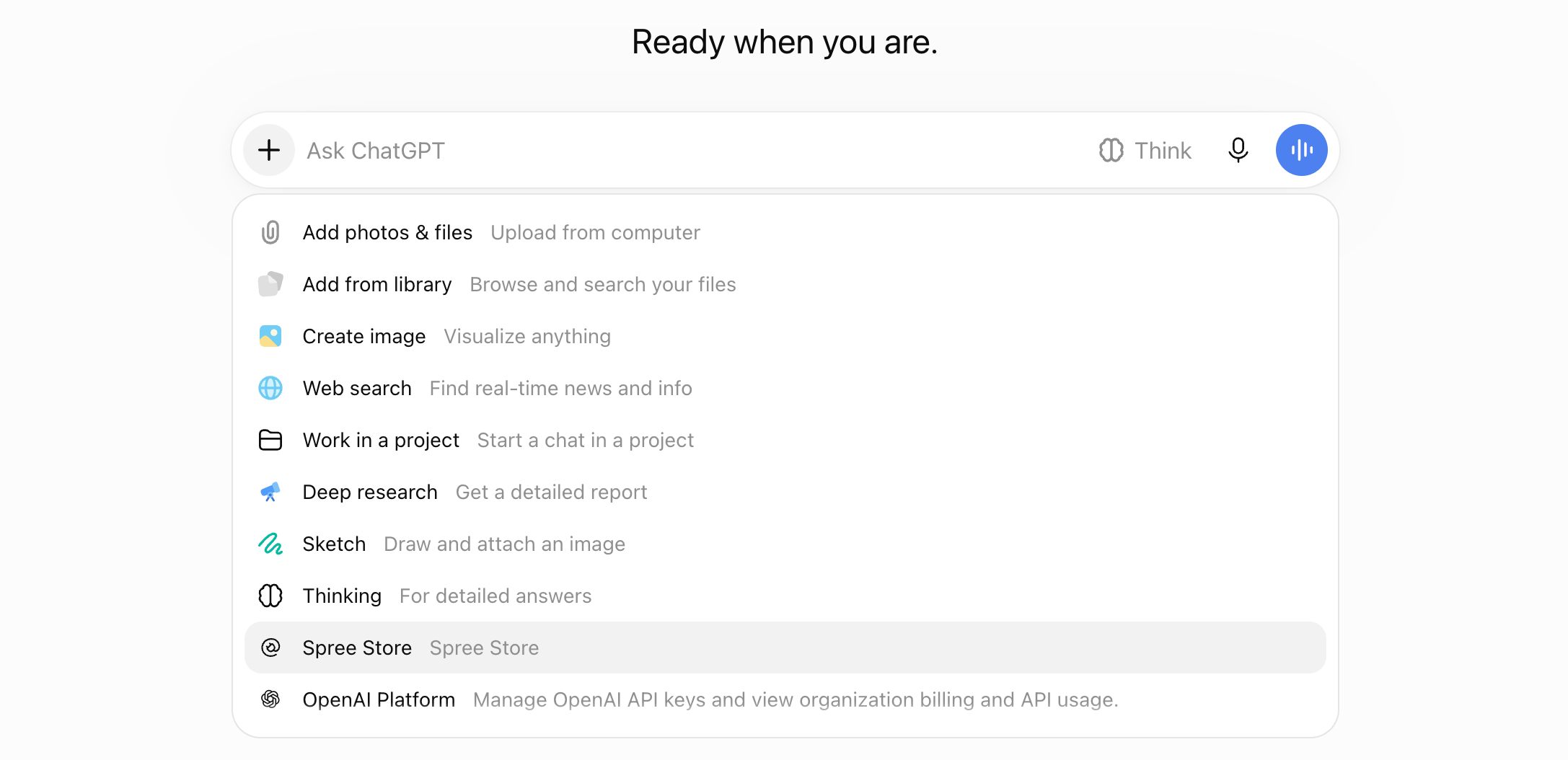
ChatGPT is only shown the jobs it was approved for, so a connection approved for products alone offers a short list of product jobs rather than everything the store can do.
Further Reading
- AI Agents - Reviewing connections, permissions and revoking access
- Connect Claude - The same thing for Claude
- Roles - The permissions a role carries, which bound what ChatGPT can be given