

Before You Start
Register Claude in your store first, which produces the two values its connector needs.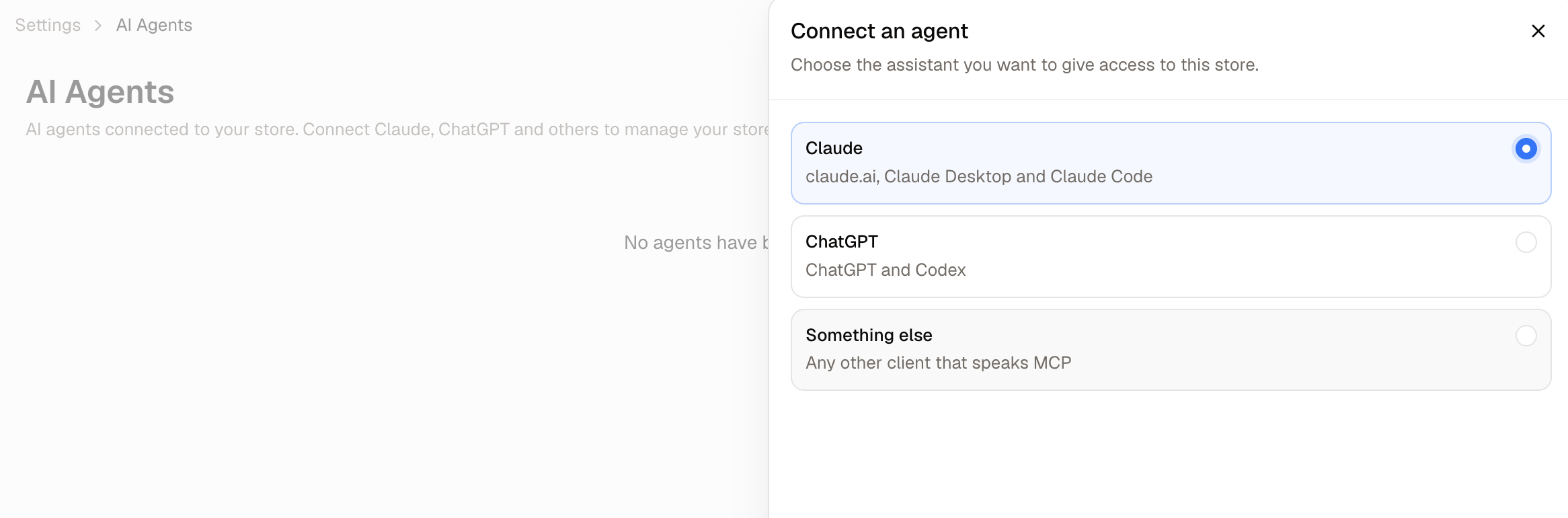
- Navigate to Settings → AI Agents and click Connect an agent.
- Choose Claude and click Continue.
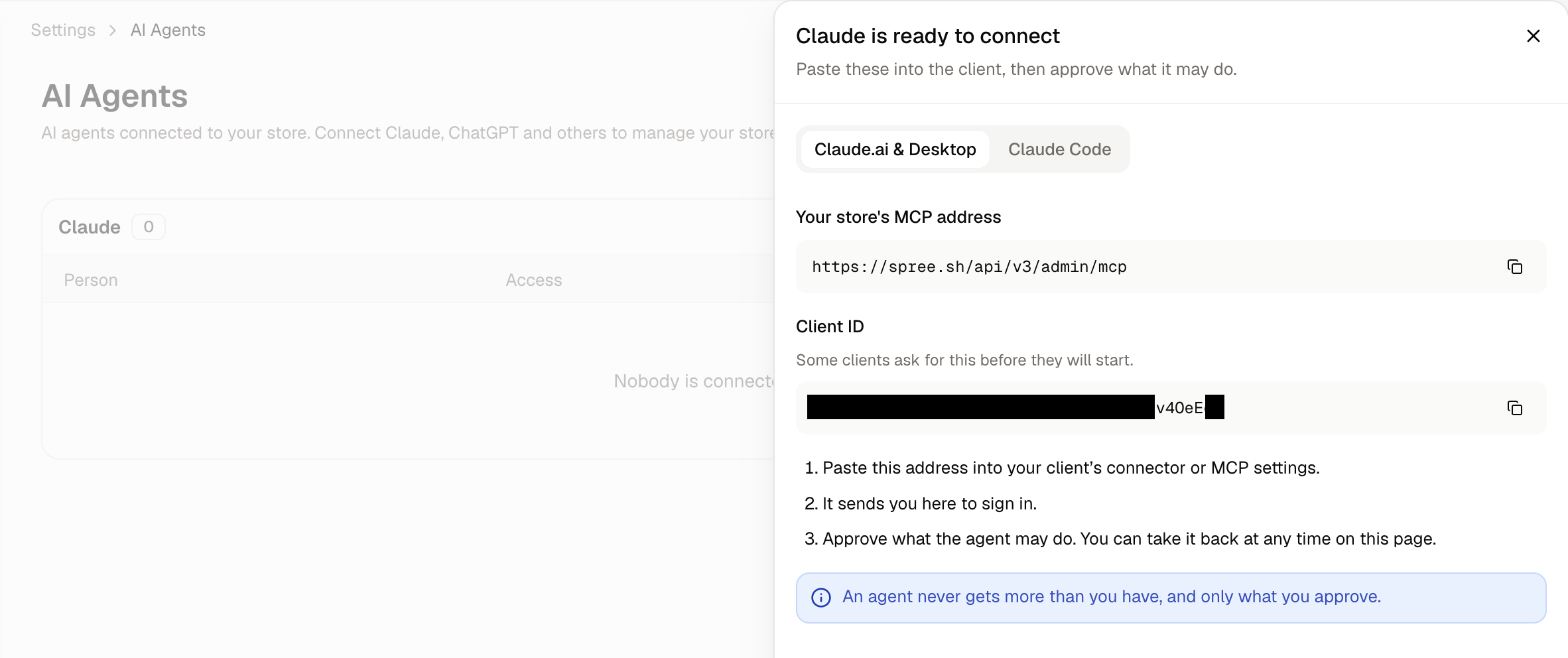
- Keep the panel open. It shows Your store’s MCP address and a Client ID, each with a button that copies it.
How to Connect on a Free, Pro or Max Plan
On a personal plan the connector belongs to your own Claude account.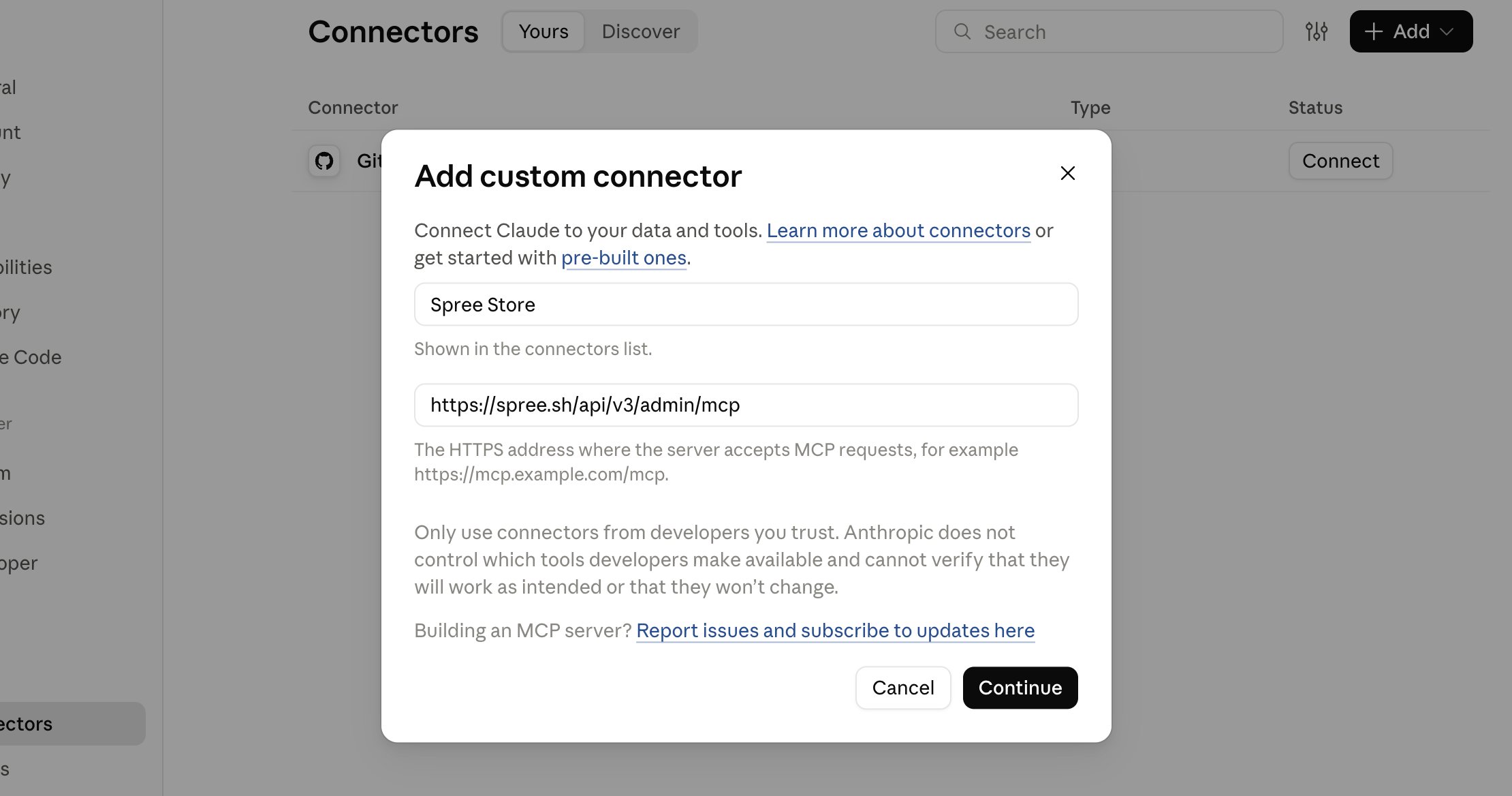
- In Claude, open Connectors, reached from either Settings or Customize, and choose to add a custom connector.
- Enter a name your team will recognize, such as your store’s name, paste Your store’s MCP address, and click Continue. Claude checks that it can reach the address before going on.
- On the next screen, leave Authentication set to Sign in now and OAuth client set to Use your own OAuth client. Claude works both out from your store, so they are normally chosen for you already.
- Paste the Client ID and continue.
- The connector is added at this point but not yet connected to anything. Click Connect.
- Claude opens your browser and asks you to confirm that you started this yourself. Continue, and your store’s sign-in appears.
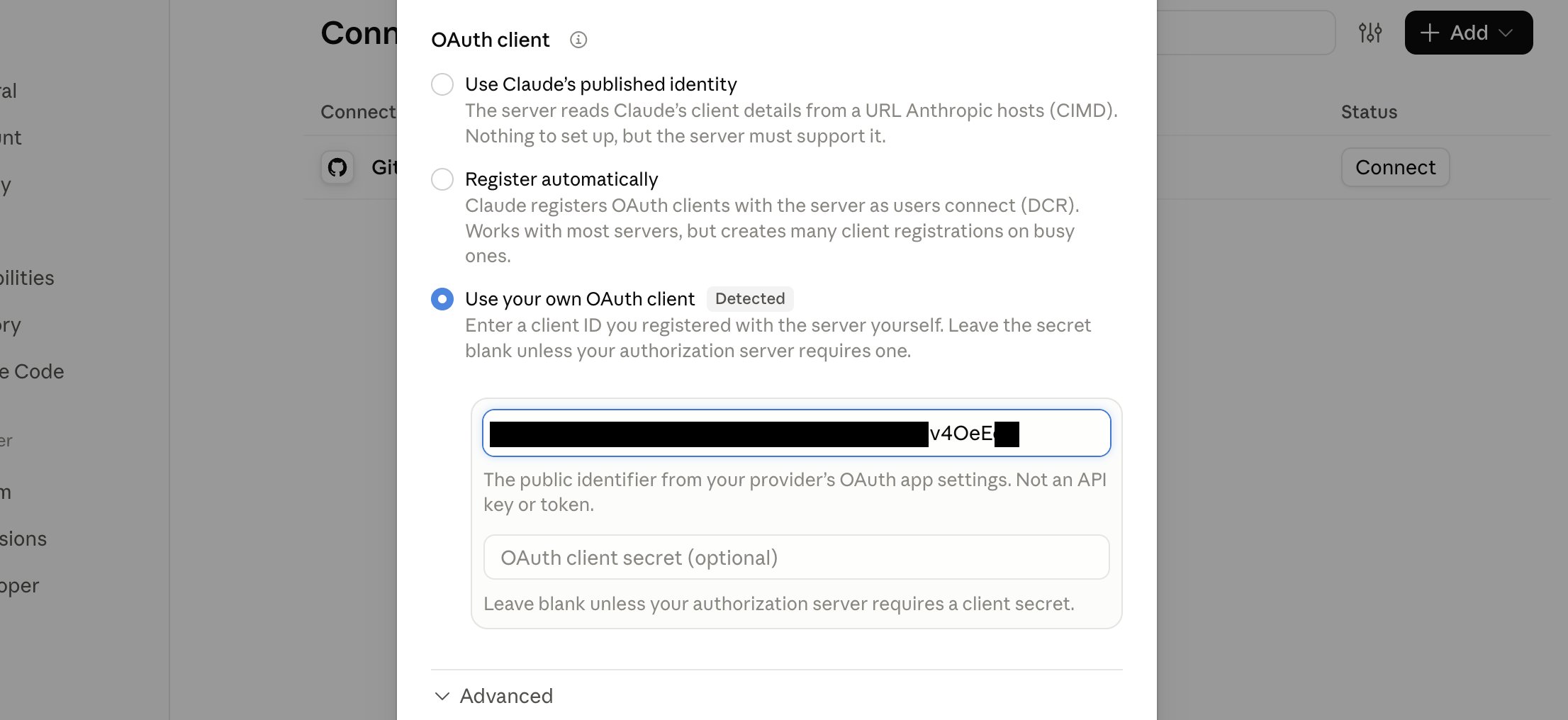
Register automatically is offered as an OAuth client option but does not work here. Spree registers clients in advance rather than letting them register themselves, which is why there is a Client ID to paste.
A free Claude account allows one custom connector, so a store connected there uses the single slot available.
How to Connect on a Team or Enterprise Plan
On a Team or Enterprise plan the connector is added once for the organization, and each person then connects to it with their own store login. Adding it is done by an Owner or Primary Owner. The owner adds the connector- Go to claude.ai/admin-settings/connectors and click Add → Custom → Web.
- Enter a name your team will recognize and paste Your store’s MCP address. Click Continue.
- Under Authentication, choose Sign in now.
- Under OAuth client, choose Use your own OAuth client and paste the Client ID. Leave the client secret empty.
- Click Add.
- In Claude, open Customize → Connectors, find the store’s connector and click Connect.
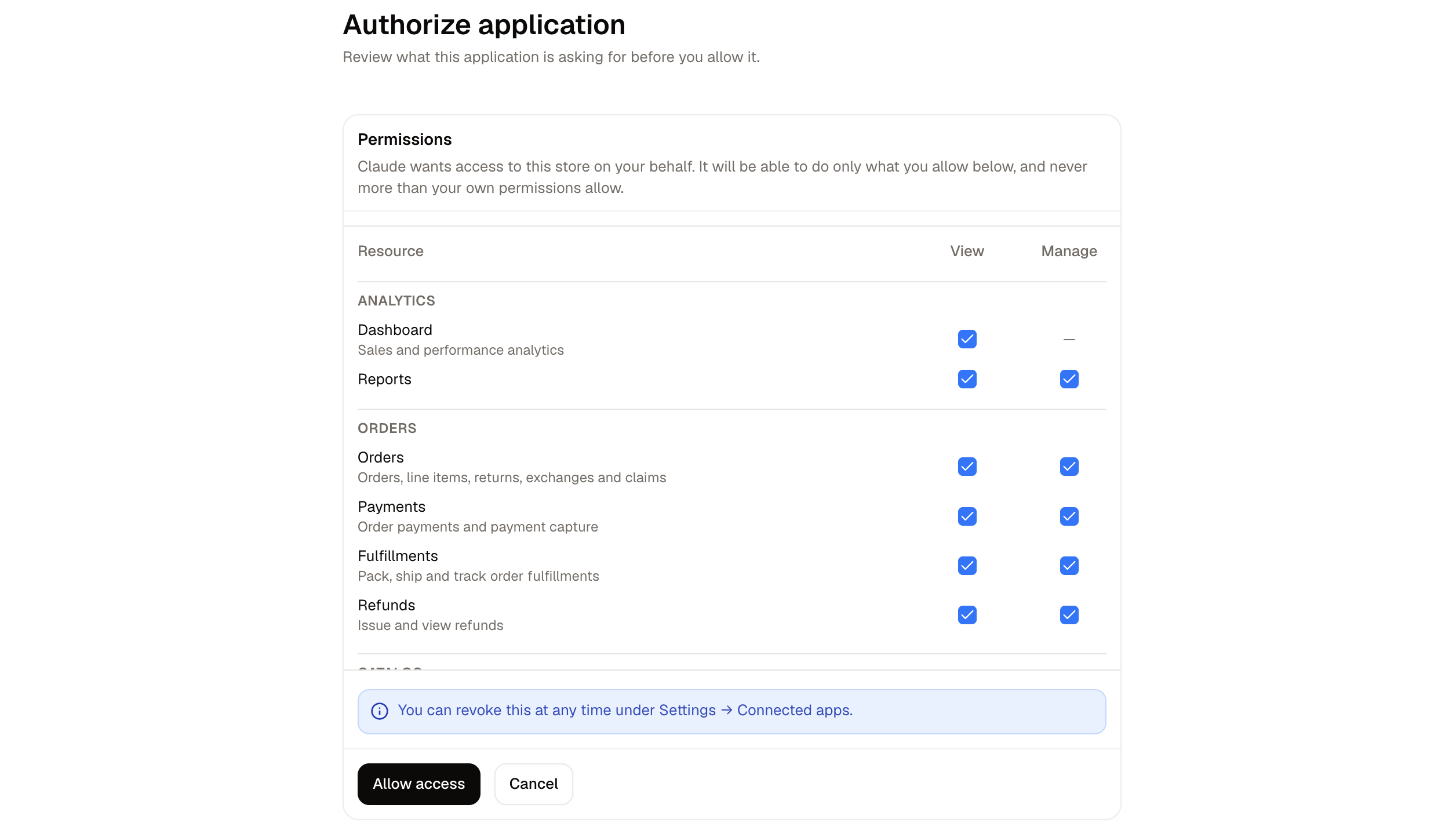
- Sign in to your store and approve what the agent may do.
Approving What Claude May Do
How to Use It
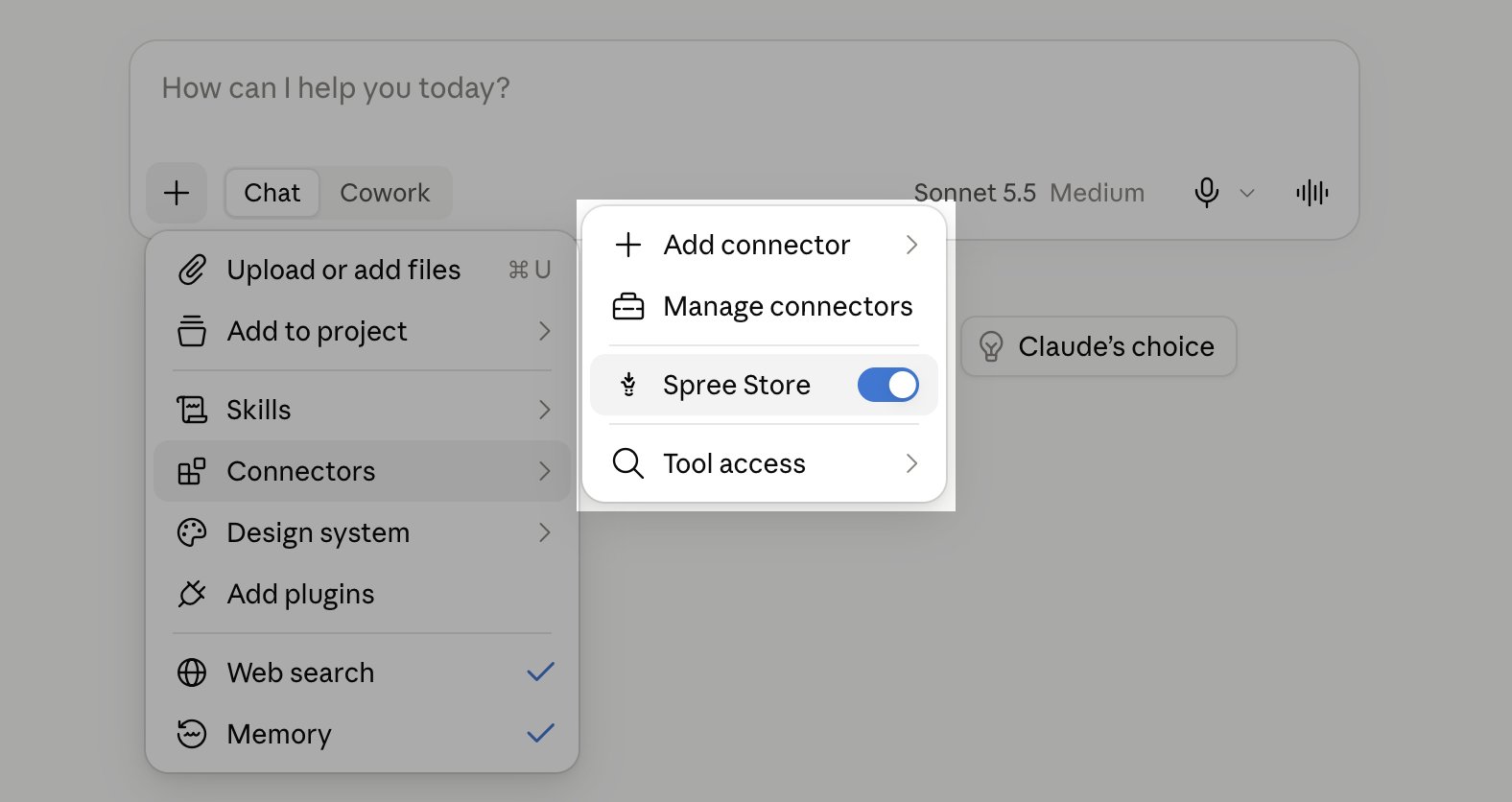
Claude is only shown the jobs it was approved for, so a connection approved for products alone offers a short list of product jobs rather than everything the store can do.
Further Reading
- AI Agents - Reviewing connections, permissions and revoking access
- Connect ChatGPT - The same thing for ChatGPT
- Roles - The permissions a role carries, which bound what Claude can be given