

Connecting an agent needs permission to manage connected applications. A staff member without it sees You do not have permission to connect an agent to this store instead of the connection screen.
Reviewing Connected Agents
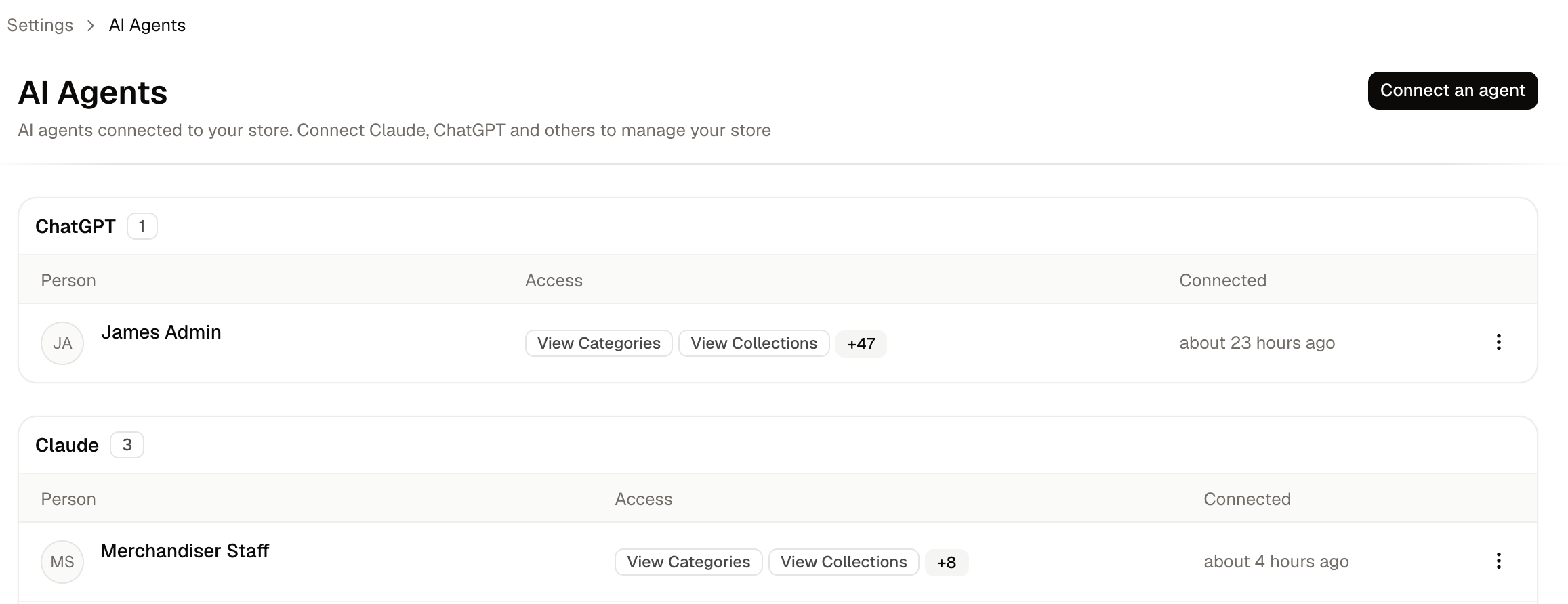
- Access - What the agent is allowed to do.
- Status - Whether anyone is currently connected through it.
- People connected - How many members of staff have connected it, and who they are.
How to Connect an Agent
Connecting takes two parts. First the agent is registered in Spree, which produces the two values the agent needs. Then those values are entered in the agent itself, which sends you back to Spree to sign in and approve what it may do.Registering the Agent in Spree
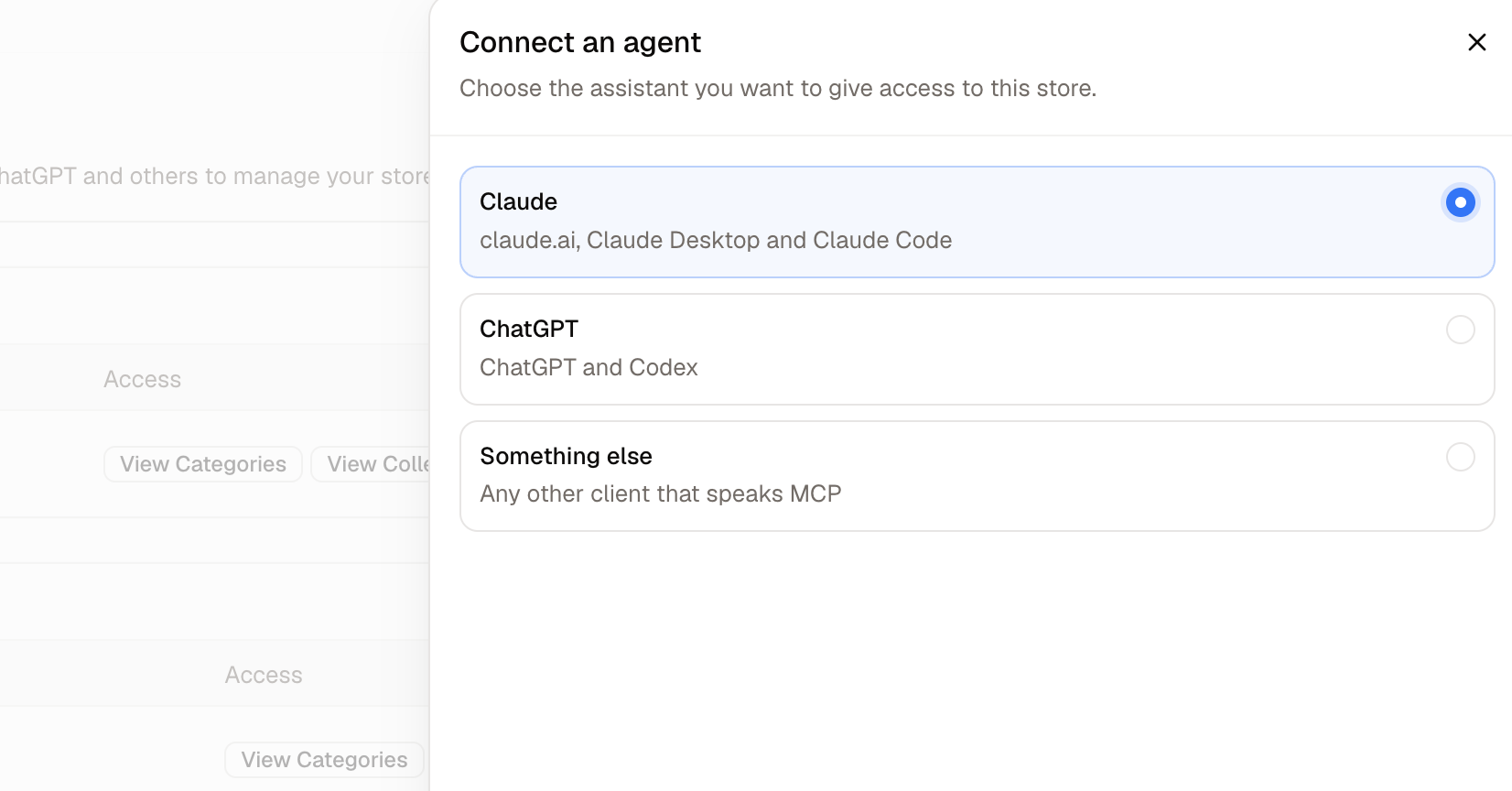
- Click Connect an agent.
- Choose the assistant you are connecting. Claude covers claude.ai, Claude Desktop and Claude Code. ChatGPT covers ChatGPT and Codex. Something else covers any other assistant that speaks MCP.
- Click Continue.
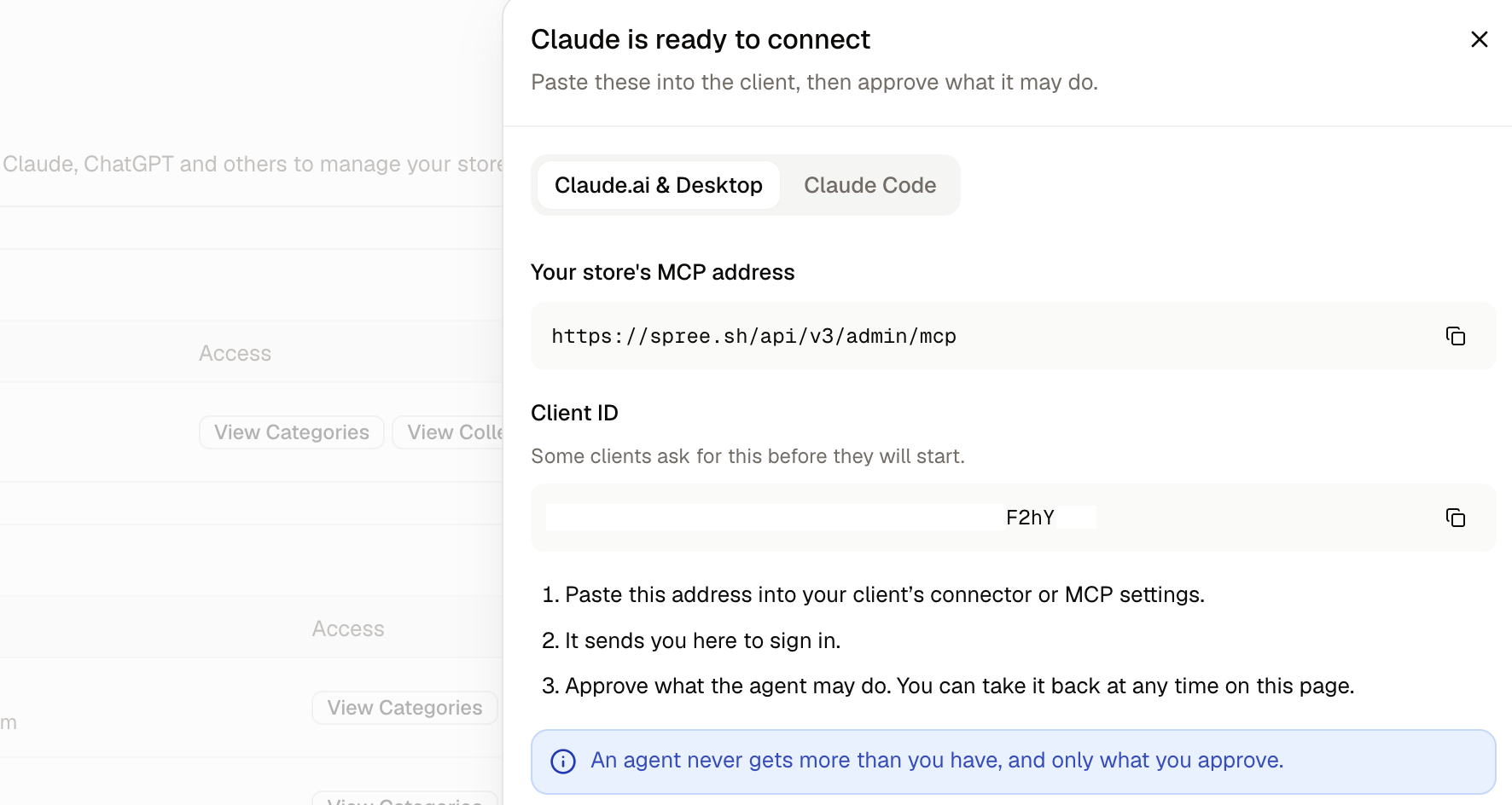
- Your store’s MCP address - Where the agent sends its requests. It is your store’s own address followed by
/api/v3/admin/mcp. - Client ID - What identifies this agent to your store. Some assistants ask for it and some do not.
Choosing Something else asks for a name and the agent’s redirect URI, which is where the agent expects to be sent back to after you sign in. It comes from that agent’s own documentation. For Claude and ChatGPT this is filled in for you, so there is nothing to look up.
Registering the same assistant twice reconnects the one already registered rather than creating a second, and brings its settings up to date. One Claude registration covers claude.ai, Claude Desktop and Claude Code together, and everyone on your team connects through it.
Registering an agent creates an entry under Settings → OAuth clients, which holds its Client ID and the address the assistant is sent back to. For Claude and ChatGPT that entry is filled in for you, and the only reason to open it is to look the Client ID up again or to remove the agent outright.
Connecting It to the Assistant
What happens next depends on the assistant, because each keeps its connector settings in a different place and asks for the two values in a different order.- Connect Claude - claude.ai and Claude Desktop, on a personal plan or a Team or Enterprise plan
- Connect ChatGPT - ChatGPT, which also needs a callback URL copied back into your store
What an Agent Is Allowed to Do
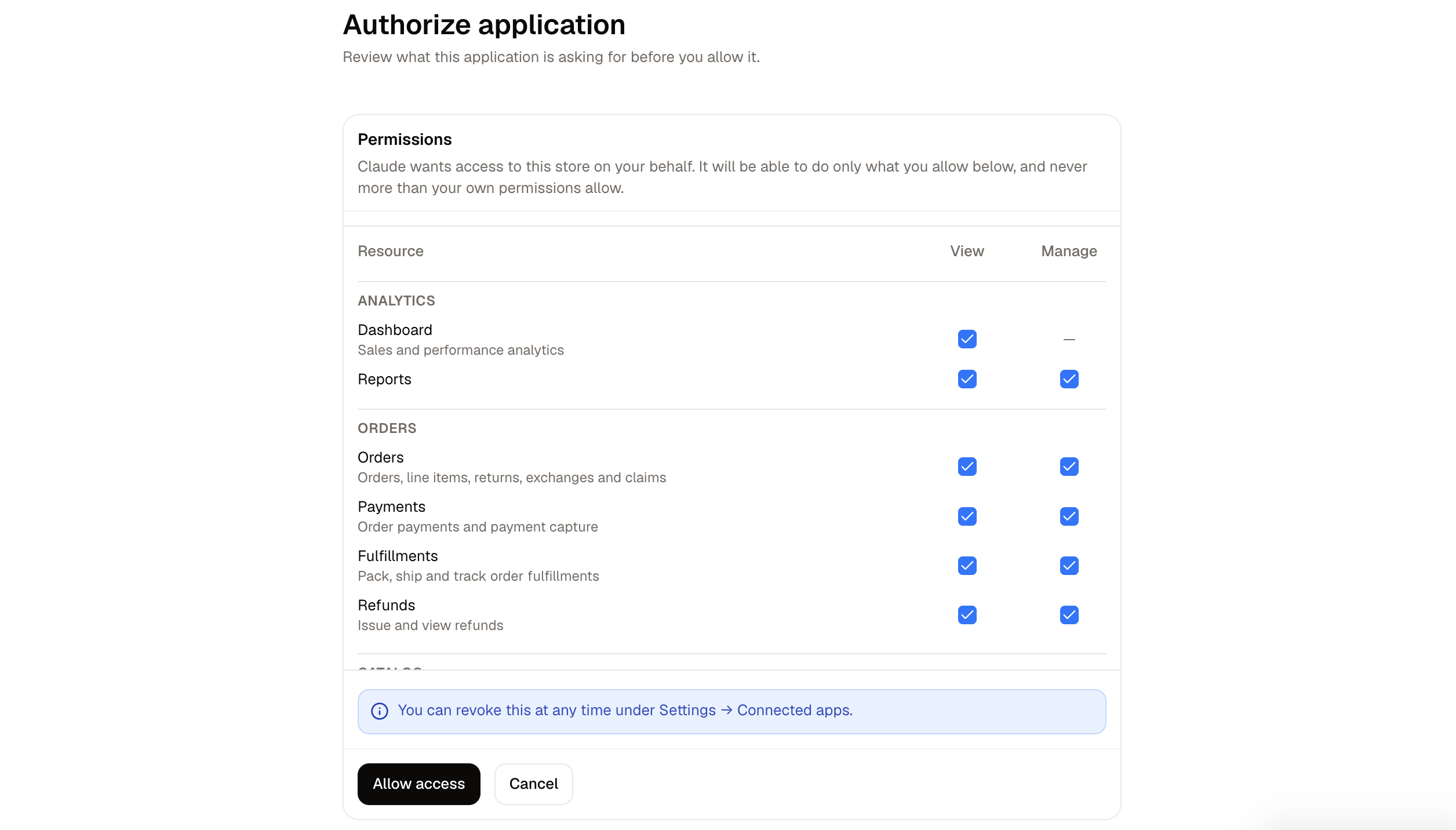
An agent is never shown the jobs it was not approved for, so a connection approved for products alone sees a short list of product jobs rather than everything the store can do.
How to Revoke Access
Access can be taken back from one person, or from everybody at once. The two are done on different screens.Revoking Access from a User
- Navigate to Settings → AI Agents and find the agent’s card.
- Find the person whose access you are removing.
- Click Revoke access and confirm.
Approving more permissions for an agent you have already connected is done by revoking your own access and connecting again, because the approval screen appears only when a connection is made.
Removing an Agent Entirely
Deleting the agent’s registration disconnects everybody at once and leaves nothing for anyone to reconnect to.- Navigate to Settings → OAuth clients and find the agent.
- Open its actions and choose Delete.
- Confirm.