

Reviewing Your Transfers
To review your transfers, navigate to Transfers in the admin dashboard. The list shows every movement between your own warehouses, both the ones still being put together and the ones that have already arrived.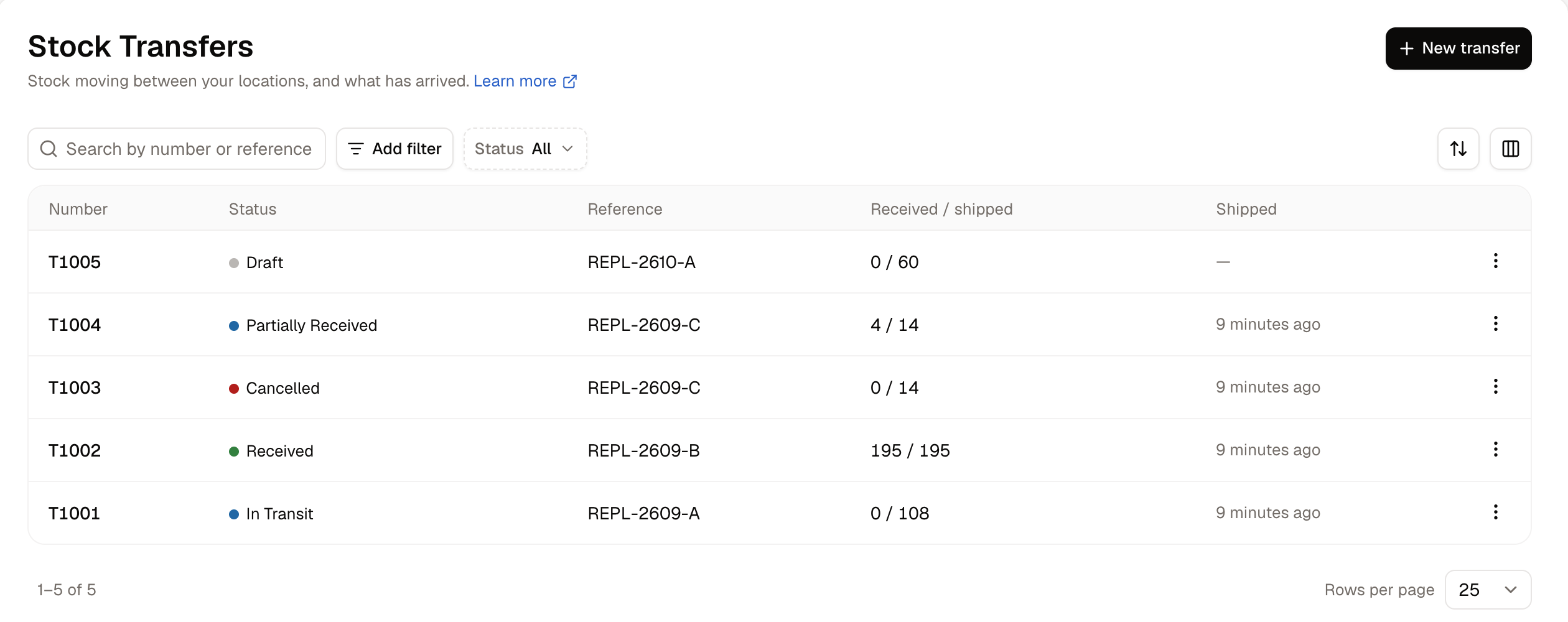
- Number - The reference Spree gives each transfer.
- Status - Which stage the transfer has got to. See below, under How to Process a Stock Transfer.
- Reference - Your own label for the trip, if you gave it one.
- Received / shipped - Two figures in one column: how many units the destination has counted in, against how many were sent.
- Shipped - The day the units left the source warehouse.
How to Create a Stock Transfer
Click New transfer in the top-right corner of the Transfers list.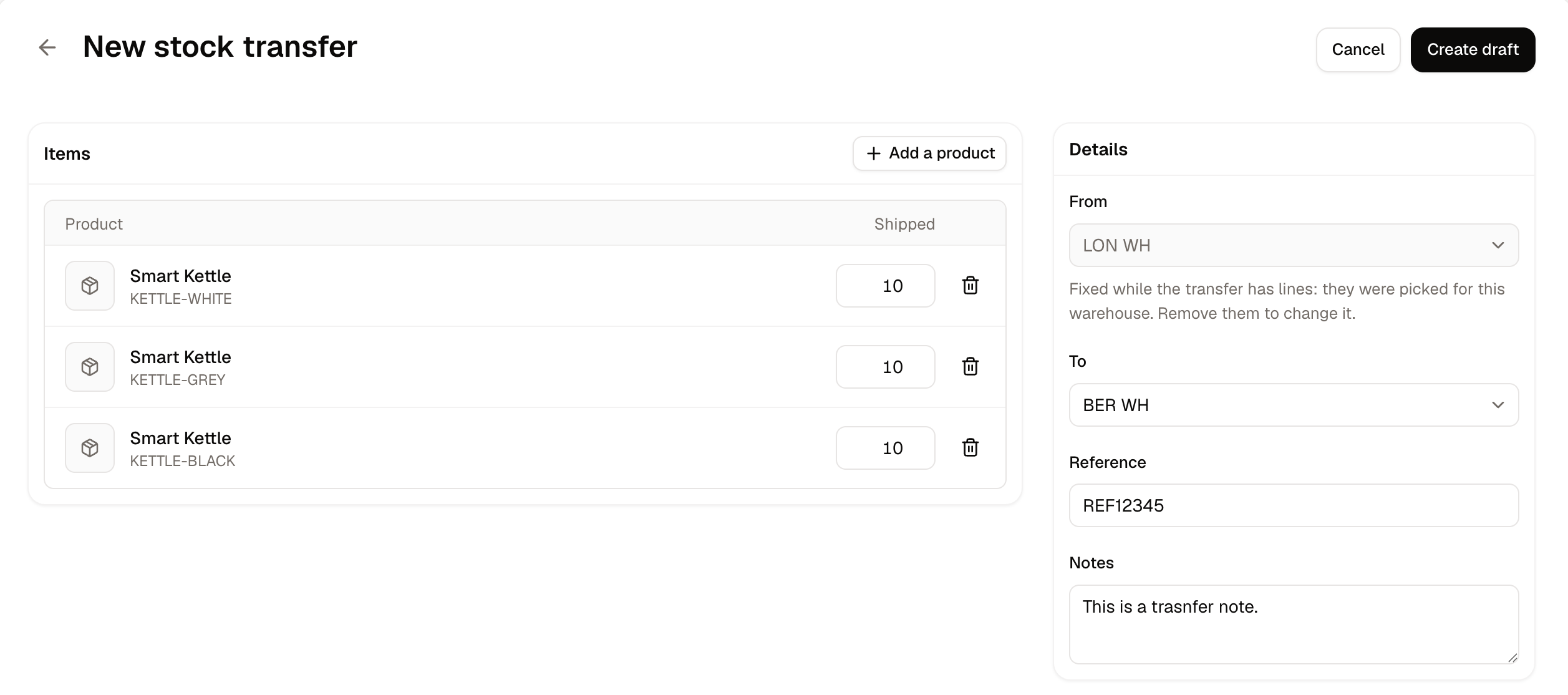
- From - The warehouse the stock is leaving. Set this first, because nothing else on the form works until you do.
- To - The warehouse the stock is going to. This must be a different location from From.
- Reference - Your own label for the trip, such as a van run or a week number. Optional, but it might be useful later.
- Notes - Anything your team should know about this movement.
- Click Add a product in the Items panel to open the variant picker.
- Search by product name or SKU, and select each variant you are moving.
- Click Add, then enter the number of units for each line.
- Click Create draft in the top-right corner.
How to Process a Stock Transfer
A transfer moves through seven statuses, and each one means something specific for your stock figures.
Open a transfer from the list to move it along:
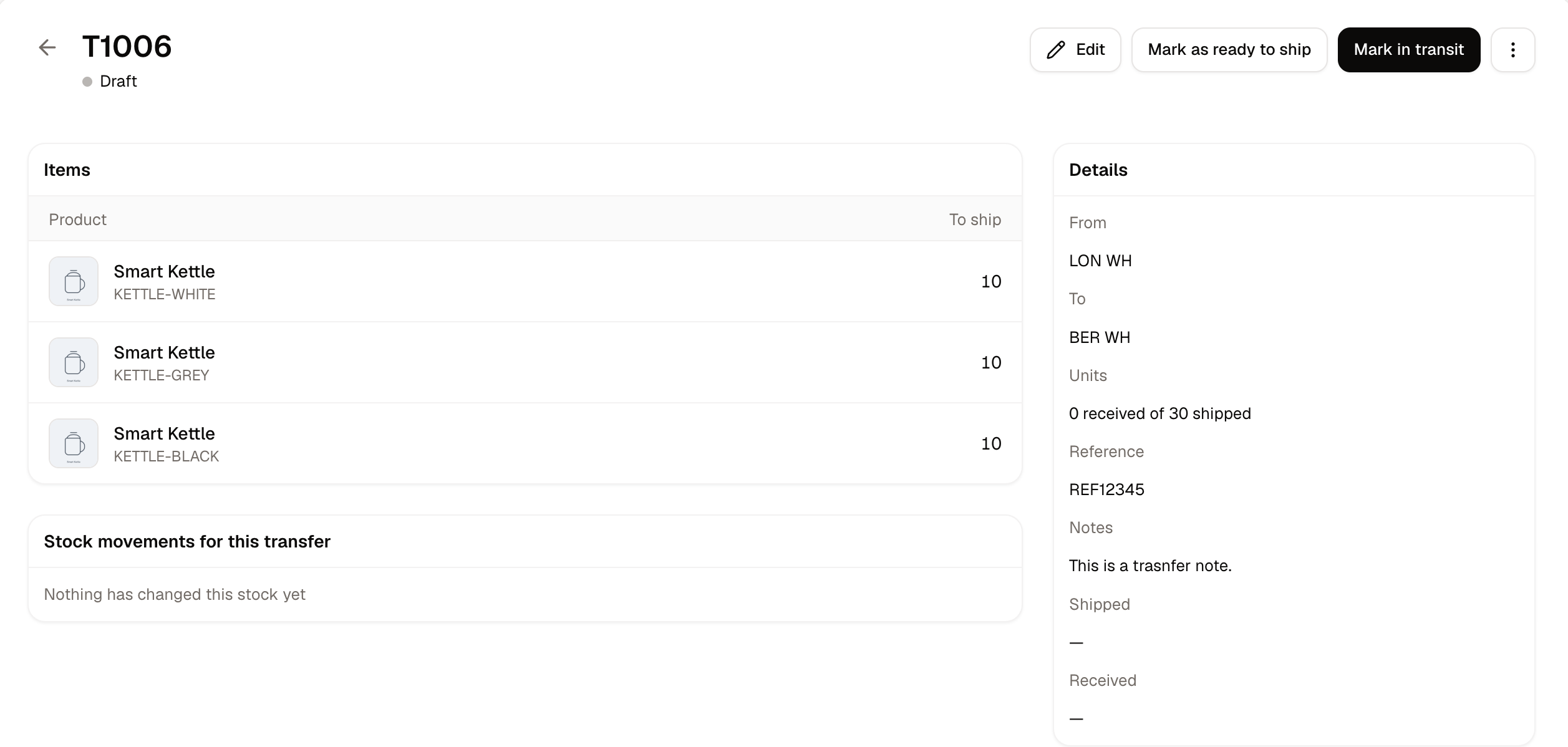
- Click Mark as ready to ship once the transfer is packed.
- Click Mark in transit when the units physically leave. This is the moment stock actually moves.
- Click Receive as the units land, and record how many the destination counted in.
Once a transfer is packed its contents are a matter of record, so it can no longer be edited.
How to Count a Transfer In
Once a transfer is in transit it is ready to receive against, so there is no separate screen to open. Record what arrived on the transfer itself, then commit it.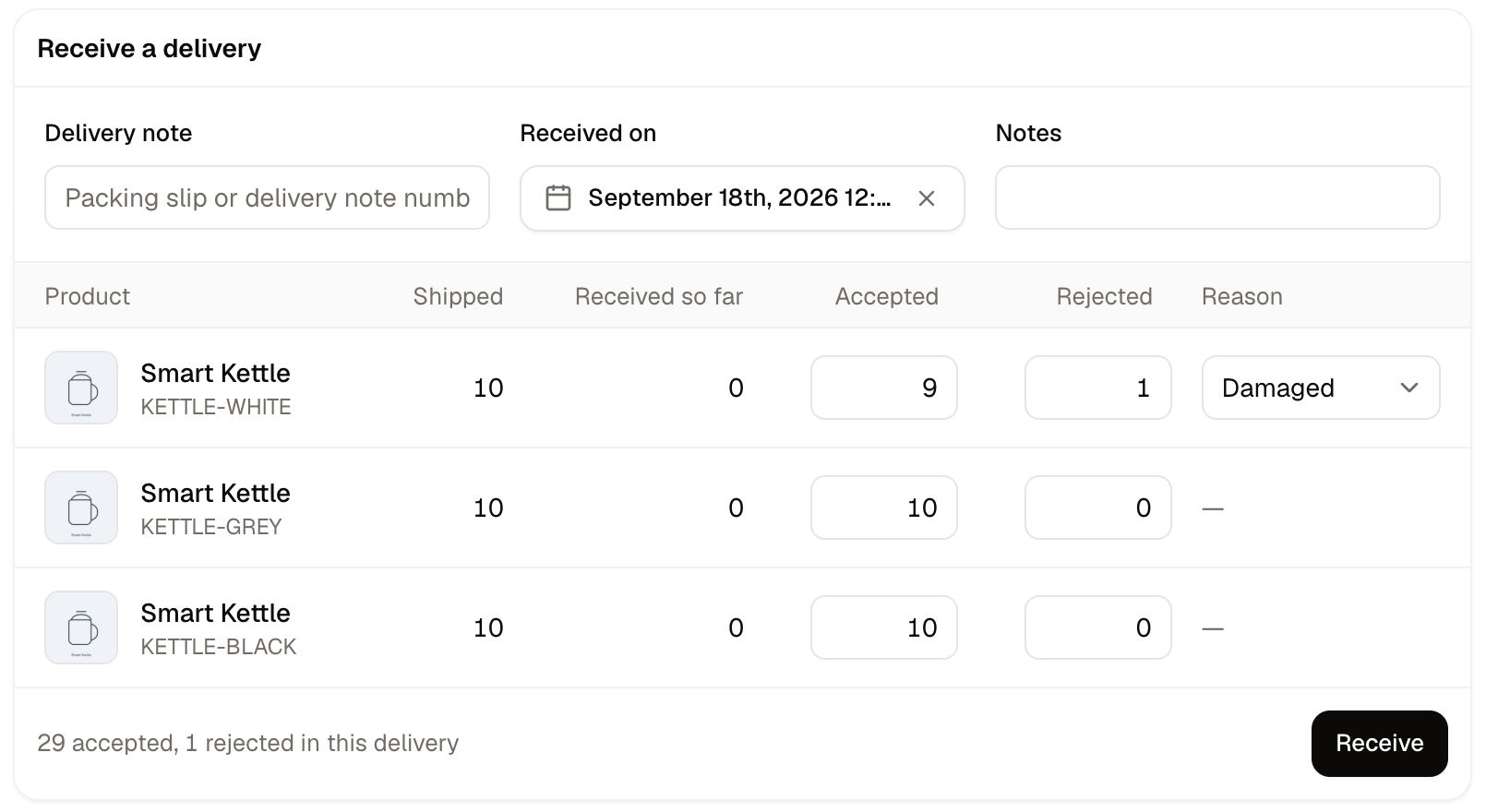
- Open the transfer. Each line shows what was sent and how much is still outstanding.
- Work down the lines and record how many units the destination accepted and how many it rejected.
- Click Receive to commit what you have counted.
Receive is the button that commits what you have entered. Nothing reaches the destination’s shelf until you click it.
Accepting and rejecting units
Each line is counted in two parts. Record how many units you accepted, meaning the ones going onto the destination’s shelf, and how many you rejected, meaning the ones that arrived but are not fit to sell. Rejected units need a reason:- Damaged - The units arrived broken, crushed or otherwise unsaleable.
- Expired - The units are past their date and cannot be sold on.
- Wrong item - What turned up is not what the transfer said was sent.
- Other - Anything the first three do not cover. Use the notes to say what happened.
Receiving in batches
You do not have to count a whole transfer in at once. If a shipment turns up across several days or several pallets, count in what has arrived and click Receive. Spree records that count as a delivery against the transfer and moves the transfer to Partially received, leaving the rest outstanding. Each time more units arrive, count in the next batch and click Receive again. Every batch is recorded as its own delivery, so a transfer that arrived in three loads has three deliveries against it.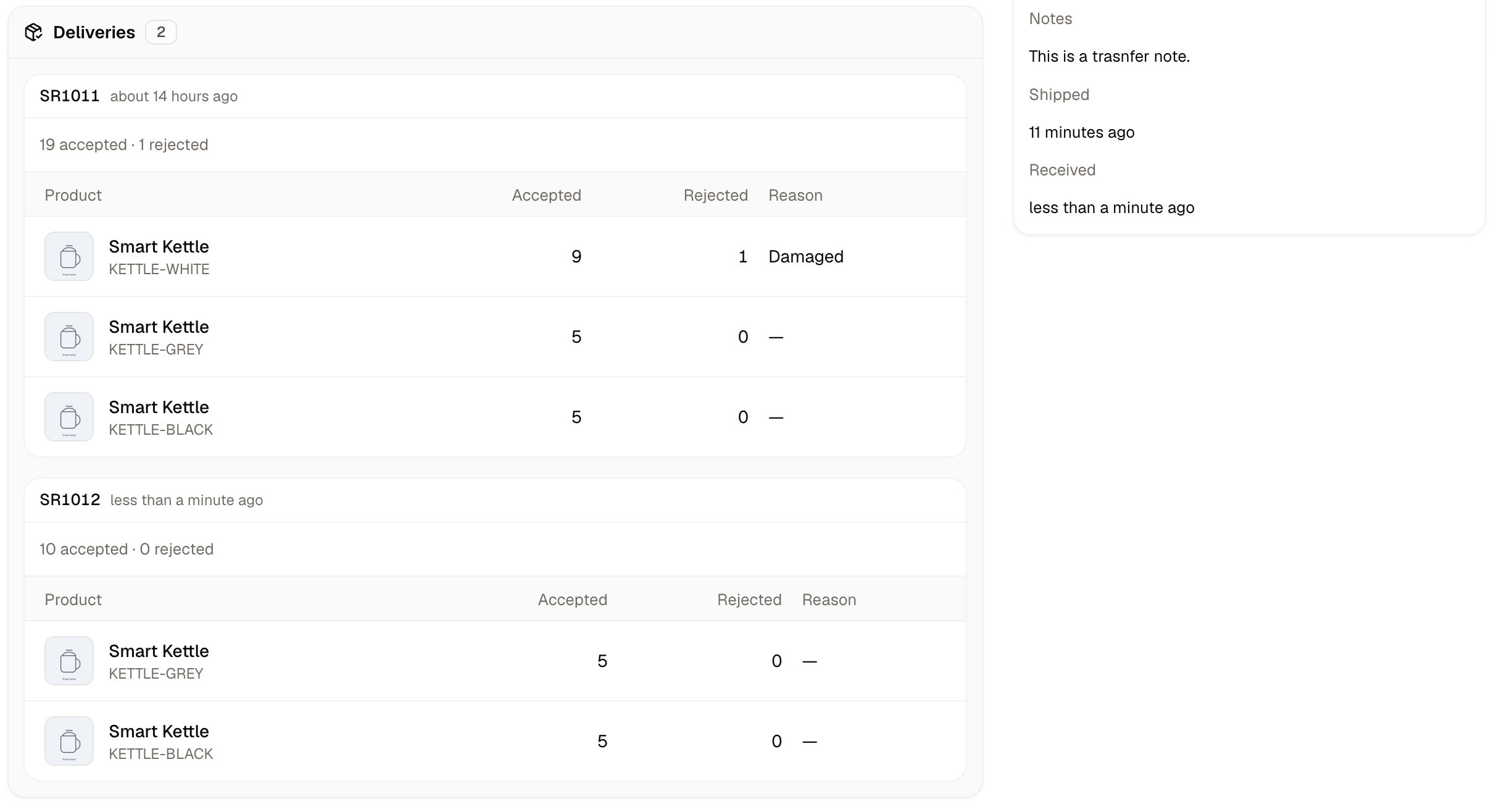
If the rest of a shipment is never going to arrive, use Close short rather than leaving the transfer part-received. See the next section.
Stock movements
At the bottom of every transfer, Stock movements for this transfer lists each change the transfer has made to your stock figures, in the order they happened.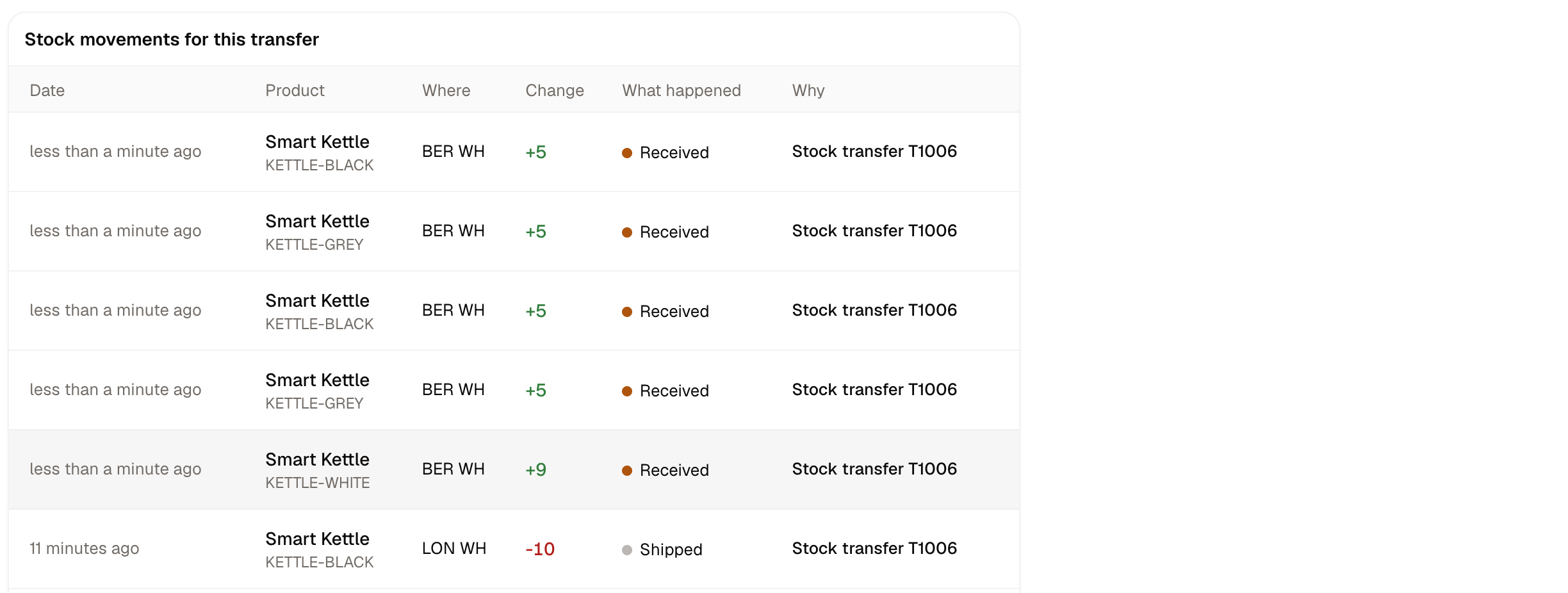
How to Cancel or Close a Transfer Short
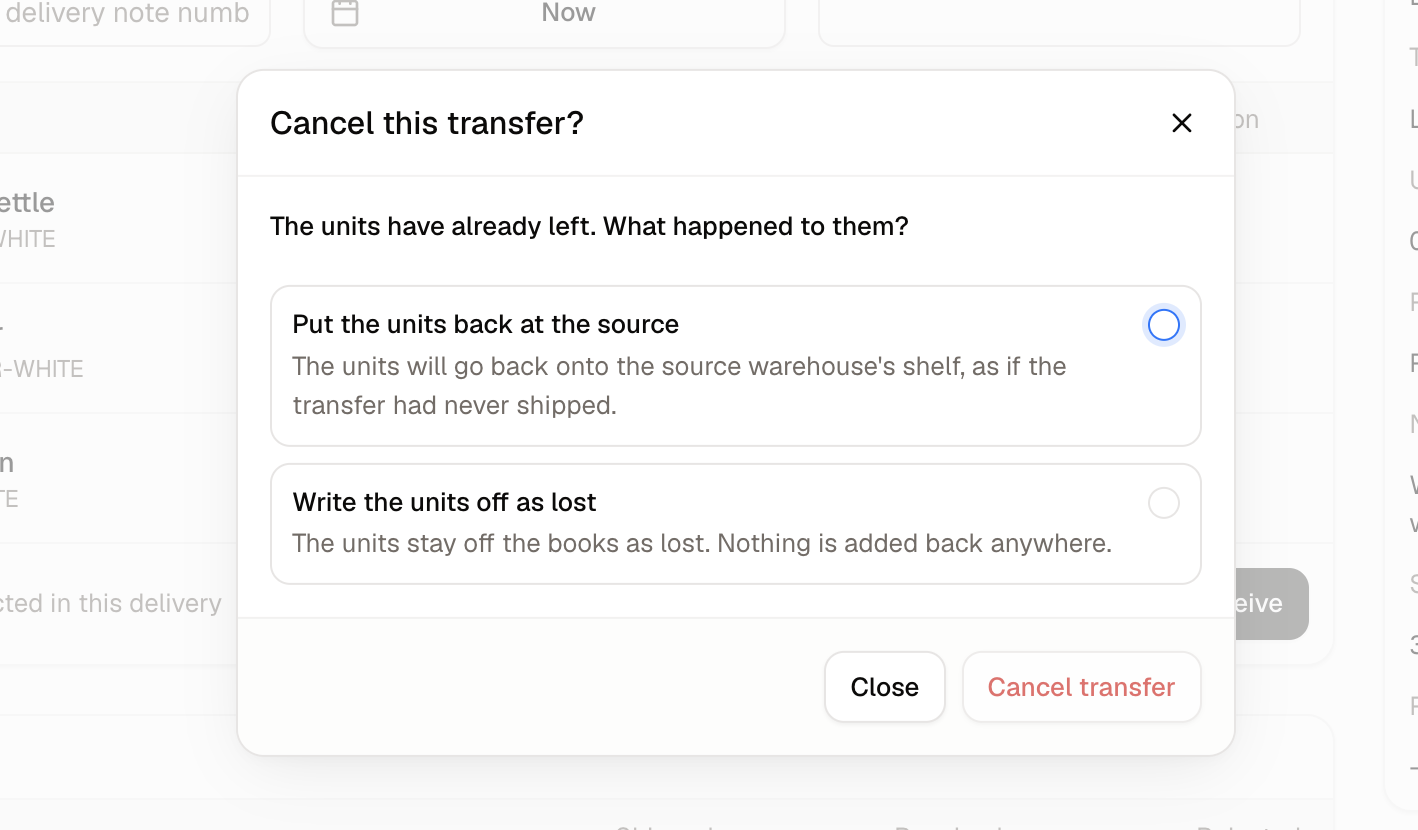
What cancelling does depends entirely on whether the stock has left yet. Before it ships, cancelling is clean. Spree confirms with “No stock has moved yet, so nothing will be reversed.” After it ships, the units are somewhere, and Spree asks you to say where. You choose between:- Put the units back at the source - The units go back onto the source warehouse’s shelf, as if the transfer had never shipped.
- Write the units off as lost - The units stay off the books as lost. Nothing is added back anywhere.
Further Reading
- Inventory - What you have at each location, and where transferred stock lands
- Purchase Orders - Buying stock from outside your business
- Stock Locations - Setting up the warehouses a transfer moves between