

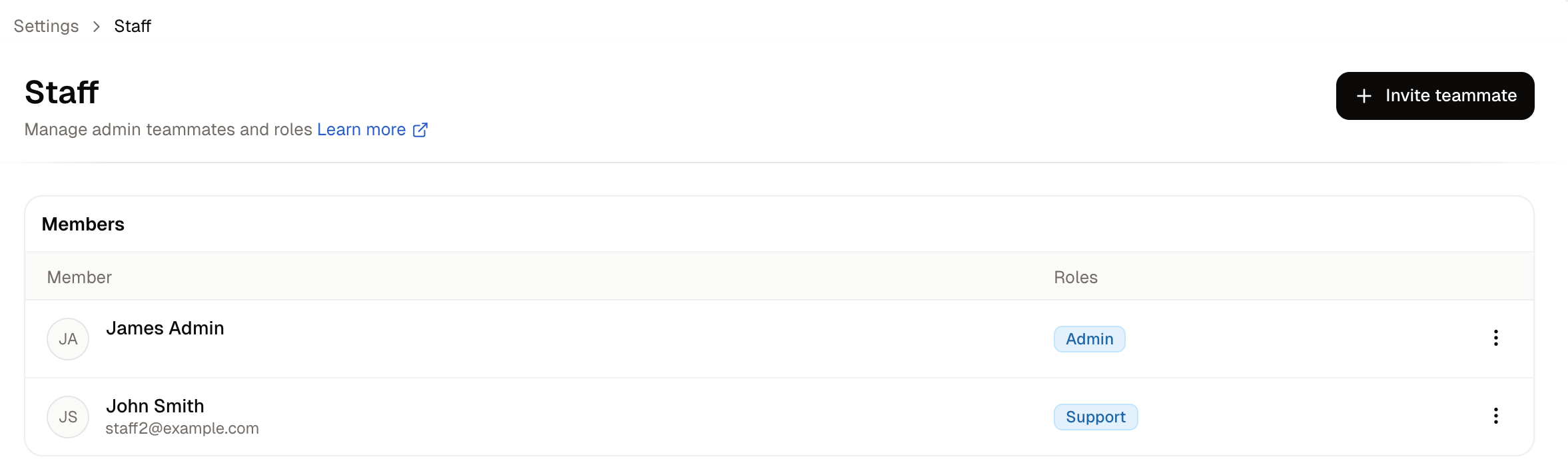
- Member - The person’s name and email address.
- Roles - One badge per role they hold.
How to Invite a Teammate
Click Invite teammate.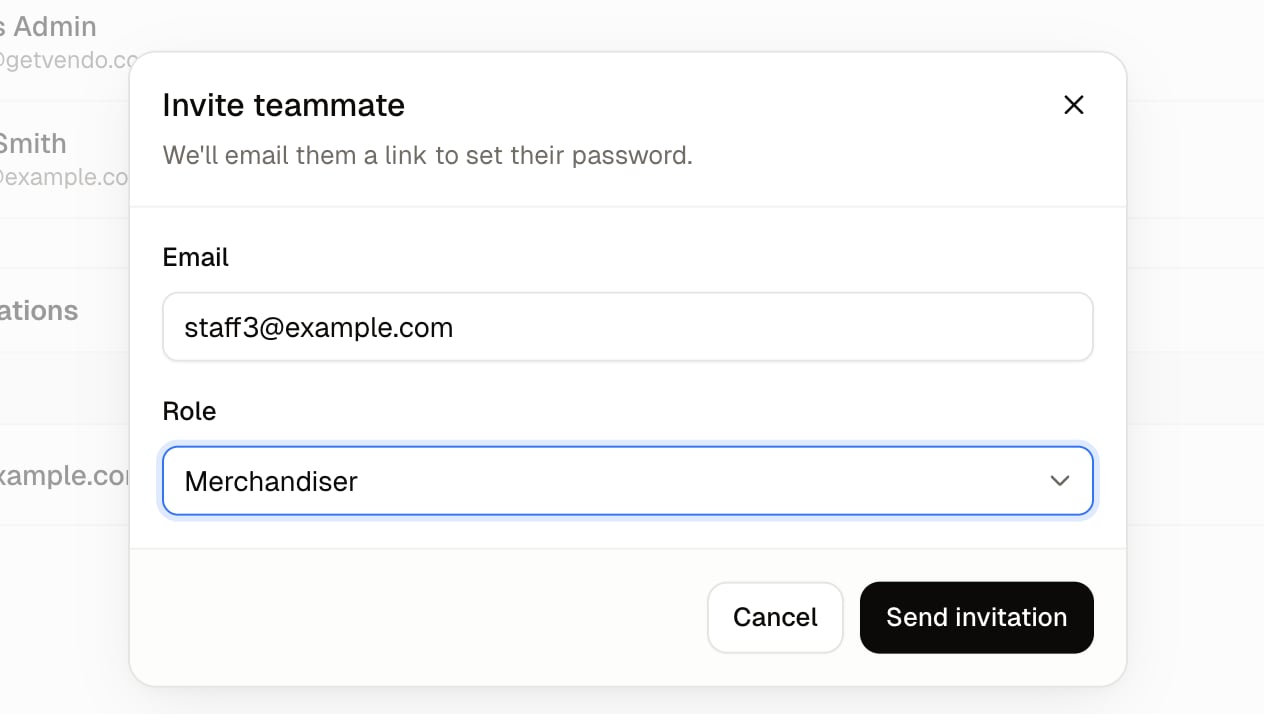
- Enter their work email address.
- Choose the Role they should have. The list is your store’s roles, so it grows as you create more.
- Click Send invitation.
The invitation offers a single Role while the table column reads Roles, plural. A person can hold several, so to give somebody a second role, invite them first and edit them afterwards.
Pending Invitations
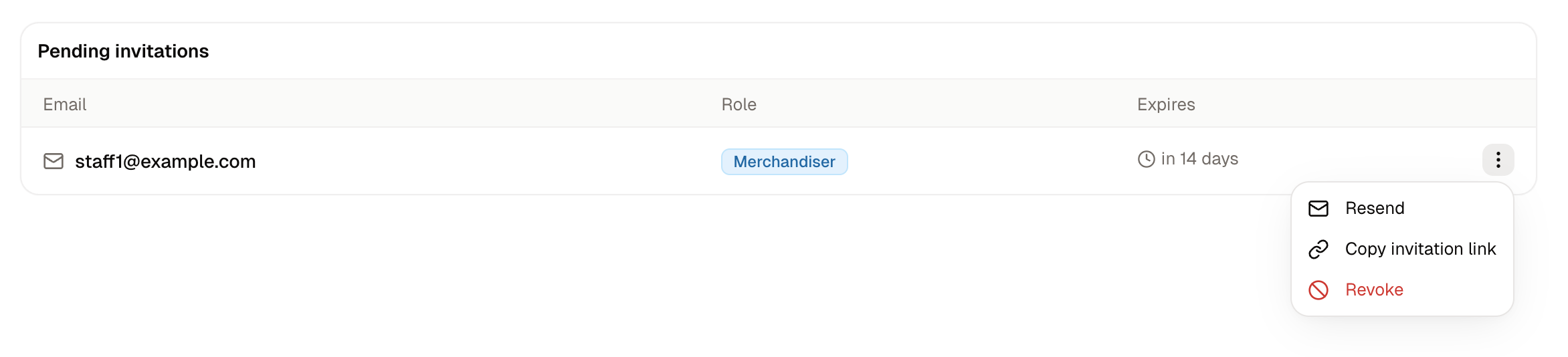
Invitations that have been sent but not yet accepted appear under Pending invitations. The row actions give you two options:- Resend - Sends the invitation email again, for anyone who has lost the original.
- Copy invitation link - Puts the link on your clipboard so you can pass it on yourself, which is useful when the email is not reaching them.
How to Edit a Teammate
Open the row actions on a teammate and choose Edit. A side panel opens where you can change:- First name and Last name - Correct a spelling, or update a name that has changed.
- Roles - Add a second role, swap one for another, or narrow somebody’s access after a change of job.