> ## Documentation Index
> Fetch the complete documentation index at: https://spreecommerce.org/docs/llms.txt
> Use this file to discover all available pages before exploring further.
# Order Adjustments
> Learn how to create and settle order adjustments in Spree Commerce.
# Order Adjustments
Order adjustments let you manually add a charge or credit to an existing order - ideal for handling things like special fees, discounts, or post-purchase updates.
## How to Create an Adjustment
To create an order adjustment, navigate to the **Orders** tab in the admin dashboard.
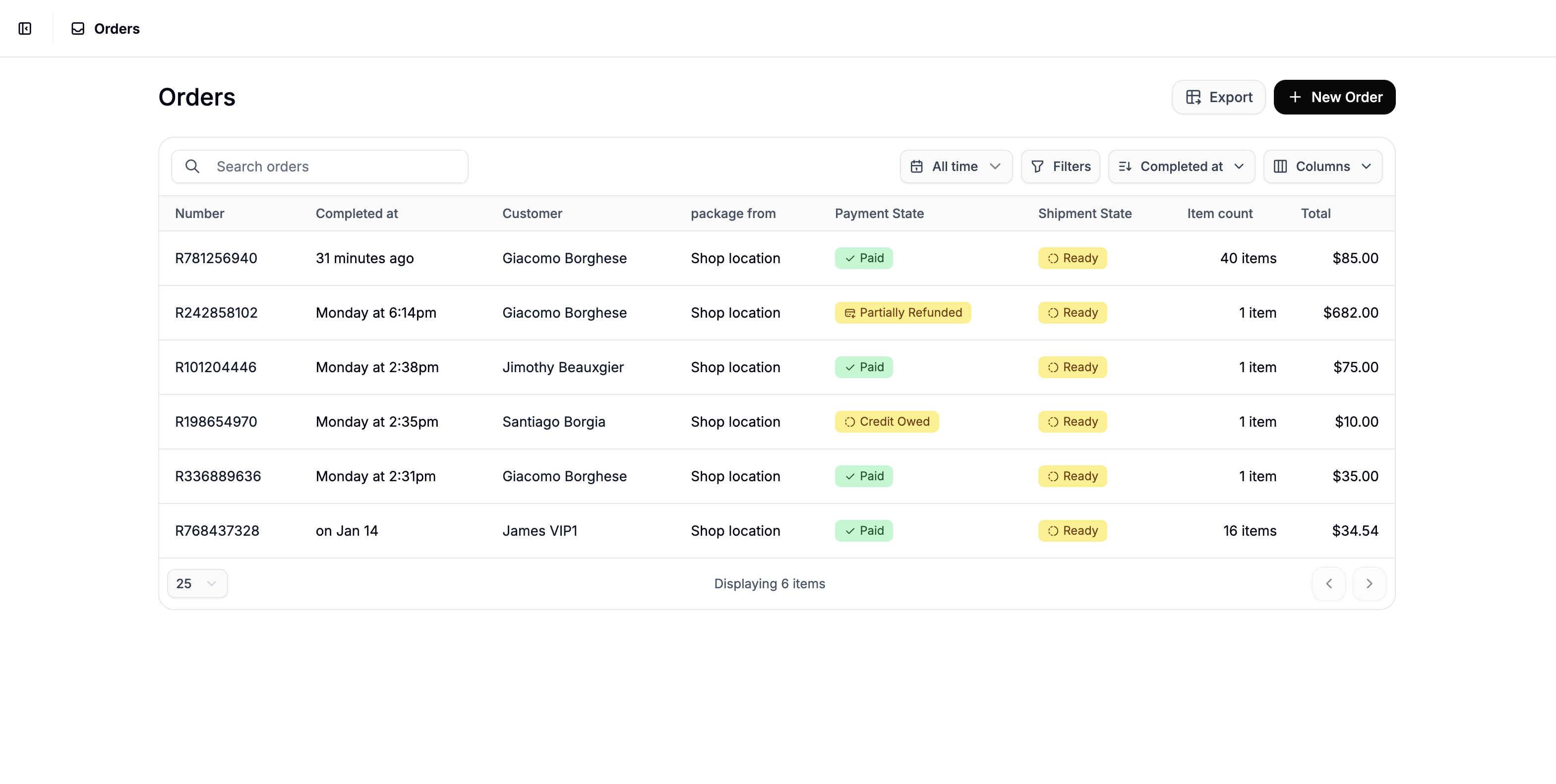 Find the order you'd like to adjust and click on it to open the order page.
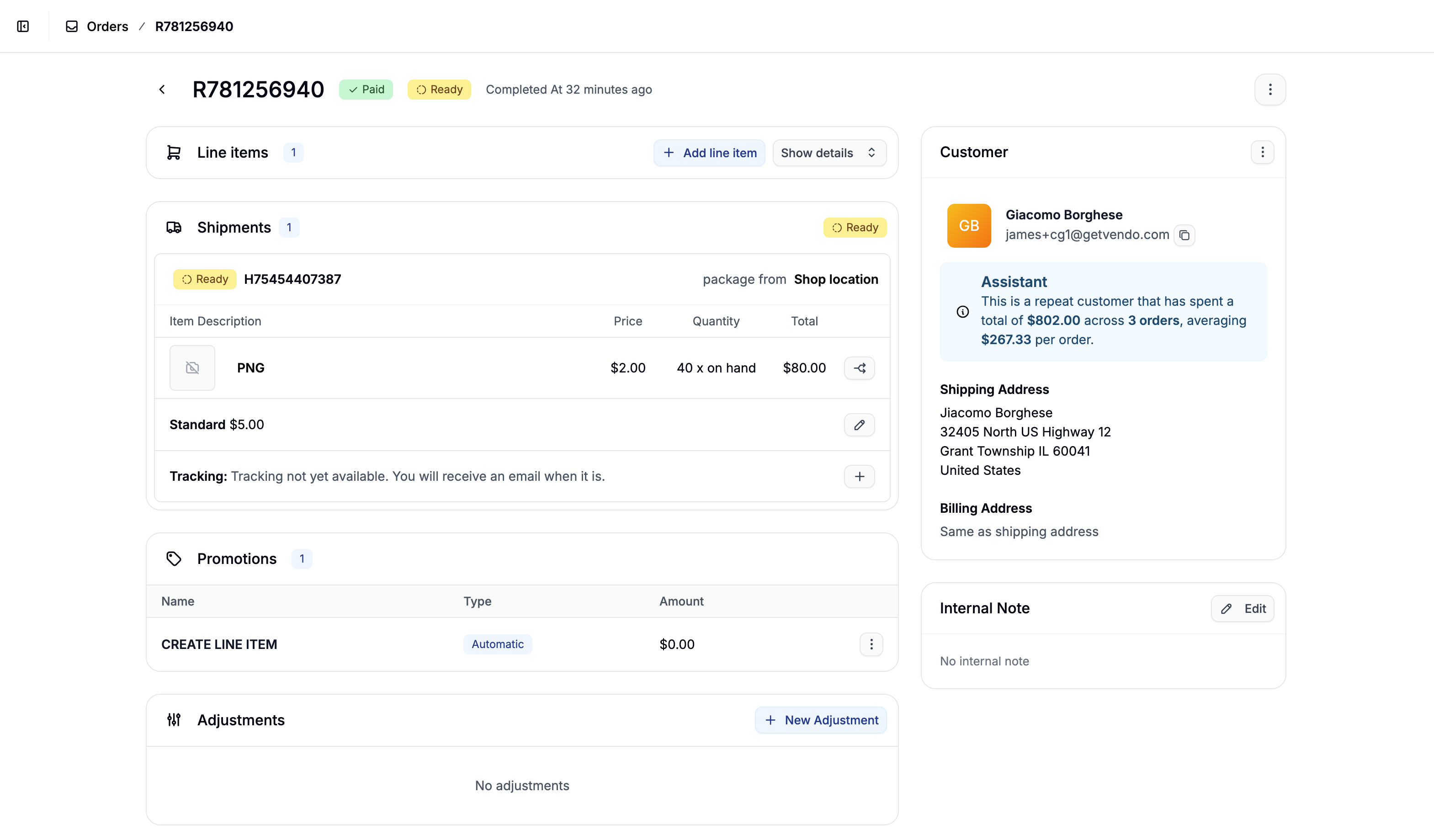 Scroll to the **Adjustments** section and click **New Adjustment** to open the adjustment creation form.
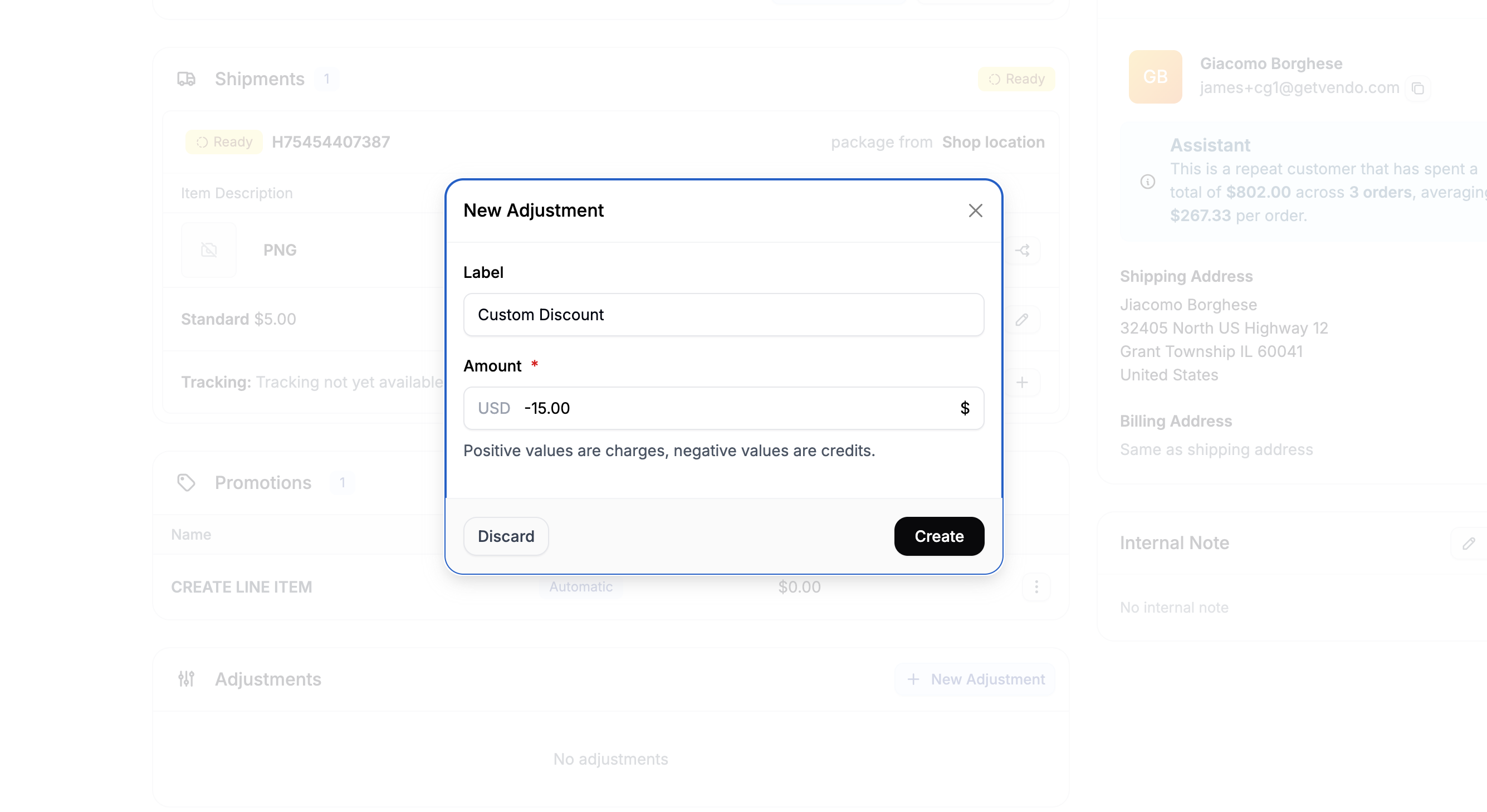 Fill out the form:
* **Label** - A name for the adjustment (e.g., "Custom Discount", "Packaging Fee")
* **Amount** - Use a **positive value** for a charge or a **negative value** for a credit.
Finally, click **Create** to add the new adjustment.
## Handling the Payment or Refund
Once the adjustment has been created, it will need to be settled manually. Depending on whether it’s a charge or credit, follow one of the steps below:
### Credit (Negative Amount)
To manually refund the adjustment amount, click the **three-dot menu** next to the payment and select **Refund**.
Fill out the form:
* **Label** - A name for the adjustment (e.g., "Custom Discount", "Packaging Fee")
* **Amount** - Use a **positive value** for a charge or a **negative value** for a credit.
Finally, click **Create** to add the new adjustment.
## Handling the Payment or Refund
Once the adjustment has been created, it will need to be settled manually. Depending on whether it’s a charge or credit, follow one of the steps below:
### Credit (Negative Amount)
To manually refund the adjustment amount, click the **three-dot menu** next to the payment and select **Refund**.
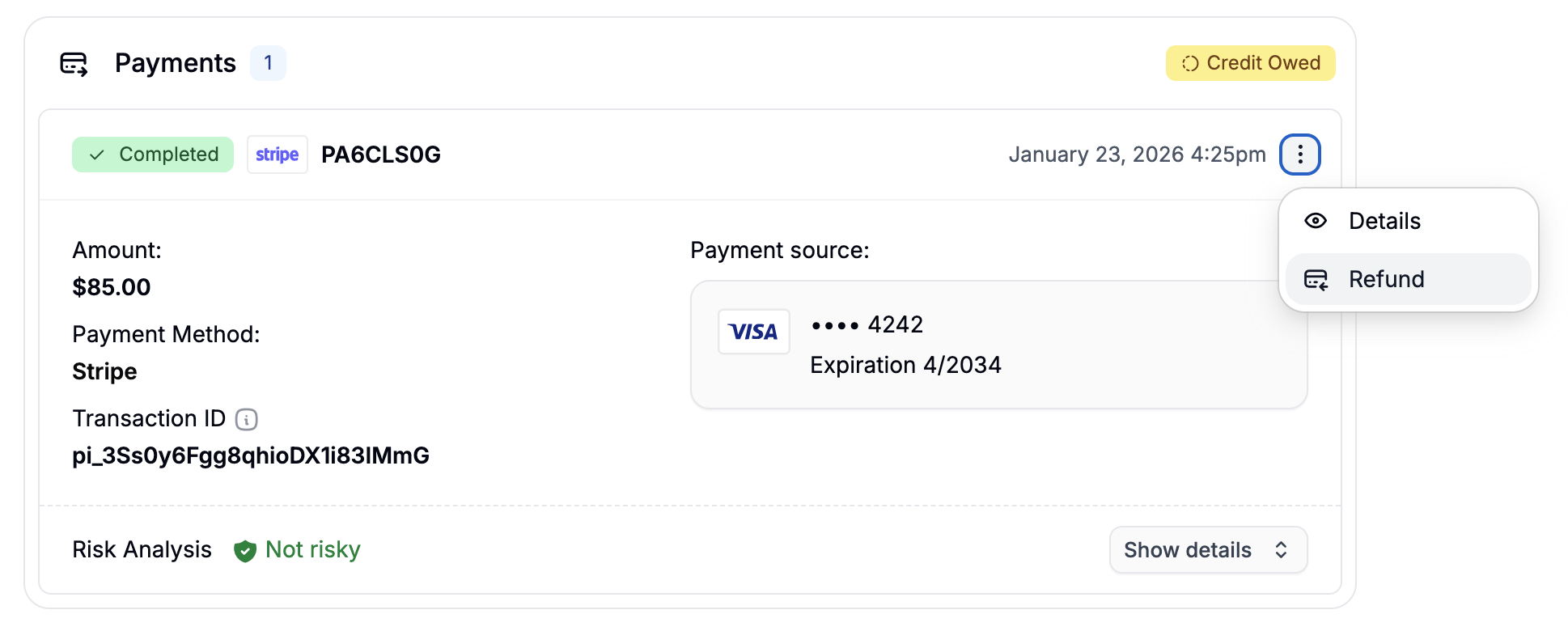 This will open a refund form where you can enter the amount to be refunded.
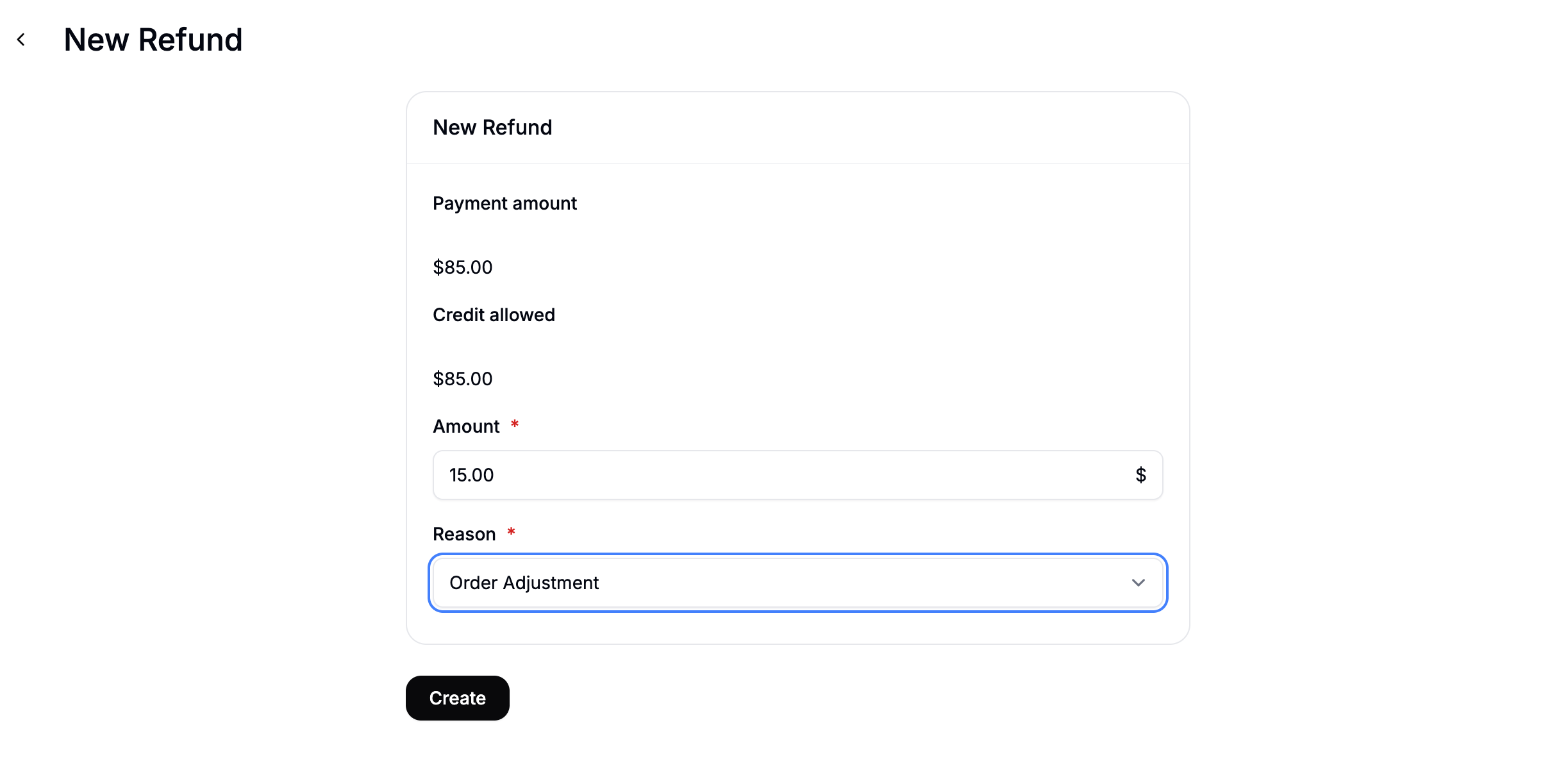 After entering the amount and selecting a refund reason, click **Create** to process the refund.
Refund behavior depends on the payment method used - some refunds can be processed automatically, while others may require manual handling.
### Charge (Positive Amount)
There are two methods to charge a customer in the event of a positive adjustment.
### Automatated Payment
To charge a customer, click **New Payment** in the Payments section.
After entering the amount and selecting a refund reason, click **Create** to process the refund.
Refund behavior depends on the payment method used - some refunds can be processed automatically, while others may require manual handling.
### Charge (Positive Amount)
There are two methods to charge a customer in the event of a positive adjustment.
### Automatated Payment
To charge a customer, click **New Payment** in the Payments section.
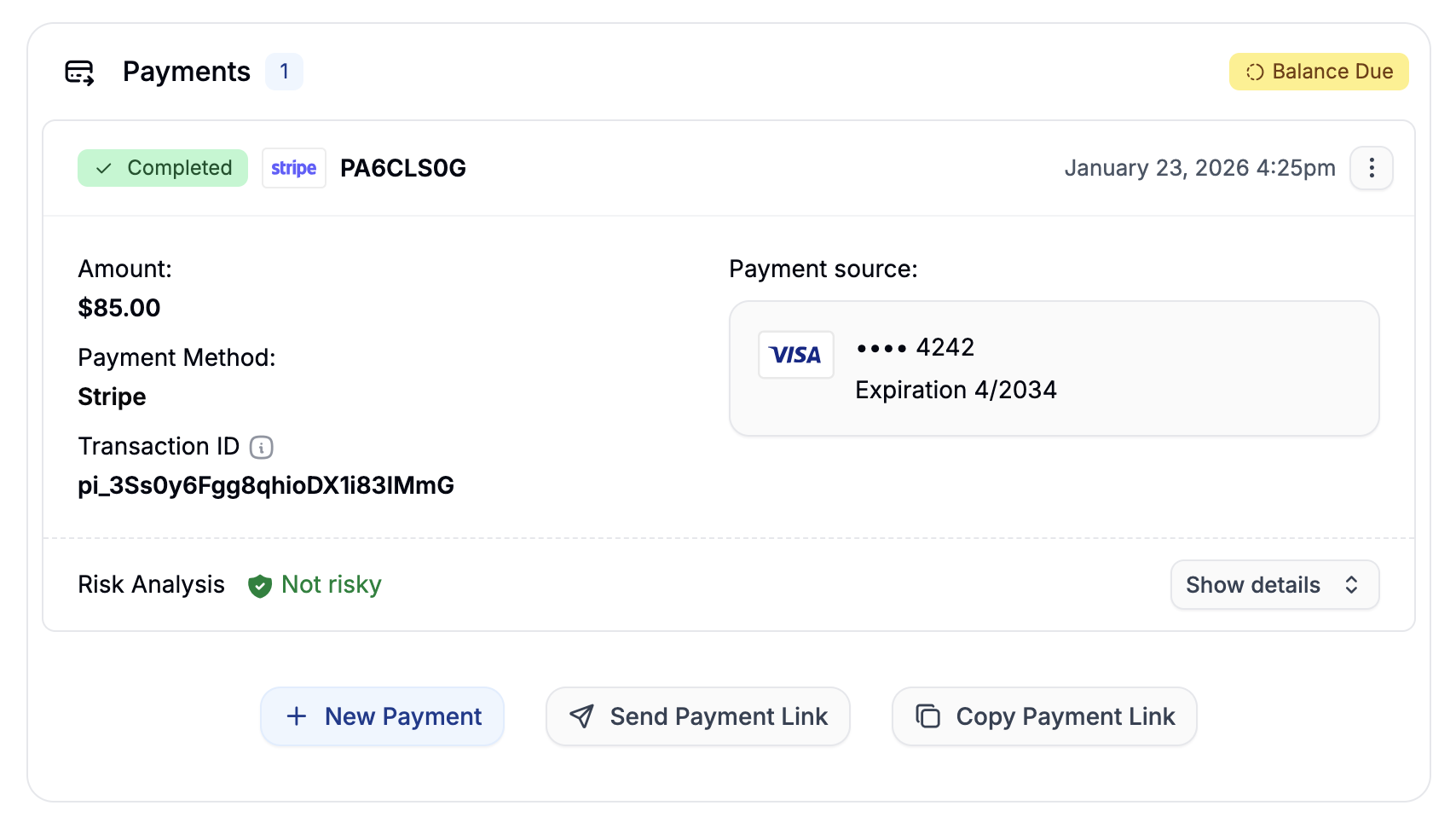 This will open the payment form where you can select the amount to charge the customer and the payment method to be charged.
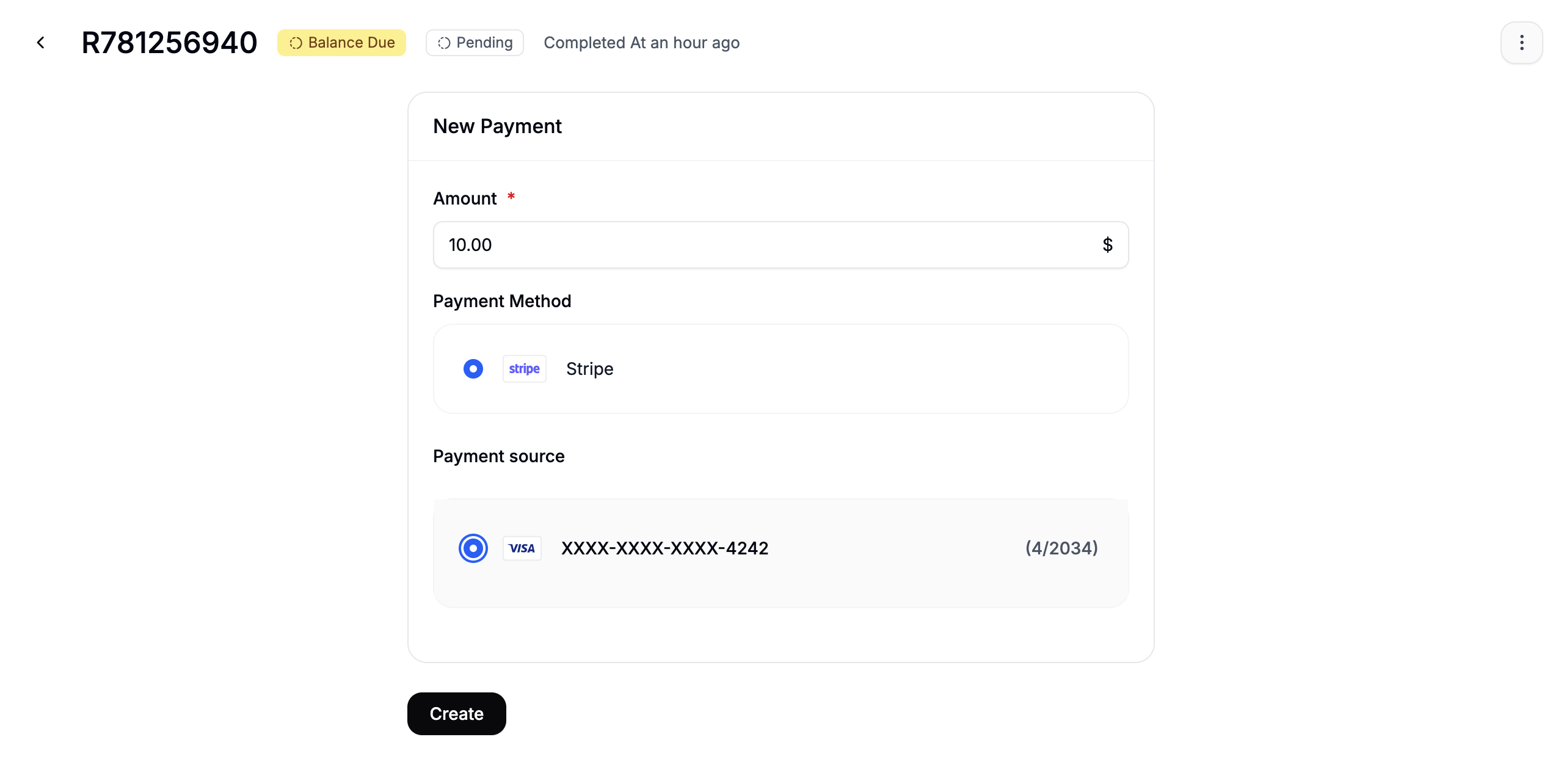 Click **Create** after entering the details. The customer’s payment method will then be automatically charged for the outstanding balance.
## Close the Adjustment
Once the adjustment has been handled, click the **three-dot menu** next to the adjustment, and select **Close** to mark the adjustment as finalized.
Click **Create** after entering the details. The customer’s payment method will then be automatically charged for the outstanding balance.
## Close the Adjustment
Once the adjustment has been handled, click the **three-dot menu** next to the adjustment, and select **Close** to mark the adjustment as finalized.
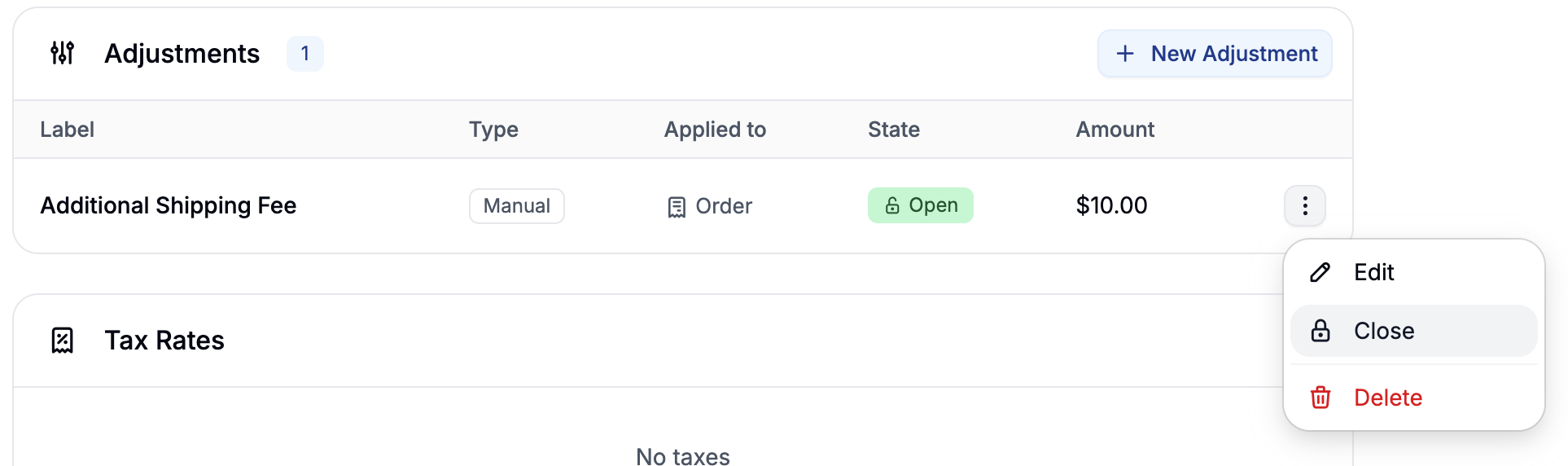 Closing an adjustment helps track which ones have been settled, especially when managing refunds or manual charges.