> ## Documentation Index
> Fetch the complete documentation index at: https://spreecommerce.org/docs/llms.txt
> Use this file to discover all available pages before exploring further.
# Vendor Payouts
> Learn how to set and override vendor payout schedules across your multi-vendor marketplace in Spree Commerce.
Multi-vendor capabilities are only available in Spree Enterprise Edition.
Vendor payout scheduling is a Stripe Connect feature. If your marketplace is configured with a different payment provider, the payout schedule controls described below won't be available in your admin or vendor dashboards.
Vendor payouts are how your vendors actually receive the money they've earned from sales on your marketplace. Spree's payout flow runs through Stripe Connect, which means once a vendor has connected their Stripe account during onboarding, they'll be paid automatically on whatever schedule you've configured — no manual transfers, no chasing invoices.
Like with [commission rates](https://spreecommerce.org/docs/user/vendors/commission-rates), one fixed schedule rarely suits every vendor. Some may want frequent payouts to manage cash flow, others may prefer larger, less frequent transfers. Spree lets you set a marketplace-wide default and override it per vendor as needed.
## 1. Default Marketplace Payout Schedule
The default payout schedule applies to every vendor whose schedule is set to **Use marketplace default interval**. It's configured under **Settings → Marketplace** and serves as the fallback for everyone who hasn't opted into a custom schedule.
See [Marketplace Configuration](https://spreecommerce.org/docs/user/settings/marketplace) for details on setting and updating the default schedule.
Changing the default also updates the payout schedule for any existing vendors who are still on the marketplace default. Vendors who've chosen a specific schedule of their own won't be affected.
## 2. Vendor-Specific Payout Schedule
You can override the payout schedule for individual vendors directly from their vendor profile — useful when a particular vendor has cash flow needs that differ from the rest of your marketplace.
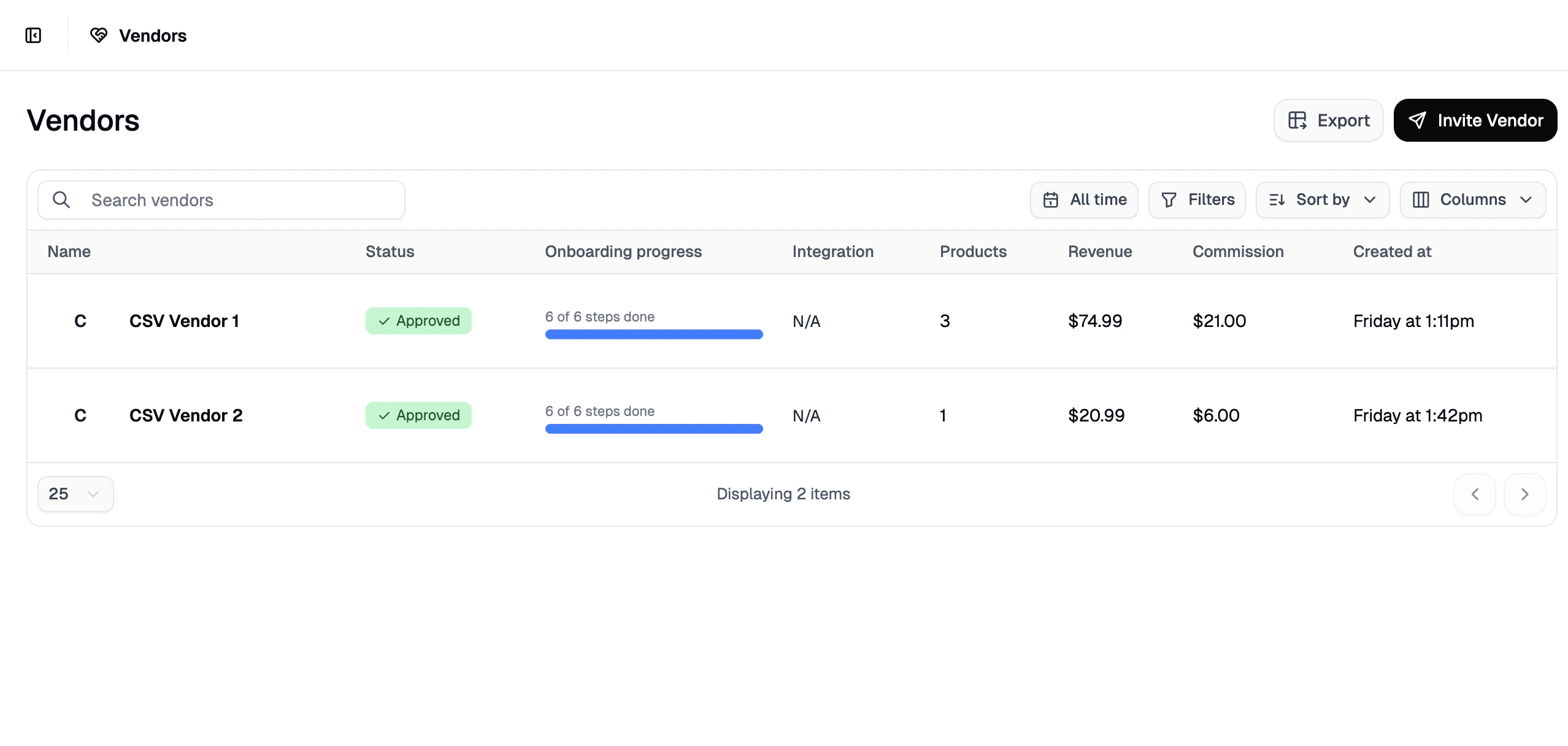
Navigate to **Vendors** in the admin dashboard and click on the vendor you'd like to update.
 Scroll down to the **Payments & Payouts** section of the vendor profile and choose a payout schedule from the dropdown.
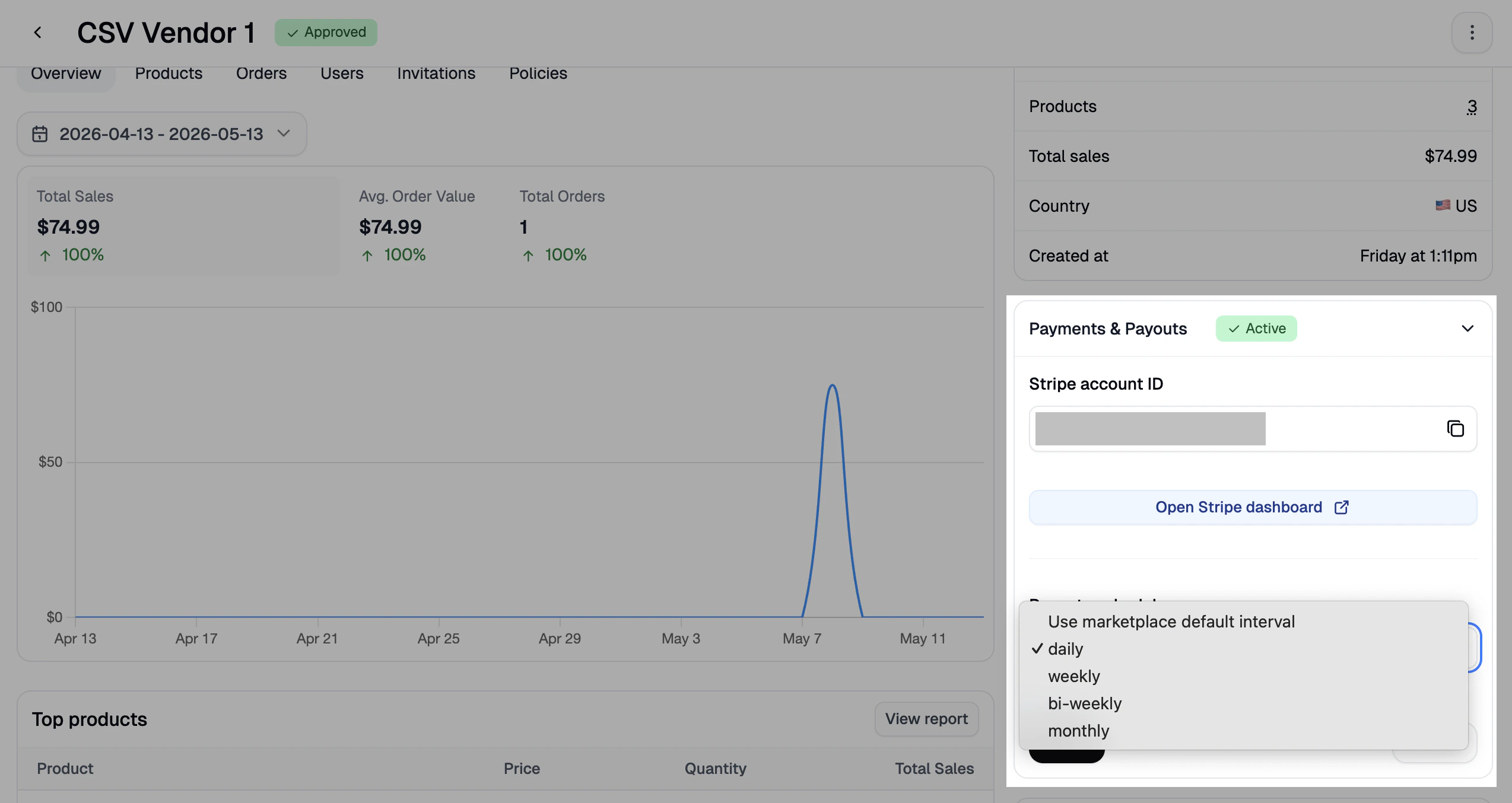 The available options are:
* **Use marketplace default interval** - the vendor follows whatever default is configured under Settings → Marketplace.
* **Daily** - payouts are issued every business day.
* **Weekly** - payouts are issued once per week.
* **Bi-weekly** - payouts are issued every two weeks.
* **Monthly** - payouts are issued once per month.
Click **Update** at the bottom of the page to save your changes.
If you set a vendor to a specific schedule (anything other than **Use marketplace default interval**), future changes to the marketplace default will no longer affect them. To bring them back in line, set them back to **Use marketplace default interval**.
## Which Schedule Applies?
When a payout is processed, Spree applies the most specific schedule available, in the following order:
1. **Vendor-specific schedule** — if set to a specific interval, this wins.
2. **Marketplace default schedule** — used whenever a vendor is set to **Use marketplace default interval**.
## Next Steps
For more on how vendors connect their Stripe accounts during onboarding (which is what makes automated payouts possible), see the relevant onboarding doc:
* [Shopify Vendor Onboarding](https://spreecommerce.org/docs/user/vendors/vendor-onboarding-shopify)
* [WooCommerce Vendor Onboarding](https://spreecommerce.org/docs/user/vendors/vendor-onboarding-woocommerce)
* [Manual/CSV Vendor Onboarding](https://spreecommerce.org/docs/user/vendors/vendor-onboarding-manual)
The available options are:
* **Use marketplace default interval** - the vendor follows whatever default is configured under Settings → Marketplace.
* **Daily** - payouts are issued every business day.
* **Weekly** - payouts are issued once per week.
* **Bi-weekly** - payouts are issued every two weeks.
* **Monthly** - payouts are issued once per month.
Click **Update** at the bottom of the page to save your changes.
If you set a vendor to a specific schedule (anything other than **Use marketplace default interval**), future changes to the marketplace default will no longer affect them. To bring them back in line, set them back to **Use marketplace default interval**.
## Which Schedule Applies?
When a payout is processed, Spree applies the most specific schedule available, in the following order:
1. **Vendor-specific schedule** — if set to a specific interval, this wins.
2. **Marketplace default schedule** — used whenever a vendor is set to **Use marketplace default interval**.
## Next Steps
For more on how vendors connect their Stripe accounts during onboarding (which is what makes automated payouts possible), see the relevant onboarding doc:
* [Shopify Vendor Onboarding](https://spreecommerce.org/docs/user/vendors/vendor-onboarding-shopify)
* [WooCommerce Vendor Onboarding](https://spreecommerce.org/docs/user/vendors/vendor-onboarding-woocommerce)
* [Manual/CSV Vendor Onboarding](https://spreecommerce.org/docs/user/vendors/vendor-onboarding-manual)