> ## Documentation Index
> Fetch the complete documentation index at: https://spreecommerce.org/docs/llms.txt
> Use this file to discover all available pages before exploring further.
# Commission Rates
> Learn how to set and override commission rates across your multi-vendor marketplace in Spree Commerce.
Multi-vendor capabilities are only available in Spree Enterprise Edition.
Your commission rate is the percentage of each sale that your marketplace retains from a vendor's revenue — it's how the marketplace itself makes money, so getting it right matters. But "right" rarely means a single rate that fits every vendor and every product, which is why Spree lets you set commission rates at three different levels.
You can start with a single default rate for the whole marketplace, override it for specific vendors when you bring them on, and then fine-tune it even further at the individual product level. The most specific rule always wins, so you can layer overrides confidently without worrying about conflicts.
## 1. Default Marketplace Commission Rate
The default rate is the baseline that applies to every newly invited vendor unless overridden. It's configured under **Settings → Marketplace** and is the rate every other level falls back on.
See [Marketplace Configuration](https://spreecommerce.org/docs/user/settings/marketplace) for details on setting and updating the default.
Changing the default rate only applies to vendors invited after the change — existing vendors keep their current rate. To update an existing vendor, use one of the vendor-specific methods below.
## 2. Vendor-Specific Commission Rate
You can set a custom commission rate for individual vendors in two ways: during the invitation flow, or from the vendor's profile after they've been invited.
### When Inviting a Vendor
For WooCommerce and Manual/CSV vendors, the Invite Vendor form includes a **Commission Rate** field where you can set the rate at the same time you send the invitation. This is the easiest way to onboard a vendor on a custom rate from day one.
See [WooCommerce Vendor Onboarding](https://spreecommerce.org/docs/user/vendors/vendor-onboarding-woocommerce) or [Manual/CSV Vendor Onboarding](https://spreecommerce.org/docs/user/vendors/vendor-onboarding-manual) for the full invitation flow.
Shopify vendors don't go through the email invitation flow, so commission rates for Shopify vendors are set from the vendor profile after they've signed up. See the next section.
### From the Vendor Profile
For existing vendors (and for Shopify vendors), you can update the commission rate at any time from their vendor profile.
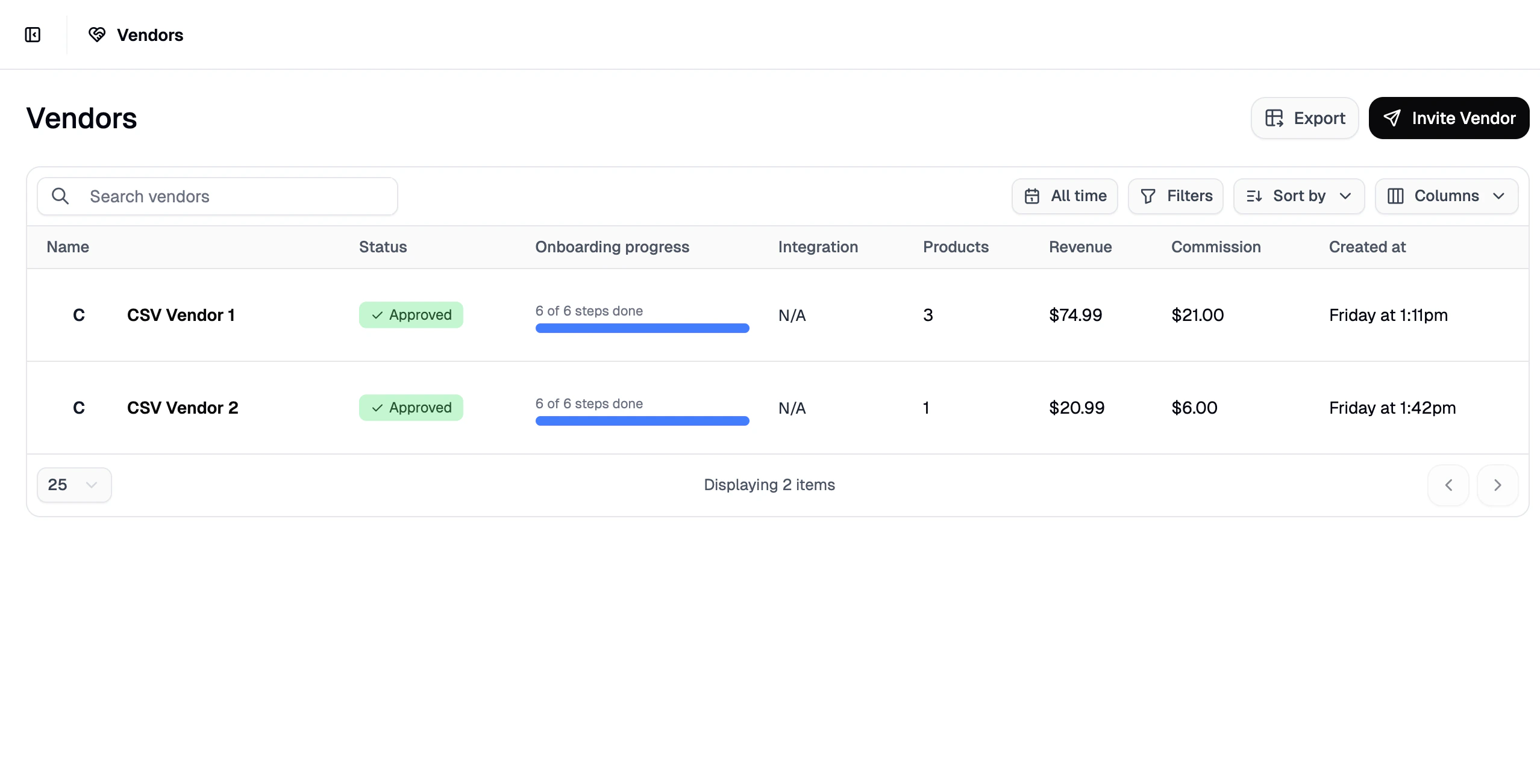
Navigate to **Vendors** in the admin dashboard and click on the vendor you'd like to update.
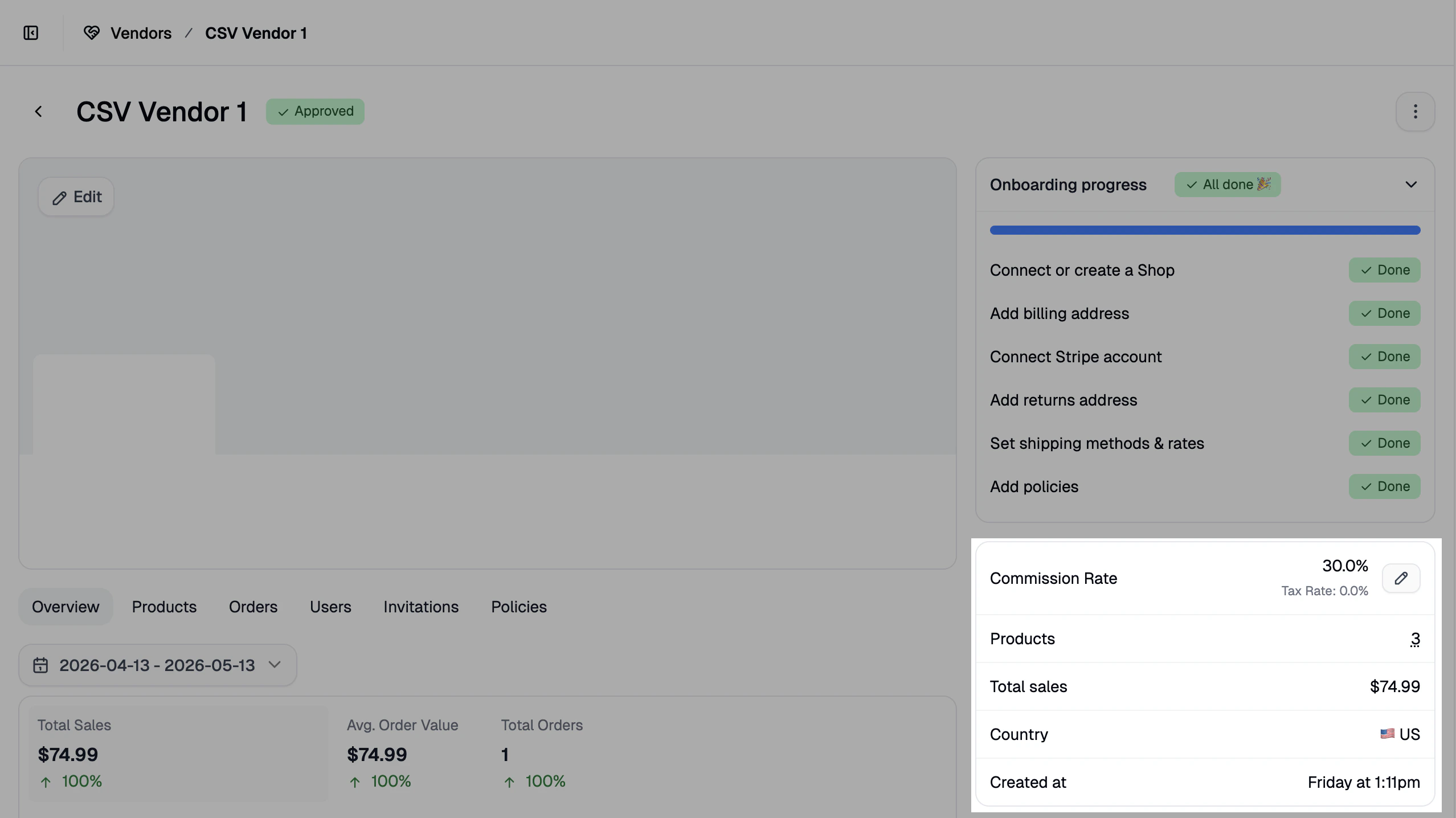
 Find the **Commission Rate** field on the vendor profile page and update it to the new percentage.
 Click **Update** at the bottom of the page to save your changes.
## 3. Product-Specific Commission Rate
For the most granular control, you can override the commission rate on individual products — useful when a vendor's catalog includes items with very different margins, or when you've struck a deal on a specific product with a vendor.
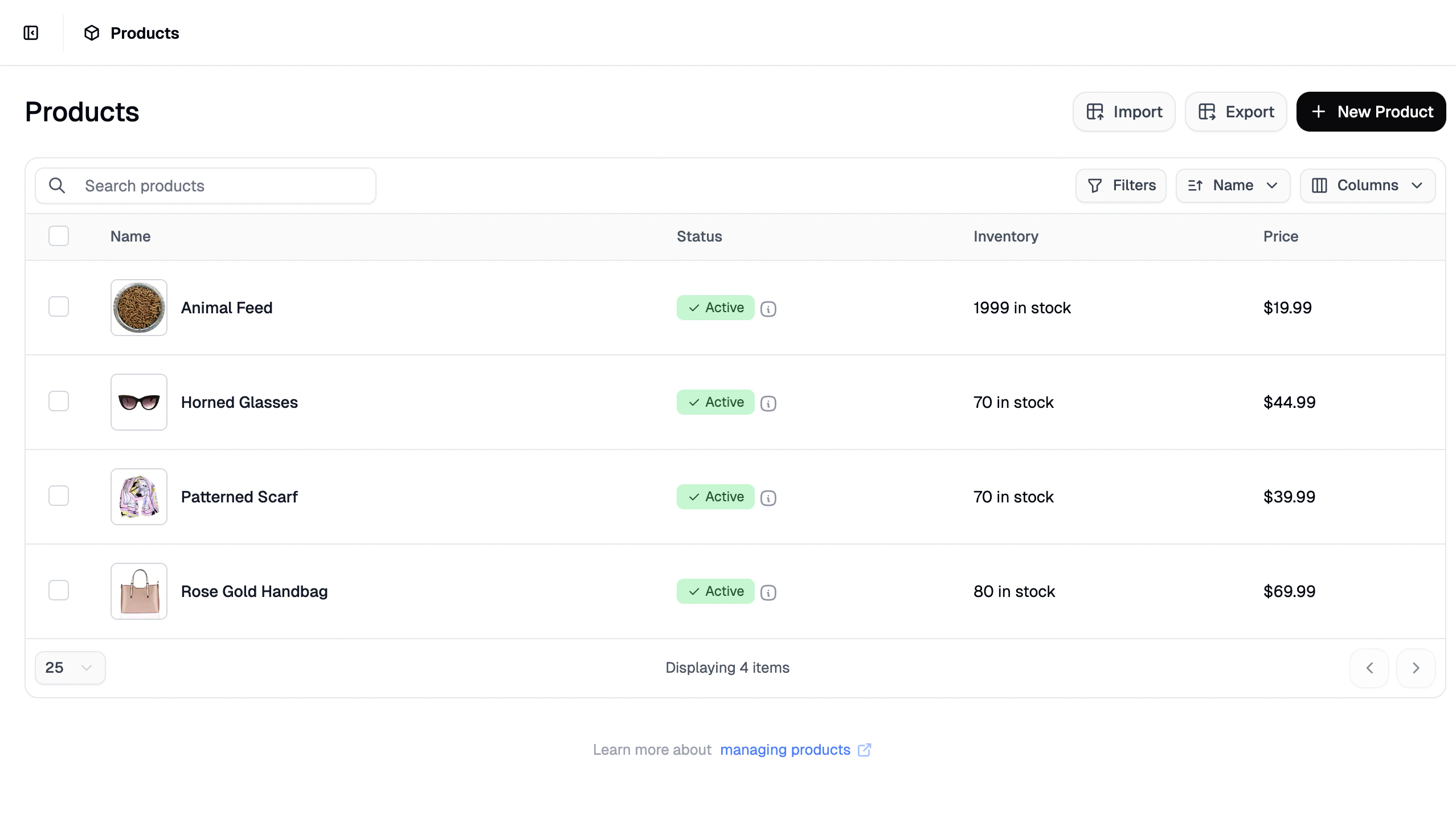
Navigate to **Products** in the admin dashboard and open the product you'd like to update.
Click **Update** at the bottom of the page to save your changes.
## 3. Product-Specific Commission Rate
For the most granular control, you can override the commission rate on individual products — useful when a vendor's catalog includes items with very different margins, or when you've struck a deal on a specific product with a vendor.
Navigate to **Products** in the admin dashboard and open the product you'd like to update.
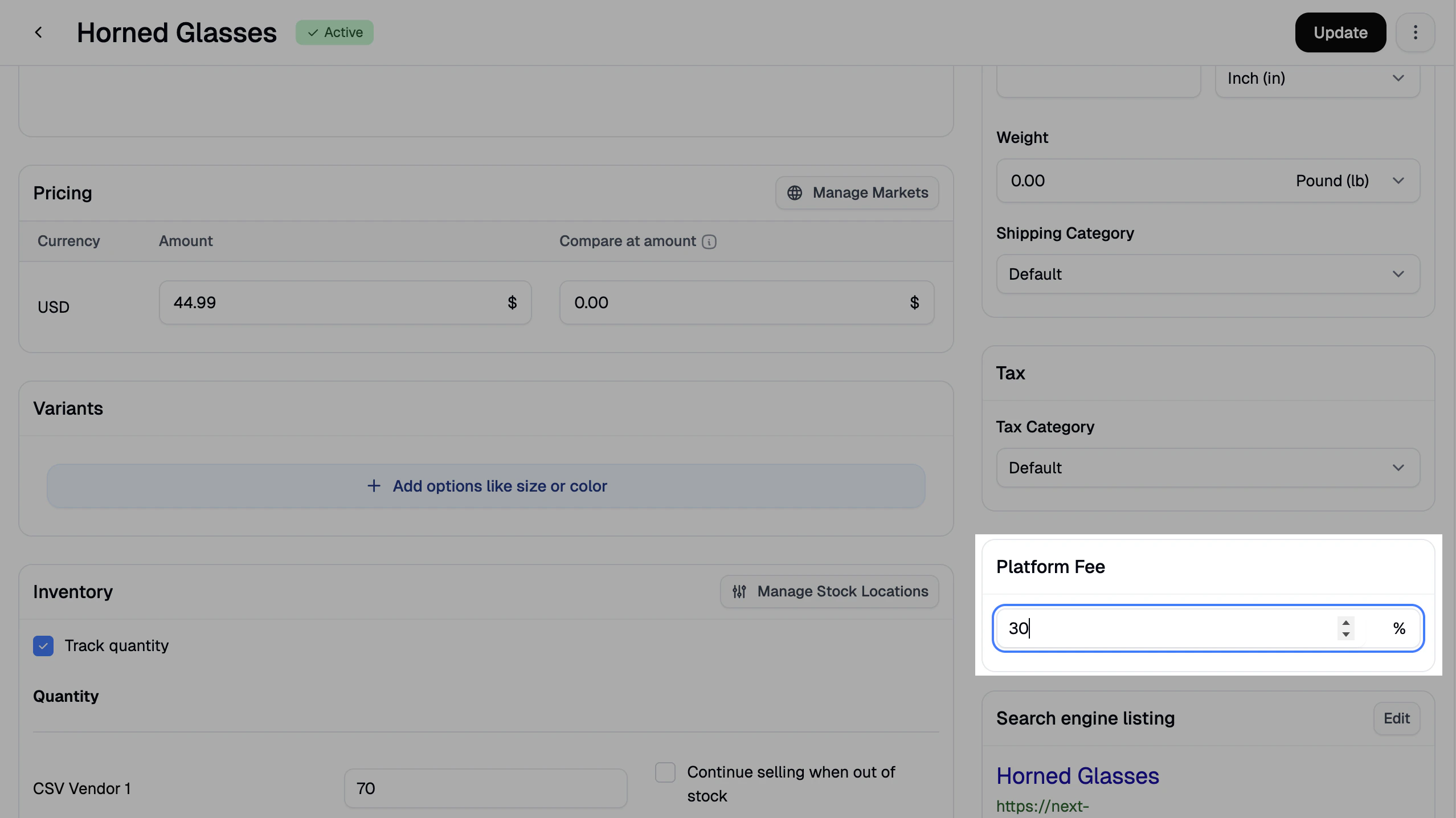
 Scroll down to the **Platform Fee** section of the product editor and update the commission rate.
 Click **Update** at the bottom of the page to save your changes.
A product-specific commission rate overrides both the vendor-specific rate and the marketplace default for that product.
## Which Rate Applies?
When a sale is processed, Spree applies the most specific commission rate available, in the following order:
1. **Product-specific rate** — if set on the product, this wins.
2. **Vendor-specific rate** — if no product rate is set, the vendor's rate is used.
3. **Marketplace default rate** — if neither of the above is set, the default applies.
This means you can keep your overrides minimal — only set them where you genuinely need to deviate from the rate above.
Click **Update** at the bottom of the page to save your changes.
A product-specific commission rate overrides both the vendor-specific rate and the marketplace default for that product.
## Which Rate Applies?
When a sale is processed, Spree applies the most specific commission rate available, in the following order:
1. **Product-specific rate** — if set on the product, this wins.
2. **Vendor-specific rate** — if no product rate is set, the vendor's rate is used.
3. **Marketplace default rate** — if neither of the above is set, the default applies.
This means you can keep your overrides minimal — only set them where you genuinely need to deviate from the rate above.