> ## Documentation Index
> Fetch the complete documentation index at: https://spreecommerce.org/docs/llms.txt
> Use this file to discover all available pages before exploring further.
# Tax Categories
> Learn how to create and manage tax categories in Spree — the tax classes you assign to products.
A **tax category** is a tax class you assign to products. It does not set a percentage itself; it groups products by how they should be taxed, and a [tax rate](/docs/user/settings/tax-rates) then names the category and supplies the figure.
To manage tax categories, navigate to **Settings → Tax categories**, under the **Selling** group.
 Tax categories organize your products based on how they're taxed.
For example, if you sell both clothing and electronics, you might create a **Clothing** category taxed at a reduced or exempt rate (common in regions where apparel gets special tax treatment) and a **Standard** category for electronics taxed at the full rate — each product is then assigned to whichever category matches how it should be taxed.
A product variant can only be assigned one tax category at a time.
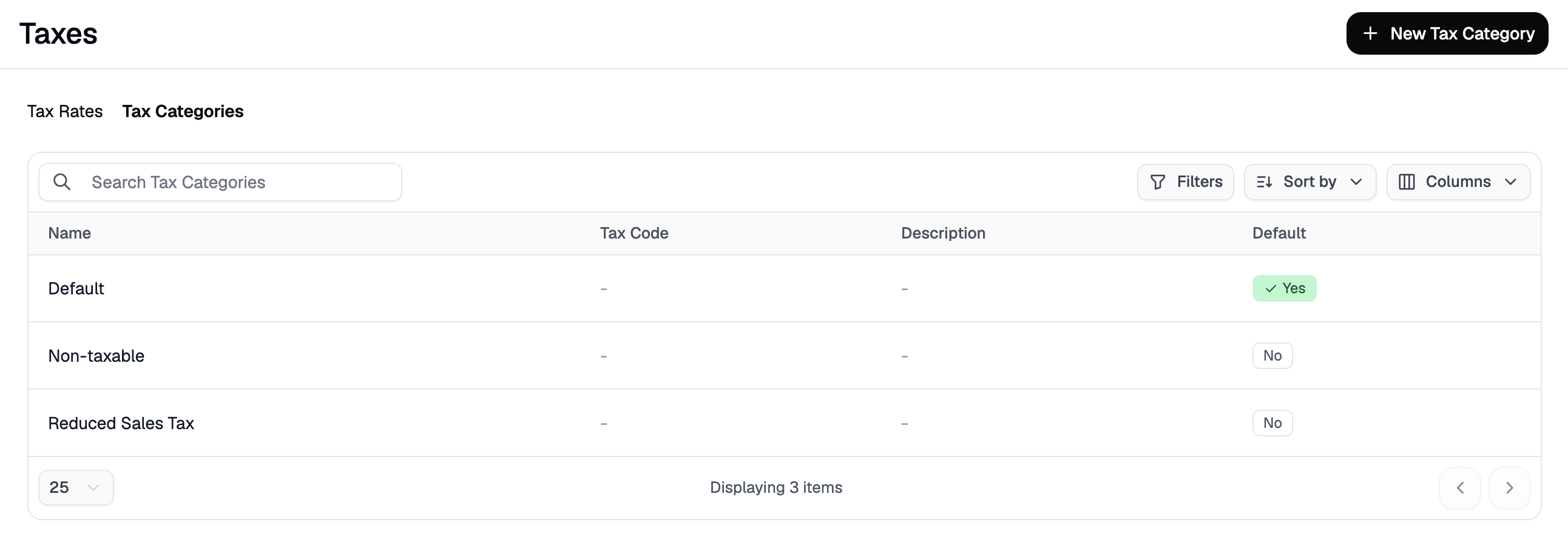
The Tax Categories overview displays all existing tax categories with key information such as:
* **Name**: e.g., Standard, Reduced, Exempt
* **Tax Code**: Optional code for integrations or accounting
* **Description**: Internal notes on what this category covers
* **Default**: Whether this is the default category for new products
From here, you can add new tax categories or edit existing ones.
## Add a New Tax Category
To add a new tax category, click **New Tax Category** in the top-right corner. You'll be taken to the tax category creation form.
Tax categories organize your products based on how they're taxed.
For example, if you sell both clothing and electronics, you might create a **Clothing** category taxed at a reduced or exempt rate (common in regions where apparel gets special tax treatment) and a **Standard** category for electronics taxed at the full rate — each product is then assigned to whichever category matches how it should be taxed.
A product variant can only be assigned one tax category at a time.
The Tax Categories overview displays all existing tax categories with key information such as:
* **Name**: e.g., Standard, Reduced, Exempt
* **Tax Code**: Optional code for integrations or accounting
* **Description**: Internal notes on what this category covers
* **Default**: Whether this is the default category for new products
From here, you can add new tax categories or edit existing ones.
## Add a New Tax Category
To add a new tax category, click **New Tax Category** in the top-right corner. You'll be taken to the tax category creation form.
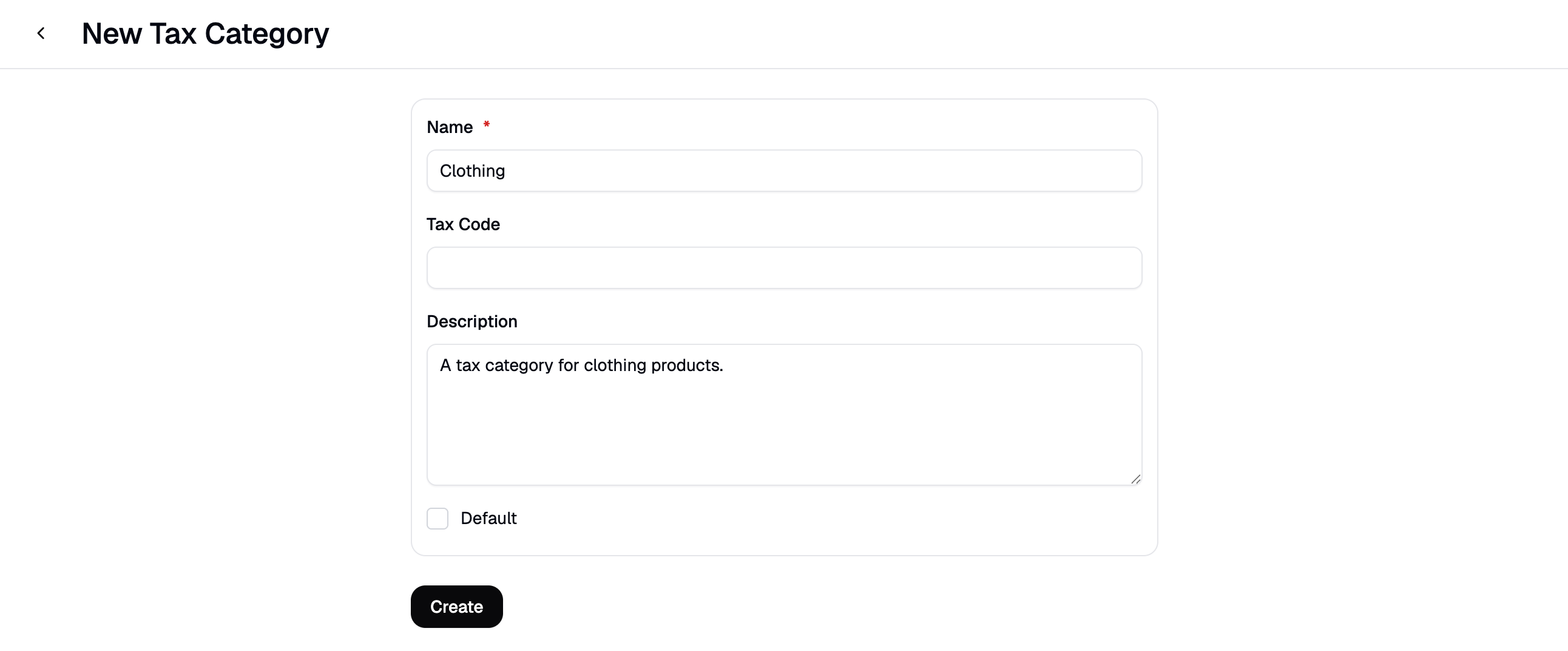 Fill in the form with the relevant information:
* **Name** — A label for this tax category, e.g., Standard, Reduced, or Exempt.
* **Tax Code** — An optional code used by integrations or your accounting system to classify this category.
* **Description** — Optional internal notes on what this category covers.
* **Default** — Whether new products should automatically be assigned this tax category.
Once the data has been entered, click **Create** to save the new tax category.
This category will now be available for assignment to products and tax rates.
A tax category charges nothing on its own. Until a tax rate names it, products carrying it are not taxed.
## Edit a Tax Category
To edit a tax category, click its row in the Tax Categories overview, update the fields as needed, then click **Update** to save your changes.
You can switch the default tax category if needed, but only one can be default at a time.
## Delete a Tax Category
To delete a tax category, open its edit form and click **Delete** in the lower-right corner.
## Related
* [Settings → Tax Rates](/docs/user/settings/tax-rates)
* [Settings → Markets](/docs/user/settings/markets)
Fill in the form with the relevant information:
* **Name** — A label for this tax category, e.g., Standard, Reduced, or Exempt.
* **Tax Code** — An optional code used by integrations or your accounting system to classify this category.
* **Description** — Optional internal notes on what this category covers.
* **Default** — Whether new products should automatically be assigned this tax category.
Once the data has been entered, click **Create** to save the new tax category.
This category will now be available for assignment to products and tax rates.
A tax category charges nothing on its own. Until a tax rate names it, products carrying it are not taxed.
## Edit a Tax Category
To edit a tax category, click its row in the Tax Categories overview, update the fields as needed, then click **Update** to save your changes.
You can switch the default tax category if needed, but only one can be default at a time.
## Delete a Tax Category
To delete a tax category, open its edit form and click **Delete** in the lower-right corner.
## Related
* [Settings → Tax Rates](/docs/user/settings/tax-rates)
* [Settings → Markets](/docs/user/settings/markets)