> ## Documentation Index
> Fetch the complete documentation index at: https://spreecommerce.org/docs/llms.txt
> Use this file to discover all available pages before exploring further.
# Store Details
> Learn how to configure your store's core settings in Spree Commerce.
The Store Details section is where you define your store's identity and core operational
preferences — from its name and logo to timezones, units of measurement, and how digital
downloads are handled.
To configure these settings, navigate to **Settings → Store Details** in the admin dashboard.
## Name & Logo
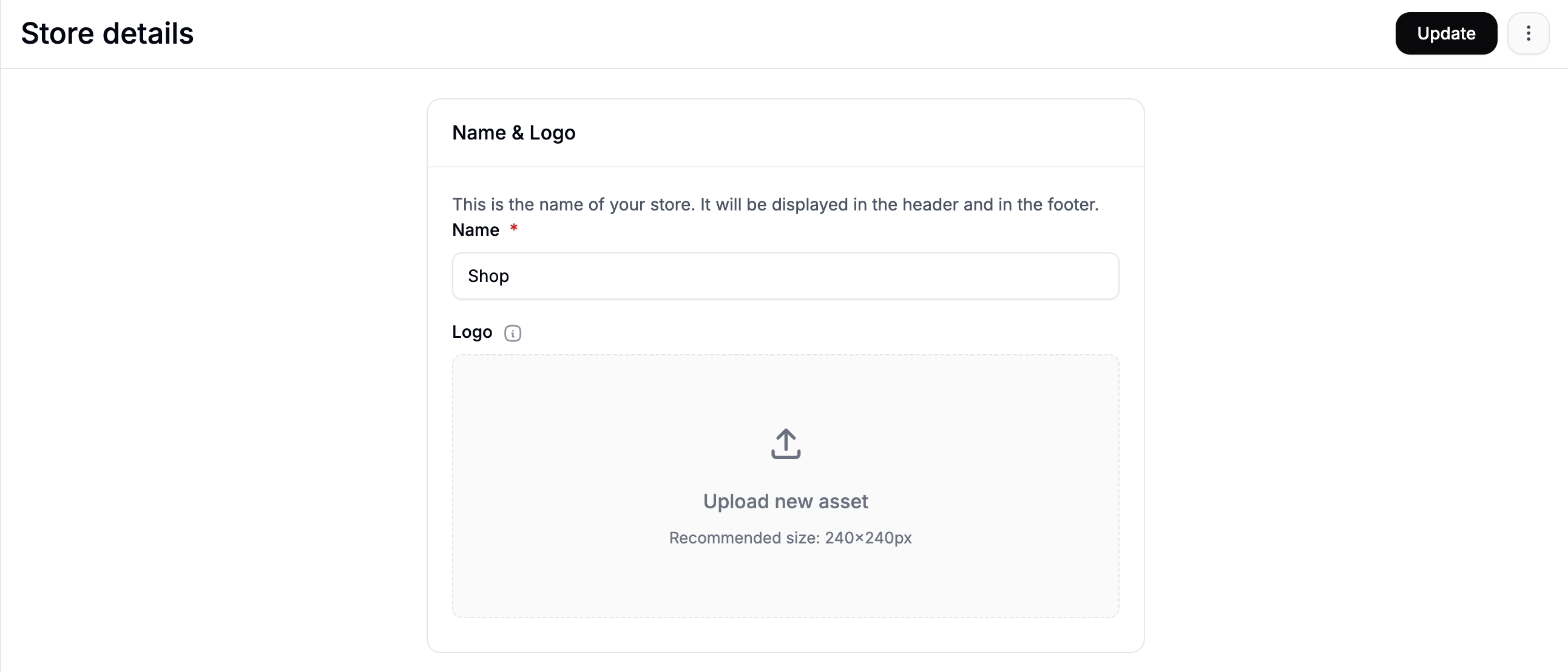 * **Name** — the public-facing name of your store, displayed in headers, footers, and other
storefront areas.
* **Logo** — upload a store logo (recommended size: 240x240 px). This image is used only in
the admin dashboard.
## Currencies & Countries
Currency, locale, and regional settings are now managed in **Settings → Markets**. See [Markets](https://spreecommerce.org/docs/user/settings/markets) for full details.
## Standards & Formats
* **Name** — the public-facing name of your store, displayed in headers, footers, and other
storefront areas.
* **Logo** — upload a store logo (recommended size: 240x240 px). This image is used only in
the admin dashboard.
## Currencies & Countries
Currency, locale, and regional settings are now managed in **Settings → Markets**. See [Markets](https://spreecommerce.org/docs/user/settings/markets) for full details.
## Standards & Formats
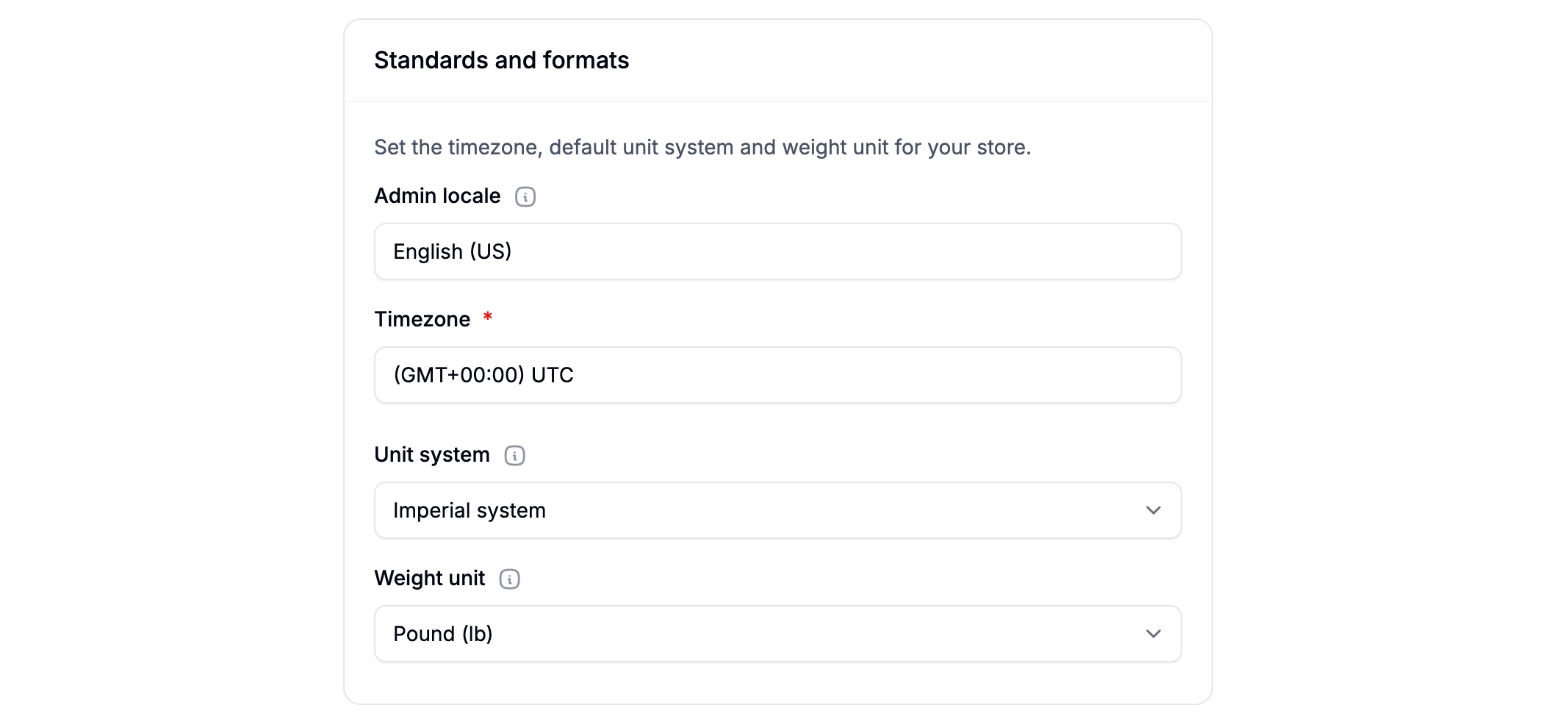 Here you can set the timezone, unit system, and weight units to match your region and business
preferences:
* **Timezone** — set your store's timezone for accurate timestamps and order data.
* **Unit system** — choose between imperial and metric. This affects how weights and measures
are displayed across your storefront:
* Imperial system
* Metric system
* **Weight unit** — choose the default unit for product weights:
* Pound (lb) — imperial system
* Ounce (oz) — imperial system
* Kilogram (kg) — metric system
* Gram (g) — metric system
## Phone & Address
Here you can set the timezone, unit system, and weight units to match your region and business
preferences:
* **Timezone** — set your store's timezone for accurate timestamps and order data.
* **Unit system** — choose between imperial and metric. This affects how weights and measures
are displayed across your storefront:
* Imperial system
* Metric system
* **Weight unit** — choose the default unit for product weights:
* Pound (lb) — imperial system
* Ounce (oz) — imperial system
* Kilogram (kg) — metric system
* Gram (g) — metric system
## Phone & Address
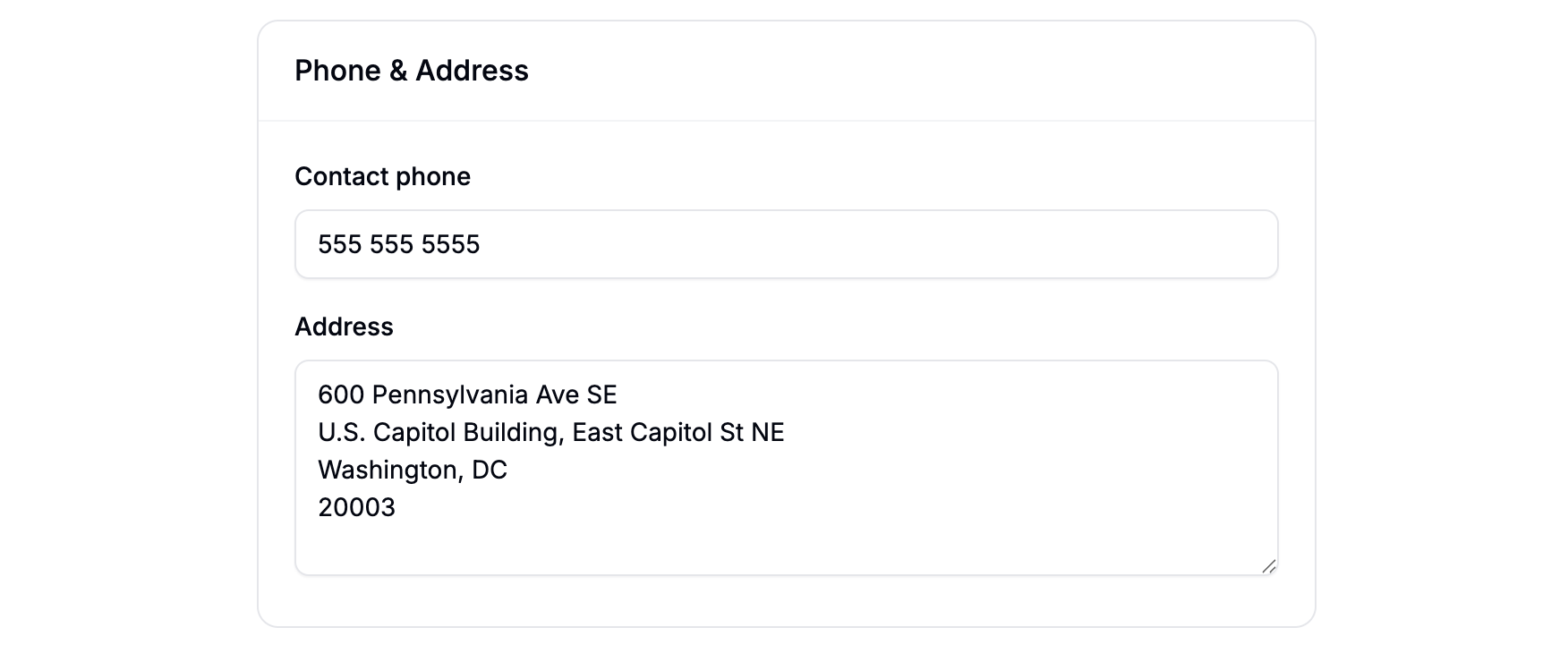 Enter your store's contact details here:
* **Phone** — your store's contact phone number.
* **Address** — your business address.
## Digital Assets
Enter your store's contact details here:
* **Phone** — your store's contact phone number.
* **Address** — your business address.
## Digital Assets
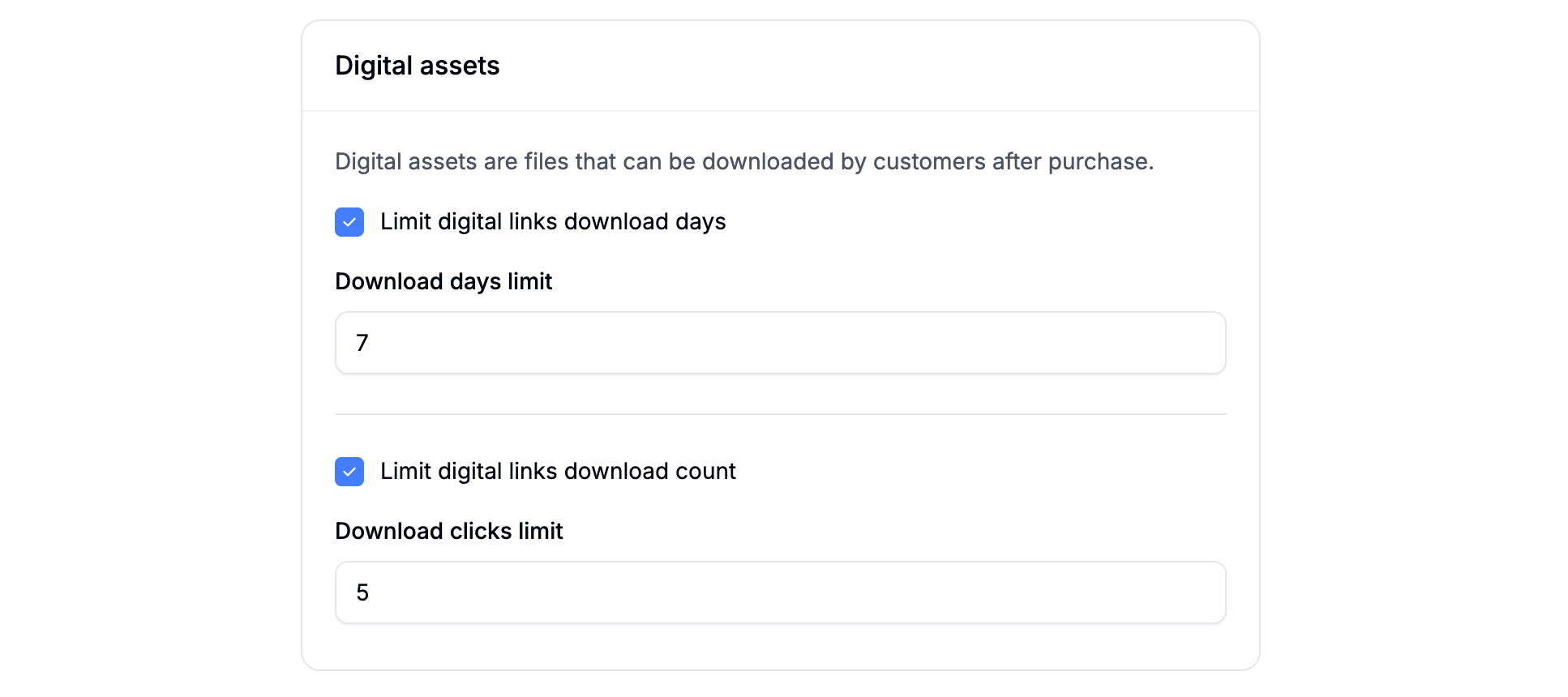 Here you can control how digital products (e.g., downloads) are handled after purchase:
* **Limit digital links download days** — set how long download links remain active after
purchase (in days).
* **Limit digital links download count** — restrict the number of times a download link can
be used per purchase.
## Saving Changes
After making any updates, click **Update** at the bottom of the page to save your store
settings, otherwise any changes you've made will not be saved.
Here you can control how digital products (e.g., downloads) are handled after purchase:
* **Limit digital links download days** — set how long download links remain active after
purchase (in days).
* **Limit digital links download count** — restrict the number of times a download link can
be used per purchase.
## Saving Changes
After making any updates, click **Update** at the bottom of the page to save your store
settings, otherwise any changes you've made will not be saved.