> ## Documentation Index
> Fetch the complete documentation index at: https://spreecommerce.org/docs/llms.txt
> Use this file to discover all available pages before exploring further.
# Returns Configuration
> Learn how to define return authorization reasons, refund reasons, and reimbursement types.
Returns management is a crucial part of ecommerce operations. It builds customer trust, streamlines support workflows, and helps maintain clarity around inventory and financial adjustments.
Not all eCommerce platforms offer built-in tools for managing returns, but fortunately Spree does - no extra plugins or custom development needed.
To get started with Returns, navigate to the Returns tab of the Settings menu.
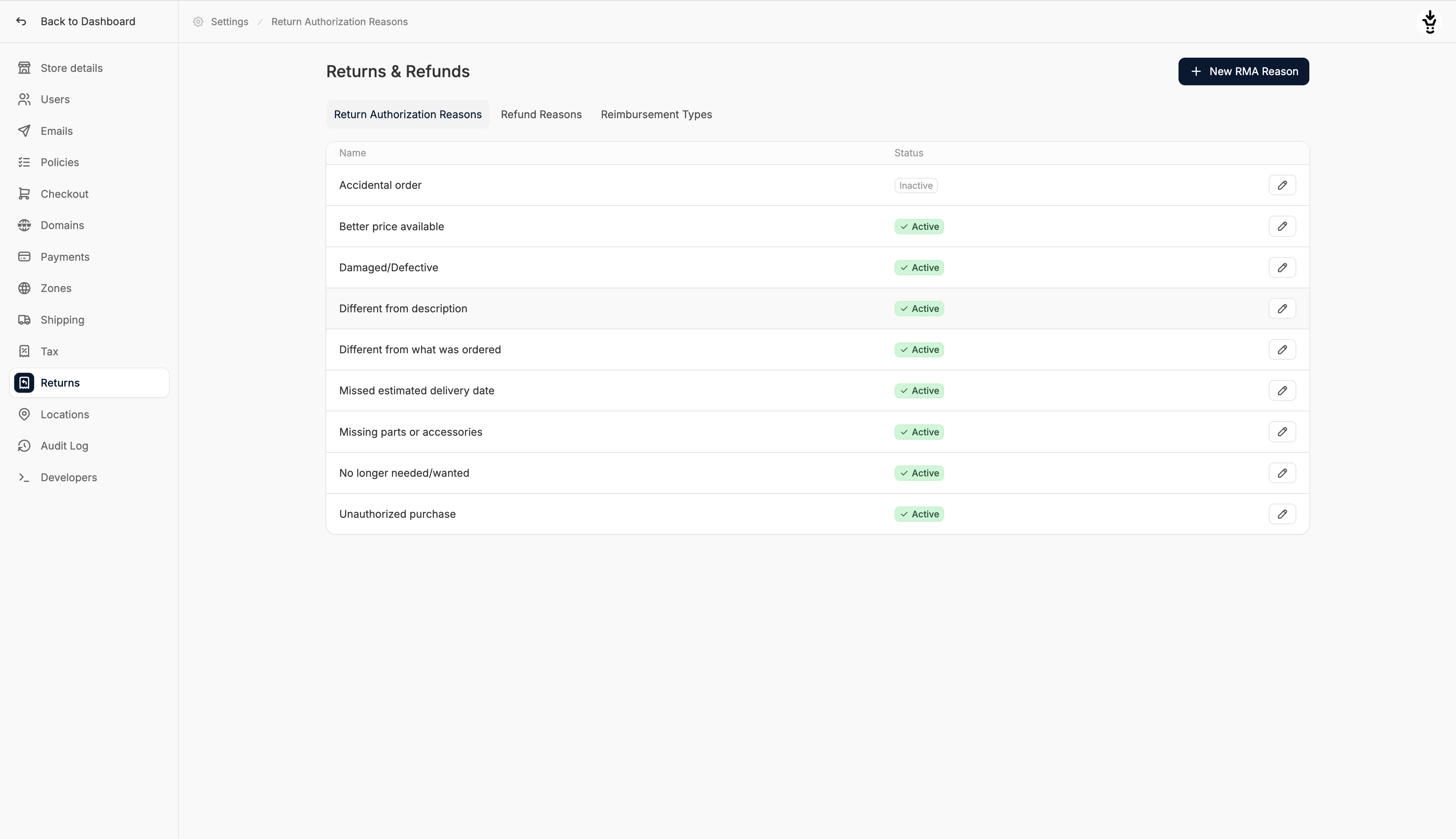 Here you’ll notice three subtabs for managing Return Authorization Reasons, Refund Reasons, and Reimbursement Types. Let’s look at each in detail:
## Return Authorization Reasons
Here you’ll notice three subtabs for managing Return Authorization Reasons, Refund Reasons, and Reimbursement Types. Let’s look at each in detail:
## Return Authorization Reasons
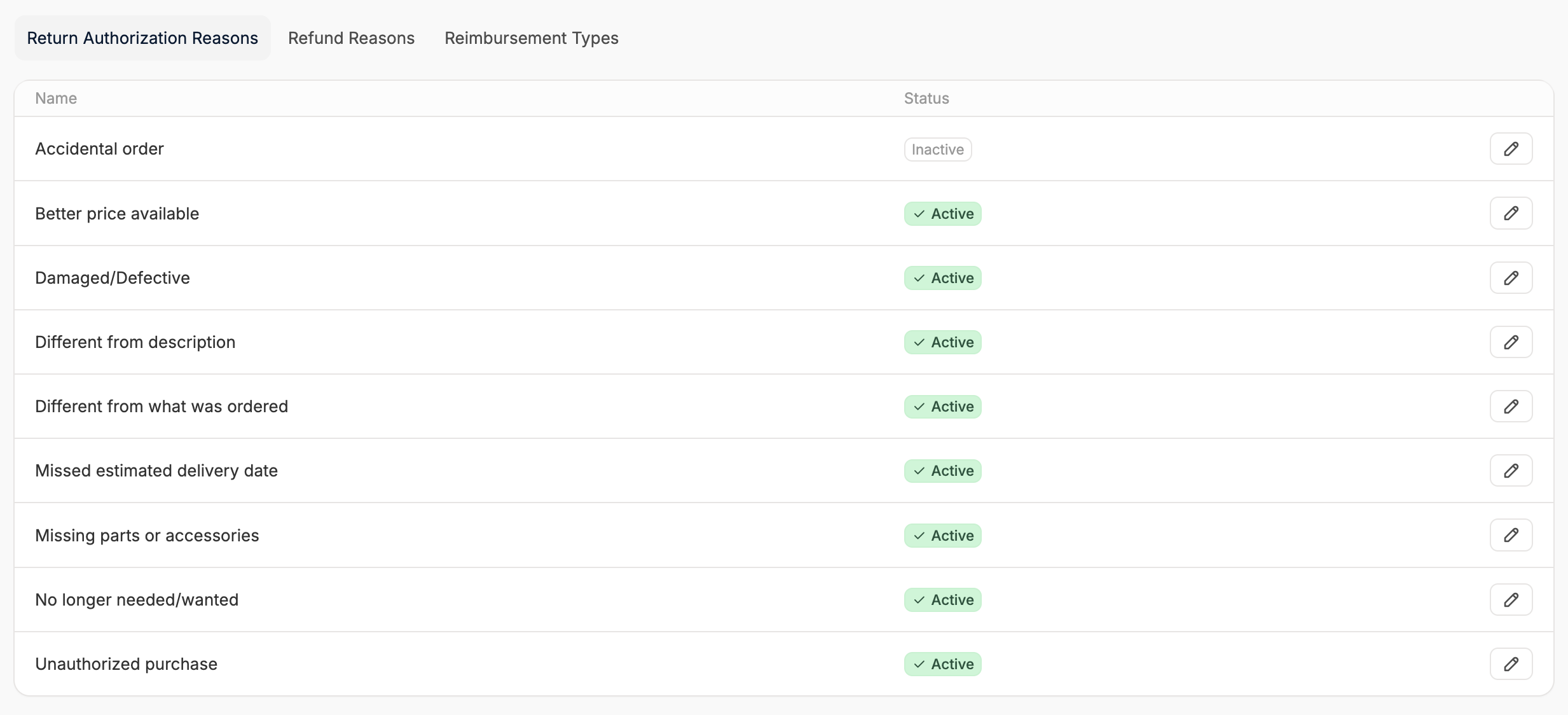 Return Merchandise Authorizations (RMAs) specify the reasons a customer provides when requesting to return an item. These reasons help categorize returns for internal reporting and customer service workflows.
RMAs only have two fields:
* **Name**: The visible reason for the return (e.g., Wrong size, No longer needed).
* **Status**: Toggle whether the reason is available for use in the returns flow. Inactive reasons are hidden but not deleted.
### Add New Return Authorization
To add a new return authorization reason, click ‘New RMA Reason’ in the top right corner and you’ll be redirected to the RMA reason creation form.
Return Merchandise Authorizations (RMAs) specify the reasons a customer provides when requesting to return an item. These reasons help categorize returns for internal reporting and customer service workflows.
RMAs only have two fields:
* **Name**: The visible reason for the return (e.g., Wrong size, No longer needed).
* **Status**: Toggle whether the reason is available for use in the returns flow. Inactive reasons are hidden but not deleted.
### Add New Return Authorization
To add a new return authorization reason, click ‘New RMA Reason’ in the top right corner and you’ll be redirected to the RMA reason creation form.
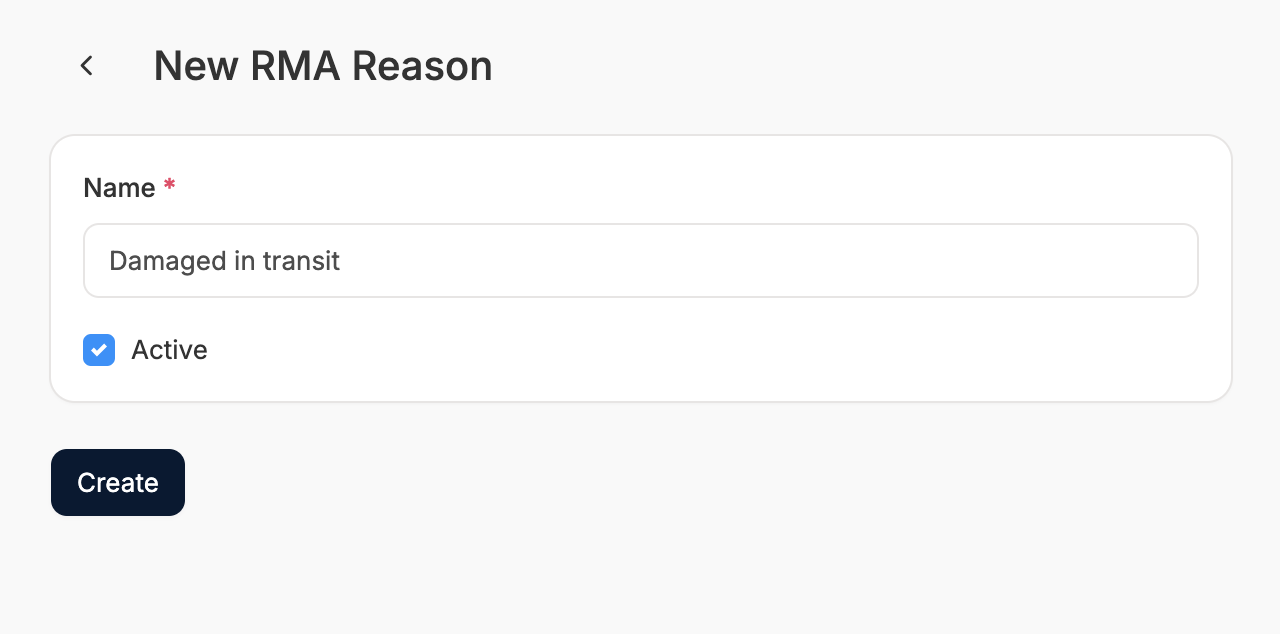 Simply enter the name, set the status, and click Create to save the new RMA reason.
### Edit Return Authorization
To edit an RMA reason, simply click on the RMA’s row in the overview.
Simply enter the name, set the status, and click Create to save the new RMA reason.
### Edit Return Authorization
To edit an RMA reason, simply click on the RMA’s row in the overview.
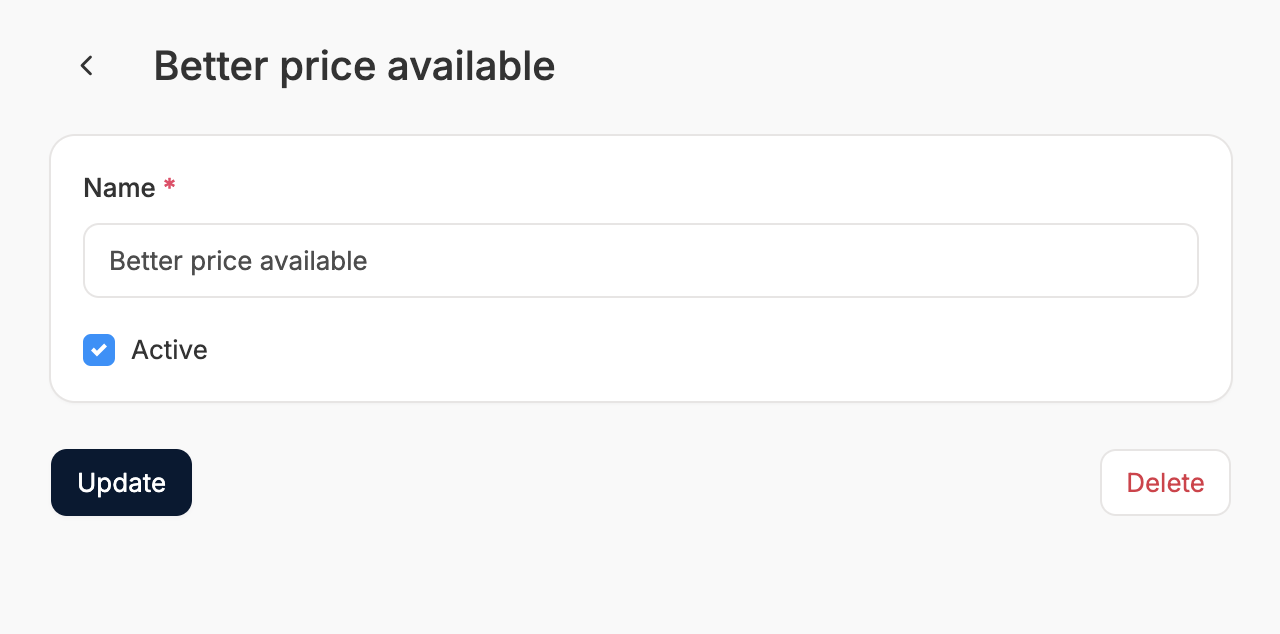 The Edit form looks more or less identical to the Create form, but with pre-filled data, and Update buttons rather than Create buttons.
Simply update fields as needed and then click Update to save changes.
### Delete Return Authorization
To delete an RMA reason, simply open the Edit form as shown above and click Delete.
## Refund Reasons
The Edit form looks more or less identical to the Create form, but with pre-filled data, and Update buttons rather than Create buttons.
Simply update fields as needed and then click Update to save changes.
### Delete Return Authorization
To delete an RMA reason, simply open the Edit form as shown above and click Delete.
## Refund Reasons
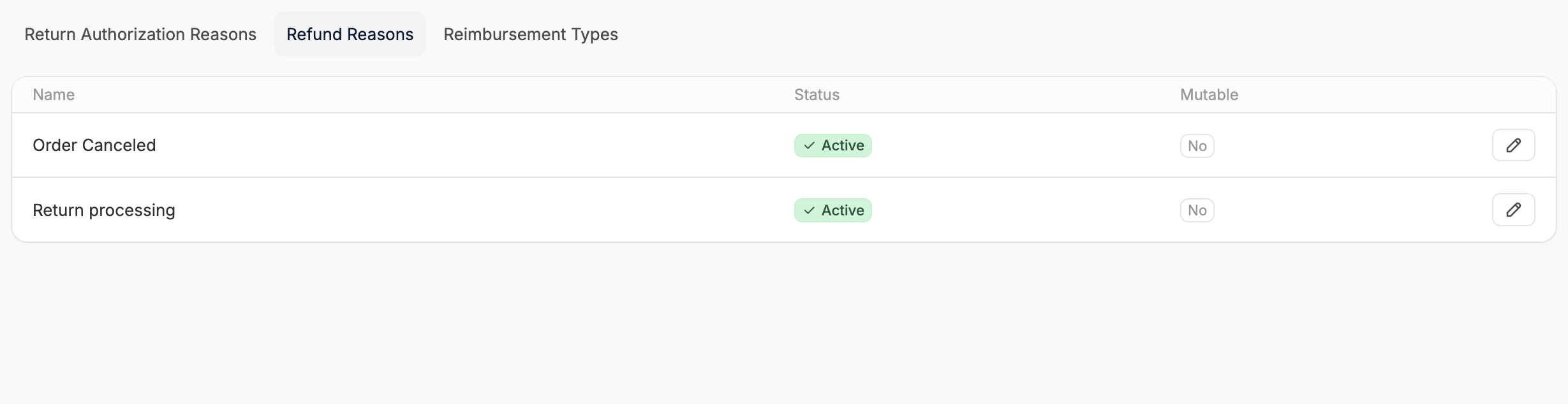 Refund Reasons are used internally to explain why a refund was issued. These help with tracking, reporting, and communication across teams.
Refund reasons also have two fields:
* **Name**: A label for the reason (e.g., Return processing, Order cancelled).
* **Status**: Toggle whether the reason is available for use in the returns flow. Inactive reasons are hidden but not deleted.
### Add New Refund Reason
To add a new refund reason, click ‘New Refund Reason’ in the top right corner and you’ll be redirected to the refund reason creation form.
Refund Reasons are used internally to explain why a refund was issued. These help with tracking, reporting, and communication across teams.
Refund reasons also have two fields:
* **Name**: A label for the reason (e.g., Return processing, Order cancelled).
* **Status**: Toggle whether the reason is available for use in the returns flow. Inactive reasons are hidden but not deleted.
### Add New Refund Reason
To add a new refund reason, click ‘New Refund Reason’ in the top right corner and you’ll be redirected to the refund reason creation form.
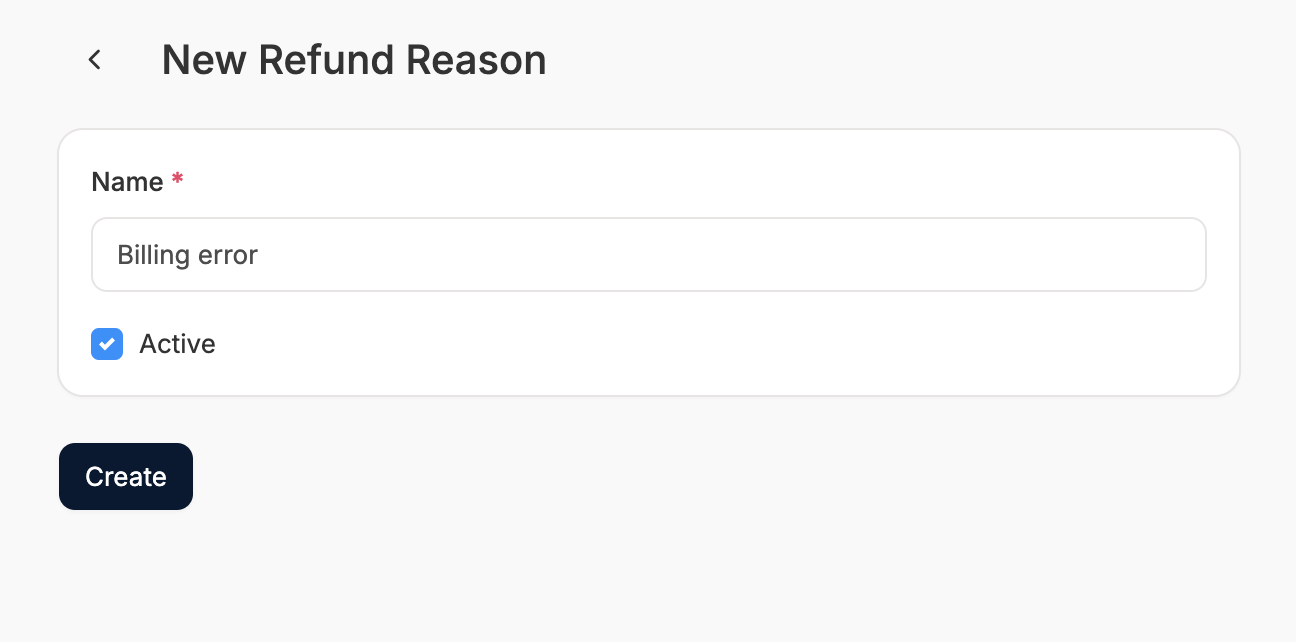 Simply enter the name, set the status, and click Create to save the new refund reason.
### Edit Refund Reason
To edit a refund reason, simply click on its row in the overview.
Simply enter the name, set the status, and click Create to save the new refund reason.
### Edit Refund Reason
To edit a refund reason, simply click on its row in the overview.
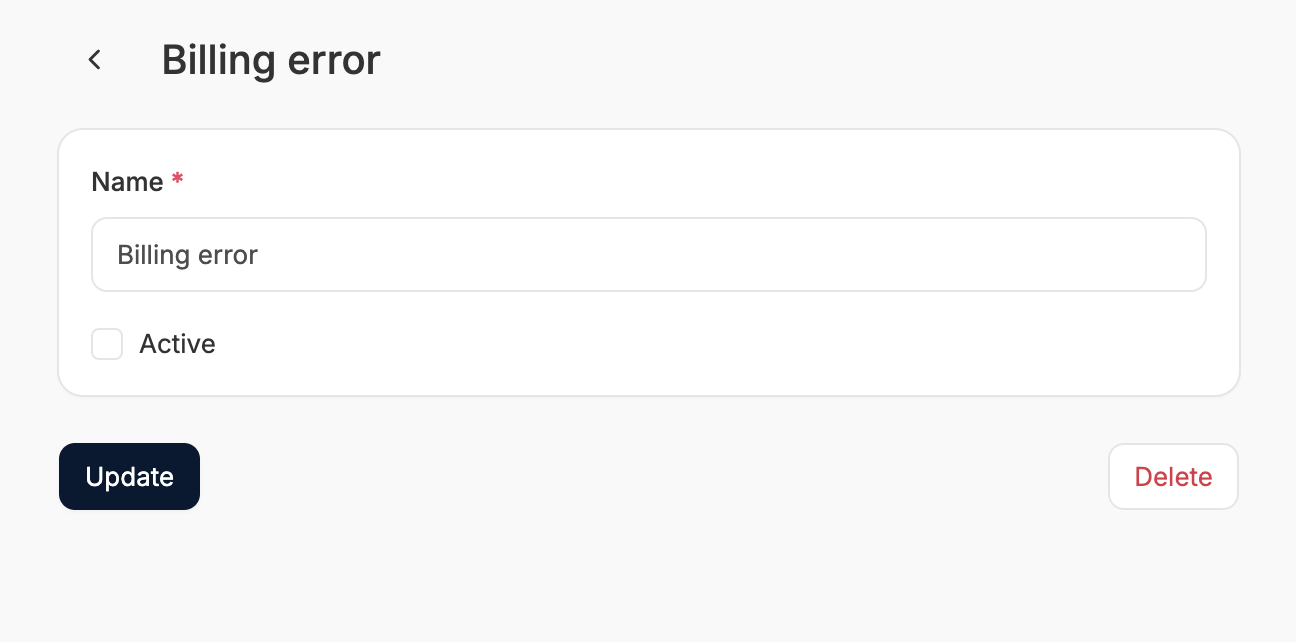 The Edit form looks more or less identical to the Create form, but with pre-filled data, and Update buttons rather than Create buttons.
Simply update fields as needed and then click Update to save changes.
### Delete Refund Reason
To delete a refund reason, simply open the Edit form as shown above and click Delete.
## Reimbursement Types
The Edit form looks more or less identical to the Create form, but with pre-filled data, and Update buttons rather than Create buttons.
Simply update fields as needed and then click Update to save changes.
### Delete Refund Reason
To delete a refund reason, simply open the Edit form as shown above and click Delete.
## Reimbursement Types
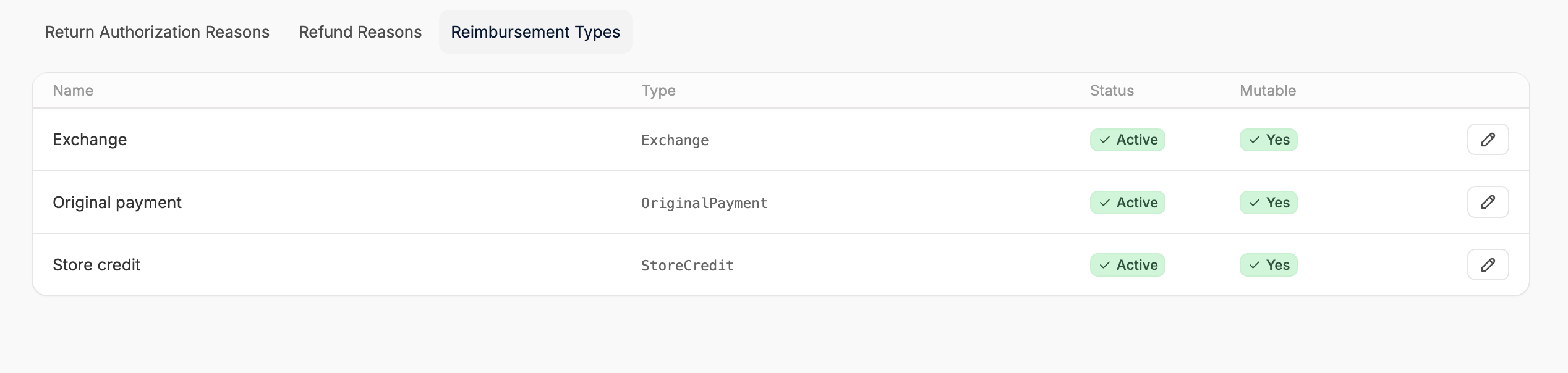 Reimbursement Types define how refunds are paid back to the customer. These options help determine whether a refund goes back to the original payment method, a store credit, or is handled through an exchange.
Reimbursement types have four fields:
* **Name**: The label for this type (e.g., Store credit, Exchange).
* **Type**: The method of reimbursement:
* Credit
* Original payment (e.g., debit card)
* Exchange
* Store credit
* **Status**: Toggle whether the reason is available for use in the returns flow. Inactive reasons are hidden but not deleted.
* **Mutable**: If set to Yes, the reimbursement type can be changed after it's assigned, otherwise it's locked it in.
### Add New Reimbursement Type
To add a reimbursement type, click ‘New Reimbursement Type’’ in the top right corner and you’ll be redirected to the reimbursement type creation form.
Reimbursement Types define how refunds are paid back to the customer. These options help determine whether a refund goes back to the original payment method, a store credit, or is handled through an exchange.
Reimbursement types have four fields:
* **Name**: The label for this type (e.g., Store credit, Exchange).
* **Type**: The method of reimbursement:
* Credit
* Original payment (e.g., debit card)
* Exchange
* Store credit
* **Status**: Toggle whether the reason is available for use in the returns flow. Inactive reasons are hidden but not deleted.
* **Mutable**: If set to Yes, the reimbursement type can be changed after it's assigned, otherwise it's locked it in.
### Add New Reimbursement Type
To add a reimbursement type, click ‘New Reimbursement Type’’ in the top right corner and you’ll be redirected to the reimbursement type creation form.
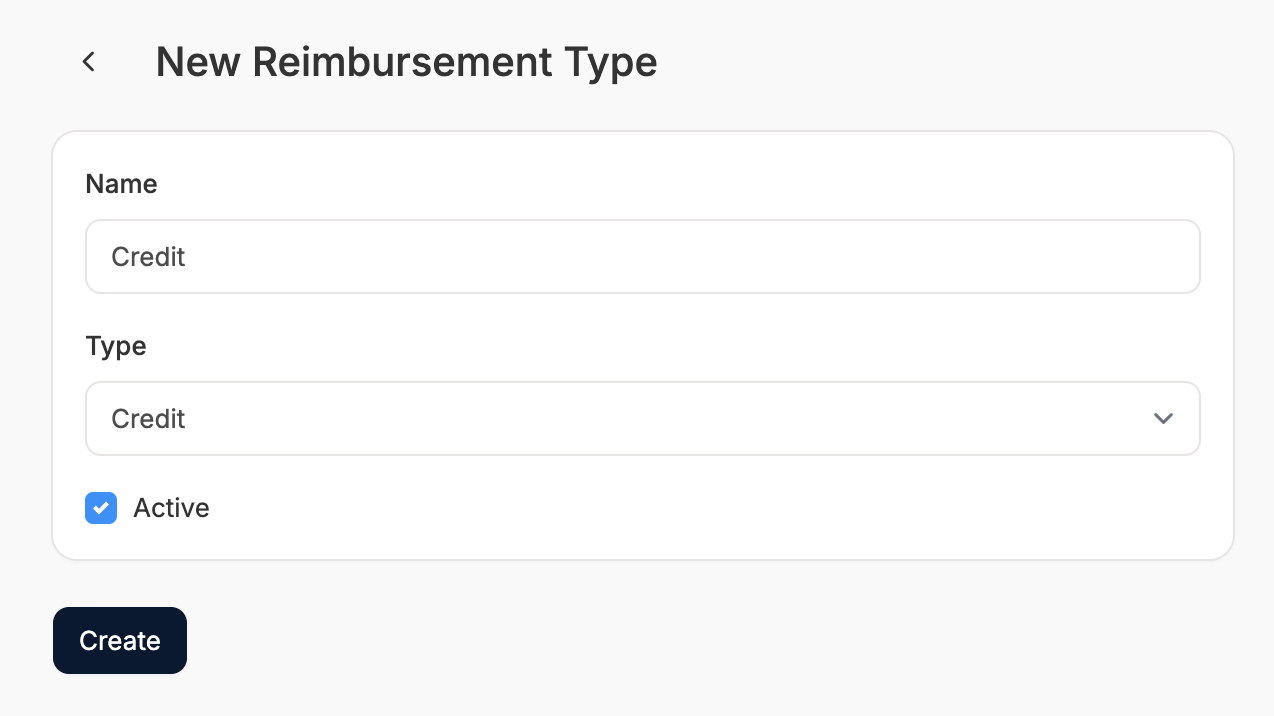 Simply enter the name, set the status, and click Create to save the new reimbursement type.
### Edit Reimbursement Type
To edit a reimbursement type, simply click on its row in the overview.
Simply enter the name, set the status, and click Create to save the new reimbursement type.
### Edit Reimbursement Type
To edit a reimbursement type, simply click on its row in the overview.
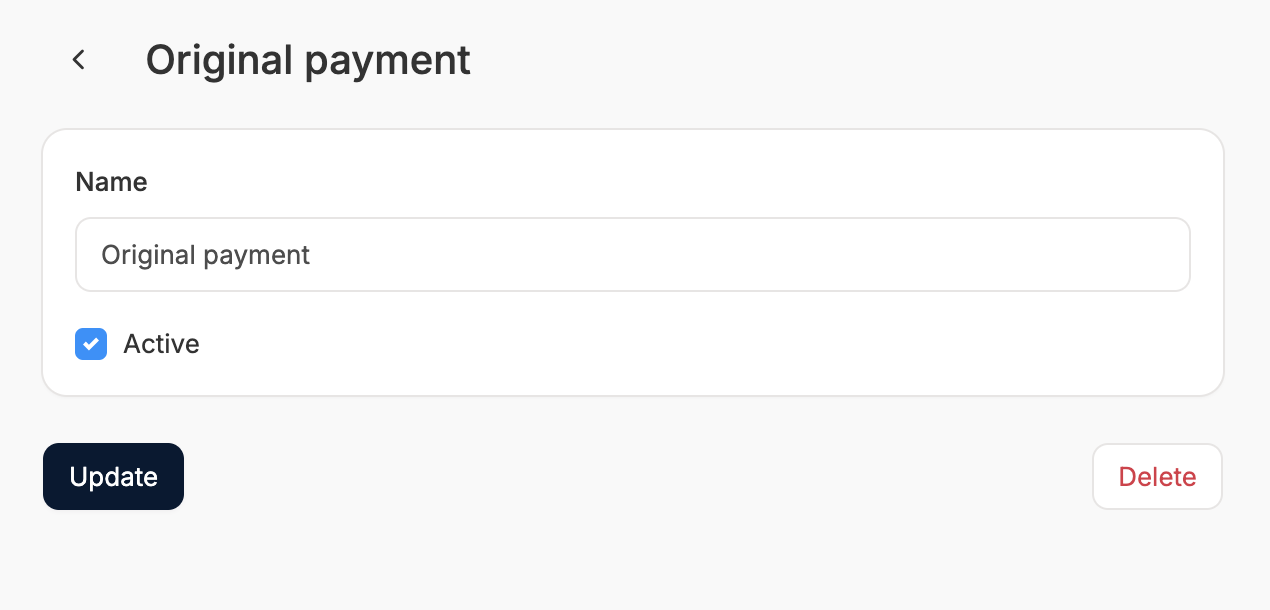 The Edit form looks more or less identical to the Create form, but with pre-filled data, and Update buttons rather than Create buttons.
Simply update fields as needed and then click Update to save changes.
### Delete Reimbursement Type
To delete a reimbursement type, simply open the Edit form as shown above and click **Delete**.
## Processing Returns
Now that you’ve defined all of your RMA reasons, refund reasons, and reimbursement types, you’ll be ready to process returns in the event that a customer requests them.
To learn how to process returns, please refer to [Returns → Returns Processing](https://spreecommerce.org/docs/user/returns/returns-processing).
The Edit form looks more or less identical to the Create form, but with pre-filled data, and Update buttons rather than Create buttons.
Simply update fields as needed and then click Update to save changes.
### Delete Reimbursement Type
To delete a reimbursement type, simply open the Edit form as shown above and click **Delete**.
## Processing Returns
Now that you’ve defined all of your RMA reasons, refund reasons, and reimbursement types, you’ll be ready to process returns in the event that a customer requests them.
To learn how to process returns, please refer to [Returns → Returns Processing](https://spreecommerce.org/docs/user/returns/returns-processing).