> ## Documentation Index
> Fetch the complete documentation index at: https://spreecommerce.org/docs/llms.txt
> Use this file to discover all available pages before exploring further.
# Policies
> Learn how to set up and manage store policies in Spree Commerce.
Your store policies are an essential part of your eCommerce setup, helping you establish trust, maintain compliance, and communicate clearly with your customers. Spree allows you to easily manage these pages from the Policies tab.
You can create as many custom policy pages as you need, with full control over their content and URL structure.
The following four standard policies are added to every store by default:
* Terms of Service
* Privacy Policy
* Returns Policy
* Shipping Policy
These can be customized, deleted, or supplemented with additional policies depending on your business needs.
## Create a New Policy
To create a new policy, navigate to **Settings → Policies** in your Spree dashboard.
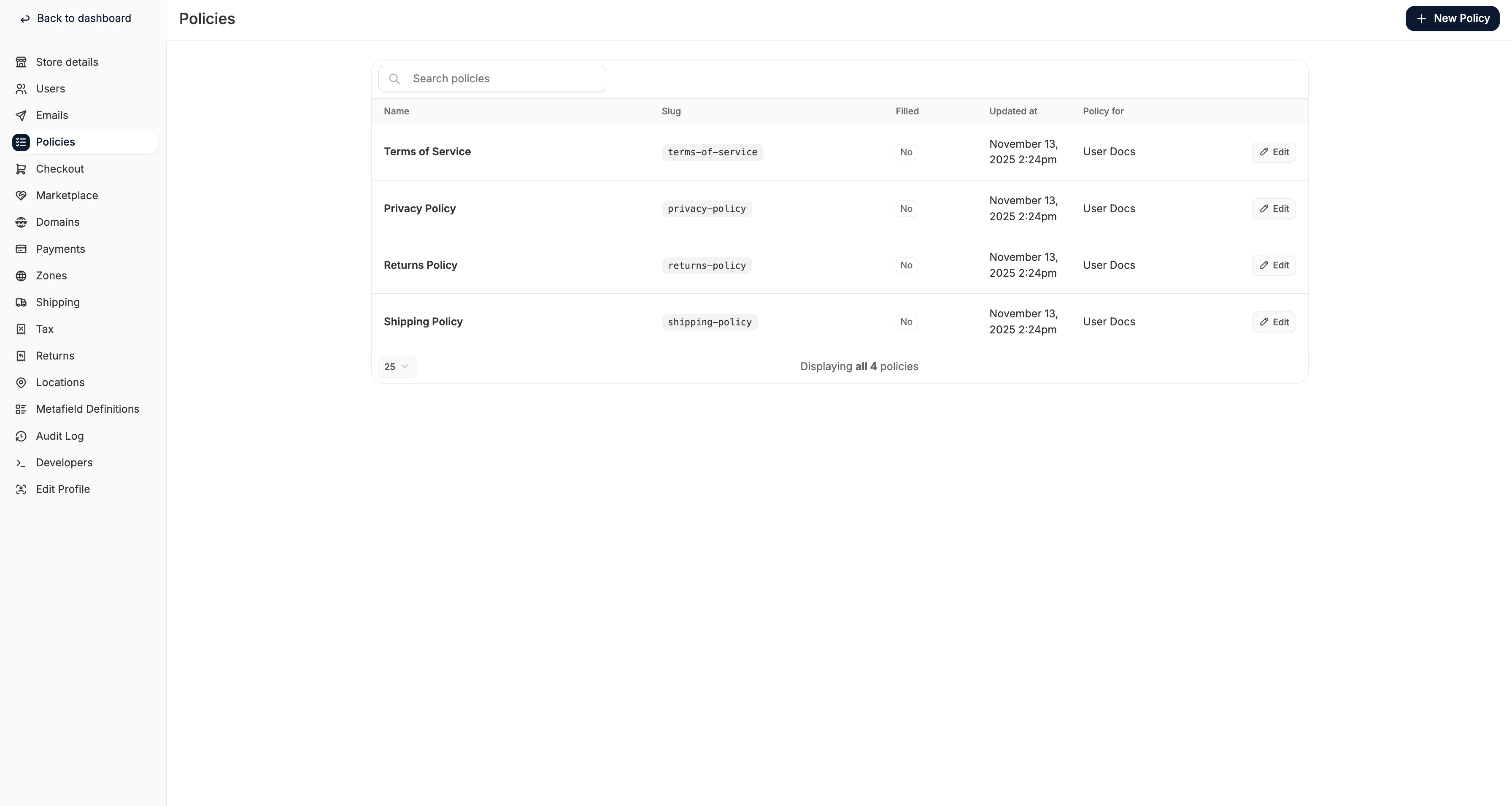 Click **New Policy** in the top-right corner to open the policy creation form.
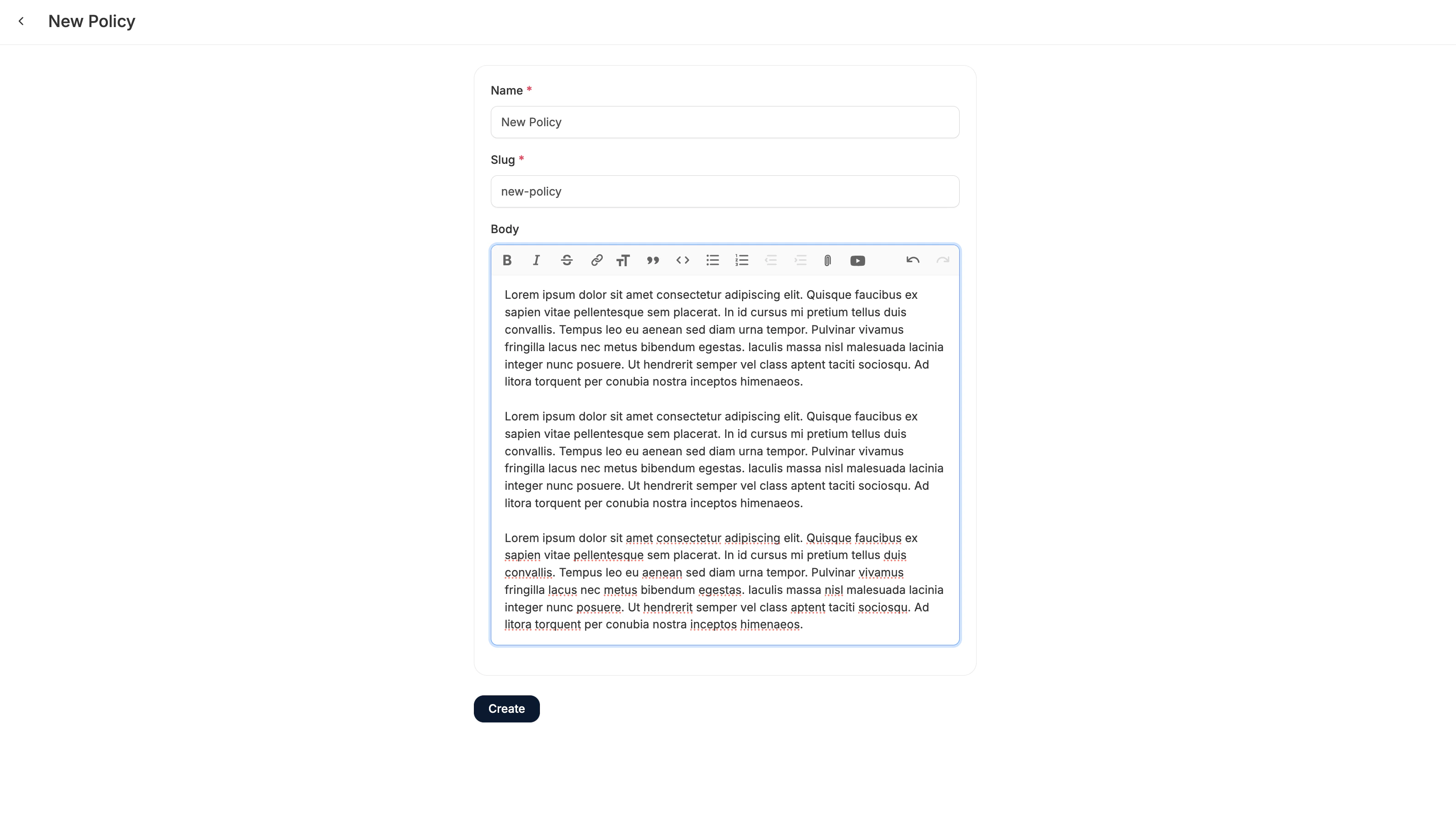 Simply enter data into the following fields:
* **Name** - displayed title on the storefront.
* **Slug** - URL identifier (e.g. /policies/custom-warranty).
* **Content** - enter your policy text using the rich text editor (supports formatting, links, media, etc.).
Then, click **Create** to save and publish your new policy.
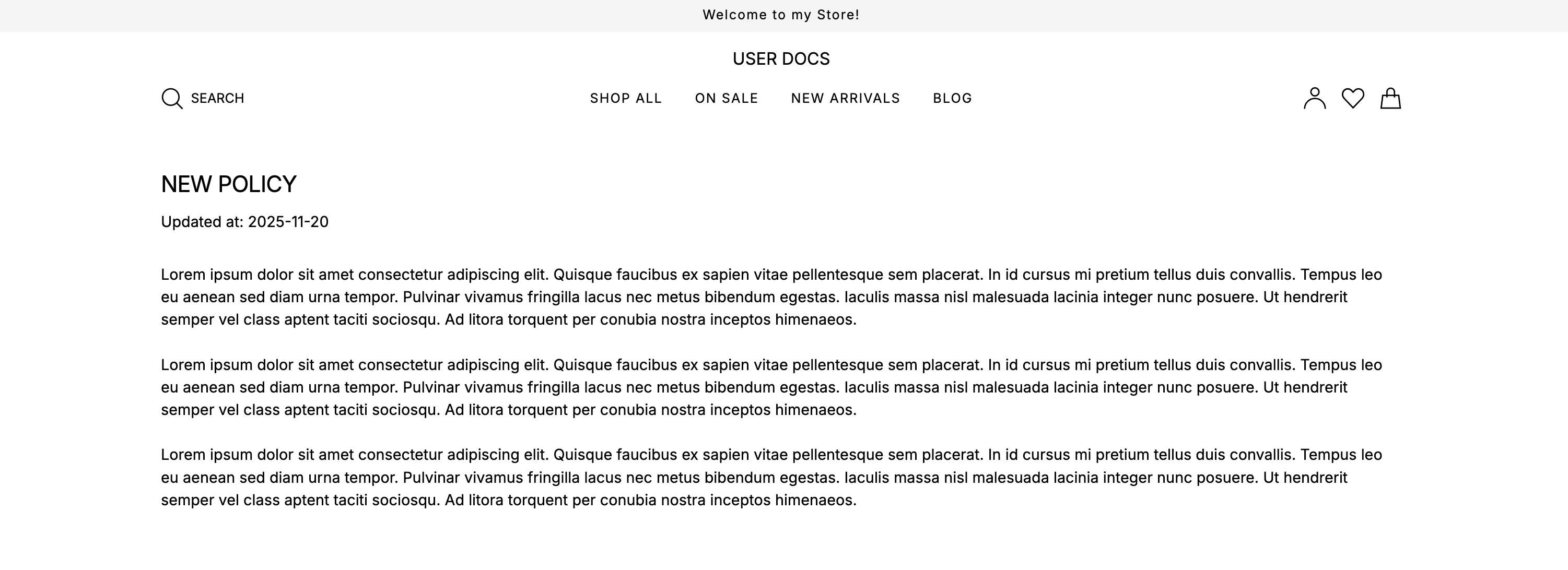
Once published, the policy will be accessible from the storefront and can also be linked in your footer navigation or other relevant areas.
Simply enter data into the following fields:
* **Name** - displayed title on the storefront.
* **Slug** - URL identifier (e.g. /policies/custom-warranty).
* **Content** - enter your policy text using the rich text editor (supports formatting, links, media, etc.).
Then, click **Create** to save and publish your new policy.
Once published, the policy will be accessible from the storefront and can also be linked in your footer navigation or other relevant areas.
 ## Edit an Existing Policy
To edit an existing policy, navigate to **Settings → Policies** and follow these steps:
1. Click on the policy you’d like to update.
2. Modify the name, slug, or content as needed.
3. Click **Update** to save your changes.
Your edits will be reflected immediately on the live storefront.
## Delete a Policy
To delete an existing policy, navigate to **Settings → Policies** and follow these steps:
1. Click on the policy you’d like to delete.
2. Click **Delete** at the bottom of the page and confirm.
Deleted policies are permanently removed and will no longer be accessible to customers.
## Edit an Existing Policy
To edit an existing policy, navigate to **Settings → Policies** and follow these steps:
1. Click on the policy you’d like to update.
2. Modify the name, slug, or content as needed.
3. Click **Update** to save your changes.
Your edits will be reflected immediately on the live storefront.
## Delete a Policy
To delete an existing policy, navigate to **Settings → Policies** and follow these steps:
1. Click on the policy you’d like to delete.
2. Click **Delete** at the bottom of the page and confirm.
Deleted policies are permanently removed and will no longer be accessible to customers.