> ## Documentation Index
> Fetch the complete documentation index at: https://spreecommerce.org/docs/llms.txt
> Use this file to discover all available pages before exploring further.
# Checkout
> Learn how to add a checkout message and enable or disable guest checkout.
In Spree, you can easily modify certain checkout settings directly from the dashboard - no developers needed. This gives you more control over the customer experience and lets you adapt quickly to your store’s needs.
To edit checkout settings, navigate to the Checkout tab of the Settings menu.
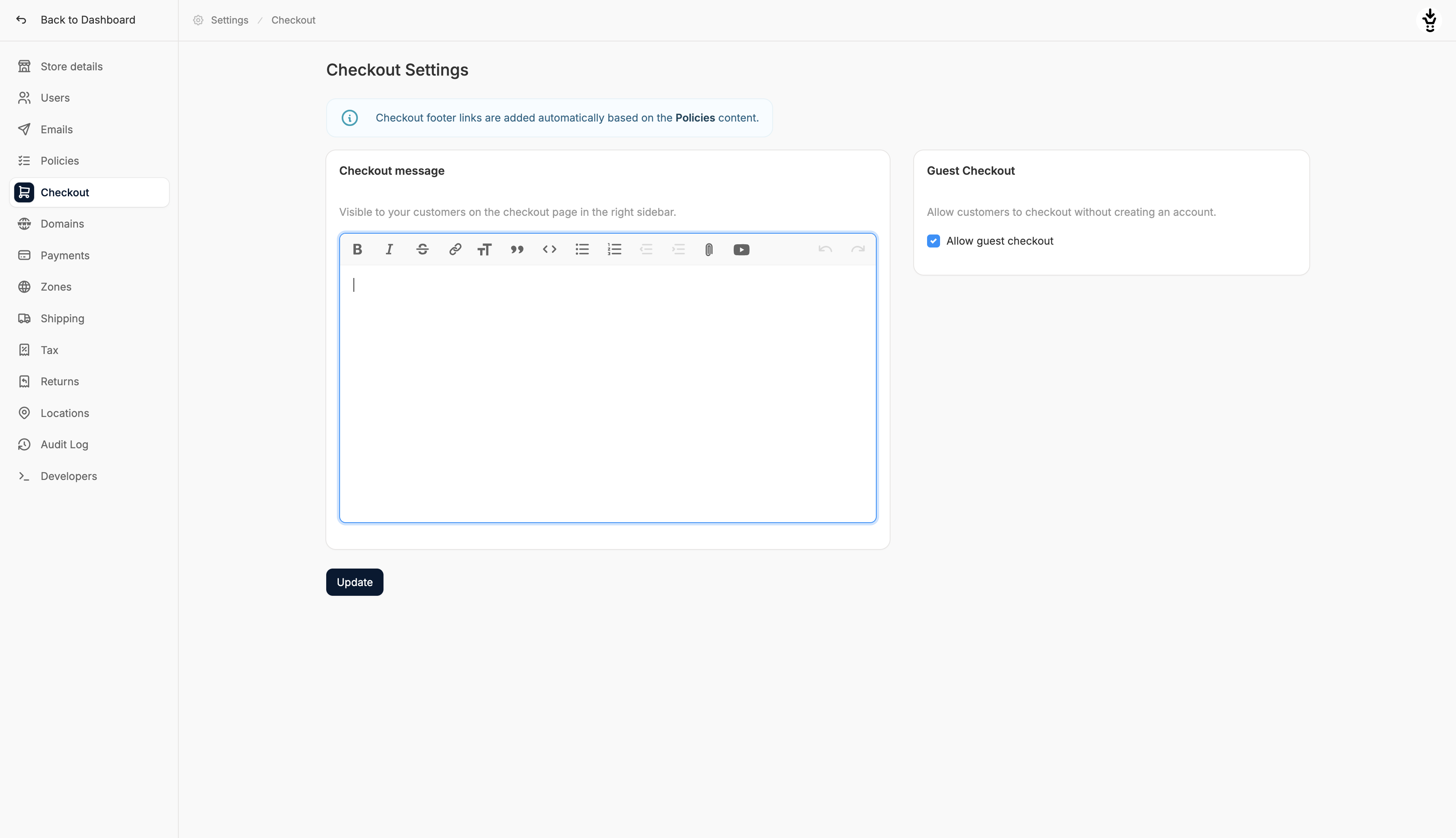 Here you’ll see two sections that allow you to modify certain aspects of the checkout:
## Checkout Message
Here you’ll see two sections that allow you to modify certain aspects of the checkout:
## Checkout Message
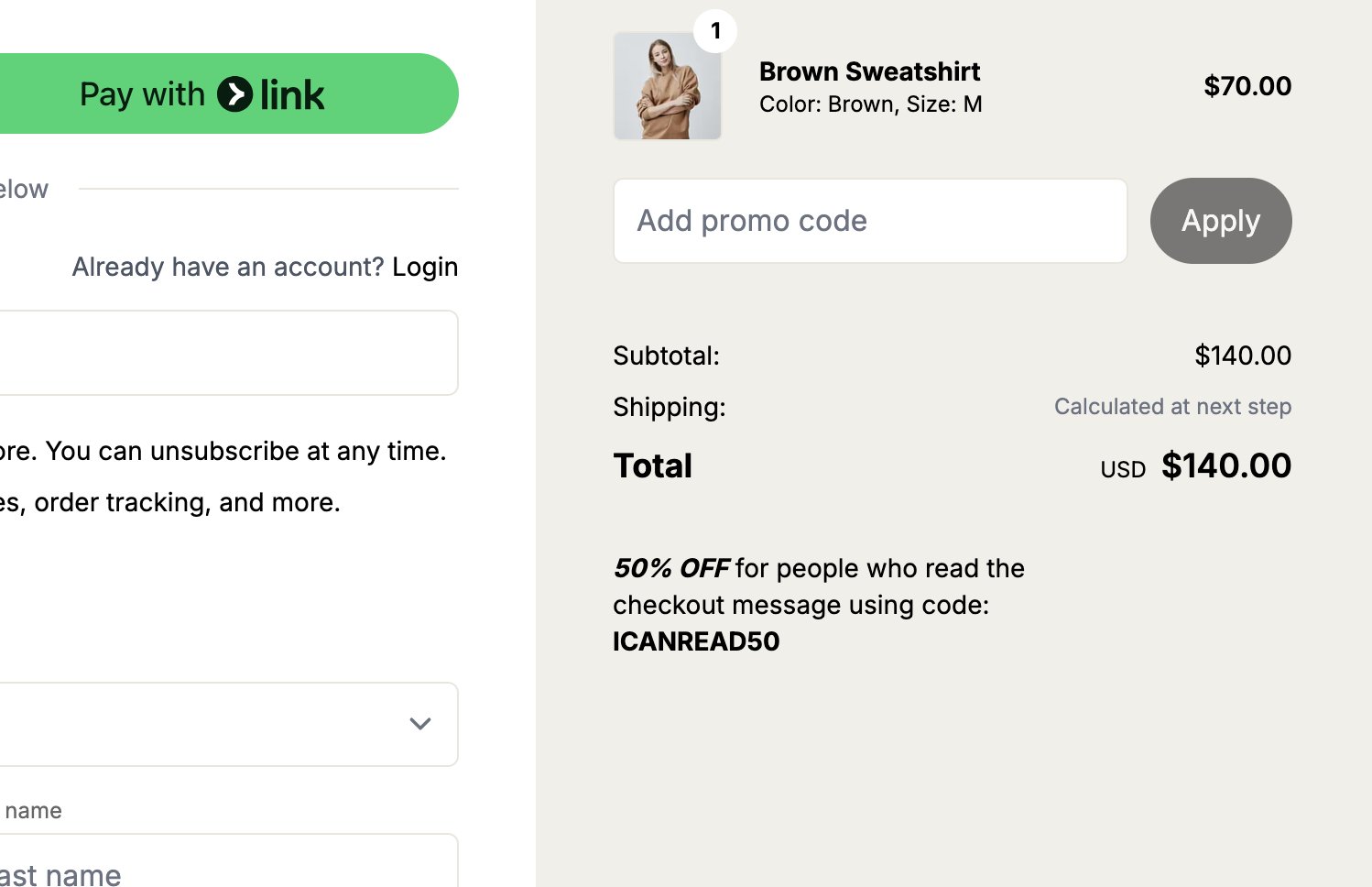
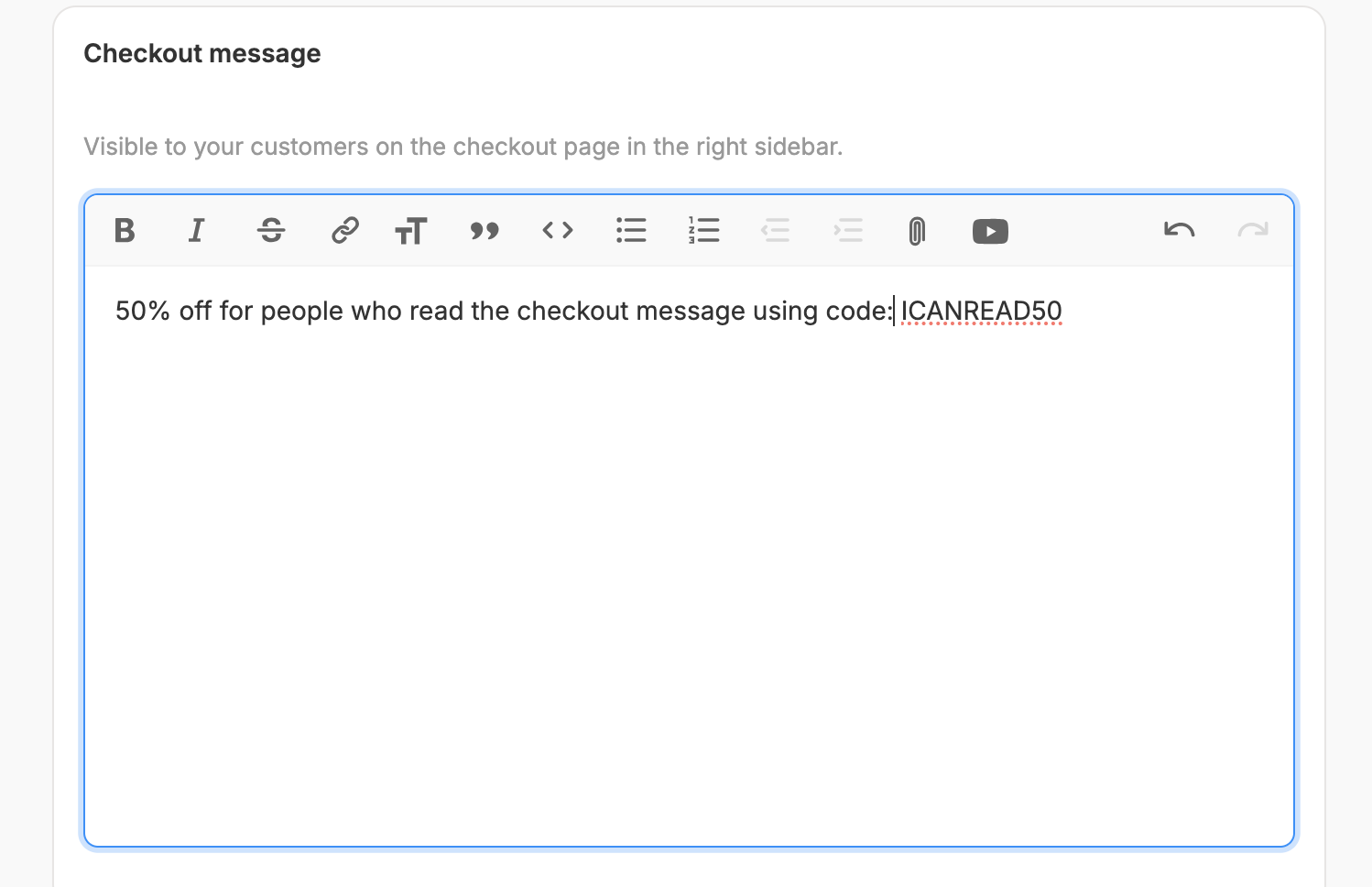 This message appears in the right sidebar during checkout, and can be used to share helpful info, reminders, promos, or reassurance with customers.
You can format the message using the available editor tools (bold, italics, links, headings, etc.).
This message appears in the right sidebar during checkout, and can be used to share helpful info, reminders, promos, or reassurance with customers.
You can format the message using the available editor tools (bold, italics, links, headings, etc.).
 ## Guest Checkout
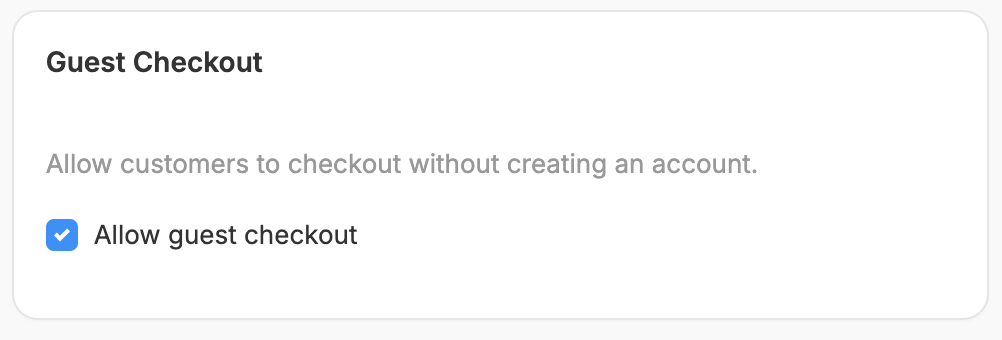 Enable this option to let customers complete their purchase without creating an account or disable it to force users to create an account before purchasing.
By default this option is always enabled.
## Saving Changes
After making any updates, click Update at the bottom of the page to save your checkout settings, otherwise any changes you’ve made will not be saved.
Enable this option to let customers complete their purchase without creating an account or disable it to force users to create an account before purchasing.
By default this option is always enabled.
## Saving Changes
After making any updates, click Update at the bottom of the page to save your checkout settings, otherwise any changes you’ve made will not be saved.