> ## Documentation Index
> Fetch the complete documentation index at: https://spreecommerce.org/docs/llms.txt
> Use this file to discover all available pages before exploring further.
# Gift Cards
> Learn how to create individual or bulk gift cards in Spree Commerce.
Gift cards allow customers (or recipients) to redeem a prepaid balance at checkout. In Spree, you can create single gift cards for specific customers or generate batches of codes for broader distribution.
To get started, navigate to **Promotions → Gift Cards** in the admin dashboard.
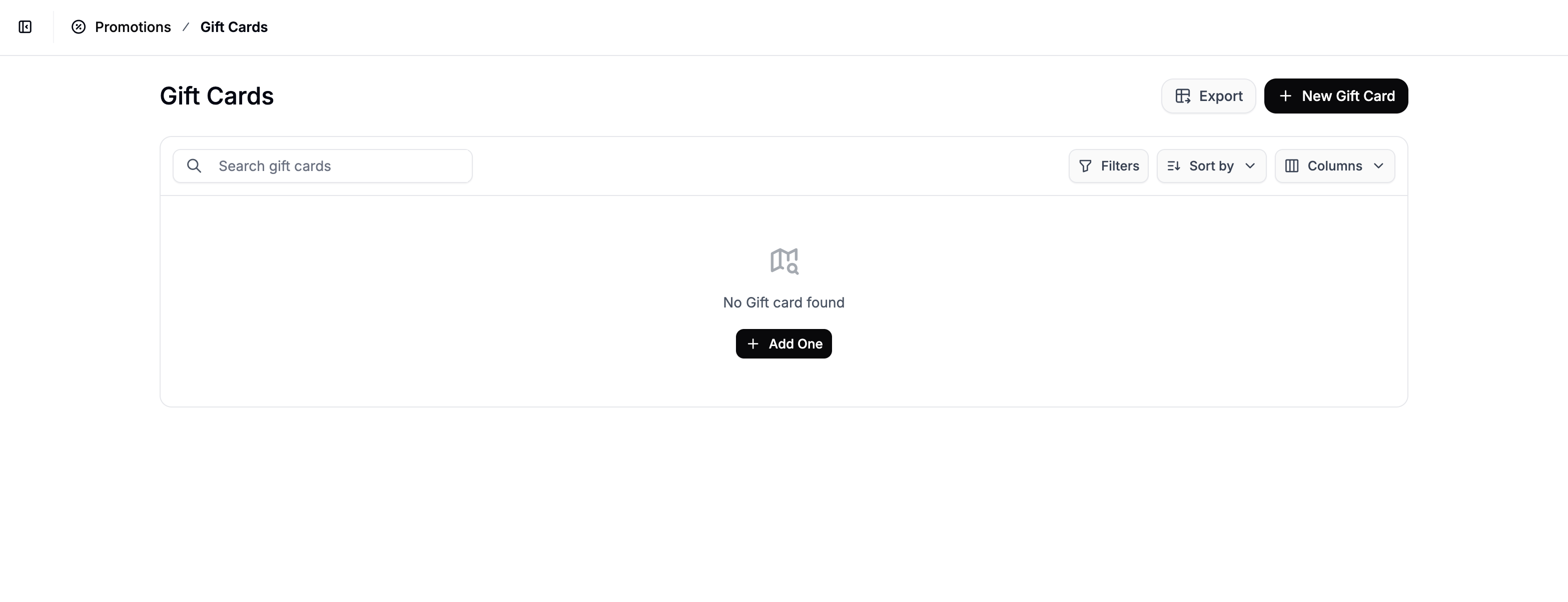 Click **New Gift Card** in the top right corner.
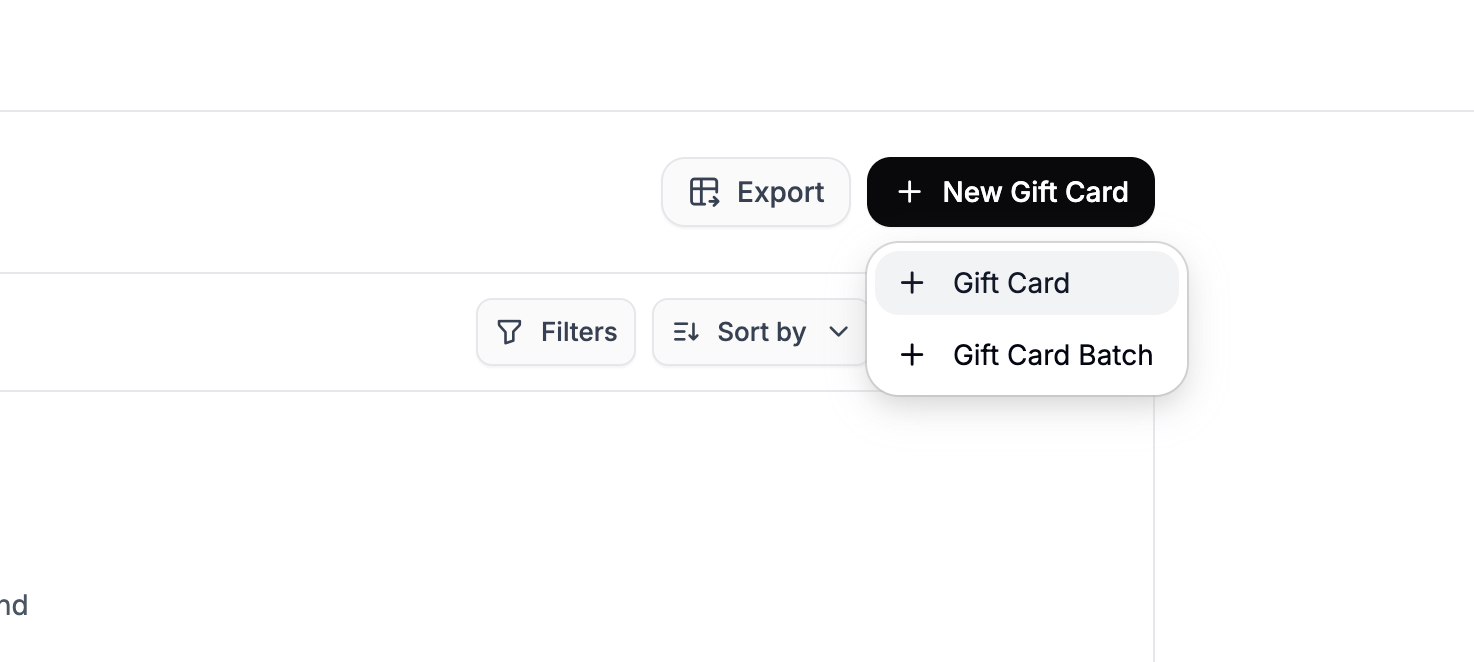 You’ll be prompted to choose between:
* **Gift Card** (single code)
* **Gift Card Batch** (multiple codes generated at once)
## Create a Single Gift Card
You’ll be prompted to choose between:
* **Gift Card** (single code)
* **Gift Card Batch** (multiple codes generated at once)
## Create a Single Gift Card
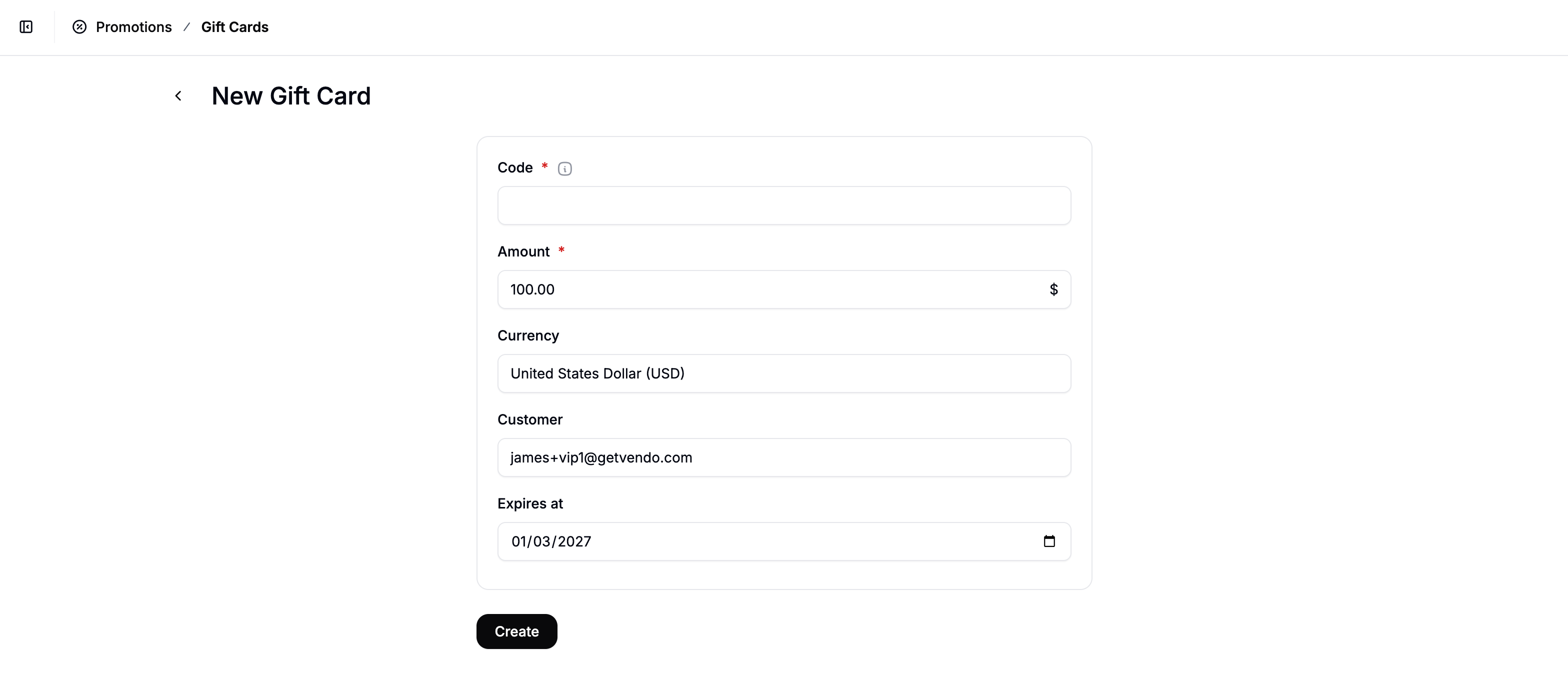 Selecting **Gift Card** opens the creation form.
Complete the following fields:
* **Email (optional)** - Assign the gift card to a specific customer email, or leave blank to create an unassigned code.
* **Code** - Leave blank to auto-generate a unique code, or enter one manually.
* **Amount** (required) - The value of the gift card.
* **Currency** (required) - The currency the card should be issued in.
* **Expires At** - Optional expiration date. Leave blank for a non-expiring card.
Click **Create** to issue the gift card. It will appear in the Gift Cards table and can be redeemed using the code at checkout.
## Create a Gift Card Batch (Bulk Generation)
Selecting **Gift Card** opens the creation form.
Complete the following fields:
* **Email (optional)** - Assign the gift card to a specific customer email, or leave blank to create an unassigned code.
* **Code** - Leave blank to auto-generate a unique code, or enter one manually.
* **Amount** (required) - The value of the gift card.
* **Currency** (required) - The currency the card should be issued in.
* **Expires At** - Optional expiration date. Leave blank for a non-expiring card.
Click **Create** to issue the gift card. It will appear in the Gift Cards table and can be redeemed using the code at checkout.
## Create a Gift Card Batch (Bulk Generation)
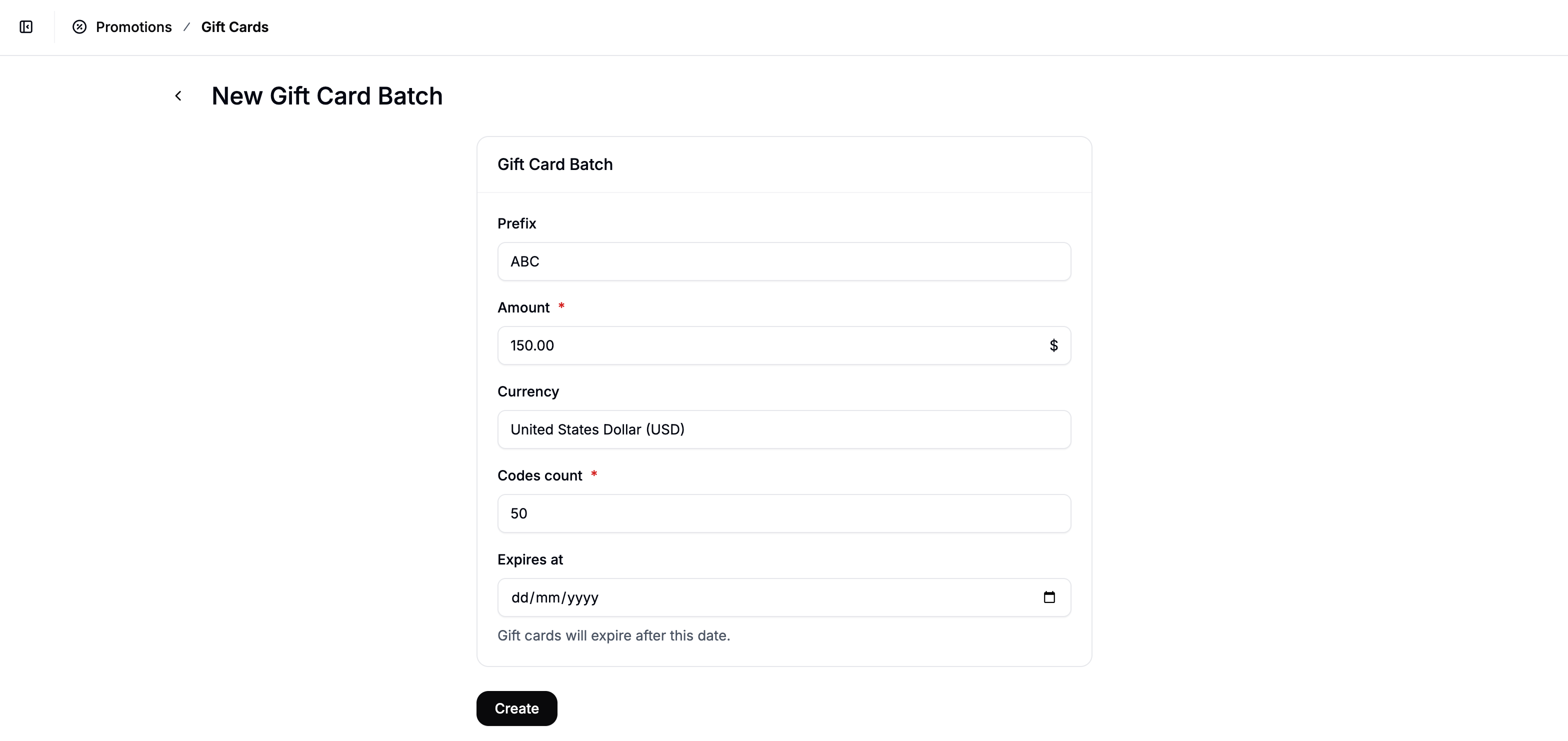 Selecting **Gift Card Batch** allows you to generate multiple codes at once.
The form includes the same core fields as a single gift card (excluding the Customer field), plus:
* **Prefix** - Adds a custom prefix to each generated code (e.g., HOLIDAY-, VIP-).
* **Codes Count** (required) - The total number of gift card codes to generate.
Spree will automatically create the specified number of unique codes.
After clicking **Create**, all generated gift cards will be added to the Gift Cards table.
## Manage & Export Gift Cards
Selecting **Gift Card Batch** allows you to generate multiple codes at once.
The form includes the same core fields as a single gift card (excluding the Customer field), plus:
* **Prefix** - Adds a custom prefix to each generated code (e.g., HOLIDAY-, VIP-).
* **Codes Count** (required) - The total number of gift card codes to generate.
Spree will automatically create the specified number of unique codes.
After clicking **Create**, all generated gift cards will be added to the Gift Cards table.
## Manage & Export Gift Cards
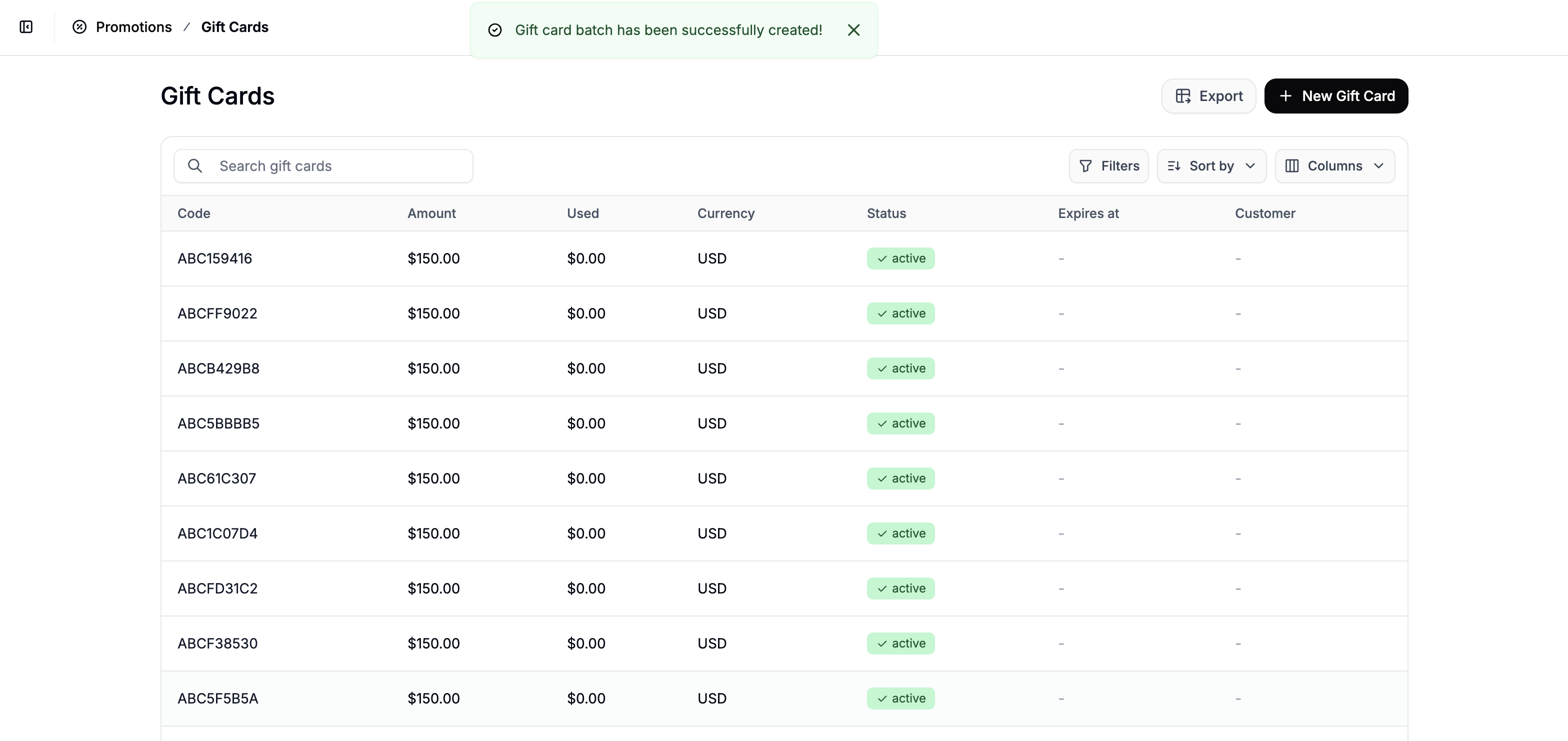 Once created, gift cards appear in the main table view under **Promotions → Gift Cards**.
The table displays key information for each card, including:
* Code
* Original amount
* Amount of credit used
* Currency
* Expiration date
* Assigned customer (if any)
This makes it easy to monitor usage and track remaining balances.
### Edit a Gift Card
Once created, gift cards appear in the main table view under **Promotions → Gift Cards**.
The table displays key information for each card, including:
* Code
* Original amount
* Amount of credit used
* Currency
* Expiration date
* Assigned customer (if any)
This makes it easy to monitor usage and track remaining balances.
### Edit a Gift Card
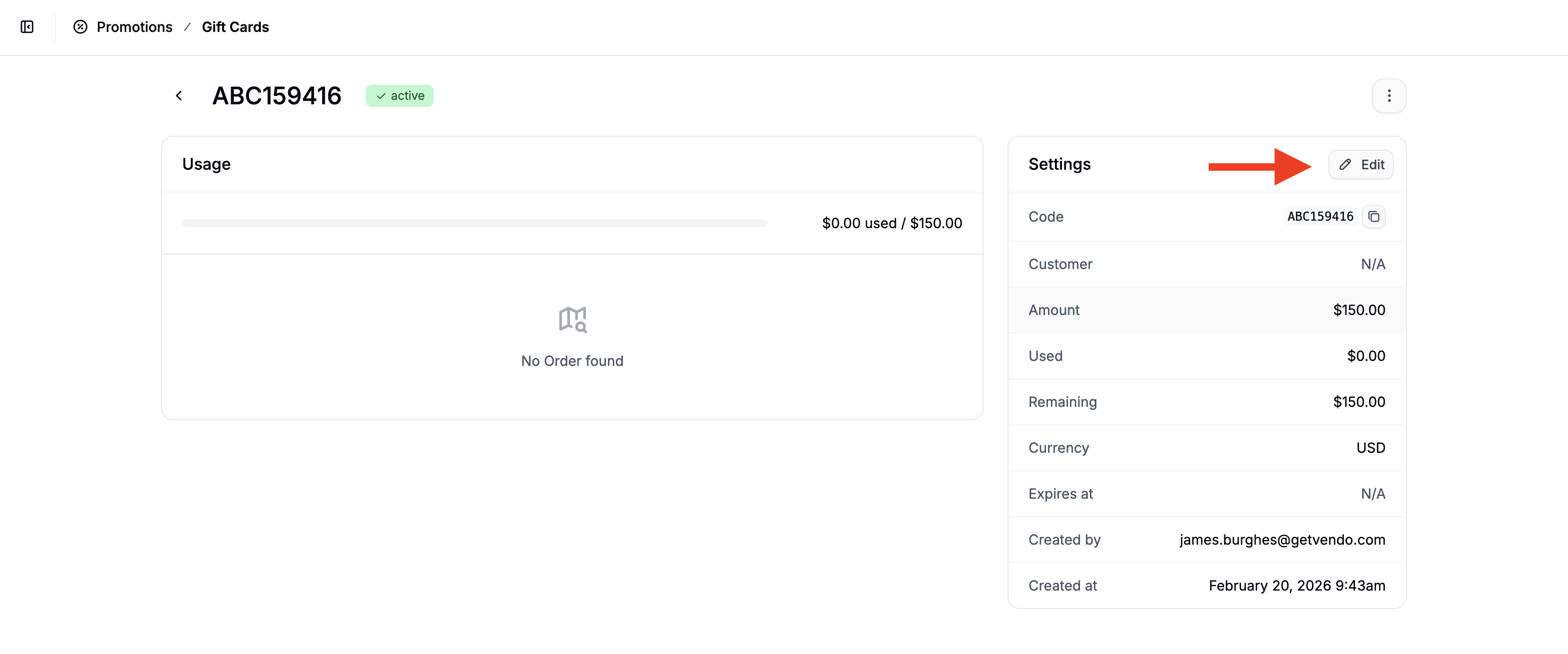 To edit a gift card:
1. Click on the gift card from the table
2. In the **Settings** section, click **Edit**
3. Update the necessary fields
4. Click **Save**
### Delete a Gift Card
To edit a gift card:
1. Click on the gift card from the table
2. In the **Settings** section, click **Edit**
3. Update the necessary fields
4. Click **Save**
### Delete a Gift Card
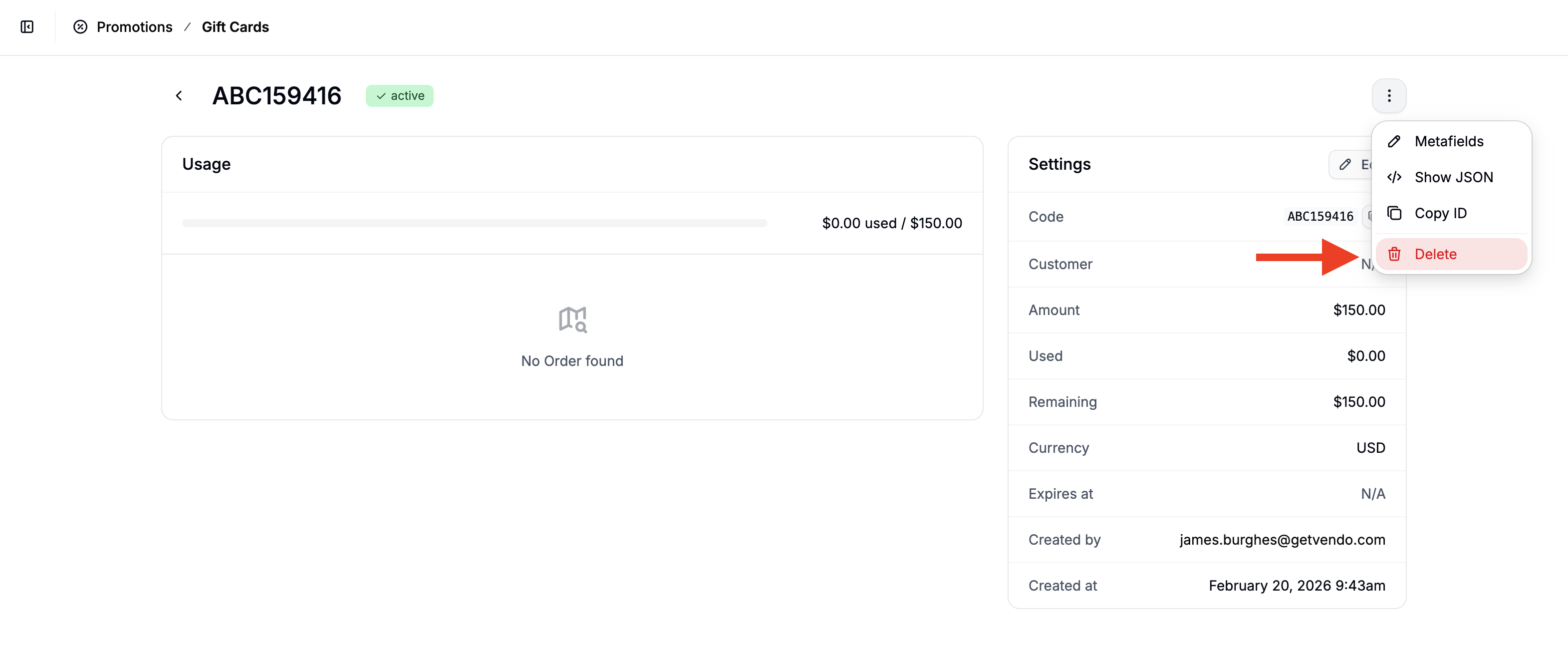 To delete a gift card:
1. Open the gift card
2. Click the **three-dot menu** in the top-right corner
3. Select **Delete**
### Export Gift Cards
You can also:
* Use **Filters** to narrow results
* Sort columns
* Customize visible columns
* Click **Export** to export filtered records to CSV
This is especially useful when distributing bulk-generated codes for marketing campaigns, partnerships, or seasonal promotions.
## How to Redeem Gift Cards
Customers can redeem a gift card at checkout by entering the gift card code into the Promotion field before completing their purchase.
To delete a gift card:
1. Open the gift card
2. Click the **three-dot menu** in the top-right corner
3. Select **Delete**
### Export Gift Cards
You can also:
* Use **Filters** to narrow results
* Sort columns
* Customize visible columns
* Click **Export** to export filtered records to CSV
This is especially useful when distributing bulk-generated codes for marketing campaigns, partnerships, or seasonal promotions.
## How to Redeem Gift Cards
Customers can redeem a gift card at checkout by entering the gift card code into the Promotion field before completing their purchase.