> ## Documentation Index
> Fetch the complete documentation index at: https://spreecommerce.org/docs/llms.txt
> Use this file to discover all available pages before exploring further.
# Create a Promotion
> Learn to how to create and configure promotions in Spree Commerce.
Promotions are a powerful way to drive conversions, reward loyal customers, and support marketing campaigns. Whether you’re offering discounts, free shipping, or bonus products, Spree’s promotion engine gives you fine-grained control over when a promotion applies and what it does.
This guide covers how to create and configure a promotion in Spree. Detailed explanations of individual rules and actions are covered in separate articles.
## Create a New Promotion
To create a promotion, navigate to the **Promotions** tab in the admin dashboard.
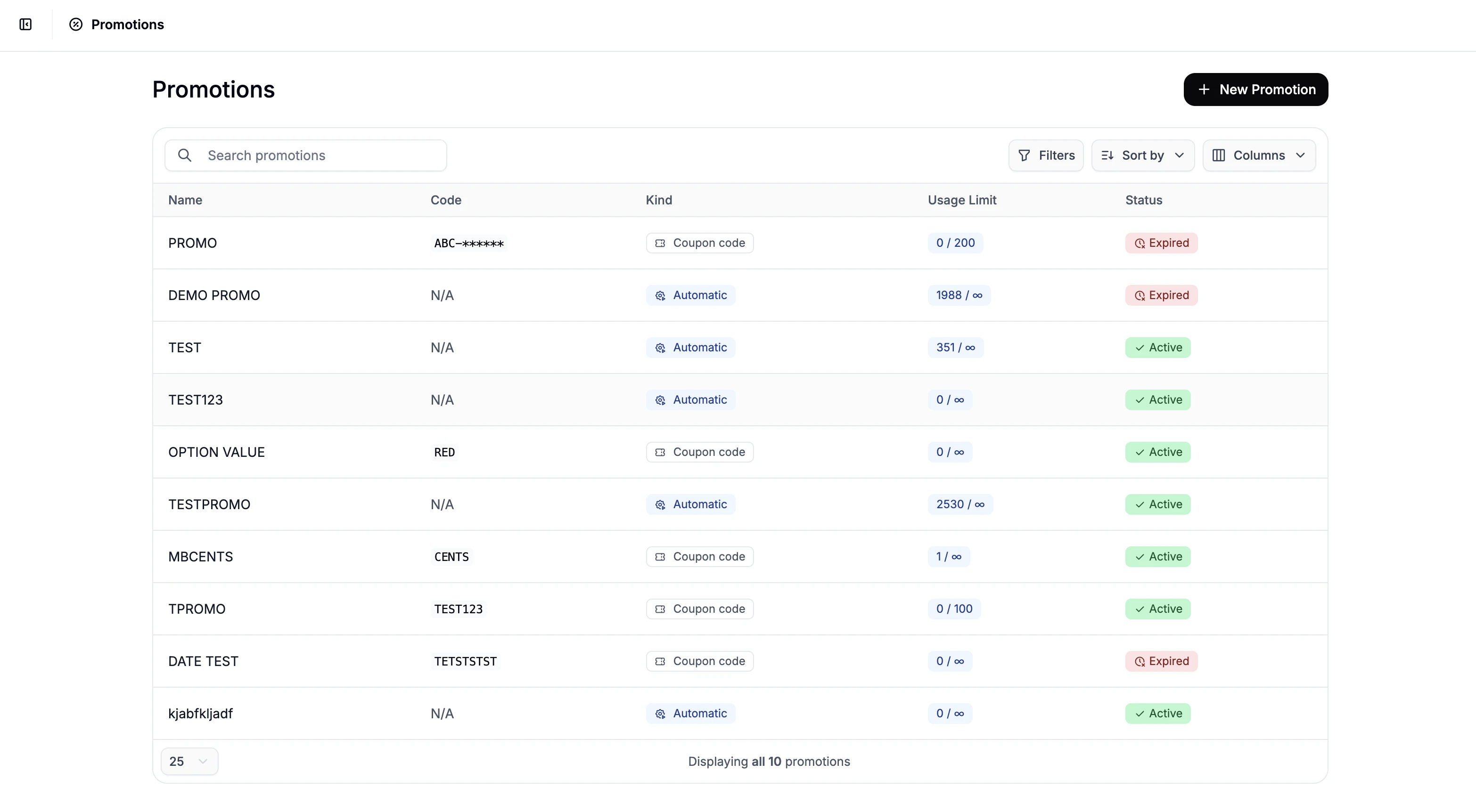 Click **New Promotion** in the top-right corner, to open the Promotion creation form.
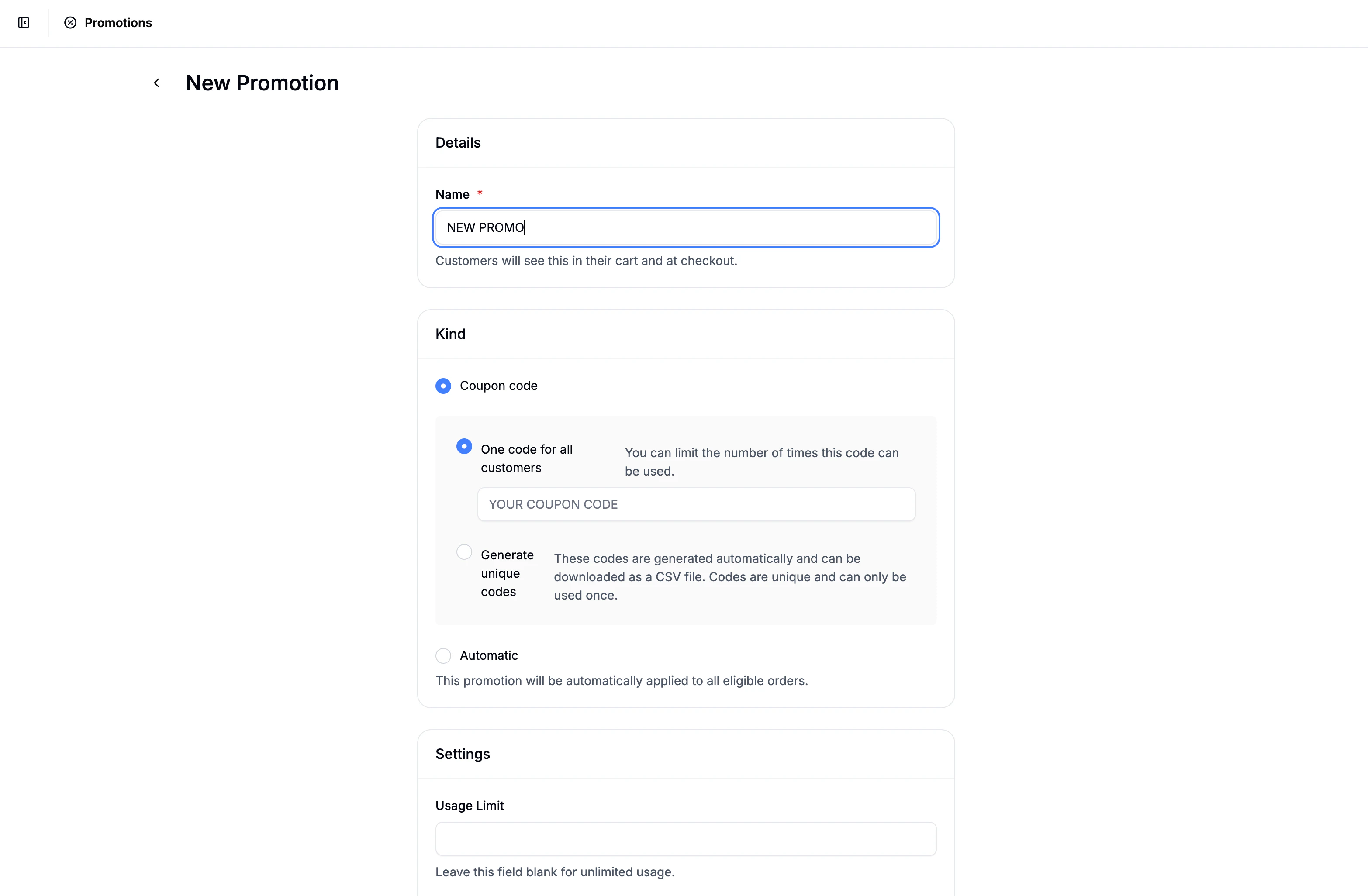 Here you can do the following:
### Choose a Promotion Type
Here you can do the following:
### Choose a Promotion Type
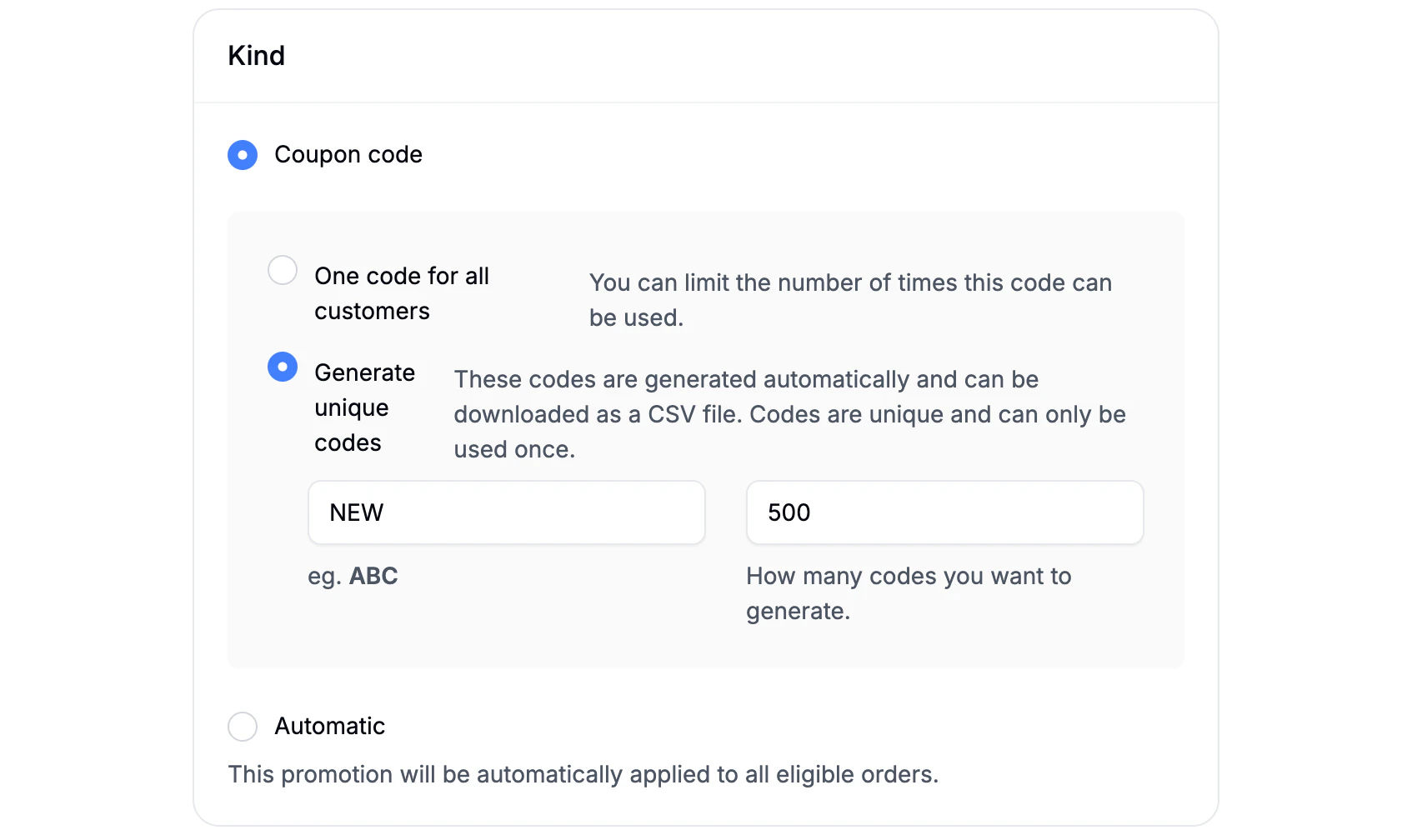 When creating a promotion, you’ll first select how it’s applied:
* **Coupon Code** - The promotion is applied only when a valid code is entered at checkout. You can choose between:
* **Single Code** - one shared code (e.g. SUMMER10)
* **Generated Codes** - automatically generate unique codes
* Optional prefix (e.g. VIP-)
* Set how many codes should be generated
* Unique codes can be downloaded for easier distribution
* **Automatic** - The promotion is applied automatically at checkout once its conditions are met. No coupon code required.
* This is ideal for sitewide sales, free shipping offers, or first-time customer discounts.
### Configure Promotion Settings
When creating a promotion, you’ll first select how it’s applied:
* **Coupon Code** - The promotion is applied only when a valid code is entered at checkout. You can choose between:
* **Single Code** - one shared code (e.g. SUMMER10)
* **Generated Codes** - automatically generate unique codes
* Optional prefix (e.g. VIP-)
* Set how many codes should be generated
* Unique codes can be downloaded for easier distribution
* **Automatic** - The promotion is applied automatically at checkout once its conditions are met. No coupon code required.
* This is ideal for sitewide sales, free shipping offers, or first-time customer discounts.
### Configure Promotion Settings
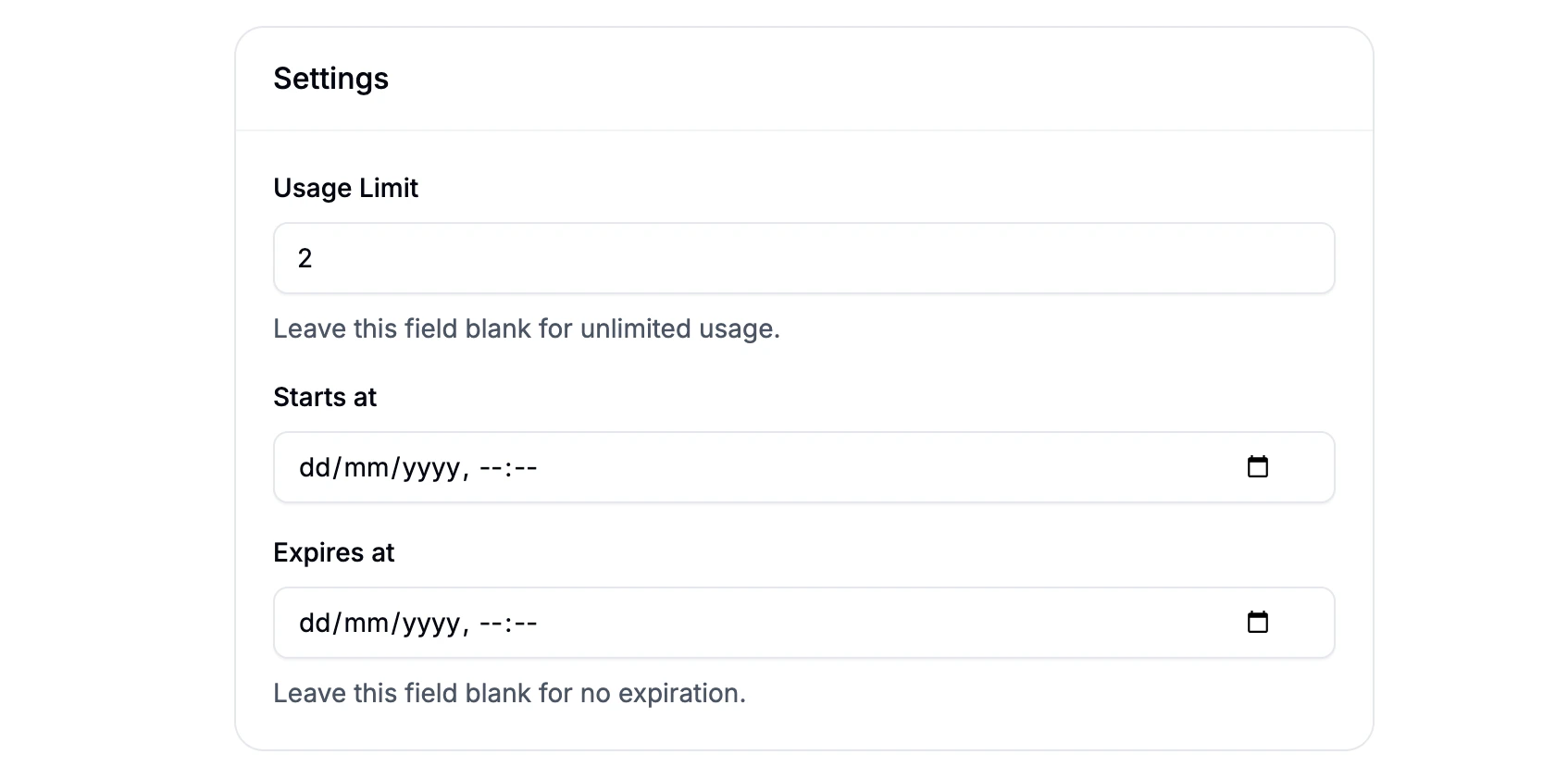 Next, configure the promotion’s availability and limits:
* **Usage Limit** - Maximum number of times the promotion can be used (optional).
* **Starts At** - Date and time when the promotion becomes active.
* **Expires At** - Date and time when the promotion is no longer valid.
Once these fields are set, click **Create**, the form will update, and you can now configure the rules and actions for the promotion.
## Configure Rules & Actions
Next, configure the promotion’s availability and limits:
* **Usage Limit** - Maximum number of times the promotion can be used (optional).
* **Starts At** - Date and time when the promotion becomes active.
* **Expires At** - Date and time when the promotion is no longer valid.
Once these fields are set, click **Create**, the form will update, and you can now configure the rules and actions for the promotion.
## Configure Rules & Actions
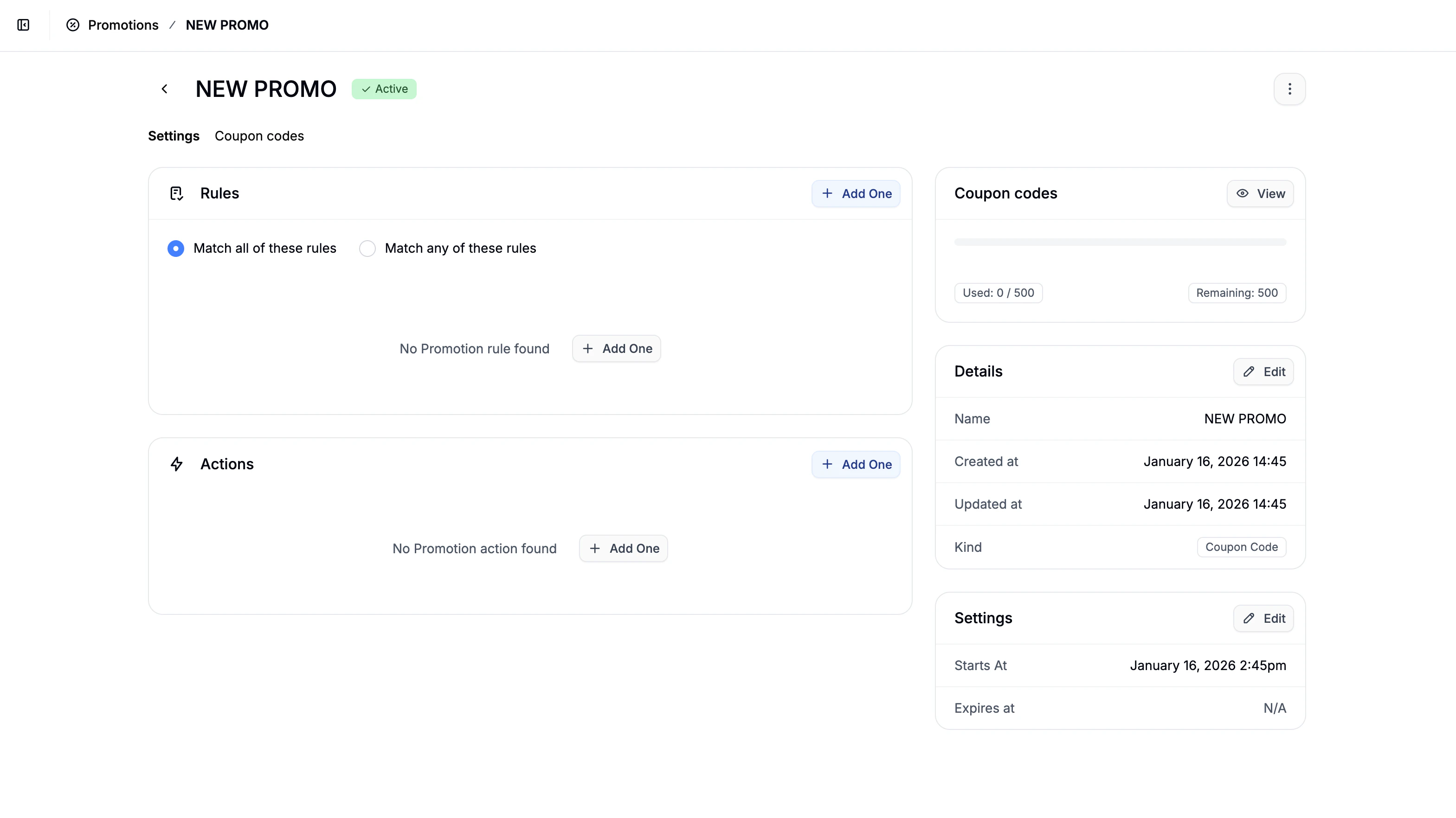 After creating the promotion, you’ll be redirected to the main configuration screen. This is where the actual logic of the promotion is defined.
You’ll see two main sections:
* **Rules** - determine when the promotion applies
* **Actions** - determine what happens when it applies
When adding a rule or action, changes are saved immediately.
There are also two side panels that let you update:
* Promotion details (name, code)
* Promotion settings (usage limits, start/end dates)
### Promotion Rules (Conditions)
After creating the promotion, you’ll be redirected to the main configuration screen. This is where the actual logic of the promotion is defined.
You’ll see two main sections:
* **Rules** - determine when the promotion applies
* **Actions** - determine what happens when it applies
When adding a rule or action, changes are saved immediately.
There are also two side panels that let you update:
* Promotion details (name, code)
* Promotion settings (usage limits, start/end dates)
### Promotion Rules (Conditions)
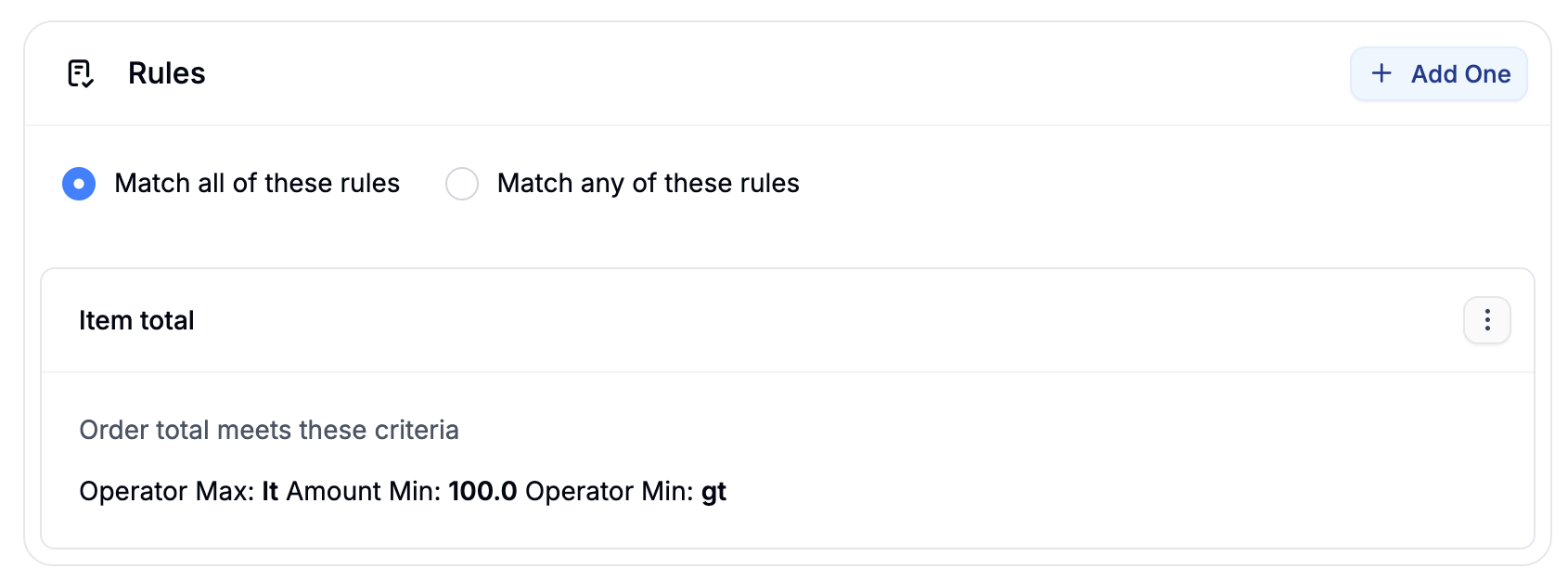 Rules define eligibility. You can combine multiple rules using:
* **Match any** - at least one rule must be satisfied
* **Match all** - all rules must be satisfied
Available rule types include:
* **Currency** - Order must be in a specific currency
* **Country** - Shipping address must be in a specific country
* **Item Total** - Order total meets defined thresholds
* **Product(s)** - Order contains specific products
* **User** - Available only to specific customers
* **First Order** - Customer’s first purchase only
* **User Logged In** - Requires the customer to be logged in
* **One Use Per User** - Limits redemption to once per customer
* **Taxon(s)** - Order contains products from selected taxons
* **Option Value(s)** - Order contains products with specific option values
Rule behavior and configuration details are covered in [Promotion Rules](https://spreecommerce.org/docs/user/promotions/promotion-rules).
### Promotion Actions (Effects)
Rules define eligibility. You can combine multiple rules using:
* **Match any** - at least one rule must be satisfied
* **Match all** - all rules must be satisfied
Available rule types include:
* **Currency** - Order must be in a specific currency
* **Country** - Shipping address must be in a specific country
* **Item Total** - Order total meets defined thresholds
* **Product(s)** - Order contains specific products
* **User** - Available only to specific customers
* **First Order** - Customer’s first purchase only
* **User Logged In** - Requires the customer to be logged in
* **One Use Per User** - Limits redemption to once per customer
* **Taxon(s)** - Order contains products from selected taxons
* **Option Value(s)** - Order contains products with specific option values
Rule behavior and configuration details are covered in [Promotion Rules](https://spreecommerce.org/docs/user/promotions/promotion-rules).
### Promotion Actions (Effects)
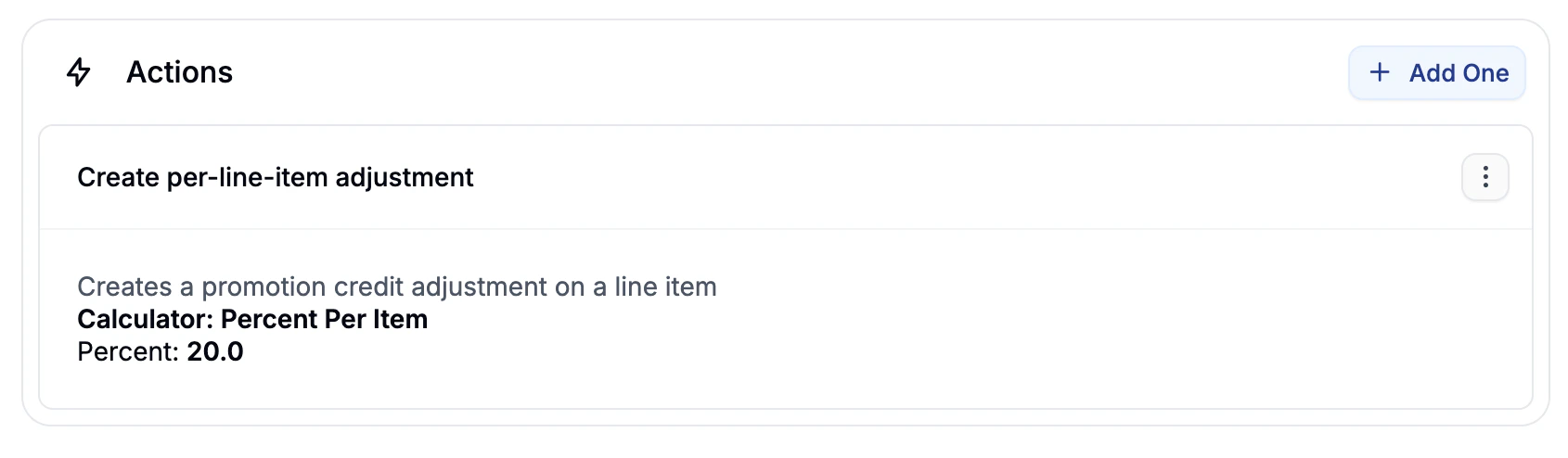 Actions define what the promotion does once its rules are satisfied.
Available actions include:
* **Create whole-order adjustment** - Applies a discount to the entire order.
* **Create per-line-item adjustment** - Applies discounts to individual line items.
* **Create line items** - Automatically adds products (e.g. gifts) to the cart.
* **Free shipping** - Makes all shipments for the order free.
Each action supports one or more calculators (e.g. flat rate, percentage, tiered discounts). These are covered in detail in [Promotion Actions](https://spreecommerce.org/docs/user/promotions/promotion-actions).
## Promotion Ready to Use
Once you’ve added the promotion’s rules and actions, it’s ready to be used by customers.
* **Automatic promotions** will apply at checkout as soon as the conditions are met.
* **Coupon code promotions** can be redeemed when customers enter the code during checkout.
How you market, distribute, or communicate the promotion (e.g., email campaigns, banners, social media, influencer codes) is entirely up to you and your team.
## Common Promotion Examples
**10% Off with a Coupon Code**
* Type: Coupon Code (single code)
* Rule: None (or minimum order total)
* Action: Whole-order adjustment → 10% discount
**Free Shipping Over \$50**
* Type: Automatic
* Rule: Item total ≥ \$50
* Action: Free shipping
**First-Time Customer Discount**
* Type: Automatic
* Rules: First order, User logged in
* Action: Whole-order adjustment → flat or percentage discount
**Buy from a Category, Get a Discount**
* Type: Automatic
* Rule: Taxon(s)
* Action: Per-line-item adjustment
**Advanced Example: VIP Coupon for EU Customers**
* Type: Coupon Code (generated unique codes with prefix)
* Rules: User, One use per user, Currency
* Action: Whole-order adjustment with tiered percentage calculator
Actions define what the promotion does once its rules are satisfied.
Available actions include:
* **Create whole-order adjustment** - Applies a discount to the entire order.
* **Create per-line-item adjustment** - Applies discounts to individual line items.
* **Create line items** - Automatically adds products (e.g. gifts) to the cart.
* **Free shipping** - Makes all shipments for the order free.
Each action supports one or more calculators (e.g. flat rate, percentage, tiered discounts). These are covered in detail in [Promotion Actions](https://spreecommerce.org/docs/user/promotions/promotion-actions).
## Promotion Ready to Use
Once you’ve added the promotion’s rules and actions, it’s ready to be used by customers.
* **Automatic promotions** will apply at checkout as soon as the conditions are met.
* **Coupon code promotions** can be redeemed when customers enter the code during checkout.
How you market, distribute, or communicate the promotion (e.g., email campaigns, banners, social media, influencer codes) is entirely up to you and your team.
## Common Promotion Examples
**10% Off with a Coupon Code**
* Type: Coupon Code (single code)
* Rule: None (or minimum order total)
* Action: Whole-order adjustment → 10% discount
**Free Shipping Over \$50**
* Type: Automatic
* Rule: Item total ≥ \$50
* Action: Free shipping
**First-Time Customer Discount**
* Type: Automatic
* Rules: First order, User logged in
* Action: Whole-order adjustment → flat or percentage discount
**Buy from a Category, Get a Discount**
* Type: Automatic
* Rule: Taxon(s)
* Action: Per-line-item adjustment
**Advanced Example: VIP Coupon for EU Customers**
* Type: Coupon Code (generated unique codes with prefix)
* Rules: User, One use per user, Currency
* Action: Whole-order adjustment with tiered percentage calculator