> ## Documentation Index
> Fetch the complete documentation index at: https://spreecommerce.org/docs/llms.txt
> Use this file to discover all available pages before exploring further.
# Variants
> Learn how to sell one product in several sizes or colors in Spree Commerce.
A variant is one version of a product: one size, one color, one finish. Each variant carries its own price, its own stock count and its own product code, while customers see a single product page with a choice to make.
Variants are built from options. An option such as Color is set up once under [Options](/docs/user/products/options), with the values you offer, and is then picked on any product that comes in those values. Picking Color with White, Black and Stainless Steel on a toaster gives that toaster three variants.
For sizes, the reason for using variants is obvious. Somebody shopping for a large shirt is shopping for the same shirt, and listing each size separately would be strange. It is less obvious for something like the toaster example above, where three colors could just as easily be three products.
Variants are almost always the better choice there, for four reasons:
* **Customers get one listing instead of three.** Three near-identical products compete with each other in your categories and in search results, and a shopper has to open each one to find out they are the same toaster.
* **The product is written once.** The description, images, categories and SEO entry belong to the product, so fixing a typo or adding a category is one edit rather than three.
* **A sold-out color does not take the product down.** It shows as unavailable while the other colors stay on sale.
* **You give up nothing.** Each variant still keeps its own price, stock count and product code, which is everything separate products would have given you.
A product with no options still has a single variant, called the **Default variant**, and that is where its price, code and stock live.
To work with a product's variants, open the product from **Products** in the admin dashboard and find its **Variants** card.
## How to Add Variants to a Product
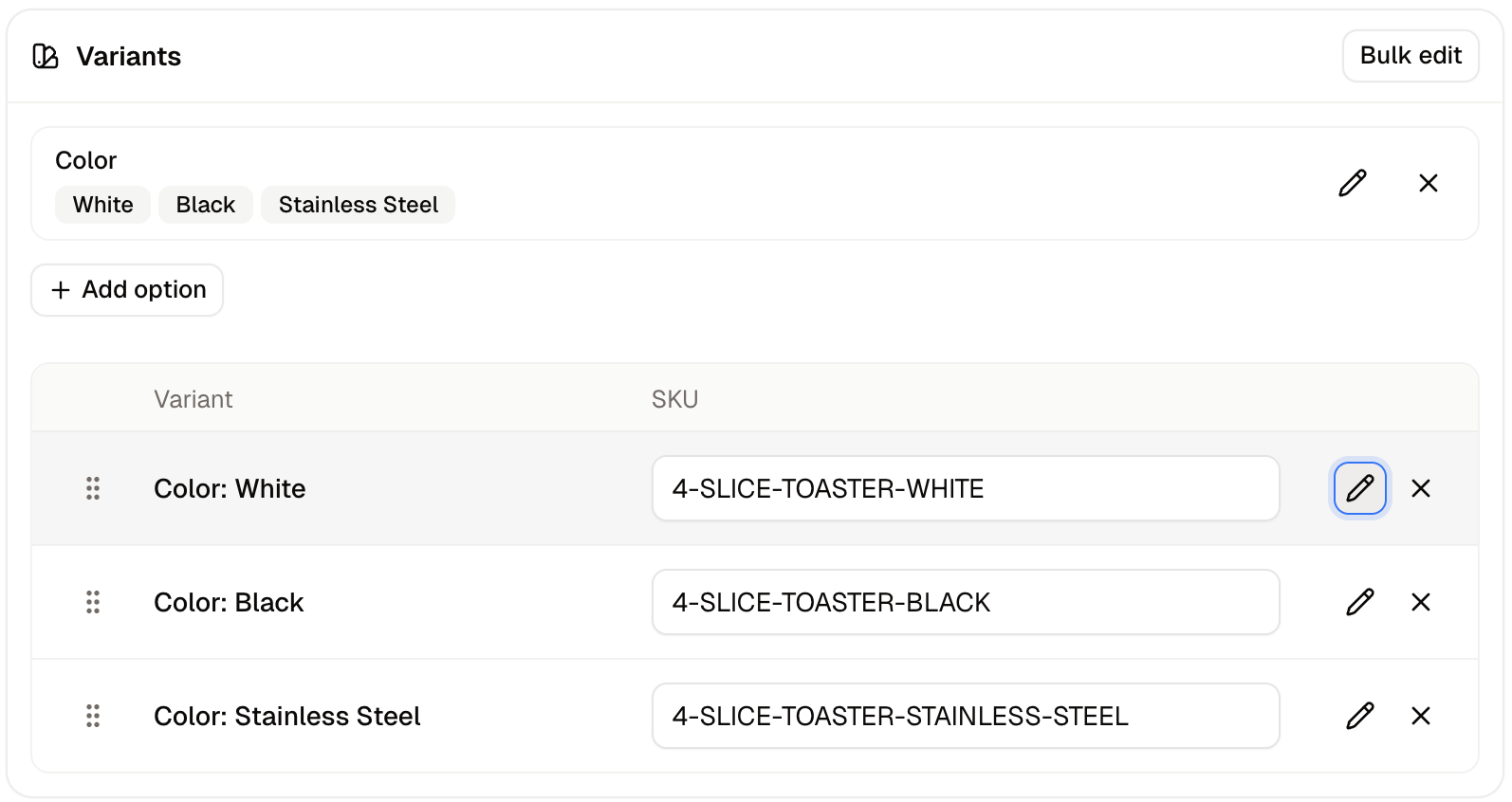 1. In the **Variants** card, click **Add option**.
2. Choose an option from **Pick an option type**. Its values appear as buttons. If the option you need does not exist yet, **Create new option type** makes one without leaving the product form.
3. Click each value this product comes in, then click **Done**.
The **Default variant** row is replaced by one row per value, named after the option and the value, such as Size: S. The **Prices** and **Inventory** cards grow at the same time, gaining a line for each new variant.
Each variant row carries its own **SKU** box, a pencil that opens the variant's details, a cross that removes it, and a handle for dragging it into a different order.
## How to Set a Variant's Price, Code and Stock
These three live outside the **Variants** card, because each has a card of its own.
| What | Where | Notes |
| - | - | - |
| **SKU** | The **SKU** box on the variant's row | Give every variant its own, so your team and your reports can tell one size from another. |
| **Price** | The **Prices** card | One row per variant, each with a **Price** and a **Compare-at price**. The currency selector at the top switches currencies, and each currency holds its own prices. |
| **Stock** | The **Inventory** card | One block per variant, with a line for each stock location. Leave a location empty if you do not hold that variant there. |
To type in a price or stock cell, double-click it, then press **Tab** to move to the next. A single click selects a cell without opening it, so anything typed before the cell is open is not entered.
Press **Tab** to leave the last cell you typed in before clicking **Save product**, so the value is committed rather than left in an open cell.
## How to Edit One Variant
1. In the **Variants** card, click **Add option**.
2. Choose an option from **Pick an option type**. Its values appear as buttons. If the option you need does not exist yet, **Create new option type** makes one without leaving the product form.
3. Click each value this product comes in, then click **Done**.
The **Default variant** row is replaced by one row per value, named after the option and the value, such as Size: S. The **Prices** and **Inventory** cards grow at the same time, gaining a line for each new variant.
Each variant row carries its own **SKU** box, a pencil that opens the variant's details, a cross that removes it, and a handle for dragging it into a different order.
## How to Set a Variant's Price, Code and Stock
These three live outside the **Variants** card, because each has a card of its own.
| What | Where | Notes |
| - | - | - |
| **SKU** | The **SKU** box on the variant's row | Give every variant its own, so your team and your reports can tell one size from another. |
| **Price** | The **Prices** card | One row per variant, each with a **Price** and a **Compare-at price**. The currency selector at the top switches currencies, and each currency holds its own prices. |
| **Stock** | The **Inventory** card | One block per variant, with a line for each stock location. Leave a location empty if you do not hold that variant there. |
To type in a price or stock cell, double-click it, then press **Tab** to move to the next. A single click selects a cell without opening it, so anything typed before the cell is open is not entered.
Press **Tab** to leave the last cell you typed in before clicking **Save product**, so the value is committed rather than left in an open cell.
## How to Edit One Variant
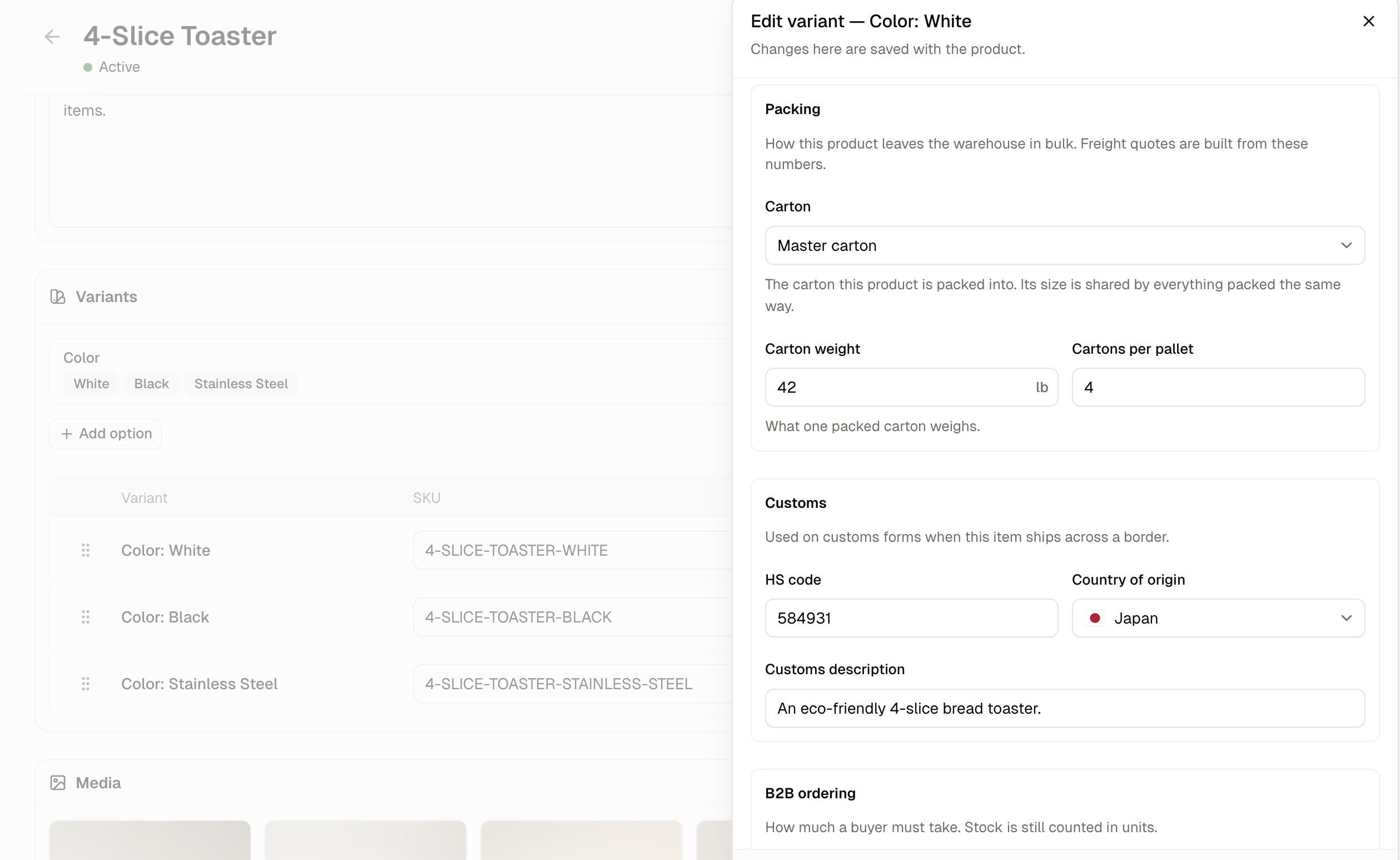 Click the pencil on a variant's row to open its panel. Everything in it belongs to that variant alone, so a detail that differs between sizes has to be set on each one in turn. Click **Done** to close the panel, and the values are kept when you click **Create product** or **Save product**.
The panel is divided into seven sections.
### Identity
**SKU** is the variant's own product code, the one your warehouse staff and your reports use to tell one version from another. **Barcode** holds the code that gets scanned, such as an EAN or UPC.
### Shipping
Weight and size belong to the variant rather than the product, because a 1.7L kettle weighs more than a 1L one.
* **Weight**, in g, kg, lb or oz.
* **Height**, **Width** and **Depth**, in mm, cm or in.
These are the figures a delivery method uses when it prices by weight or by size, so a variant left empty is priced as though it weighed nothing.
### Packing
Packing describes how the variant leaves the warehouse in bulk, rather than how a single customer order is packed.
* **Carton** - The package type this variant is packed into. A carton's measurements are shared by everything packed the same way, so it is defined once and reused. See [Package Types](/docs/user/settings/package-types).
* **Carton weight** - What one packed carton weighs, goods included.
* **Cartons per pallet** - How many of those cartons fit on a pallet.
### Customs
Customs holds what a border asks for when the variant ships to another country.
* **HS code** - The Harmonized System code that classifies the goods, such as 640411.
* **Country of origin** - Where the goods were made, which is not always where they ship from.
* **Customs description** - A plain description of the goods, written for a customs officer rather than a shopper.
### B2B Ordering
B2B ordering sets how much a business buyer has to take at a time. Stock is still counted in single units whatever you set here.
* **Minimum order quantity** - The fewest units a buyer can order. Leave it empty for no minimum.
* **Order multiple** - The step the quantity has to move in. A multiple of 6 allows 6, 12 or 18, but not 7.
* **Purchase unit** - What the buyer is buying, which is units unless you change it.
* **Units per carton** - How many units one carton holds, which is what a buyer ordering by the carton is actually getting.
### Availability
Availability decides whether the variant can still be sold once you have none on the shelf.
* **Available for pre-order** - Lets customers buy the variant before it is in stock.
* **Backorder limit** - The most units that can be sold beyond what is on hand, counting backorders and pre-orders together. Leave it empty for no cap.
### Tax
**Tax category** sets which rate applies to this variant. It inherits from the product until you change it, so a variant needs its own only when it is taxed differently from the rest of the product variants. See [Tax Categories](/docs/user/settings/tax-categories).
## How to Edit Every Variant at Once
**Bulk edit** in the **Variants** card opens all of a product's variants as one spreadsheet, with a column for each field in the variant panel: SKU, barcode, weight and its unit, height, width, depth and their unit, pre-order and backorder limit, tax category, the three customs fields, and the packing fields.
Click the pencil on a variant's row to open its panel. Everything in it belongs to that variant alone, so a detail that differs between sizes has to be set on each one in turn. Click **Done** to close the panel, and the values are kept when you click **Create product** or **Save product**.
The panel is divided into seven sections.
### Identity
**SKU** is the variant's own product code, the one your warehouse staff and your reports use to tell one version from another. **Barcode** holds the code that gets scanned, such as an EAN or UPC.
### Shipping
Weight and size belong to the variant rather than the product, because a 1.7L kettle weighs more than a 1L one.
* **Weight**, in g, kg, lb or oz.
* **Height**, **Width** and **Depth**, in mm, cm or in.
These are the figures a delivery method uses when it prices by weight or by size, so a variant left empty is priced as though it weighed nothing.
### Packing
Packing describes how the variant leaves the warehouse in bulk, rather than how a single customer order is packed.
* **Carton** - The package type this variant is packed into. A carton's measurements are shared by everything packed the same way, so it is defined once and reused. See [Package Types](/docs/user/settings/package-types).
* **Carton weight** - What one packed carton weighs, goods included.
* **Cartons per pallet** - How many of those cartons fit on a pallet.
### Customs
Customs holds what a border asks for when the variant ships to another country.
* **HS code** - The Harmonized System code that classifies the goods, such as 640411.
* **Country of origin** - Where the goods were made, which is not always where they ship from.
* **Customs description** - A plain description of the goods, written for a customs officer rather than a shopper.
### B2B Ordering
B2B ordering sets how much a business buyer has to take at a time. Stock is still counted in single units whatever you set here.
* **Minimum order quantity** - The fewest units a buyer can order. Leave it empty for no minimum.
* **Order multiple** - The step the quantity has to move in. A multiple of 6 allows 6, 12 or 18, but not 7.
* **Purchase unit** - What the buyer is buying, which is units unless you change it.
* **Units per carton** - How many units one carton holds, which is what a buyer ordering by the carton is actually getting.
### Availability
Availability decides whether the variant can still be sold once you have none on the shelf.
* **Available for pre-order** - Lets customers buy the variant before it is in stock.
* **Backorder limit** - The most units that can be sold beyond what is on hand, counting backorders and pre-orders together. Leave it empty for no cap.
### Tax
**Tax category** sets which rate applies to this variant. It inherits from the product until you change it, so a variant needs its own only when it is taxed differently from the rest of the product variants. See [Tax Categories](/docs/user/settings/tax-categories).
## How to Edit Every Variant at Once
**Bulk edit** in the **Variants** card opens all of a product's variants as one spreadsheet, with a column for each field in the variant panel: SKU, barcode, weight and its unit, height, width, depth and their unit, pre-order and backorder limit, tax category, the three customs fields, and the packing fields.
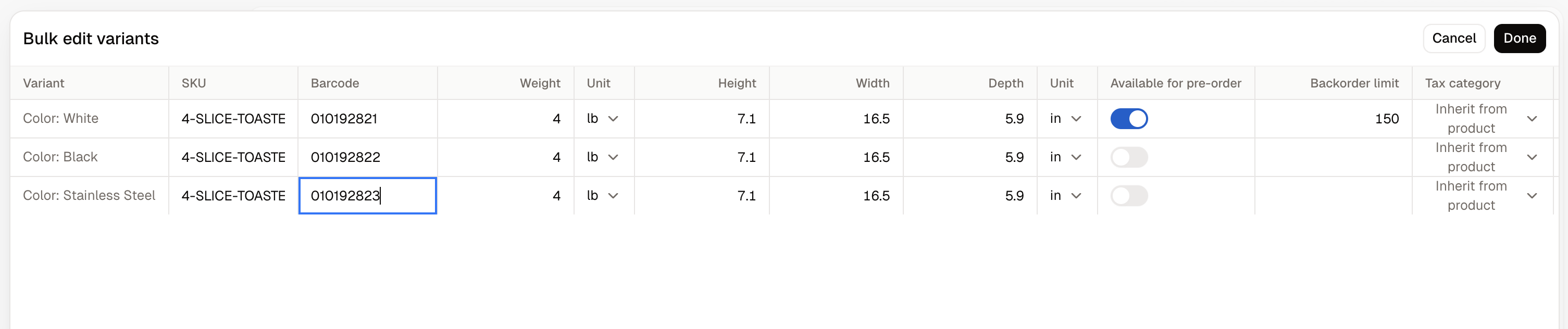 It suits filling in the same kind of detail across every variant, such as weighing six sizes in turn, where opening and closing six panels would mean far more clicking. Click **Done** to close it, then **Save product**.
## How to Show the Right Image for a Variant
Images belong to the product as a whole, and each one can name the variants it shows.
1. Click an image in the **Media** card.
2. Under **Assigned variants**, pick the variants that image represents.
3. Click **Done**, then **Save product**.
Leaving **Assigned variants** empty applies the image to every variant. See [Media](/docs/user/products/media).
## What Customers See
It suits filling in the same kind of detail across every variant, such as weighing six sizes in turn, where opening and closing six panels would mean far more clicking. Click **Done** to close it, then **Save product**.
## How to Show the Right Image for a Variant
Images belong to the product as a whole, and each one can name the variants it shows.
1. Click an image in the **Media** card.
2. Under **Assigned variants**, pick the variants that image represents.
3. Click **Done**, then **Save product**.
Leaving **Assigned variants** empty applies the image to every variant. See [Media](/docs/user/products/media).
## What Customers See
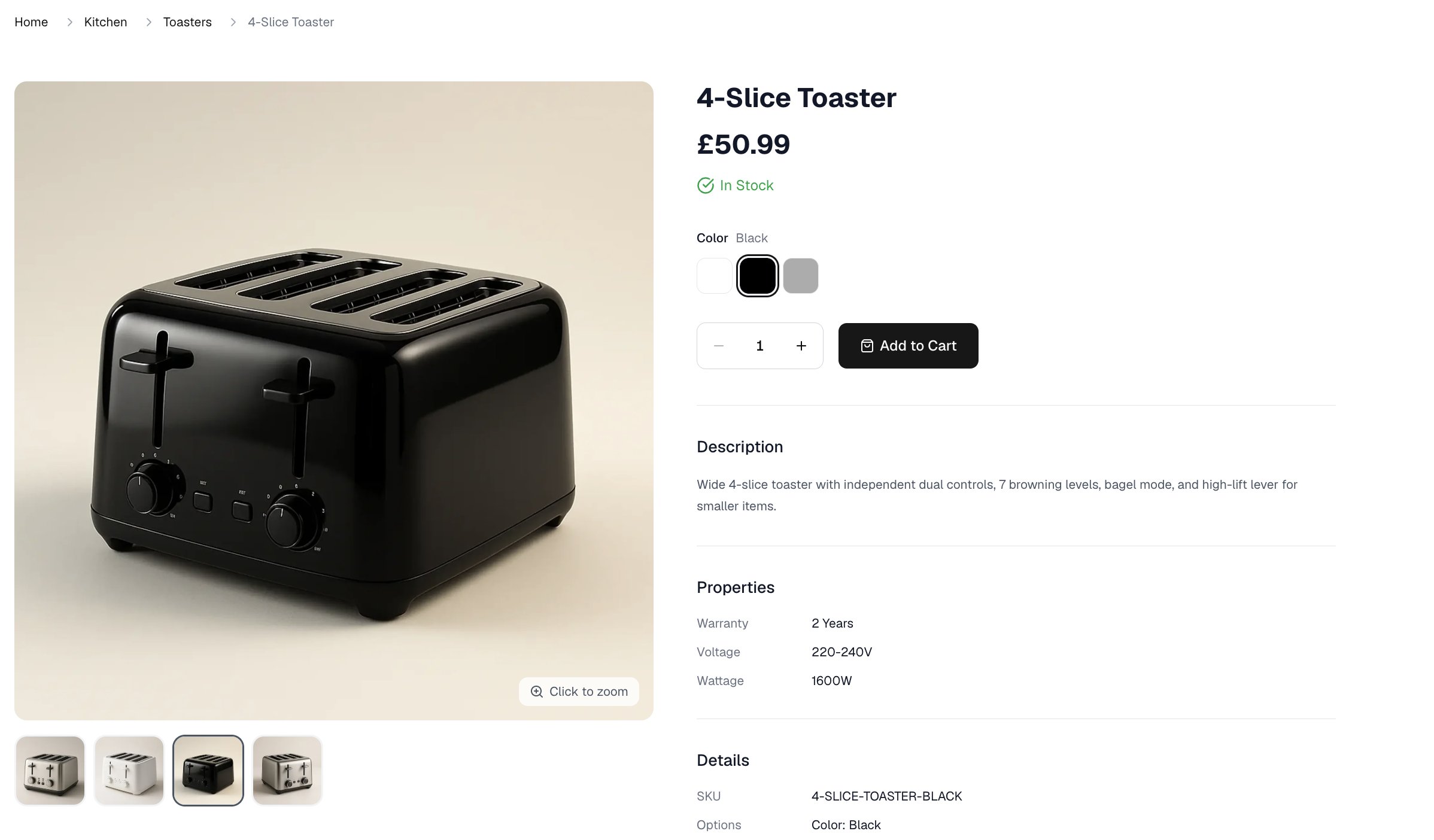 An active product shows a selector for each of its options, with the first value already chosen. Picking a different value swaps in that variant's price, and the product details show that variant's SKU.
A variant with a compare-at price shows its price beside the higher one, marked down, with a **Sale** badge. A variant that is out of stock cannot be added to the cart, unless its **Availability** settings allow it to be sold past zero.
Customers shopping in another currency see the price you set for that currency.
Duplicating a product copies every variant, but the copy starts with no stock and no images, and **COPY OF** is added to the product name and to every variant's SKU. Set the codes and stock counts again before making the copy active.
## Further Reading
* [Options](/docs/user/products/options) - Setting up the options and values variants are built from
* [Adding Products](/docs/user/products/adding-products) - The rest of the product form around the Variants card
* [Media](/docs/user/products/media) - Every image and video in your store
* [Package Types](/docs/user/settings/package-types) - The cartons the Packing section refers to
* [Inventory](/docs/user/inventory/stock-levels) - Following stock for each variant across your locations
This documentation is built and hosted on [Mintlify](https://mintlify.com), a developer documentation platform.
An active product shows a selector for each of its options, with the first value already chosen. Picking a different value swaps in that variant's price, and the product details show that variant's SKU.
A variant with a compare-at price shows its price beside the higher one, marked down, with a **Sale** badge. A variant that is out of stock cannot be added to the cart, unless its **Availability** settings allow it to be sold past zero.
Customers shopping in another currency see the price you set for that currency.
Duplicating a product copies every variant, but the copy starts with no stock and no images, and **COPY OF** is added to the product name and to every variant's SKU. Set the codes and stock counts again before making the copy active.
## Further Reading
* [Options](/docs/user/products/options) - Setting up the options and values variants are built from
* [Adding Products](/docs/user/products/adding-products) - The rest of the product form around the Variants card
* [Media](/docs/user/products/media) - Every image and video in your store
* [Package Types](/docs/user/settings/package-types) - The cartons the Packing section refers to
* [Inventory](/docs/user/inventory/stock-levels) - Following stock for each variant across your locations
This documentation is built and hosted on [Mintlify](https://mintlify.com), a developer documentation platform.