> ## Documentation Index
> Fetch the complete documentation index at: https://spreecommerce.org/docs/llms.txt
> Use this file to discover all available pages before exploring further.
# Import Template
> Learn how to fill in the product import file template in Spree Commerce.
A product import file follows a fixed shape. There is a set list of columns, each one holding a single product or variant field, and a product that comes in several variants spreads across several lines. Getting that shape right is most of the work of an import, and the template is that shape ready to fill in.
Download the template from your store, enter your products with a spreadsheet, and upload the result to create or update products and their variants in one go. It is worth doing whenever you are loading a catalog from a supplier list or another system, or changing many prices at once. For one or two products, the product form is quicker.
The template comes from the store you download it from, so the columns at its end are that store's own product custom fields. Download a fresh one after adding a custom field, or its values will have nowhere to go.
An export is laid out differently. It carries three columns the import does not accept (`product_id`, `seller_name` and `labels`) and none of the customs or packing columns, so see [Import & Export](/docs/user/products/import-and-export) if you are starting from an export rather than the template.
To get the template, navigate to **Products** in the admin dashboard and click **Import**.
## How to Download the Template
1. Go to **Products** and click **Import**.
2. In the **Import from CSV** panel, click **Download CSV template**.
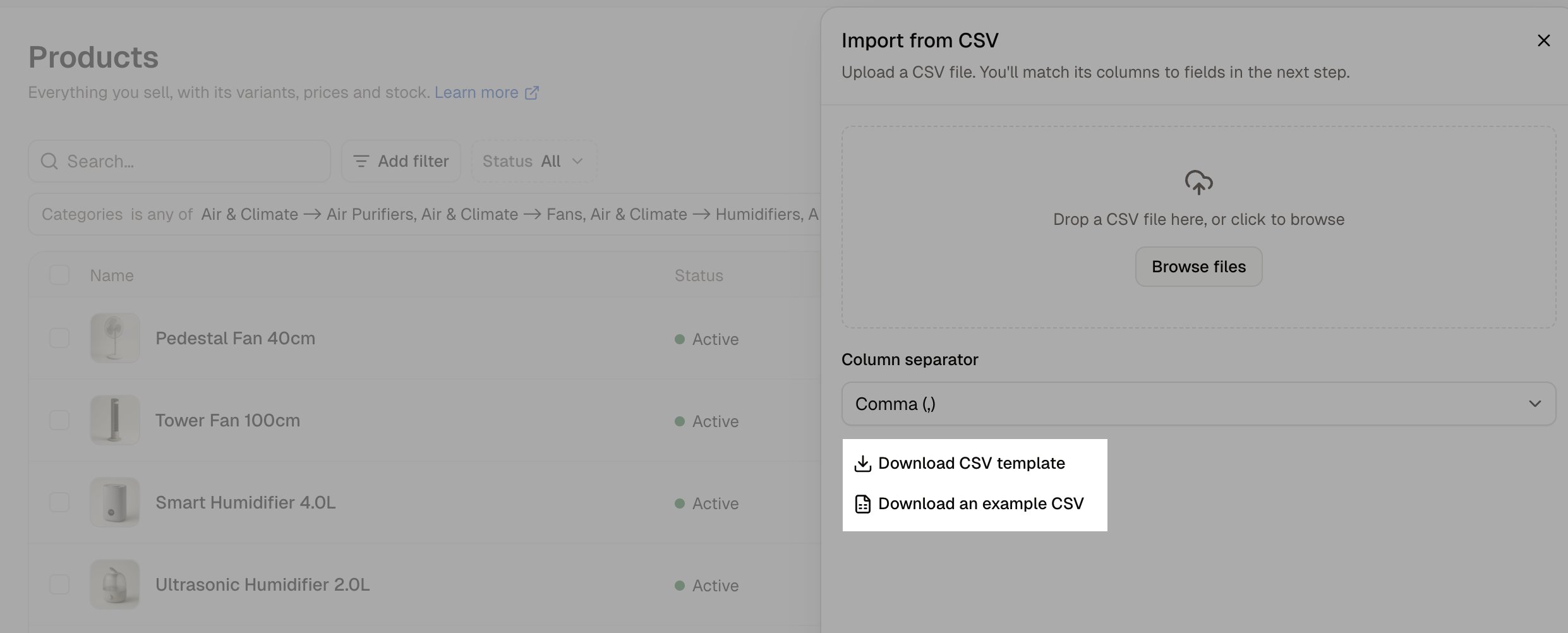 The same panel also offers **Download an example CSV**, the **Column separator** dropdown, and the drop zone where you upload the finished file.
## The Columns in the Template
The template carries 45 fixed columns, then one more for each product custom field your store has defined. Only **Slug**, **SKU**, **Name** and **Price** have to be mapped; every other column can be left out of the file.
| Column | What it holds |
| - | - |
| `slug` | The product's web address handle, and the key tying every line of one product together. **Required.** |
| `sku` | The variant's own product code. A line whose SKU already exists updates that variant rather than adding one. **Required.** |
| `name` | The product's name. **Required.** |
| `price` | The price in the line's currency, as a plain number such as `12.50`. **Required.** |
| `status` | `active`, `draft` or `archived`. |
| `description` | The product description. |
| `meta_title`, `meta_description`, `meta_keywords` | The product's search listing. |
| `tags` | Tags, separated by commas. |
| `compare_at_price` | The higher "was" price, which marks the product down and adds a **Sale** badge. |
| `currency` | The currency this line's price is in. |
| `width`, `height`, `depth` | The variant's dimensions. |
| `dimensions_unit` | `mm`, `cm` or `in`. |
| `weight` | The variant's weight. |
| `weight_unit` | `g`, `kg`, `lb` or `oz`. |
| `available_on` | When the product goes on sale. |
| `discontinue_on` | When it comes off sale. |
| `track_inventory` | Whether stock is counted for this variant. |
| `inventory_count` | Units on hand. |
| `inventory_backorderable` | Whether the variant can be sold past zero. |
| `stock_location` | Which warehouse the count belongs to. |
| `tax_category` | The tax category name, which has to exist already. |
| `product_type` | The product type name. |
| `hs_code`, `country_of_origin`, `customs_description` | The customs details on the variant. |
| `carton` | The package type the variant is packed into. |
| `units_per_carton`, `carton_weight`, `cartons_per_pallet` | The rest of the variant's packing figures. |
| `image1_src`, `image2_src`, `image3_src` | Web addresses of up to three images to fetch and attach. |
| `option1_name`, `option1_value` | The first option and the value this variant has, such as `Color` and `White`. `option2_*` and `option3_*` follow for a second and third option. |
| `category1` | A category to file the product under. `category2` and `category3` add two more. |
| `custom_field.custom.material` | One column per product custom field, named `custom_field..`. |
## The Four Required Columns
Four columns have to be matched to something before an import can start. Every other column can be left out of the file altogether.
* **`slug`** - The key tying every line of one product together. All of a product's lines carry the same slug.
* **`sku`** - The variant's own product code. A line whose SKU already exists in the store updates that variant rather than adding a new one.
* **`name`** - The product's name, which only needs filling in on the line carrying the product's details.
* **`price`** - The price in that line's currency.
If your file has no column for a required field, the import stops at the matching step, which names the missing field, and **Start import** is disabled.
## How to Fill In a Product With Variants
Every line of the file is a variant, and all of a product's lines share one `slug`. The product's own details go on one of those lines, and the rest carry only what belongs to their variant.
1. On the product's first line, fill in `slug`, `sku`, `name`, `price` and `status`, along with the description, categories and anything else that belongs to the product as a whole. Give that line its own `option1_name` and `option1_value`, because it is a variant too.
2. On each following line, repeat the `slug`, give the variant its own `sku` and `price`, and fill in its `option1_name` and `option1_value`.
3. Leave `name`, `description` and the other product columns empty on those lines.
Keep the line carrying the product's details first. The other lines find their product by slug, so they fail if the product is neither already in the store nor created by an earlier line.
An option value the store does not have yet is created as the line is imported, so a line with the value `Bronze` adds both the variant and a new **Bronze** value to the store's **Color** option.
## How to Fill In Prices in More Than One Currency
Each currency is a line of its own.
1. Fill in the variant's line in your store's default currency.
2. Add another line for the same variant, carrying the same `slug` and `sku`, the price in the other currency, and that currency's code in `currency`.
Those extra lines need nothing else. A file carrying only your default currency's lines changes only those prices and leaves the others as they were.
## How to Write Values
Columns of the same kind expect the same format.
| Kind of column | How to write it |
| - | - |
| Prices, such as `price` and `compare_at_price` | A plain number with a full stop for the decimal mark, so `12.50`, or `12` for a whole amount. No currency symbol. |
| `currency` | The three-letter code, such as `USD` or `EUR`. |
| Counts, such as `inventory_count` and `units_per_carton` | Digits only. |
| Yes or no, such as `track_inventory` and `inventory_backorderable` | `true` or `false`. |
| `status` | `active`, `draft` or `archived`. Left empty, the product is created as a draft. |
| `weight_unit` | `g`, `kg`, `lb` or `oz`. |
| `dimensions_unit` | `mm`, `cm` or `in`. |
| Names of things that already exist, such as `tax_category`, `product_type`, `carton` and `stock_location` | The name exactly as your store spells it. |
| `tags` | Separated by commas. |
| `image1_src` and the others | A full web address the store can fetch the image from. |
| Option and category columns | The value as it appears in your store, or a new one, which is created as the line is imported. |
Check your price and count columns before you upload. A price written with a comma for the decimal mark, such as `12,50`, is read as 1250.00, and a word in a price or count column is read as 0.
## How the Template's Columns Are Matched on Upload
After you click **Continue**, the **Map columns** step lists every import field for you to match against a column of your file.
* **Field** - the import field, with **Required** beside Slug, SKU, Name and Price.
* **File column** - the column from your file. It is filled in for you when your column's header equals the field name, and reads **Not mapped** otherwise.
* **Example** - the value in that column on your file's first data row.
Every template header is one of these field names, so every column you kept from the template is matched for you. If you renamed a column, open its **File column** picker and choose your header from the list.
The **Column separator** dropdown in the upload panel opens on **Comma (,)**. Change it when your spreadsheet saved the file with semicolons, pipes or tabs.
When you click **Start import**, the result gives the number of lines imported and the number that failed. That count covers lines that created products and lines that updated them together, so open a product afterwards to check the outcome.
## Further Reading
* [Import & Export](/docs/user/products/import-and-export) - Uploading the finished file, and exporting products back out
* [Options](/docs/user/products/options) - The option values your lines refer to
* [Variants](/docs/user/products/variants) - What the option columns become once the file is imported
* [Adding Products](/docs/user/products/adding-products) - The same fields on the product form
This documentation is built and hosted on [Mintlify](https://mintlify.com), a developer documentation platform.
The same panel also offers **Download an example CSV**, the **Column separator** dropdown, and the drop zone where you upload the finished file.
## The Columns in the Template
The template carries 45 fixed columns, then one more for each product custom field your store has defined. Only **Slug**, **SKU**, **Name** and **Price** have to be mapped; every other column can be left out of the file.
| Column | What it holds |
| - | - |
| `slug` | The product's web address handle, and the key tying every line of one product together. **Required.** |
| `sku` | The variant's own product code. A line whose SKU already exists updates that variant rather than adding one. **Required.** |
| `name` | The product's name. **Required.** |
| `price` | The price in the line's currency, as a plain number such as `12.50`. **Required.** |
| `status` | `active`, `draft` or `archived`. |
| `description` | The product description. |
| `meta_title`, `meta_description`, `meta_keywords` | The product's search listing. |
| `tags` | Tags, separated by commas. |
| `compare_at_price` | The higher "was" price, which marks the product down and adds a **Sale** badge. |
| `currency` | The currency this line's price is in. |
| `width`, `height`, `depth` | The variant's dimensions. |
| `dimensions_unit` | `mm`, `cm` or `in`. |
| `weight` | The variant's weight. |
| `weight_unit` | `g`, `kg`, `lb` or `oz`. |
| `available_on` | When the product goes on sale. |
| `discontinue_on` | When it comes off sale. |
| `track_inventory` | Whether stock is counted for this variant. |
| `inventory_count` | Units on hand. |
| `inventory_backorderable` | Whether the variant can be sold past zero. |
| `stock_location` | Which warehouse the count belongs to. |
| `tax_category` | The tax category name, which has to exist already. |
| `product_type` | The product type name. |
| `hs_code`, `country_of_origin`, `customs_description` | The customs details on the variant. |
| `carton` | The package type the variant is packed into. |
| `units_per_carton`, `carton_weight`, `cartons_per_pallet` | The rest of the variant's packing figures. |
| `image1_src`, `image2_src`, `image3_src` | Web addresses of up to three images to fetch and attach. |
| `option1_name`, `option1_value` | The first option and the value this variant has, such as `Color` and `White`. `option2_*` and `option3_*` follow for a second and third option. |
| `category1` | A category to file the product under. `category2` and `category3` add two more. |
| `custom_field.custom.material` | One column per product custom field, named `custom_field..`. |
## The Four Required Columns
Four columns have to be matched to something before an import can start. Every other column can be left out of the file altogether.
* **`slug`** - The key tying every line of one product together. All of a product's lines carry the same slug.
* **`sku`** - The variant's own product code. A line whose SKU already exists in the store updates that variant rather than adding a new one.
* **`name`** - The product's name, which only needs filling in on the line carrying the product's details.
* **`price`** - The price in that line's currency.
If your file has no column for a required field, the import stops at the matching step, which names the missing field, and **Start import** is disabled.
## How to Fill In a Product With Variants
Every line of the file is a variant, and all of a product's lines share one `slug`. The product's own details go on one of those lines, and the rest carry only what belongs to their variant.
1. On the product's first line, fill in `slug`, `sku`, `name`, `price` and `status`, along with the description, categories and anything else that belongs to the product as a whole. Give that line its own `option1_name` and `option1_value`, because it is a variant too.
2. On each following line, repeat the `slug`, give the variant its own `sku` and `price`, and fill in its `option1_name` and `option1_value`.
3. Leave `name`, `description` and the other product columns empty on those lines.
Keep the line carrying the product's details first. The other lines find their product by slug, so they fail if the product is neither already in the store nor created by an earlier line.
An option value the store does not have yet is created as the line is imported, so a line with the value `Bronze` adds both the variant and a new **Bronze** value to the store's **Color** option.
## How to Fill In Prices in More Than One Currency
Each currency is a line of its own.
1. Fill in the variant's line in your store's default currency.
2. Add another line for the same variant, carrying the same `slug` and `sku`, the price in the other currency, and that currency's code in `currency`.
Those extra lines need nothing else. A file carrying only your default currency's lines changes only those prices and leaves the others as they were.
## How to Write Values
Columns of the same kind expect the same format.
| Kind of column | How to write it |
| - | - |
| Prices, such as `price` and `compare_at_price` | A plain number with a full stop for the decimal mark, so `12.50`, or `12` for a whole amount. No currency symbol. |
| `currency` | The three-letter code, such as `USD` or `EUR`. |
| Counts, such as `inventory_count` and `units_per_carton` | Digits only. |
| Yes or no, such as `track_inventory` and `inventory_backorderable` | `true` or `false`. |
| `status` | `active`, `draft` or `archived`. Left empty, the product is created as a draft. |
| `weight_unit` | `g`, `kg`, `lb` or `oz`. |
| `dimensions_unit` | `mm`, `cm` or `in`. |
| Names of things that already exist, such as `tax_category`, `product_type`, `carton` and `stock_location` | The name exactly as your store spells it. |
| `tags` | Separated by commas. |
| `image1_src` and the others | A full web address the store can fetch the image from. |
| Option and category columns | The value as it appears in your store, or a new one, which is created as the line is imported. |
Check your price and count columns before you upload. A price written with a comma for the decimal mark, such as `12,50`, is read as 1250.00, and a word in a price or count column is read as 0.
## How the Template's Columns Are Matched on Upload
After you click **Continue**, the **Map columns** step lists every import field for you to match against a column of your file.
* **Field** - the import field, with **Required** beside Slug, SKU, Name and Price.
* **File column** - the column from your file. It is filled in for you when your column's header equals the field name, and reads **Not mapped** otherwise.
* **Example** - the value in that column on your file's first data row.
Every template header is one of these field names, so every column you kept from the template is matched for you. If you renamed a column, open its **File column** picker and choose your header from the list.
The **Column separator** dropdown in the upload panel opens on **Comma (,)**. Change it when your spreadsheet saved the file with semicolons, pipes or tabs.
When you click **Start import**, the result gives the number of lines imported and the number that failed. That count covers lines that created products and lines that updated them together, so open a product afterwards to check the outcome.
## Further Reading
* [Import & Export](/docs/user/products/import-and-export) - Uploading the finished file, and exporting products back out
* [Options](/docs/user/products/options) - The option values your lines refer to
* [Variants](/docs/user/products/variants) - What the option columns become once the file is imported
* [Adding Products](/docs/user/products/adding-products) - The same fields on the product form
This documentation is built and hosted on [Mintlify](https://mintlify.com), a developer documentation platform.