> ## Documentation Index
> Fetch the complete documentation index at: https://spreecommerce.org/docs/llms.txt
> Use this file to discover all available pages before exploring further.
# Edit a Multi-Variant Product
> Learn how to edit a multi-variant product in Spree Commerce.
Editing multi-variant products is a bit more involved than single-variant ones, since each variant can have unique details - such as pricing, stock levels, or media.
This guide will show you how to manage variant options, edit individual variants, and tailor settings for specific combinations.
## How to Edit a Multi-Variant Product
To get started, go to the **Products** tab in the admin dashboard, and click on the product you'd like to update to open the product editor.
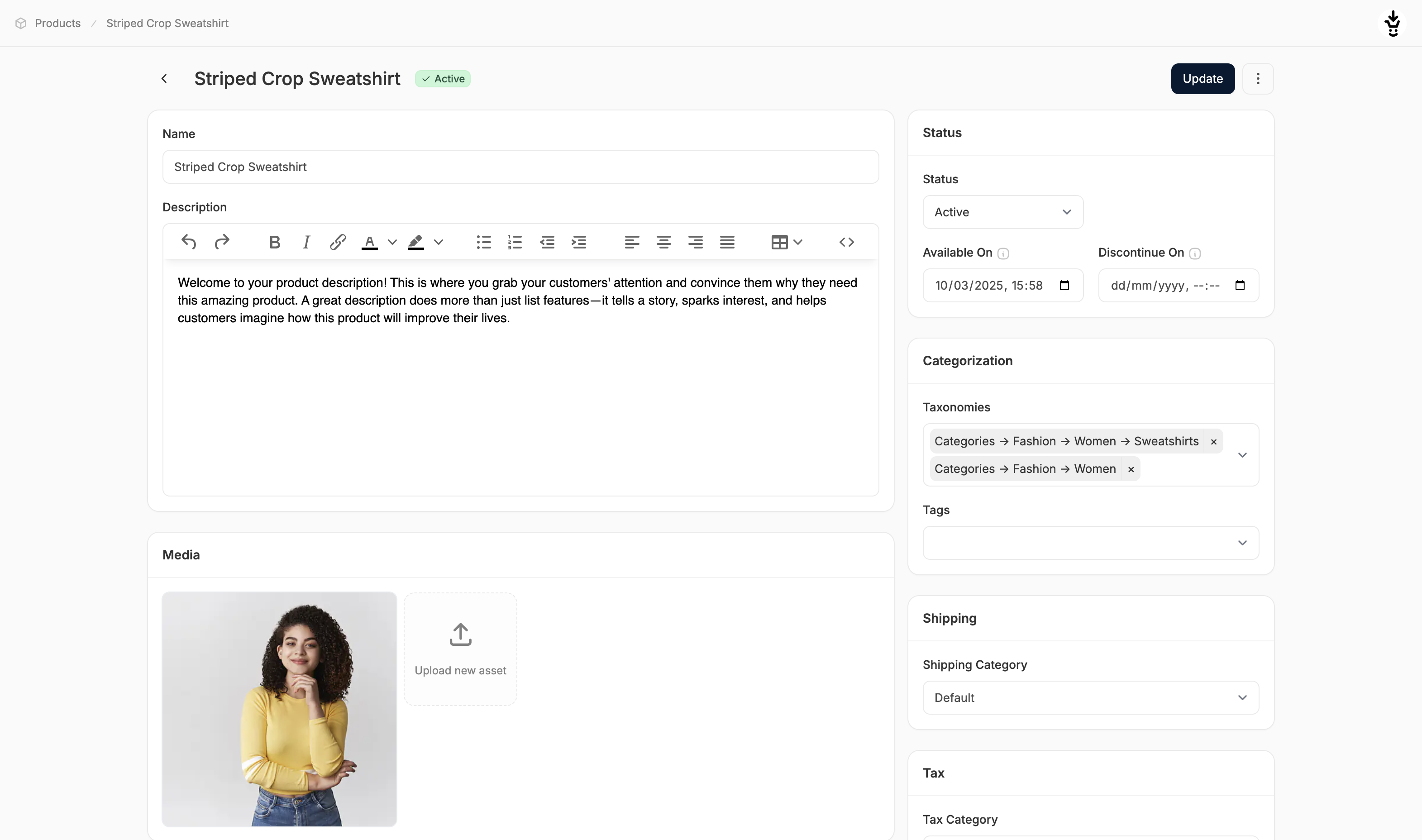 Scroll down to the **Variants** section where you should see all associated product variants.
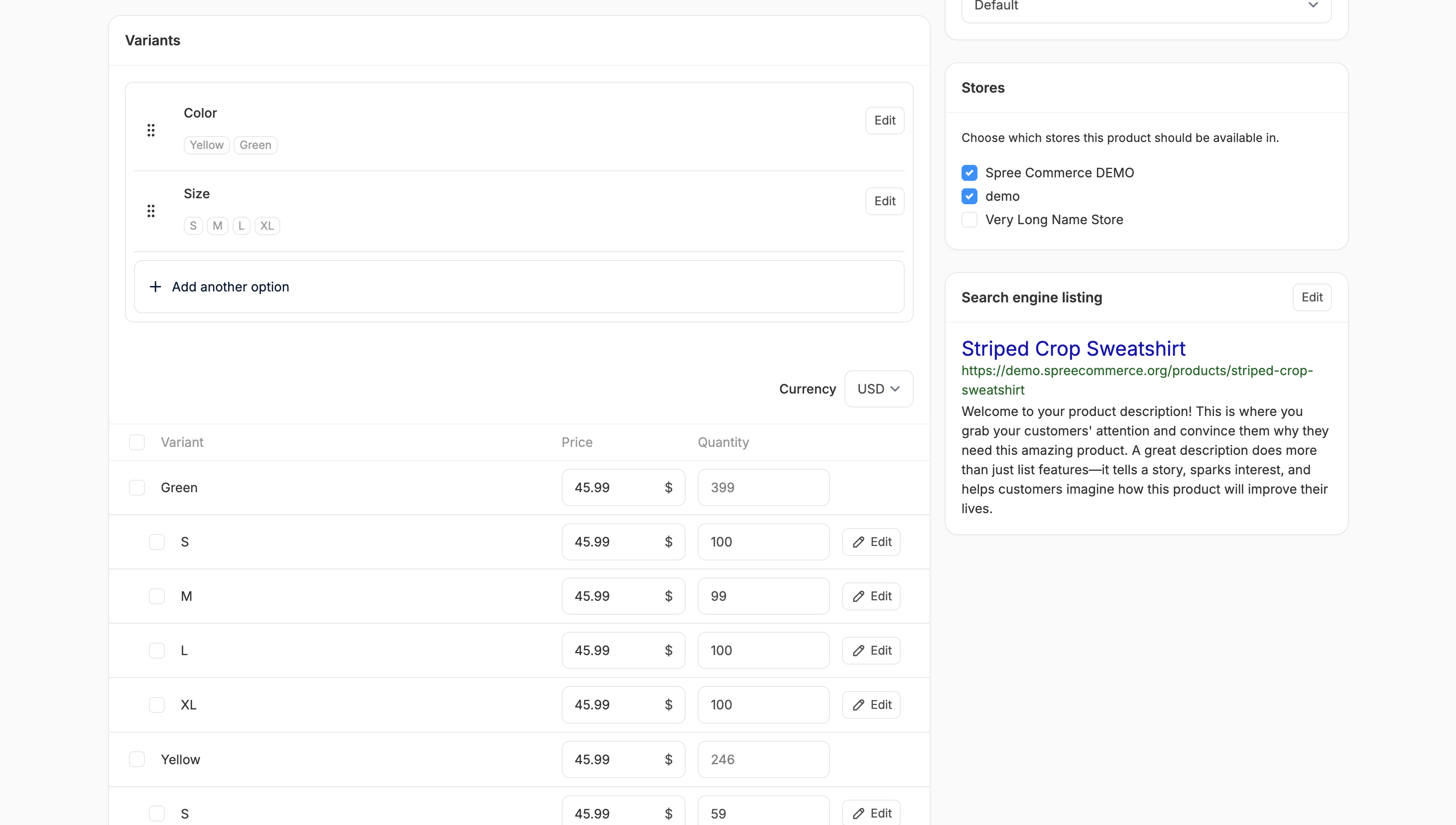 This section is where you can manage all settings related to the product’s variants, including options, pricing, inventory, and more.
## Options
This section is where you can manage all settings related to the product’s variants, including options, pricing, inventory, and more.
## Options
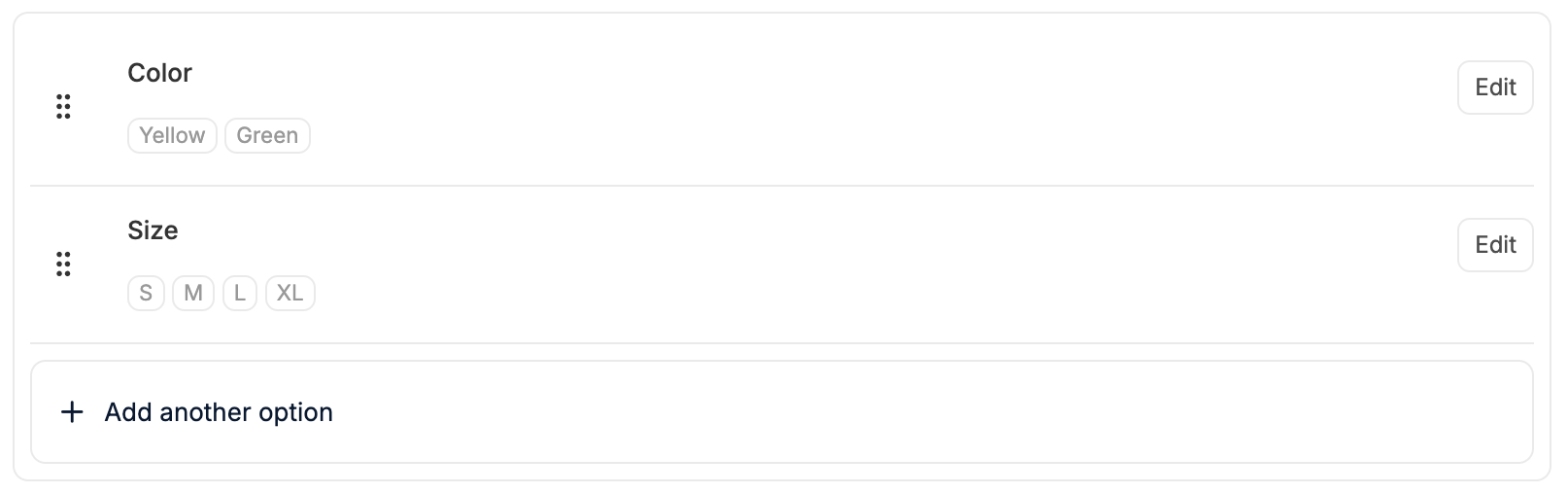 At the top of the **Variants** section, you’ll see the product's assigned **Options** (e.g., Color and Size) along with their respective values (e.g., White, Blue, S, M, etc.).
### Edit Options
At the top of the **Variants** section, you’ll see the product's assigned **Options** (e.g., Color and Size) along with their respective values (e.g., White, Blue, S, M, etc.).
### Edit Options
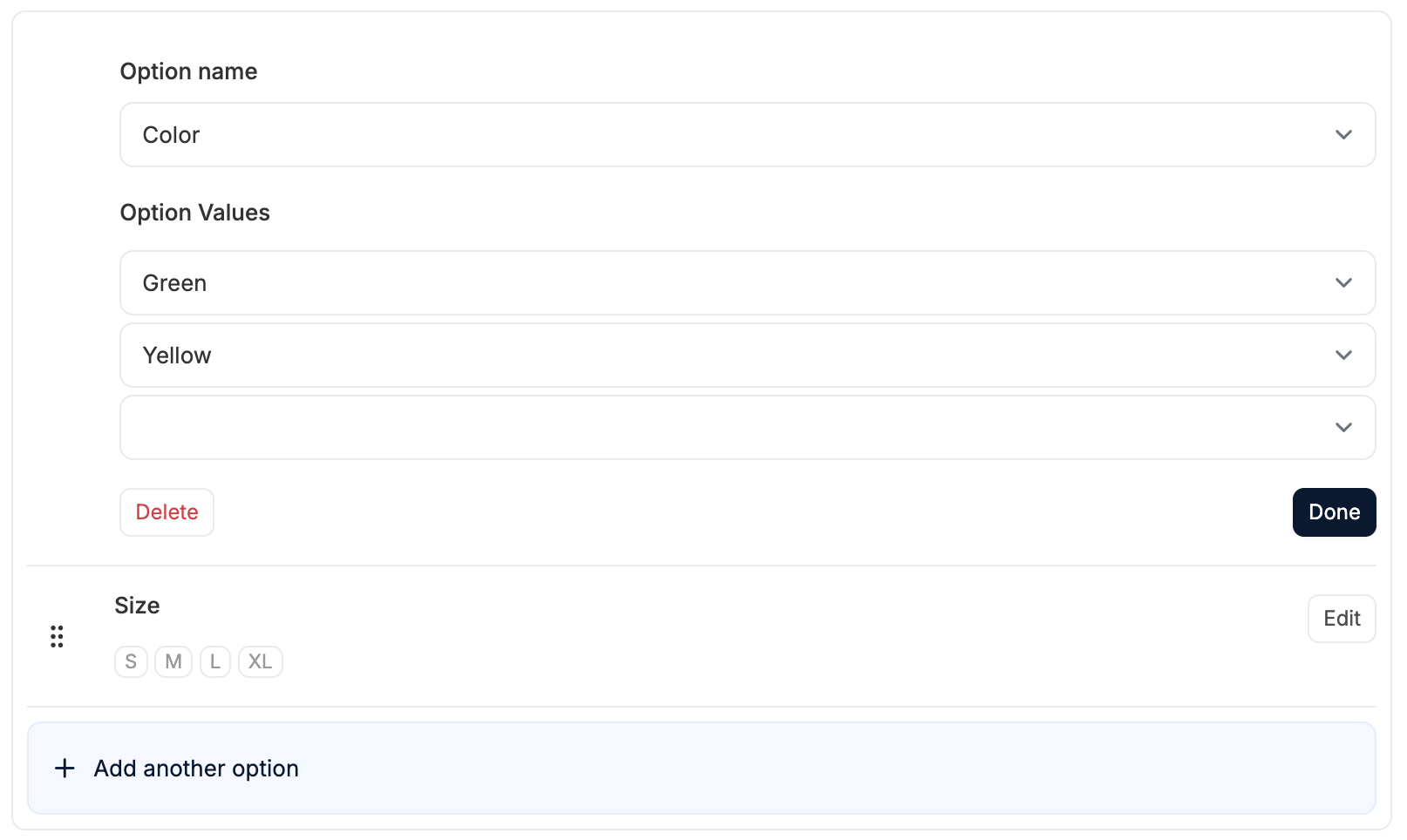 * To edit an Option, click the **Edit** button. You can:
* Add or remove values (e.g., remove “XS” or add “L”)
* Change the Option Name by selecting a new one from the dropdown
* To add another Option entirely, click **+ Add another option** at the bottom.
Click **Done** to save your changes.
Changes here will automatically update the list of generated variants below.
## List of Variants
* To edit an Option, click the **Edit** button. You can:
* Add or remove values (e.g., remove “XS” or add “L”)
* Change the Option Name by selecting a new one from the dropdown
* To add another Option entirely, click **+ Add another option** at the bottom.
Click **Done** to save your changes.
Changes here will automatically update the list of generated variants below.
## List of Variants
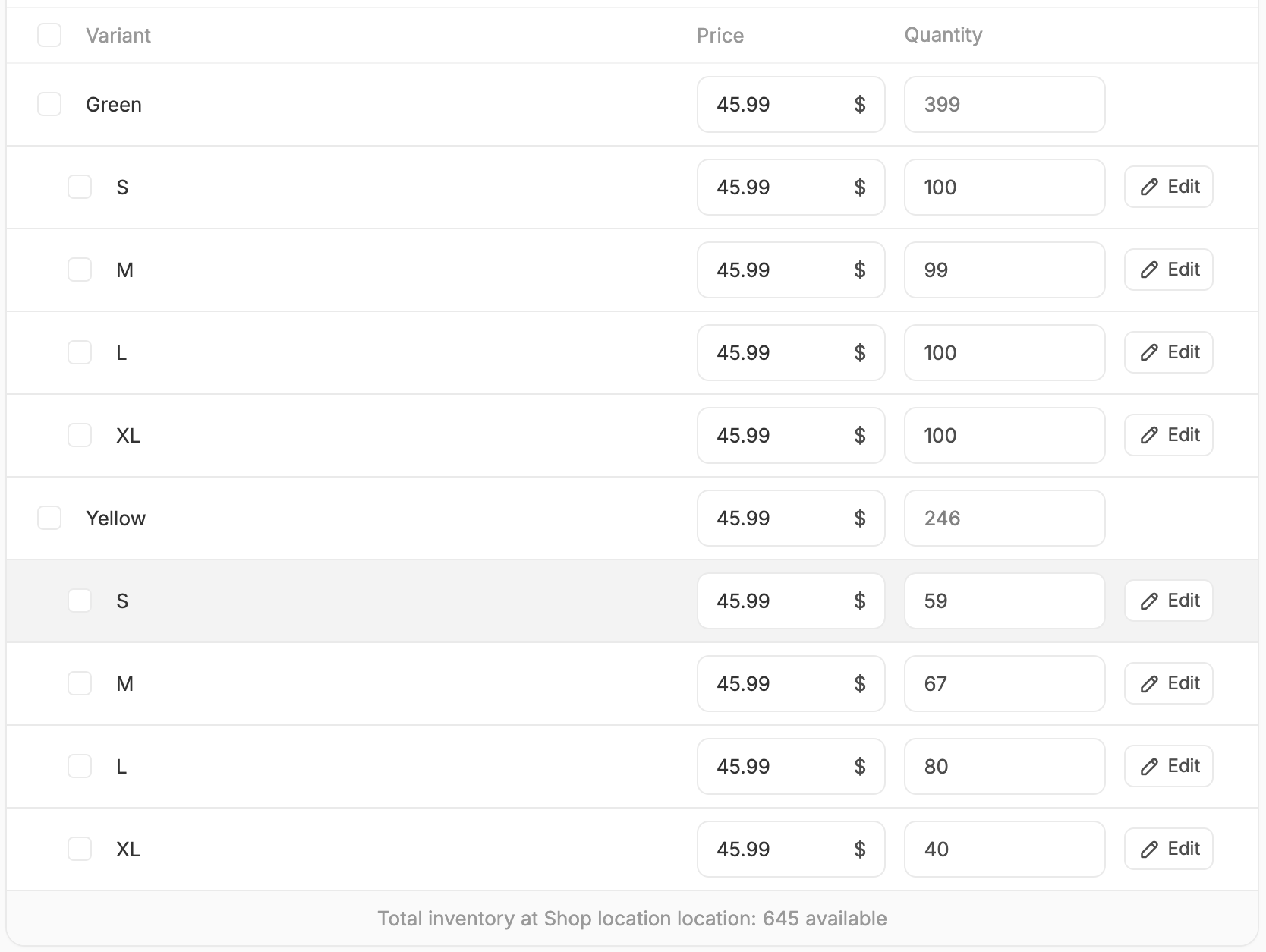 Beneath the **Options** editor, you’ll see a list of product variants generated by the Option Value combinations.
For example, 2 colors × 3 sizes = 6 total variants.
Each variant row includes fields for:
* **Price**
* **Quantity**
* **Edit** button (for advanced settings)
You can adjust price and stock directly in this view by entering new values into the respective fields.
## Editing Variants
In some cases, variants may differ significantly, whether it be by size, weight, barcode, or even media. For these situations, it’s helpful to manage them individually.
To edit a variant, click **Edit** to open the **variant editor**.
If you’ve made changes to the main product, be sure to click **Update** before editing a variant. Otherwise, those changes may be lost when switching views.
Beneath the **Options** editor, you’ll see a list of product variants generated by the Option Value combinations.
For example, 2 colors × 3 sizes = 6 total variants.
Each variant row includes fields for:
* **Price**
* **Quantity**
* **Edit** button (for advanced settings)
You can adjust price and stock directly in this view by entering new values into the respective fields.
## Editing Variants
In some cases, variants may differ significantly, whether it be by size, weight, barcode, or even media. For these situations, it’s helpful to manage them individually.
To edit a variant, click **Edit** to open the **variant editor**.
If you’ve made changes to the main product, be sure to click **Update** before editing a variant. Otherwise, those changes may be lost when switching views.
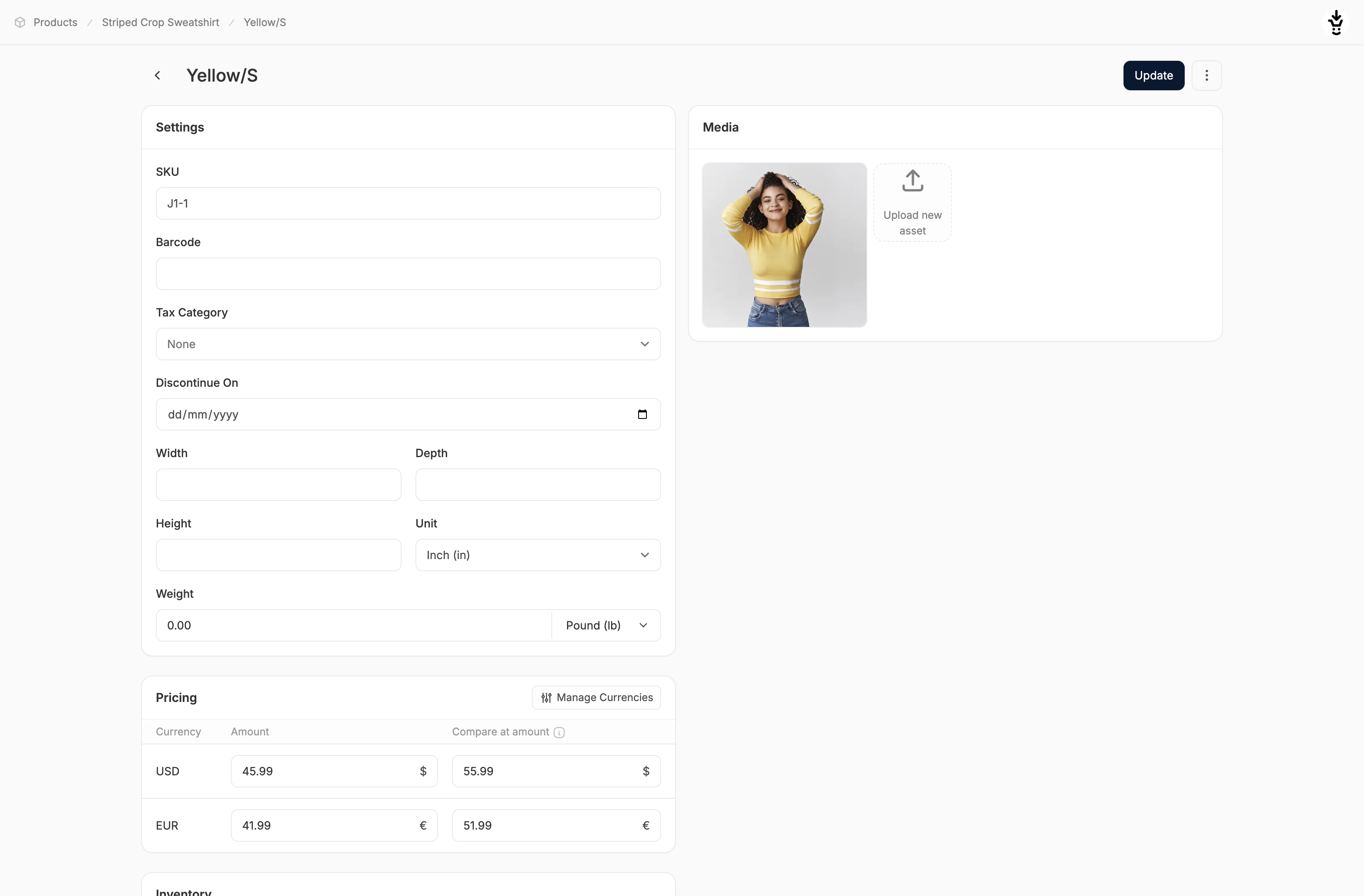 Here you can modify the following fields:
* **SKU**
* **Barcode**
* **Tax Category**
* **Discontinue On**
* **Dimensions**
* **Weight**
* **Price**
* **Compare At Amount**
* **Quantity**
* **Backorderable**
* **Media**
Remember to click **Update** to save any changes you've made.
## Variant-Specific Media
Here you can modify the following fields:
* **SKU**
* **Barcode**
* **Tax Category**
* **Discontinue On**
* **Dimensions**
* **Weight**
* **Price**
* **Compare At Amount**
* **Quantity**
* **Backorderable**
* **Media**
Remember to click **Update** to save any changes you've made.
## Variant-Specific Media
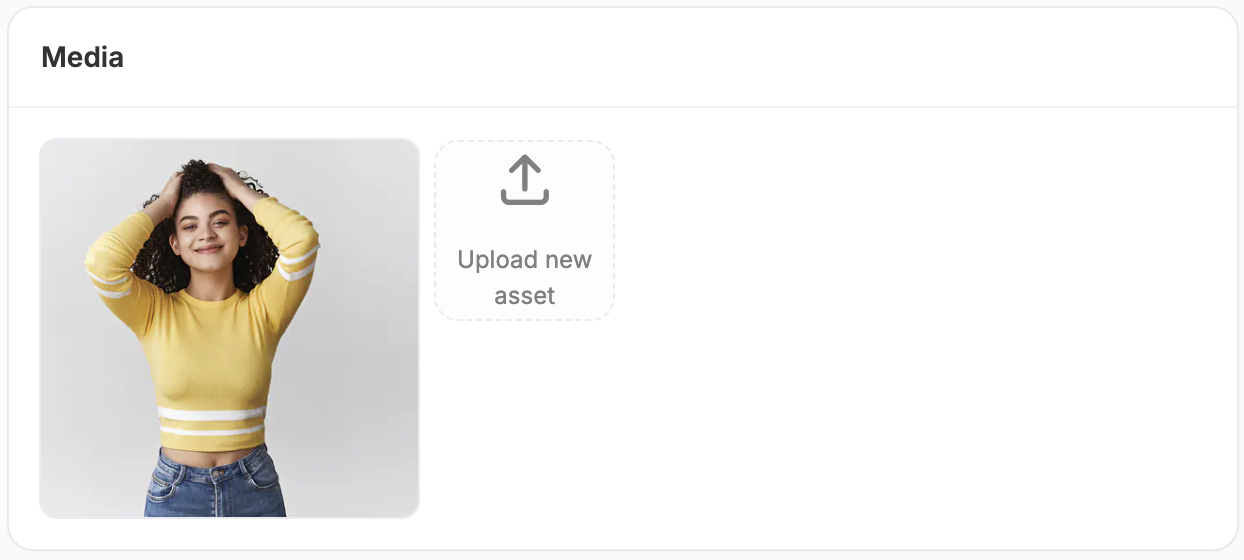 You can upload images specific to each variant to improve the product detail page experience.
For example, if you sell a shirt that's available in White and Blue, upload white-shirt images to the White variants and blue-shirt images to the Blue variants.
This ensures that when a customer selects a variant on the storefront, the most relevant images are shown automatically.
## Deleting Variants
You can upload images specific to each variant to improve the product detail page experience.
For example, if you sell a shirt that's available in White and Blue, upload white-shirt images to the White variants and blue-shirt images to the Blue variants.
This ensures that when a customer selects a variant on the storefront, the most relevant images are shown automatically.
## Deleting Variants
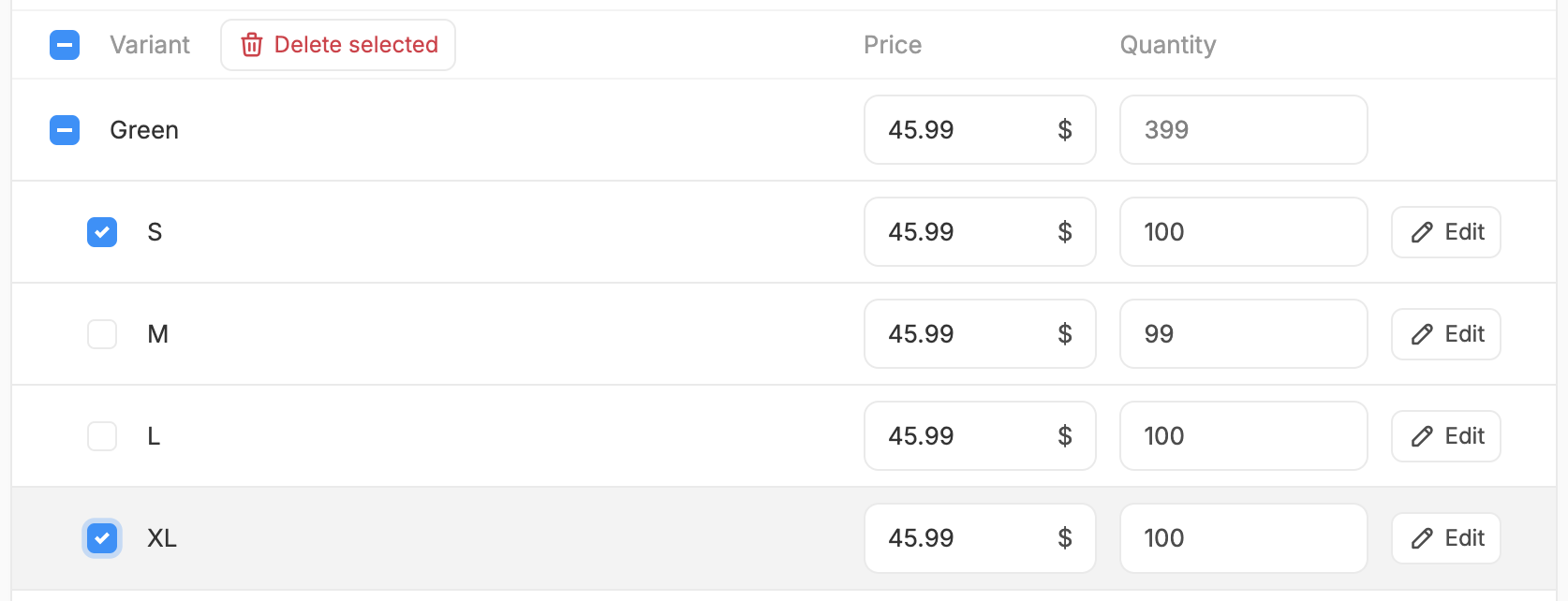 Since not all combinations of color, size, etc., may be valid for sale, you may wish to delete some variants entirely.
If there are variants you don’t offer:
1. Check the box next to the unwanted variant(s)
2. Click **Delete selected**
Deleting a variant will remove it's row from the list. To undo this, reconfigure the **Options** and then click **Update** at the top/bottom of the page.
## Save Changes
Whether you're editing the main product or a variant, always remember to click **Update** to save your changes.
Since not all combinations of color, size, etc., may be valid for sale, you may wish to delete some variants entirely.
If there are variants you don’t offer:
1. Check the box next to the unwanted variant(s)
2. Click **Delete selected**
Deleting a variant will remove it's row from the list. To undo this, reconfigure the **Options** and then click **Update** at the top/bottom of the page.
## Save Changes
Whether you're editing the main product or a variant, always remember to click **Update** to save your changes.