> ## Documentation Index
> Fetch the complete documentation index at: https://spreecommerce.org/docs/llms.txt
> Use this file to discover all available pages before exploring further.
# Delete a Product
> Learn how to delete a product in Spree Commerce.
There may be times when you need to permanently remove a product from your catalog - for example, if it was added by mistake, duplicated, or no longer needed in your system.
Deleting a product removes it entirely from your store and the admin interface. However, this action is not available for products associated with any orders, whether completed or not.
If a product is linked to one or more orders, it cannot be deleted. In these cases, set the product’s **Status** to **Archived** instead. This removes it from the storefront while keeping it in the admin, making it clear to other team members that the product is discontinued or no longer active.
## How to Delete a Product
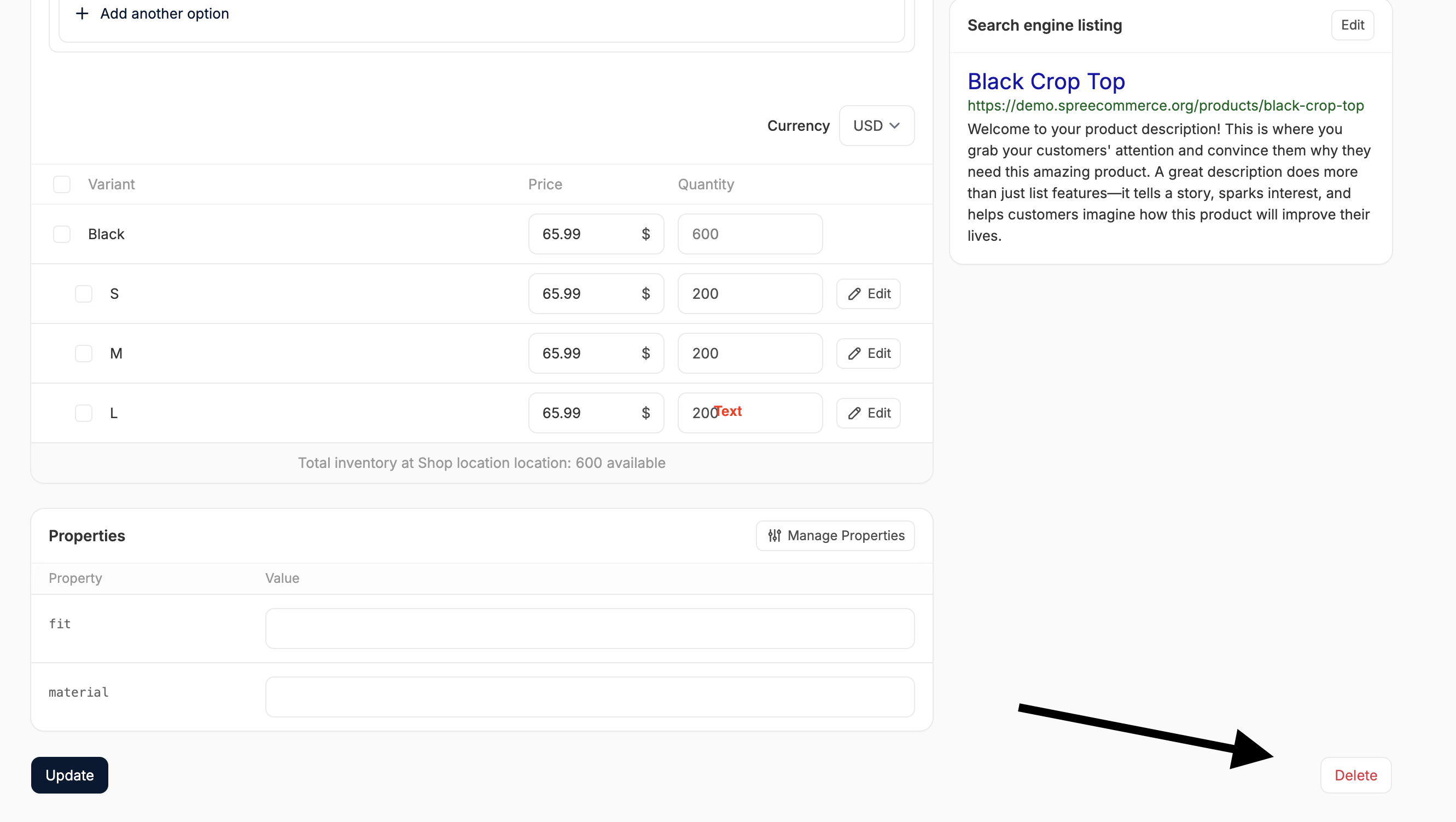 1. Go to the **Products** tab in the admin dashboard and open the product you want to delete.
2. Scroll to the bottom of the product editor.
3. Click the **Delete** in the bottom-right corner.
4. In the confirmation modal, click **OK** to confirm or simply press **Enter.**
Once confirmed, the product will be permanently removed from your store.
1. Go to the **Products** tab in the admin dashboard and open the product you want to delete.
2. Scroll to the bottom of the product editor.
3. Click the **Delete** in the bottom-right corner.
4. In the confirmation modal, click **OK** to confirm or simply press **Enter.**
Once confirmed, the product will be permanently removed from your store.