> ## Documentation Index
> Fetch the complete documentation index at: https://spreecommerce.org/docs/llms.txt
> Use this file to discover all available pages before exploring further.
# Categories
> Organize products into a browsable tree of categories in the Spree Commerce dashboard.
Categories are how you file products into a browsable tree — Fashion, then Men, then Footwear. A product can sit in several categories, and each category can hold subcategories as deep as your range needs.
Categories are the shelves of your store. For groupings that cut across them — "Summer 2025", "Best Sellers", "Under \$50" — use [Collections](/docs/user/products/collections), which can fill themselves from rules.
A well-planned category tree improves search, guides customers through a logical shopping journey, and is what most storefront navigation is built from.
To set up categories, open the **Categories** tab of the admin dashboard, found under Products.
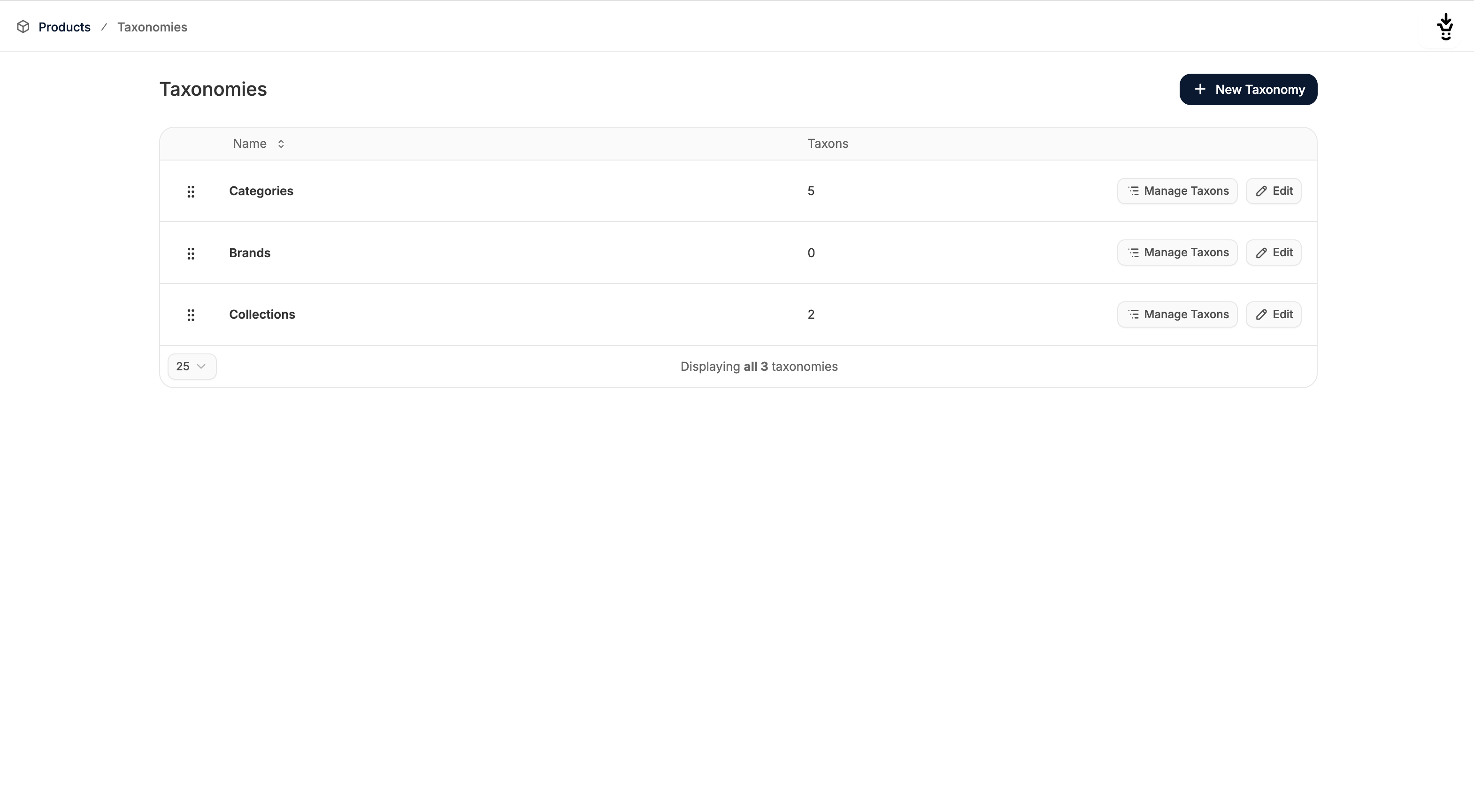 Here you will see three automatically created categories that are commonly used in ecommerce:
* Categories - Groups of products based on type or purpose for easy navigation
* Brands - Organizes products by their manufacturer or label
* Collections - Curated groups of products based on themes or trends
## Add a category
To add a category, click **New Category** in the top right corner — or, on an empty list, **Add One** in the middle of the page.
Here you will see three automatically created categories that are commonly used in ecommerce:
* Categories - Groups of products based on type or purpose for easy navigation
* Brands - Organizes products by their manufacturer or label
* Collections - Curated groups of products based on themes or trends
## Add a category
To add a category, click **New Category** in the top right corner — or, on an empty list, **Add One** in the middle of the page.
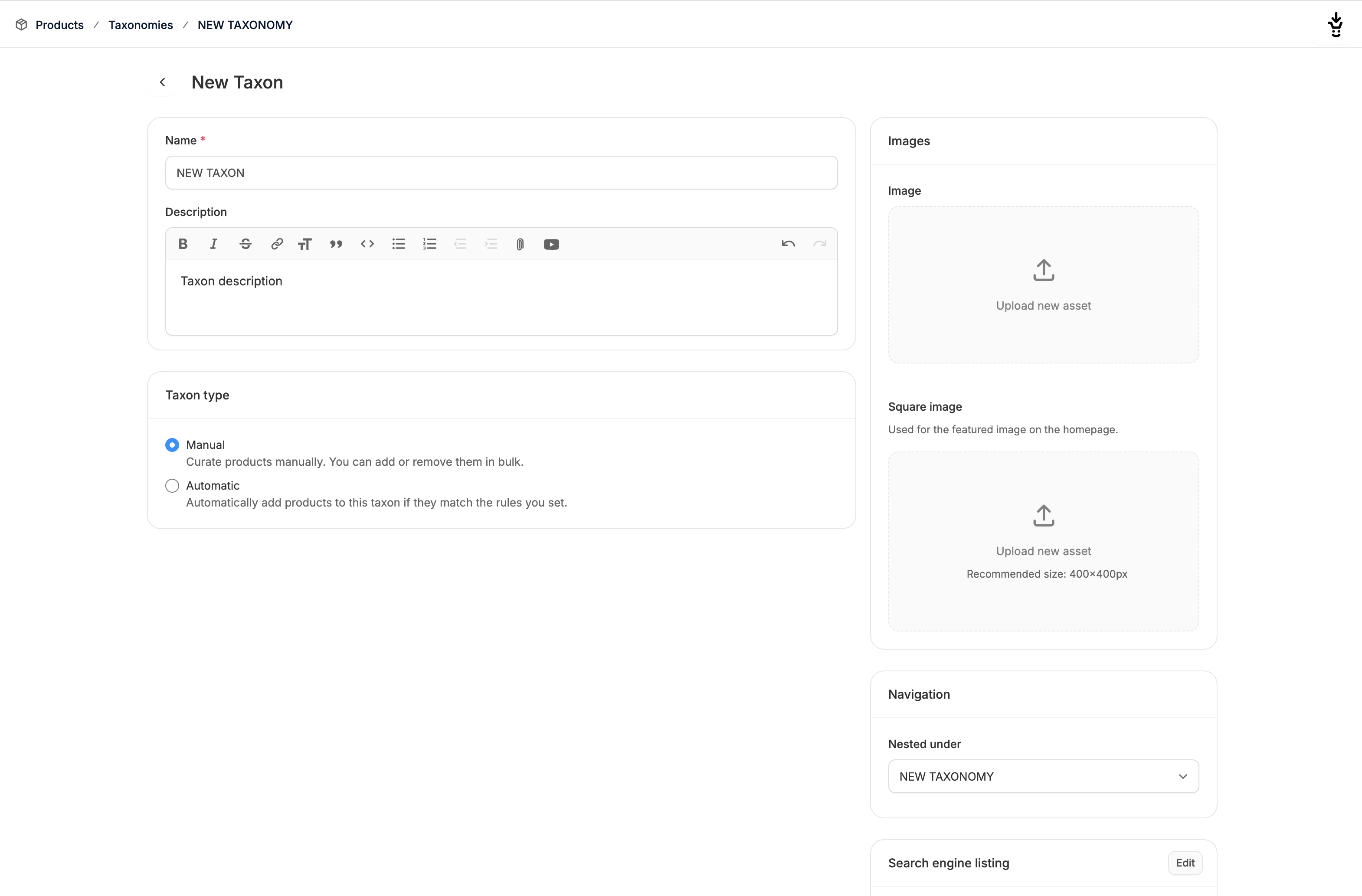 This opens up the category editor page which allows you to define the category and add media.
### Presentation
There are four sections that affect how the category is presented on the storefront:
* Name - Add a name to be displayed on the frontend and backend
* Description - Add text describing the category, optionally displayed on the storefront
* Image - Upload a complimentary image to be displayed on the categories storefront page
* Square Image - Upload a complimentary square image to optionally be displayed in page sections featuring that category
### Automatic grouping
Categories are curated by hand. If you want a grouping that fills itself — everything on sale, everything tagged `organic` — create a [Collection](/docs/user/products/collections) instead.
### Navigation
Here you can select where the new category should be nested.
This opens up the category editor page which allows you to define the category and add media.
### Presentation
There are four sections that affect how the category is presented on the storefront:
* Name - Add a name to be displayed on the frontend and backend
* Description - Add text describing the category, optionally displayed on the storefront
* Image - Upload a complimentary image to be displayed on the categories storefront page
* Square Image - Upload a complimentary square image to optionally be displayed in page sections featuring that category
### Automatic grouping
Categories are curated by hand. If you want a grouping that fills itself — everything on sale, everything tagged `organic` — create a [Collection](/docs/user/products/collections) instead.
### Navigation
Here you can select where the new category should be nested.
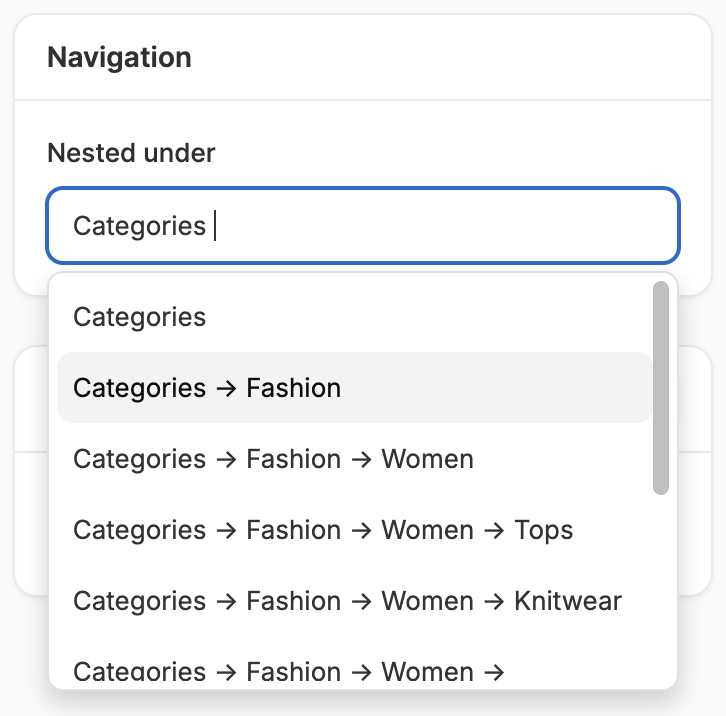 The dropdown list will show a list of all categories available within the category you're currently managing. Simply select the category you’d like to nest the new category in.
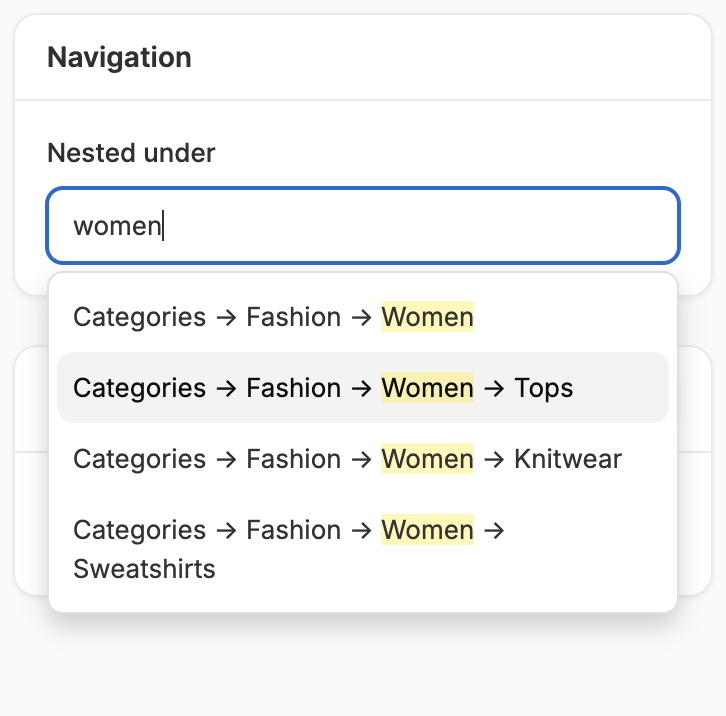
Start typing the name of the category you’d like to nest within to filter the results.
The dropdown list will show a list of all categories available within the category you're currently managing. Simply select the category you’d like to nest the new category in.
Start typing the name of the category you’d like to nest within to filter the results.
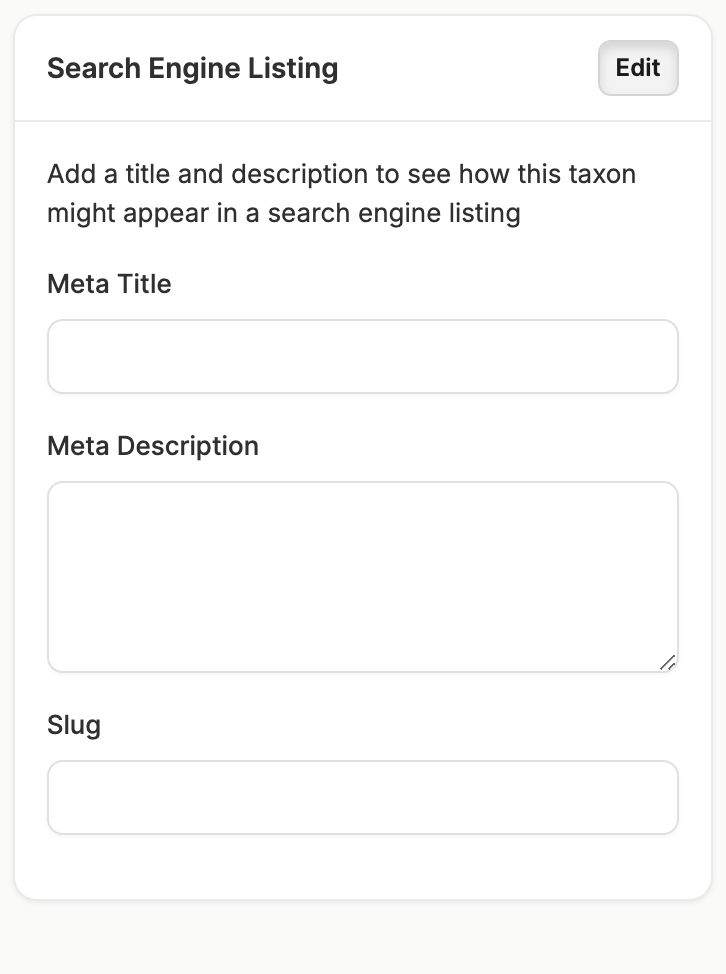
 ### Search Engine Listing
Here you can set the meta title, meta description, and the slug for the new category.
### Search Engine Listing
Here you can set the meta title, meta description, and the slug for the new category.
 ### Create Category
Once you’ve added the name and defined the category type, click **Create** at the bottom of the page to create the category, and you’ll receive a notification that the category was successfully created.
### Add Products
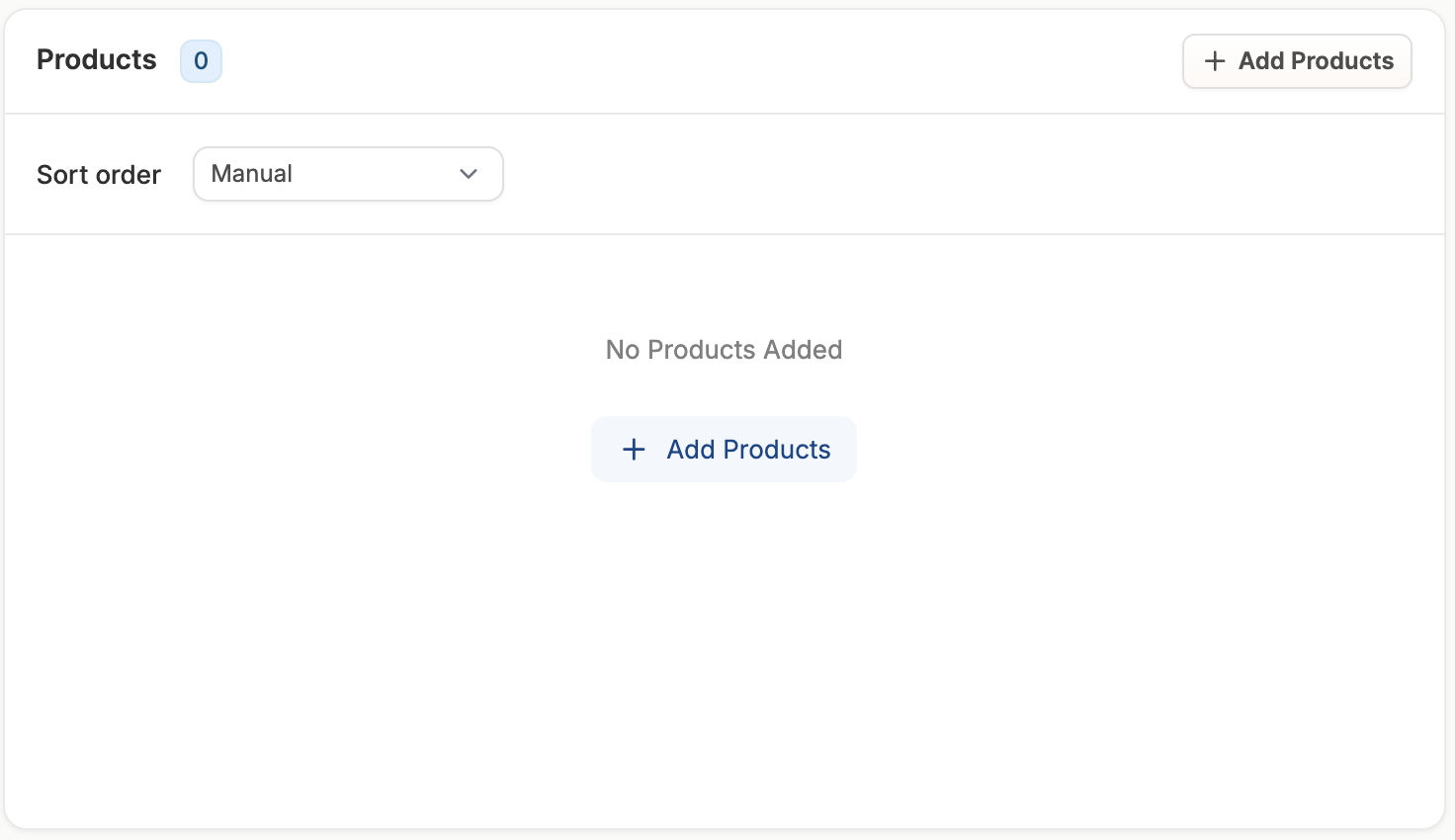
Once the category is created, you can add products to the category directly in category editor page by clicking **Add Products**, if and only if you chose the manual Category Type.
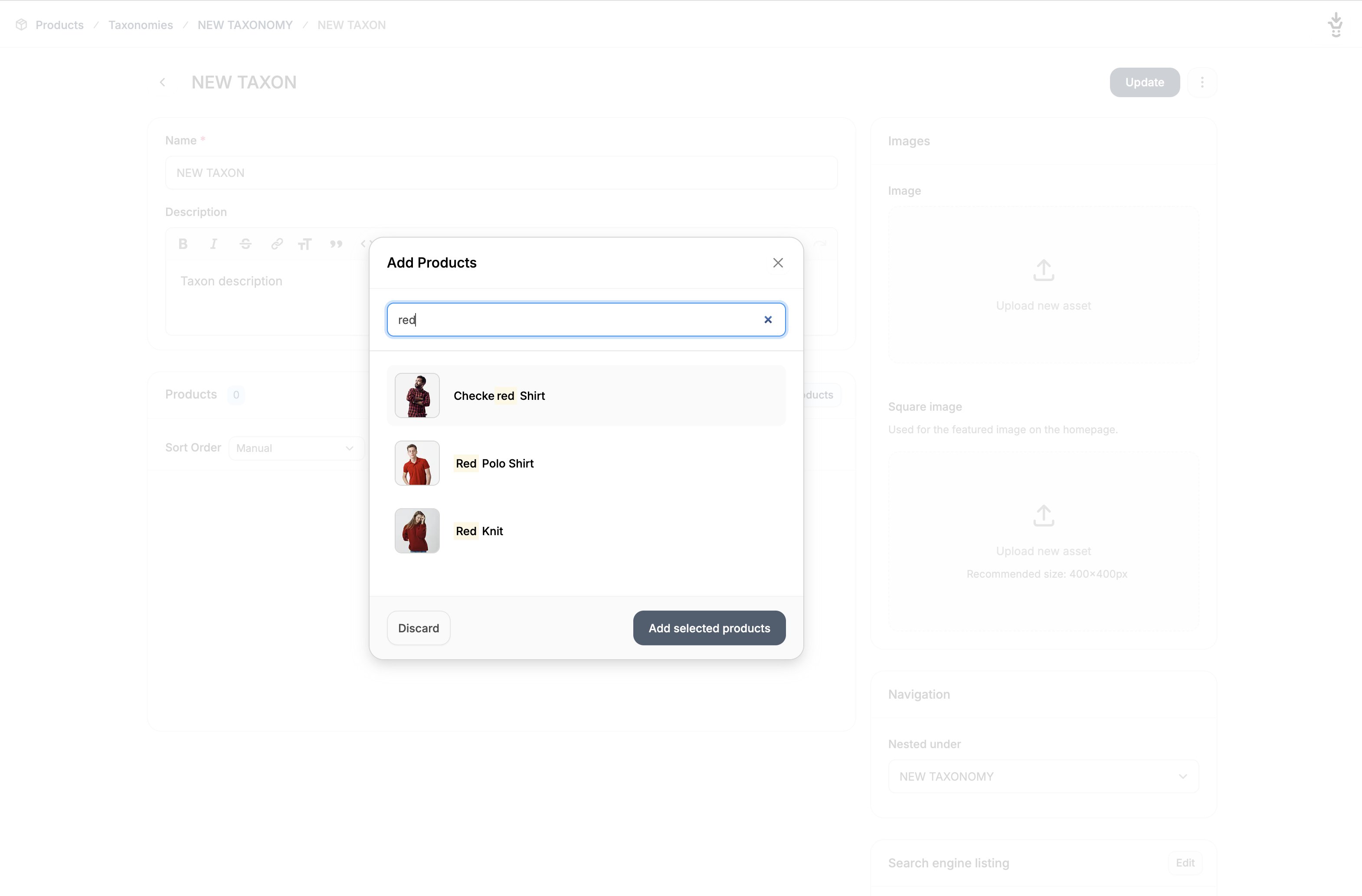
This will open a window that allows you to search for and select the products you’d like to add.
### Create Category
Once you’ve added the name and defined the category type, click **Create** at the bottom of the page to create the category, and you’ll receive a notification that the category was successfully created.
### Add Products
Once the category is created, you can add products to the category directly in category editor page by clicking **Add Products**, if and only if you chose the manual Category Type.
This will open a window that allows you to search for and select the products you’d like to add.
 Start typing to show suggested products, then simply check the boxes of the products you’d like to add and then click **Add selected products**
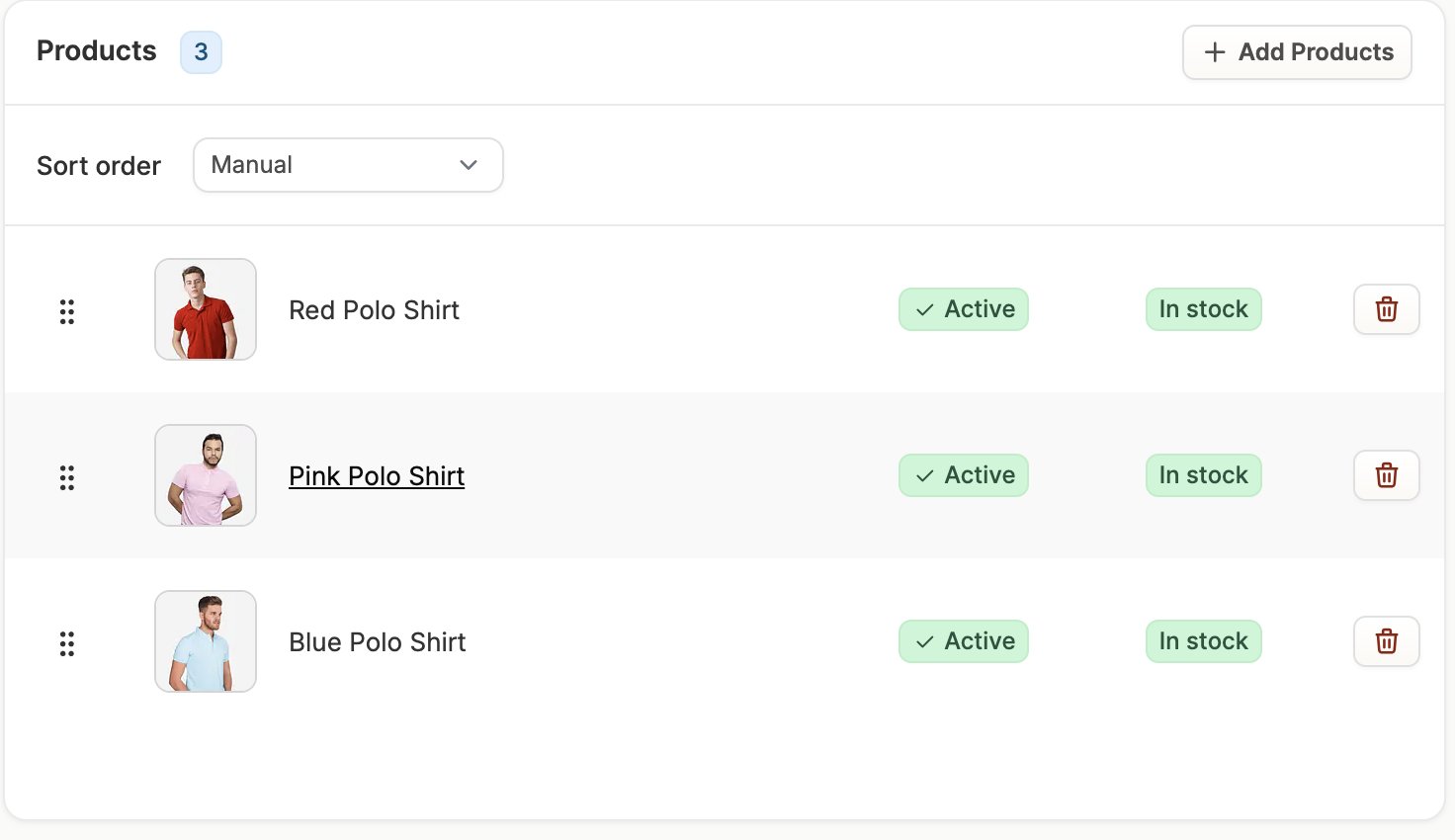
 You should now see those products listed in the Products section of the category editor.
You can remove individual products by clicking on the **red trash can button** in the far right column.
You should now see those products listed in the Products section of the category editor.
You can remove individual products by clicking on the **red trash can button** in the far right column.
 ### Sort Order
For merchandising purposes, you may want to change the order in which products in a category are presented in the storefront.
To do so, you can select the sort order from the dropdown menu in the Products section of the category editor.
### Sort Order
For merchandising purposes, you may want to change the order in which products in a category are presented in the storefront.
To do so, you can select the sort order from the dropdown menu in the Products section of the category editor.
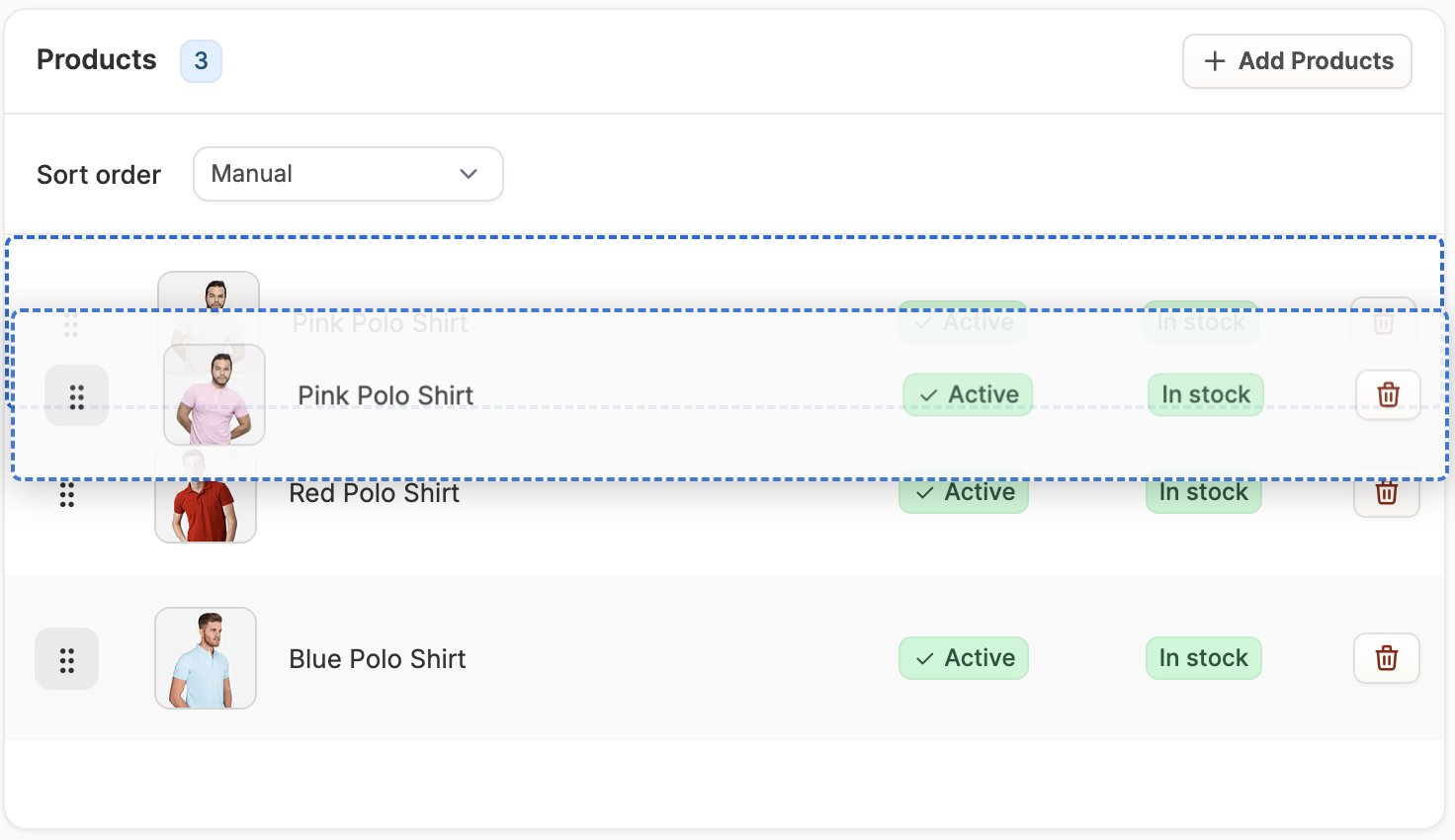
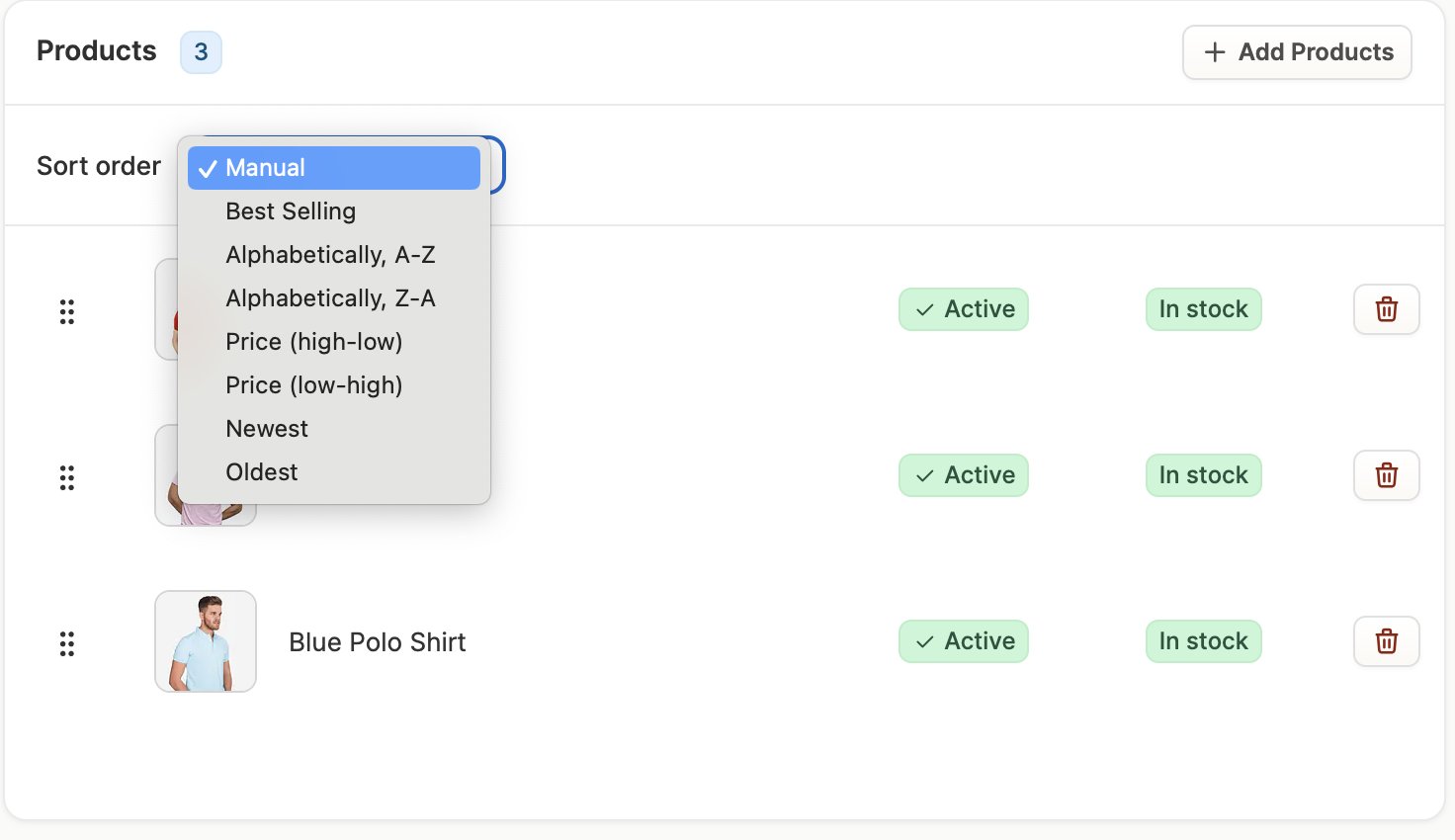 If you choose manual sort order, you can rearrange the ordering by clicking on the 6 dots on the far left and drag and dropping the products into the desired order.
 Make sure to click **Update** at the bottom of the page if you want to save any changes you’ve made to category.
## Build A Category Tree
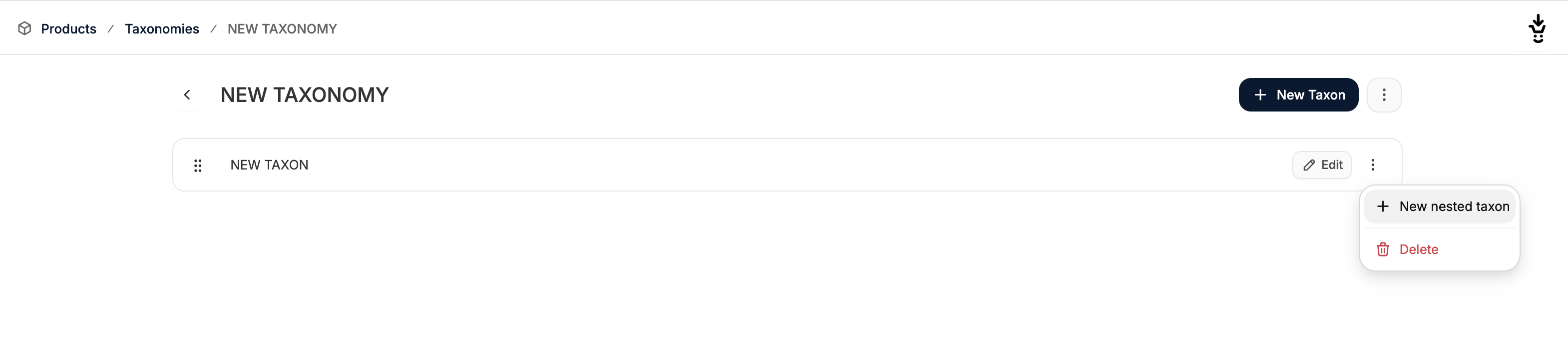
If you’d like to create multiple levels of the category tree, you can add subcategories (i.e. nested categories) to an existing category.
Simply click on the 3 dots on the far left of the category's row and select **New Nested Category**.
Make sure to click **Update** at the bottom of the page if you want to save any changes you’ve made to category.
## Build A Category Tree
If you’d like to create multiple levels of the category tree, you can add subcategories (i.e. nested categories) to an existing category.
Simply click on the 3 dots on the far left of the category's row and select **New Nested Category**.
 The rest of the process is the same as adding any other category.
With some careful consideration, time and little effort, you can create a very deep and detailed category tree.
The rest of the process is the same as adding any other category.
With some careful consideration, time and little effort, you can create a very deep and detailed category tree.
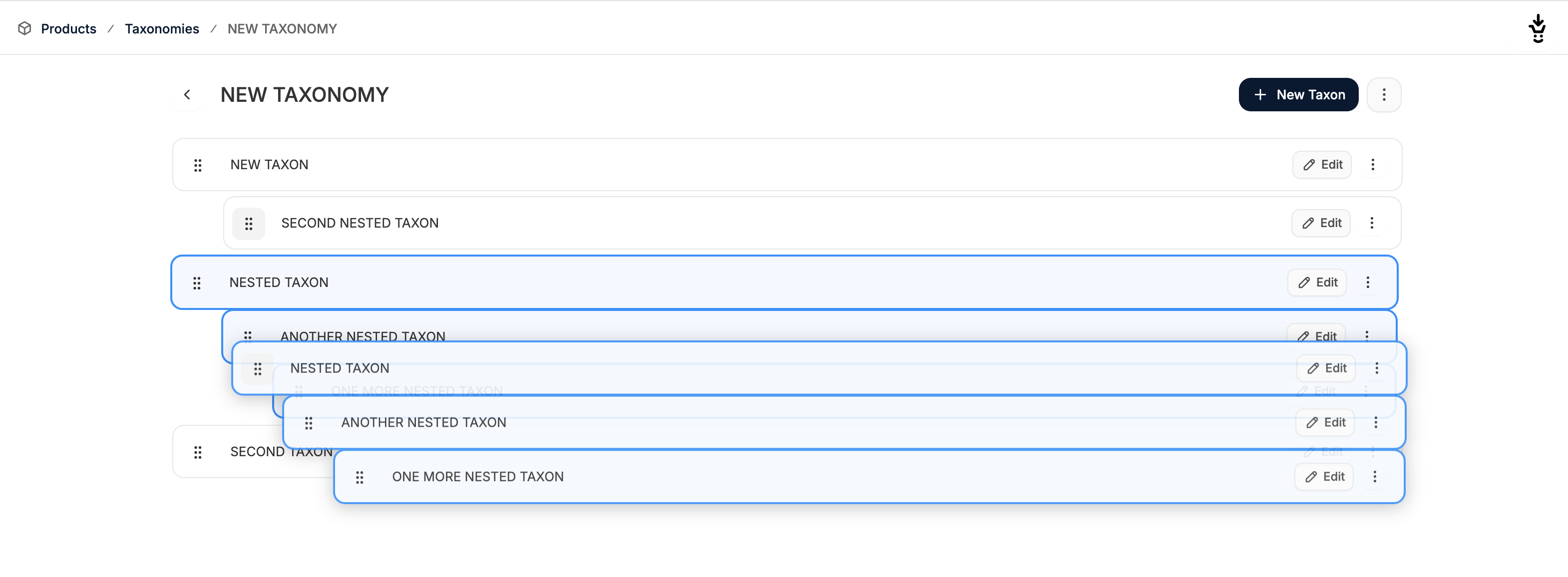
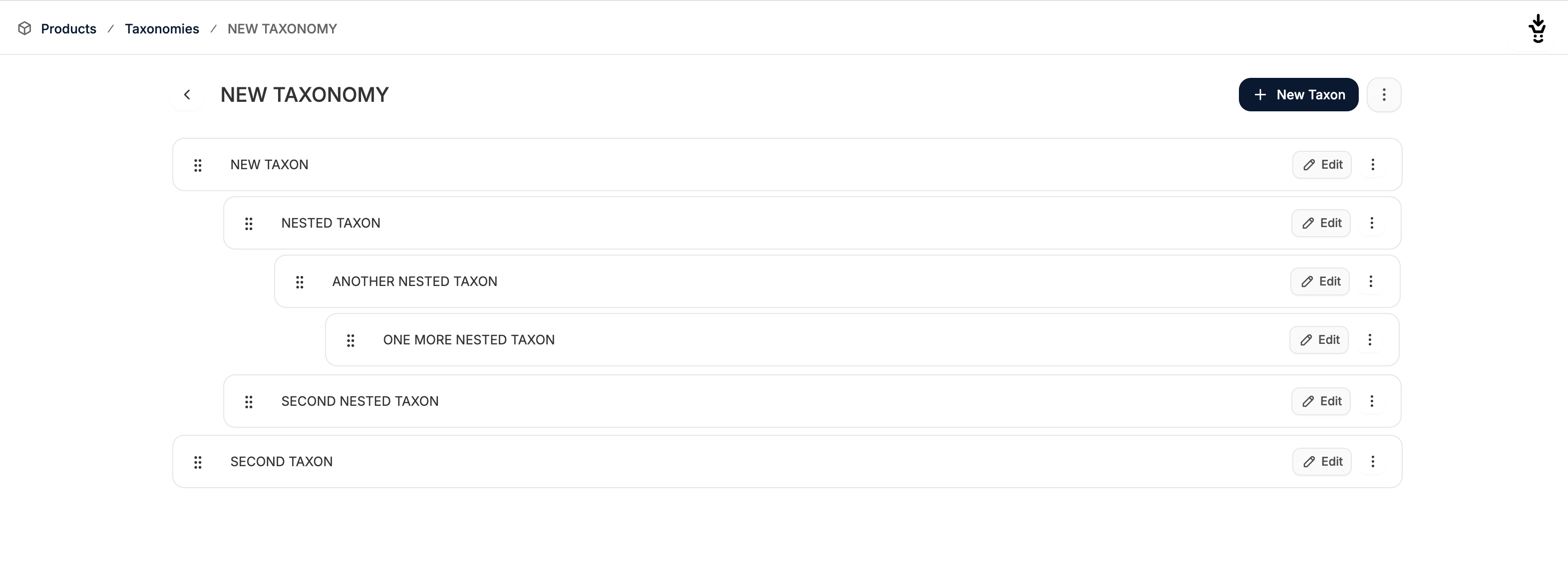 If you’d like to reorganize your category later, you can do so by drag and dropping categories into their new positions.
 ## Import Categories
Categories can be automatically imported if you add the appropriate values to the category columns in a product import file. Just make sure to use the correct naming convention for the categories to make sure nesting is respected after import, e.g.:
* Categories -> Fashion -> Men
* Categories -> Fashion -> Women -> Footwear
* Categories -> Electronics -> TVs
* Categories -> Nutrition -> Supplements -> Vitamins
To learn more about imports, please refer to the [Import Products](https://spreecommerce.org/docs/user/manage-products/import-products) article.
## Renaming a category
If you’d like to change the name of a category, navigate back to the main Categories tab.
## Import Categories
Categories can be automatically imported if you add the appropriate values to the category columns in a product import file. Just make sure to use the correct naming convention for the categories to make sure nesting is respected after import, e.g.:
* Categories -> Fashion -> Men
* Categories -> Fashion -> Women -> Footwear
* Categories -> Electronics -> TVs
* Categories -> Nutrition -> Supplements -> Vitamins
To learn more about imports, please refer to the [Import Products](https://spreecommerce.org/docs/user/manage-products/import-products) article.
## Renaming a category
If you’d like to change the name of a category, navigate back to the main Categories tab.
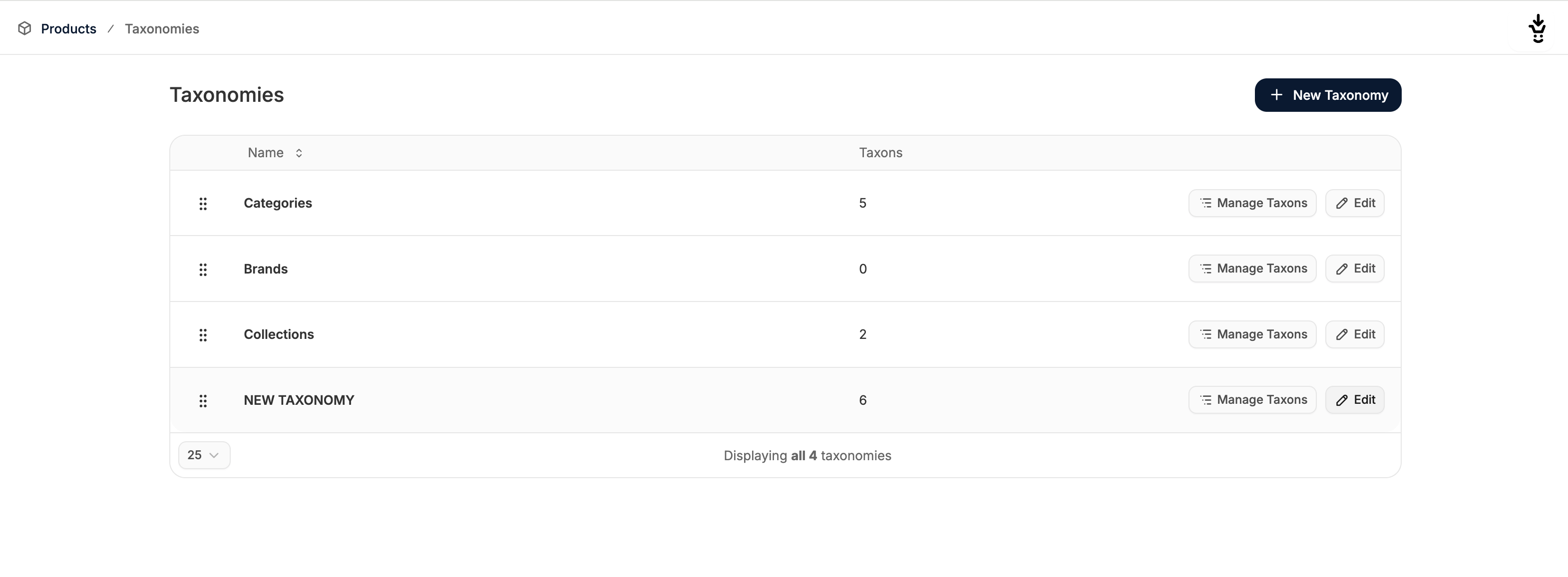 Find the category you’d like to rename, and click **Edit** on the far-right side.
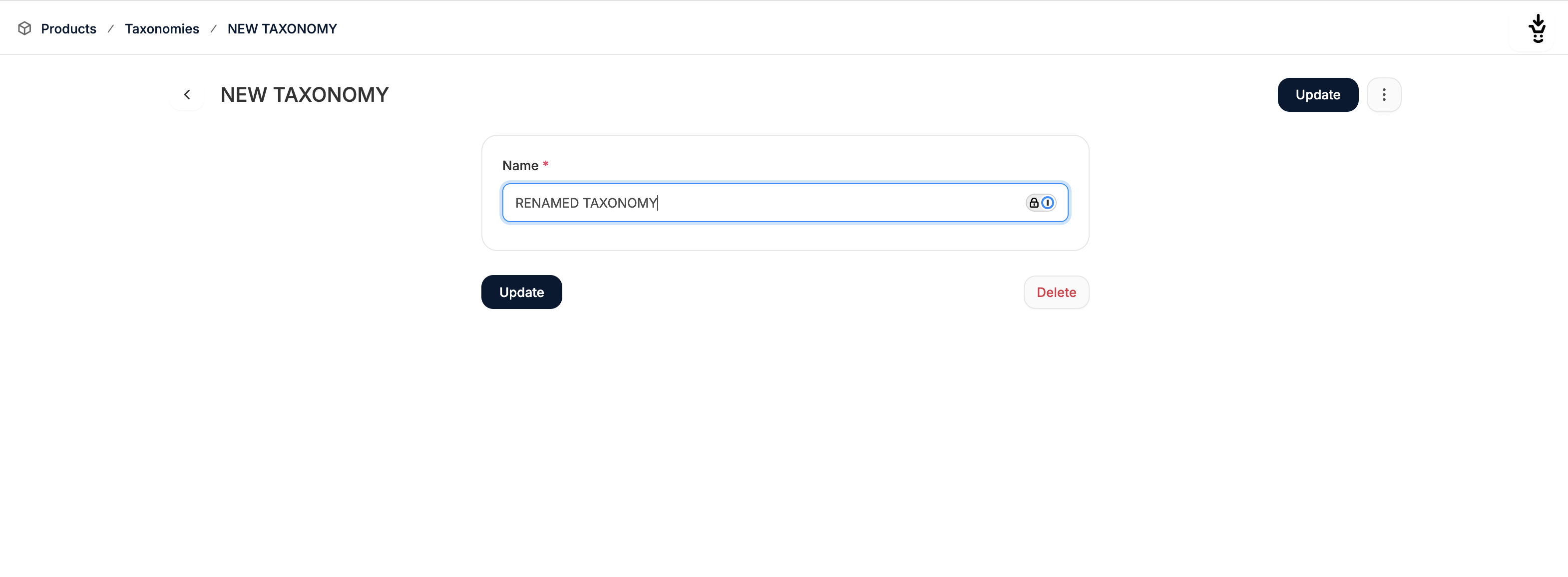 Enter the new category name and click **Update** to save changes.
## Editing a category
To edit a category, find it in the tree and click **Edit** on its row.
Feel free to edit the name and description, swap out images, change the nesting, and update search engine listing settings. Make sure to click **Update** to save your changes.
## Translations
If your store is multi-language, you can add translations for both categories and collections.
To learn more, see the [Translations](/docs/user/translations/translations) guide.
## Real-Life Examples of Categories, Collections, and Brands
1. [Industry-Specific Category Needs](https://spreecommerce.org/improving-product-discovery-and-conversions-with-product-categories-categories-collections-and-brands/#Industry-Specific)
2. [Multiple Category Trees](https://spreecommerce.org/improving-product-discovery-and-conversions-with-product-categories-categories-collections-and-brands/#Multiple-Category-Trees)
3. [Collection Merchandising](https://spreecommerce.org/improving-product-discovery-and-conversions-with-product-categories-categories-collections-and-brands/#Collection-Merchandising)
4. [Category Visibility & Product Discovery](https://spreecommerce.org/improving-product-discovery-and-conversions-with-product-categories-categories-collections-and-brands/#Category-Visibility-Product-Discovery)
5. [Category Tools](https://spreecommerce.org/improving-product-discovery-and-conversions-with-product-categories-categories-collections-and-brands/#Category-Tools)
Enter the new category name and click **Update** to save changes.
## Editing a category
To edit a category, find it in the tree and click **Edit** on its row.
Feel free to edit the name and description, swap out images, change the nesting, and update search engine listing settings. Make sure to click **Update** to save your changes.
## Translations
If your store is multi-language, you can add translations for both categories and collections.
To learn more, see the [Translations](/docs/user/translations/translations) guide.
## Real-Life Examples of Categories, Collections, and Brands
1. [Industry-Specific Category Needs](https://spreecommerce.org/improving-product-discovery-and-conversions-with-product-categories-categories-collections-and-brands/#Industry-Specific)
2. [Multiple Category Trees](https://spreecommerce.org/improving-product-discovery-and-conversions-with-product-categories-categories-collections-and-brands/#Multiple-Category-Trees)
3. [Collection Merchandising](https://spreecommerce.org/improving-product-discovery-and-conversions-with-product-categories-categories-collections-and-brands/#Collection-Merchandising)
4. [Category Visibility & Product Discovery](https://spreecommerce.org/improving-product-discovery-and-conversions-with-product-categories-categories-collections-and-brands/#Category-Visibility-Product-Discovery)
5. [Category Tools](https://spreecommerce.org/improving-product-discovery-and-conversions-with-product-categories-categories-collections-and-brands/#Category-Tools)