> ## Documentation Index
> Fetch the complete documentation index at: https://spreecommerce.org/docs/llms.txt
> Use this file to discover all available pages before exploring further.
# Refunding Orders
> Learn how to refund orders in Spree Commerce.
Refunding orders is a key part of running a smooth ecommerce operation. Whether you're handling customer complaints, returns, or correcting billing errors, issuing refunds helps maintain trust, ensure financial accuracy, and stay compliant with store policies.
## How to Refund an Order
To refund an order, navigate to the **Orders** tab in the admin dashboard.
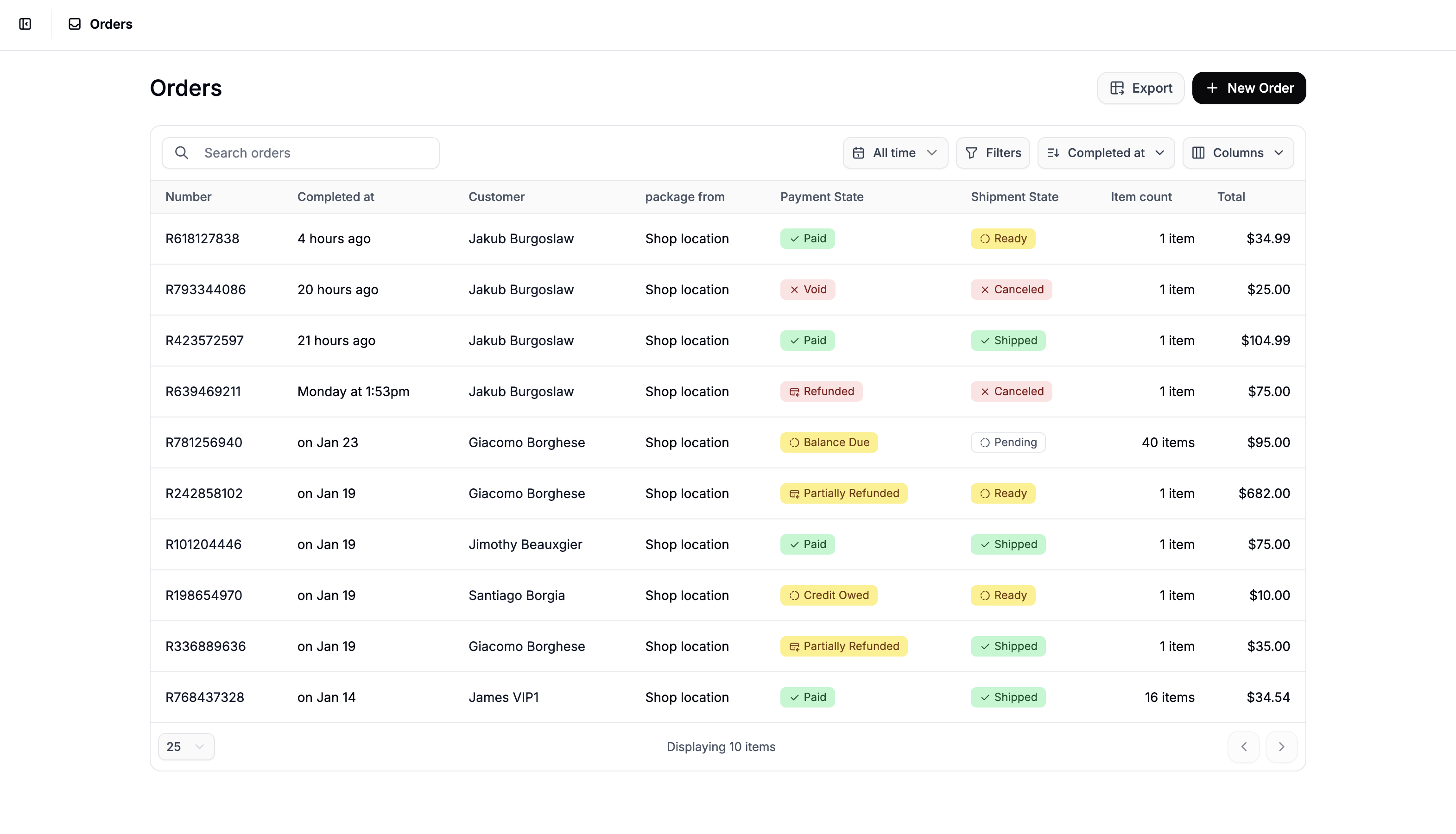 Click on the order you'd like to refund to open its detail page.
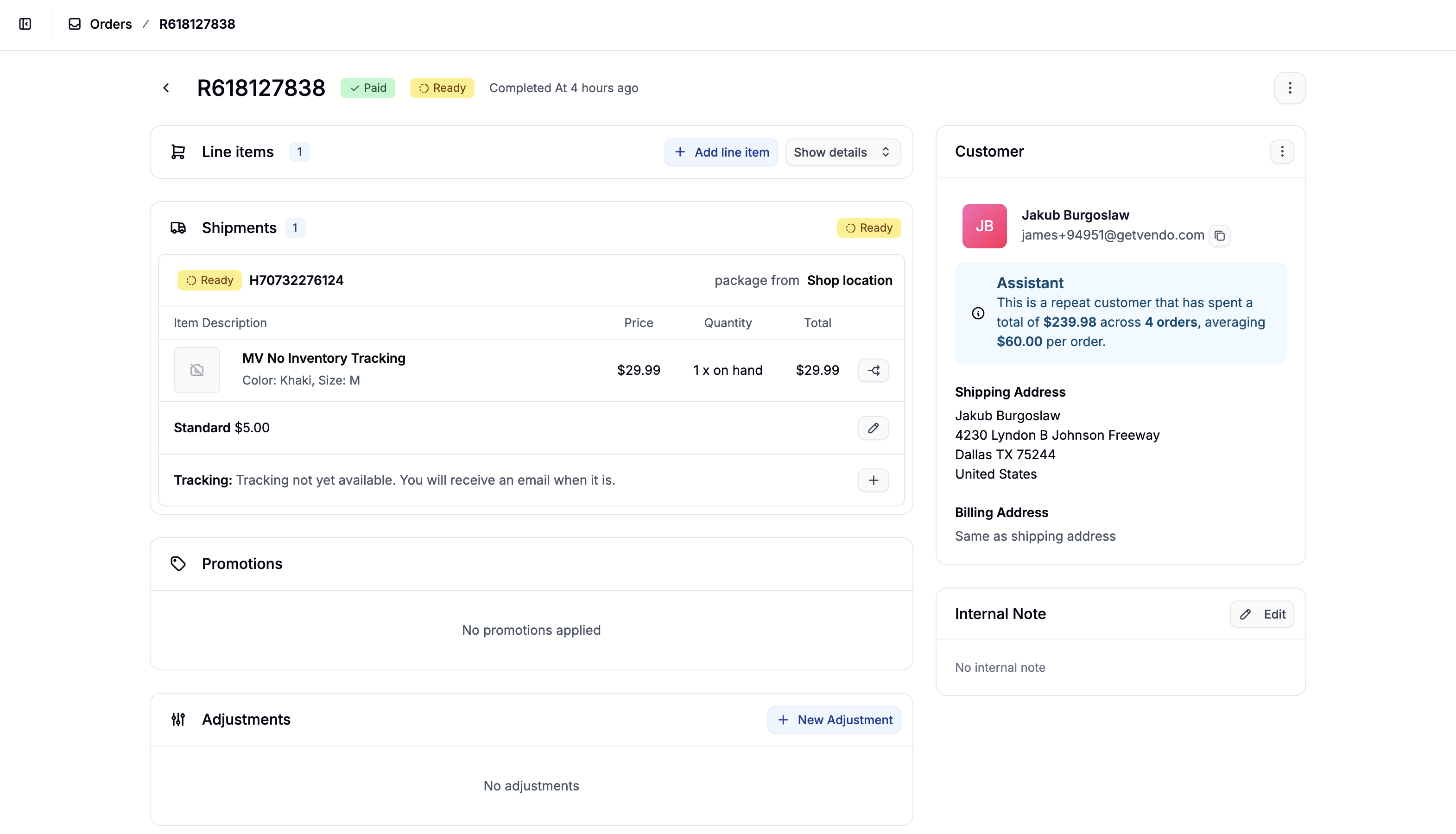 Scroll to the **Payments** section, and click the **three-dot menu** to the right of the payment you want to refund and select **Refund**.
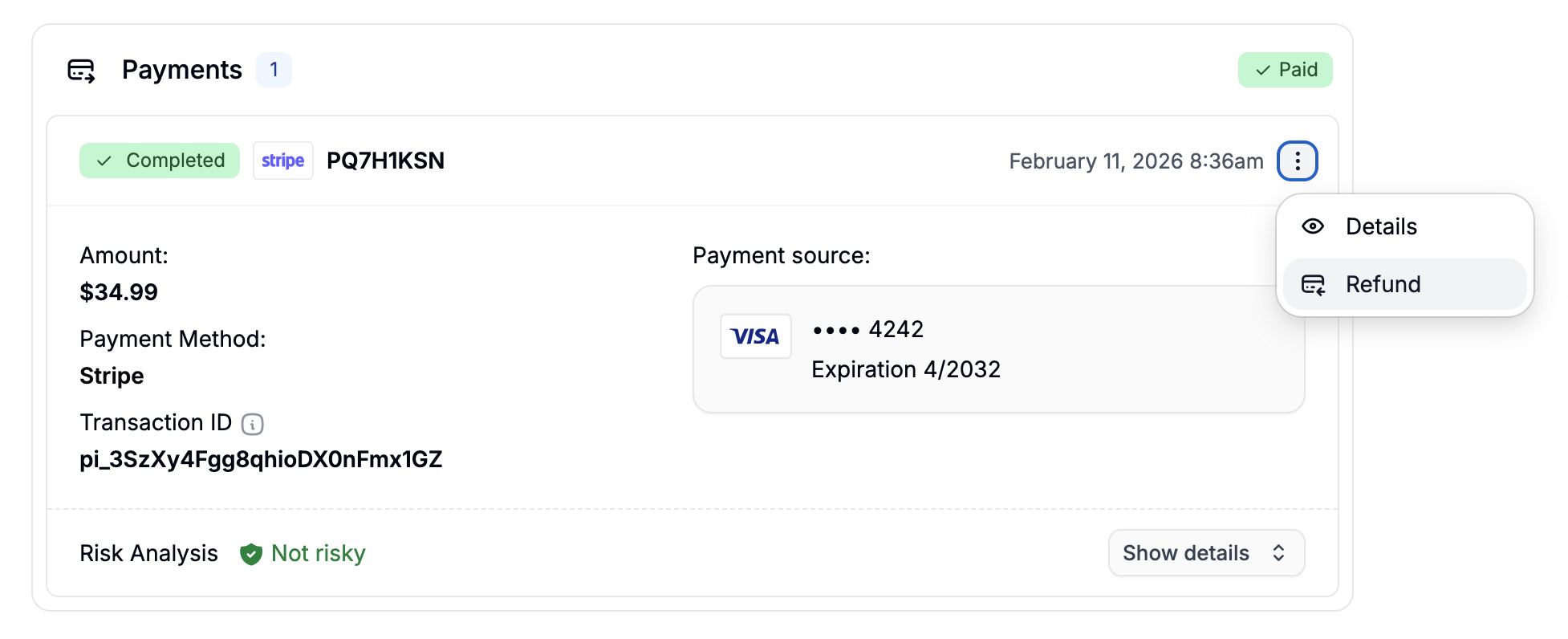 This will open a simple refund form.
## Completing the Refund
This will open a simple refund form.
## Completing the Refund
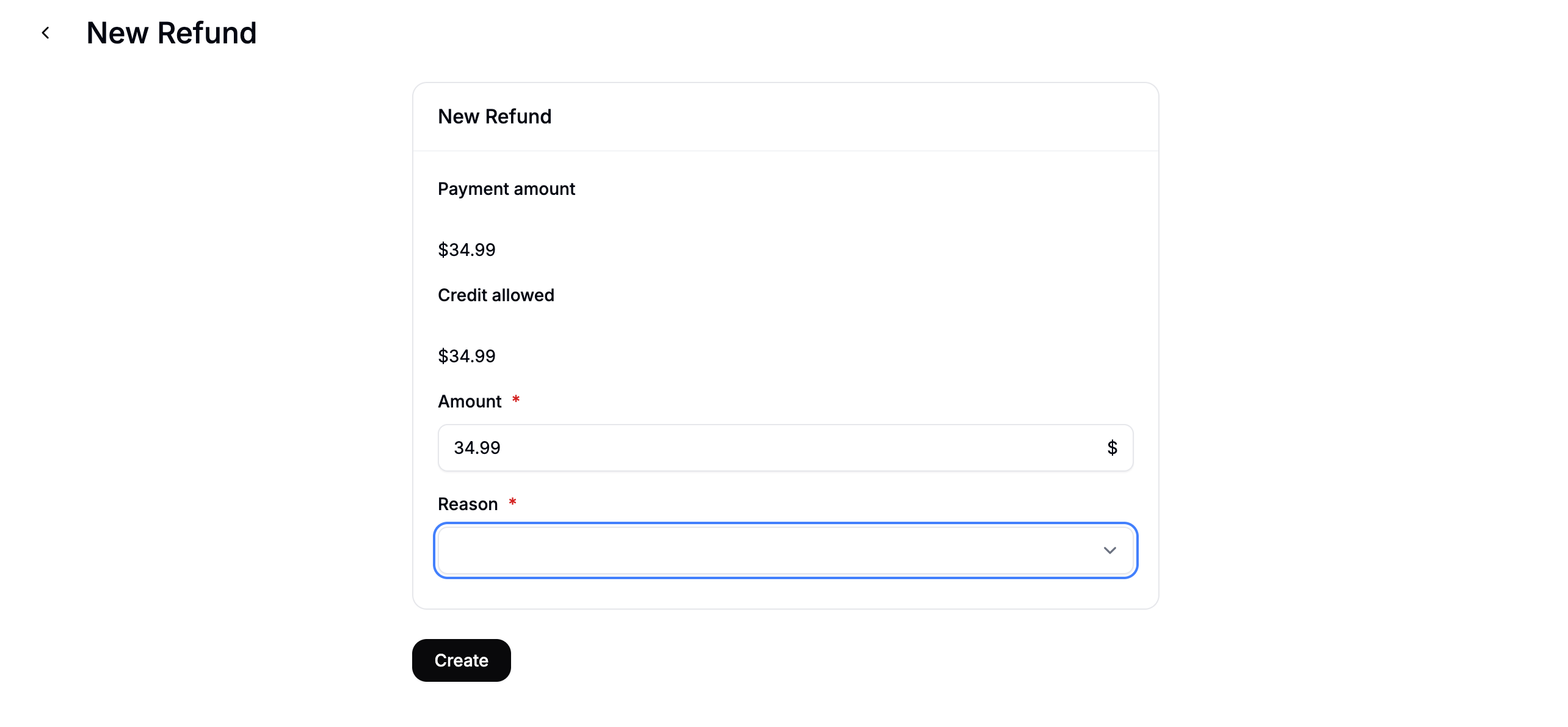 On the refund page, you’ll be able to:
* **Set the refund amount** (full or partial)
* **Choose a refund reason** from the dropdown
Once complete, click **Create** to process the refund.
The order’s payment state will be updated to reflect the refund:
* **Refunded** for full refunds
* **Partially Refunded** if only a portion was refunded
Refund behavior depends on the payment method. Some providers (like Stripe) automatically process refunds. Others (like offline/manual payments) may require you to issue the refund manually outside of Spree. Always double-check which payment method was used and whether the refund was successfully processed through your payment provider
On the refund page, you’ll be able to:
* **Set the refund amount** (full or partial)
* **Choose a refund reason** from the dropdown
Once complete, click **Create** to process the refund.
The order’s payment state will be updated to reflect the refund:
* **Refunded** for full refunds
* **Partially Refunded** if only a portion was refunded
Refund behavior depends on the payment method. Some providers (like Stripe) automatically process refunds. Others (like offline/manual payments) may require you to issue the refund manually outside of Spree. Always double-check which payment method was used and whether the refund was successfully processed through your payment provider