> ## Documentation Index
> Fetch the complete documentation index at: https://spreecommerce.org/docs/llms.txt
> Use this file to discover all available pages before exploring further.
# Export Orders
> Learn how to export orders to CSV in Spree Commerce.
As an admin, you might want to export order data for a variety of reasons - tracking sales trends, reconciling financial records, or sharing order details with other teams. Spree makes it easy to export this data in a clean CSV format.
## How to Export Orders
To export orders to CSV, navigate to the **Orders** tab of the admin dashboard.
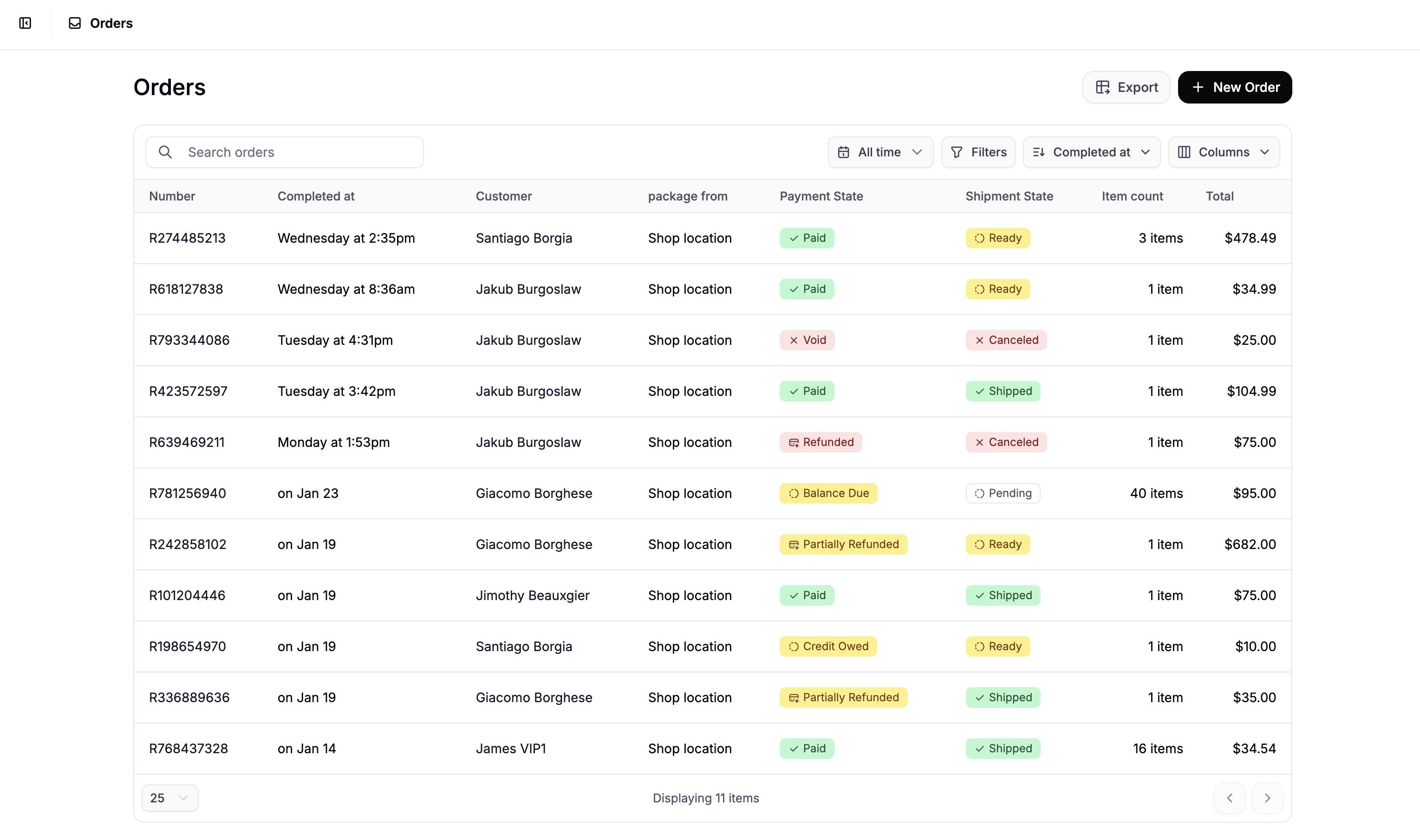 Click the **Export** button in the top-right corner, and a popup will appear
If you only want to export a subset of the data, apply filters using the filter controls at the top of the order view before clicking Export.
Click the **Export** button in the top-right corner, and a popup will appear
If you only want to export a subset of the data, apply filters using the filter controls at the top of the order view before clicking Export.
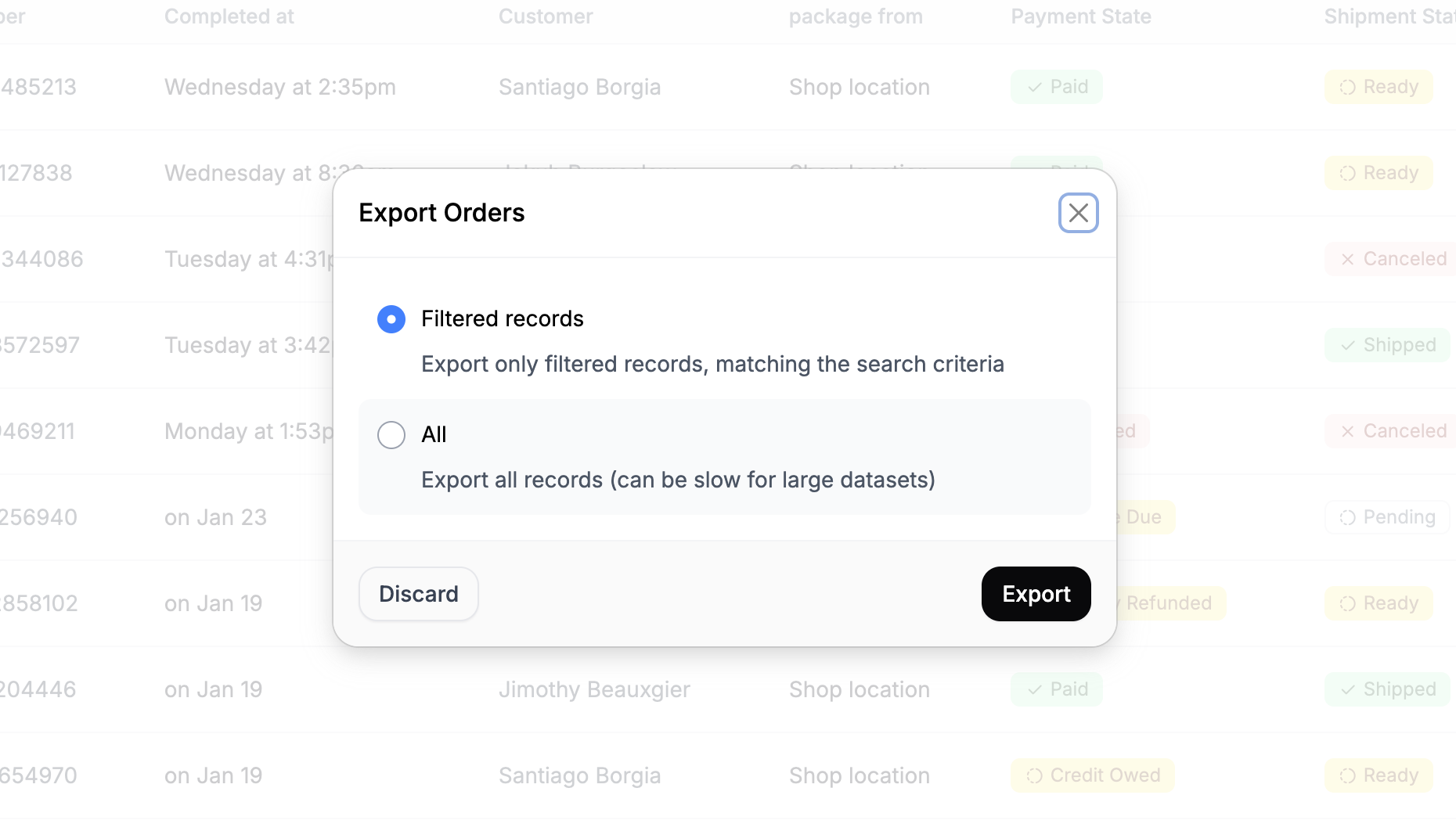 Next, choose which records to export:
* **Filtered Records** - Exports only the orders currently visible based on your applied filters (e.g., date range, payment state).
* **All** - Exports the entire order history.
Once selected, click **Export**, annd a download link for the CSV file will be sent to the email address associated with your admin user account.
Next, choose which records to export:
* **Filtered Records** - Exports only the orders currently visible based on your applied filters (e.g., date range, payment state).
* **All** - Exports the entire order history.
Once selected, click **Export**, annd a download link for the CSV file will be sent to the email address associated with your admin user account.