> ## Documentation Index
> Fetch the complete documentation index at: https://spreecommerce.org/docs/llms.txt
> Use this file to discover all available pages before exploring further.
# Editing Orders
> Learn how to edit existing orders in Spree Commerce.
Editing orders in the admin dashboard allows you to provide flexible customer support - whether that means adding items, correcting addresses, upgrading shipping, or adjusting payments. This is especially common in B2B scenarios, where bulk pricing, negotiated terms, or inventory changes may require updates after an order is placed.
## How to Edit an Order
To edit an order, navigate to **Orders** in the admin dashboard.
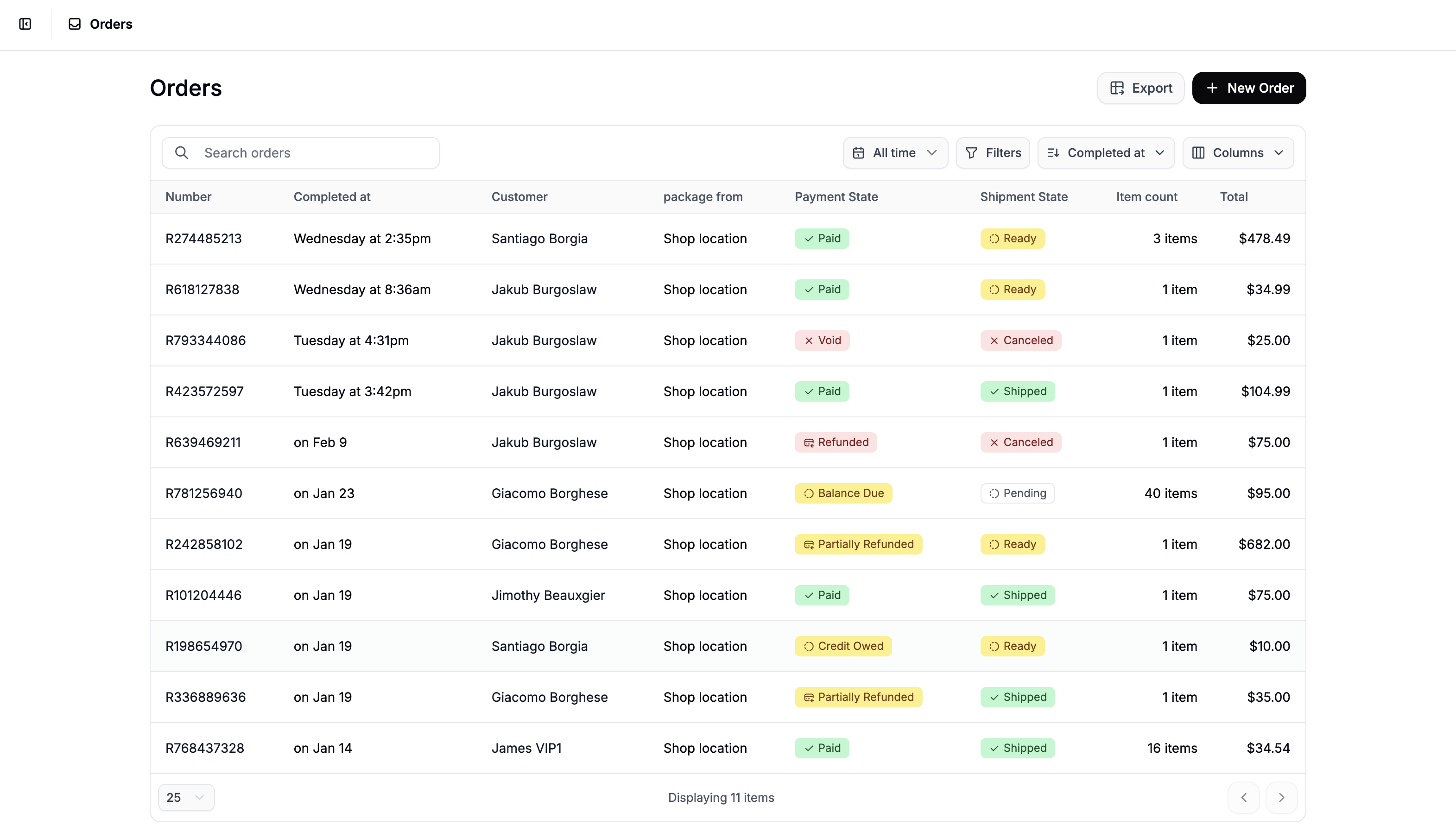 Click the order you’d like to modify to open the order details page.
 You can edit most aspects of an order (except the order number). Below are the key areas you can modify.
## Add Line Items
You can edit most aspects of an order (except the order number). Below are the key areas you can modify.
## Add Line Items
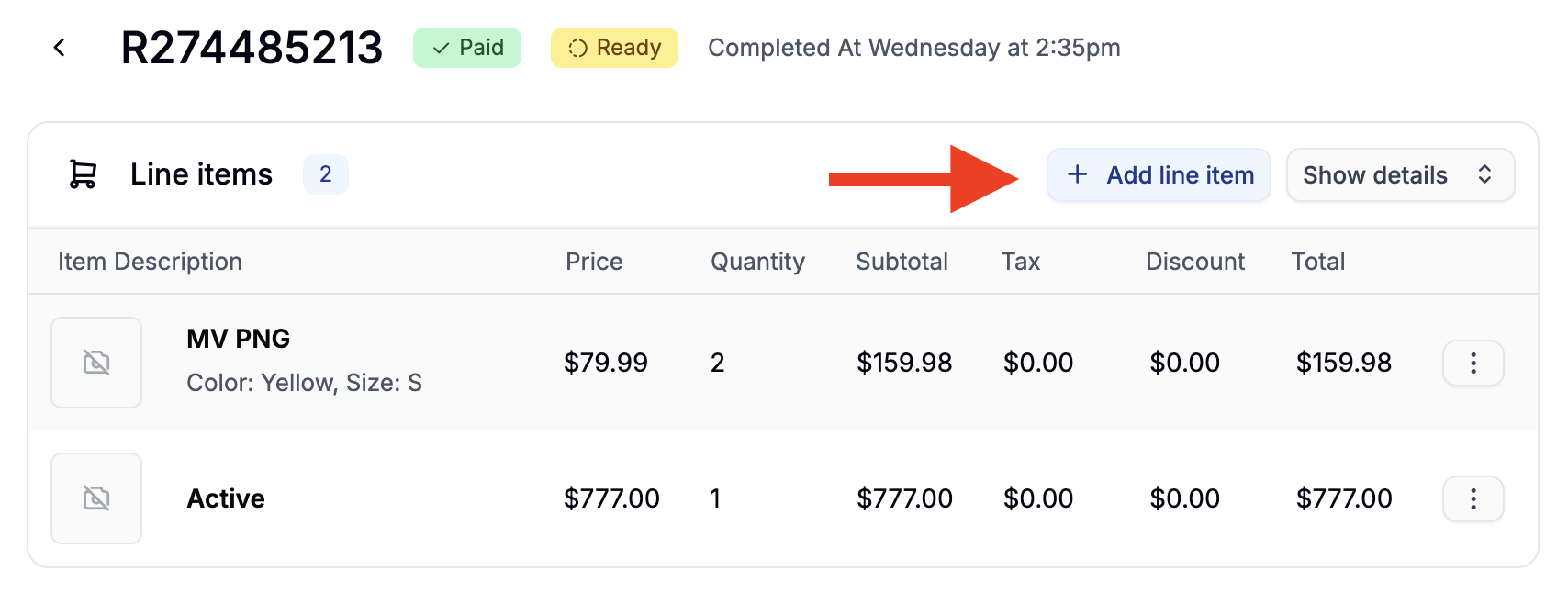 You may need to add products at a customer’s request—for example, to include additional items, upgrades, or promotional gifts.
To add a product:
1. Click **+ Add line item** at the top of the line items section.
2. Select the desired variant from the form, set the quantity and click **Add selected variant**
## Adjust Quantity of Line Items
You may need to add products at a customer’s request—for example, to include additional items, upgrades, or promotional gifts.
To add a product:
1. Click **+ Add line item** at the top of the line items section.
2. Select the desired variant from the form, set the quantity and click **Add selected variant**
## Adjust Quantity of Line Items
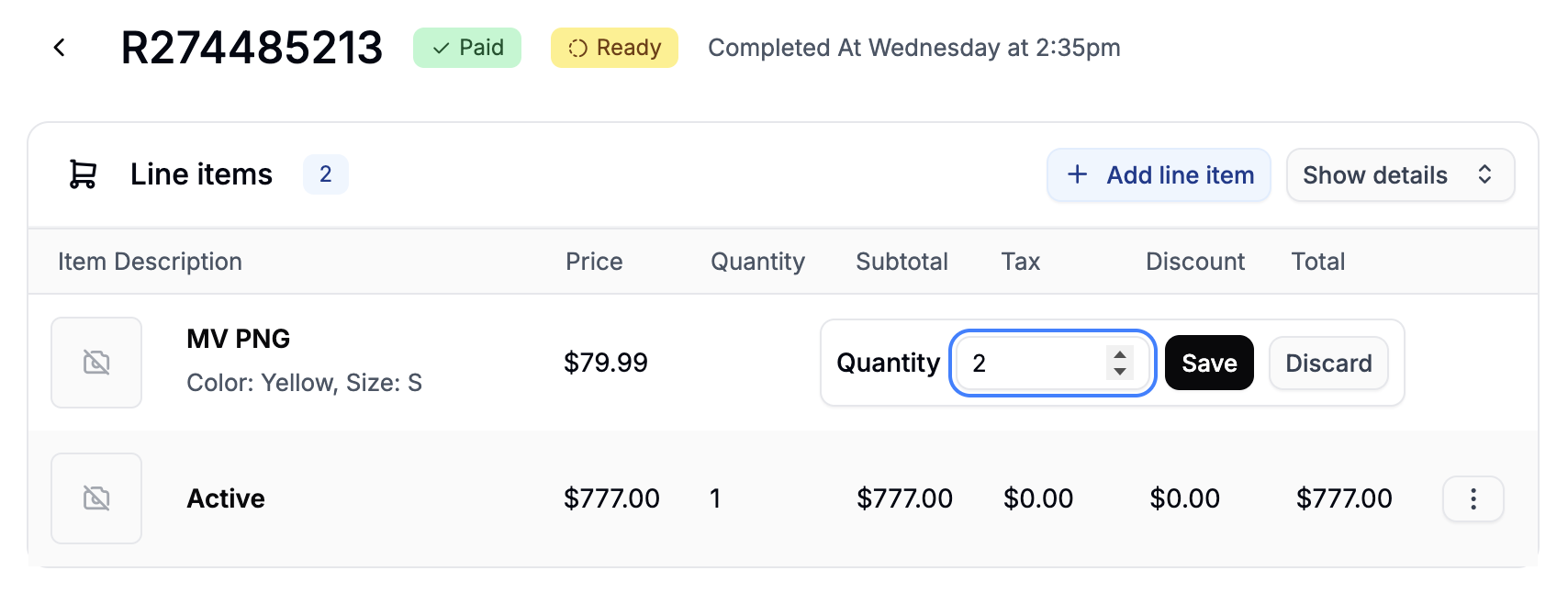 To adjust quantity of existing line items:
1. Click **Show details** to expand line items
2. Click the **three-dot menu** on the line item you’d like to adjust
3. Enter the updated quantity and click **Save**
If adding items or adjusting quantities increases the order total, you’ll need to add an additional payment (unless the item is added at no charge).
## Remove Line Items
To adjust quantity of existing line items:
1. Click **Show details** to expand line items
2. Click the **three-dot menu** on the line item you’d like to adjust
3. Enter the updated quantity and click **Save**
If adding items or adjusting quantities increases the order total, you’ll need to add an additional payment (unless the item is added at no charge).
## Remove Line Items
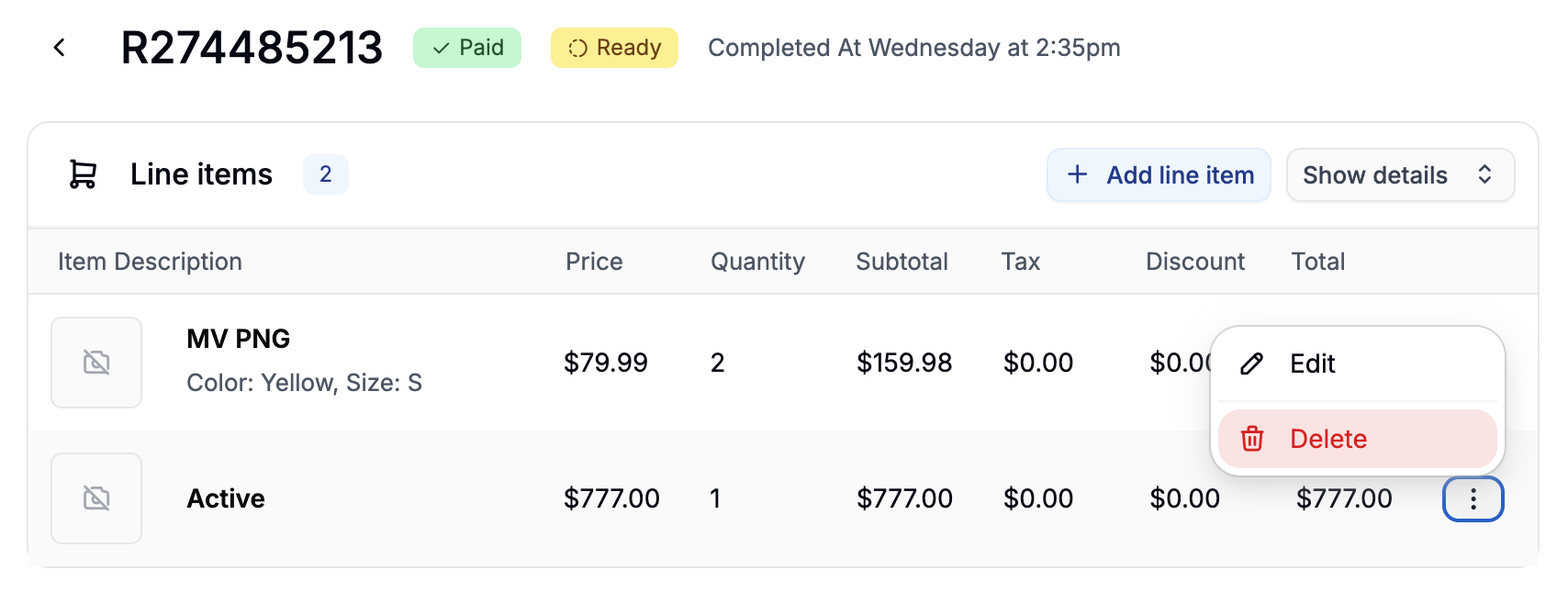 You may remove items due to customer requests, partial cancellations, or stock issues.
To remove a product:
1. Click **Show details** to expand line items
2. Click the **three-dot menu** on the line item you’d like to remove
3. Select **Delete** from the menu
If the order has already been paid, issue a partial refund. If the payment is still due, delete the existing payment and create a new one with the correct amount.
## Change Shipping or Billing Address
You may remove items due to customer requests, partial cancellations, or stock issues.
To remove a product:
1. Click **Show details** to expand line items
2. Click the **three-dot menu** on the line item you’d like to remove
3. Select **Delete** from the menu
If the order has already been paid, issue a partial refund. If the payment is still due, delete the existing payment and create a new one with the correct amount.
## Change Shipping or Billing Address
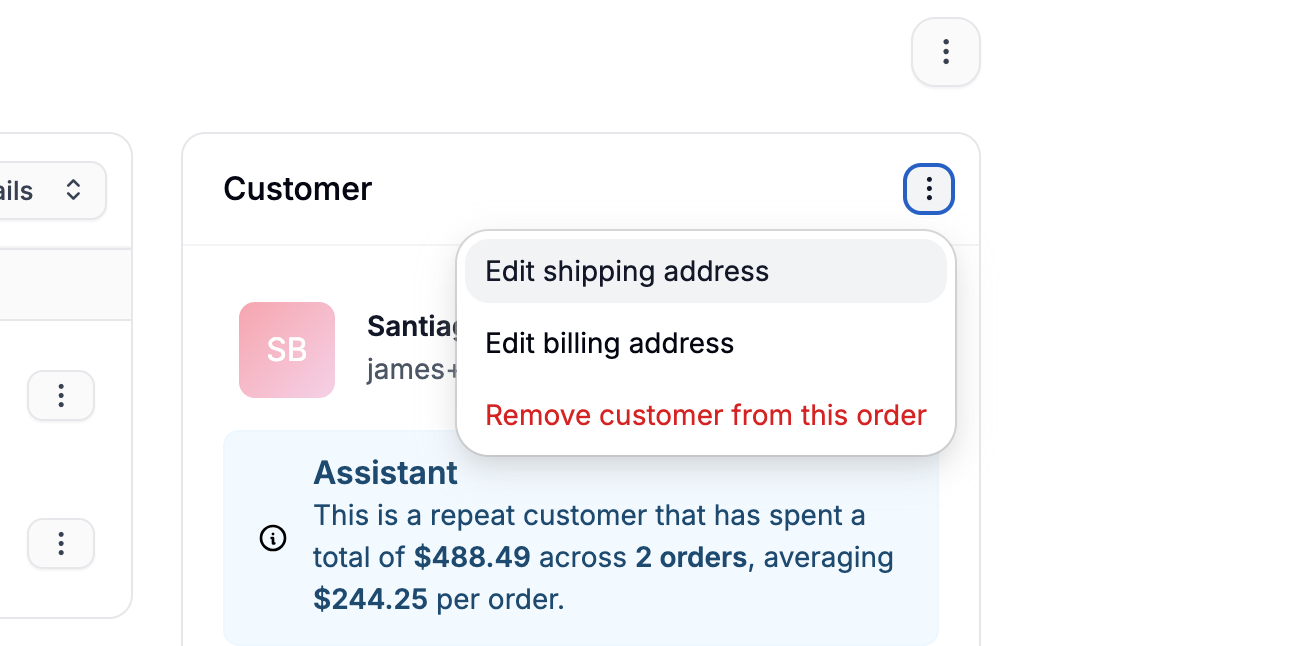 To update addresses:
1. In the **Customer** section, click the **three-dot menu**
2. Edit the shipping or billing address as needed
If the new shipping address changes the shipping zone, you may need to update the shipping method to reflect available options for that region.
## Change Fulfillment Location
To update addresses:
1. In the **Customer** section, click the **three-dot menu**
2. Edit the shipping or billing address as needed
If the new shipping address changes the shipping zone, you may need to update the shipping method to reflect available options for that region.
## Change Fulfillment Location
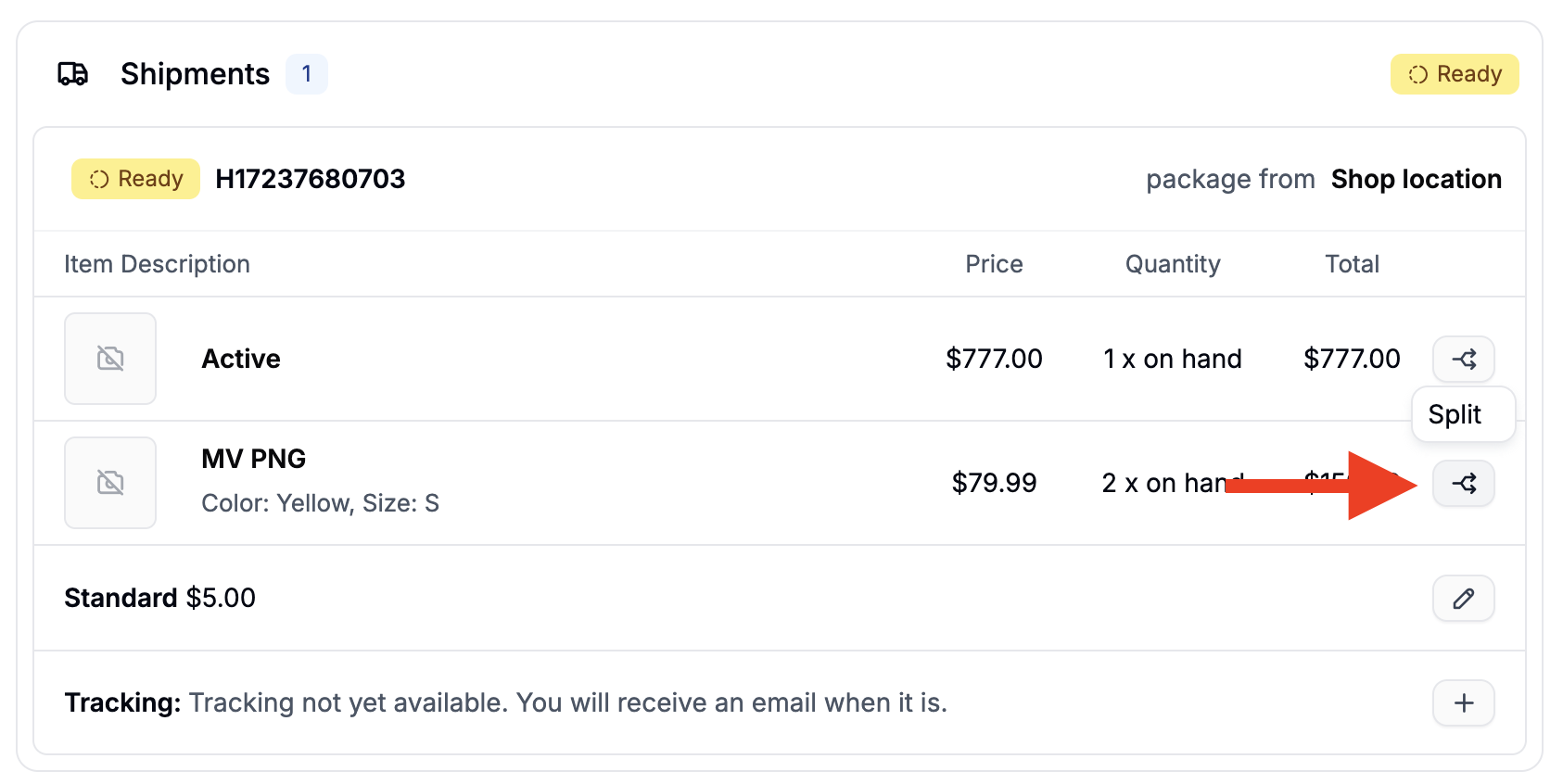 If you manage multiple stock locations, you can change where an item is fulfilled from.
To change fulfillment location:
1. In the **Shipment** section, click the **split arrow icon** next to the line item
2. Select a different stock location and click **Move**
This will split the order into multiple shipments, each with its own shipping cost.
If shipping costs change, you’ll need to update the payment accordingly.
## Change Shipping Method
If you manage multiple stock locations, you can change where an item is fulfilled from.
To change fulfillment location:
1. In the **Shipment** section, click the **split arrow icon** next to the line item
2. Select a different stock location and click **Move**
This will split the order into multiple shipments, each with its own shipping cost.
If shipping costs change, you’ll need to update the payment accordingly.
## Change Shipping Method
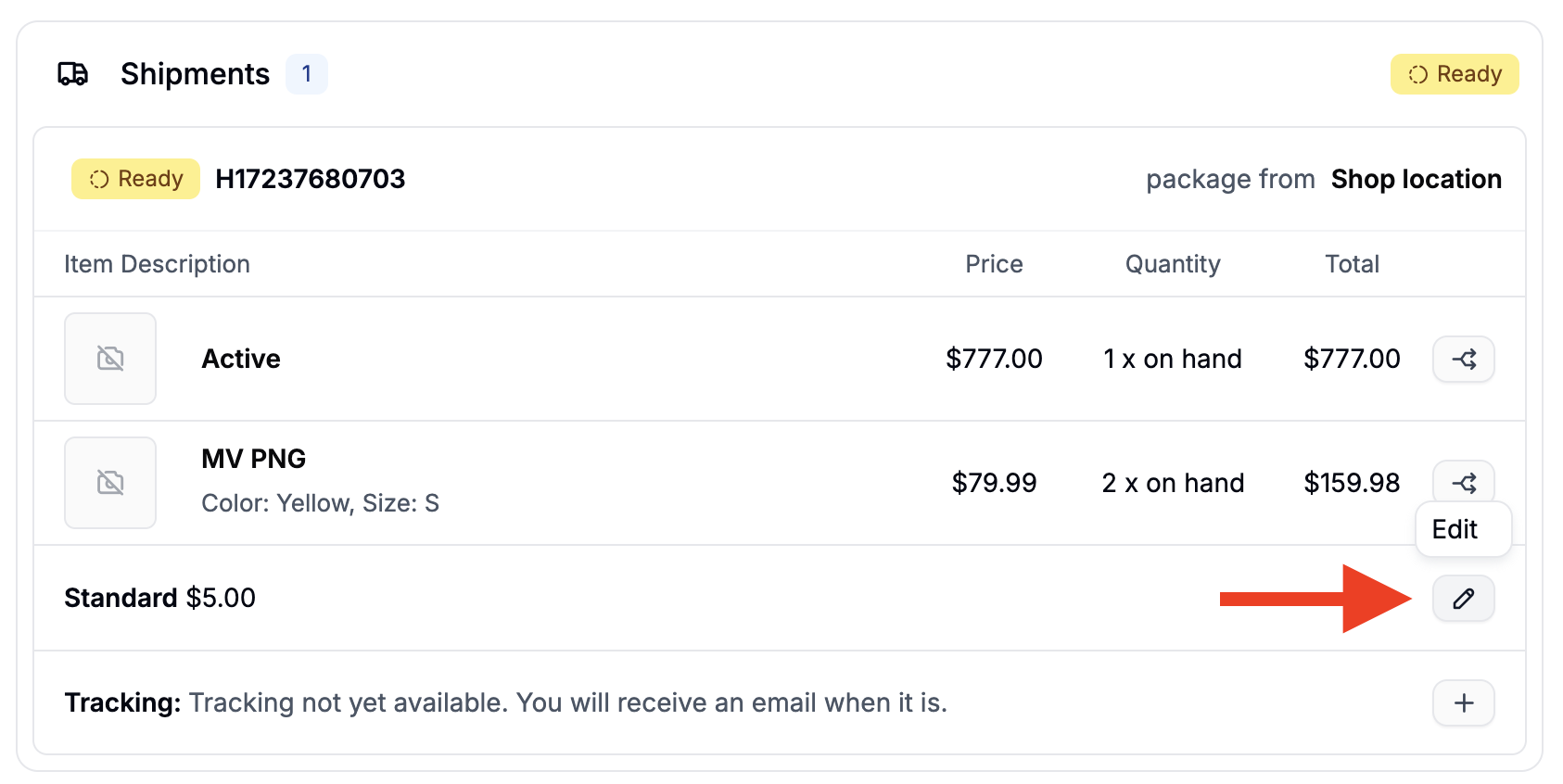 To update the shipping method:
1. Click the pencil icon next to the current shipping method
2. Select a new method from the dropdown
3. Click **Save**
If the new method has a different cost, adjust the payment to reflect the updated total.
## Add Adjustments
To update the shipping method:
1. Click the pencil icon next to the current shipping method
2. Select a new method from the dropdown
3. Click **Save**
If the new method has a different cost, adjust the payment to reflect the updated total.
## Add Adjustments
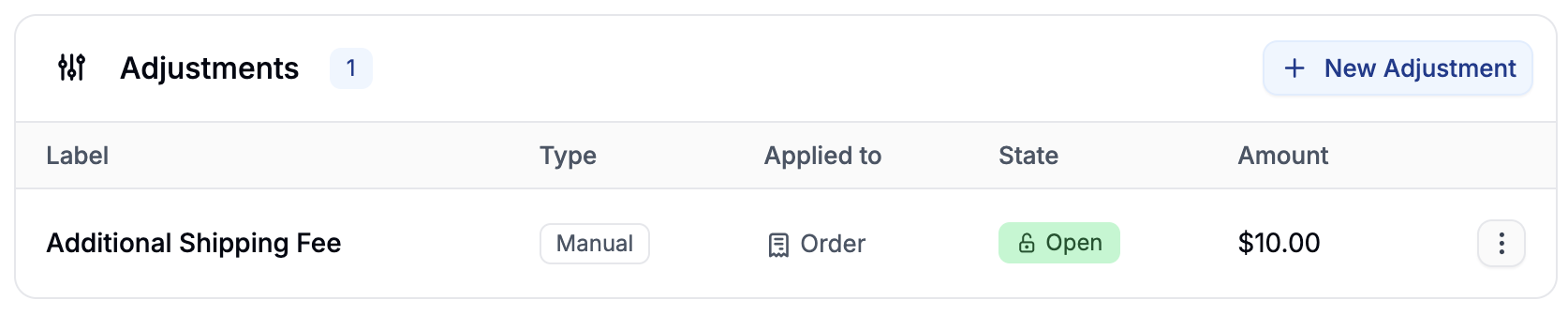 To manually adjust the order total (e.g., for discounts, fees, or custom credits):
1. Scroll to the **Adjustments** section
2. Click **+ New Adjustment**
3. Enter a Label and set an Amount:
* Positive amount = charge
* Negative amount = credit
4. Click **Create**
Adjustments will be reflected in the cost summary.
## Add Payments
To manually adjust the order total (e.g., for discounts, fees, or custom credits):
1. Scroll to the **Adjustments** section
2. Click **+ New Adjustment**
3. Enter a Label and set an Amount:
* Positive amount = charge
* Negative amount = credit
4. Click **Create**
Adjustments will be reflected in the cost summary.
## Add Payments
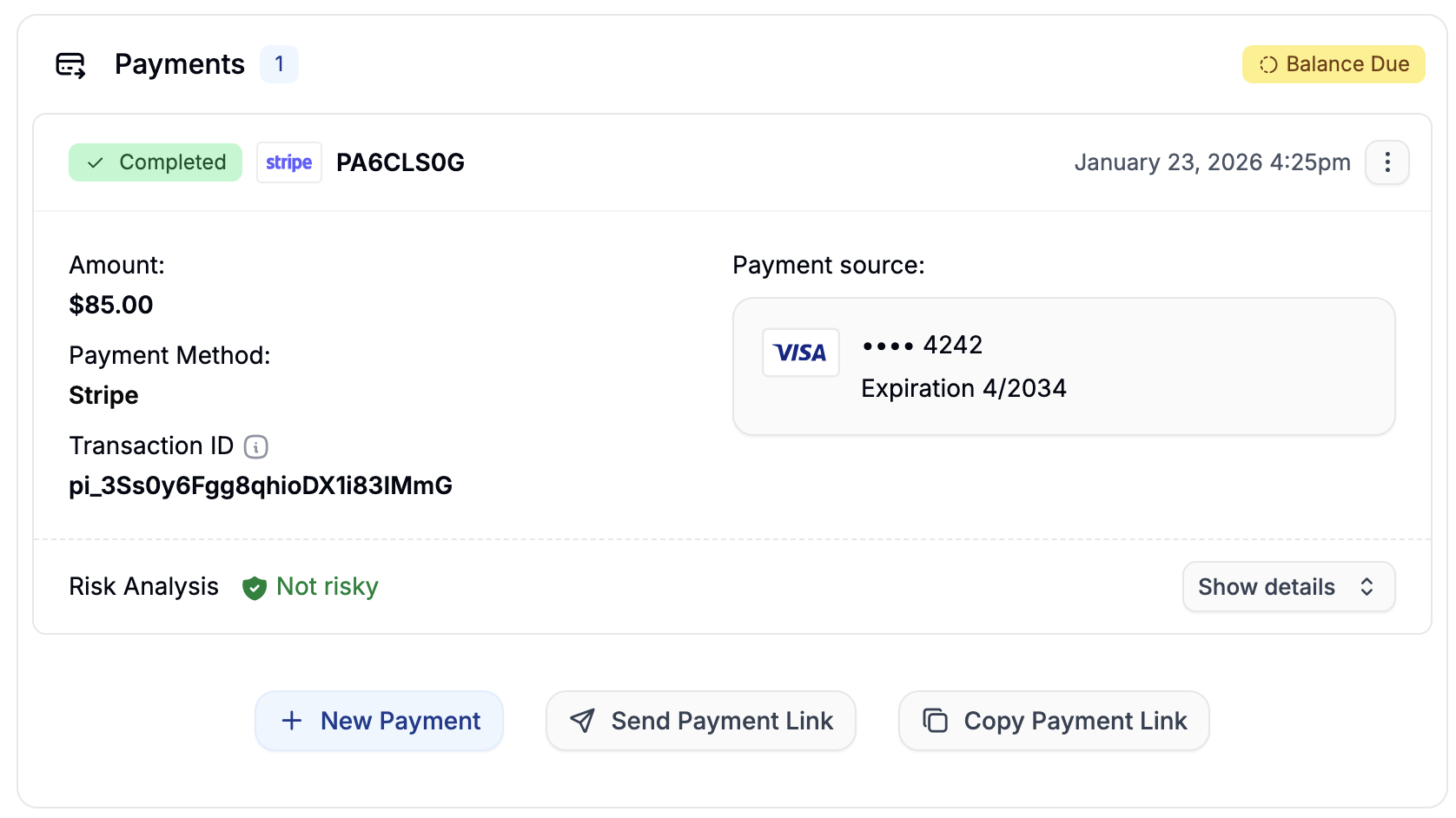 When order changes increase the total, you’ll need to add payment to keep the order balanced.
There are three options:
### Create a New Payment
Click **+ New Payment** and configure:
* **Amount** (defaults to remaining balance)
* **Payment Method**
* **Payment Source** (saved cards or accounts, if applicable)
Click **Create** to add the payment.
Depending on the payment method and its configuration, the payment may be captured automatically or require manual capture. If the customer has no saved payment source for the selected method, you won’t be able to charge it directly.
## Remove Payments
To delete a payment:
1. Click the **three-dot menu** next to the payment
2. Select **Delete**
If the payment status is **Paid**, it cannot be deleted - you must issue a refund instead.
See [Refunding Orders](https://spreecommerce.org/docs/user/orders/refunding-orders) for detailed instructions.
When order changes increase the total, you’ll need to add payment to keep the order balanced.
There are three options:
### Create a New Payment
Click **+ New Payment** and configure:
* **Amount** (defaults to remaining balance)
* **Payment Method**
* **Payment Source** (saved cards or accounts, if applicable)
Click **Create** to add the payment.
Depending on the payment method and its configuration, the payment may be captured automatically or require manual capture. If the customer has no saved payment source for the selected method, you won’t be able to charge it directly.
## Remove Payments
To delete a payment:
1. Click the **three-dot menu** next to the payment
2. Select **Delete**
If the payment status is **Paid**, it cannot be deleted - you must issue a refund instead.
See [Refunding Orders](https://spreecommerce.org/docs/user/orders/refunding-orders) for detailed instructions.