> ## Documentation Index
> Fetch the complete documentation index at: https://spreecommerce.org/docs/llms.txt
> Use this file to discover all available pages before exploring further.
# Translations
> Learn how to manage and track product translations across all your store's locales in Spree Commerce.
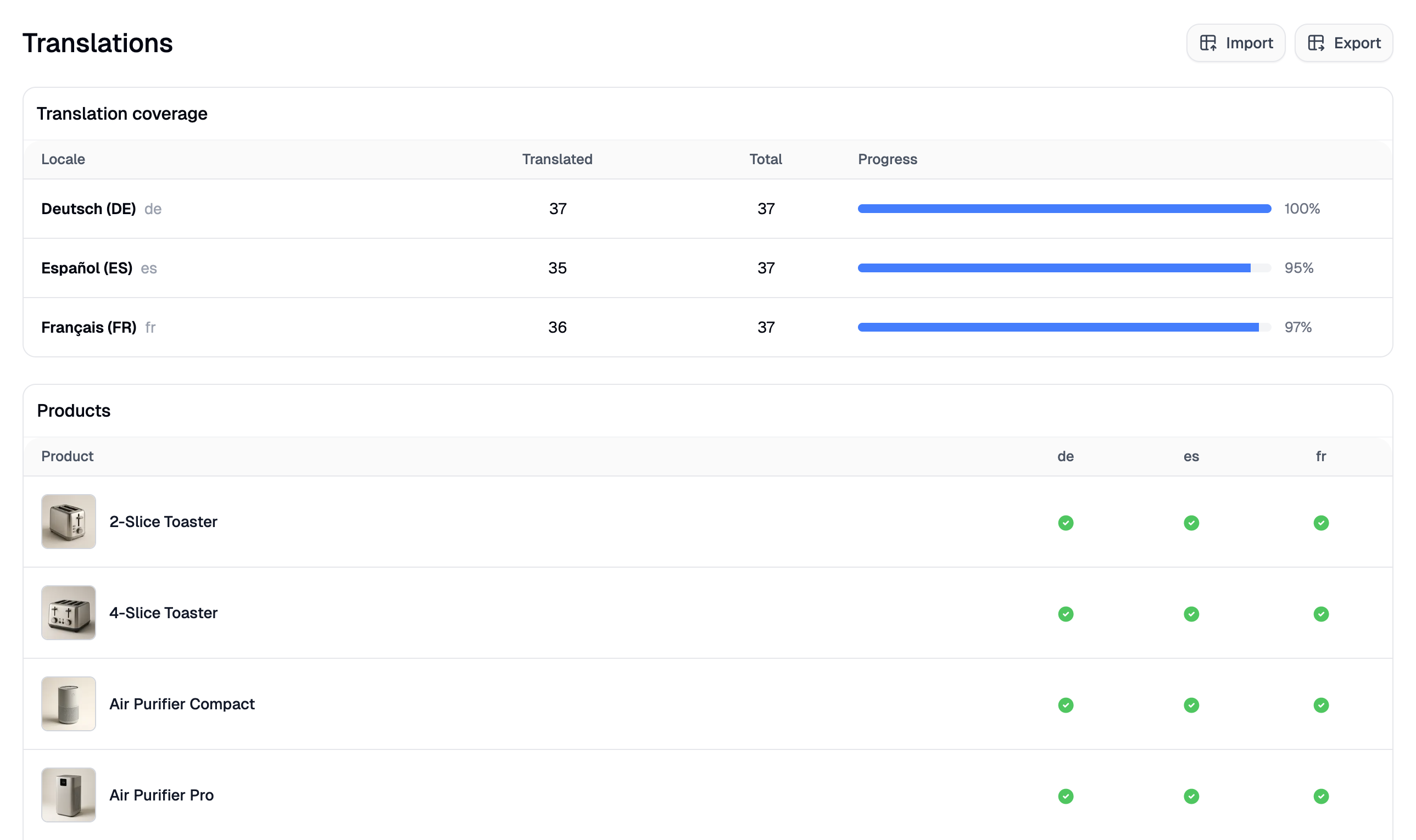
The Translations page gives you a single place to see how well your product catalog is translated across every language your store supports. Rather than hunting through individual product pages, you can see at a glance which products have been translated and which still need attention — and use bulk import/export to handle translations in volume.
To access Translations, navigate to **Products → Translations** in the admin dashboard.
 The languages shown on this page are determined by your Markets configuration. If you don't see any locales listed, you'll need to set up additional markets first. See [Settings → Markets](https://spreecommerce.org/docs/user/settings/markets) for more details.
## Translation Coverage
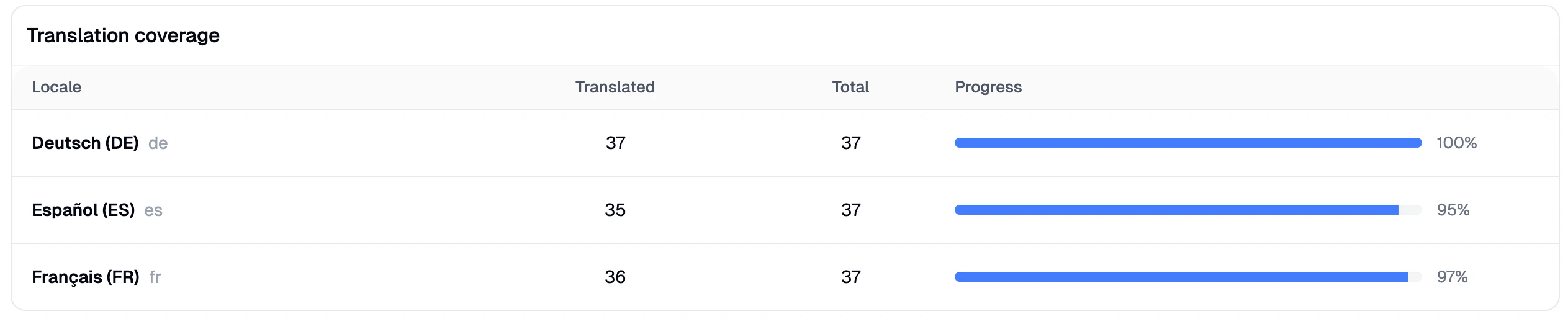
At the top of the page, you'll see a coverage summary table with one row per locale your store supports (excluding your default language). Each row shows:
* **Locale** - The language code (e.g., `fr`, `de`, `es`)
* **Translated** - How many products have a translation for that locale
* **Total** - The total number of products in your catalog
* **Coverage** - The percentage translated, shown as both a number and a visual progress bar
This gives you a quick health check on your localization progress without needing to export any data.
The languages shown on this page are determined by your Markets configuration. If you don't see any locales listed, you'll need to set up additional markets first. See [Settings → Markets](https://spreecommerce.org/docs/user/settings/markets) for more details.
## Translation Coverage
At the top of the page, you'll see a coverage summary table with one row per locale your store supports (excluding your default language). Each row shows:
* **Locale** - The language code (e.g., `fr`, `de`, `es`)
* **Translated** - How many products have a translation for that locale
* **Total** - The total number of products in your catalog
* **Coverage** - The percentage translated, shown as both a number and a visual progress bar
This gives you a quick health check on your localization progress without needing to export any data.
 ## Product Translation Status
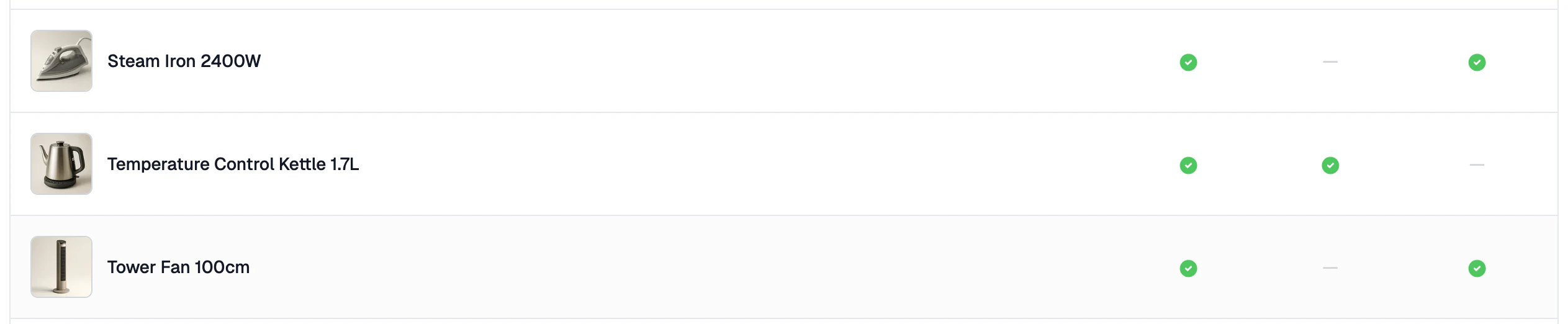
Below the coverage table, you'll see a paginated list of all your products. Each product has a column for every configured locale, showing either a checkmark (✓) if a translation exists or a dash (—) if it's missing.
## Product Translation Status
Below the coverage table, you'll see a paginated list of all your products. Each product has a column for every configured locale, showing either a checkmark (✓) if a translation exists or a dash (—) if it's missing.
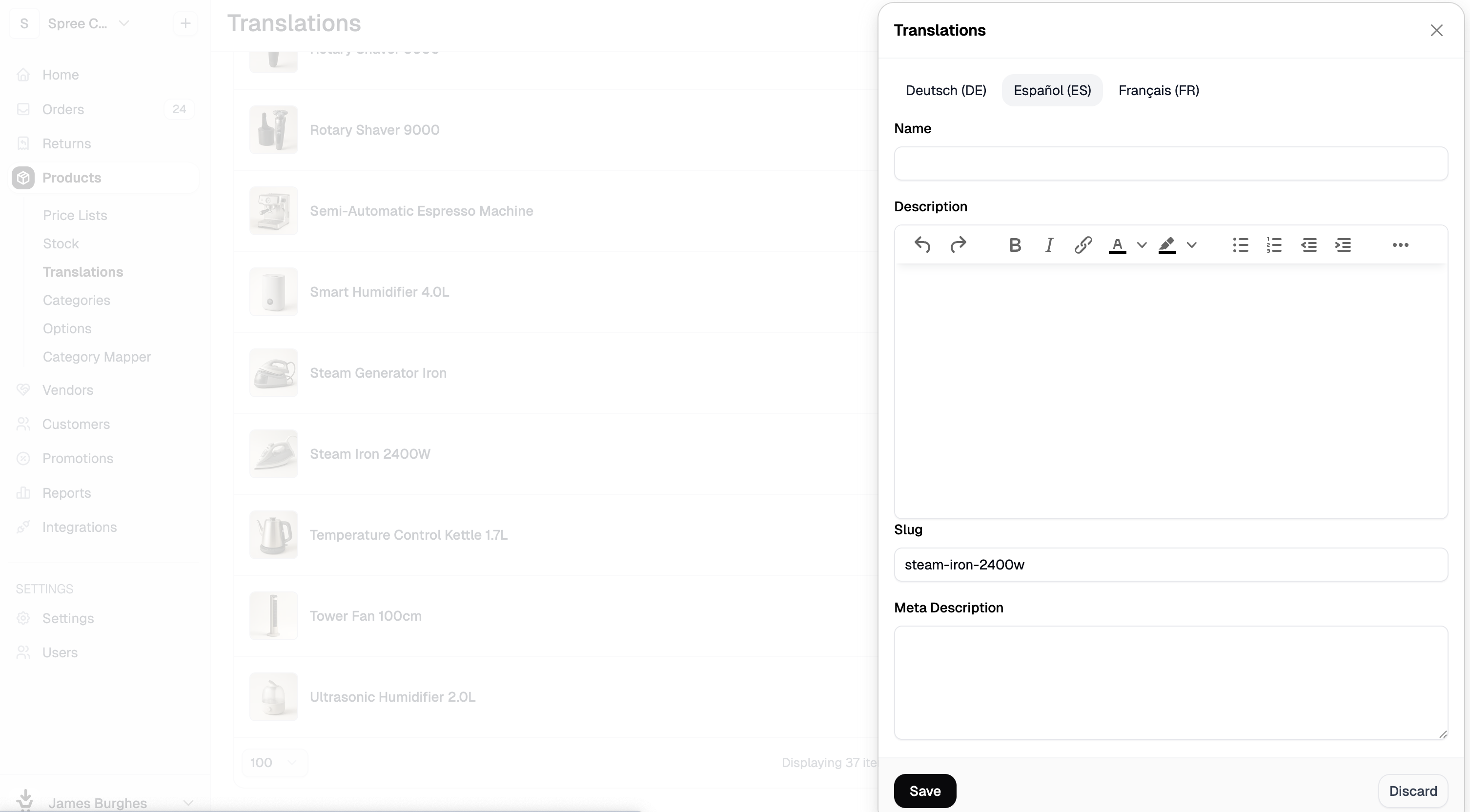
 To edit a product's translations, click on the product name. This will open the translation drawer where you can add or update translated content for that product.
 ## Bulk Export Translations
If you prefer to manage translations in a spreadsheet, you can export your entire translation dataset as a CSV file.
Click **Export** in the top-right corner of the page.
## Bulk Export Translations
If you prefer to manage translations in a spreadsheet, you can export your entire translation dataset as a CSV file.
Click **Export** in the top-right corner of the page.
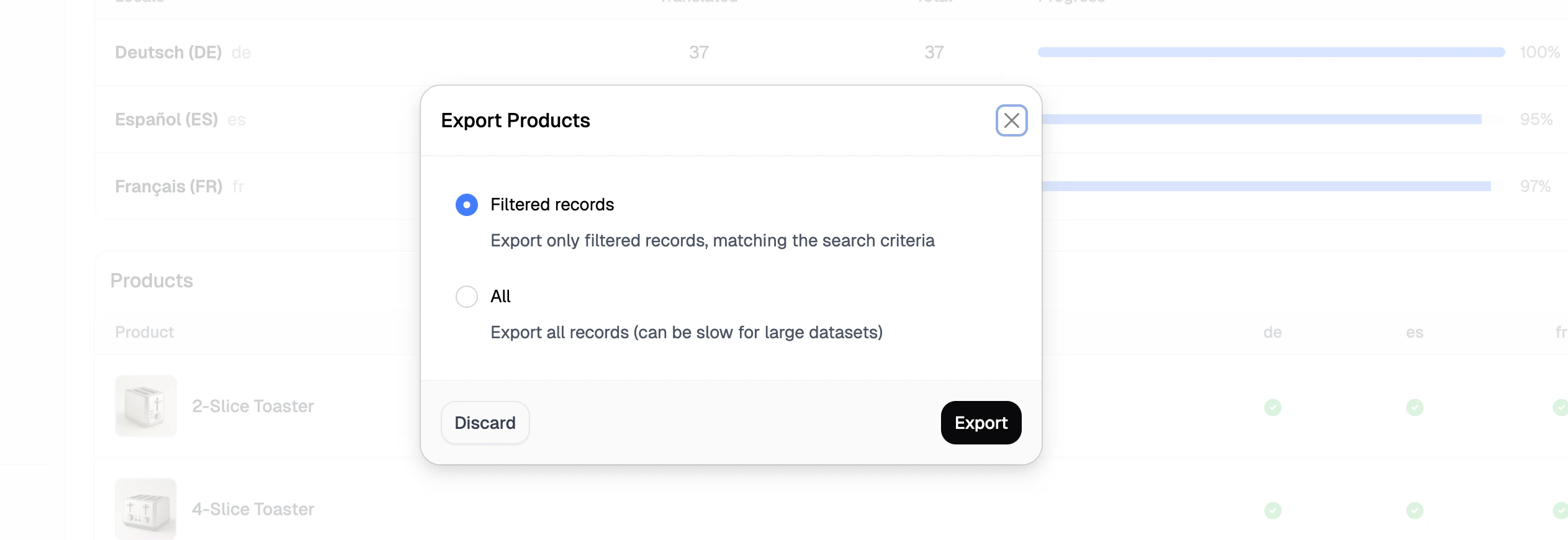 Click **Export** to confirm, and a download link will be sent to the email address associated with your admin account.
## Bulk Import Translations
Once you've updated your translations in the exported file (or built a new file from scratch), you can import them back in bulk.
Click **Import** in the top-right corner of the page. This opens the import side panel.
Click **Export** to confirm, and a download link will be sent to the email address associated with your admin account.
## Bulk Import Translations
Once you've updated your translations in the exported file (or built a new file from scratch), you can import them back in bulk.
Click **Import** in the top-right corner of the page. This opens the import side panel.
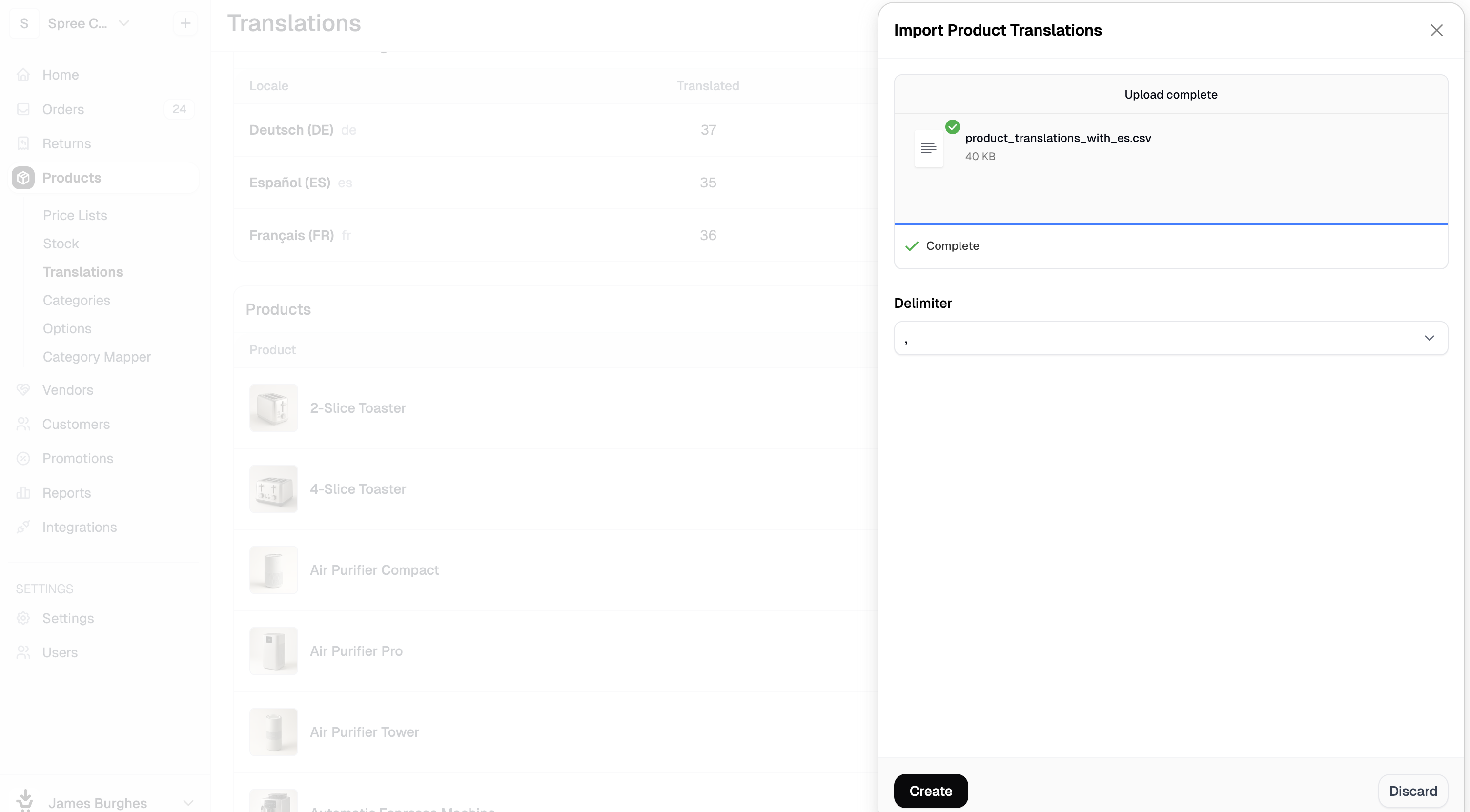 1. Drag and drop your CSV file into the upload area, or click **browse files** to select it from your computer.
2. Select the correct delimiter used in your file (comma, pipe, semicolon, or tab).
3. Click **Create** to proceed to the field mapping step.
4. Review the field mapping and adjust any columns that weren't matched automatically, then click **Continue** to submit.
Once submitted, you'll be redirected to a processing screen where you can monitor the import progress. Any rows with errors will be flagged with a message so you can fix and re-import them.
The translation import uses the same importer infrastructure as the product importer. If you're familiar with importing products, the process will feel very similar.
## Next Steps
* [Settings → Markets](https://spreecommerce.org/docs/user/settings/markets) — Configure which languages and locales your store supports
* [Import Products](https://spreecommerce.org/docs/user/manage-products/import-products) — Learn how to bulk import product data
* [Export Products](https://spreecommerce.org/docs/user/manage-products/export-products) — Learn how to export your product catalog
1. Drag and drop your CSV file into the upload area, or click **browse files** to select it from your computer.
2. Select the correct delimiter used in your file (comma, pipe, semicolon, or tab).
3. Click **Create** to proceed to the field mapping step.
4. Review the field mapping and adjust any columns that weren't matched automatically, then click **Continue** to submit.
Once submitted, you'll be redirected to a processing screen where you can monitor the import progress. Any rows with errors will be flagged with a message so you can fix and re-import them.
The translation import uses the same importer infrastructure as the product importer. If you're familiar with importing products, the process will feel very similar.
## Next Steps
* [Settings → Markets](https://spreecommerce.org/docs/user/settings/markets) — Configure which languages and locales your store supports
* [Import Products](https://spreecommerce.org/docs/user/manage-products/import-products) — Learn how to bulk import product data
* [Export Products](https://spreecommerce.org/docs/user/manage-products/export-products) — Learn how to export your product catalog